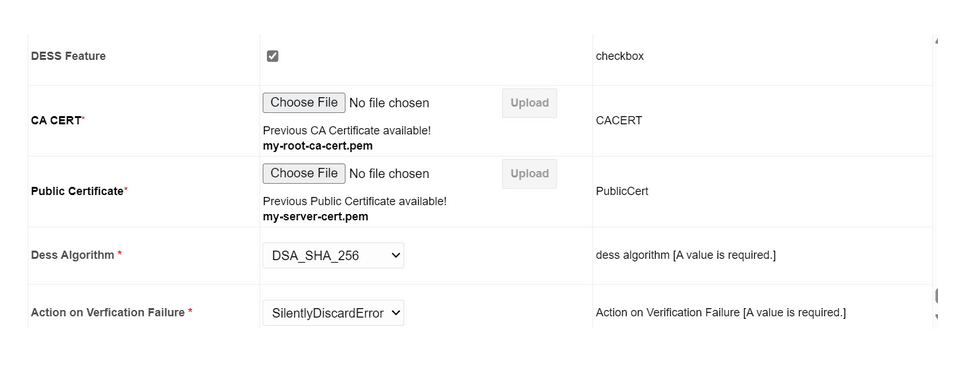
11.3.2 Peer Node Configuration
Perform the following procedure to enable DESS (Diameter End-to-End Security)
in the peer node:
Note:
By default DESS feature will be disabled.- Log in to the active SOAM (Service Operations, Administration, and Maintenance) GUI.
- From the Main Menu, navigate to Diameter, Configuration, Peer Nodes, and then click Insert.
- Enable DESS Feature check box.
- Upload CA CERT.
- Upload Public Certificate.
Note:
Certificates must be in .pem format. - Select the required DESS algorithm from the dropdown menu:
- RSA_SHA_256
- EC_DSA_SHA_256
- DSA_SHA_256
- If the signature verification fails for the peer node, select any of the
following options from the dropdown menu of Action on Verification
Failure:
- "Send Error": DSR will return Diameter answer
message with result code
5012: UNABLE_TO_COMPLY. - "Silently Discard Error": The system will silently drop the received message without taking any further action.
- "Send Error": DSR will return Diameter answer
message with result code
- Click Apply.
.
Note:
When applying, GUI will verify the certificates and throws error if public certificate is not issued by CA certificate or public and private certificate are not in pair.Figure 11-5 Peer Node Configuration