2 About Configuring Nodes and Node Chains
This chapter provides an overview of how to configure node chains by using the Oracle Communications Offline Mediation Controller Administration client.
Does a rule file specify the type of input file to process? "From the Rule File list, select the rule file that matches the type of input file processed by the CC node."
About Creating Node Chains
Before you can configure node chains, you need to install and configure the Offline Mediation Controller components.
-
Start the Offline Mediation Controller components:
-
Oracle Universal Directory
-
One or more node managers
-
The administration server
-
The Administration client
See Offline Mediation Controller System Administrator's Guide for information.
-
-
In the Administration client, you create mediation hosts for each instance of a node manager. To create a mediation host, you assign the host name and port number of a node manager. After a mediation host is created, you can create nodes and node chains.
-
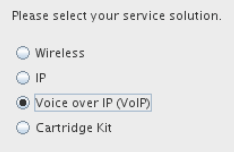
When you create a new node on the mediation host, the Administration client presents a series of choices that enable you to select a node for you solution. First, you select the solution type:
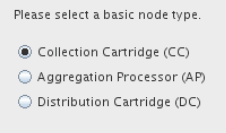
Then, you select the node type:
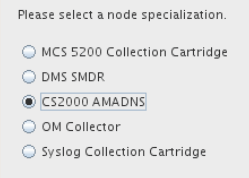
Depending on the solution type and node type, you then select a node specialization:
-
Each node requires configuration, and might require you to edit the rule file. All configuration and rule file editing is performed in the Administration client.
-
When all the nodes are created and configured, you drag and drop connection lines between them to define the order of nodes in the node chain.
When you create a node chain:
-
Create the CC, EP, AP, and DC nodes as necessary.
-
To specify the order of the node chain, you drag and drop a connector from the output of one node to the input of another node.
-
To configure a CC node, you need to set up a method for Offline Mediation to Receive input from an external system.
-
To configure a DC node, you need to set up a destination for Offline Mediation to send data to.
-
-
After the nodes are configured and connected, you start the node chain.
About Node Configuration
To configure nodes in the Administration client, you choose the type of node you want, and edit the configuration in a dialog box. Each node can have different configuration options depending on the node functionality. For example, CC nodes can include file input configuration, and DC nodes have no configuration for destination nodes.
Figure 2-4 shows a node configuration dialog box.
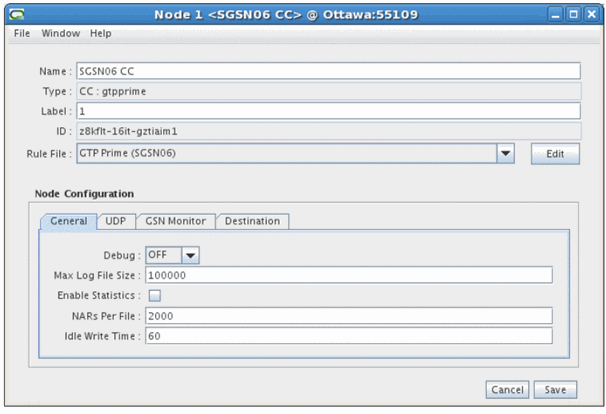
As shown in this figure:
-
All nodes include an option to select a rule file and edit it.
-
All nodes include a General tab, which specifies administration parameters, such as log file configuration. Each type of node can have different requirements, so the options vary. For example, some nodes raise an alarm if no input is received in a specified amount of time.
-
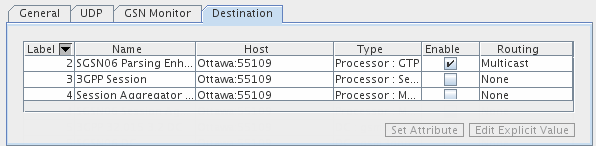
All nodes except DC nodes include a Destination tab. The Destination tab lists the nodes that the node connects to. DC nodes do not connect to any other node. You use the Destination tab to specify the type of routing to use, for example, multicast or round robin. See "About Distributed Node Chains."
-
All other tabs in a node configuration depend on the node functionality. For example, in Figure 2-4, the node needs to use User Datagram Protocol (UDP) to get data, so the UDP tab configures the UDP connection.
For information about the options in each dialog box tab, see Offline Mediation Controller Online Help.
About Editing Rule Files
You edit rule files in the Administration client when you configure nodes. You open the rule file, edit it, and perform a test compile. If compilation fails, you can edit again. When compilation works, you save the file.
Rule files define the functionality that a node carries out. For example:
-
The rule file for a CC node contains that mapping and normalizing rules that translate incoming data into a NAR.
-
The rule for a DC node contains that rules that transform a NAR into the output needed by the target system.
-
The rule file for an EP node contains that functions that manipulate the data to carry out the node function.
In many cases, a node has a pre-configured rule file that does not need editing. In some cases, a node can include multiple rule files that you can choose from; for example, to specify a different output. In some cases, you need to select a rule file and edit it.
Editing a rule file can be as simple as providing a value in a name-value pair. For example, the following entry in a rule file specifies the field to use when checking for duplicate records:
DUP_CHECK_KEYS "calling_number session_id seq_no";
You can also use Java hooks to implement more complex mappings and configurations. For example, this Java hook implements a JDBC connection:
Config {
JDBCDriver "oracle.jdbc.driver.OracleDriver";
JDBCUrl "jdbc:oracle:thin:@%DBHOST%:%DBPORT%:%DBSID%";
}
Java hooks are provided by each cartridge. For example, the Oracle CDR Format Cartridge includes many Java hooks to validate input.
For more information on using Java hooks with NPL, see the discussion on Java hooks in Offline Mediation Controller Cartridge Development Kit NPL Reference Guide.
About Configuring EC and AP Nodes
In addition to general and destination configurations, EC nodes and AP nodes typically include node-specific configuration parameters. For example:
-
The duplicate check EP node uses a De-Duplication tab to configure such options as where to store the files that hold duplicate records, the number of records per file, and so on.
-
The record recycling EP node uses a Database Info tab to configure the connection information required to send records to a database.
-
The sesstion aggregation AP node uses an Aggregator tab to specify how often to send aggregated records to the next node in the node chain.
About Distributed Node Chains
You can manage performance by configuring node chains on multiple mediation hosts.
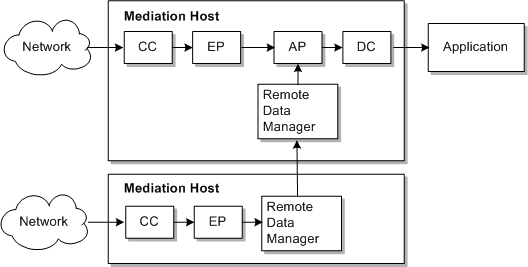
Figure 2-5 shows a node chain that runs on two mediation hosts. This node chain receives input from two devices, but outputs to one application. The Remote Data Manager sends the output NAR of an EP node on one mediation host to the input of the AP node in the other mediation host.
You can run multiple instances of Offline Mediation Controller by running multiple pairs of administration server primary and backup servers. If you do, you can send NAR files from the DC node in one instance of Offline Mediation Controller to the CC node in another instance. Figure 2-6 shows node chains connected across administration servers.

About Node Routing
You can use various types of routing in a node chain to process NARs in different ways and implement load balancing.
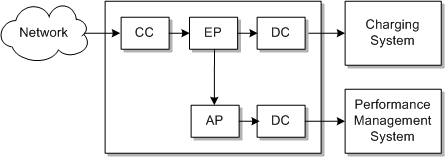
You can use multicast routing to branch a node chain. Figure 2-7 shows a node chain with one input and two outputs. In this configuration, the EP node sends all of the NAR files to two different nodes; one for output to a charging system, and one to an aggregation processor that sends the NARs to a performance management system.
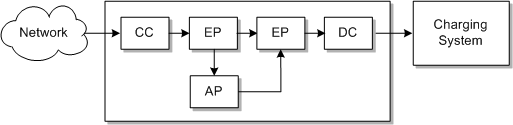
You can use multicast routing to send all of the NAR files to both branches, or you can use directed routing to send NAR files to different branches. For example, you can branch a node chain based on the value of a field in the NAR. Figure 2-8 shows a node chain that implements an additional aggregation step for only some of the NAR files.
You can improve performance by creating multiple instances of the same processing node. You can then route NAR files to different instances to process the files in parallel. Figure 2-9 shows a CC node configured to send NAR files to one of three different EP nodes.
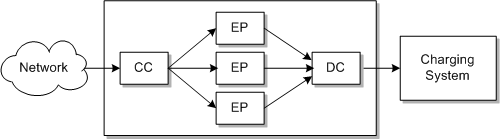
To send NAR files to different nodes as shown in Figure 2-9, you can use round robin routing, which rotates where the NAR is sent, or modulus routing, which sends the NAR file to a node based on a field value in the NAR. See the Offline Mediation Controller Online Help for information about configuring NAR file routing.
You configure NAR routing in two places:
-
In the Destination tab when you configure the node. For example, you can choose multicast or round robin routing. Figure 2-10 shows a node configured to use Mutlicast routing for one destination node, but no routing for the other nodes.
-
When you drag and drop a connection from one node to another. If routing is enabled for the destination node, you enter the routing algorithm. For example, to configure distributed routing, you specify the conditions that enable the NAR to be sent to the destination node.