Cloud
This topic explains the required steps to connect to Exadata VM Cluster, Exadata Database, Autonomous AI Database on Dedicated Infrastructure, and Autonomous AI Database Serverless.
- Exadata VM Cluster
- Exadata Database
- Autonomous AI Database on Dedicated Infrastructure
- Autonomous AI Database Serverless
In an Exadata environment, you can connect to the Exadata VM Cluster that hosts the database. This topic describes the step-by-step instructions.
- Obtain Exadata Infrastructure Networking Details
- From the Oracle AI Database@AWS dashboard, select Exadata VM clusters. From the resource list, select the VM cluster name link.
- Expand the Virtual machines section to review details about your virtual machines.
- Select the specific Virtual machine name link of the VM you want to connect.
- Take a note of the Private IP address from the Summary section.
- Connect to the Exadata VM Cluster (using SSH)
This topic explains the required steps to create an Amazon EC2 instance within the same VPC as Exadata VM Cluster, generate an SSH key pair and configure connectivity to Exadata VM Cluster through the OCI console.
- Create an Amazon EC2 Linux Instance
- Create an Amazon EC2 Linux instance in a VPC peered with an ODB Network where your Exadata VM Cluster resides.
- Assign an Elastic IP ( Public IP) to your Amazon EC2 instance.
- Download and securely store the SSH private key (
.pem) file that is generated during the Amazon EC2 instance creation process. - For SSH access (port 22): You need an inbound rule that allows SSH traffic from your specific IP address or a designated range. As a security best practice, restrict access to known IP addresses instead of allowing access from the entire internet (
0.0.0.0/0).
- Connect to Amazon EC2
- Based on your operating system, complete the following substeps:
- Mac OS:
- Run the following command from your terminal to change your directory to the location where your PEM key is stored:
cd /path/to/your/pem/file - Run the following command from your terminal to modify the permissions of your
.pemfile to restrict access:chmod 400 DemoClient.pemNote
Replace theDemoClient.pemwith your file name before running the command. - Run the following command to use the Elastic IP to connect to Amazon EC2 instance.
ssh -i DemoClient.pem ec2-user@<EC2-Elastic-IP>Note
Replace<EC2-Elastic-IP>with the Elastic IP or public IP of your Amazon EC2 instance before running the command. - Once you log into your Amazon EC2 instance, run the command to connect to Exadata VM Cluster using SSH step 2c.
- Run the following command from your terminal to change your directory to the location where your PEM key is stored:
- Windows:
- Run the following command from your PowerShell or Command Prompt to change your directory to the location where your
.pemfile is stored:cd "C:\path\to\your\pem\file" - Check the permissions. This step is optional.
Note
Windows doesn’t use thechmodcommand. Hoewever, you can ensure that only your user account has access to the PEM file. Right-click the file, select Properties, and then navigate to the Security tab to adjust the permissions. - Run the following
SSHcommand.ssh -i DemoClient.pem ec2-user@<EC2-Elastic-IP>Note
- Replace the
DemoClient.pemwith your file name before running the command. - Replace
<EC2-Elastic-IP>with the Elastic IP or public IP of your Amazon EC2 instance before running the command.
- Replace the
- Once you log into your Amazon EC2 instance, run the command to connect to Exadata VM Cluster using SSH step 2c.
- Run the following command from your PowerShell or Command Prompt to change your directory to the location where your
- Mac OS:
- Based on your operating system, complete the following substeps:
- Connect from Amazon EC2 to Exadata VM Cluster Using SSH
- Copy your Exadata VM Cluster's private key into the Amazon EC2 instance.
- Change your directory to the location where your private key file is copied.
- Run the following command from your terminal to change the permissions of your private key to give only the owner read access and restrict access for all other users and groups.
chmod 400 DemoExadataVm1.pemNote
Replace theDemoExadataVm1.pemwith your file name before running the command. - Run the following command to connect to your VM using the Private IP address of your cluster.
ssh -i ~/DemoExadataVm1.pem <exadata_user>@<Exadata-VM-Private-IP>Note
- Replace
<exadata_user>with your user information that you have for your Exadata before running the command. - Replace
<Exadata-Private-IP>with your Private IP address of Exadata VM Cluster before running the command.
- Replace
- Create an Amazon EC2 Linux Instance
- Obtain Exadata Infrastructure Networking Details
To connect to your Exadata Database using Oracle SQL Developer, you must first complete the following prerequisite steps:
- You must configure network access so that an application or client, in this case an Amazon EC2 Windows instance running in AWS, can connect to an Oracle Database listener on port 1521, the default SQL Net port for Oracle connections.
- From the OCI Console, navigate to Oracle Exadata Database Service on Dedicated Infrastructure.
- From the left menu, select Exadata VM Clusters and then select your Exadata VM Cluster from the list.
- From the Database information tab, scroll down to Client security network groups section and then select the corresponding Network Security Group (NSG) that is attached to your Exadata VM Cluster.
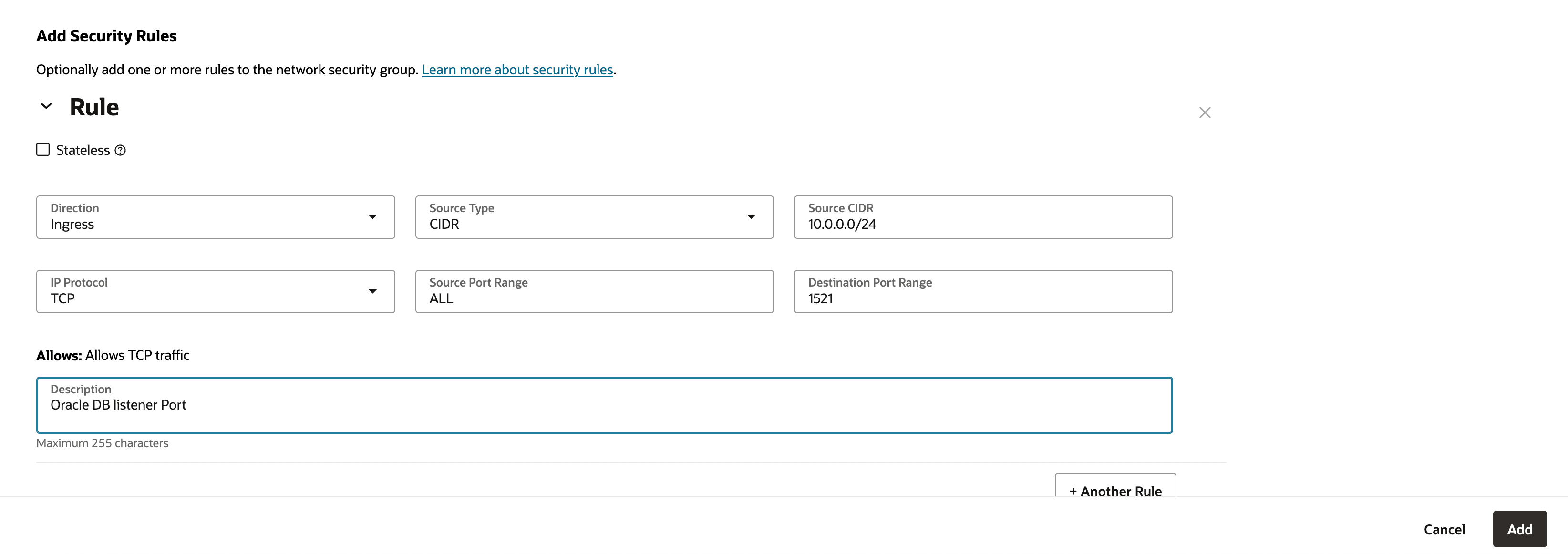
- From the Network Security group page, select Security Rules and then select the Add rules button.
- On the Add Security Rules page, enter the following information:
- Select Ingress as Direction.
- Select CIDR as Source Type.
- Enter the CIDR for the Amazon EC2 Windows instance in the Source CIDR field.
- Select TCP as IP Protocol.
- Enter All in the Source Port Range field.
- Enter 1521 in the Destination Port Range field.
- Enter a description under the Allows section. For example,
Allow EC2 to connect to DB on port 1521. - Once you review your information, select the Add button.
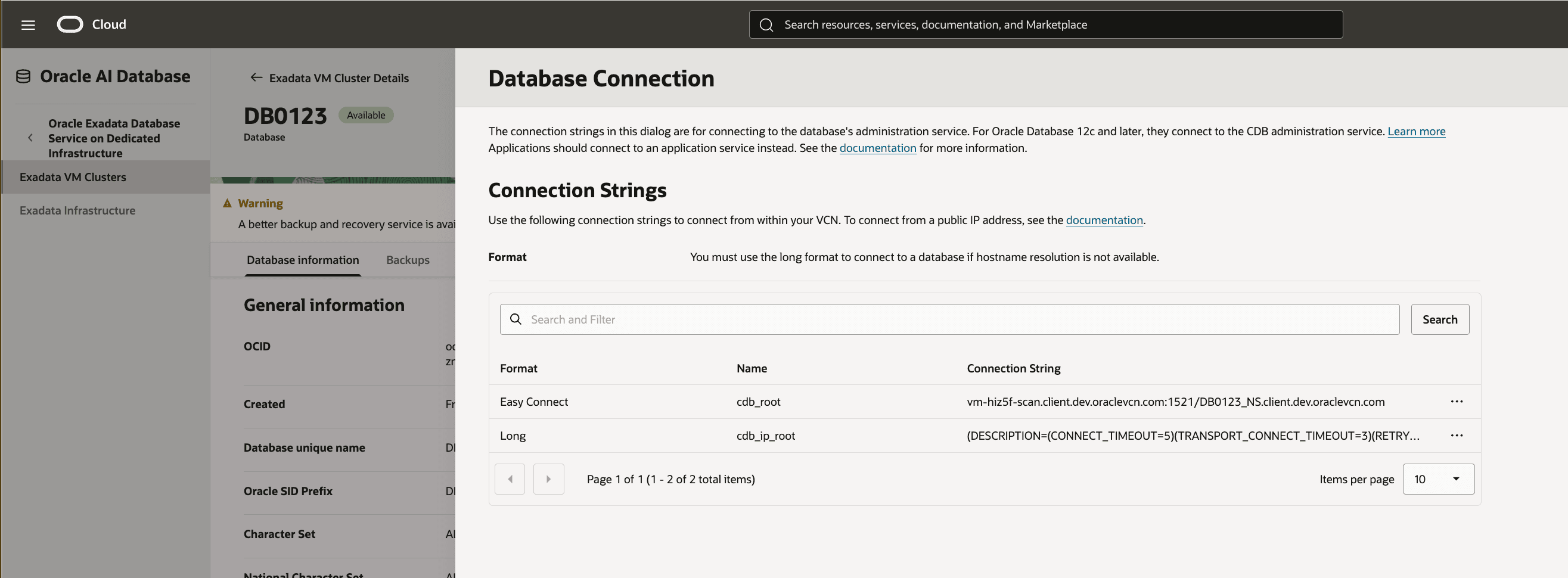
- To obtain the connection string for your Exadata Database that you want to connect to, complete the following steps in the OCI Console.
- From the OCI Console, navigate to Oracle Exadata Database Service on Dedicated Infrastructure.
- From the left menu, select Exadata VM Clusters and then select your Exadata VM Cluster from the list.
- Select the Databases tab and then select the Pluggable Database or Container Database that you wish to connect to.
- Select the More Actions button and then select DB connection.
- Copy the Connection String information.
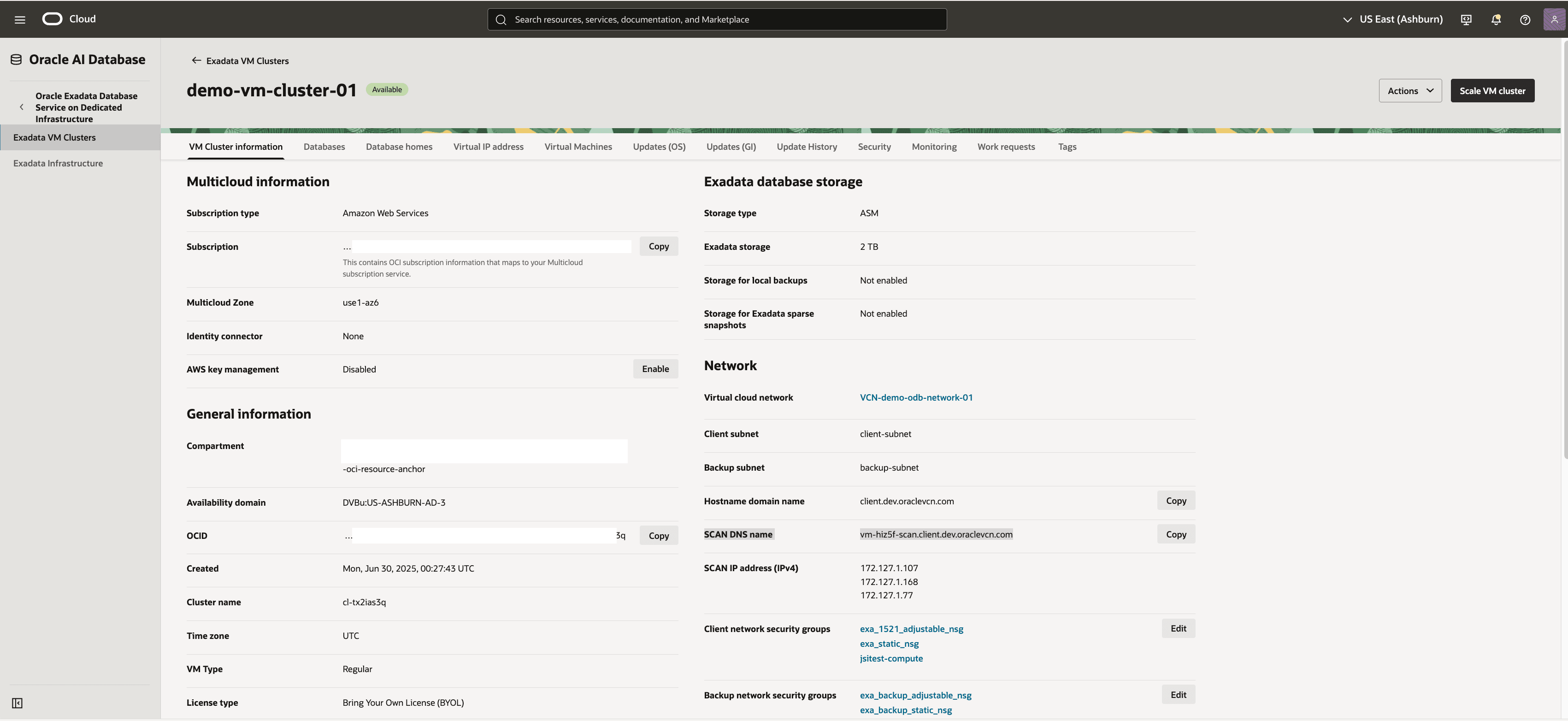
- Obtain the SCAN DNS name for the connection.
- From the OCI Console, navigate to Oracle Exadata Database Service on Dedicated Infrastructure.
- From the left menu, select Exadata VM Clusters and then select your Exadata VM Cluster from the list.
- From the VM Cluster information tab, navigate to the Network section. Select the Copy button located next to SCAN DNS name field as it is required for the Hostname.
Connect from SQL Developer to Exadata Database- Ensure your Windows EC2 instance can reach the Exadata Database Server
- Test basic connectivity. Since ping won’t work (as it uses ICMP, not TCP), you can use tools like
tnsping, ortelnetto port 1521/1522, or test with SQL*Plus.
- Launch the SQL Developer application and select the + icon to create a new database connection.
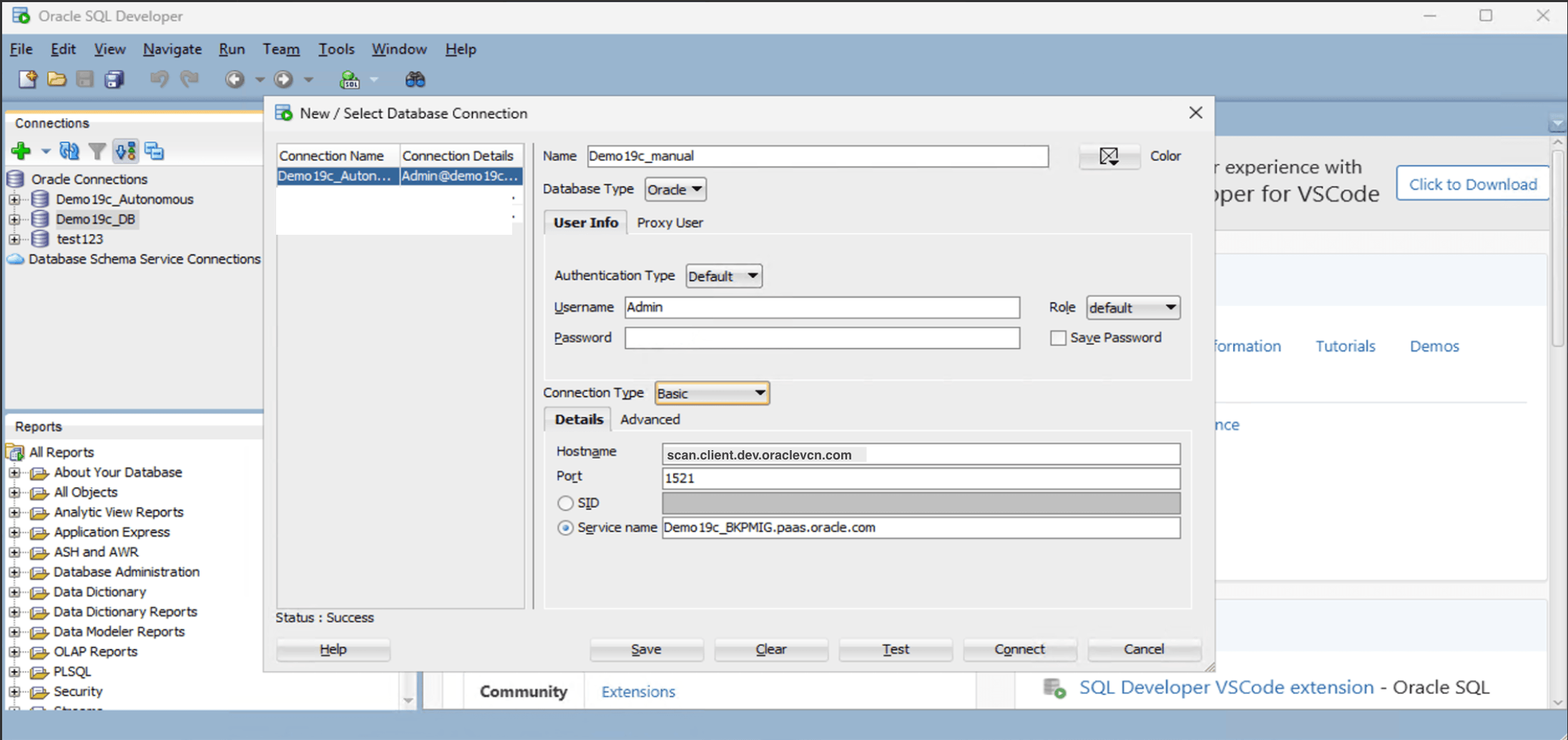
- To configure SQL Developer, complete the following substeps:
-
- In the Name field, enter the Name to use for this database connection.
- In the Database Type field, select Oracle.
- In the Username field, enter the name of the user for whom this database connection is being created. For example, you can enter ADMIN.
- In the Password field, enter the password of the user.
- In the Role field, select the default role to assign to the user.
- Select the Save Password checkbox if your security rules allow.
- In the Connection Type field, select the Basic option as your database connection type.
- Enter the Hostname information by providing your Exadata Database private IP address.
- You can enter 1521 as the Port information or provide your listener port.
- Enter a descriptive Service name.
- Select the Test button. The Status at the bottom of the connections list should show Success. If the connection is not successful, the wallet may be out of date or the Exadata Database may not be running.
- Once the connection is successful, select the Save button.
-
- You must configure network access so that an application or client, in this case an Amazon EC2 Windows instance running in AWS, can connect to an Oracle Database listener on port 1521, the default SQL Net port for Oracle connections.
In Autonomous AI Database (Dedicated), you do not have access to the underlying virtual machines or operating system. This is by design for a fully managed, autonomous service. Instead, you can connect to the database using client tools such as Oracle SQL Developer, SQL Developer Web, or any application that supports the standard Oracle JDBC or OCI connection protocols.
You need to have Oracle SQL Developer installed and configured on your Windows EC2 instance. For step-by-step instructions, see the Windows Systems documentation.
There are two ways to connect to your Autonomous AI Database:- Using a Wallet import.
- Using manual TNS configuration.
- Using a Wallet Import
- To download the Wallet, complete the following substeps:
- Navigate to the OCI console, select Oracle AI Database, and then select Autonomous AI Database on Dedicated Infrastructure.
- From the left menu, select Autonomous AI Database, and then select your Compartment.
- From the list, select the database that you want to connect.
- Select the Database connection button, and then select the Download wallet button.
- On the Download wallet page, enter a wallet password in the Password field and confirm the password in the Confirm password field.
- Select Download to save the client security credentials zip file. By default the file name is:
Wallet_databasename.zip. You can save this file as any file name you want.
- To transfer the wallet to Amazon EC2, complete the following substeps:
- Upload the
Wallet_<dbname>.zipfile to your Amazon EC2 Windows instance.Note
You can use RDP file copy, WinSCP, Amazon S3, or any other secure method. - Save the file an accessible directory. For example:
C:\ADB_Wallet\
- Upload the
- To extract the wallet, complete the following substeps:
- Right-click the
.zipfile, and then select Extract All. - Make sure that the folder contain the following files:
cwallet.ssoewallet.p12sqlnet.oratnsnames.oratnsnames.oratnsnames_connection_string.txttruststore.jks
- Right-click the
- To review
tnsnames.ora, complete the following substeps:- Launch the
tnsnames.orafile in Notepad. - Note the service names. For example :
<dbname>_high = (description= (address=(protocol=tcps)(port=1522)(host=<adb_host>)) (connect_data=(service_name=<dbname>_high.adb.<region>.oraclecloud.com)) (security=(ssl_server_dn_match=yes)))
These service names (
_low, _medium, _high, _tpurgent) correspond to workload profiles. - Launch the
- To configure SQL Developer, complete the following substeps:
-
- In the Name field, enter the Name to use for this database connection.
- In the Database Type field, select Oracle.
- In the Username field, enter the name of the user for whom this database connection is being created. For example, you can enter ADMIN.
- In the Password field, enter the password of the user.
- In the Role field, select the default role to assign to the user.
- Select the Save Password checkbox if your security rules allow.
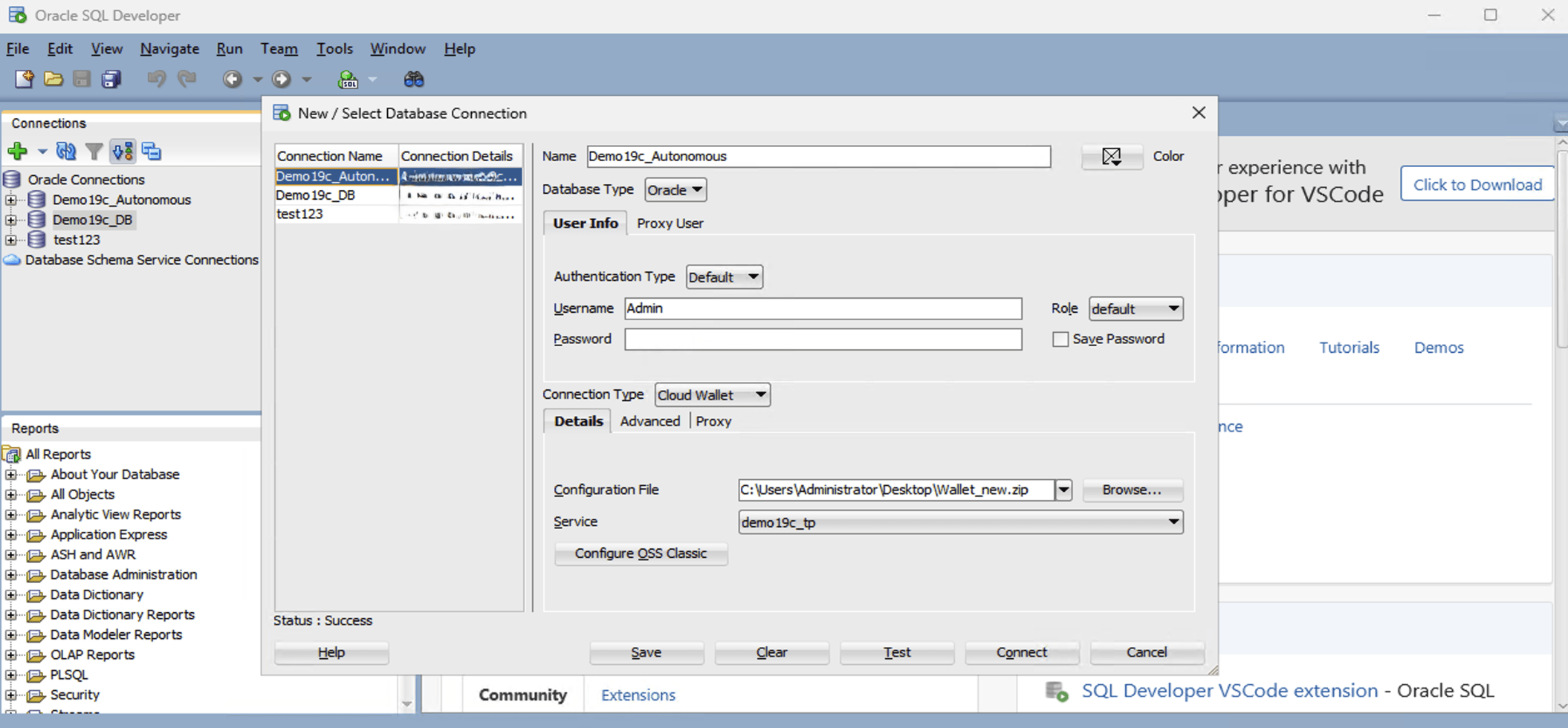
- In the Connection Type field, select the Cloud Wallet option as your database connection type.
- From the Configuration File dropdown list, select your wallet that you previously downloaded.
- From the Service dropdown list, select your service that you are using.
- Select the Test button to test that the data your provided will allow the specified user to connect to the database.
Note
The Status must show the Success message. If the connection is not successful, it may be because the wallet is out of date or your ADB is not currently running. - When it is complete, select the Save button, and then select the Connect button.
-
- To download the Wallet, complete the following substeps:
- Using Manual TNS ConfigurationNote
There are prerequisites that must be completed for the manual connection. You need to complete the following:- You must obtain the IP address, and database service name to connect. For more information, see Cloud.
- You must obtain the service name from the
tnsnames.orafile. For more information, see Step 4 in the Using a Wallet Import section.
- Launch the Oracle SQL Developer application, and then select the green plus (+) button .
- To configure your database connection, complete the following substeps:
- In the Name field, enter the Name to use for this database connection.
- In the Database Type field, select Oracle.
- In the Username field, enter the name of the user for whom this database connection is being created. For example, you can enter ADMIN.
- In the Password field, enter the password of the user.
- In the Role field, select the default role to assign to the user.
- Select the Save Password checkbox if your security rules allow.
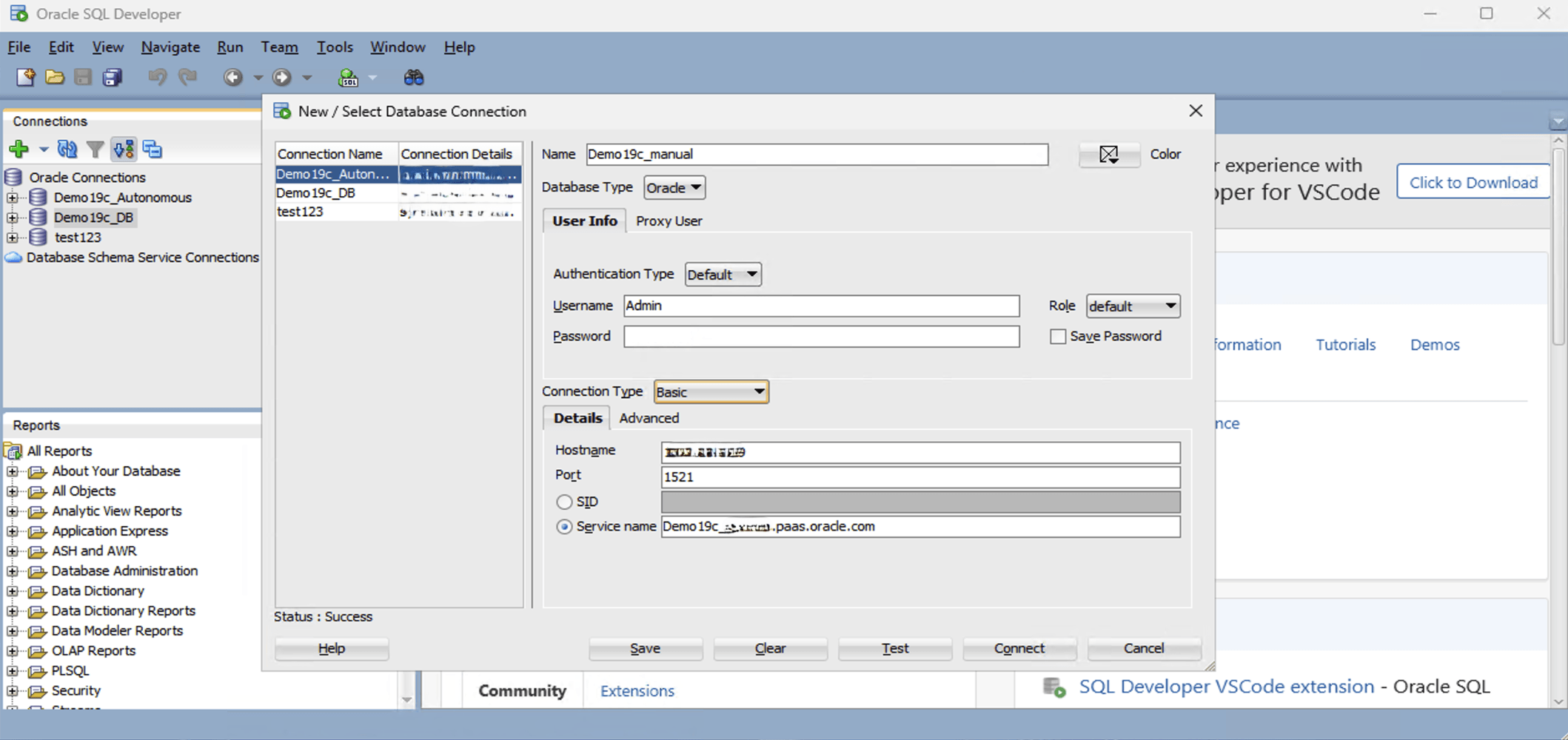
- In the Connection Type field, select the Basic option as your database connection type.
- From the Details tab, enter your Hostname, Port and Service name.
- Select the Test button to test that the data your provided will allow the specified user to connect to the database.
Note
The Status must show the Success message. If the connection is not successful, it may be because the wallet is out of date or your Exadata is not currently running. - When it is complete, select the Save button, and then select the Connect button.
This topic describes the steps required to connect to an Autonomous AI Database Serverless from a Jump Box (Windows EC2 Instance).
Complete the Configure section before connecting to Autonomous AI Database Serverless.
Note
Add your jump box IP to the Access Control List (ACL) for Autonomous AI Database Serverless. You can add your jump box IP address when you create the database or you can navigate to existing Autonomous AI Database Serverless from AWS Console to add it your database by using the following steps:
- From AWS Console, select Oracle AI Database@AWS and then select Autonomous AI Databases Serverless. Select your Autonomous AI Database Serverless from the list.
- Select the Connectivity tab, and then select the Edit button.
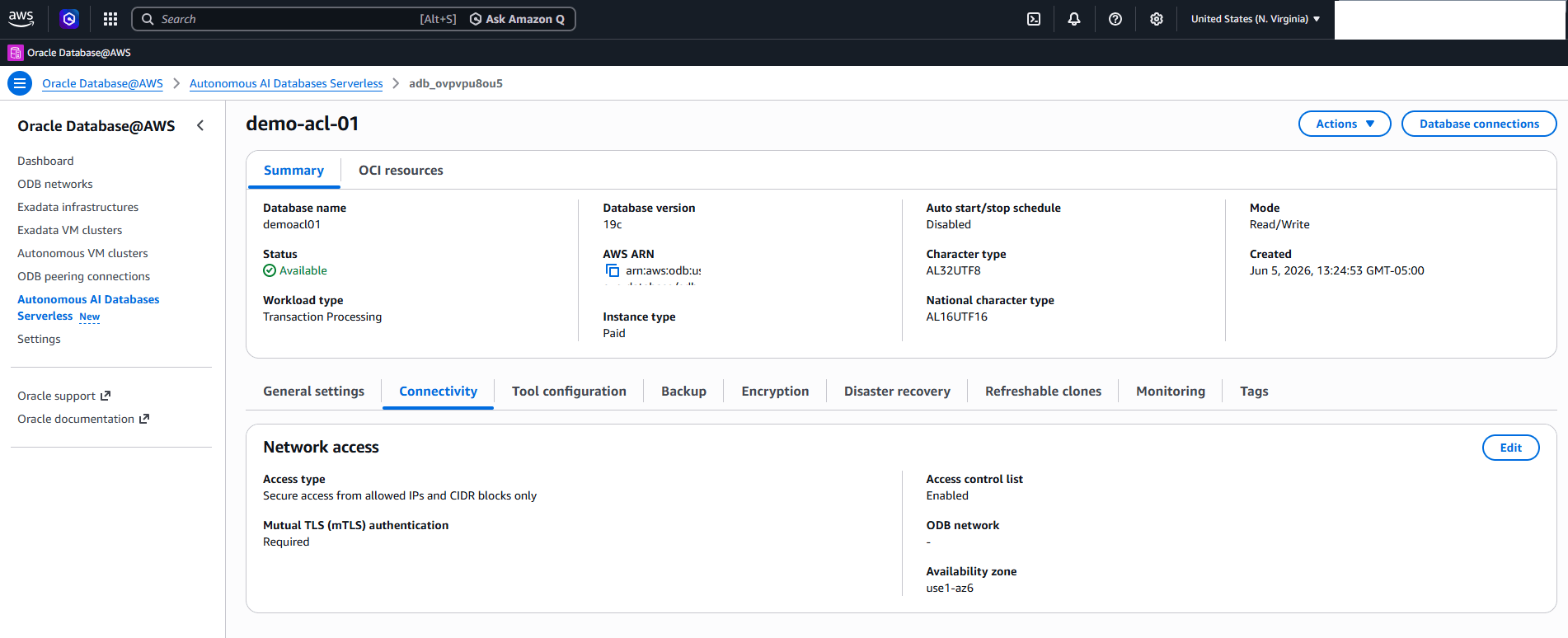
- From the Edit network access page, add your jump box IP address to Access Control List.
Access Control List (ACL) provides details about how to configure network access with access control rules or a private endpoint, and describes secure client connection options. For more information, see Configure Network Access with Access Control Rules (ACLs) and Private Endpoints.
- Obtain Autonomous AI Databases Serverless Wallet
- From AWS Console, select Oracle AI Database@AWS and then select Autonomous AI Databases Serverless. Select your Autonomous AI Database Serverless from the list.
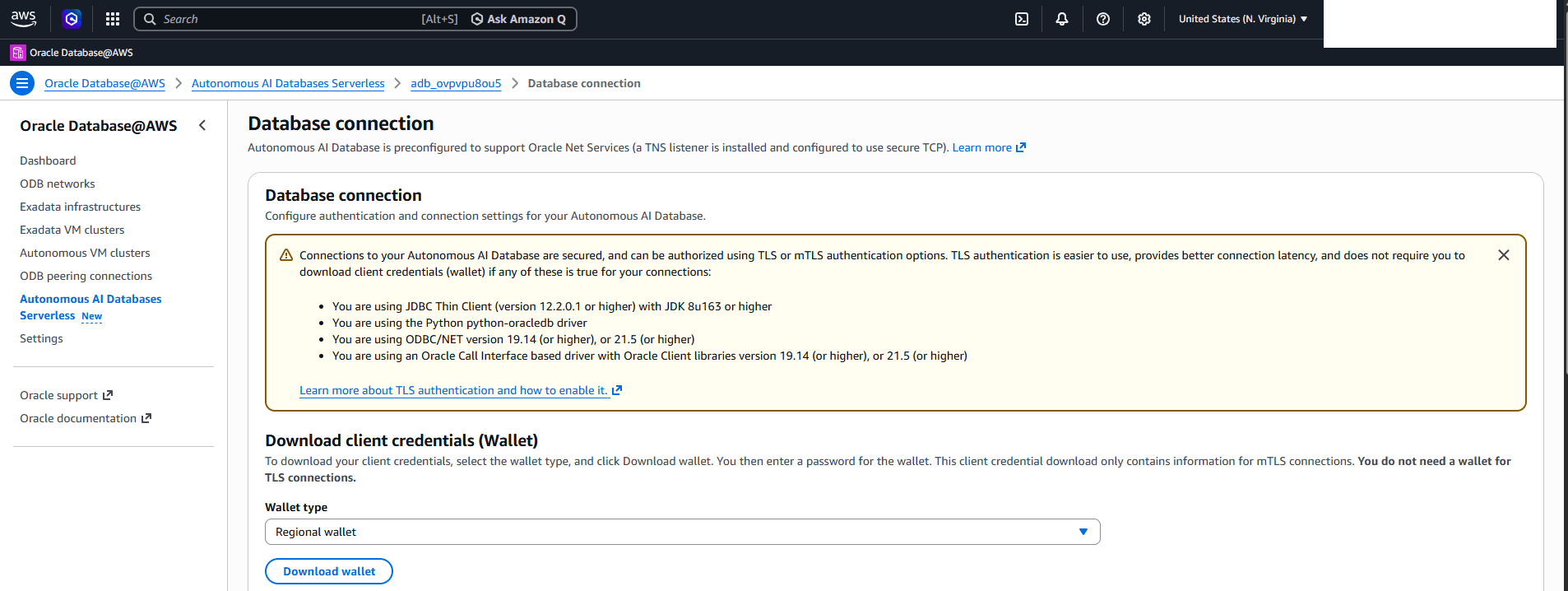
- From the Autonomous AI Database Serverless details page, select the Database connections button.
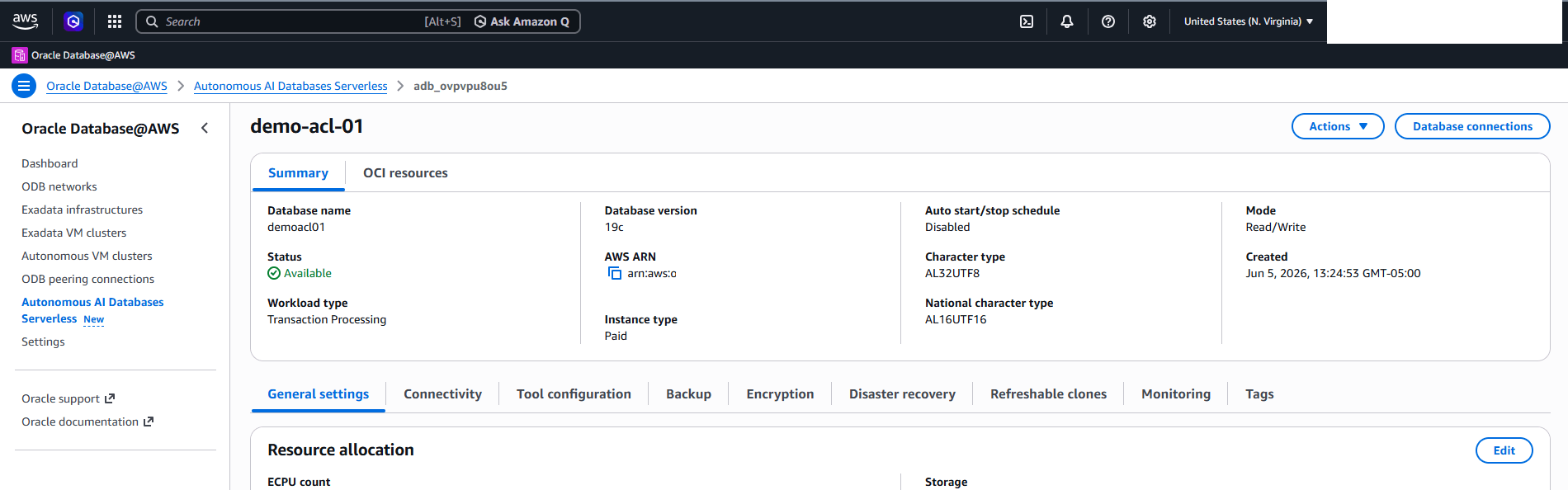
- From the Database connection page. enter the following information.
- Review the Configure authentication and connection settings for your Autonomous AI Database section.
- From the Download client credentials section, select Wallet type. You can choose either the Regional Wallet or Instance Wallet option.
Note
The Regional Wallet has the connection information for all the Autonomous AI Database Serverless instances. - Select the Download wallet button to download your wallet.
- Enter a Password to protect the downloaded wallet.
- Once you enter the password, the wallet will be downloaded as
.zipfile. By default, the name isWallet.zip.
- Connect Oracle SQL Developer to Autonomous AI Database Serverless
- Upload the
Wallet.zipfile to Jump Box. - On Jump Box, launch the SQL Developer application, and then select the + icon to create a new database connection.
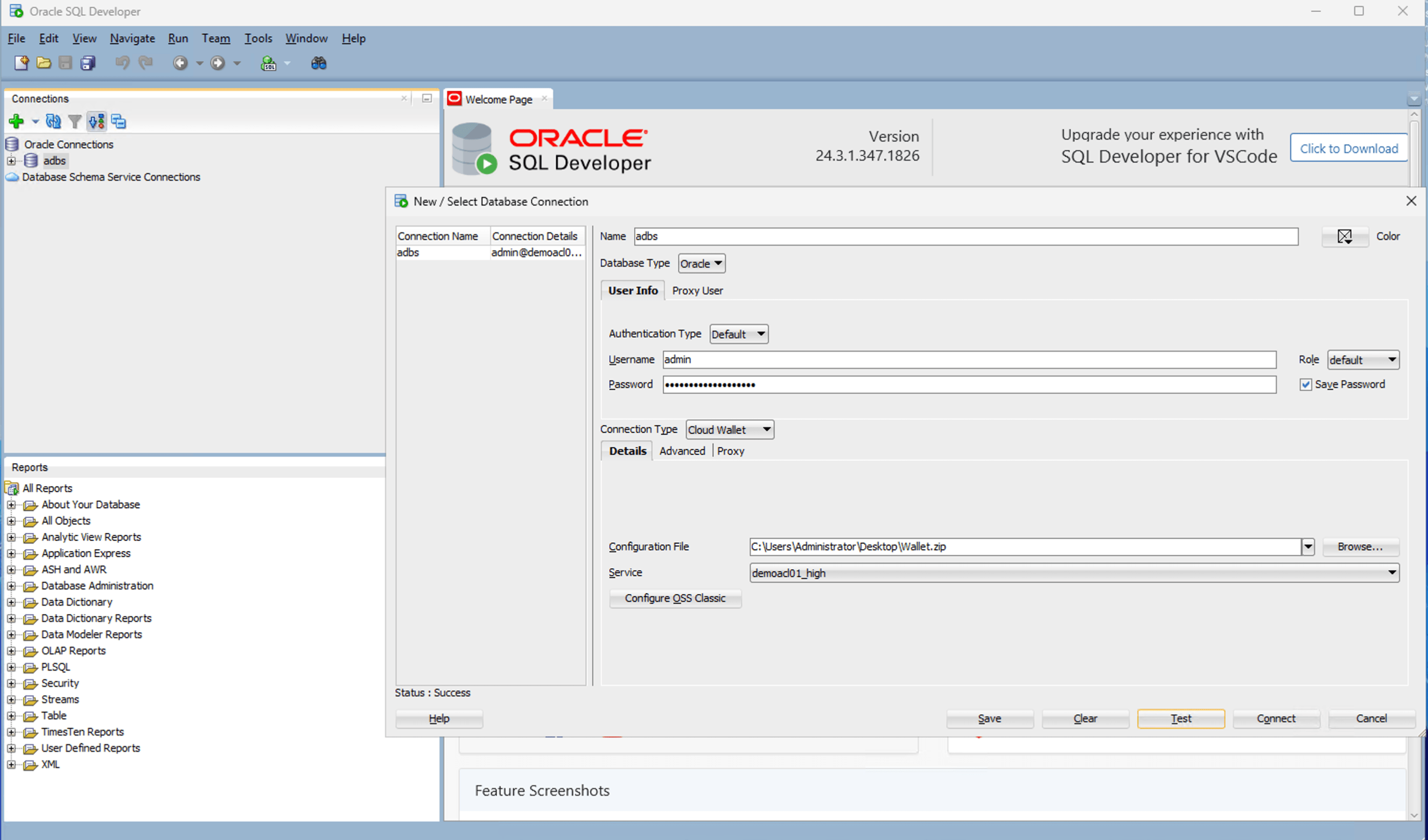
- To configure SQL Developer, complete the following substeps:
- In the Name field, enter a descriptive name to use for this database connection.
- From the Database Type dropdown list, select Oracle.
- In the Username field, enter the name of the user for whom this database connection is being created. For example, you can enter ADMIN.
- In the Password field, enter the password of the user.
- In the Role field, select the default role to assign it to the user.
- Select the Save Password checkbox if your security rules allow.
- In the Connection Type field, select the Cloud Wallet option as your database connection type.
- In the Configuration File field, select the Browse button to select
Wallet.zipfile. - In the Service dropdown list, select your service to use for this connection.
- Select the Test button to validate connection to the database.
- Once the connection is successful, the Status will change to Success.
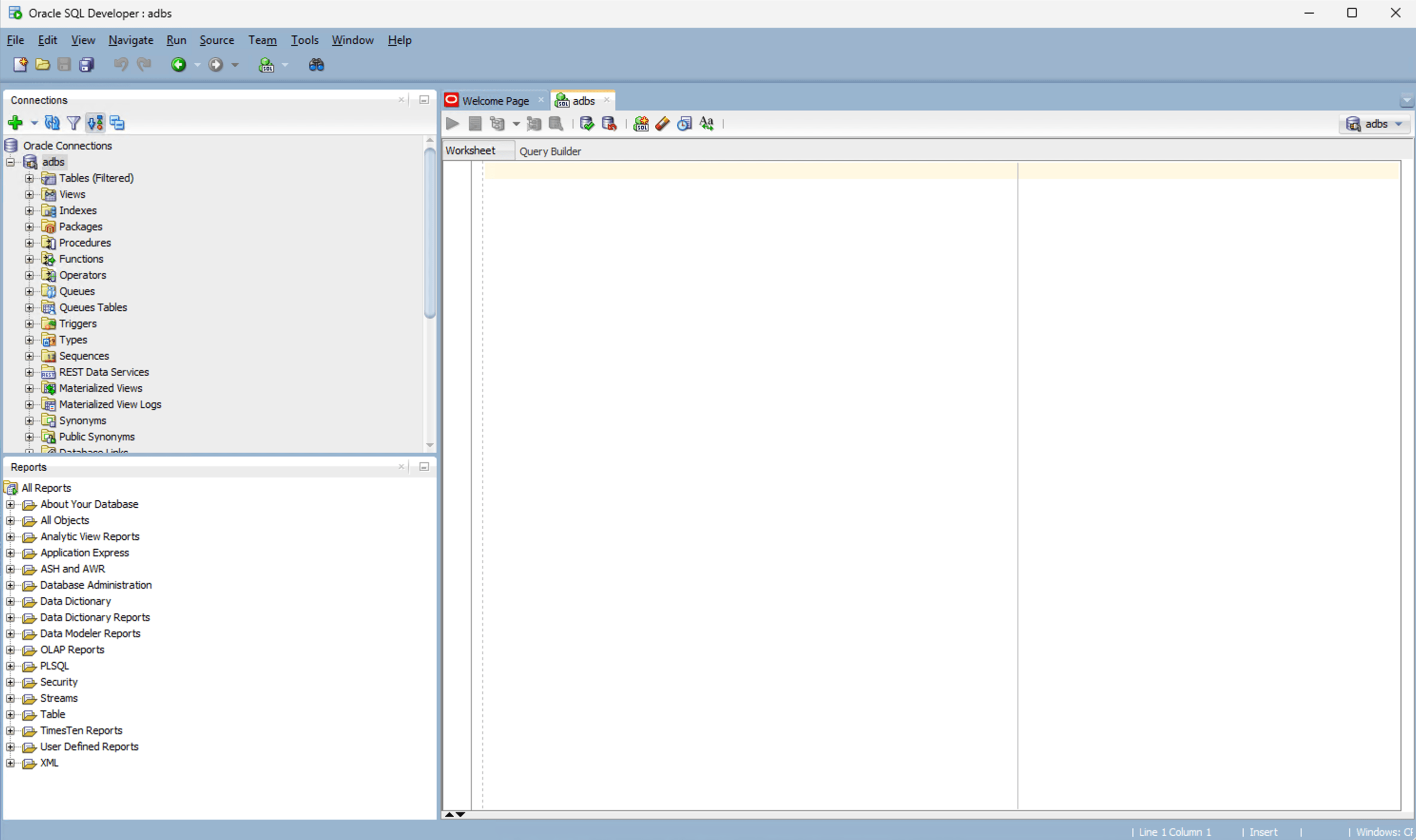
- Once the connection is successful, select the Save button.
- Upload the