Autonomous AI Database (Serverless)
Learn how to create an Autonomous AI Database.
-
From the Oracle AI Database@AWS dashboard, select Autonomous AI Databases Serverless and then select the Create Autonomous AI Database Serverless button.
-
The Autonomous AI Database Serverless creation process is a five (5) step process.
-
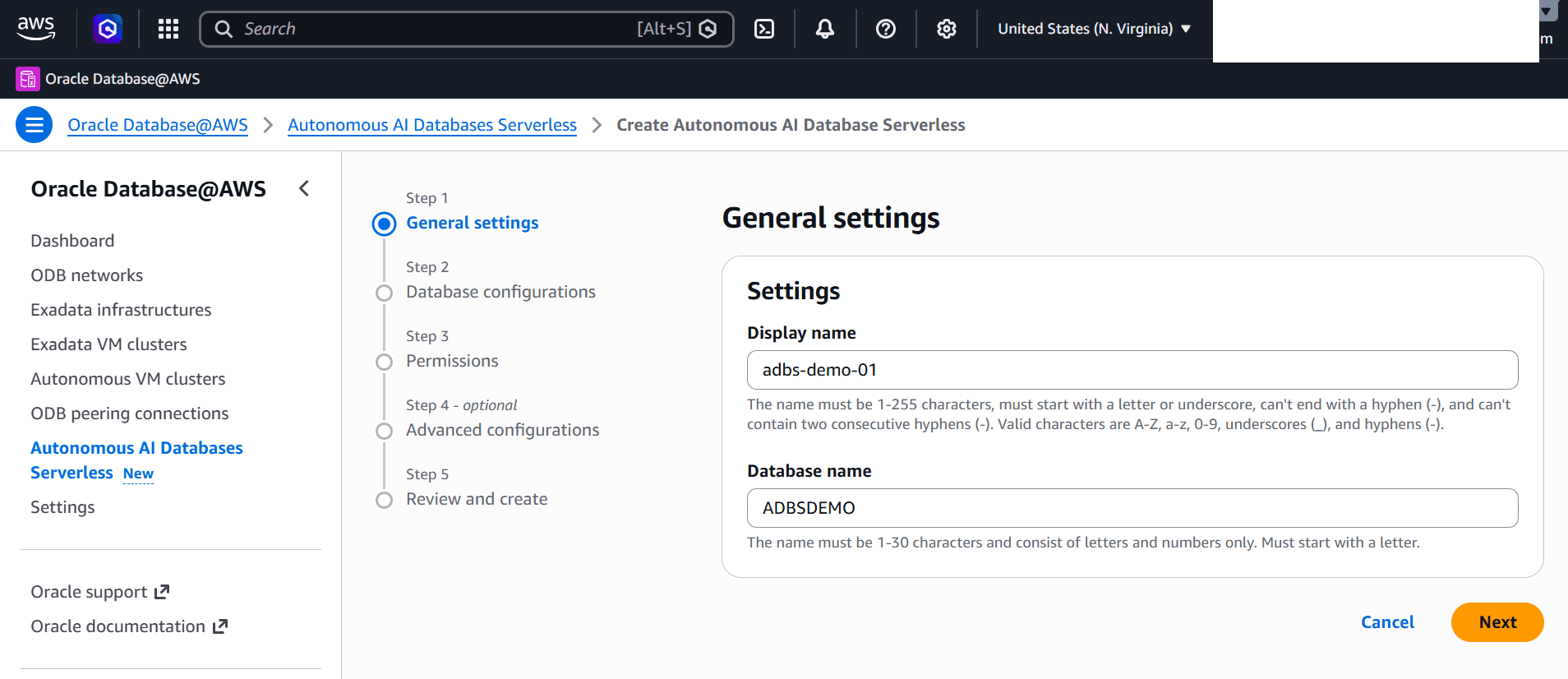
In the General settings step, enter the following information.
-
In the Display name field, enter a descriptive name for the display name. The name must be 1-255 characters, must start with a letter or underscore, cannot end with a hyphen, and cannot contain two consecutive hyphens. Valid characters are A-Z, a-z, 0-9, underscores, and hyphens.
-
In the Database name field, enter a descriptive name for your database. The name must be 1-30 characters and consist of letters and numbers only. The name must start with a letter.
-
Select the Next button to continue the creation process, or the Cancel button to stop the creation process and return to the Autonomous AI Database Serverless list.
-
-
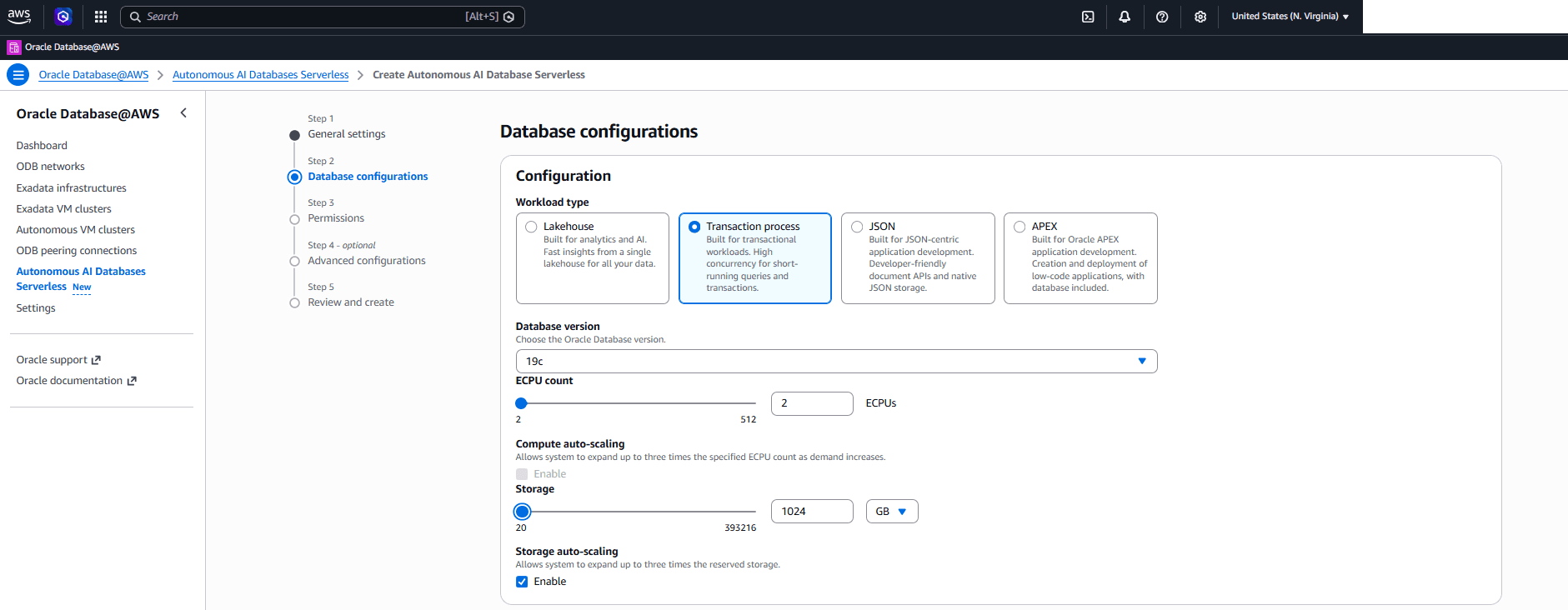
In the Database configurations step, enter the following information.
-
The Workload type section enables you to choose the workload type for your Autonomous AI Database Serverless instance. Supported workload types include Lakehouse, Transaction Processing, JSON, and APEX.
-
From the Database version dropdown list, choose the Oracle Database version. Options are 19c and 26ai.
-
The ECPU count is a slider that allows you to set the ECPU count from 2 to 512.
-
The Compute auto scaling allows system to expand up to three times the specified ECPU count as demand increases.
Note
Note: If you want to use the Elastic pool option for your Autonomous AI Database, you must disable the compute auto scaling. -
-
Storage is a slider UI that allows you to set the storage allocation from 1 TB to 384 TB for Lakehouse and 20 GB to 393216 GB for Transaction Processing, JSON, and APEX.
-
To enable storage auto scaling, select the Enable checkbox.
-
Expand the Advanced options section to configure the advanced options for your Autonomous AI Database Serverless.
-
To enable the Elastic pool option, select the Enable checkbox.
Note
Note: Elastic pools require ECPU compute model, and ECPU auto scaling must be disabled.
-
-
-
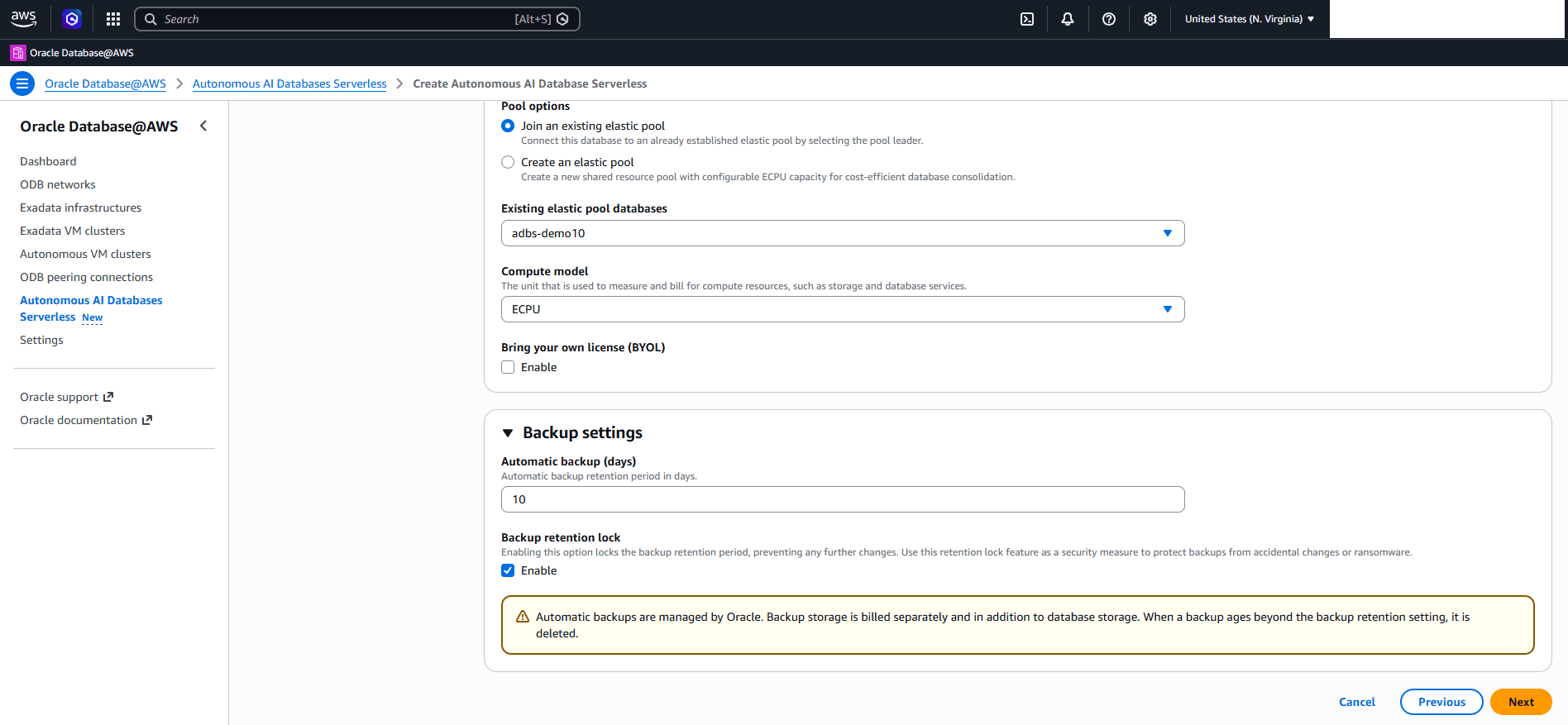
Under Pool options, choose one of the following options:
1. **Join an existing elastic pool**: Connects this database to an existing elastic pool by selecting the pool leader. 1. If you choose the **Join an existing elastic pool** option, choose a database from **Existing elastic pool databases**. 2. **Create an elastic pool**: Creates a shared resource pool with configurable ECPU capacity. 1. If you choose the **Create an elastic pool** option, select the number of ECPUs to allocate to the elastic pool in the **Pool ECPU count** field. 3. In **Compute model**, select **ECPU** as your compute model. 4. Enable the **Bring your own license (BYOL)** option, if you wish to bring your own license. -
Expand the Backup settings section to configure the backup settings for your Autonomous AI Database Serverless.
-
In Automatic backup (days) field, enter a value from 1 to 60 days.
-
Enable the Backup retention lock option, if you want to lock the backup retention period and prevent further changes. Use backup retention lock as a security measure to protect backups from accidental changes or ransomware.
Note
Note: Automatic backups are managed by Oracle. Backup storage is billed separately and in addition to database storage. When a backup ages beyond the backup retention setting, it is deleted.
-
-
Select the Next button to continue the creation process, or the Cancel button to stop the creation process and return to the Autonomous AI Database Serverless list.
-
-
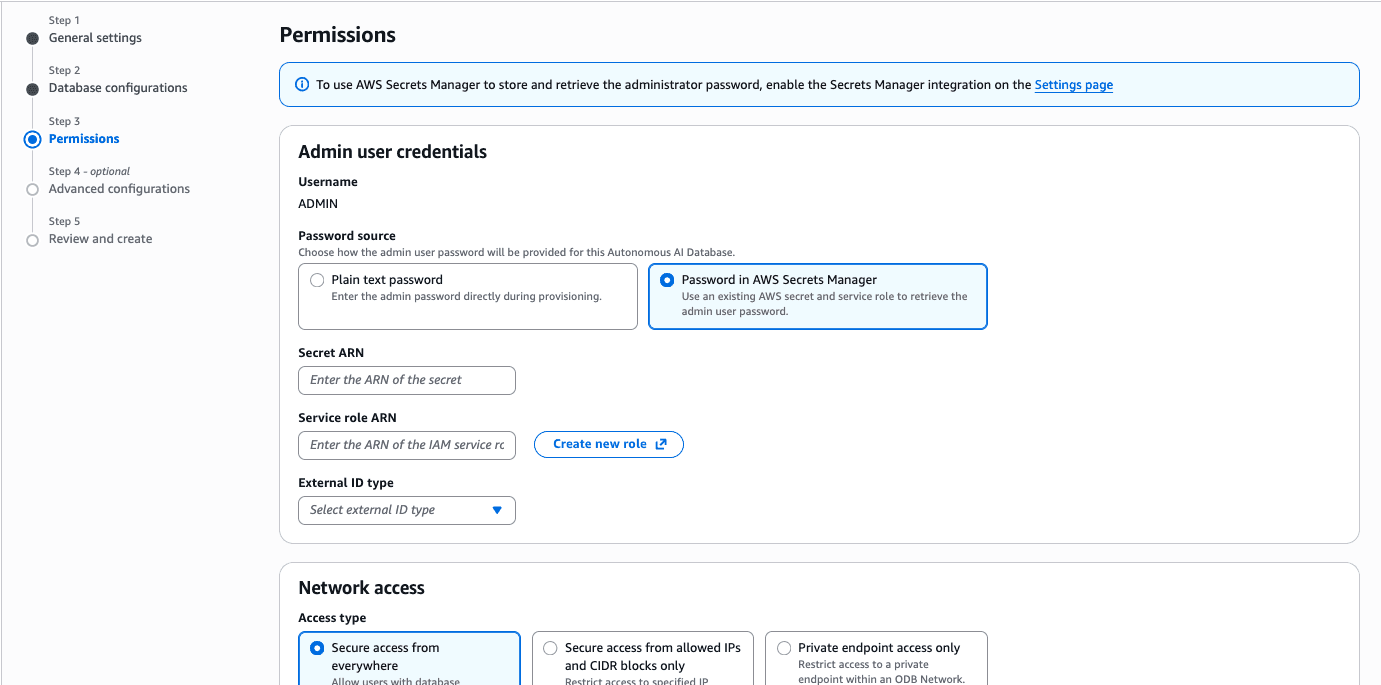
In the Permissions step, enter the following information.
-
The Username field is set to ADMIN by default. You cannot modify this value.
-
From the Password source section, you must choose how the ADMIN password will be provided. Choose Plain text password or Password in AWS Secrets Manager.
-
Plain text password: Choose this option if you want to enter the admin password directly for your ADMIN user.
-
In the Admin user password field, enter a password for your admin user. The Admin user password must be 12-30 characters long. It must contain at least one uppercase letter, one lowercase letter, and one number. It can use any printable ASCII character except slash (/), double quotation mark (“”), or at sign (@).
-
In the Confirm password field, enter the same password again.
-
To view the password while entering it, select Show password. Verify that the password and confirmation password match before continuing.
-
-
Password in AWS Secrets Manager: You must complete all steps outlined in Secrets (Optional), if you want to choose this option. Provide the Secret ARN, and Role ARN information:
-
Secret ARN: Obtain the Secret ARN recorded in Create a Secret (step 2g).
-
Role ARN: Obtain the Role ARN recorded in Create an IAM Policy and Role (step 3).
-
From the External ID type list, select the option based on your policies:
-
Compartment OCID: This option grants access to all databases in the specified compartment.
-
Tenancy OCID: The broadest option. This option grants access to all databases across the tenancy.
Note
Note:
Select the External ID type that matches the OCID you used when creating the IAM role in Secrets (Optional), step 3b:
-
If you used the Compartment OCID, select compartment_ocid.
-
If you used the Tenancy OCID, select tenancy_ocid.
-
-
-
-
From the Network access section, choose your Access type for your Autonomous AI Database Serverless.
-
In the OCI maintenance notification contacts field, you can enter up to 10 email addresses for maintenance update notifications. AWS forwards the addresses to Oracle, and Oracle sends the notification email.
-
Select the Next button to continue the creation process, or the Cancel button to stop the creation process and return to the Autonomous AI Database Serverless list.
-
-
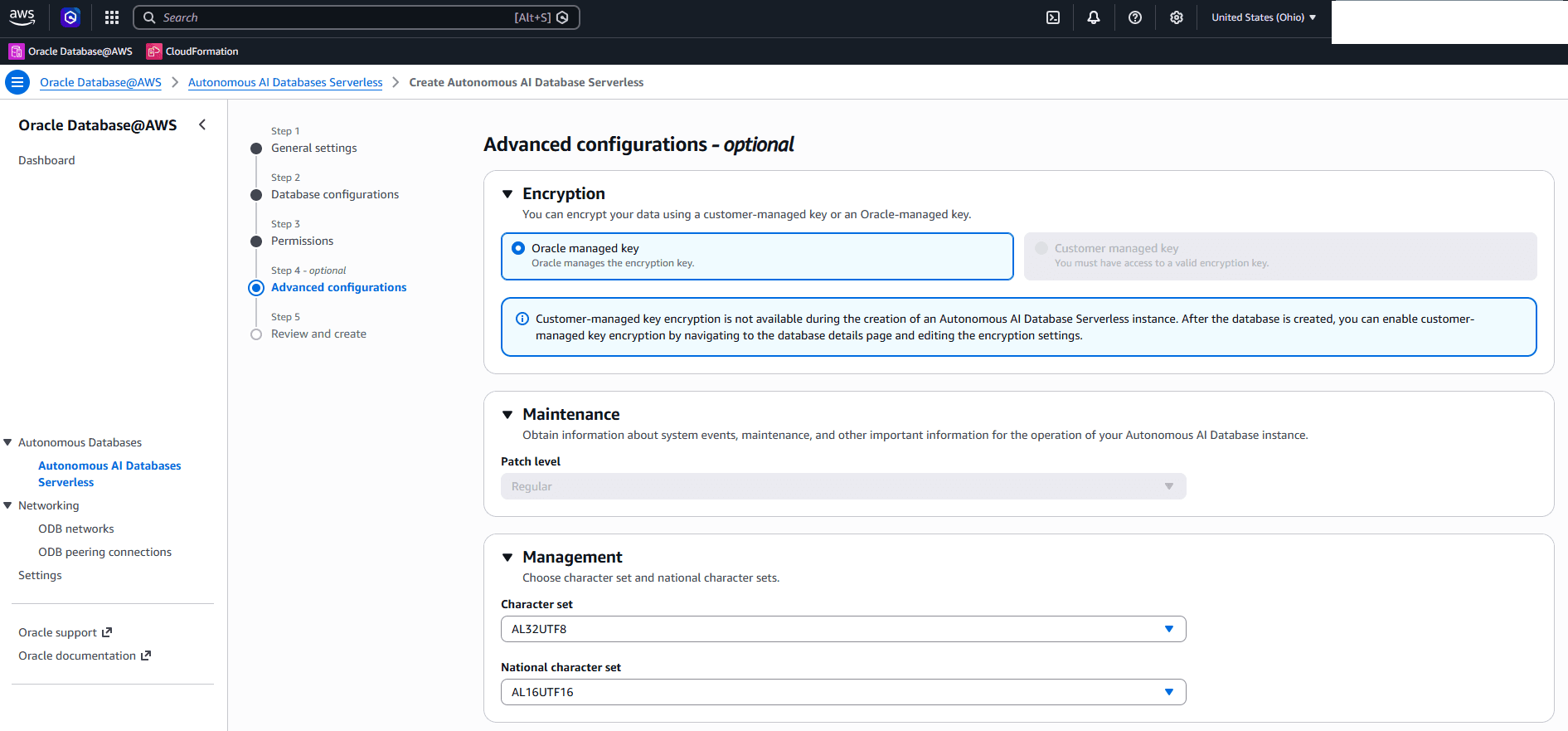
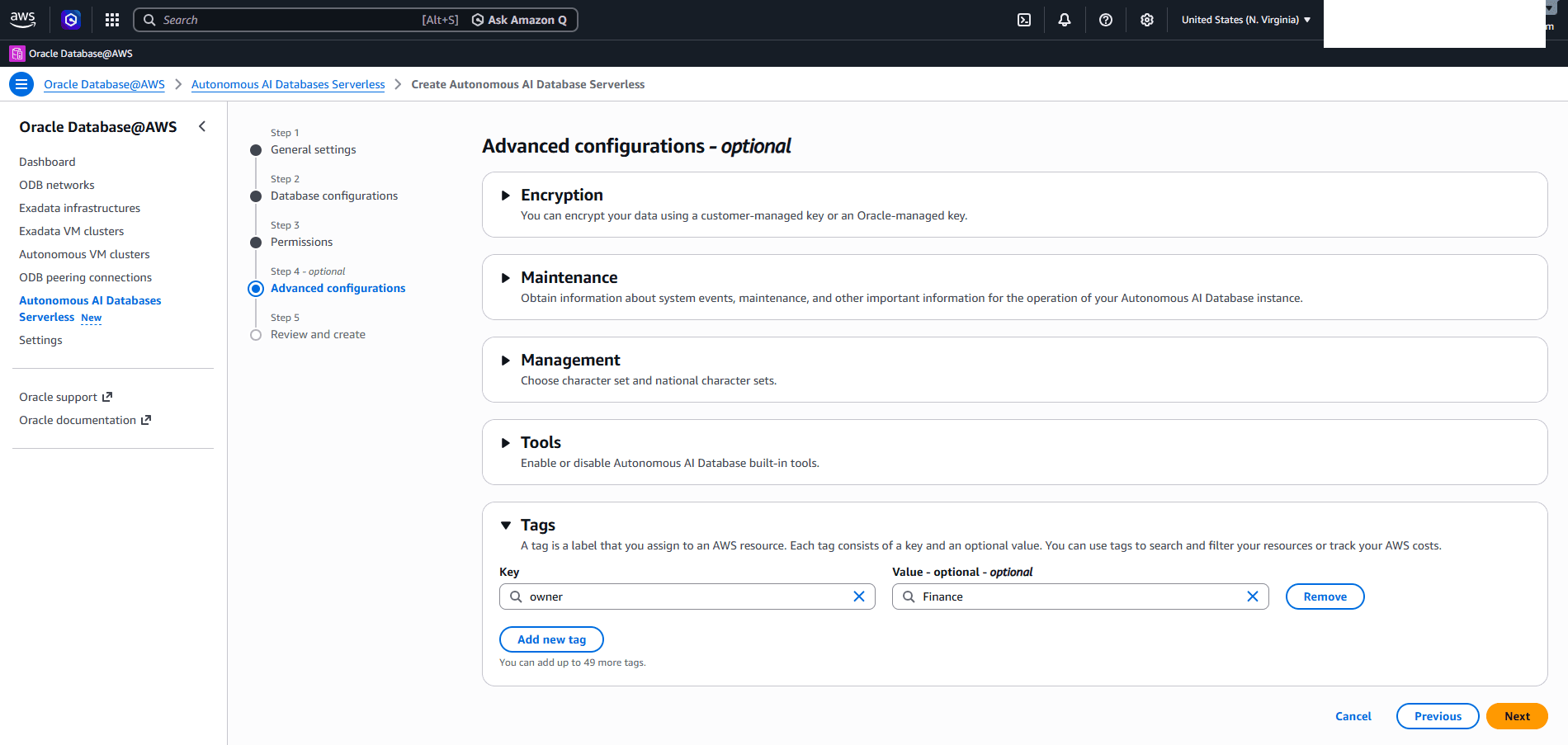
The Advanced configurations step is optional. Review optional settings before you continue to Review and create.
-
Encryption: Customer-managed key encryption is not available during the creation of an Autonomous AI Database Serverless instance. After the database is created, you can enable customer-managed key encryption by navigating to the database details page and editing the encryption settings.
-
Maintenance: Choose the patch level as Regular for maintenance updates.
-
Management: In this section, select the Character set and National character set for your Autonomous AI Database Serverless.
-
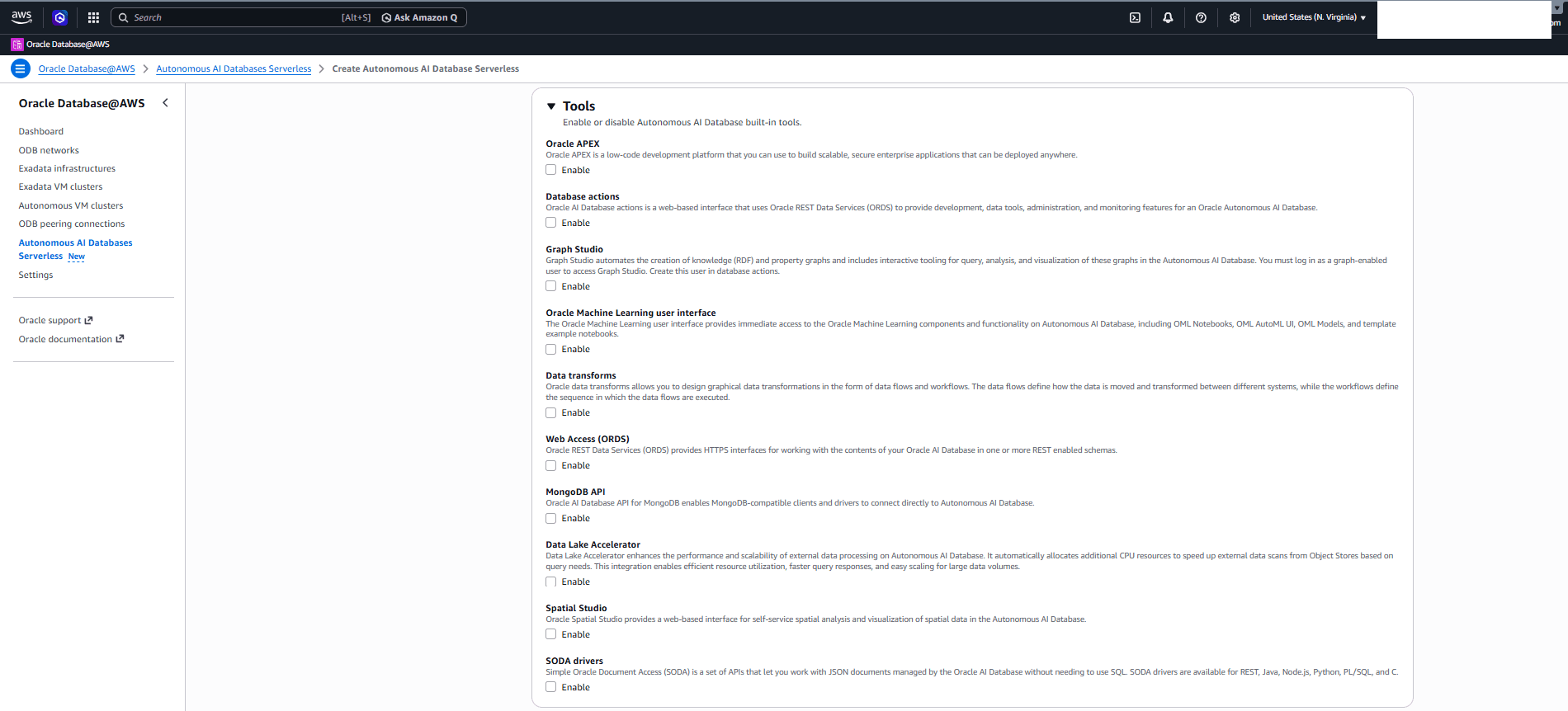
Tools: Enable or disable Autonomous AI Database Serverless built-in tools.
-
Oracle APEX: Oracle APEX is a low-code development platform that you can use to build scalable, secure enterprise applications that can be deployed anywhere.
-
Database Actions: Oracle AI Database actions is a web-based interface that uses Oracle REST Data Services (ORDS) to provide development, data tools, administration, and monitoring features for an Oracle Autonomous AI Database.
-
Graph Studio: Graph Studio automates the creation of knowledge (RDF) and property graphs and includes interactive tooling for query, analysis, and visualization of these graphs in the Autonomous AI Database. You must log in as a graph-enabled user to access Graph Studio. Create this user in database actions.
-
Oracle Machine Learning user interface: The Oracle Machine Learning user interface provides immediate access to the Oracle Machine Learning components and functionality on Autonomous AI Database, including OML Notebooks, OML AutoML UI, OML Models, and template example notebooks.
-
Data Transforms: Oracle data transforms allows you to design graphical data transformations in the form of data flows and workflows. The data flows define how the data is moved and transformed between different systems, while the workflows define the sequence in which the data flows are executed.
-
Web Access (ORDS): Oracle REST Data Services (ORDS) provides HTTPS interfaces for working with the contents of your Oracle AI Database in one or more REST enabled schemas.
-
MongoDB API: This option is supported when the network access type is Private endpoint or Public access with allowed IP addresses.
-
Data Lake Accelerator: Data Lake Accelerator enhances the performance and scalability of external data processing on Autonomous AI Database. It automatically allocates additional CPU resources to speed up external data scans from Object Stores based on query needs. This integration enables efficient resource utilization, faster query responses, and easy scaling for large data volumes.
-
Spatial Studio: Oracle Spatial Studio provides a web-based interface for self-service spatial analysis and visualization of spatial data in the Autonomous AI Database.
-
SODA drivers: Simple Oracle Document Access (SODA) is a set of APIs that let you work with JSON documents managed by the Oracle AI Database without needing to use SQL. SODA drivers are available for REST, Java, Node.js, Python, PL/SQL, and C.
-
-
Tags: A tag is a label that you assign to an AWS resource. Each tag consists of a key and an optional value. You can use tags to search and filter your resources or track your AWS costs.
-
Select the Next button to continue the creation process, or the Cancel button to stop the creation process and return to the Autonomous AI Database Serverless list.
-
-
In the Review and create step, review all your information. If any changes are required, select the Previous button to modify. Once you complete, select the Create autonomous AI database button to create your Autonomous AI Database Serverless.
-
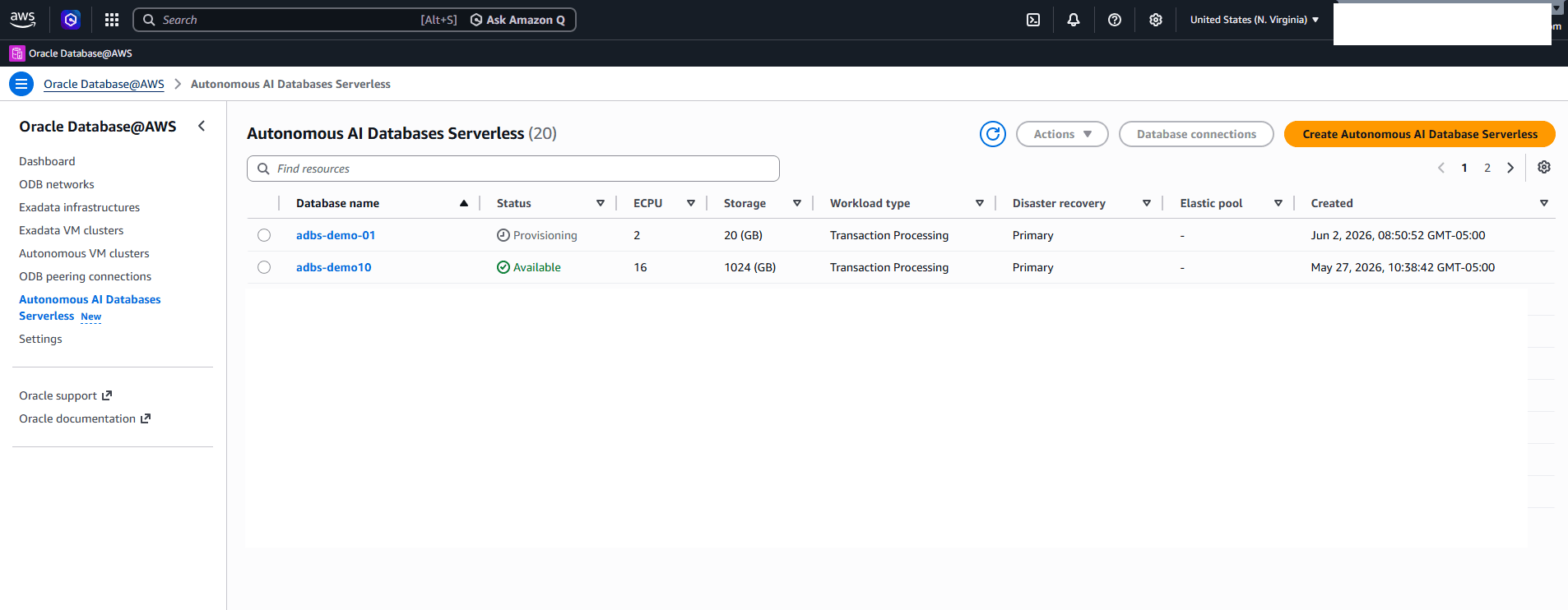
After you create your Autonomous AI Database Serverless instance, you can view its Status in the Autonomous AI Databases Serverless list. The Status changes from Provisioning to Available.
-
Autonomous AI Database (Serverless) creation is only available through the AWS Console.
There is currently no content for this page. Oracle AI Database@AWS team intends to add content here, and this placeholder text is provided until that text is added. The Oracle AI Database@AWS team is excited about future new features, enhancements, and fixes to this product and this accompanying documentation. We strongly recommend you watch this page for those updates.
There is currently no content for this page. Oracle AI Database@AWS team intends to add content here, and this placeholder text is provided until that text is added. The Oracle AI Database@AWS team is excited about future new features, enhancements, and fixes to this product and this accompanying documentation. We strongly recommend you watch this page for those updates.
There is currently no content for this page. Oracle AI Database@AWS team intends to add content here, and this placeholder text is provided until that text is added. The Oracle AI Database@AWS team is excited about future new features, enhancements, and fixes to this product and this accompanying documentation. We strongly recommend you watch this page for those updates.