Exascale VM Cluster
Learn how to create an Exascale VM Cluster and Exascale Storage Vault.
Create an Exascale Storage Vault
Note
Note: Before you create an Exascale VM Cluster, create an Exascale Storage Vault.-
Complete the prerequisites before creating an Exascale Storage Vault. For more information, see Prerequisites.
-
From the Oracle AI Database@AWS dashboard, select Exadata Database Service on Exascale Infrastructure, and then select Exascale storage vaults.
-
From the Exascale storage vaults page, select the Create storage vault button.
-
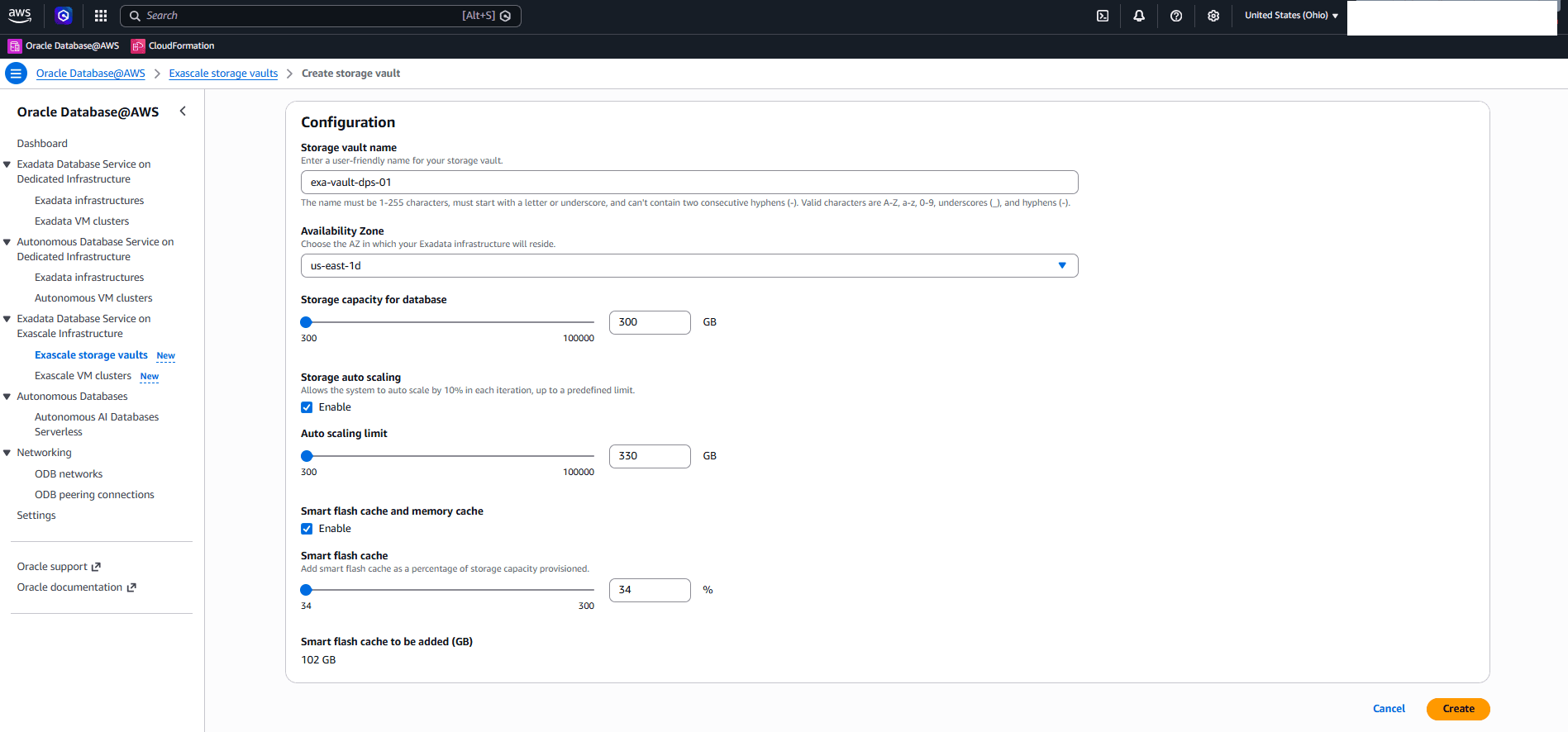
Use the Create storage vault page to create a new storage vault.
-
Enter a descriptive name for the storage vault. The Storage vault name must be 1-255 characters, must start with a letter or underscore, and can’t contain two consecutive hyphens (-). Valid characters are A-Z, a-z, 0-9, underscores (_), and hyphens (-).
-
From the Availability Zone dropdown list, select the availability zone (AZ) where the Exascale VM Cluster will reside.
-
Specify the Storage capacity for the database. Use the slider or enter a value directly in the capacity field. The supported range is 300 GB to 100000 GB.
-
From the Storage auto scaling section, you can select Enable to allow the system to automatically increase storage capacity. The system auto-scales by 10% in each iteration, up to a predefined limit.
- Use the slider or enter a value directly in the Auto scaling limit field.
-
The Smart flash cache and memory cache field is optional. If you want to add smart flash cache as a percentage of storage capacity provisioned, select the checkbox and complete the following steps.
-
Use the slider or enter a value directly in the Smart flash cache field as a percentage of storage capacity provisioned.
-
The Smart flash cache to be added (GB) is a read-only field which displays the value for the calculated smart flash cache to be added, in GB.
-
-
Review your information, and then select the Create button to create your storage vault.
-
-
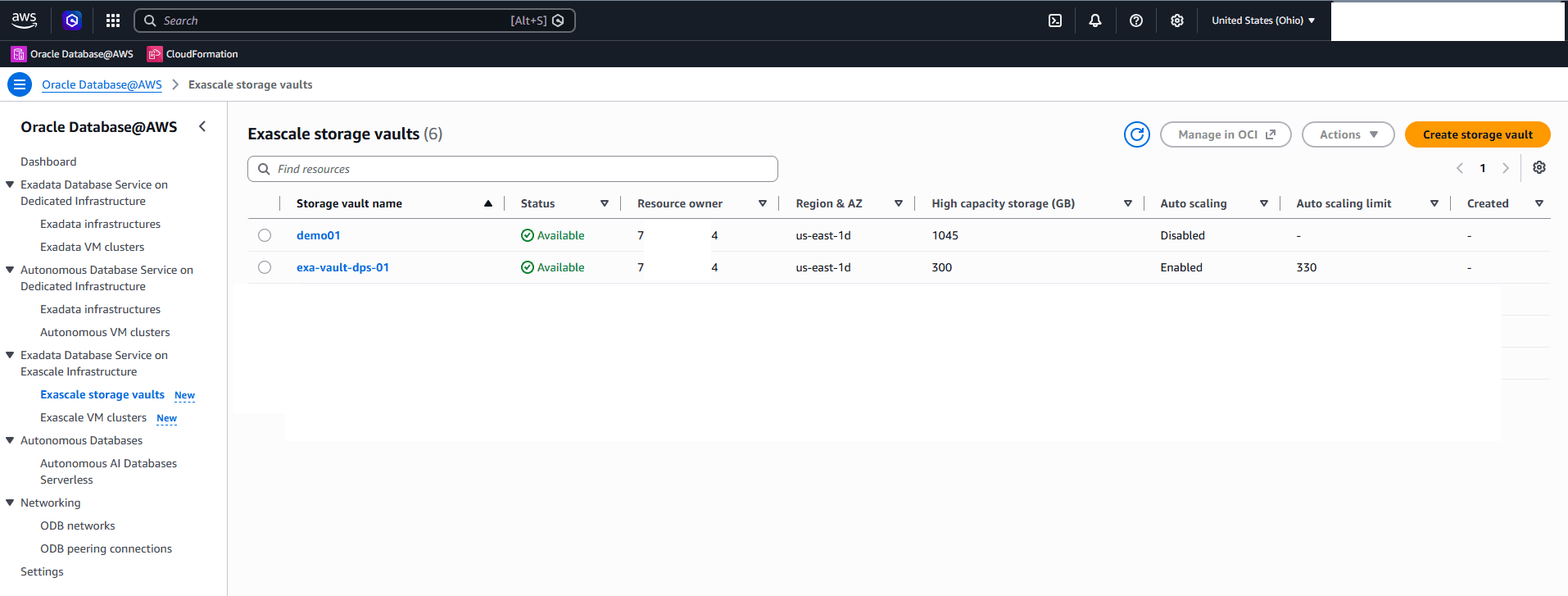
Navigate to Exascale storage vaults to view the Status. Once it is created, the Status will be Available.
Create an Exascale VM Cluster
-
Complete the prerequisites before creating an Exascale VM Cluster. For more information, see Prerequisites.
-
Create an ODB Network. For more information, see ODB Network.
-
From the Oracle AI Database@AWS dashboard, select Exadata Database Service on Exascale Infrastructure, and then select Exascale VM clusters.
-
From the Exascale VM clusters page, select the Create Exascale VM cluster button.
-
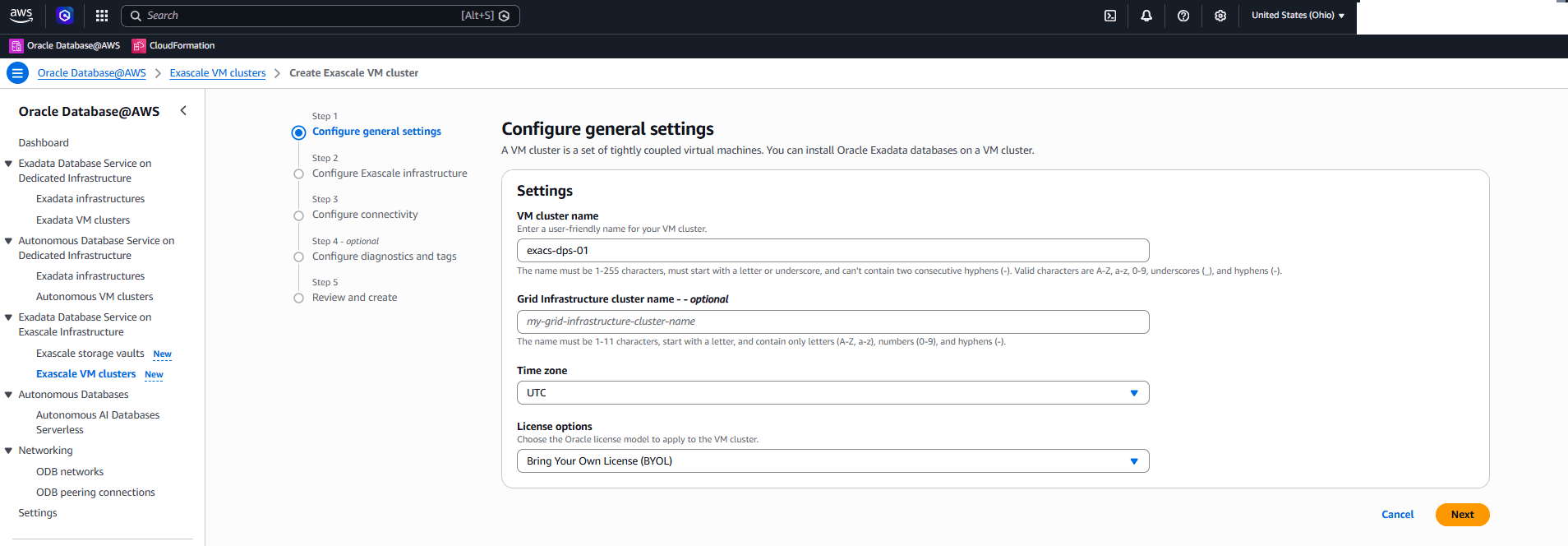
In the Configure general settings step, complete the following substeps.
-
Enter a descriptive name in the VM cluster name field for your Exascale VM Cluster. The name must be 1-255 characters, must start with a letter or underscore, and can’t contain two consecutive hyphens (-). Valid characters are A-Z, a-z, 0-9, underscores (_), and hyphens (-).
-
Enter a descriptive name in the Grid Infrastructure cluster name. This is an optional step. The name must be 1-11 characters, start with a letter, and contain only letters (A-Z, a-z), numbers (0-9), and hyphens (
-). -
Select Time zone from the dropdown list.
-
The License options dropdown list allows you to select either Bring Your Own License (BYOL) or License included. Bring Your Own License (BYOL) is the default option.
-
Select the Next button to continue the creation process.
-
-
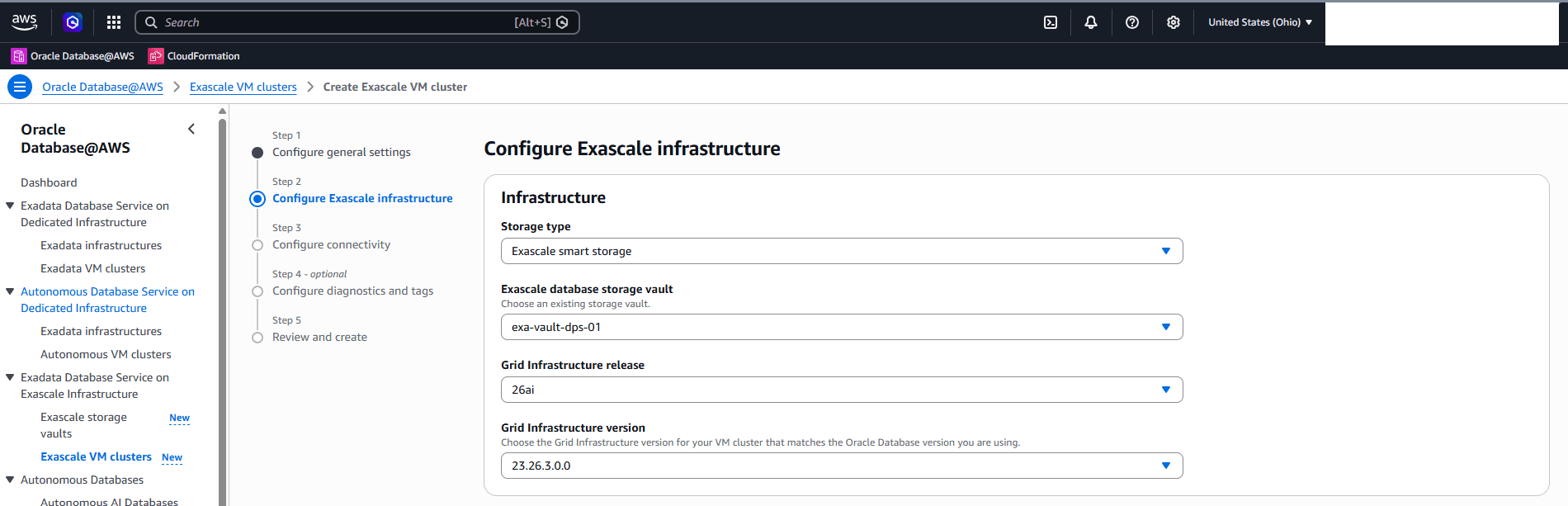
In the Configure Exascale infrastructure step, complete the following substeps.
-
From the Storage type dropdown list, select either Exascale smart storage or Exascale block storage as your storage type.
-
Exascale smart storage supports Oracle AI Database 26ai.
-
Exascale block storage supports Oracle Database 19c and Oracle AI Database 26ai.
-
-
Choose an existing storage vault from Exascale database storage vault. If you do not have an existing Exascale Storage Vault, follow the Create an Exascale Storage Vault steps to create one.
-
The Grid infrastructure release dropdown list allows you to select the available release. The values shown here are based on the selected Storage type.
-
From the dropdown list, select Grid infrastructure version for your Exascale VM Cluster.
-
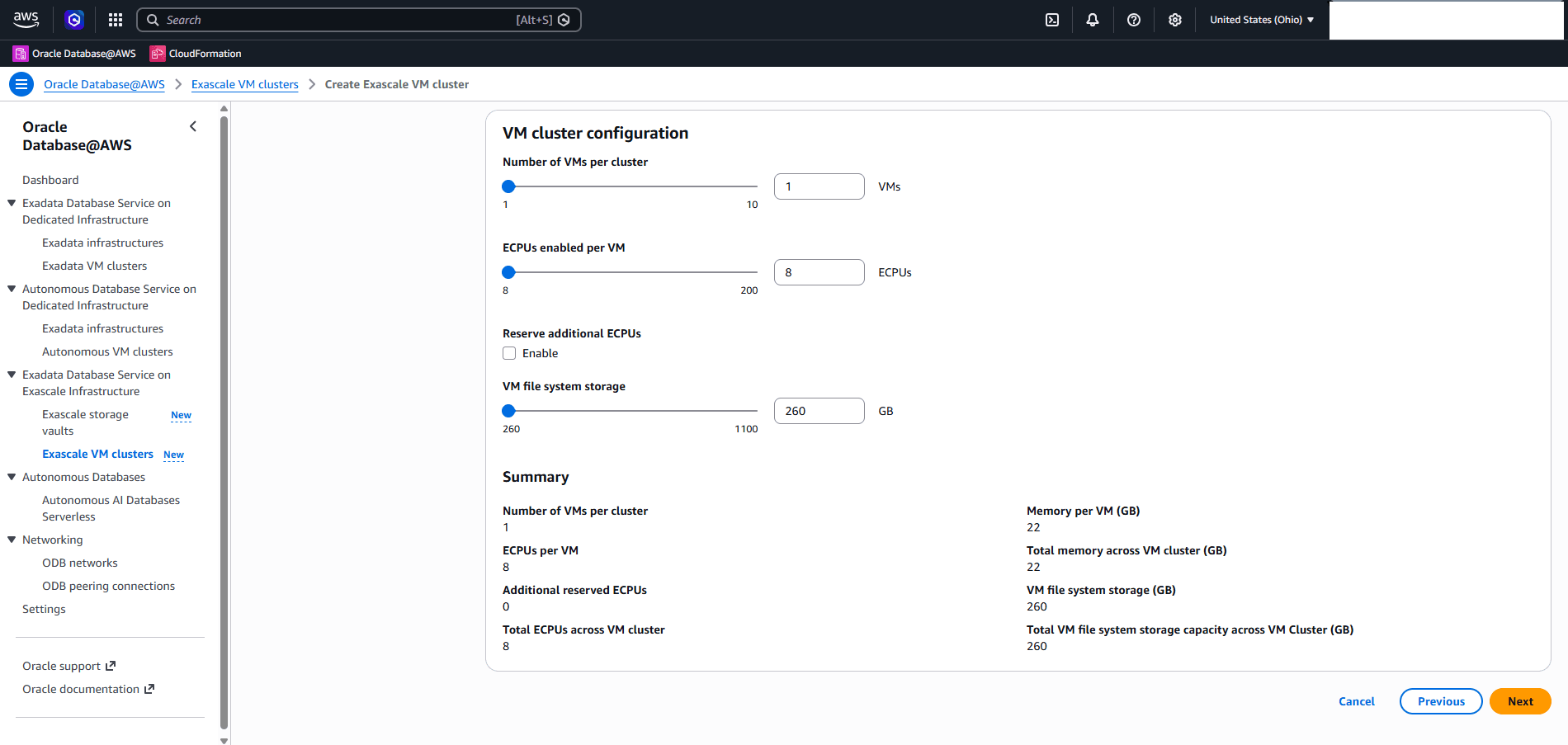
Specify the Number of VMs per Cluster located under the VM Cluster configuration section. Use the slider or enter a number between 1 to 10.
-
Specify your ECPUs enabled per VM. Use the slider or enter a number between 8 to 200.
-
Select the Reserve additional per VM checkbox to reserve additional ECPUs. This is an optional step.
- Use the slider or enter a number between 8 to 200.
-
Specify the VM file system storage. Use the slider or enter a number between 260 to 1100.
-
Select the Next button to continue the creation process.
-
-
In the Configure connectivity step, complete the following substeps.
-
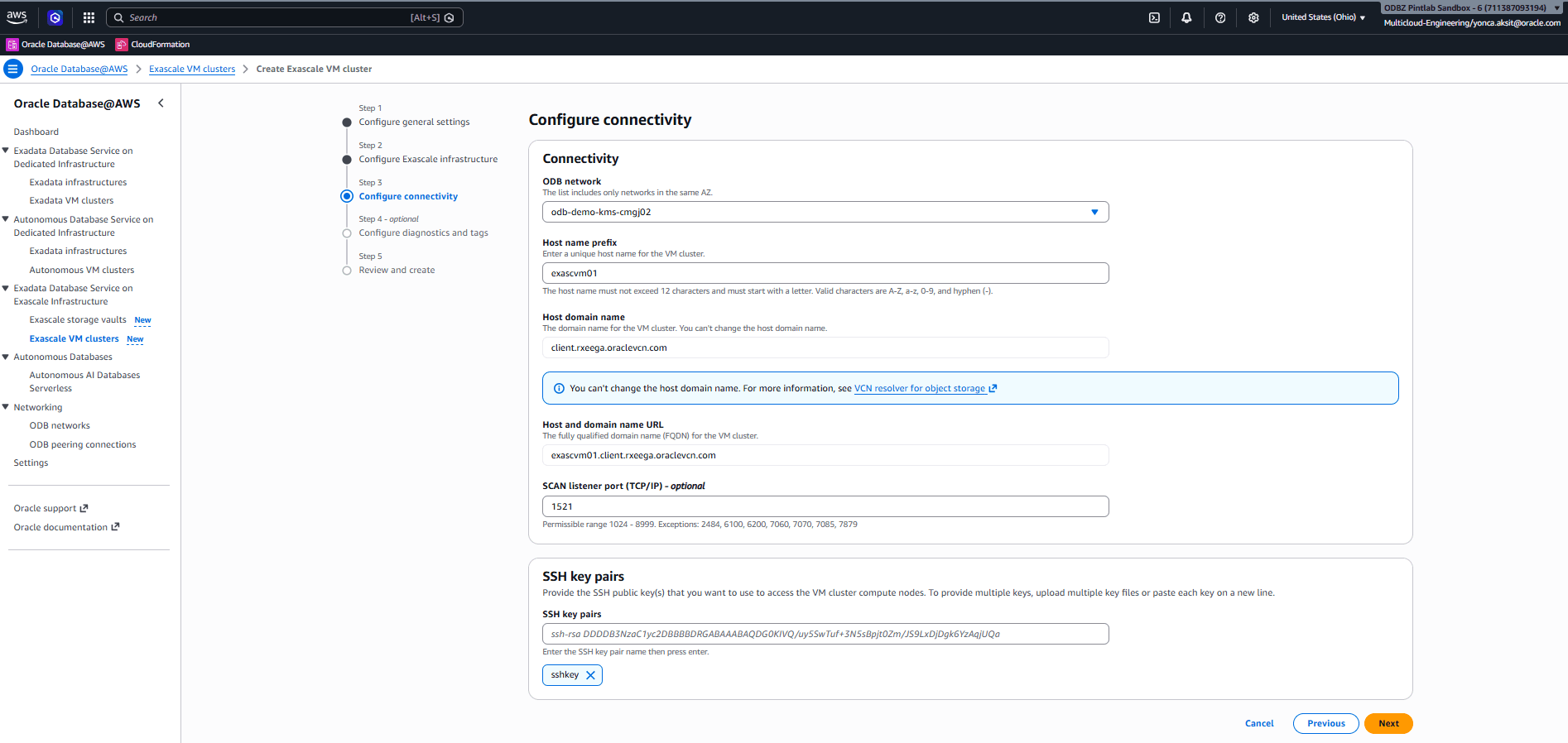
From the dropdown list, select an ODB network. The list shows the networks that are in the same AZ.
-
Enter a unique host name for the VMs in your Exascale VM Cluster in the Host name prefix field. The host name must not exceed 12 characters and must start with a letter. Valid characters are A-Z, a-z, 0-9, and hyphen (-).
-
The Host domain name and Host and domain name URL are read-only fields and will be populated with values.
-
The SCAN listener port ( TCP/IP) is set to 1521 as default. You can change the port setting to an available port within the range of 1024 to 8999, with exceptions for ports 2484, 6100, 6200, 7060, 7070, 7085, and 7879.
-
Provide the SSH public key(s) that you want to use to access the Exascale VM Cluster compute nodes.
-
Select the Next button to continue the creation process.
-
-
In the Configure diagnostics and tags step, complete the following substeps.
-
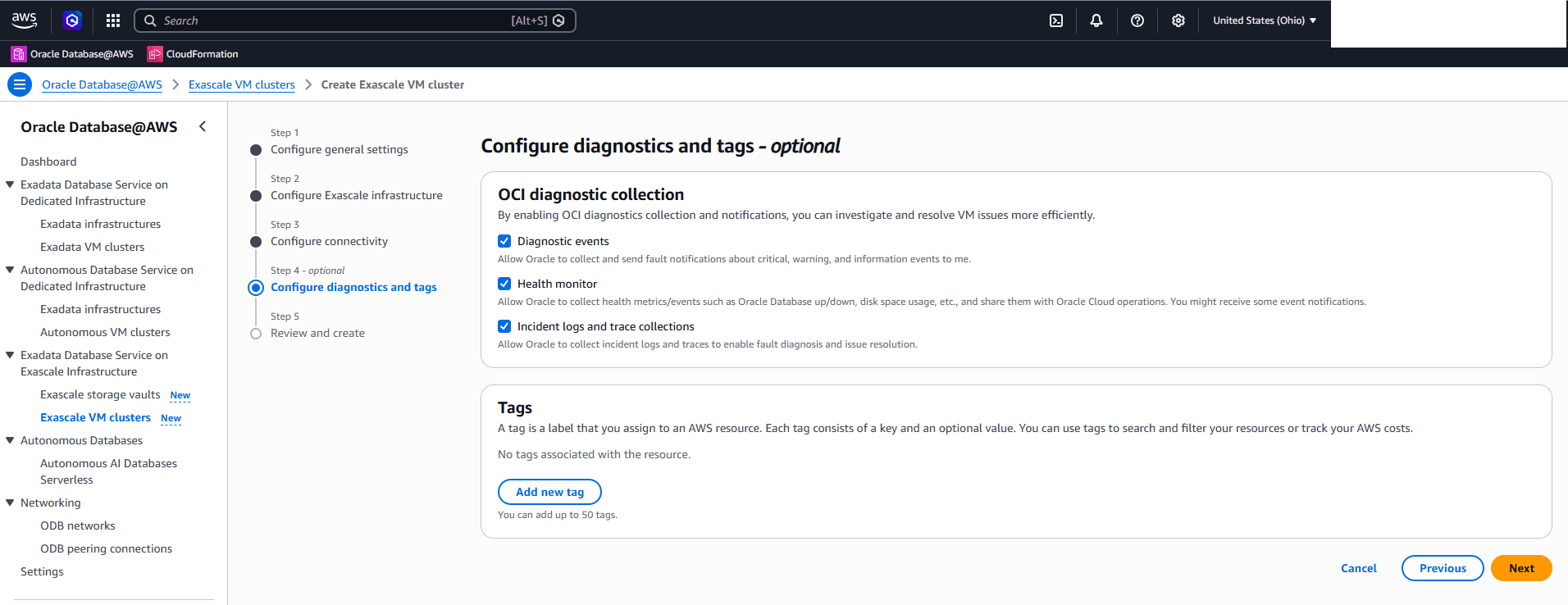
From the OCI diagnostic collection section, you can enable or disable OCI diagnostics collection and notifications. This step is optional.
-
Diagnostics events: This option allows Oracle to collect and send fault notifications about critical, warning, and information events to you.
-
Health monitor: This option allow Oracle to collect health metrics/events such as Oracle AI Database up/down, disk space usage, and share them with Oracle Cloud operations. You might receive some event notifications.
-
Incident logs and trace collections: This option allow Oracle to collect incident logs and traces to enable fault diagnosis and issue resolution.
-
-
From the Tags section, you can add a tag for assigning to an AWS resource. Select the Add new tag button to create your tag and then enter Key and Value. This step is optional.
-
Select the Next button to continue the creation process.
-
-
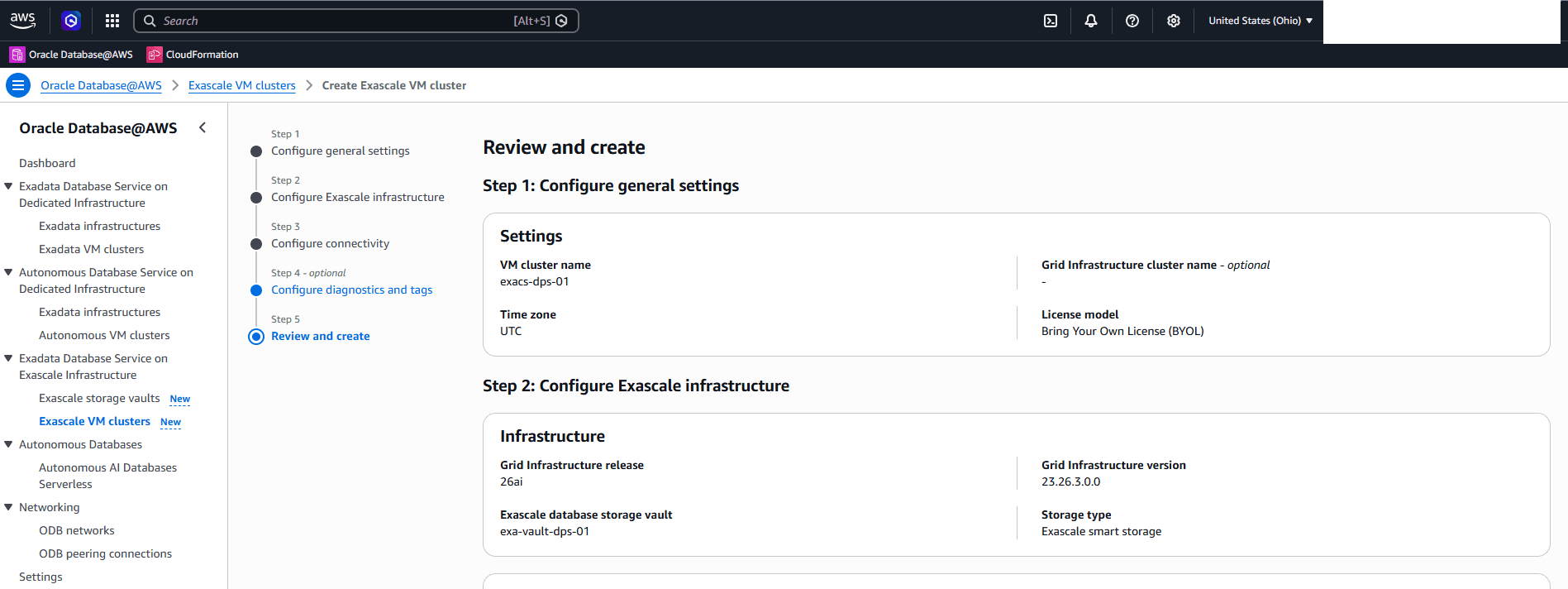
In the Review and create step, review the settings you have selected. Return to the previous steps if any changes are needed. When the review is complete, select the Create Exascale VM cluster button.
-
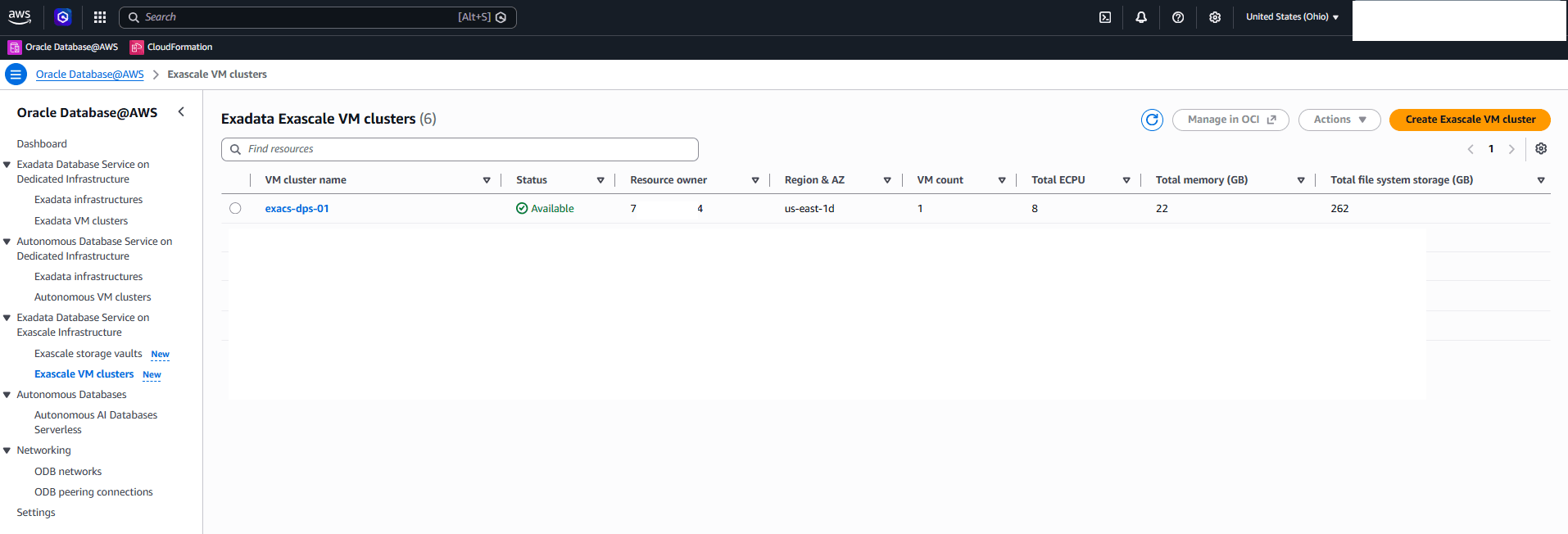
You can view the details of your Exascale VM Cluster from the Exadata Exascale VM clusters list.
-
Exascale VM Cluster and Exascale Storage Vault creation is only available through AWS Console and AWS CLI.
There is currently no content for this page. Oracle AI Database@AWS team intends to add content here, and this placeholder text is provided until that text is added. The Oracle AI Database@AWS team is excited about future new features, enhancements, and fixes to this product and this accompanying documentation. We strongly recommend you watch this page for those updates.
Exascale VM Cluster and Exascale Storage Vault creation is only available through AWS Console and AWS CLI.
There is currently no content for this page. Oracle AI Database@AWS team intends to add content here, and this placeholder text is provided until that text is added. The Oracle AI Database@AWS team is excited about future new features, enhancements, and fixes to this product and this accompanying documentation. We strongly recommend you watch this page for those updates.