Autonomous AI Database (Serverless)
These are the steps to modify an Autonomous AI Database Serverless .
You can modify various parameters and configuration settings for your Autonomous AI Database. These are the steps to modify your Autonomous AI Database.
- From the Oracle AI Database@AWS dashboard, select Autonomous AI Databases Serverless, and then select the Autonomous AI Database Serverless instance that you want to modify.
- On the database details page, review the Summary tab and confirm that the database status is Available.
- Select the Actions button, and then choose the Edit option.
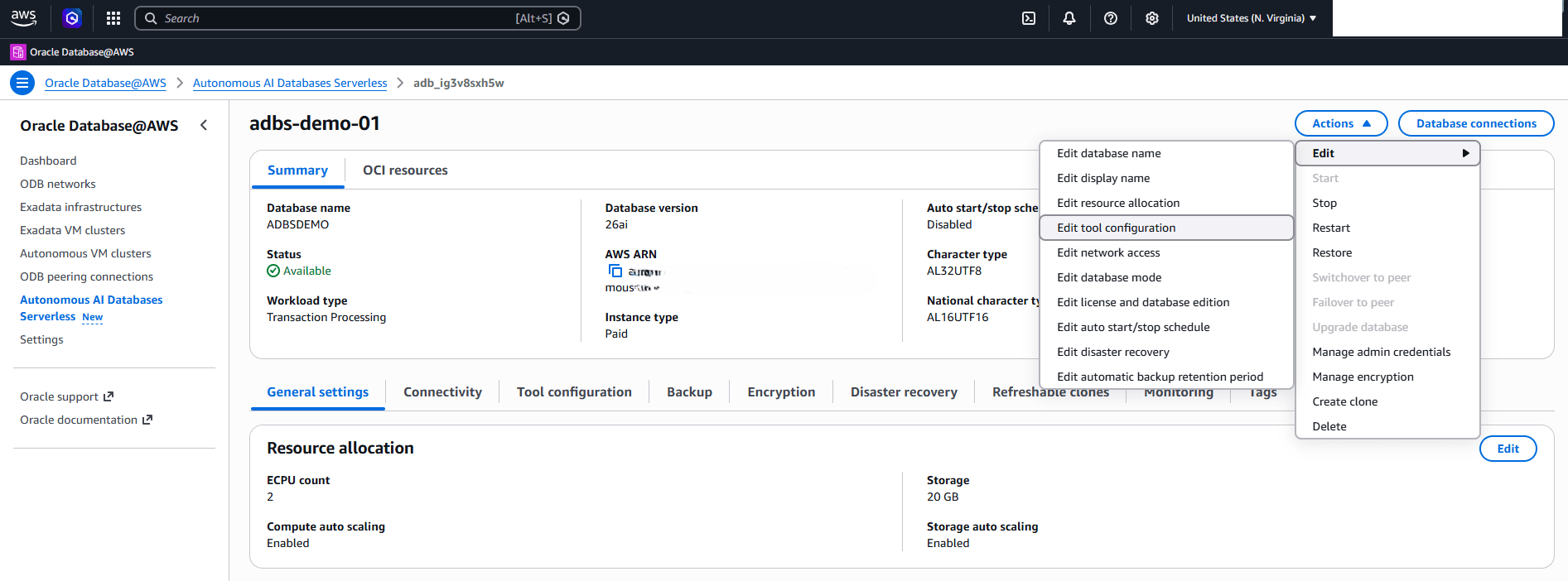
- In the Edit sub-menu, select the option that you want to modify.
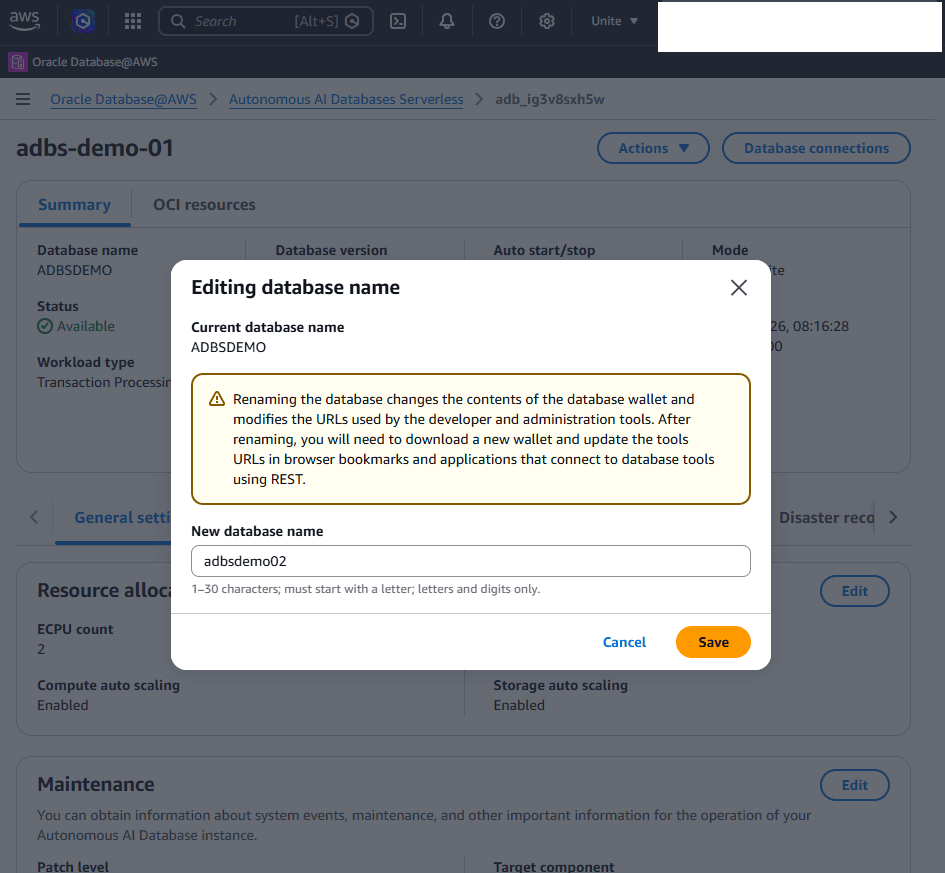
- Edit database name:
- Enter a new database name. The name must be 1-30 characters long, start with a letter, and contain only letters and digits.
- Select the Save button.
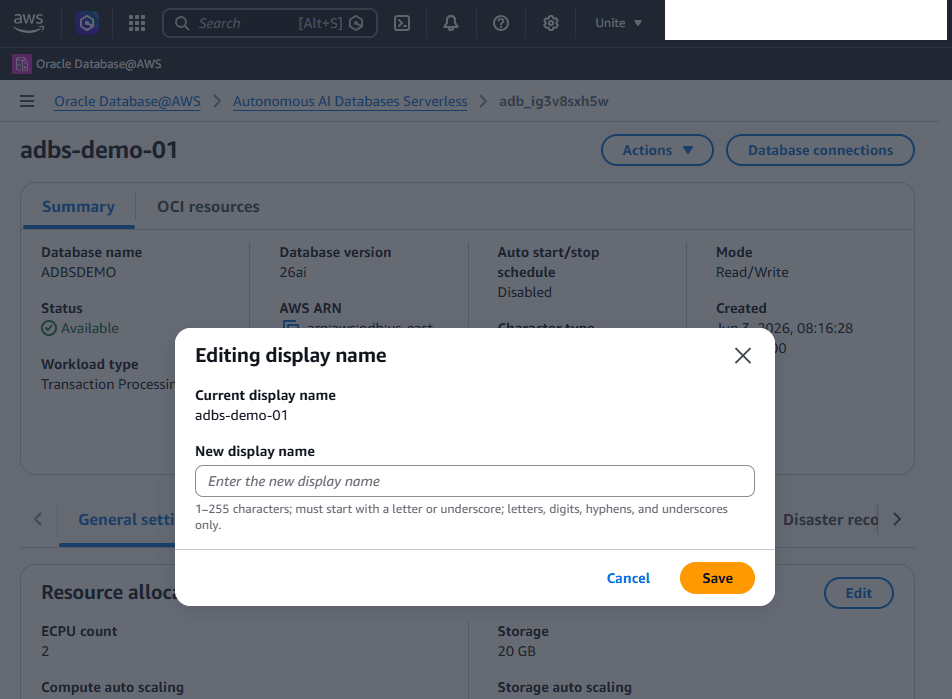
- Edit display name:
- Review your current display name.
- Enter a new display name in the New display name field. The display name must be 1-255 characters long, start with a letter or underscore, and contain only letters, digits, hyphens, and underscores.
- Select the Save button.
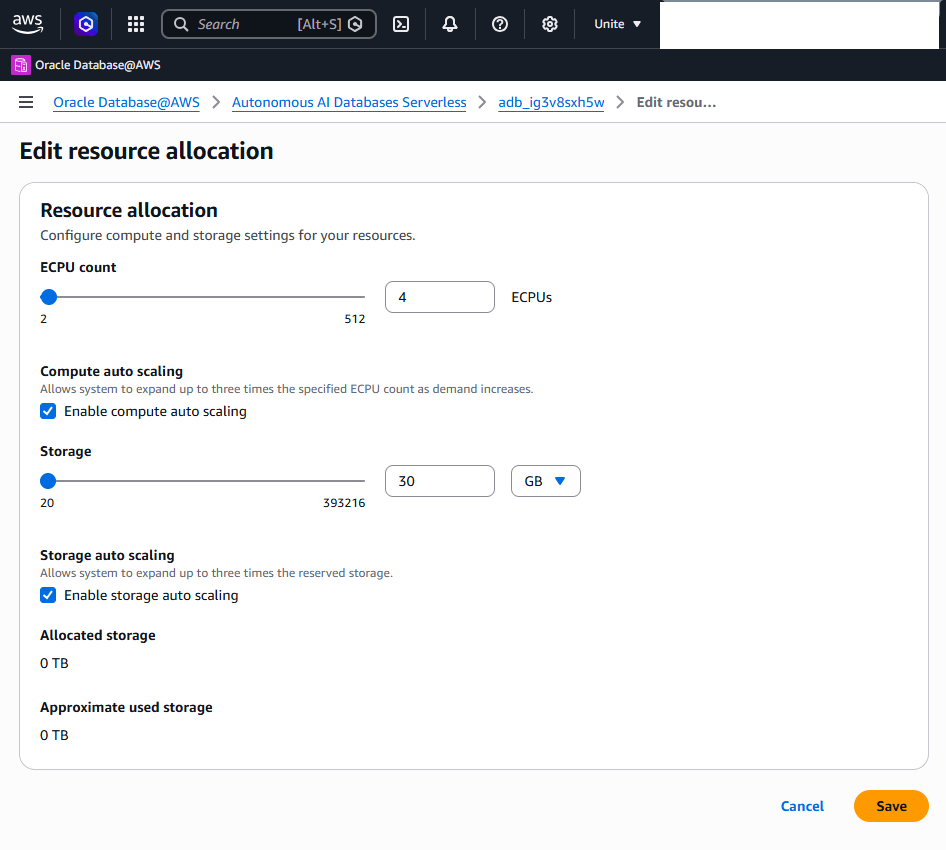
- Edit resource allocation:
- Use the ECPU count slider to select a value from 2 to 512.
- You can disable or enable the Compute auto scaling option.
- Storage is a slider UI that allows setting the storage allocation from 1 TB to 384 TB for Lakehouse and 20 GB to 393216 GB for Transaction process, JSON and APEX.
- You can disable or enable the Storage auto scaling option.
- Select the Save button.
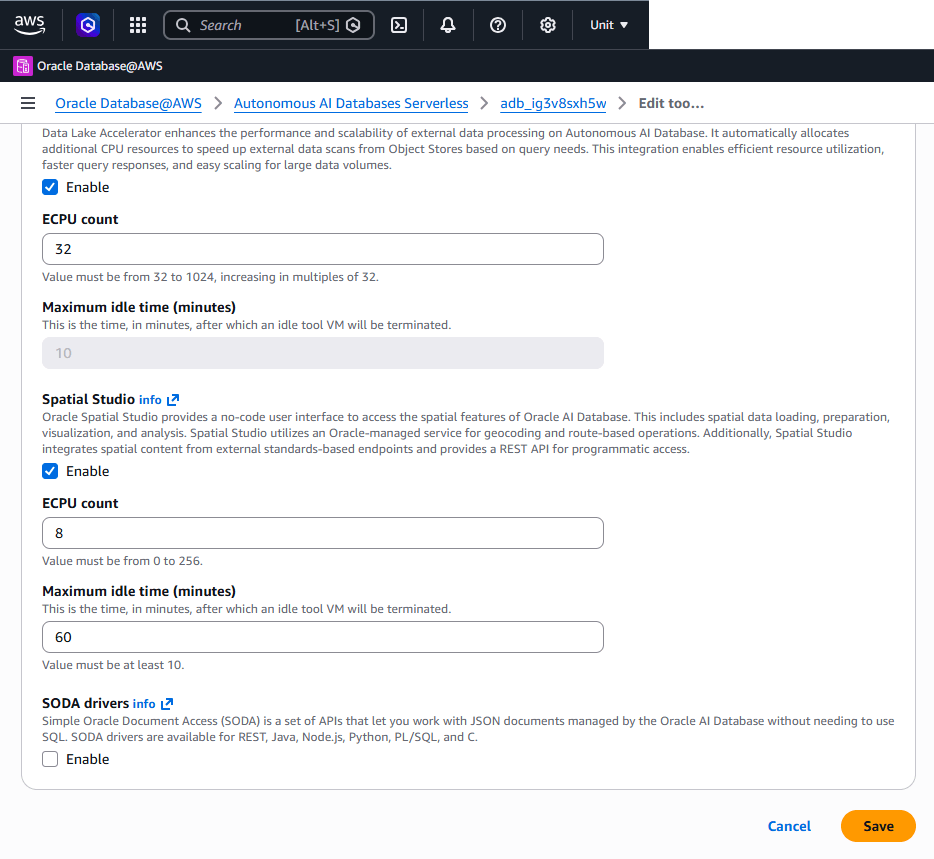
- Edit tool configuration:
- You can enable or disable Autonomous AI Database built-in tools for an existing Autonomous AI Database instance.
- After making the modification, select the Save button.
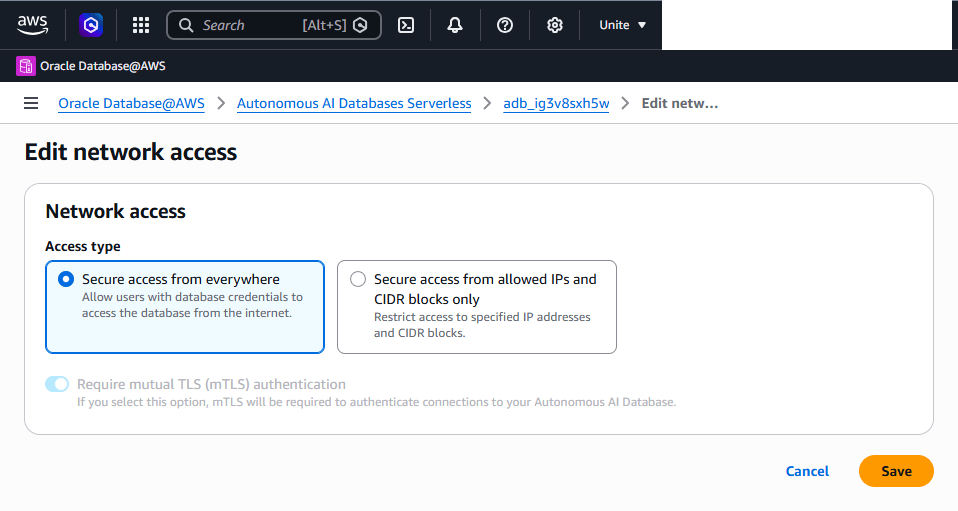
- Edit network access:
- Choose your Access type. The access type provides two options. These options are Secure access from everywhere and Secure access from allowed IPs and CIDR block only.
- After making the modification, select the Save button.
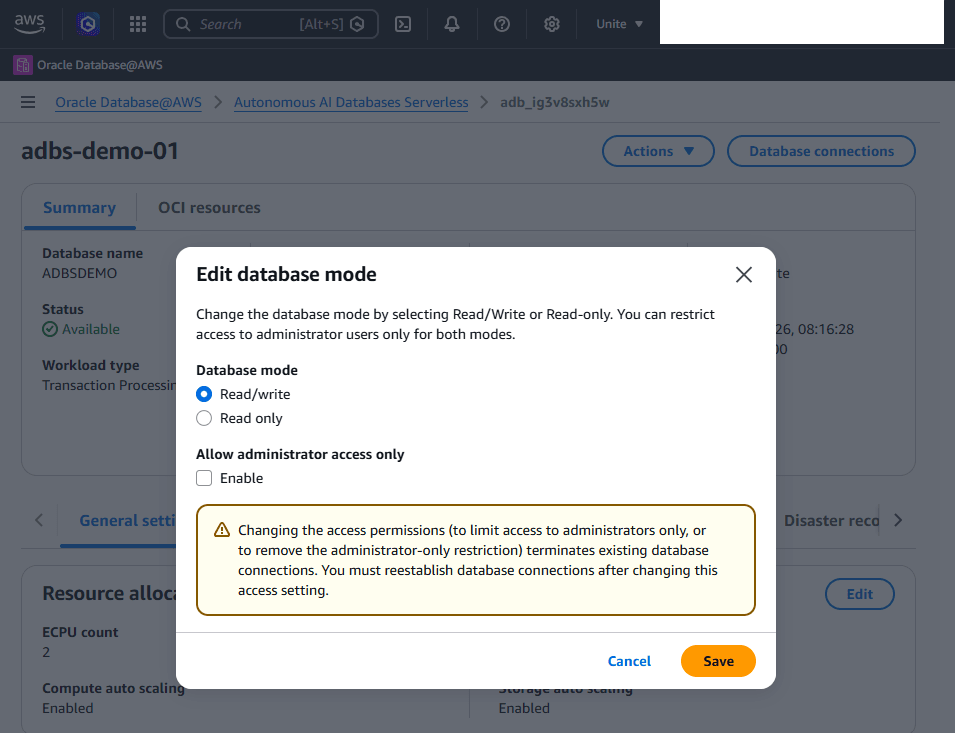
- Edit database mode:
- You can choose one of the following options for your Database mode:
- Read/write: Allows read and write access to the database.
- Read only: Allows read-only access to the database.
- To restrict access to administrator users only, select Enable under Allow administrator access only.
- Review the warning message. Changing access permissions to limit access to administrators only, or to remove the administrator-only restriction, ends existing database connections. You must reestablish database connections after you change this access setting.
- To save the database mode changes, select the Save button.
- To close the dialog without saving changes, select Cancel.
- You can choose one of the following options for your Database mode:
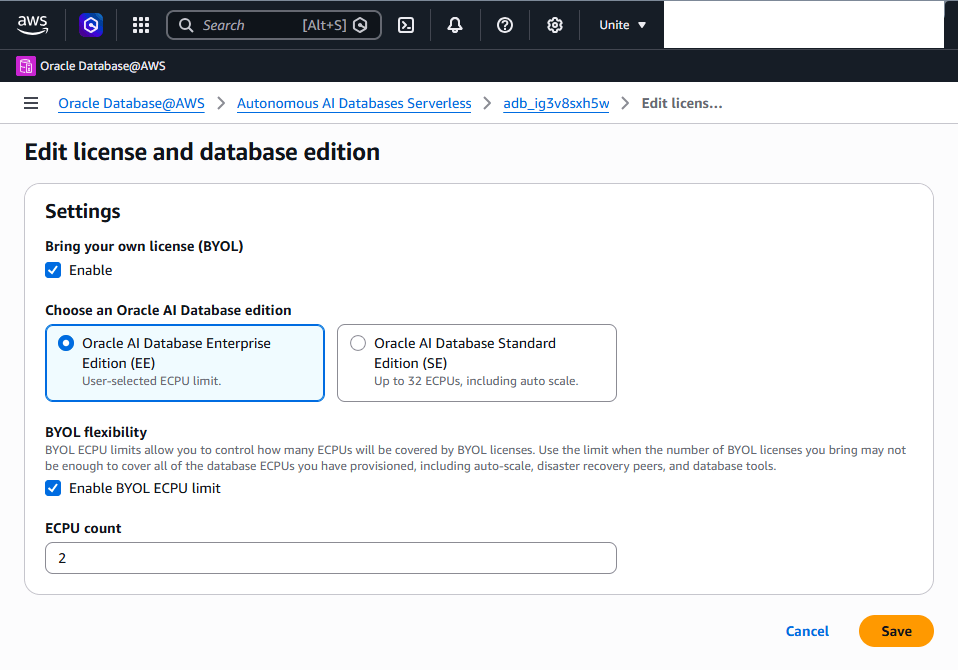
- Edit license and database edition:
- In the Settings section, review Bring your own license (BYOL). To use BYOL, select Enable.
- Under Choose an Oracle AI Database edition, select one of the following options:
- Oracle AI Database Enterprise Edition (EE): Uses a user-selected ECPU limit.
- Oracle AI Database Standard Edition (SE): Supports up to 32 ECPUs, including auto scale.
- In the BYOL flexibility section, review the BYOL ECPU limit information. BYOL ECPU limits control how many ECPUs BYOL licenses cover. Use this limit when the number of BYOL licenses you bring can be insufficient to cover all database ECPUs provisioned, including auto scale, disaster recovery peers, and database tools.
- To set a BYOL ECPU limit, select Enable BYOL ECPU limit.
- In ECPU count field, enter the ECPU value.
- To save the changes, select the Save button.
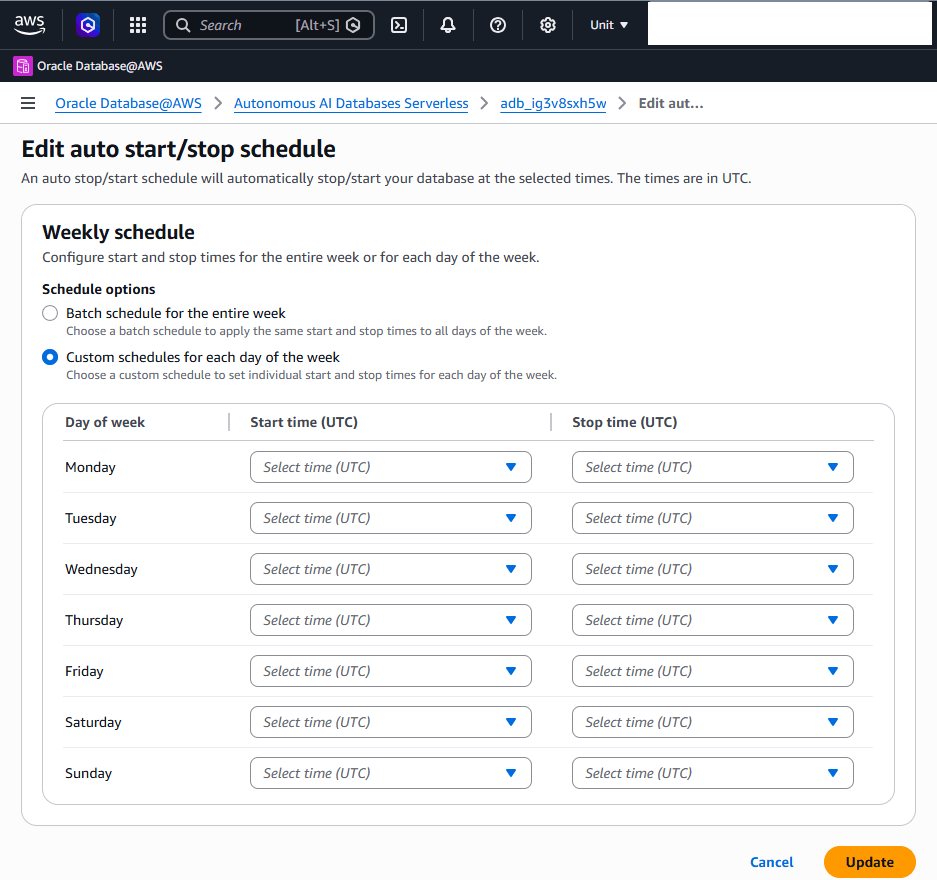
- Edit auto start/stop schedule: Use the Edit auto start/stop schedule page to configure start and stop times for the database. Times are in UTC.
- In the Weekly schedule section, choose one of the following schedule options:
- Batch schedule for the entire week: Applies the same start and stop times to all days of the week.
- Custom schedules for each day of the week: Sets individual start and stop times for each day of the week.
- To configure one schedule for all days, select the Batch schedule for the entire week option, and then select the start and stop times.
- To configure different schedules for each day, select the Custom schedules for each day of the week option.
- In the weekly schedule table, select a Start time (UTC) and Stop time (UTC) for each day:
- To save the schedule changes, select the Update button.
- In the Weekly schedule section, choose one of the following schedule options:
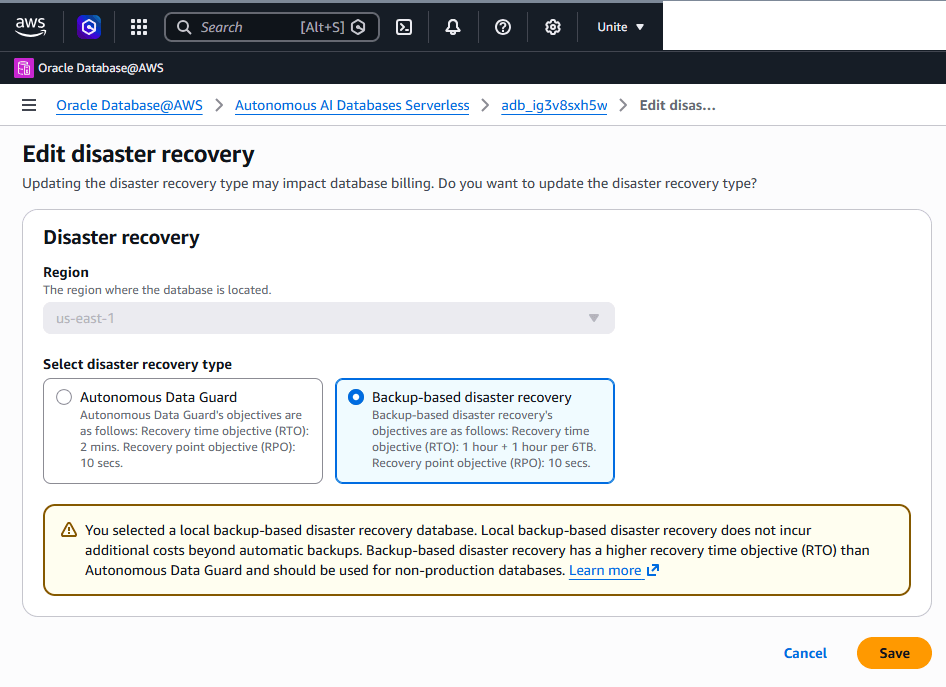
- Edit disaster recovery:
- In the Disaster recovery section, review the Region field. The region shows where the database is located.
- Under Select disaster recovery type, choose one of the following options:
- Autonomous Data Guard: Recovery time objective: 2 minutes. Recovery point objective: 10 seconds.
- Backup-based disaster recovery: Recovery time objective: 1 hour plus 1 hour per 6 TB. Recovery point objective: 10 seconds
- Review the warning message.
- To save the disaster recovery changes, select the Save button.
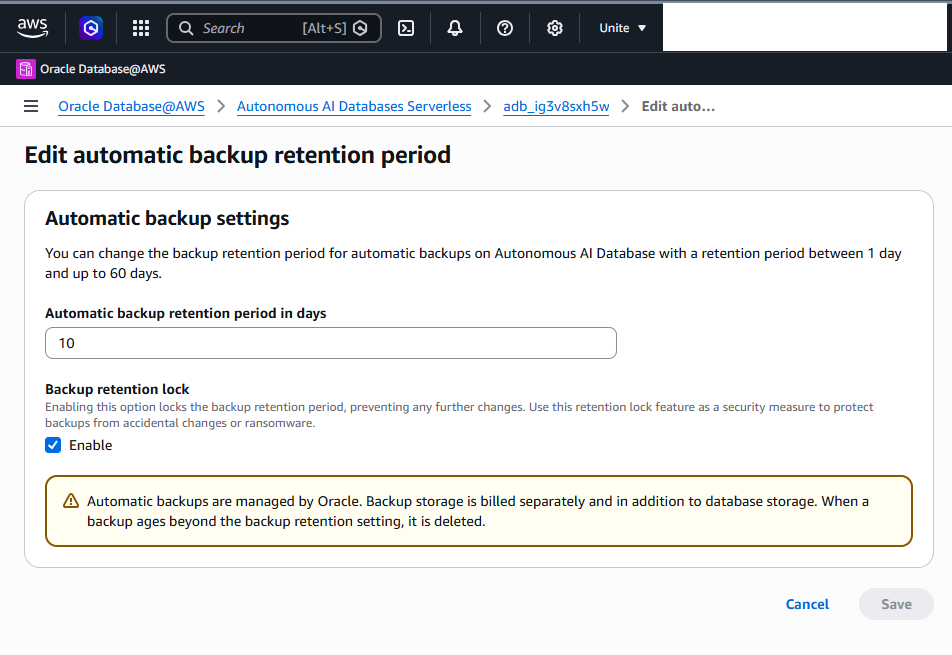
- Edit automatic backup retention period:
- In the Automatic backup settings section, review the retention period information. You can set the automatic backup retention period from 1 day to 60 days.
- To lock the backup retention period, select Enable under Backup retention lock.
Note
Automatic backups are managed by Oracle. Backup storage is billed separately and in addition to database storage. When a backup ages beyond the backup retention setting, it is deleted. - To save the backup retention changes, select the Save button.
- Edit database name:
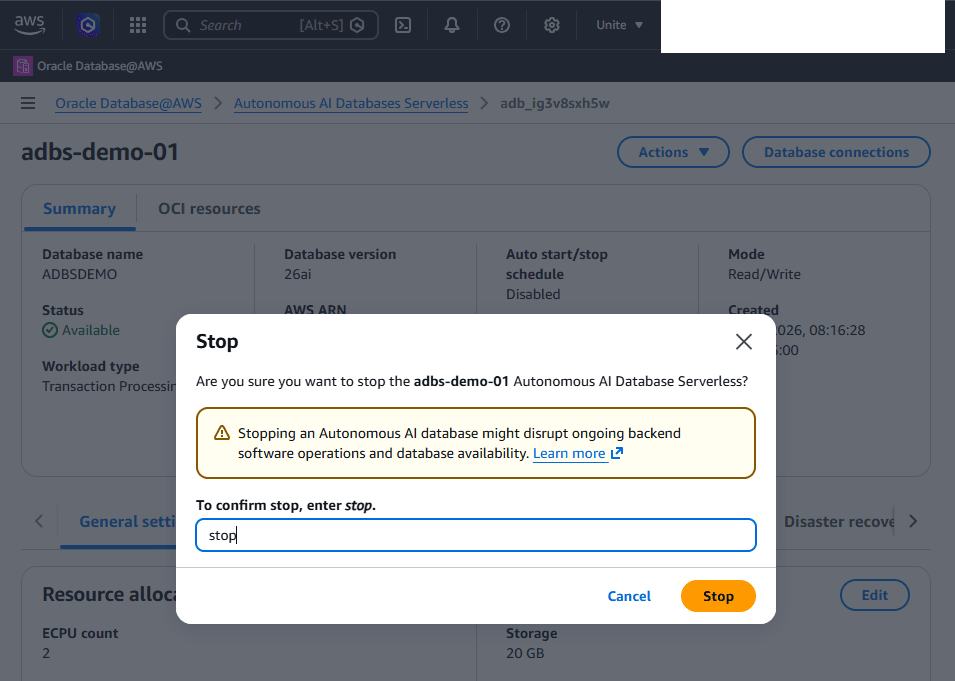
- To stop your Autonomous AI Database Serverless, select the Actions button and then choose the Stop option.
- In the Stop dialog, review the database name and confirm that you want to stop the selected Autonomous AI Database Serverless instance.
Note
Stopping an Autonomous AI Database might disrupt ongoing backend software operations and database availability - In the confirmation field, enter stop.
- Select the Stop button.
- In the Stop dialog, review the database name and confirm that you want to stop the selected Autonomous AI Database Serverless instance.
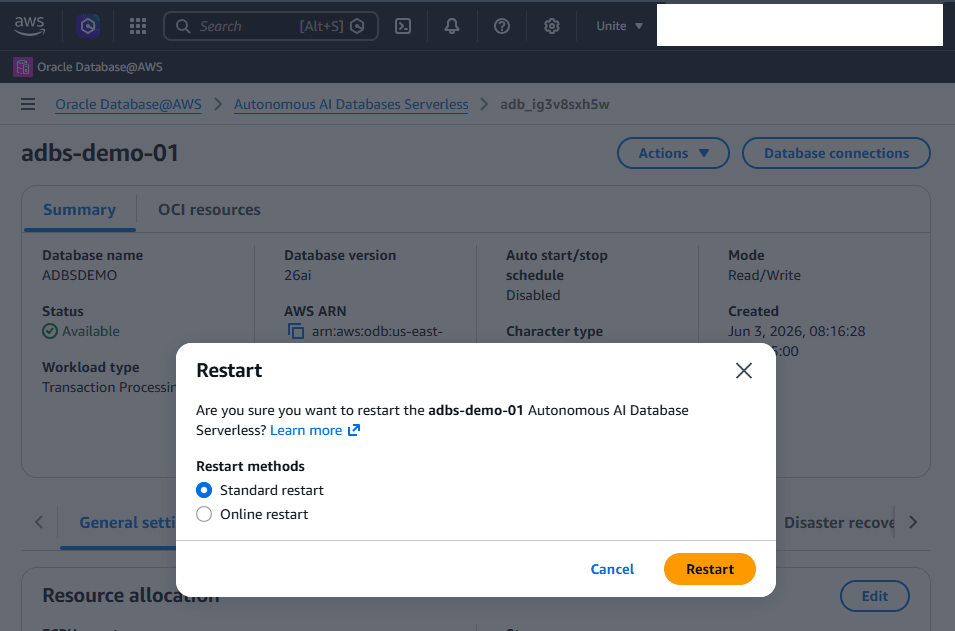
- To restart your Autonomous AI Database Serverless, select the Actions button and then choose the Restart option.
- In the Restart dialog, review the database name and confirm that you want to restart the selected Autonomous AI Database Serverless instance.
- From the Restart methods section, choose either Standard restart or Online restart.
- To restart the database, select the Restart button.
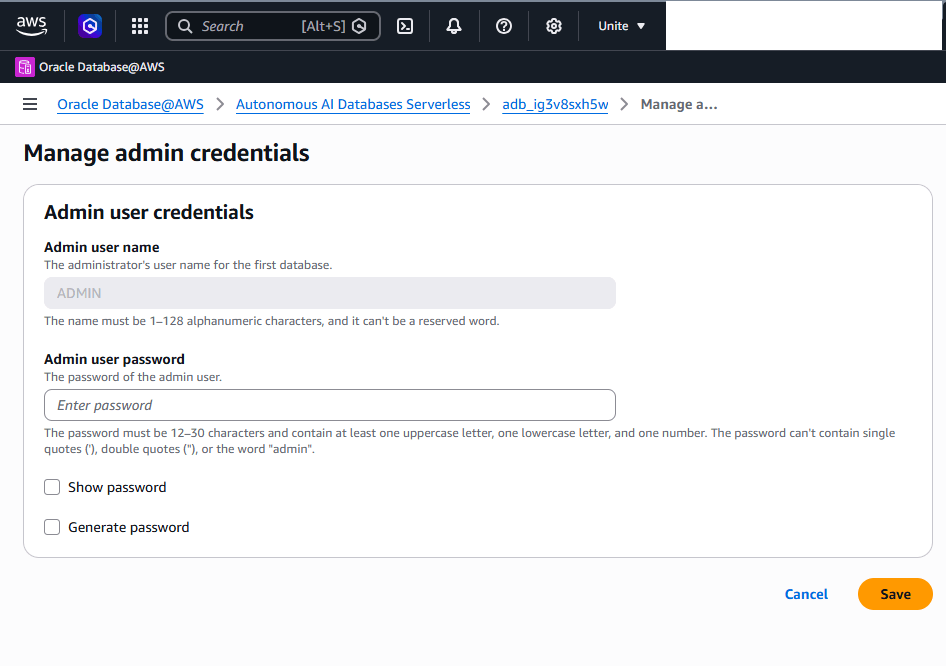
- To manage your admin credentials, select the Actions button and then choose the Manage admin credentials option.
- Verify that the admin user name shows ADMIN. This field is read-only.
- In Admin user password, enter the password for the admin user. The password must be 12–30 characters and contain at least one uppercase letter, one lowercase letter, and one number. The password can't contain single quotes ('), double quotes ("), or the word "admin".
- To view the password while entering it, select Show password.
- To generate a password, select Generate password.
- To save the admin credential changes, select Save.
You can modify various parameters and configuration settings for your Autonomous AI Database. These are the steps to modify your Autonomous AI Database.
- From the OCI Console, select Oracle AI Database and then select Autonomous AI Database.
- From the Applied filters section, change the compartment where your Autonomous AI Database is created.
- Select your Autonomous AI Database that you want to modify.
- Select the More actions button to view and modify the following options.
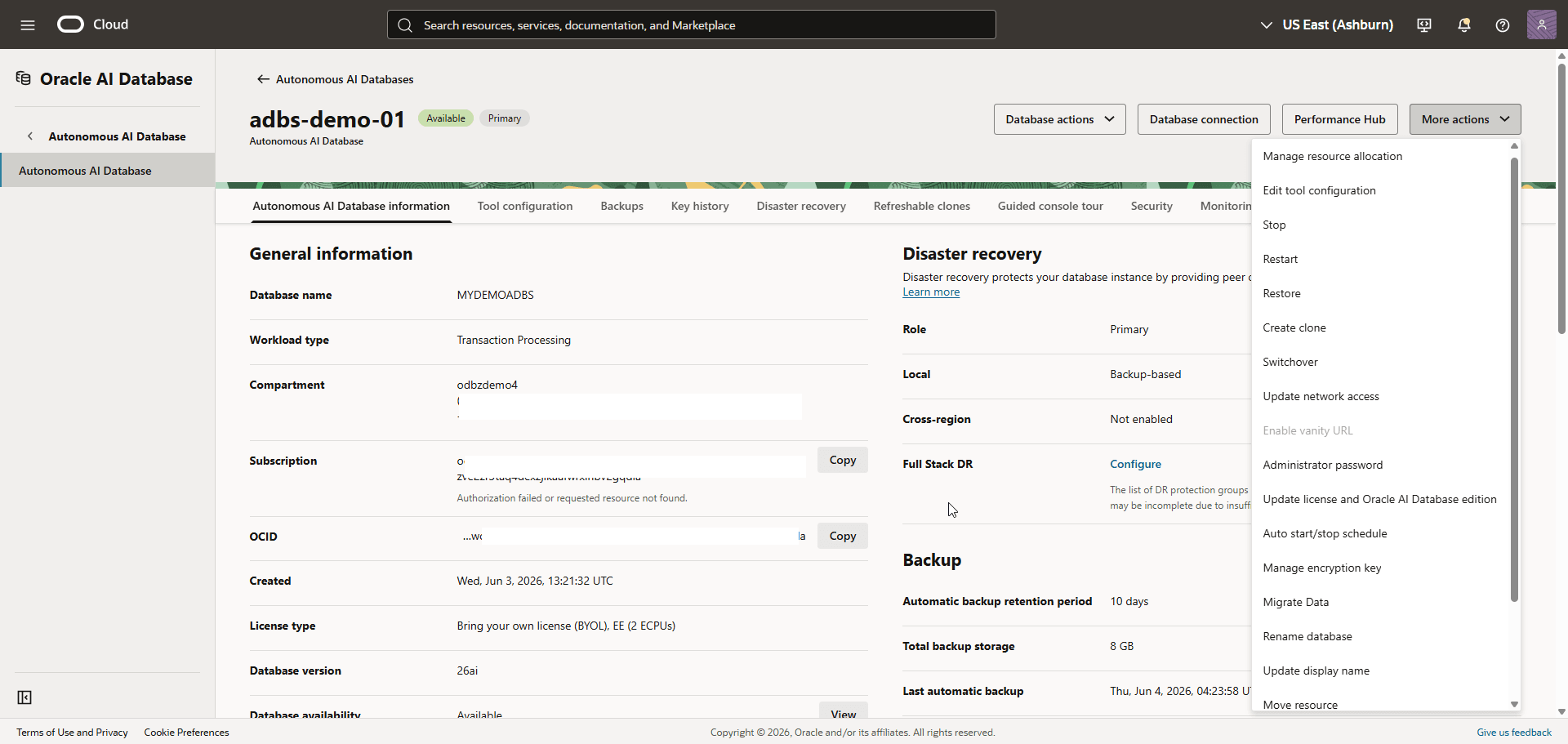
Task Overview Manage Resource Allocation For more information, see Add CPU or Storage Resources or Enable Auto Scaling. Edit tool configuration For more information, see Manage Autonomous AI Database Built-in Tools. Stop For more information, see Stop Autonomous AI Database. Start For more information, see Start Autonomous AI Database. Restart For more information, see Restart Autonomous AI Database. Administrator password For more information, see Set the ADMIN Password in Autonomous AI Database. Update license and Oracle AI Database edition For more information, see Choose Bring Your Own License on Autonomous AI Database (OCPU Compute Model). Auto start/stop schedule For more information, see Schedule Start and Stop Times for an Autonomous AI Database Instance. Rename database For more information, see Rename Autonomous AI Database. Update display name For more information, see Update the Display Name for an Autonomous AI Database Instance.
There is currently no content for this page. Oracle AI Database@AWS team intends to add content here, and this placeholder text is provided until that text is added. The Oracle AI Database@AWS team is excited about future new features, enhancements, and fixes to this product and this accompanying documentation. We strongly recommend you watch this page for those updates.
There is currently no content for this page. Oracle AI Database@AWS team intends to add content here, and this placeholder text is provided until that text is added. The Oracle AI Database@AWS team is excited about future new features, enhancements, and fixes to this product and this accompanying documentation. We strongly recommend you watch this page for those updates.
There is currently no content for this page. Oracle AI Database@AWS team intends to add content here, and this placeholder text is provided until that text is added. The Oracle AI Database@AWS team is excited about future new features, enhancements, and fixes to this product and this accompanying documentation. We strongly recommend you watch this page for those updates.