Protect Autonomous AI Database (Dedicated)
Learn about various data protection methods available for Autonomous AI Database.
Data in Transit Encryption
Autonomous AI Database is protected with encryption of data in transit by default. This ensures that data moving between application and the database is secured from unauthorized interception or tampering. Oracle Net Services supports multiple industry-standard encryption algorithms including AES, DES, 3DES, and RC4 for securing data in transit. It also offers MD5, SHA-1, and SHA-2 hashing algorithms to verify data integrity.
All communication between clients and the database is encrypted using Oracle Net Services (SQL*Net). Two types of connection services are supported:
-
TCPS (Secure TCP) Connections
-
Uses TLS 1.2 or TLS 1.3.
-
Requires a downloadable connection wallet.
-
Ensures symmetric encryption via secure handshake using the wallet.
-
TLS 1.3 support is available starting with Oracle AI Database 26ai.
-
-
TCP Connections with Native Network Encryption
-
Uses Oracle’s built-in encryption protocol.
-
Negotiates encryption during connection (AES-256, AES-192, AES-128).
-
No wallet is required but connection details such as
tnsnames.oramust be known.
-
Clients (applications and tools) connect to an Autonomous AI Database using Oracle Net Services (also known as SQL*Net) and predefined database connection services. Oracle Autonomous AI Database provides two types of database connection services, each employing its own method for encrypting data in transit between the database and the client.
-
TCPS (Secure TCP) database connection services
-
It uses the industry-standard TLS 1.2 and TLS 1.3 (Transport Layer Security) protocol for connections. However, TLS 1.3 is only supported on Oracle AI Database 23ai or later.
-
When you create an Autonomous AI Database, a connection wallet is generated containing all the necessary files for a client to connect using TCPS. You should distribute this wallet only to clients who require database access. The client-side configuration uses information from the wallet to perform symmetric-key data encryption.
-
-
TCP database connection services
-
It uses the Native Network Encryption crypto system built in Oracle Net Services to negotiate and encrypt data during transmission. For this negotiation, Autonomous AI Database(s) are configured to require encryption using AES256, AES192 or AES128 cryptography.
-
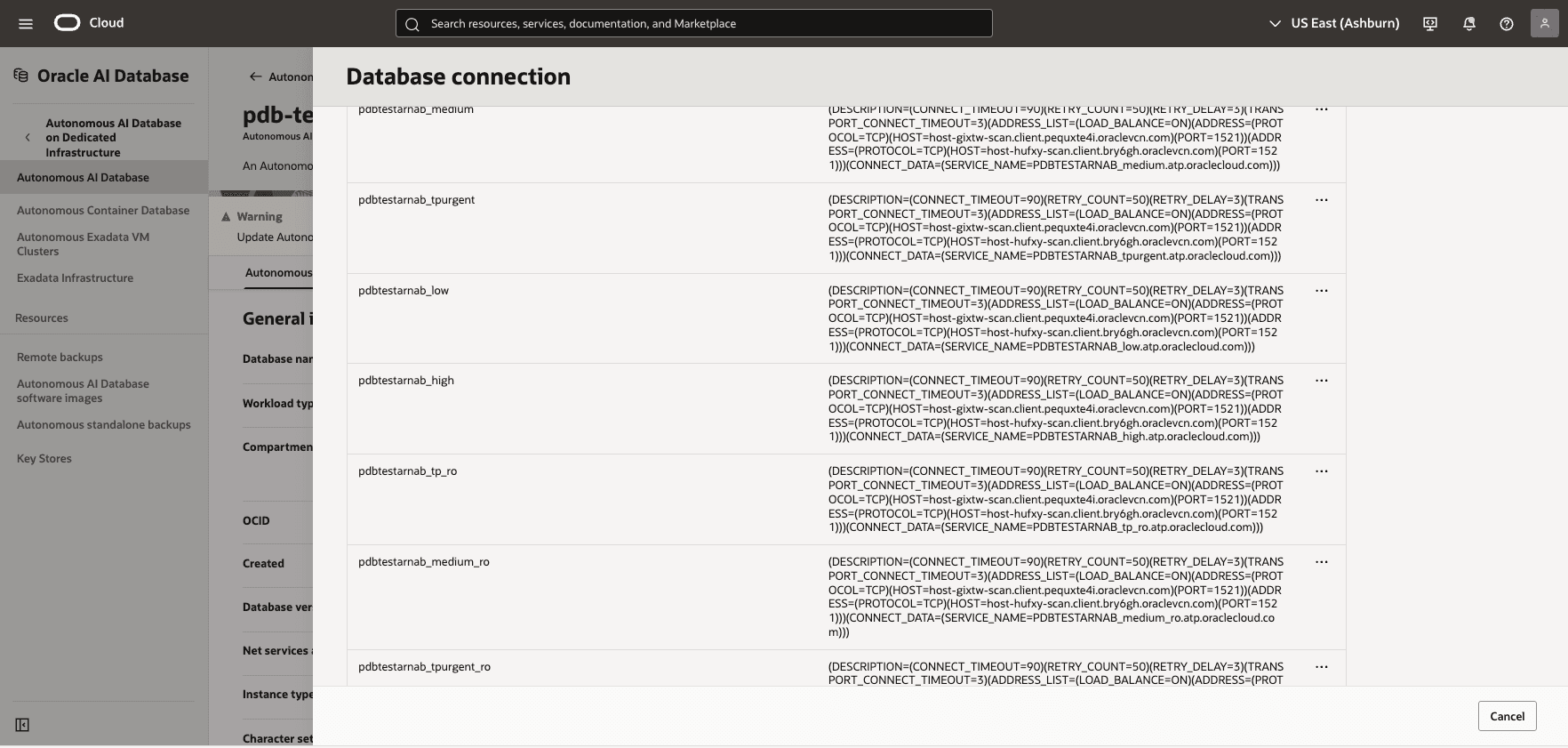
Because encryption is negotiated when the connection is made, TCP connections do not require the connection wallet needed for TCPS connections. However, the client will still need information about the database connection services. This information is available by selecting DB Connection on the database’s Autonomous AI Database Details page in the OCI console, and in the
tnsnames.orafile included in the same downloadable ZIP file that contains the files necessary to connect using TCPS.
-
These connection services are designed to support different types of database operations:
-
tpurgent_tls and tpurgent: For high priority, time critical transaction processing operations.
-
tp_tls and tp: For typical transaction processing operations.
-
high_tls and high: For high priority reporting and batch operations.
-
medium_tls and medium: For typical reporting and batch operations.
-
low_tls and low: For low priority reporting and batch operations.
Encryption at Rest for Oracle AI Database@AWS
Oracle AI Database@AWS supports encryption at rest to safeguard sensitive data residing in database files, backups, and configuration files. This protection is enabled by Transparent Data Encryption (TDE), which ensures that data is encrypted whenever it is written to persistent storage and transparently decrypted when accessed by authorized Oracle processes with no customer configuration is required. The master key encrypts tablespace keys, which in turn encrypt the data.
Transparent Data Encryption (TDE)
Encryption at rest is provided through TDE, a feature included in Oracle Advanced Security. TDE automatically encrypts tablespaces, redo logs, and undo logs, ensuring that all database data is written to disk in encrypted form and transparently decrypted for authorized users and applications. Database backups created using Oracle Recovery Manager (RMAN) or managed backup solutions adopt these encryption settings, protecting all database copies stored on persistent media.
Key Management
TDE uses a master encryption key to protect your tablespaces and columns. For Oracle AI Database@AWS , there are two key management options:
-
Oracle-managed keys: The master encryption key is automatically generated and stored in an Oracle Wallet, which is secured within the database environment. Oracle handles all key lifecycle tasks, including backups and restores.
-
Customer-managed keys: You can integrate Autonomous AI Database on Dedicated Infrastructure with services like OCI Vault to generate and store the master encryption key outside the database, enabling centralized key control, lifecycle management, rotation, and auditing of key usage events. With customer-managed keys, you control the encryption keys used to protect your data. You can enable customer-managed keys when creating databases, switch from Oracle-managed to customer-managed keys, and rotate keys to meet security and compliance requirements.
Autonomous AI Database on Dedicated Infrastructure offers the following data at rest encryption methods:
-
Oracle-managed Key (OMK)
-
Customer-managed Key (CMK)
-
Oracle Cloud Infrastructure Vault
-
Oracle Key Vault (OKV)
-
AWS Key Management Service (AWS KMS)
-
Oracle-managed Key (OMK) is the default method for securing data encryption in Oracle AI Database@AWS. In Oracle AI Database, data encryption at rest is powered by TDE. When you choose OMK, the database system automatically handles all key management, including key generation, secure storage, and rotation required by TDE. There are no prerequisites or additional configuration steps required to use Oracle-managed Key on Oracle AI Database@AWS.
View Encryption Details
Autonomous Container Database
-
From Oracle AI Database@AWS dashboard, select Autonomous VM clusters, and then select your Autonomous AI Database that you are using.
-
Select the Manage in OCI button, which redirects you to the OCI console.
-
From the OCI console, select the Autonomous Container Databases tab, and then select your Autonomous Container Database that you want to check the key management.
-
From the Autonomous Container Database information tab, navigate to the Encryption section to view the Encryption key details. By default, the Encryption key is set to Oracle-managed key.
Autonomous AI Database
-
From Oracle AI Database@AWS dashboard, select Autonomous VM clusters, and then select your Autonomous VM Cluster that you are using.
-
Select the Manage in OCI button, which redirects you to the OCI console.
-
From the OCI console, select the Autonomous AI Databases tab, and then select your Autonomous AI Database that you want to check the key management.
-
From the Autonomous AI Database information tab, navigate to the Encryption section to view the Encryption key details. By default, the Encryption key is set to Oracle-managed key.
-
Customer-Managed Keys on Oracle AI Database@AWS with OCI Vault
Using customer-managed encryption keys on Oracle AI Database@AWS with Oracle Cloud Infrastructure (OCI) Vault service involves creating a master key in your OCI Vault and configuring your Oracle AI Database@AWS to use encryption keys in the OCI Vault.
Complete the following steps to use customer-managed keys on Oracle AI Database with OCI Vault:
-
Create an Oracle Cloud Infrastructure Vault (OCI Vault)
For more information, see Create an Oracle Cloud Infrastructure Vault.
-
Create a Master Encryption Key in the Vault
For more information, see Create a Master Encryption Key in the Vault.
-
Configure a Service Gateway, Route Rule, and Egress Security Rule
For more information, see Configure a Service Gateway, Route Rule, and Egress Security Rule.
-
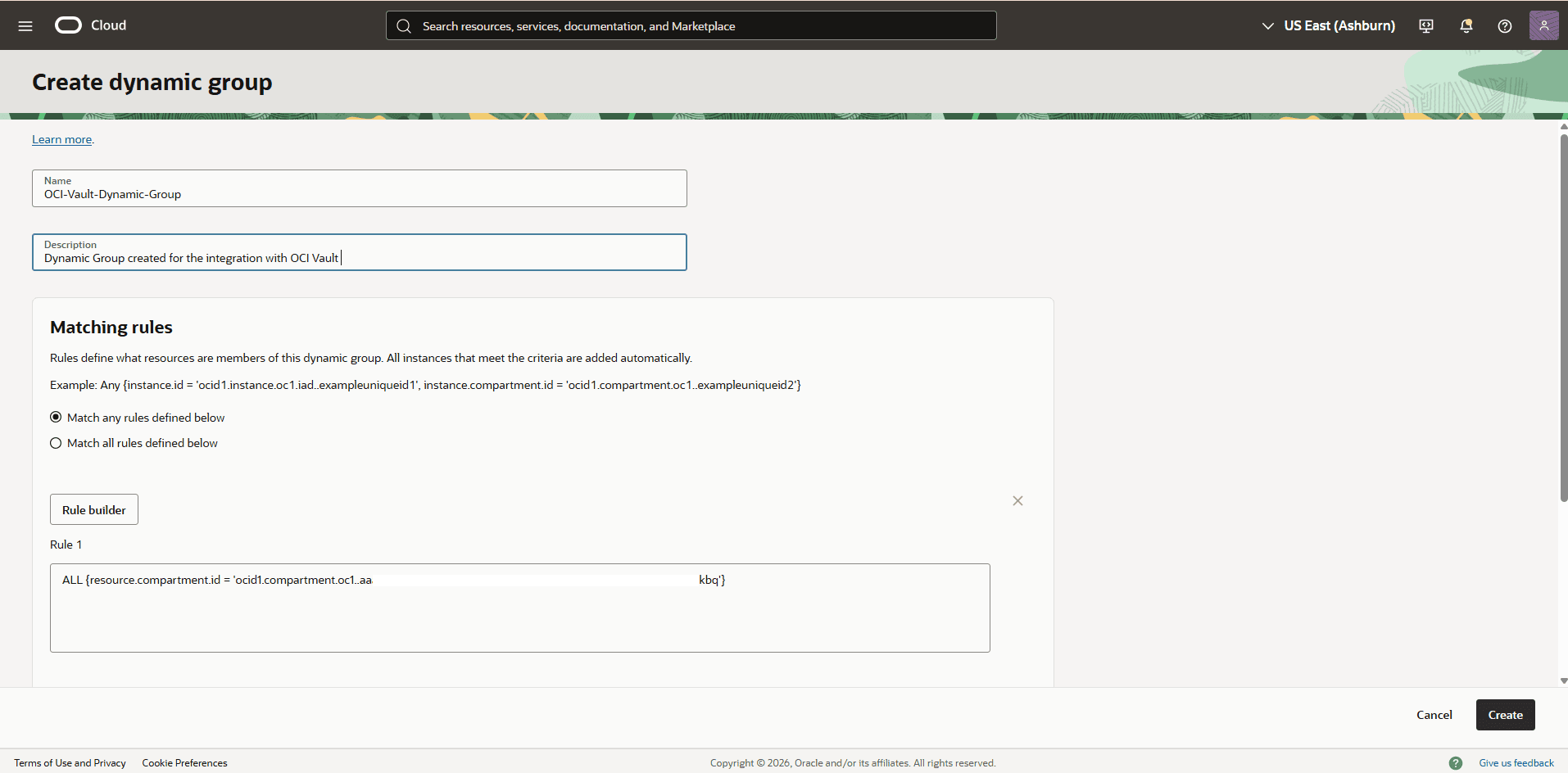
Create an OCI Dynamic Group
-
From the OCI console, select Oracle AI Database, and then select Autonomous AI Database on Dedicated Infrastructure.
-
From the left menu, select Autonomous Exadata VM Clusters, and then select the name field of your Autonomous Exadata VM Cluster.
-
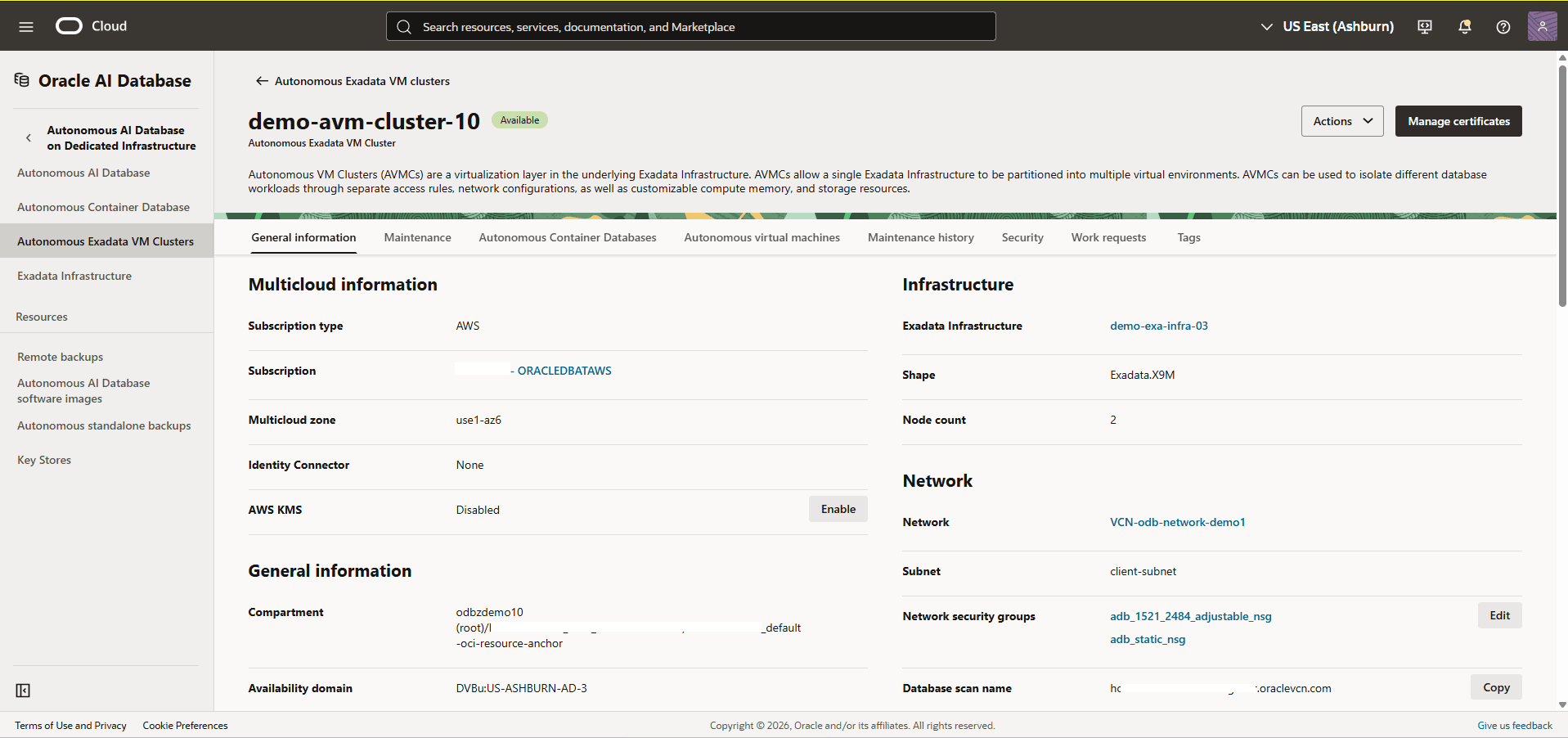
Select the General information tab, scroll down to the General information section. Take a note of your Autonomous Exadata VM Cluster Compartment information.
-
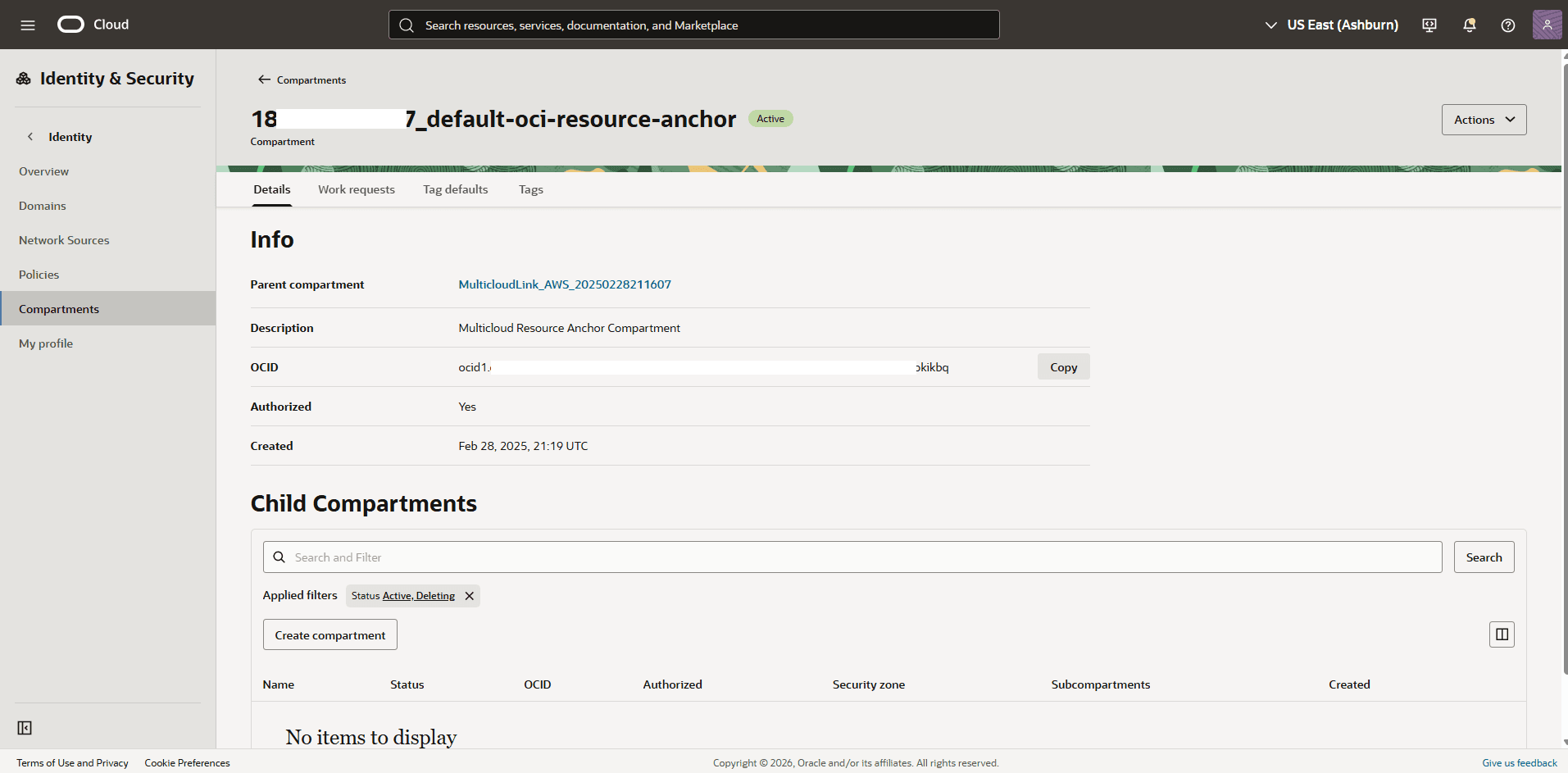
From the navigation menu , select Identity & Security, and then select Compartments.
-
Locate the Compartment that you previously noted, and then take a note of the compartment OCID.
-
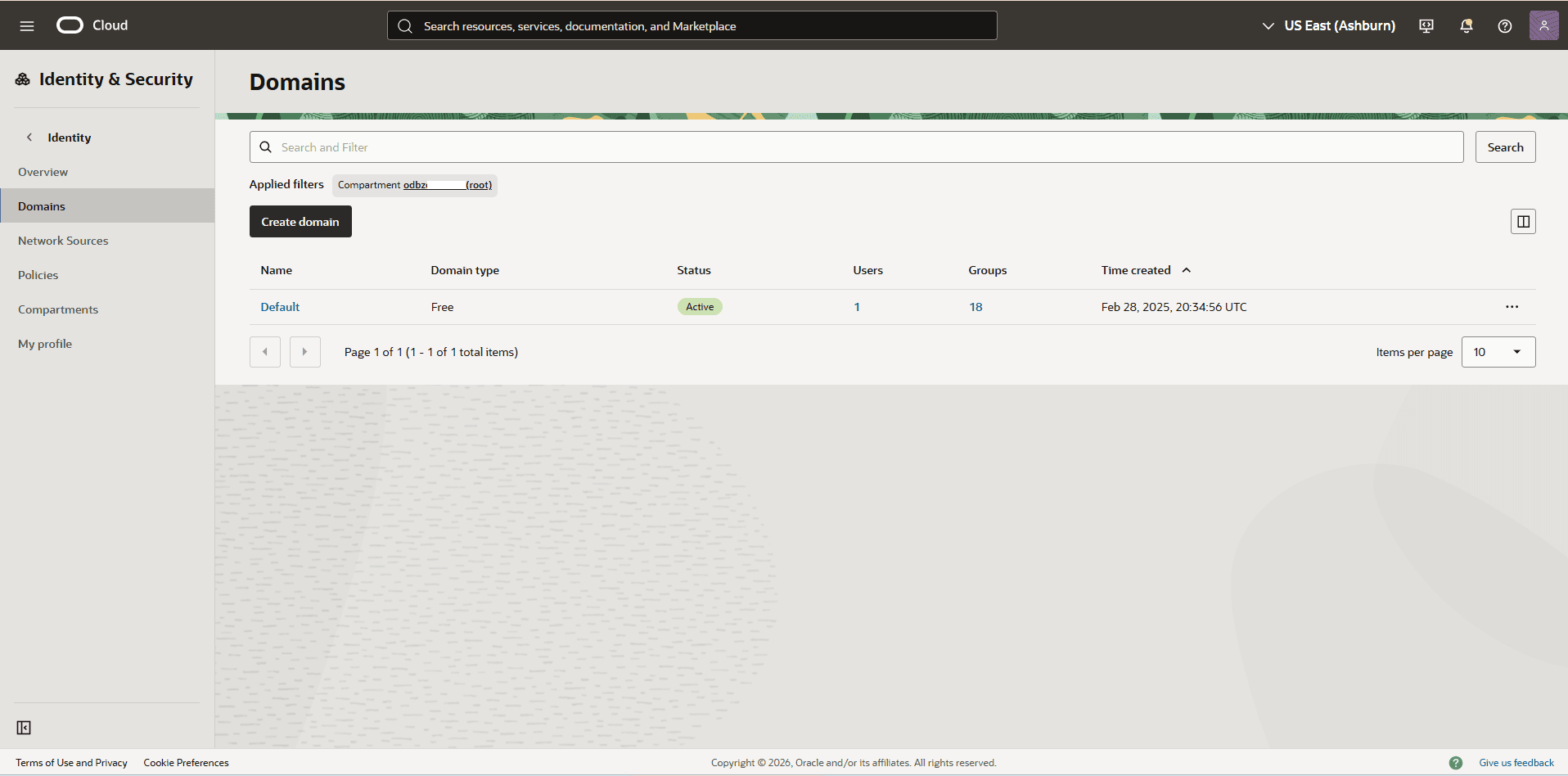
From the navigation menu , select Identity & Security, and then select Domains.
-
From the Applied filters section, select the Root Compartment, then choose your domain.
-
Select the Dynamic groups tab, and then select the Create dynamic group button.
-
Name: Enter a descriptive name for the group.
-
Description: Provide a brief description of the dynamic group’s purpose.
-
Matching Rules: Enter the following statement, replacing
<your_Compartment_OCID>with the compartment OCID you noted in the previous step:ALL {resource.compartment.id = '<your_Compartment_OCID>'} -
Review your information, and then select the Create button.
-
-
-
Create an OCI Policy
-
From the navigation menu , select Identity & Security, and then select Policies.
-
In the Applied Filter section, select the Root Compartment, and then select the Create Policy button.
-
Name: Enter a descriptive name for the group.
-
Description: Provide a brief description of the dynamic group’s purpose.
-
Enable the Show manual editor button, and then enter the following statements. Replace
<dynamic-group-name>with the name of the dynamic group created in the previous step, and<your_Compartment_OCID>with your specific compartment OCID:Allow dynamic-group <dynamic-group-name> to manage keys in compartment id <your_Compartment_OCID>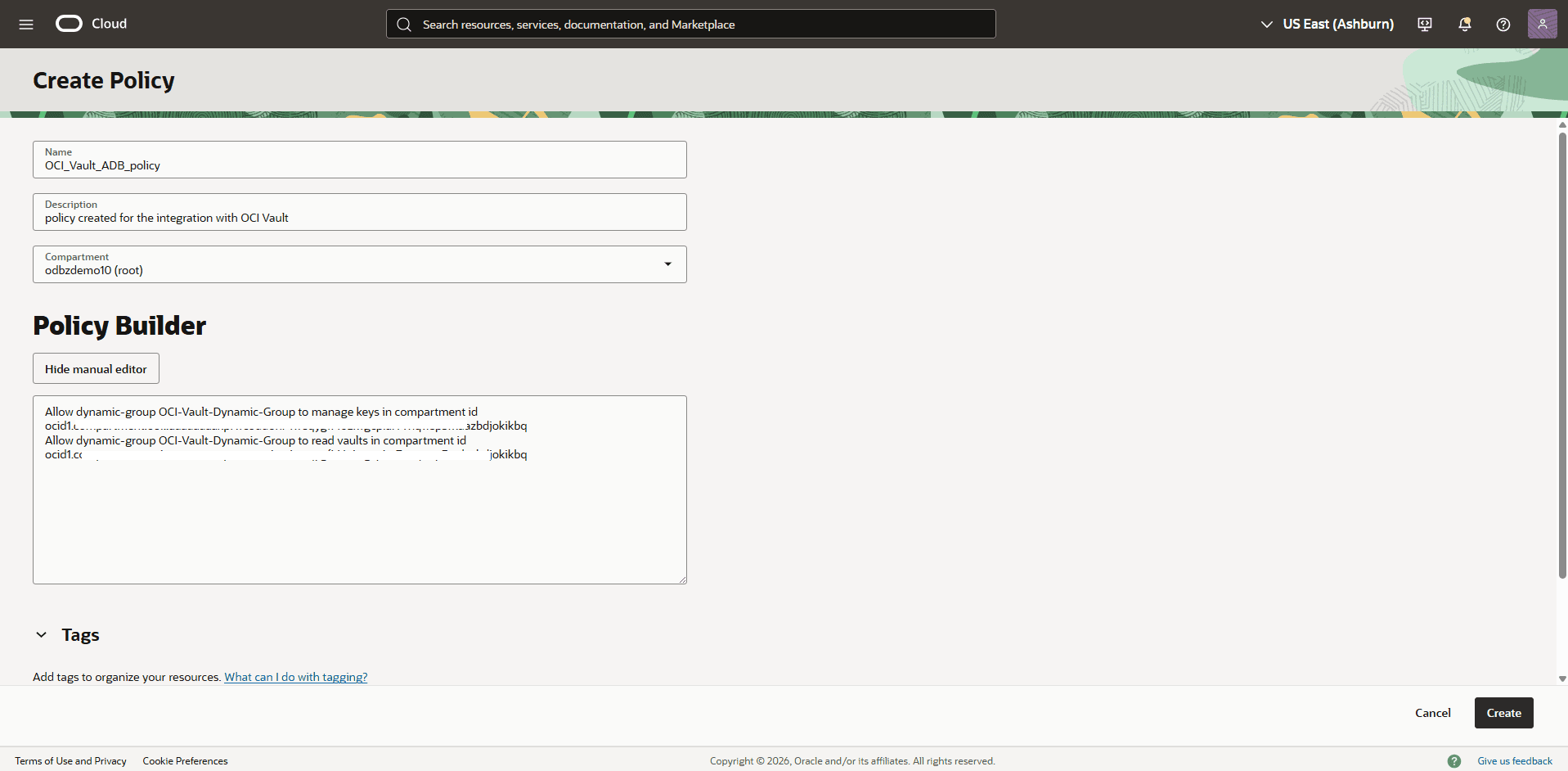
-
Note
Note: To use customer-managed keys with Autonomous Data Guard and a remote standby database, the following policy is also required:
4. Review your information, and then select the **Create** button. -
-
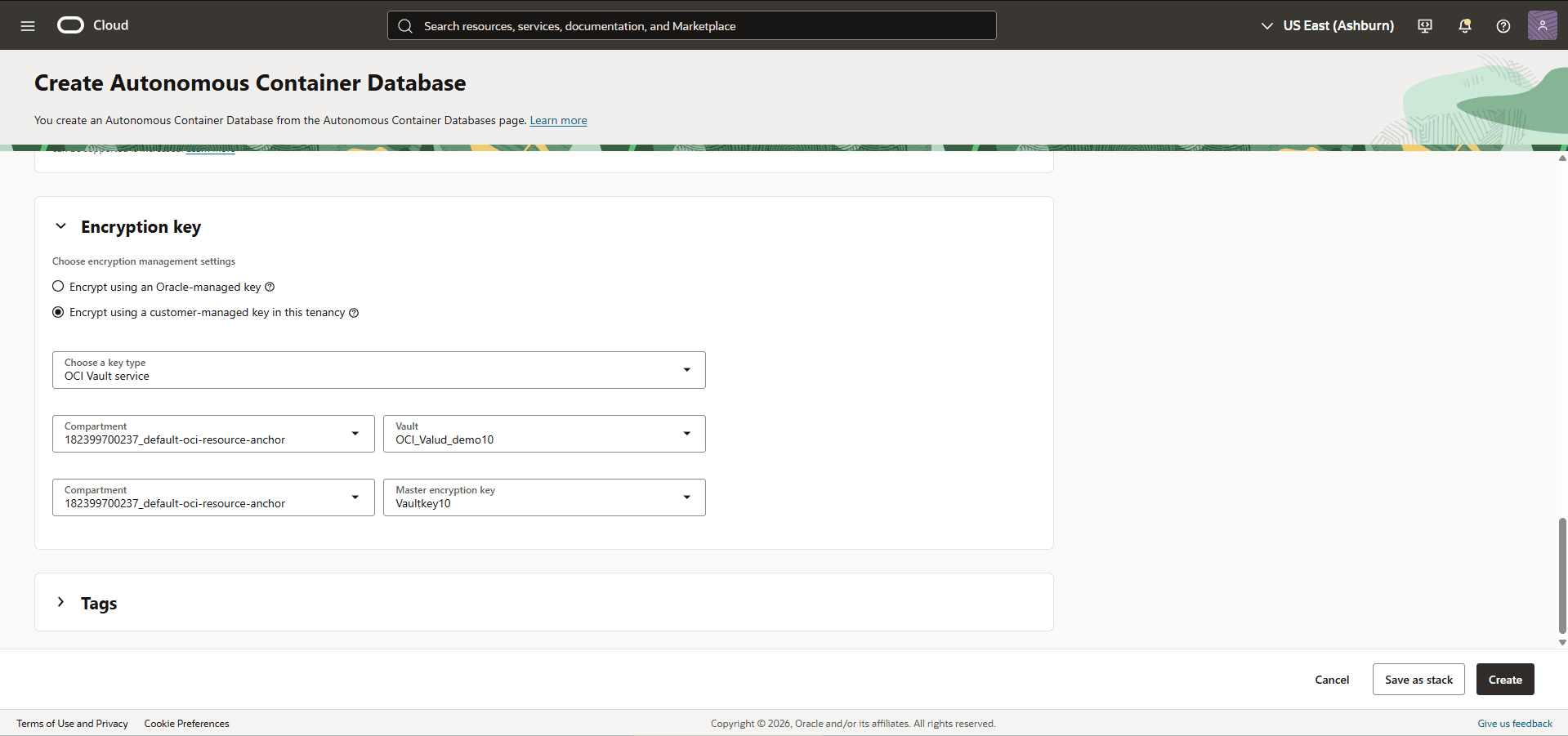
Create an Autonomous Container Database and Use OCI Vault as the Key Management Solution
-
Create an Autonomous Container Database. See Autonomous AI Database Dedicated for step-by-step instructions by choosing the OCI Console tab.
-
Expand the Advance options section and navigate to the Encryption section and then choose the Encrypt using a customer-managed key in this tenancy option.
-
Select OCI Vault service as your key type.
-
Select the Compartment where you created your OCI Vault, and then select OCI Vault from the dropdown list.
-
Select the Compartment where you created the OCI key, then select the Key from the dropdown list.
-
-
Review your information and then select the Create button.
-
-
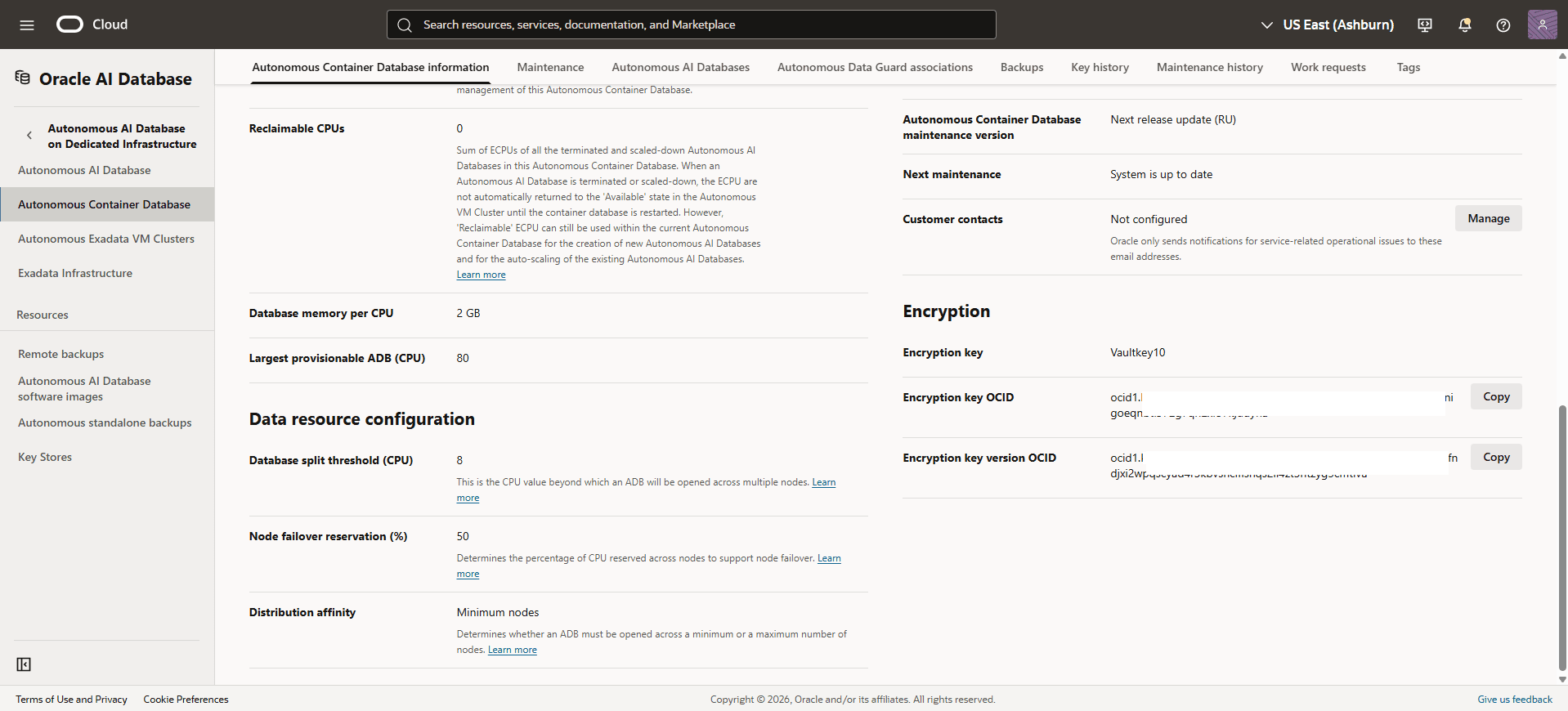
Verify the Database Encryption Method
-
From the OCI console, select Oracle AI Database, and then select Autonomous AI Database on Dedicated Infrastructure.
-
From the left menu, select Autonomous Exadata VM Clusters, and then select the name field of your Autonomous Exadata VM Cluster.
-
Select the Autonomous Container Databases tab, and then select the name field of your Autonomous Container Database that you wish to validate.
-
Scroll down to the Encryption section. In this section, you can confirm that the master encryption key protects your Autonomous Container Database, along with the Encryption key OCID and the Encryption key version OCID.
-
Rotate the Encryption Key at the Autonomous Container Database Level
-
From the OCI console, select Oracle AI Database, and then select Autonomous AI Database on Dedicated Infrastructure.
-
From the left menu, select Autonomous Exadata VM Clusters, and then select the name field of your Autonomous Exadata VM Cluster.
-
Select the Autonomous Container Databases tab, and then select the name field of your Autonomous Container Database.
-
Select the Actions button, and then choose the Rotate encryption key option.
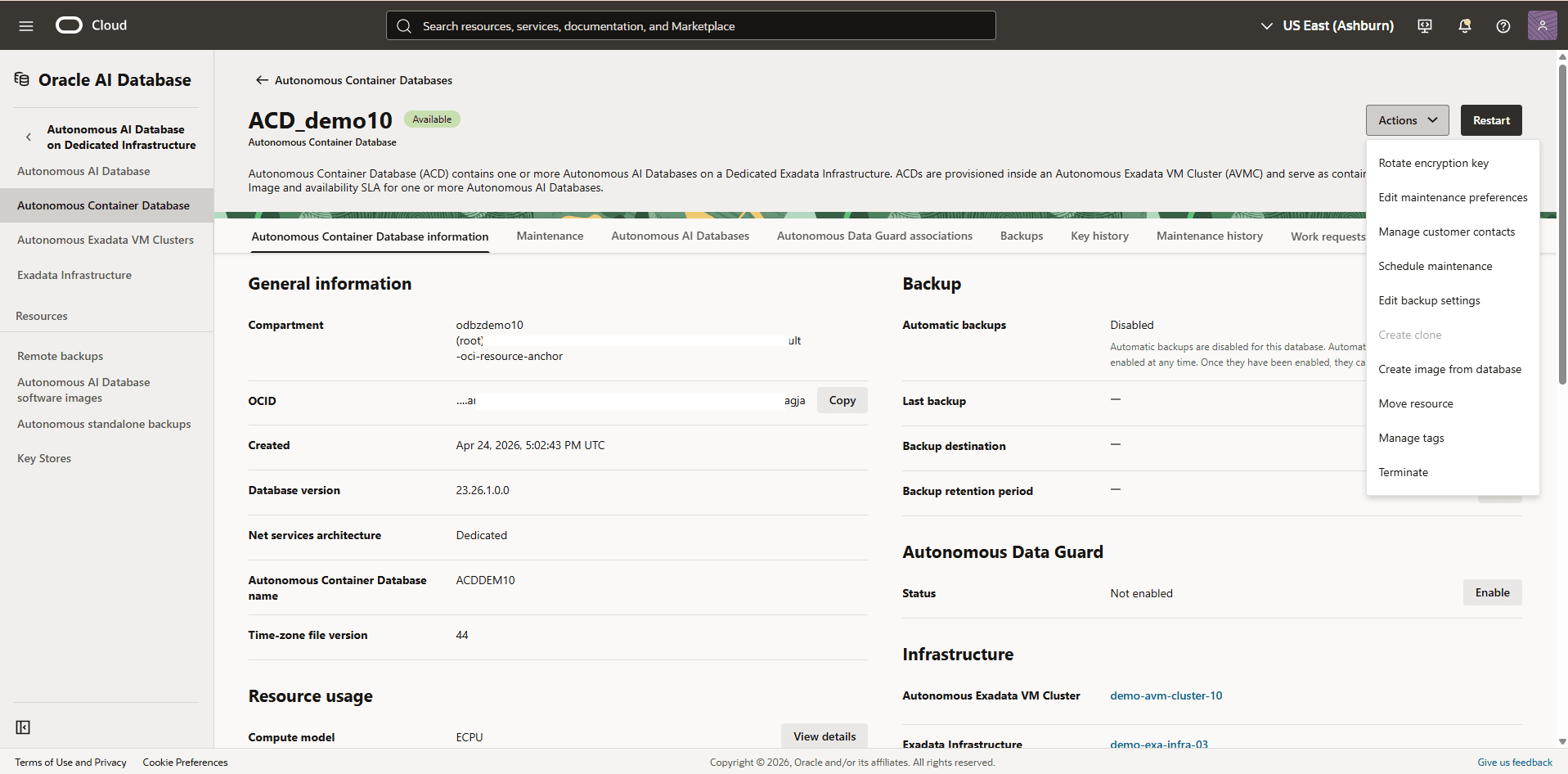
-
Select the Rotate encryption key button to save the changes.
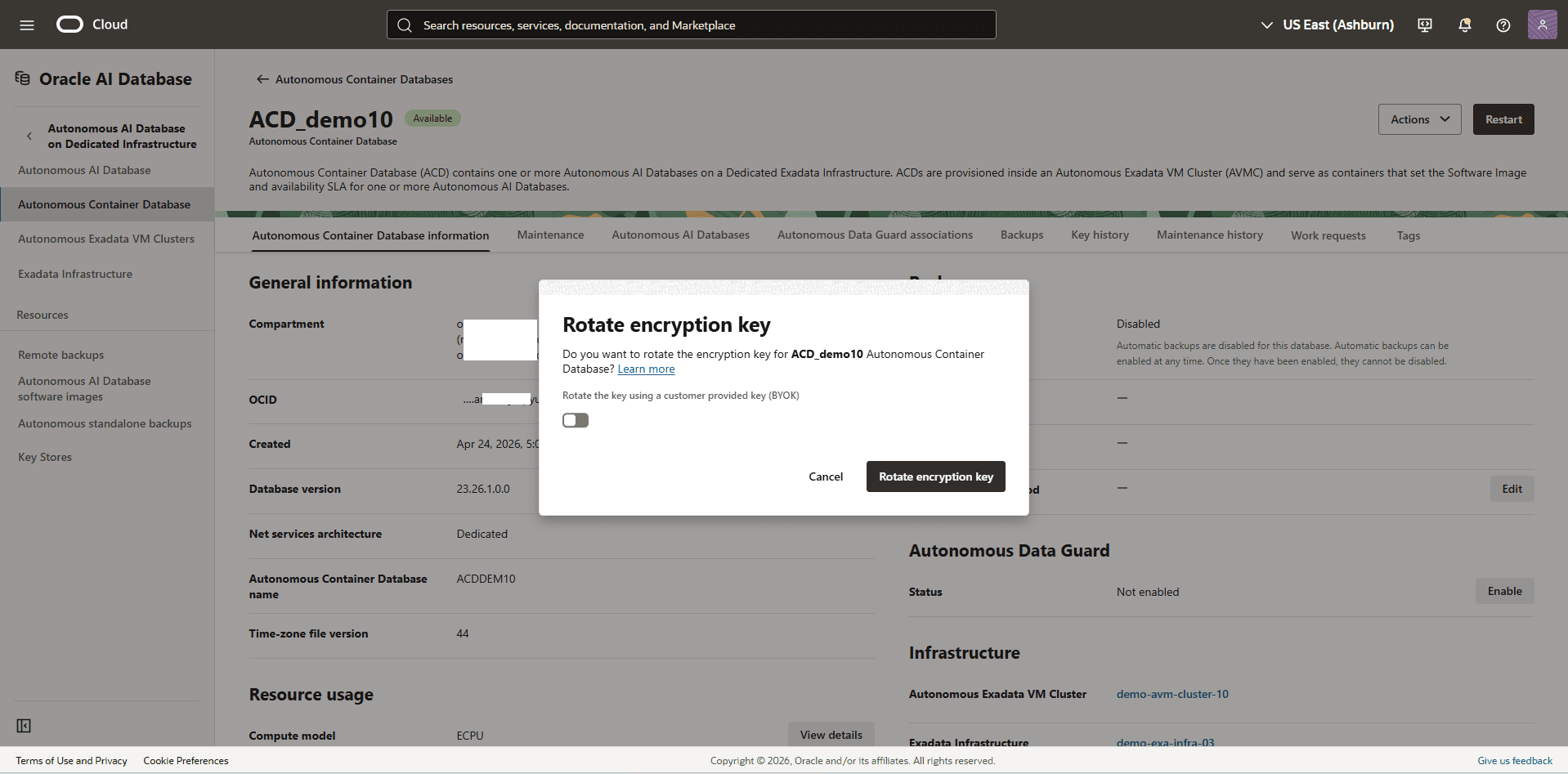
Rotate the Encryption Key at the Autonomous AI Database Level
-
From the OCI console, select Oracle AI Database, and then select Autonomous AI Database on Dedicated Infrastructure.
-
From the left menu, select Autonomous Exadata VM Clusters, and then select the name field of your Autonomous Exadata VM Cluster.
-
Select the Autonomous Container Databases tab, and then select the name field of your Autonomous Container Database.
-
Select the Autonomous AI Database tab and then select your Autonomous AI Database.
-
Select the More actions button, and then choose the Rotate encryption key option.
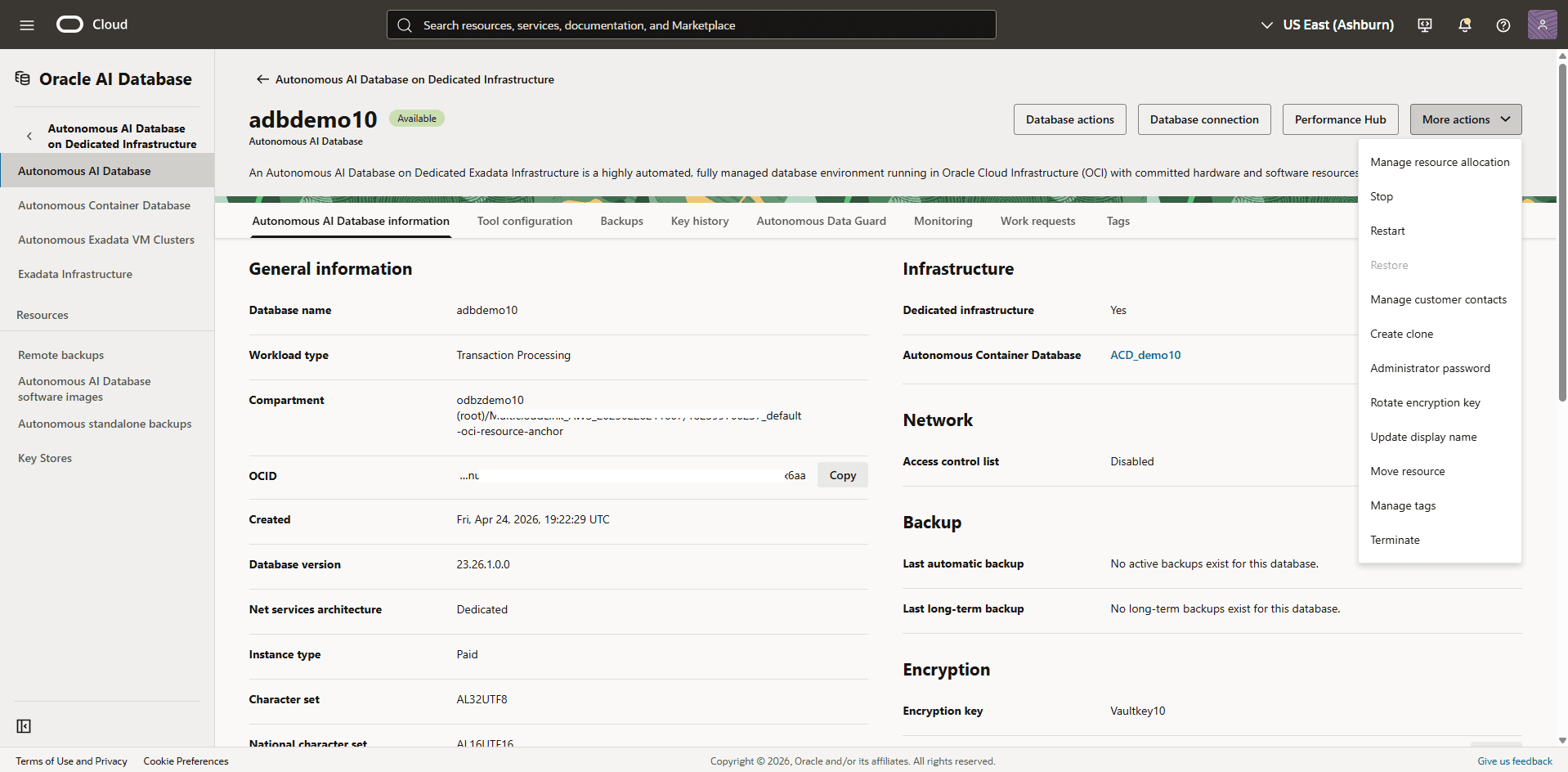
-
Select the Rotate encryption key button to save the changes.
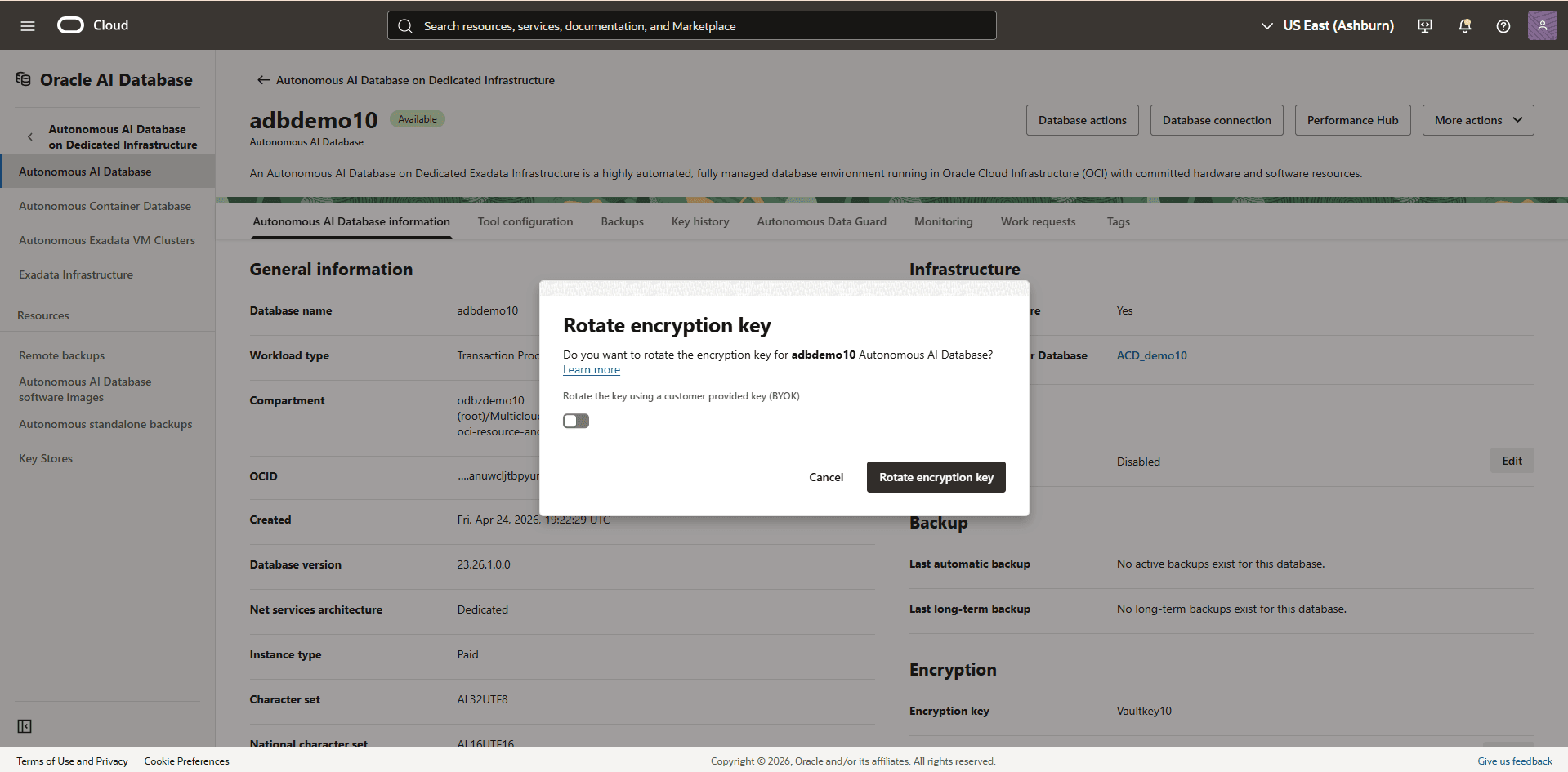
-
There is currently no content for this page. The Oracle AI Database@AWS team intends to add content here, and this placeholder text is provided until that text is added.
The Oracle AI Database@AWS team is excited about future new features, enhancements, and fixes to this product and this accompanying documentation. We strongly recommend you watch this page for those updates.
Oracle Autonomous AI Database on Dedicated Infrastructure on Oracle AI Database@AWS supports integration with AWS Key Management Service (KMS). This capability allows users to manage Transparent Data Encryption (TDE) master encryption keys (MEKs) using AWS customer managed keys.
For Oracle Autonomous AI Database on Dedicated Infrastructure on Oracle AI Database@AWS, TDE MEKs can be stored in a file-based Oracle Wallet, Oracle Cloud Infrastructure (OCI) Vault, Oracle Key Vault (OKV), or AWS KMS, providing options to align with organization-specific security policies. Integration with AWS KMS enables applications, AWS services, and databases on Autonomous VM Cluster(s) to leverage a single centralized key management solution.
To configure AWS KMS to encrypt your database, complete the following steps: 1. Create or Verify OCI Identity Domain
-
Enable Security Token Service (STS) and AWS KMS in ODB Network
-
Configure Identity Provider
-
Associate an IAM Role to an Autonomous VM Cluster
-
Create a Customer Managed Key
-
Create an OCI Policy
-
Register AWS KMS Key
-
Enable AWS KMS Management
-
Use AWS KMS as the Key Management Solution During Database Creation
-
Create or Verify OCI Identity Domain
OCI identity domain is a prerequisite before using AWS KMS as the key management solution for your databases. OCI identity domain acts as the identity provider, authenticating the database to allow access to AWS KMS.
Note
Note: AWS KMS integration is generally available (GA) to Oracle AI Database@AWS customers starting January 20, 2026. If you completed the onboarding steps after AWS KMS integration became GA, the OCI identity domain has already been created for you. Follow the Verify OCI Identity Domain steps to confirm its existence. Otherwise, follow the Configure OCI Identity Domain steps to complete this prerequisite.-
Verify OCI Identity Domain
-
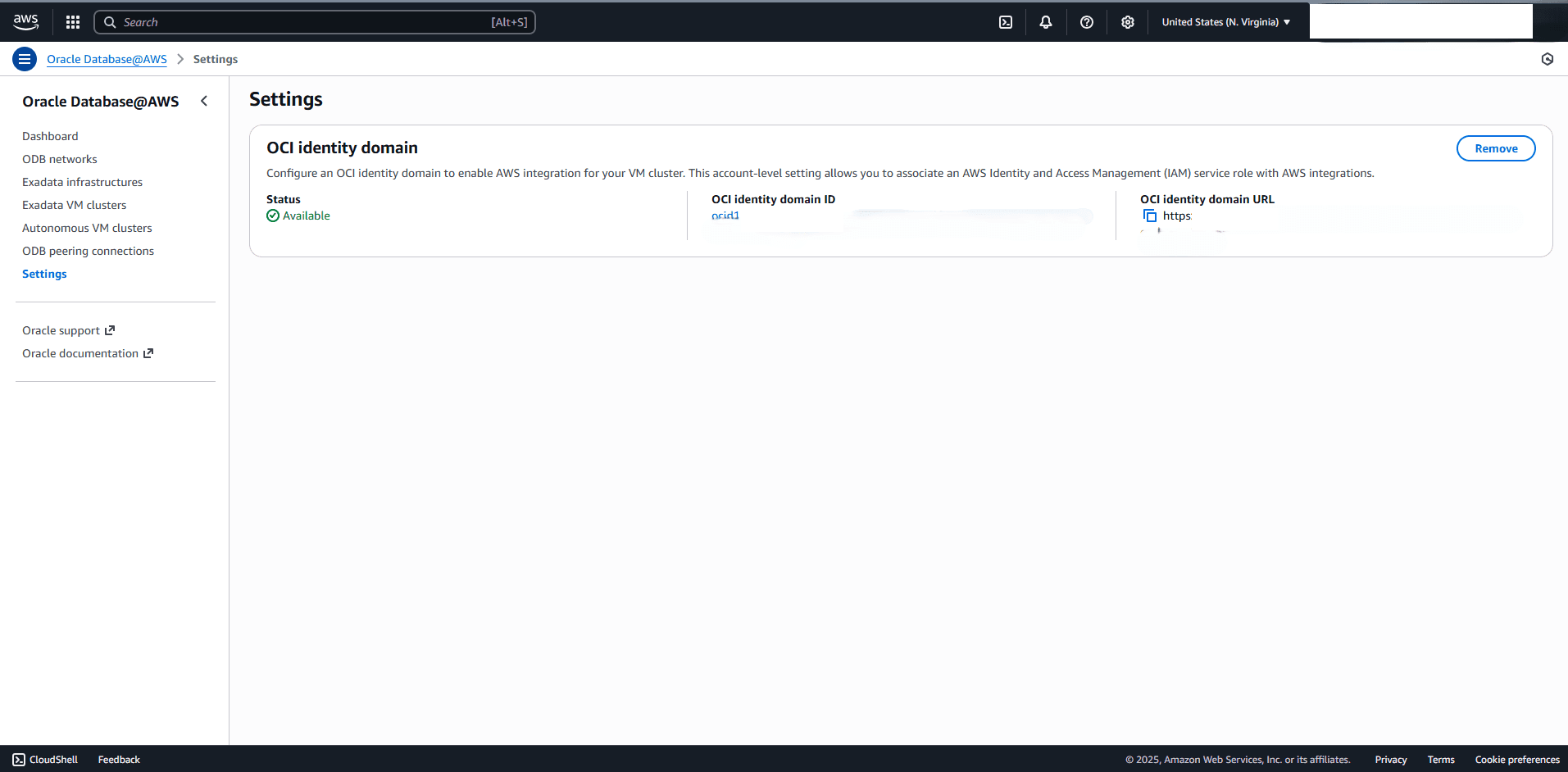
From the AWS console, select Oracle Database@AWS, and then select Settings.
-
Ensure that OCI identity domain Status is Available.
-
-
Configure OCI Identity Domain
-
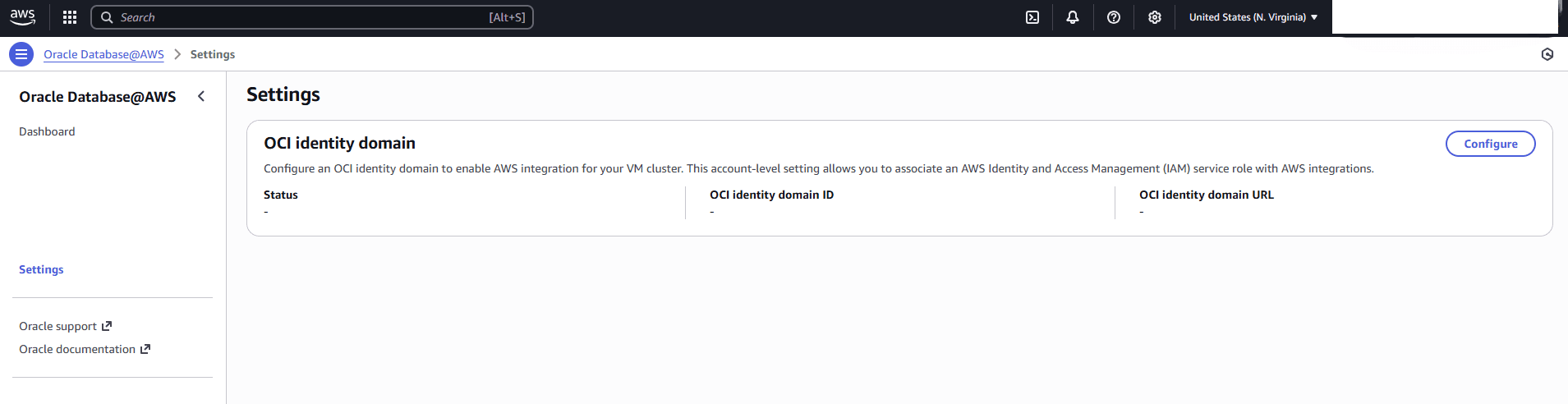
From the AWS console, select Oracle Database@AWS, and then select Settings.
-
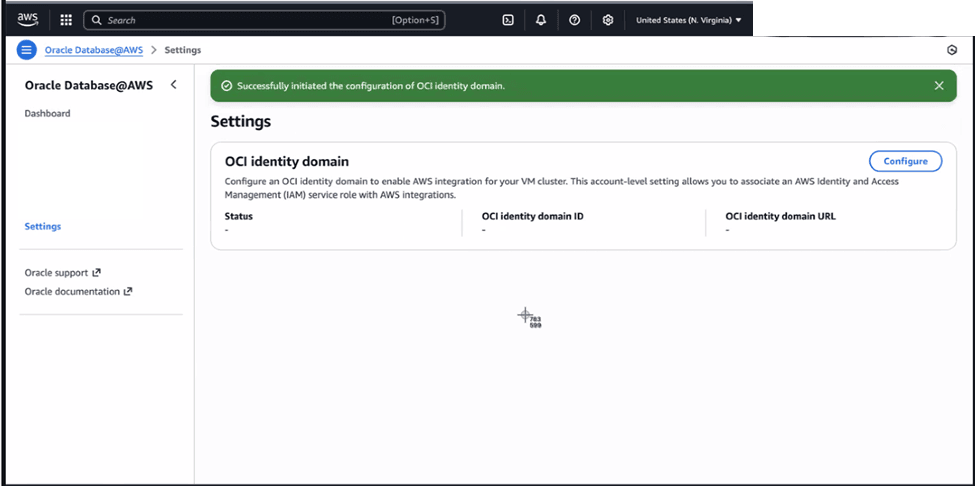
Select the Configure button. A confirmation message will appear as Successfully initiated the configuration of OCI identity domain.
-
Verify that the OCI identity domain Status is updated to Available. You can also view additional information including OCI identity domain ID and OCI identity domain URL.
-
-
-
Enable Security Token Service (STS) and AWS KMS in ODB Network
To use AWS KMS for data-at-rest encryption, the ODB network must have both Security Token Service (STS) and AWS KMS integrations enabled. For more information, follow the Create ODB Network or Modify ODB Network steps.
Note
Note: During creation or modification of the ODB Network, the integration automatically creates network security rules that allow communication between OCI and the AWS KMS and STS services. You need to verify these rules. For more information, see Verify Network Security Rules and Create Network Security Rules. -
Configure Identity Provider
To complete the identity provider configuration, complete the following steps.
-
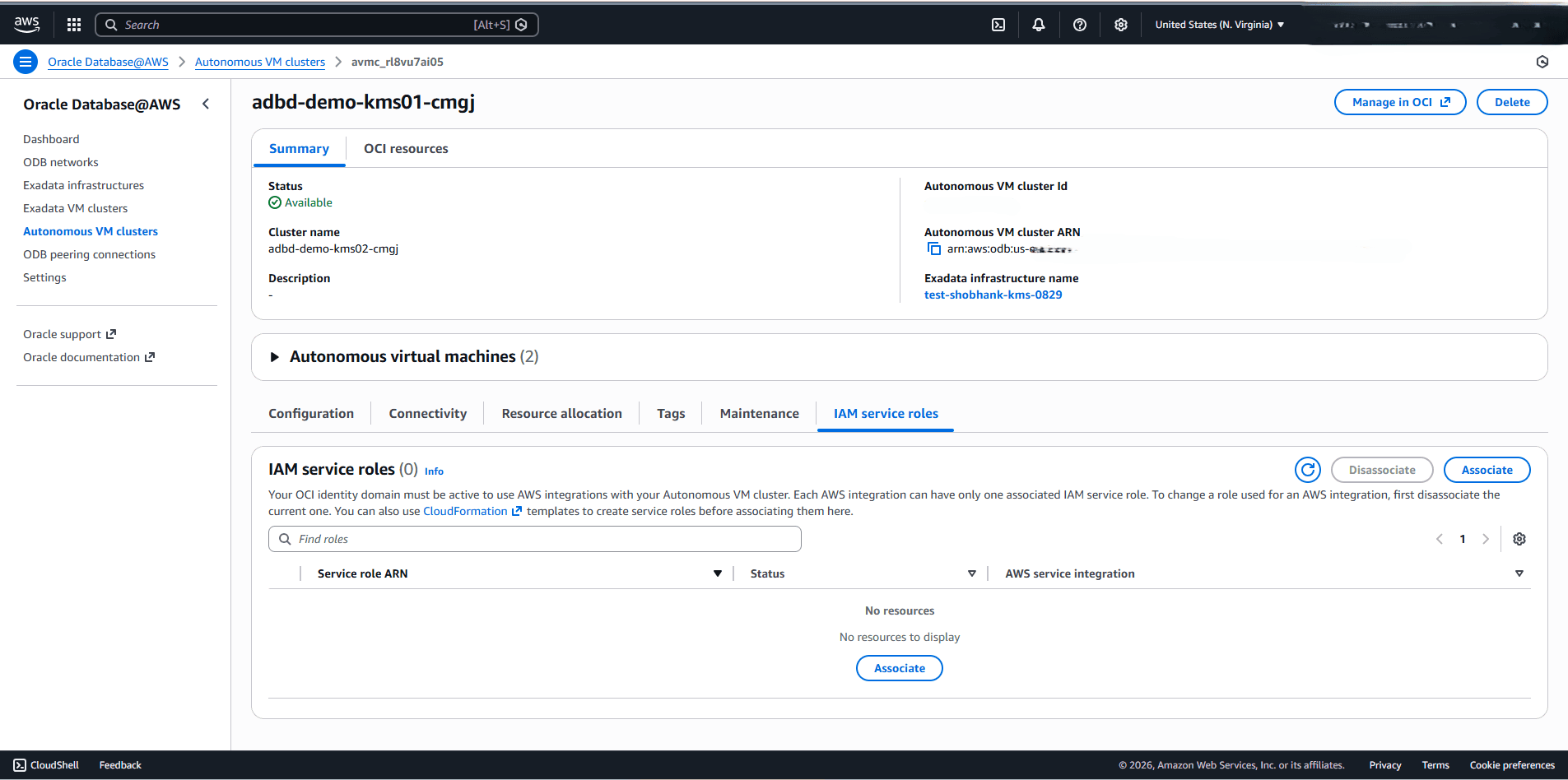
From the Oracle AI Database@AWS dashboard, select Autonomous VM clusters, and then select your Autonomous VM Cluster corresponding to Autonomous AI Database that you want to enable AWS KMS for.
-
On the VM Cluster details page, select the IAM service roles tab, and then select the CloudFormation link. This opens the AWS Quick create stack page page in a new tab, pre-populated with the required configuration information.
-
From the Quick create stack page, the pre-populated information such as Stack name, OCI Identity Domain URL, OIDCProviderArn, ResourceOcid and RoleName. Accept the I acknowledge that AWS CloudFormation might create IAM resources with customer names checkbox, and then select the Create stack button.
Note
Note: The CloudFormation stack creates an OIDC ((OpenID Connect)) Provider and an associated IAM role. OIDC Provider is unique per account.
- If you are executing the stack for the first time, do not need to provide a value for the OIDCProviderArn field.
- For any additional execution time, you must provide the ARN of the existing OIDC Provider and specify it in the OIDCProviderArn field. To obtain your existing OIDC Provider ARN in your AWS account, complete the following steps.
- From the AWS console, navigate to IAM, and then select Identity providers.
- From the Identity providers list, you can filter your provider selecting Type as OpenID Connect.
- Select the Provider link that was created when the CloudFormation stack was initially created.
- From the Summary page, copy the ARN information.
- Paste the ARN information into the OIDCProviderArn field.
- The OIDC Provider and IAM role will be used by Oracle AI Database to access AWS KMS keys for encryption and decryption. The role provides OCI resource level isolation.
- If the isolation for database resources is not required, ResourceOcid and RoleName values should be left blank.
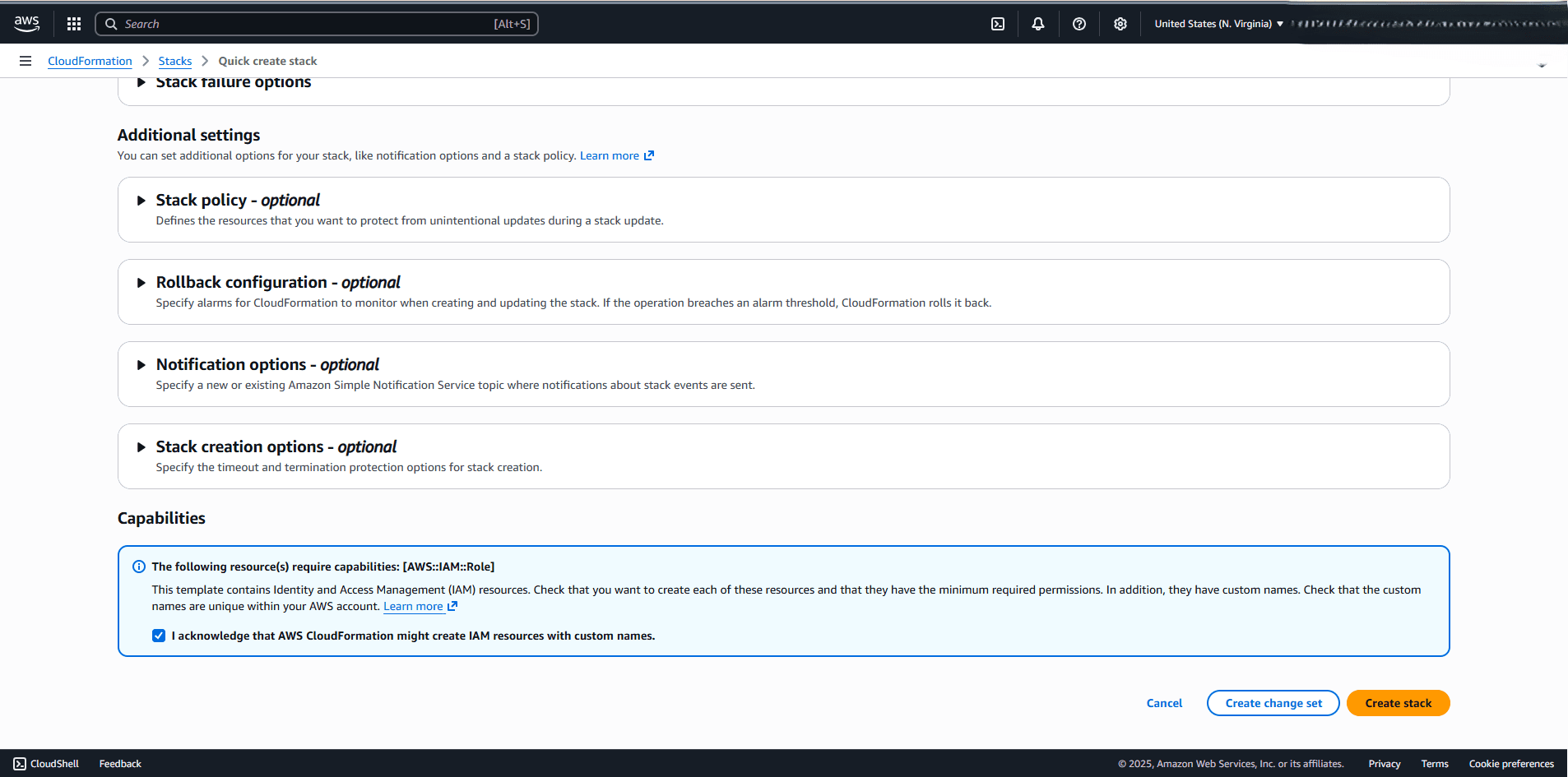
-
After the CloudFormation stack deployment is complete, navigate to the Resources section of the stack and Verify that the IdP and IAM Role resources were created. Copy IAM Role ARN for the next steps.
-
-
Associate an IAM Role to an Autonomous VM Cluster
Complete the following steps to associate the IAM role to an Autonomous VM Cluster. This step will create an identity connector that allows access to the AWS resources.
-
From the AWS console, select Oracle AI Database@AWS.
-
From the left menu, select Autonomous VM clusters, and then select your Autonomous VM Cluster from the list.
-
Select the IAM service roles tab, and then select the Associate button.
-
The AWS integration field is read-only.
-
Enter the Amazon Resource Name (ARN) of the IAM role you want to associate with Autonomous VM Cluster in the Role ARN field. You can obtain the ARN information from the Summary section of the role that you previously created.
-
Select the Associate button to attach the role.
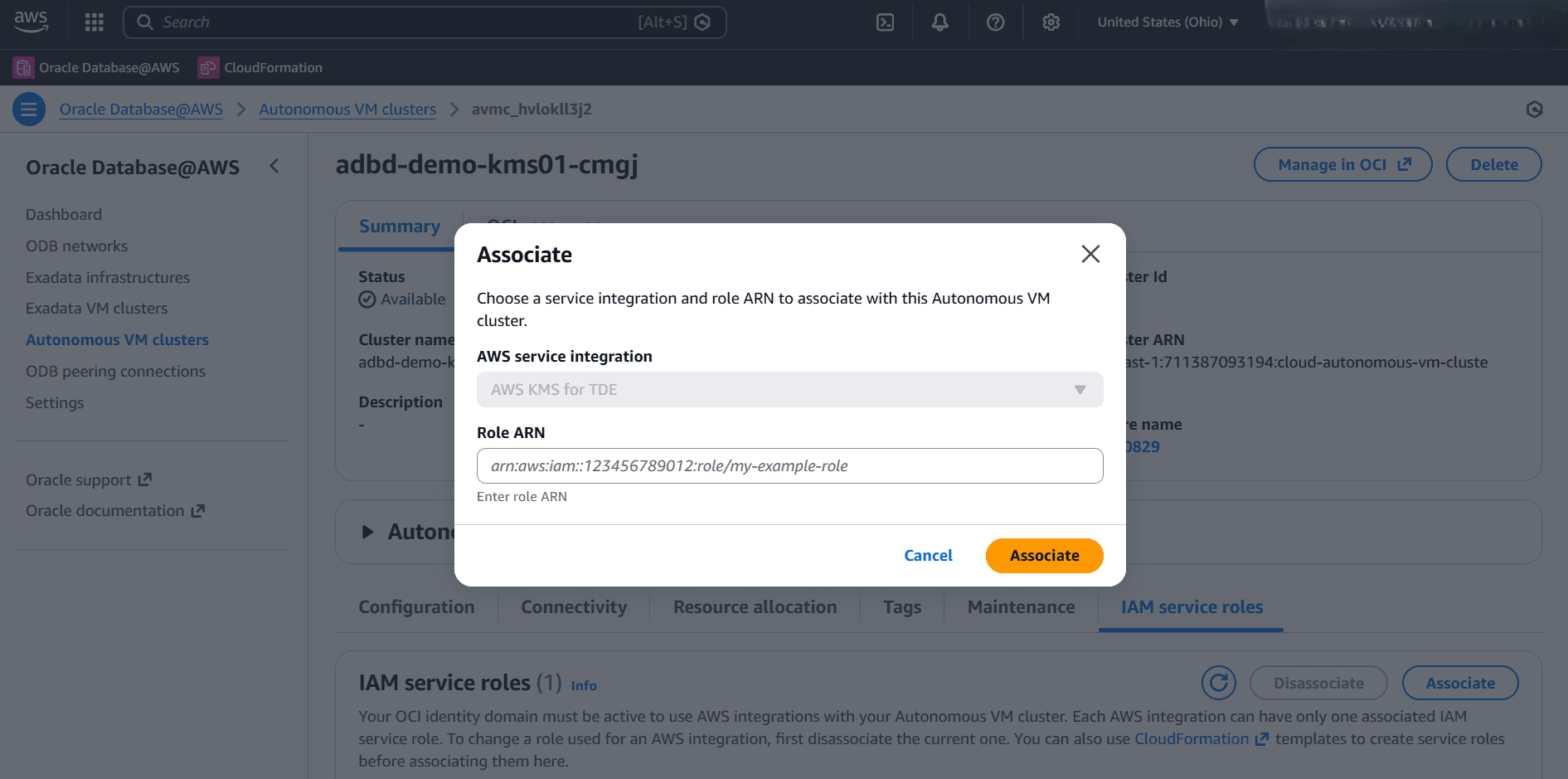
-
-
After the associate process is complete, the Service role ARN Status will change to Connected.
Note
Note: Once you associate an IAM role to your Autonomous VM Cluster, an identity connector gets attached to it.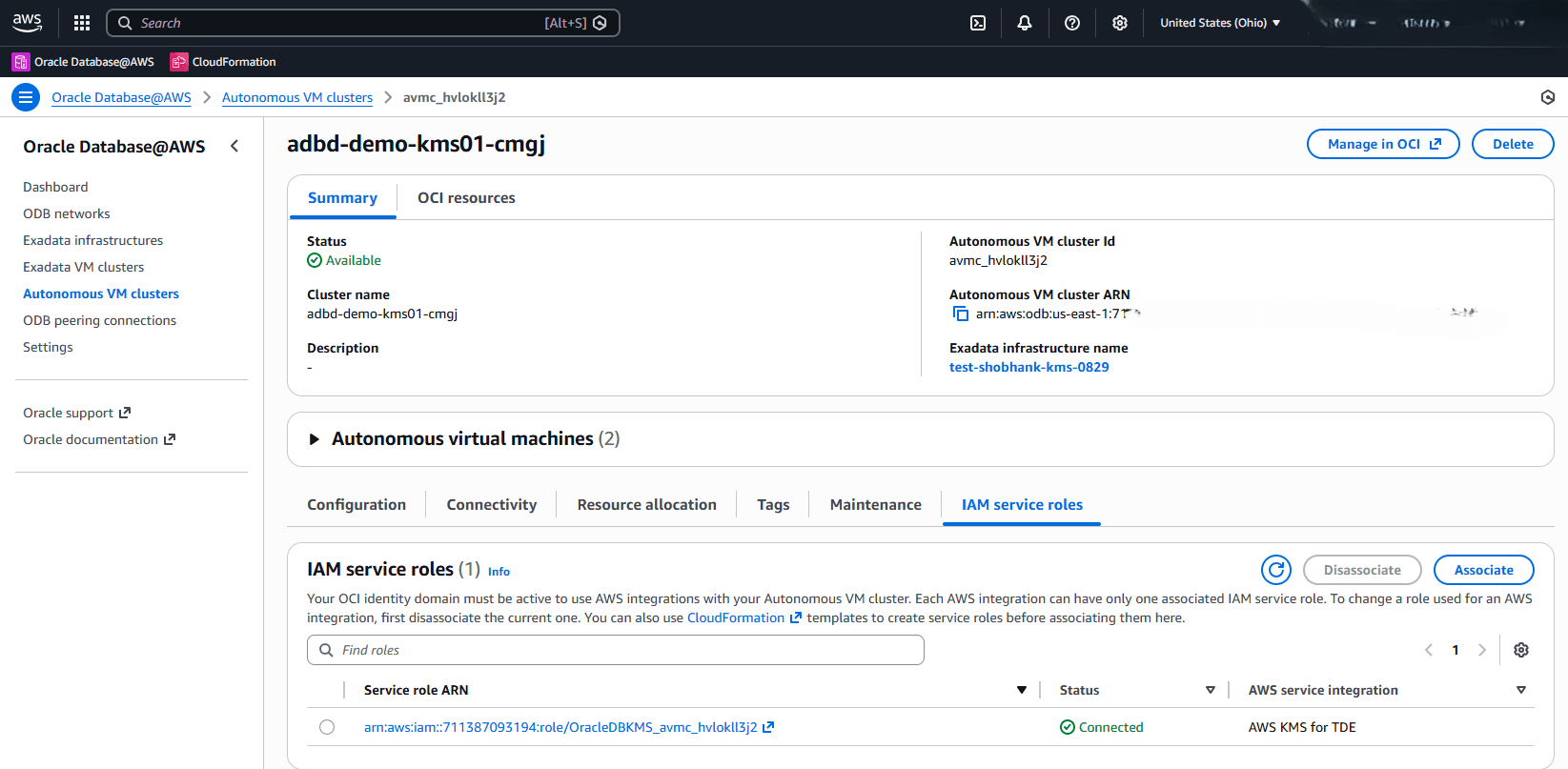
-
-
Create a Customer Managed Key
-
From the AWS console, select Key Management Service (KMS).
-
From the left menu, select Customer managed keys, and then select the Create key button.
-
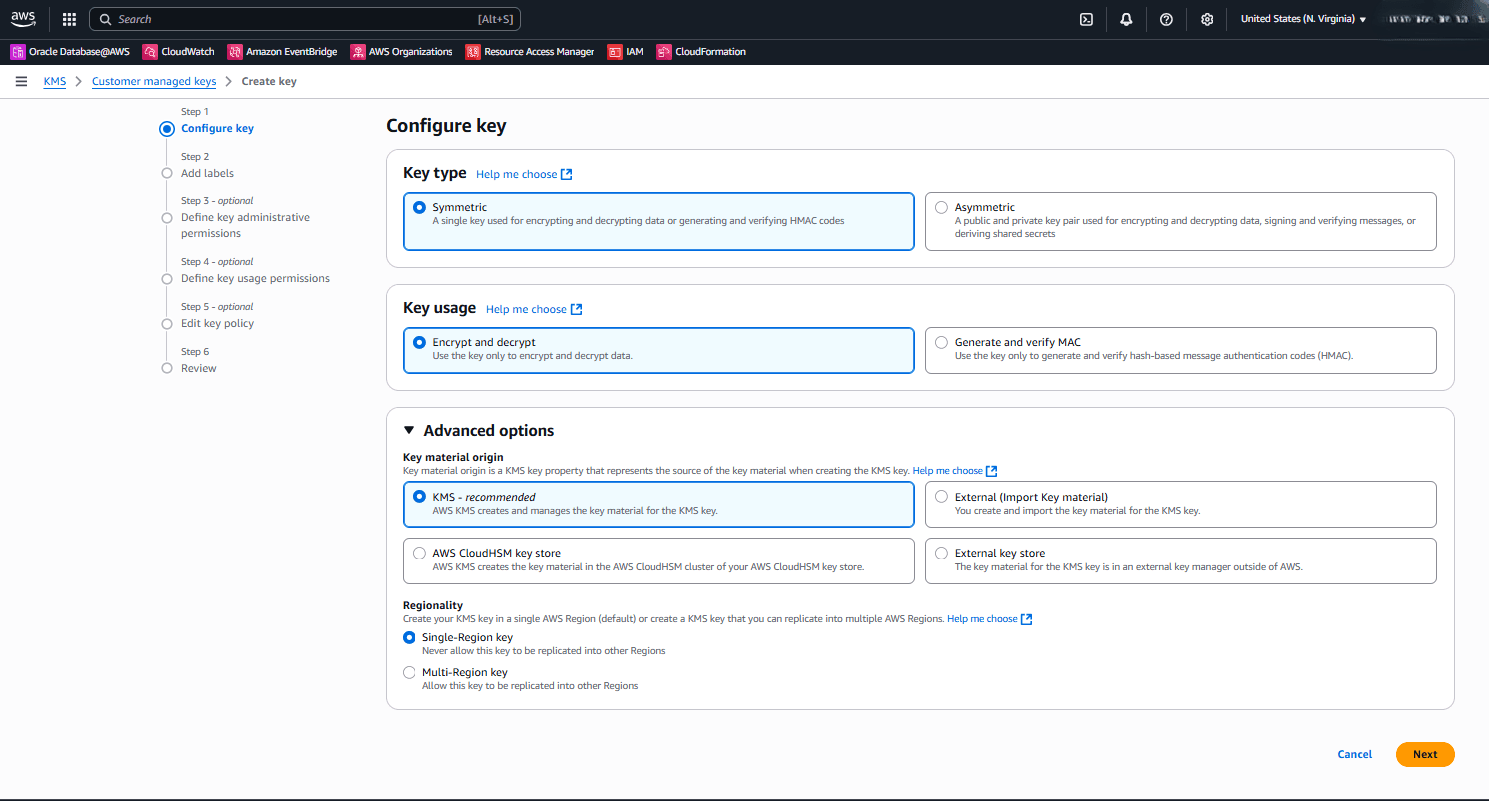
In the Configure key section, enter the following information.
-
Choose the Symmetric option as the Key type.
-
Choose the Encrypt and decrypt option as the Key usage.
-
Expand the Advanced options section. Both AWS KMSand AWS CloudHSMare supported.
- Note
- If you want to use KMS, choose the KMS - recommended option as Key material origin, and then choose either the Single-Region key or the Multi-Region key option from the Regionality section. Note: If you plan to use Cross-Region Autonomous Data Guard, ensure that you select the Multi-Region key option, this configuration cannot be changed once the key is created
- If you want to use AWS CloudHSM, choose the AWS CloudHSM key store option as Key material origin.
-
Select the Next button to continue the creation process.
-
-
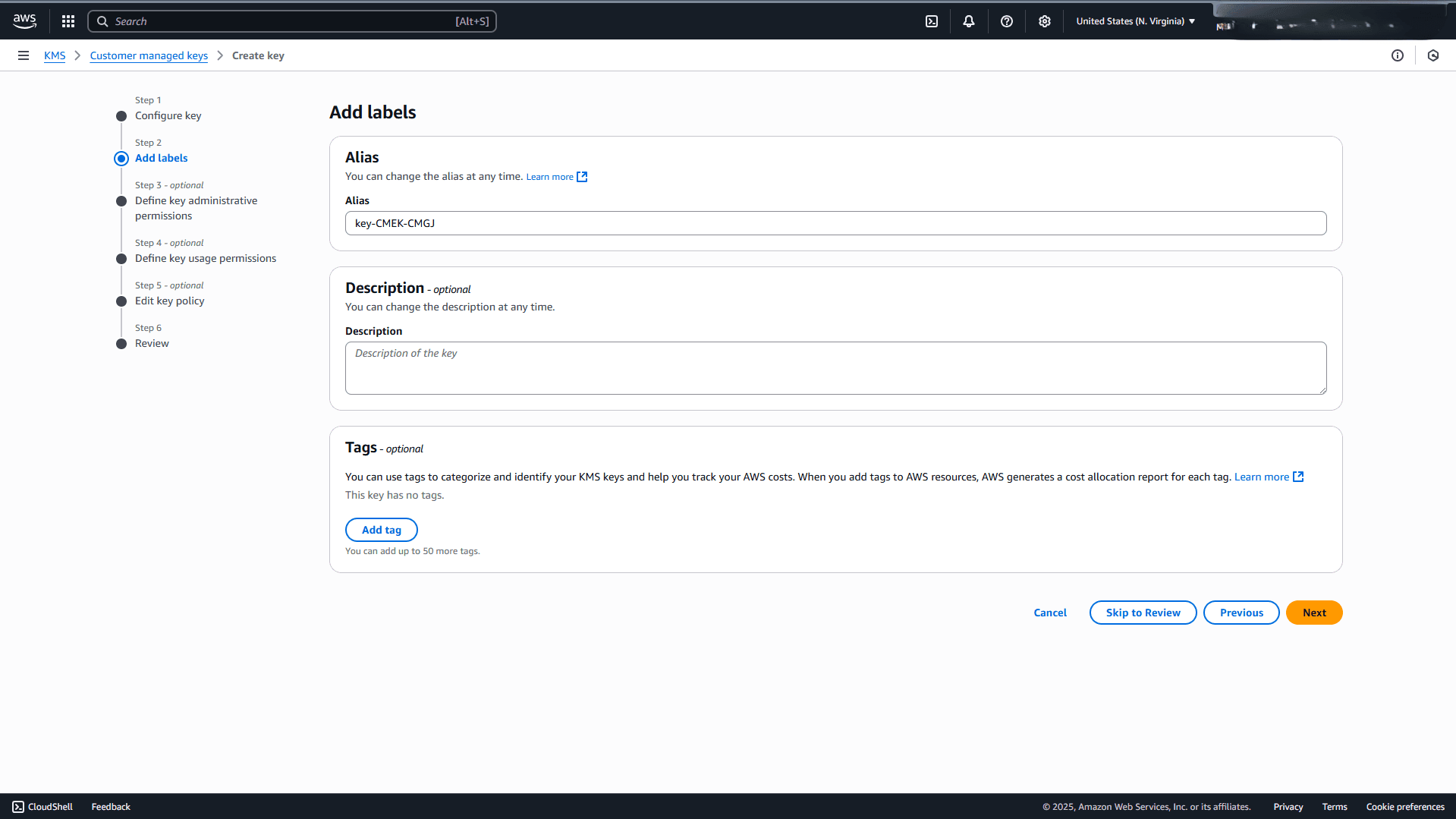
In the Add labels section, enter the following information.
-
Enter a descriptive display name in the Alias field. Maximum 256 characters. Use alphanumeric and ‘_-/’ characters.
Note
Note:
- The alias name cannot begin with
aws/. Theaws/prefix is reserved by AWS to represent AWS managed keys in your account. - An alias is a display name that you can use to identify the KMS key. We recommend that you choose an alias that indicates the type of data you plan to protect or the application you plan to use with the KMSkey
- Aliases are required when you create a KMS key in the AWS console.
- The alias name cannot begin with
-
The Description field is optional. You can enter a brief description of the key.
-
The Tags section is optional. You can use tags to categorize and identify your KMS keys and help you track your AWS costs.
-
Select the Next button to continue the creation process.
-
-
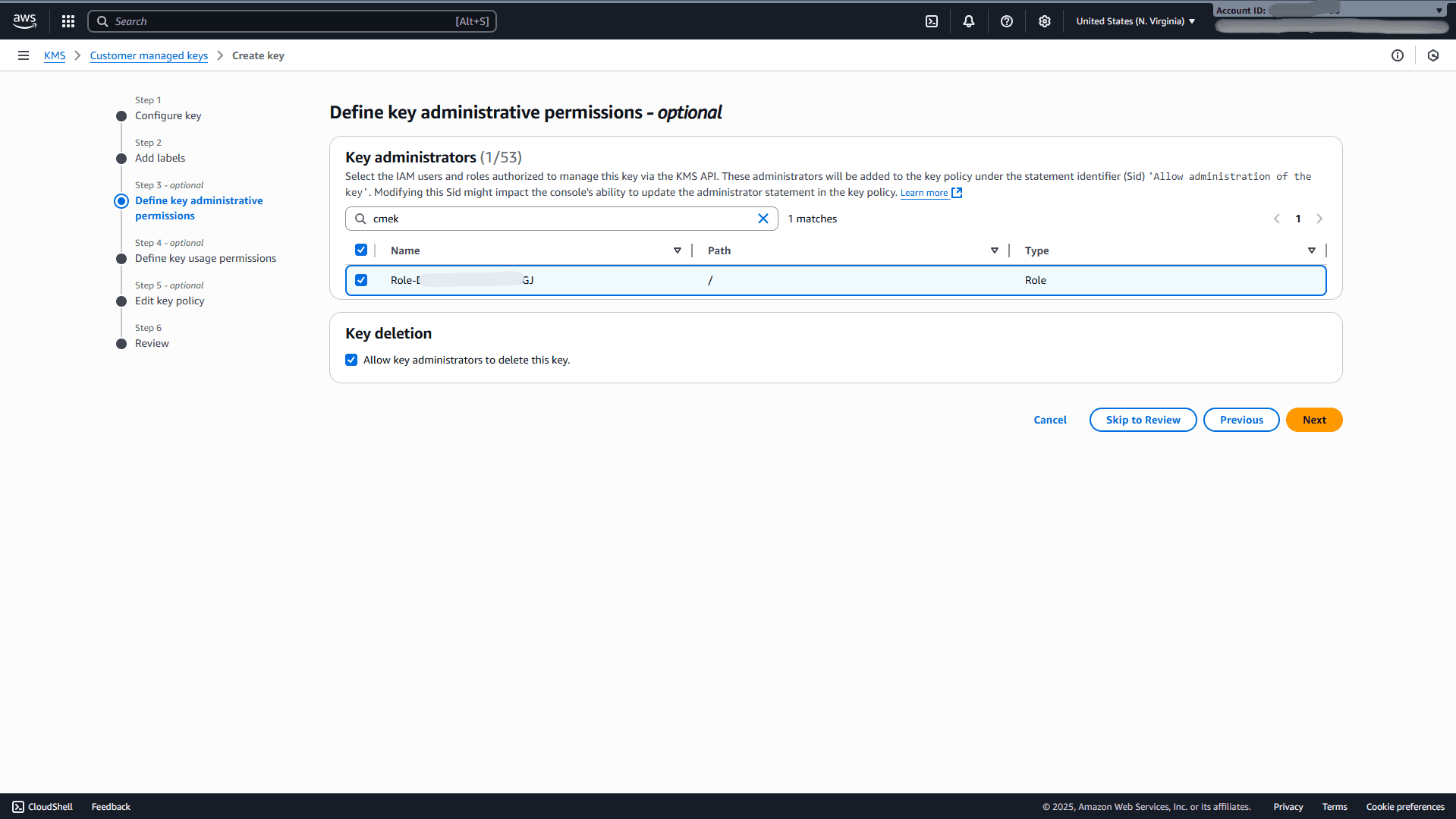
In the Define key administrative permissions section, complete the following substeps.
-
Search the role that you previously created, and then select the checkbox. Select the IAM users and roles that can administer the KMS key.
Note
Note: This key policy gives the AWS account full control of this KMS key. It allows account administrators to use IAM policies to give other principals permission to manage the KMS key. -
From the Key deletion section, the Allow key administrators to delete this key checkbox is selected by default. To prevent the selected IAM users and roles from deleting the KMS key, you can deselect the checkbox.
-
Select the Next button to continue the creation process.
-
-
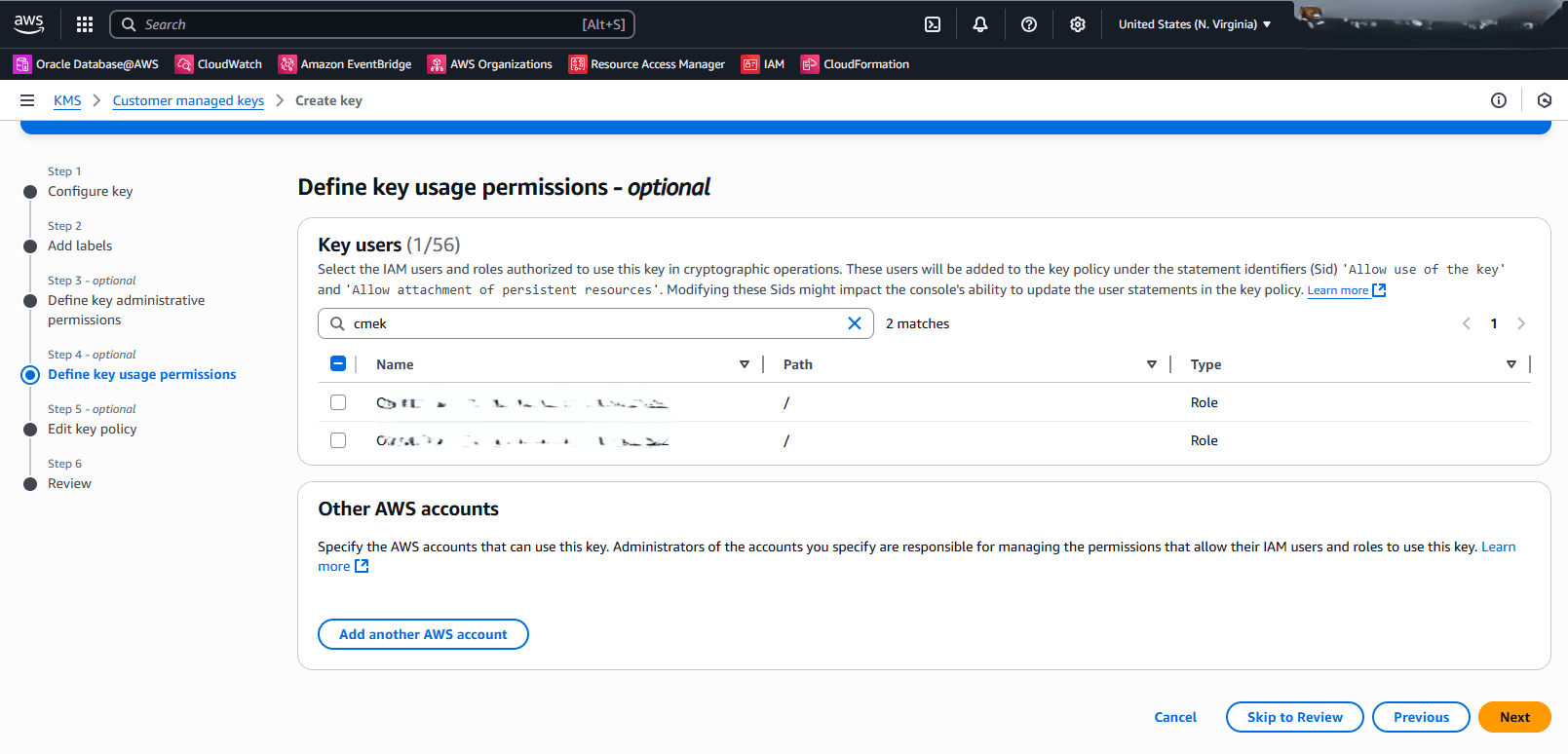
In the Define key usage permissions section, complete the following substeps.
-
Search the role that you previously created, and then select the checkbox.
-
Select the Next button to continue the creation process.
-
-
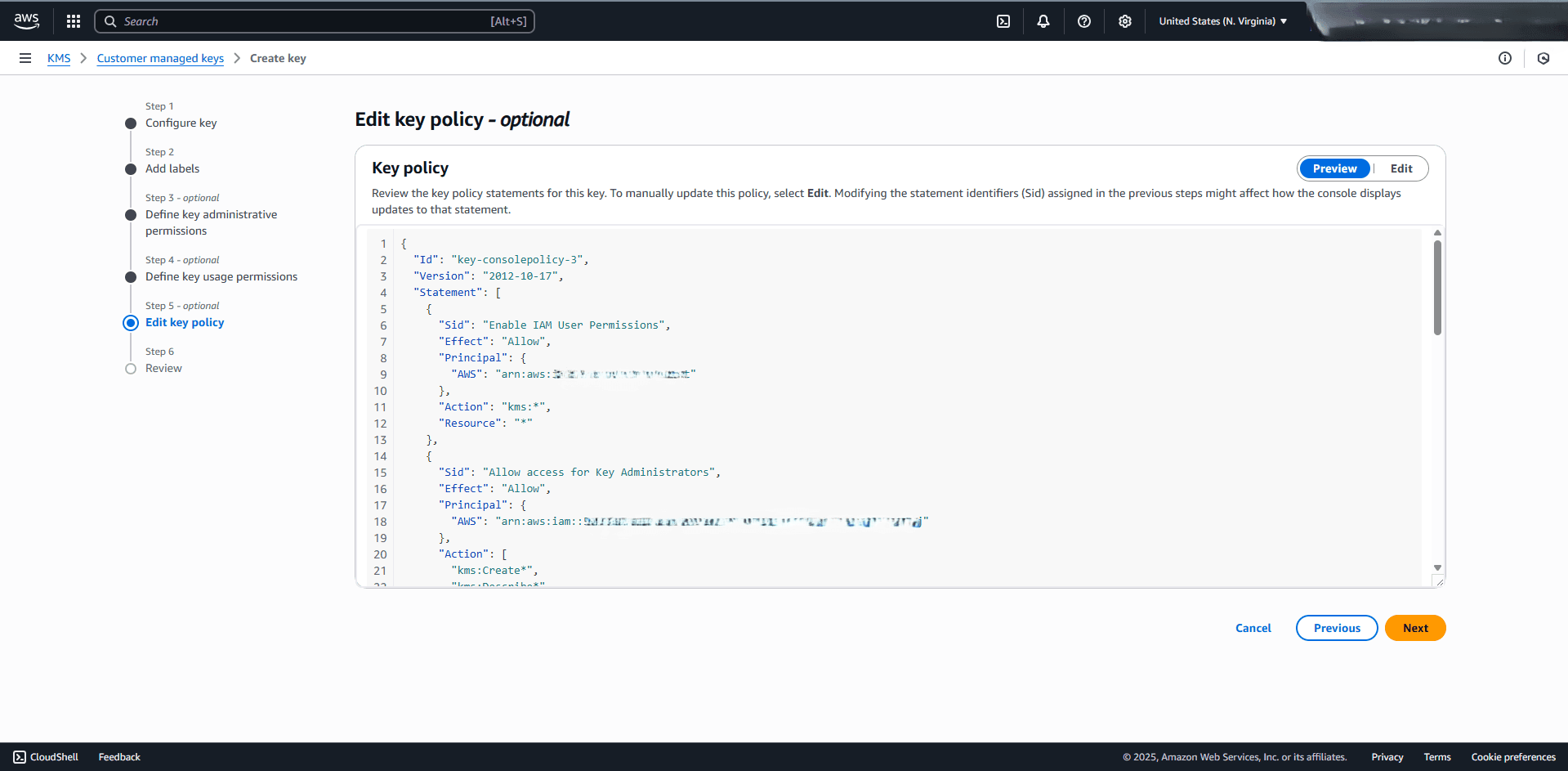
In the Edit key policy section, complete the following substeps.
-
From the Preview section, you can review the key policy. If you want to make a change, select the Edit tab.
{ "Version": "2012-10-17", "Statement": [ { "Sid": "KMSKeyMetadata", "Effect": "Allow", "Principal": { "AWS": "<arn>" }, "Action": [ "kms:DescribeKey" ], "Resource": "*" }, { "Sid": "KeyUsage", "Effect": "Allow", "Principal": { "AWS": "<arn>" }, "Action": [ "kms:Encrypt", "kms:Decrypt" ], "Resource": "*" } ] } -
Select the Next button to continue the creation process.
-
-
In the Review section, review your information, and then select the Finish button.
-
-
Create an OCI Policy
To allow the Autonomous VM Cluster resource principal to read keys, you must create the following policy.
-
Identify the compartment OCID of your Autonomous VM Cluster.
-
From the OCI console, select Oracle AI Database, and then select Autonomous AI Database on Dedicated Infrastructure.
-
From the left menu, select Autonomous Exadata VM Clusters, and then select your Autonomous Exadata VM Cluster.
-
In the General information tab, navigate to the General information section, and then verify the Compartment information.
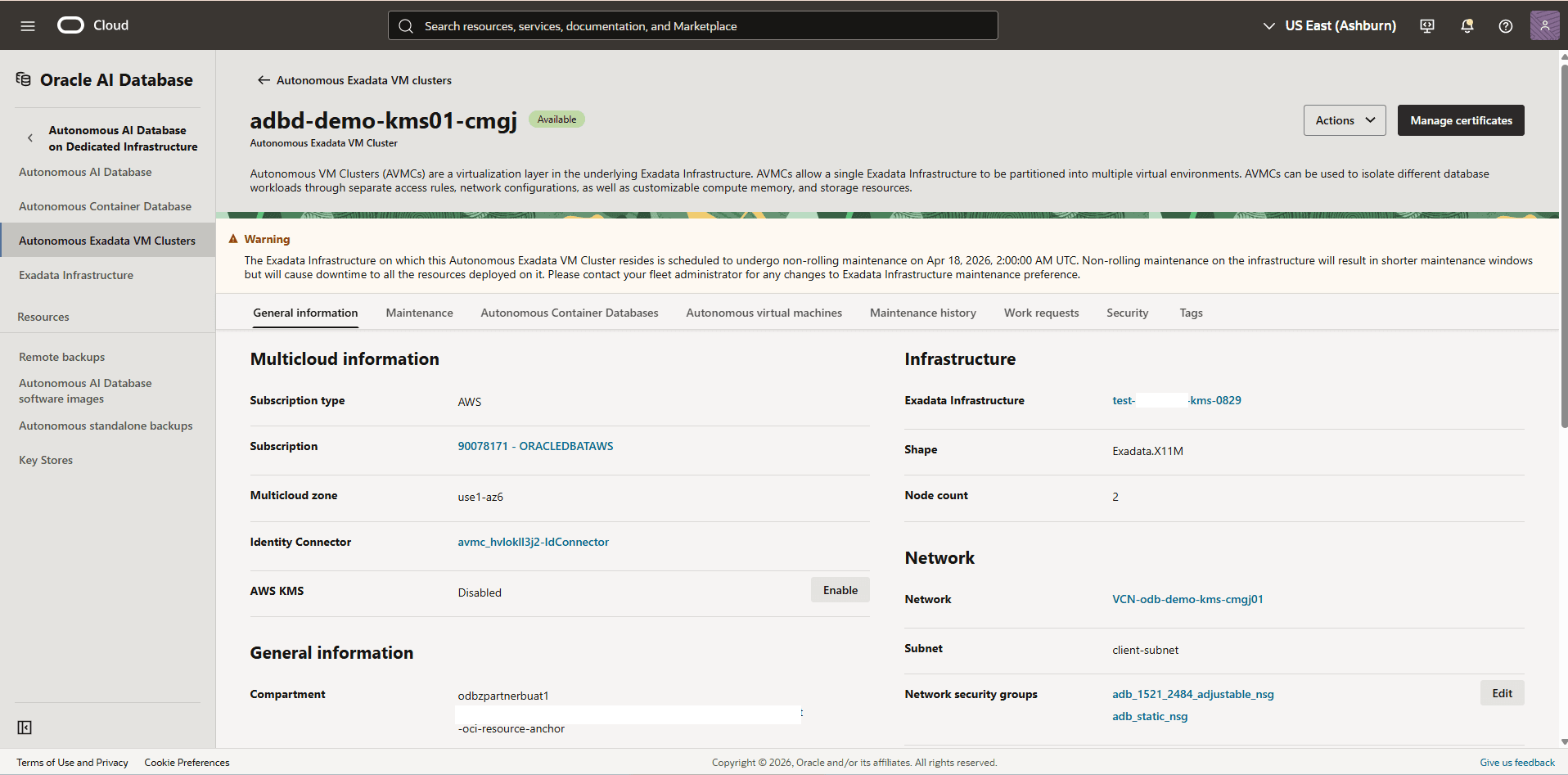
-
From the OCI console, select Identity & Security, and then select Compartments.
-
Navigate to the compartment where your Autonomous Exadata VM Clusters is created.
-
Select the Details tab. From the Info section, check for the OCID of your compartment, then select the Copy button.
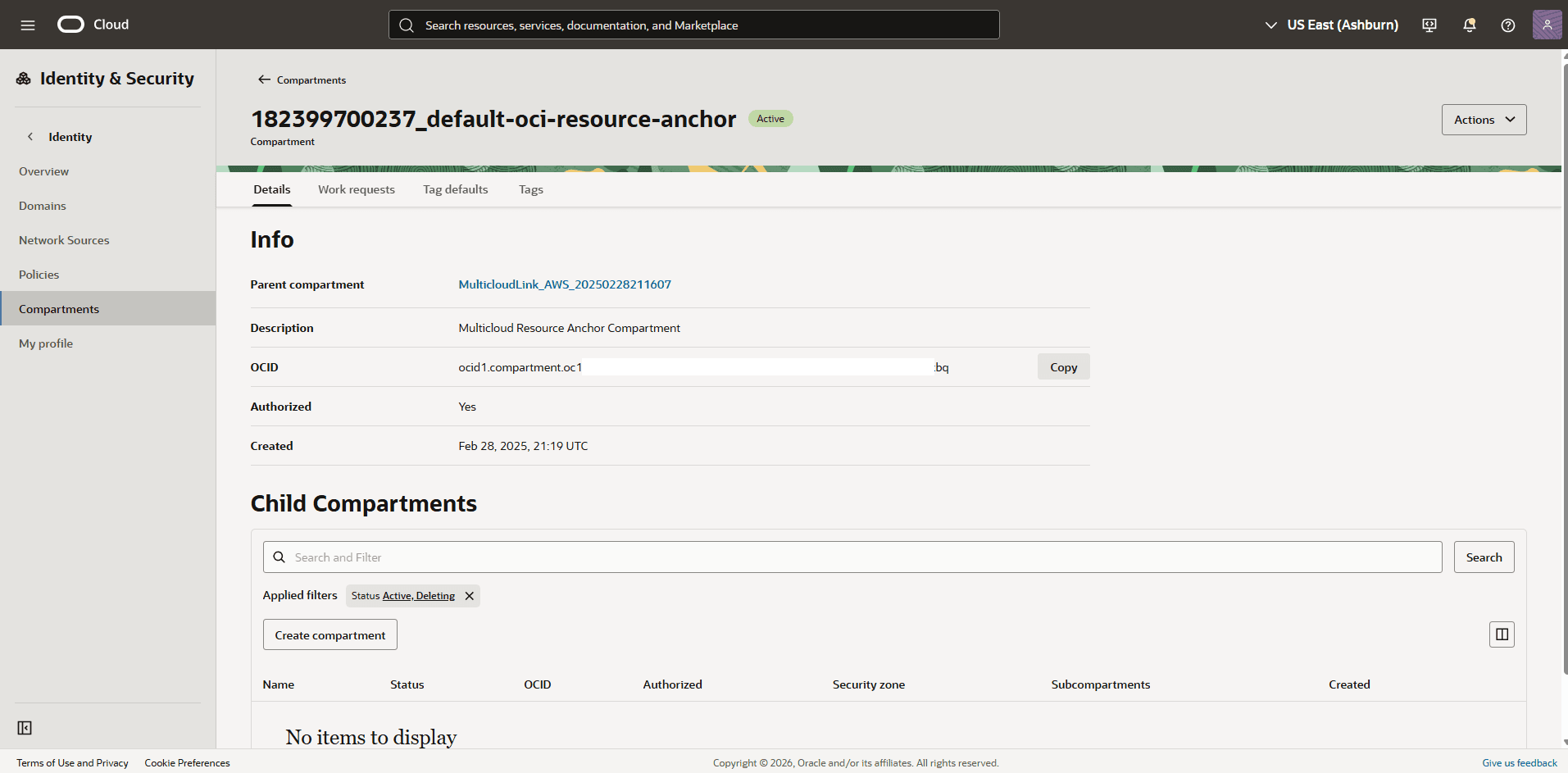
-
-
From the OCI console, select Identity & Security, and then select Policies.
-
Select the Create Policy button.
-
Enter a Name for your policy, then select your root compartment from the Compartment dropdown list.
-
Select the show manual editor button, paste the following policy, and replace the
<your-compartment-OCID>with the compartment OCID which you copied previously.Allow any-user to read oracle-db-aws-keys in compartment id <your-compartment-OCID> where all { request.principal.type = 'cloudautonomousvmcluster'} -
Select the Create button.
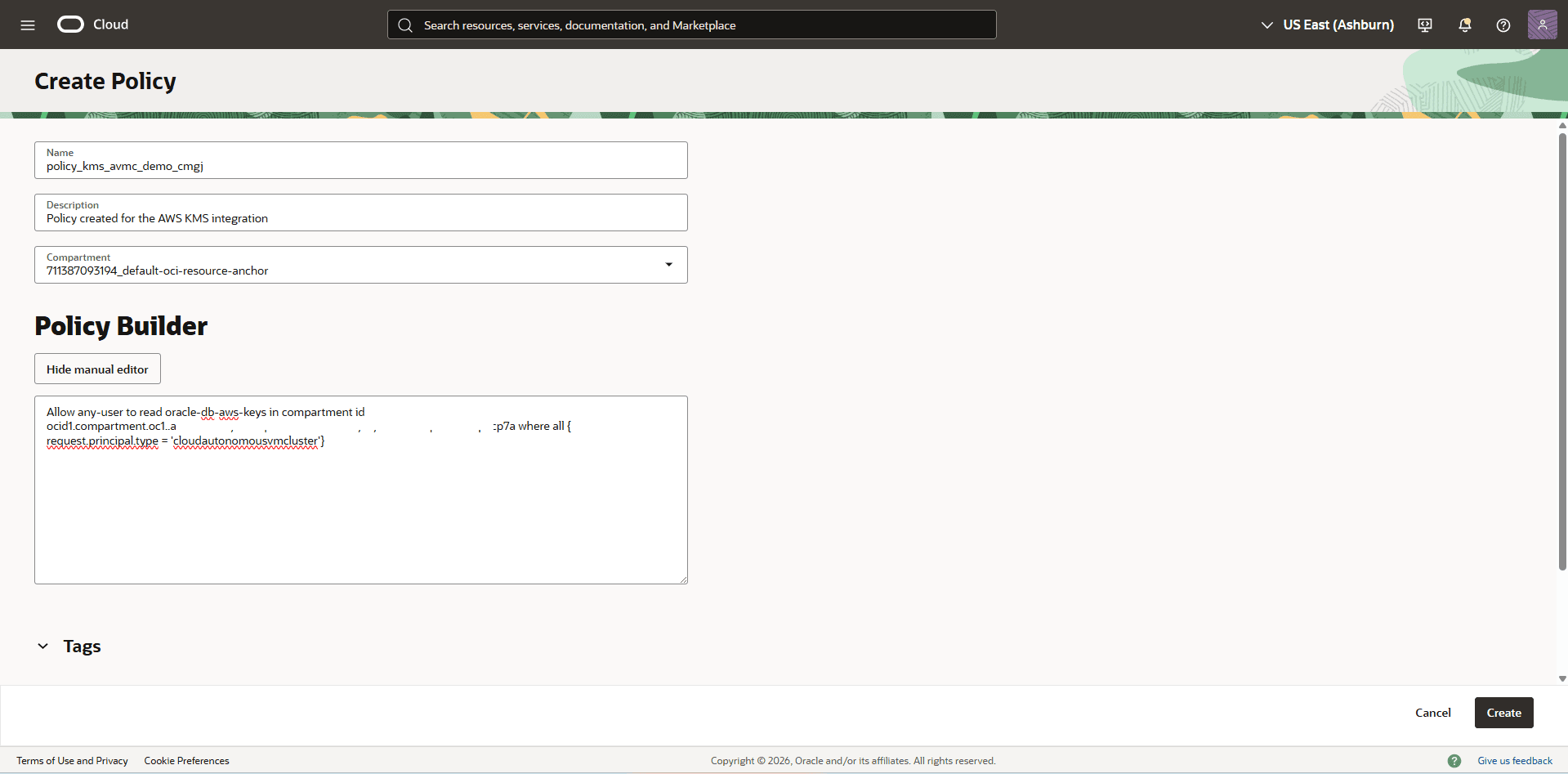
-
-
-
Register AWS KMS Key
To enable AWS KMS for your Autonomous VM Cluster, you must first register the AWS KMS key in the OCI console.
-
From the OCI console, select Oracle AI Database and then select Database Multicloud Integrations.
-
After selecting Database Multicloud Integrations, the default page opens.
-
From the left menu, select the Previous button to navigate to AWS Integration, and then select AWS Keys.
-
Select the Register AWS keys button, and then complete the following substeps.
-
From the dropdown list, select the Compartment in which your Autonomous VM Cluster resides.
-
Under the AWS keys section, select your identity connector from the dropdown list.
Note
Note: Ensure that the role associated with the connector has the DescribeKey permission on the key. This permission is required to successfully perform discovery.-
The Key ARN field is optional.
-
Click the Discover button.
-
-
Once the key is discovered, select the Register button to register the key in OCI.
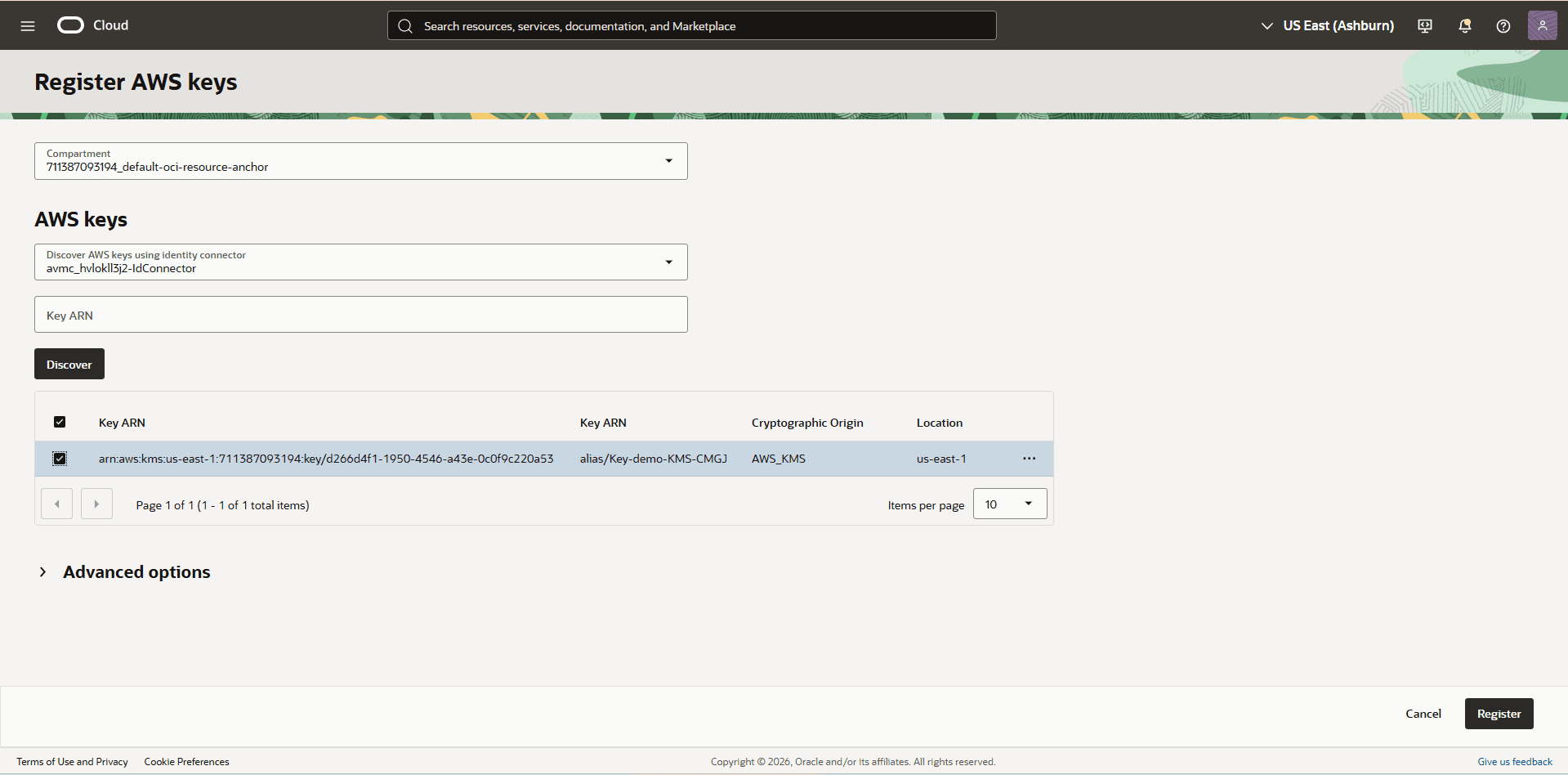
-
-
Enable AWS Key Management
-
From the OCI console, select Oracle AI Database and then select Autonomous AI Database on Dedicated Infrastructure.
-
From the left menu, select Autonomous Exadadata VM Clusters.
-
Choose the Compartment where you want to see the list of Autonomous Exadata VM Clusters.
-
Select your Autonomous Exadata VM Cluster to view the details.
-
On the General information page, navigate to Multicloud information section, and then select the Enable button next to AWS KMS.
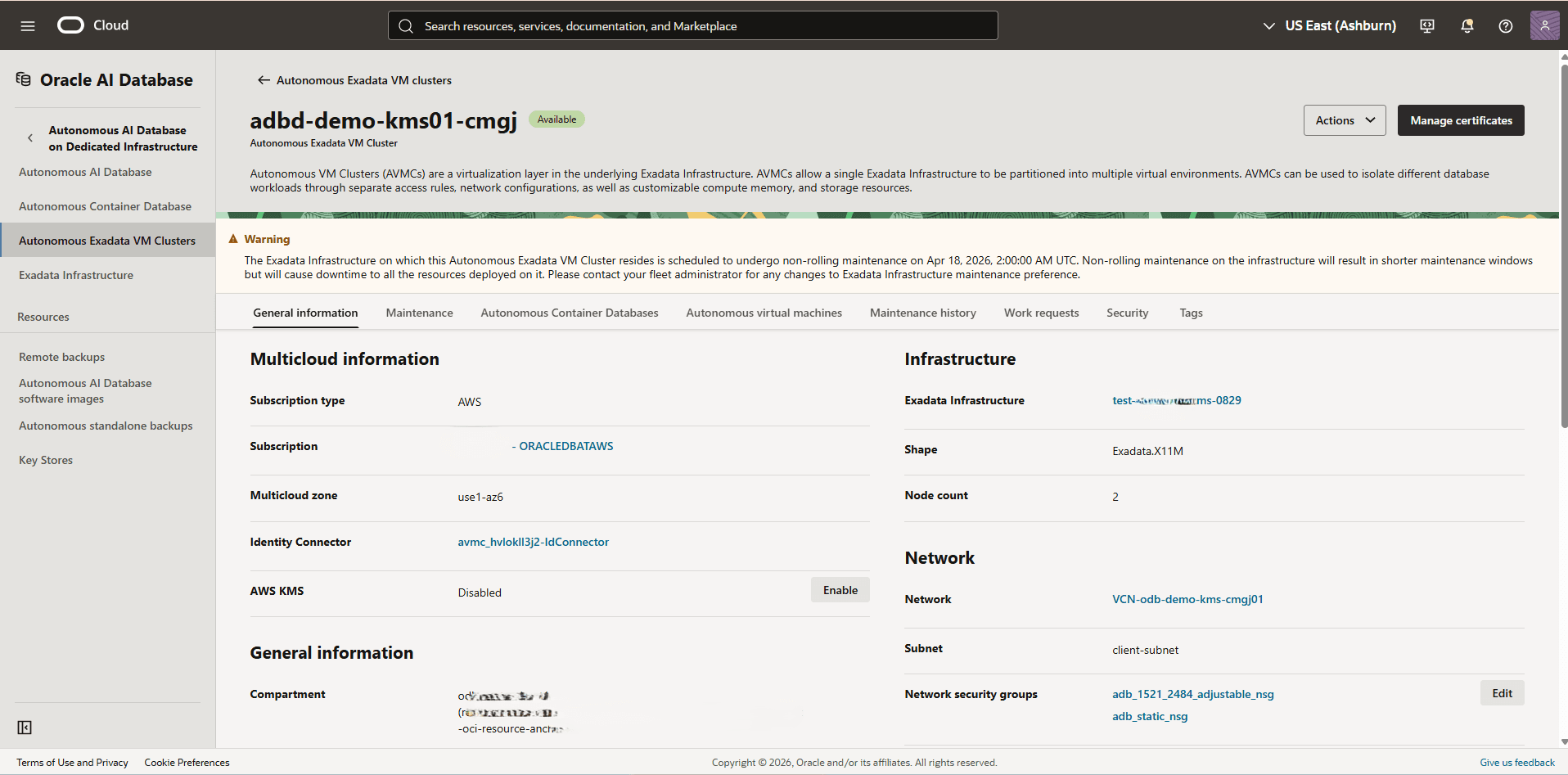
Note
Note: If you do not want use AWS KMS, you can disable it by selecting the Disable button. This action will disable AWS key management at the VM Cluster level. Disabling it will impact the availability of the databases using AWS key management. Ensure that no database is currently using AWS key management. -
-
Use AWS KMS as the Key Management Solution During Database Creation
Note
Note: If AWS KMS is enabled in your Autonomous Exadata VM Cluster, you can create database(s) only with AWS KMS encryption or Oracle Wallet encryption. Creating databases with Oracle Key Vault or OCI Vault encryption is not supported.-
Complete the following steps described in the Autonomous Container Database documentation to create an Autonomous Container Database.
-
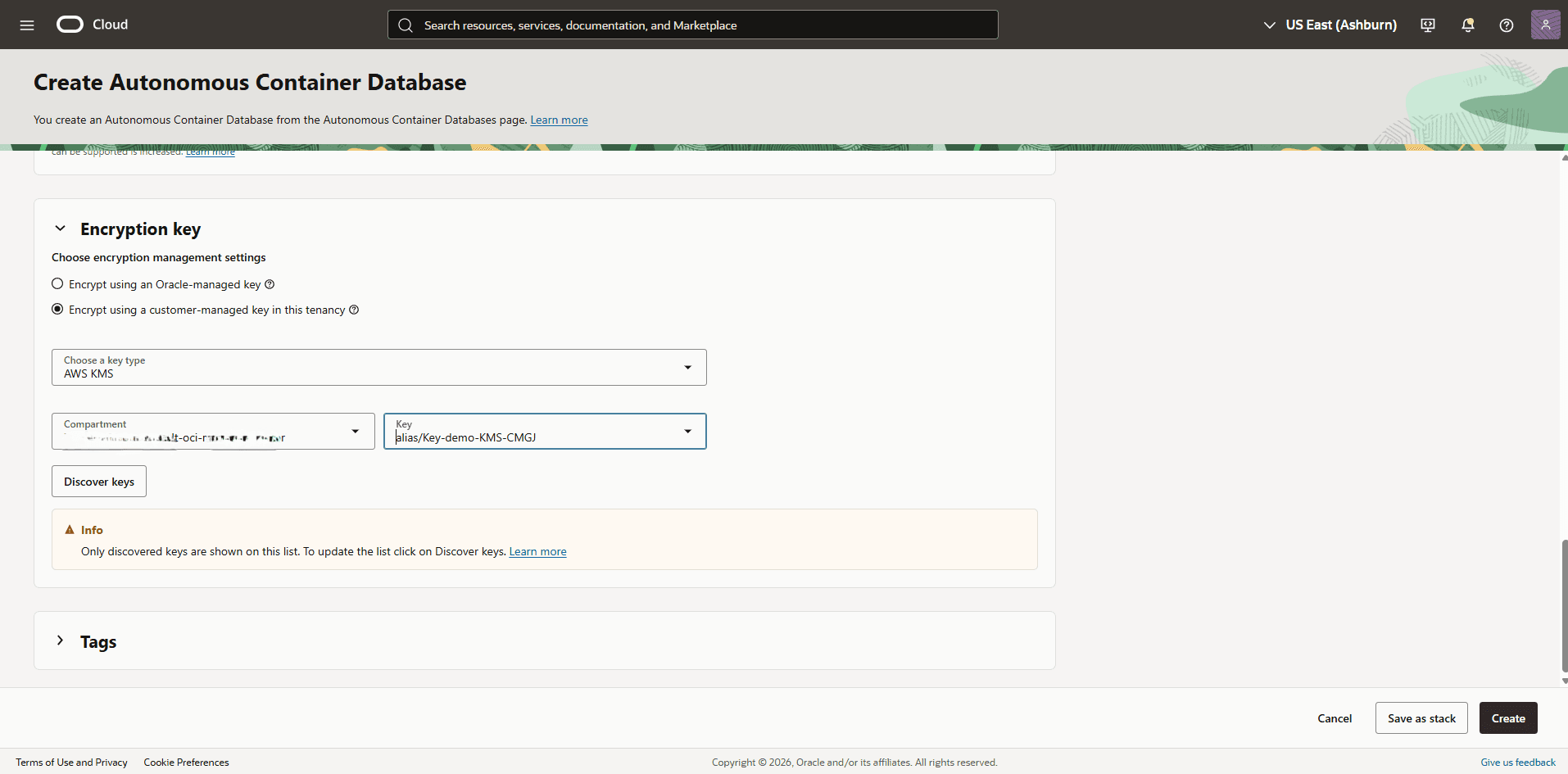
Navigate to the Encryption key section which provides two options. These options include Encrypt using an Oracle-managed key and Encrypt using a customer-managed key in this tenancy.
-
Select the AWS KMS as the Key type. Select the Compartment and the Key from the dropdown list.
-
The Tags section is optional.
-
Review your information, and then select the Create button.
-
AWS KMS allows you to rotate the key at both Container Database (CDB) and Pluggable Database (PDB) levels to meet your security compliance requirements. Complete the following steps to rotate the key:
-
Rotate the AWS KMS Key of a Container Database (CDB)
-
From the OCI console, select Oracle AI Database and then select Autonomous AI Database on Dedicated Infrastructure.
-
From the left menu, select Autonomous Exadata VM Clusters, and then select your Autonomous Exadata VM Cluster. Select the Autonomous Container Databases tab and then select your Autonomous Container Database that you want to rotate encryption keys.
-
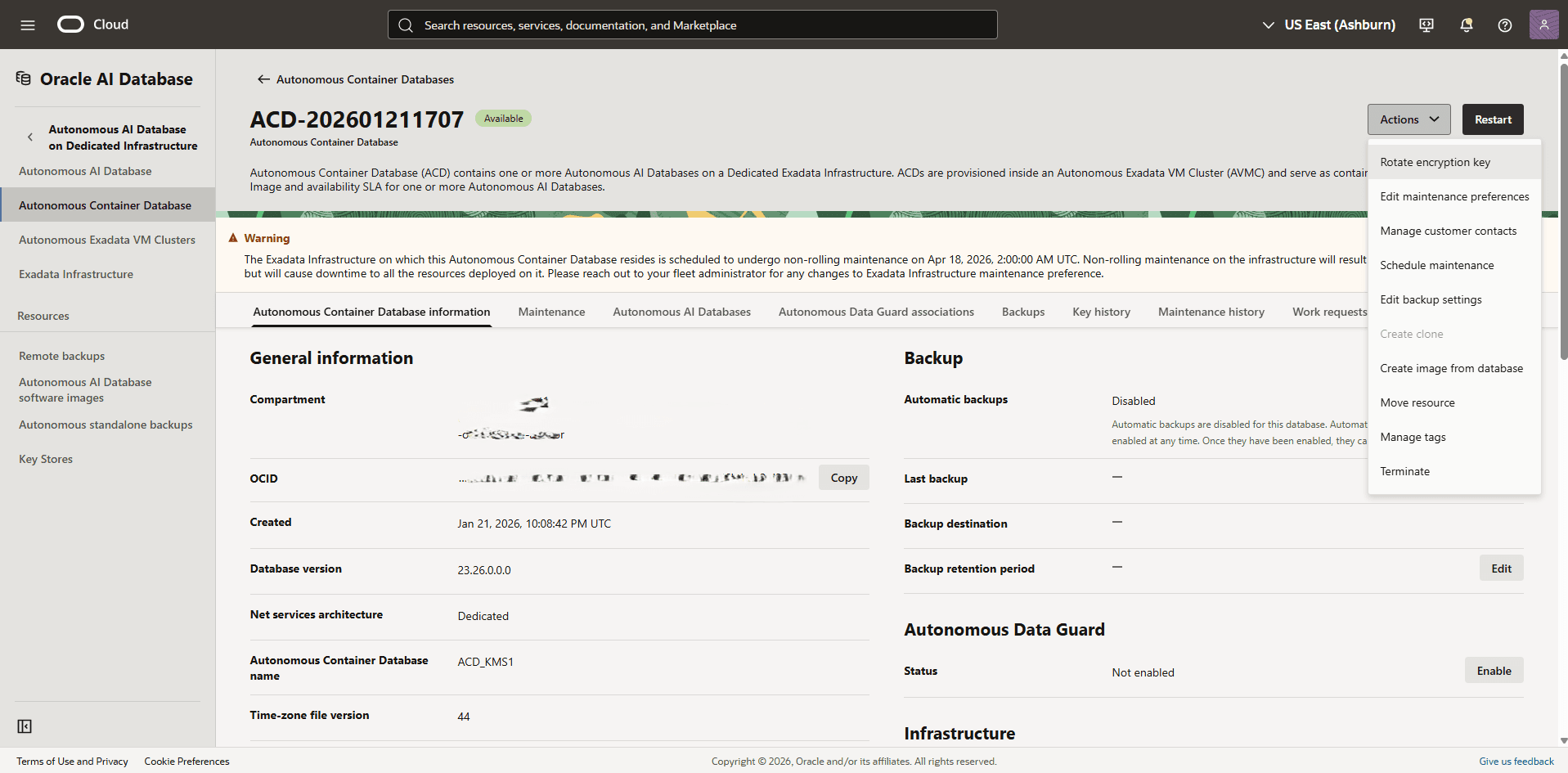
From the Autonomous Container Database information section, verify that Key Management is set to AWS KMS, and then select the Actions button. From the list, select the Rotate encryption key option.
-
Select the Rotate encryption key button to confirm the changes.
-
You can view the State of the process by selecting the Work requests tab.
-
-
Rotate the AWS KMS Key of a Pluggable Database (PDB)
-
From the OCI console, select Oracle AI Database, and then select Autonomous AI Database on Dedicated Infrastructure.
-
From the left menu, select Autonomous AI Database and then select the Display name field of Pluggable Database you want to use.
-
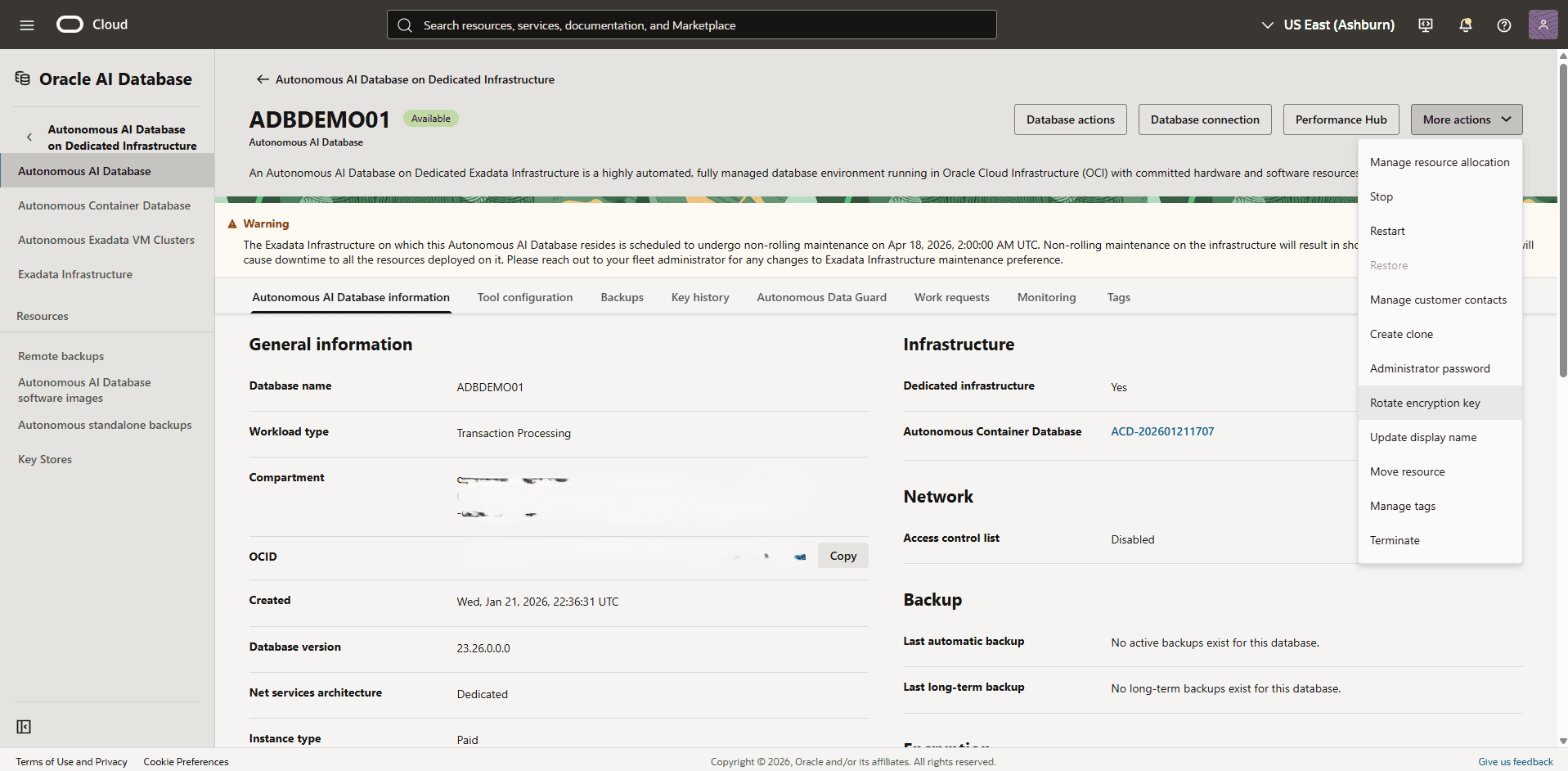
Navigate to the Encryption section. The section shows that Key management is set to AWS KMS. Select the Actions button, and then select the Rotate encryption key option.
-
Select the Rotate encryption key button to confirm the changes.
-
You can view the State of the process by selecting the Work requests tab.
-
Cross-Region Autonomous Data Guard with AWS KMS
Autonomous AI Database on Dedicated Infrastructure now extends its integration with AWS Key Management Service (AWS KMS) to support cross-region Autonomous Data Guard configurations. This enhancement allows you to maintain a unified security posture by using AWS customer-managed keys to protect Transparent Data Encryption (TDE) master keys across geographically distributed database environments.
To configure cross-region Autonomous Data Guard with AWS KMS as your customer-managed key method, complete the following steps:
Prerequisites
-
Create your Exadata Infrastructure and Autonomous VM Cluster in your primary region and standby region. For more information, see Create Exadata Infrastructure and Create Autonomous VM Cluster.
-
Complete the steps 1 through 9 on the Protect Autonomous AI Database (Dedicated) page for the primary region.
-
Complete steps 1 through 8 on the Protect Autonomous AI Database (Dedicated) page for the standby region.
Complete the following steps:
-
Validate AWS KMS as the Customer-Managed Key Method
-
From the AWS console, select Oracle AI Database@AWS, and then select Autonomous VM Cluster.
-
From the list, select the name of your Autonomous VM Cluster.
-
Select the Manage in OCI button, which redirects you to the OCI console.
-
In the OCI console, select the Autonomous Container Databases tab, and then select the Autonomous Container Database that you want to check the key management.
-
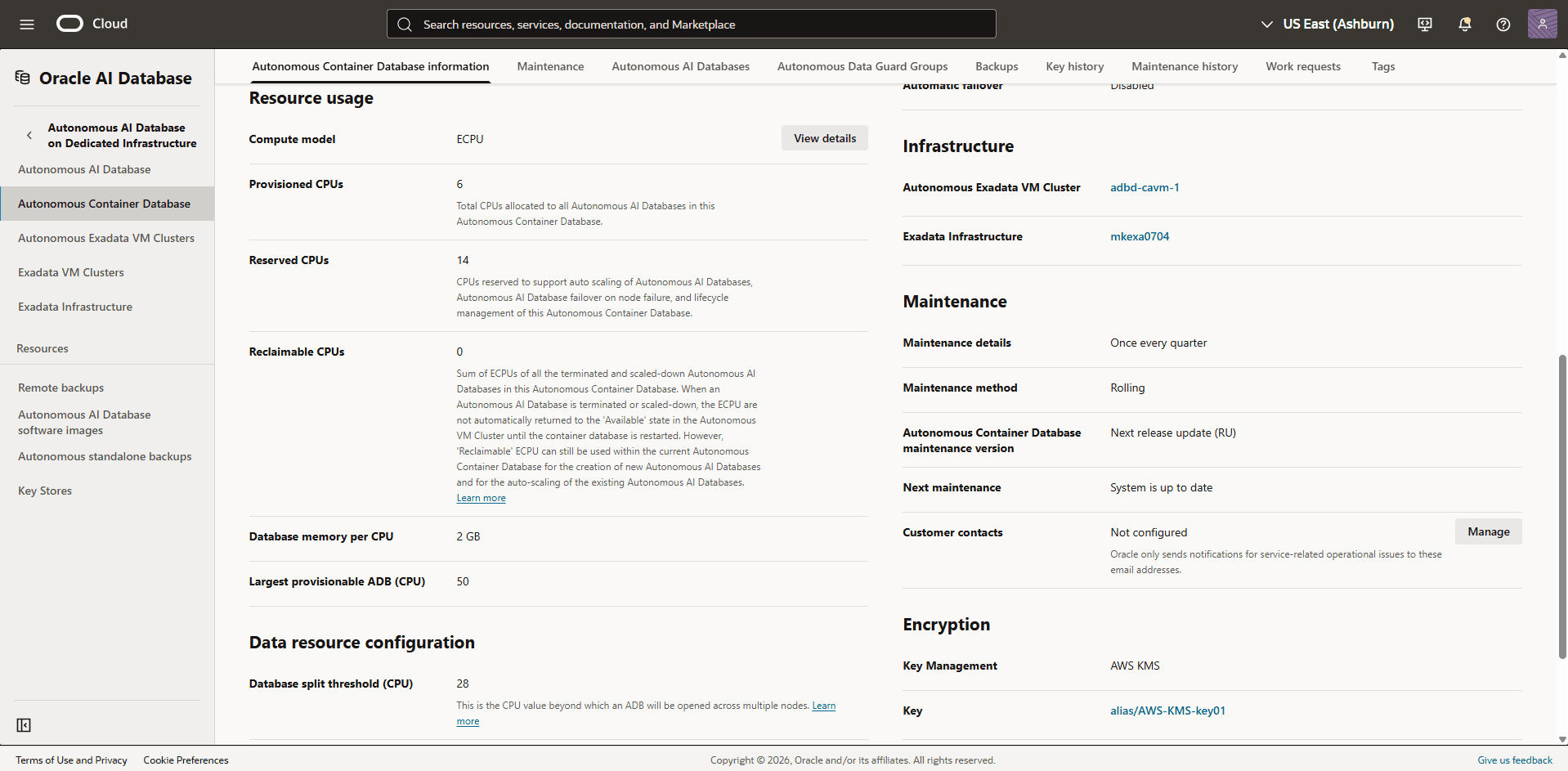
From the Autonomous Container Database information tab, navigate to the Encryption section. Verify that the Key management is set to AWS Customer Managed Key with the Key used in the encryption process.
-
-
Enable the Multi-Region Key in AWS KMS
Complete the following steps to enable multi-region keys in AWS KMS.
-
From the AWS console, select Key Management Service (KMS).
-
From the left menu, select Customer managed keys, then select the name of the key that you want to enable as a multi-region key.
-
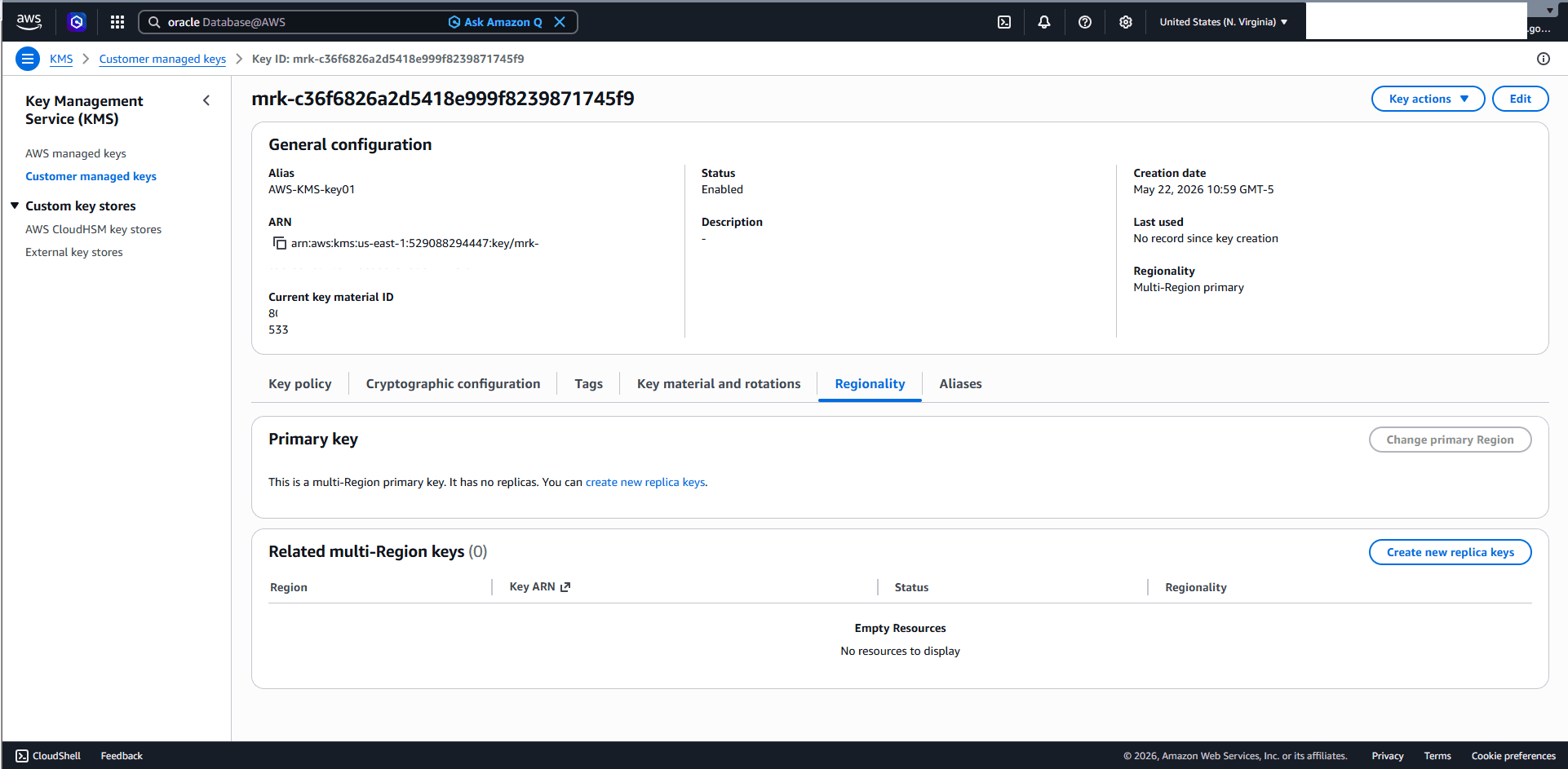
Select the Regionality tab, then select the Create new replica keys button.
-
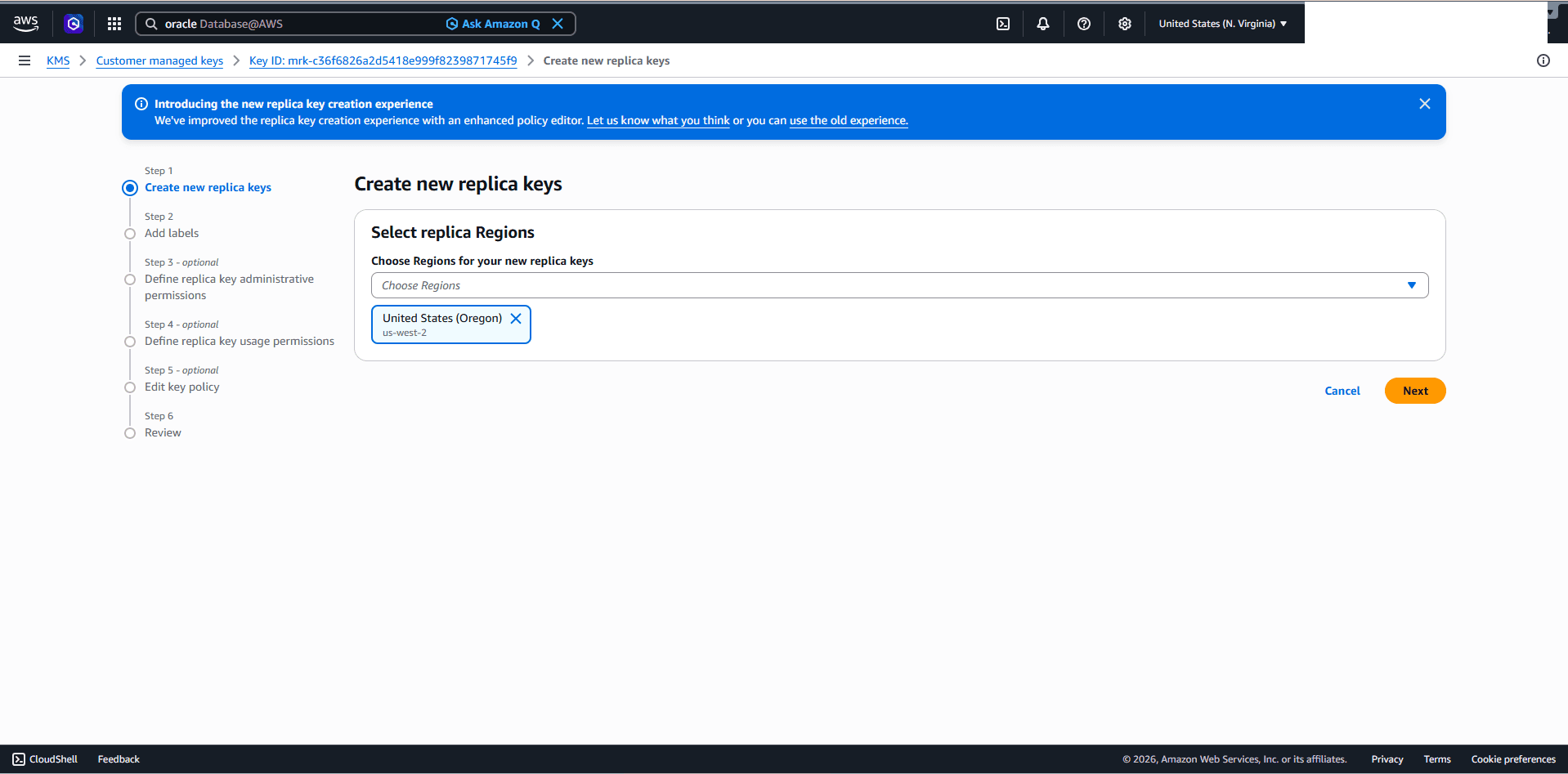
Select the Regions where you want to create the new replicas, then select the Next button.
-
Choose the alias as the primary region, then select the Next button.
-
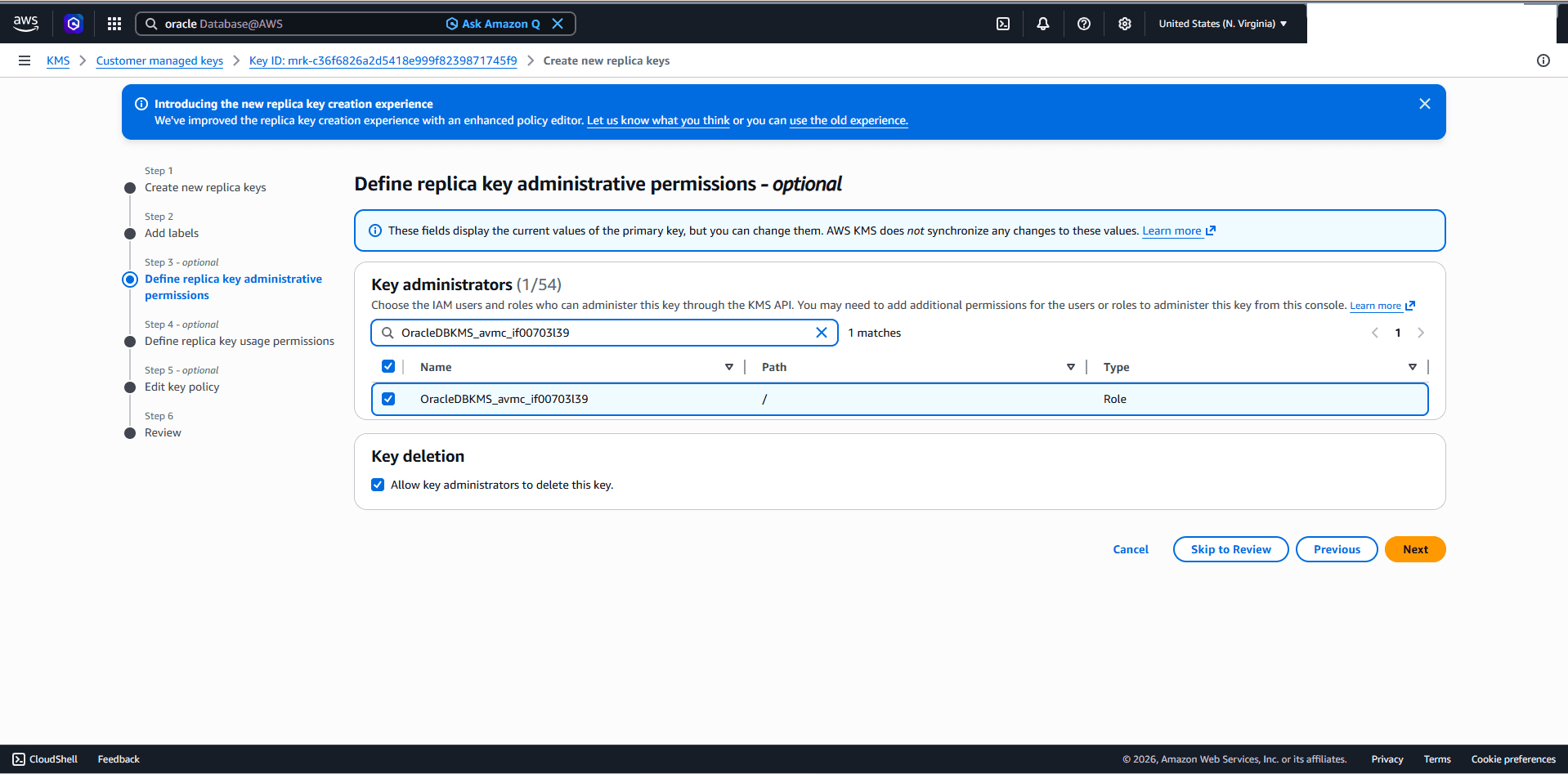
In the Define replica key administrative permissions section, select the IAM users and roles that can administer the KMS key, then select the Next button.
-
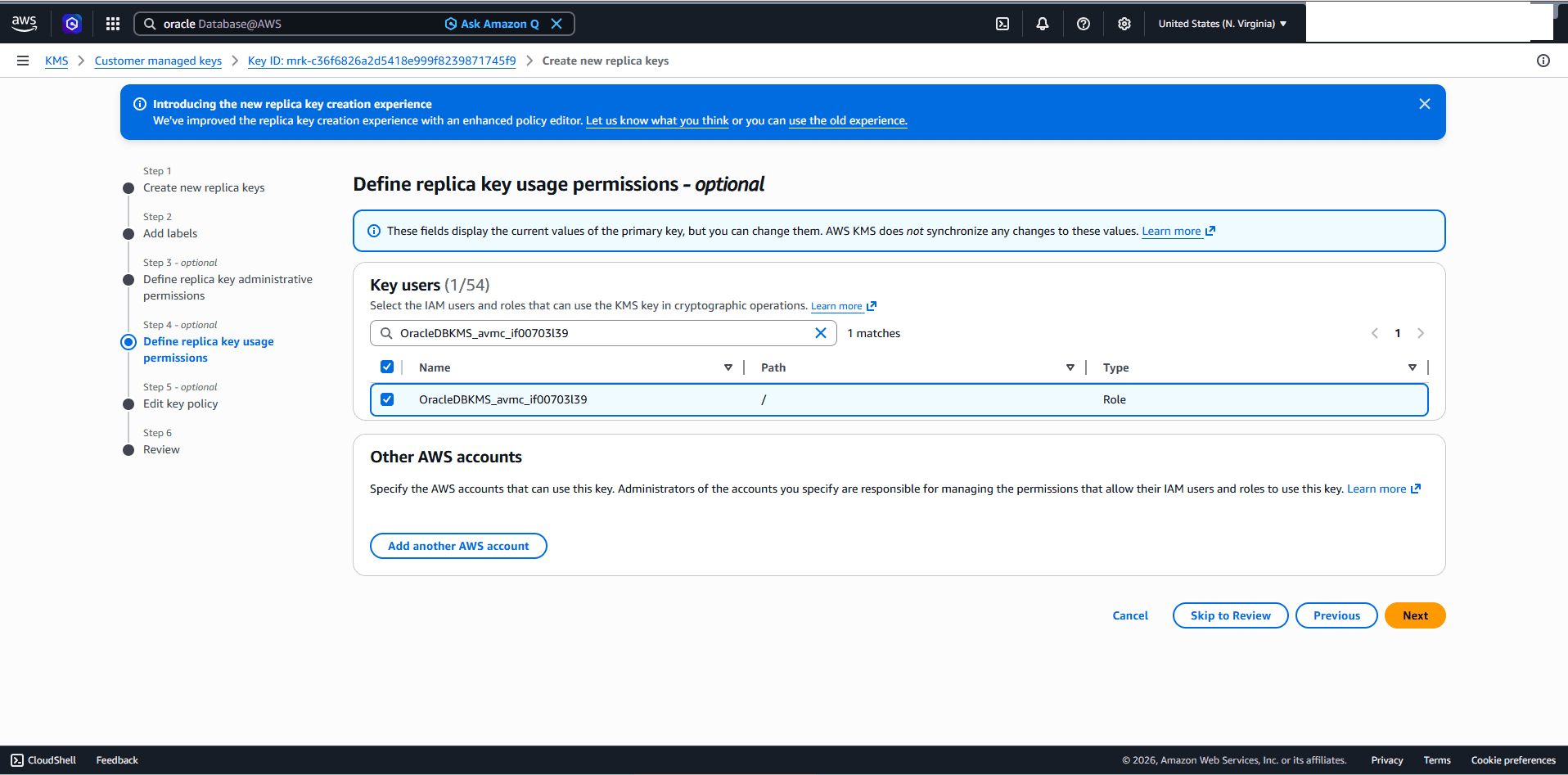
In the Define replica key usage permissions section, select the IAM Role associated with your Autonomous VM Cluster in the standby region, then select the Next button. For more information about identifying this role, see Associate the IAM Role to the Autonomous Exadata VM Cluster (step 4).
-
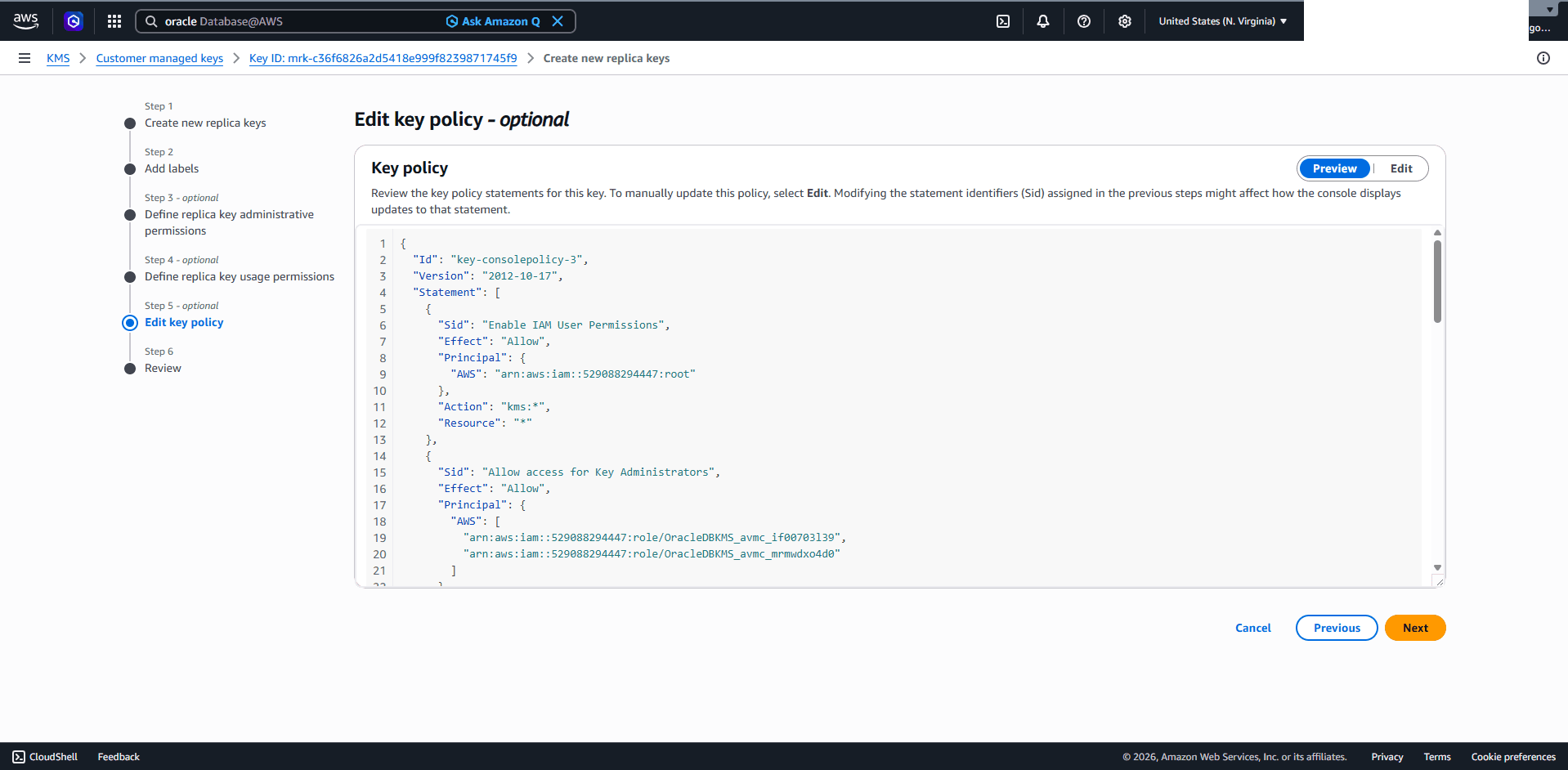
From the Edit key policy section, you can review the key policy. If you want to make a change, select the Edit tab, then select the Next button.
-
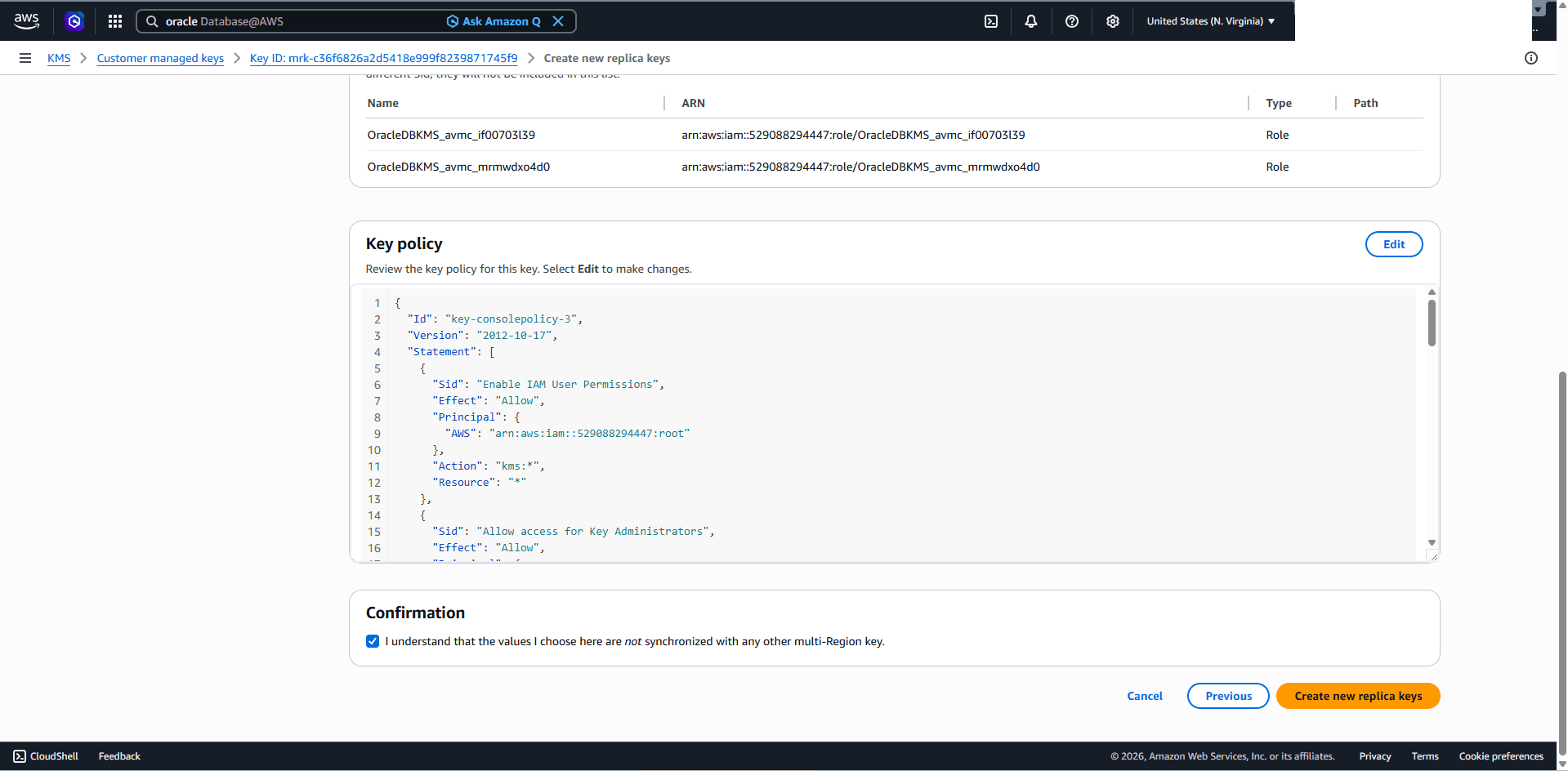
From the Review section, review your information, select the Confirmation checkbox, then select the Create new replica keys button.
-
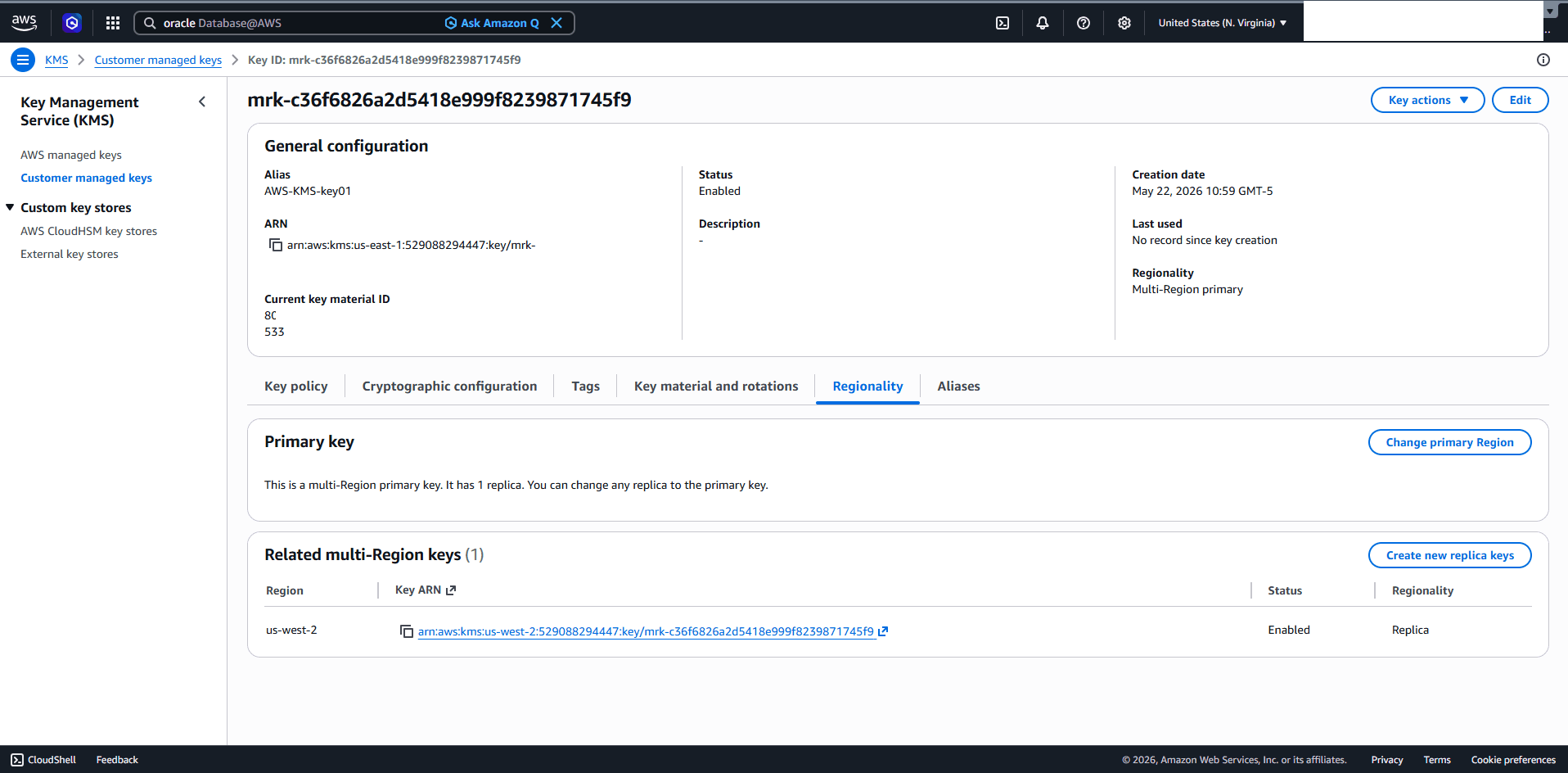
Once the process is complete, you can view the Related multi-Region keys section which will show the Region, Key ARN, Status and Regionality information.
-
-
Enable the Cross-Region Replication for an AWS KMS Key
-
From the OCI console, select Oracle AI Database, and then select Database Multicloud Integrations.
-
From the left menu, select AWS Integration, and then select AWS Keys.
-
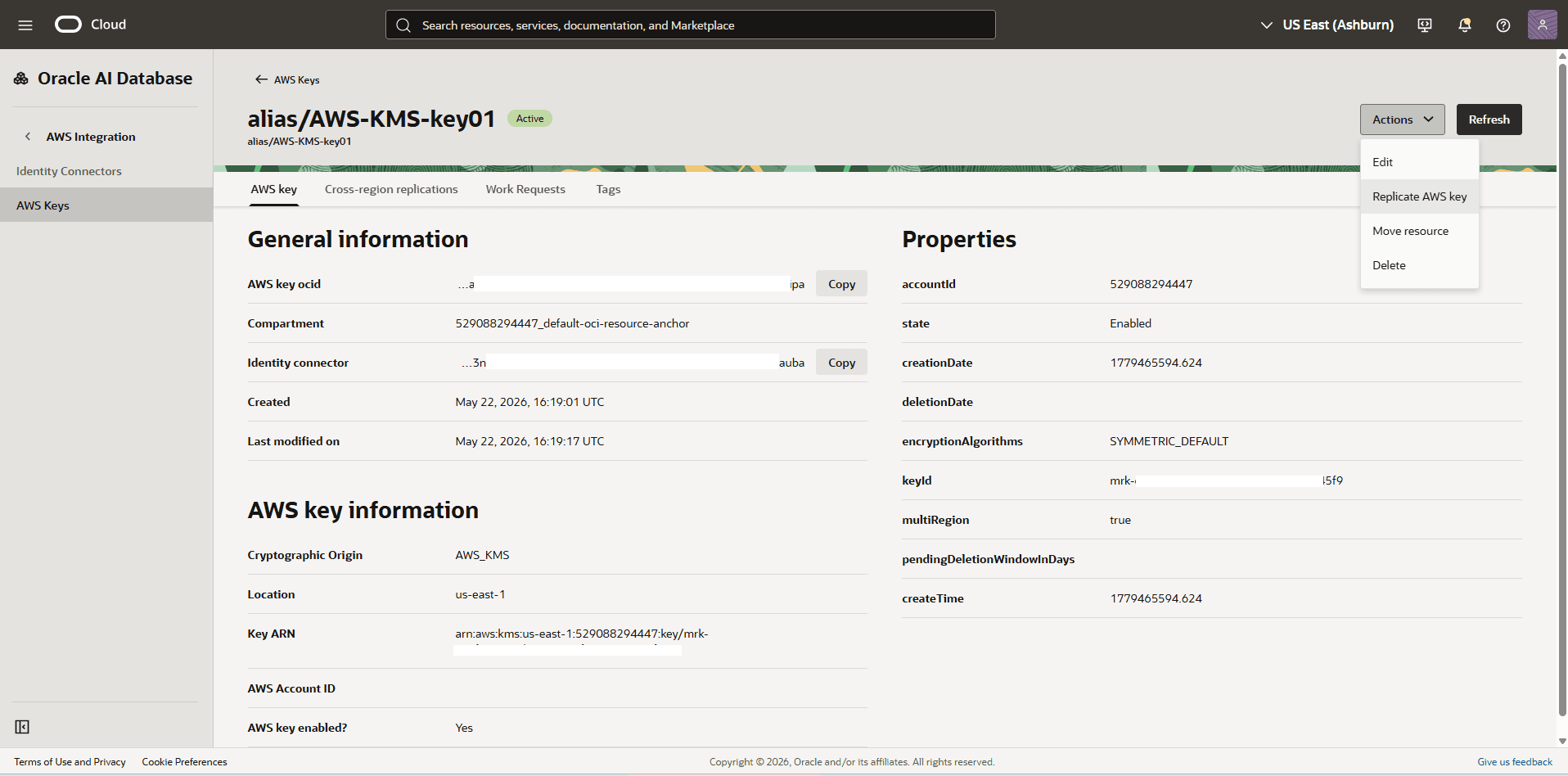
Select the name of the AWS Key that you want to replicate, select the Actions button, then select the Replicate AWS key option.
-
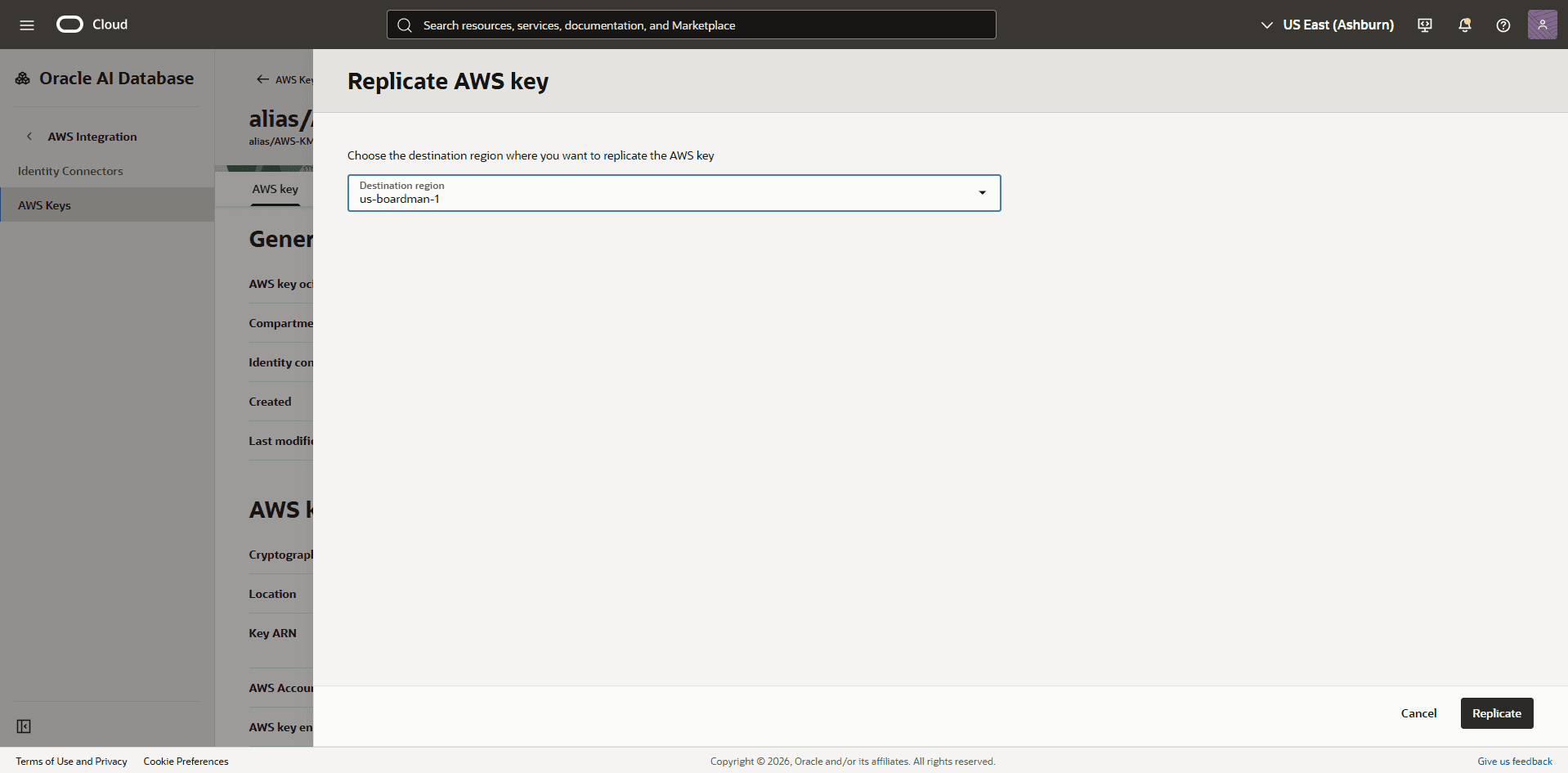
From the Destination Region dropdown list, select the region where you wish to replicate the AWS key, then select the Replicate button.
-
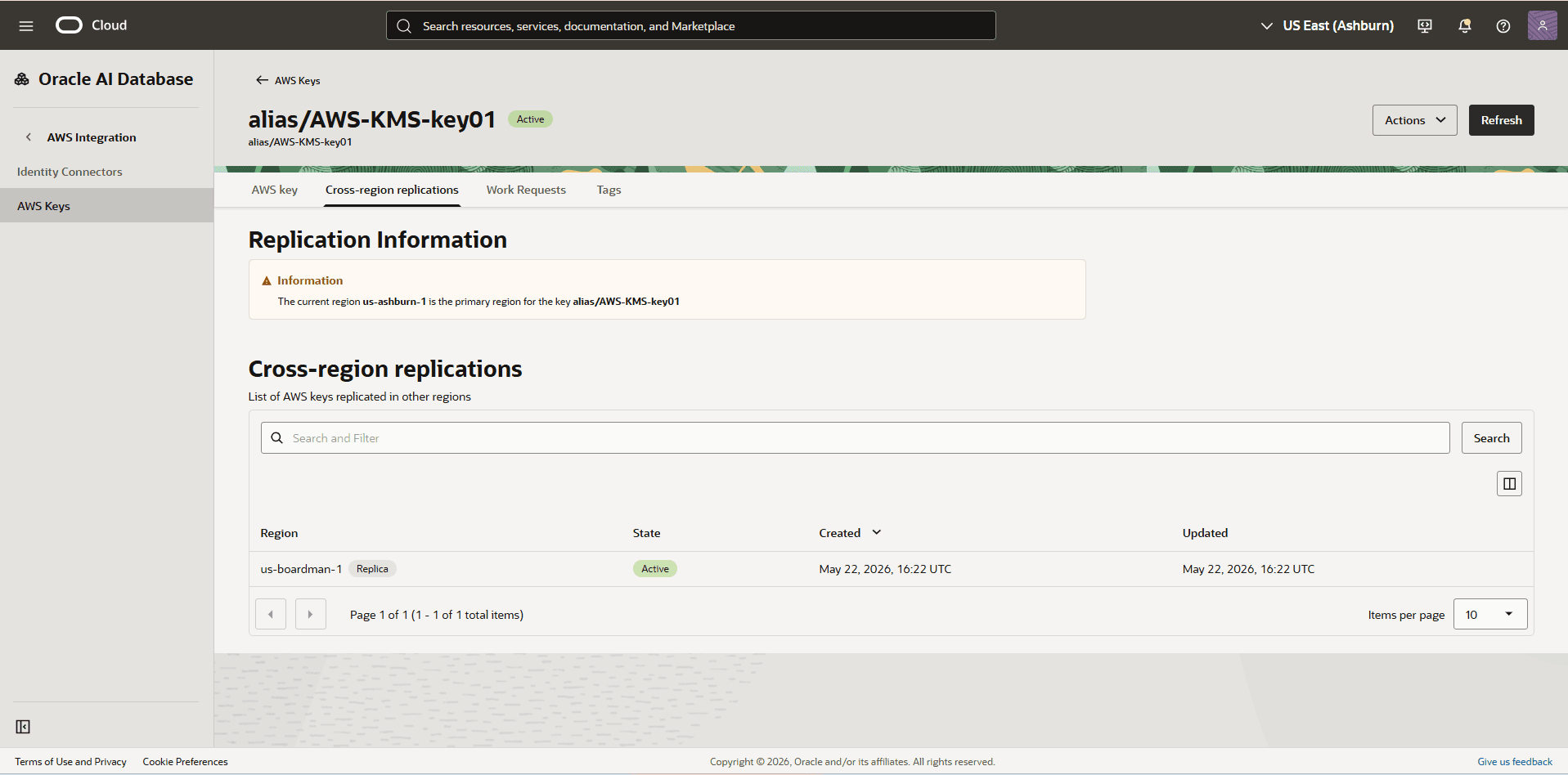
Once the process is complete, navigate to the Cross-region replications tab. Ensure the key ring is shown as Active within the specific region you selected for replication.
-
-
Configure Cross-Region Autonomous Data Guard in Oracle AI Database@AWS
For step-by-step instructions to configure Oracle Autonomous Data Guard on an Autonomous AI Database on Dedicated Infrastructure, see Autonomous AI Database (Dedicated).
-
For more information, see Security Features in Autonomous AI Database on Dedicated Exadata Infrastructure.