Protect Autonomous AI Database (Serverless)
Learn about various data protection methods available for Autonomous AI Database Serverless.
Data in Transit Encryption
Autonomous AI Database is protected with encryption of data in transit by default. This ensures that data moving between application and the database is secured from unauthorized interception or tampering. Oracle Net Services supports multiple industry-standard encryption algorithms including AES, DES, 3DES, and RC4 for securing data in transit. It also offers MD5, SHA-1, and SHA-2 hashing algorithms to verify data integrity.
All communication between clients and the database is encrypted using Oracle Net Services (SQL*Net). Two types of connection services are supported:
-
TCPS (Secure TCP) Connections
-
Uses TLS 1.2 or TLS 1.3.
-
Requires a downloadable connection wallet.
-
Ensures symmetric encryption via secure handshake using the wallet.
-
TLS 1.3 support is available starting with Oracle AI Database 26ai.
-
-
TCP Connections with Native Network Encryption
-
Uses Oracle’s built-in encryption protocol.
-
Negotiates encryption during connection (AES-256, AES-192, AES-128).
-
No wallet is required but connection details such as
tnsnames.oramust be known.
-
Clients (applications and tools) connect to an Autonomous AI Database Serverless using Oracle Net Services (also known as SQL*Net) and predefined database connection services. Oracle Autonomous AI Database Serverless provides two types of database connection services, each employing its own method for encrypting data in transit between the database and the client.
-
TCPS (Secure TCP) database connection services
-
It uses the industry-standard TLS 1.2 and TLS 1.3 (Transport Layer Security) protocol for connections. However, TLS 1.3 is only supported on Oracle AI Database 23ai or later.
-
When you create an Autonomous AI Database Serverless, a connection wallet is generated containing all the necessary files for a client to connect using TCPS. You should distribute this wallet only to clients who require database access. The client-side configuration uses information from the wallet to perform symmetric-key data encryption.
-
-
TCP database connection services
-
It uses the Native Network Encryption crypto system built in Oracle Net Services to negotiate and encrypt data during transmission. For this negotiation, Autonomous AI Database Serverless are configured to require encryption using AES256, AES192 or AES128 cryptography.
-
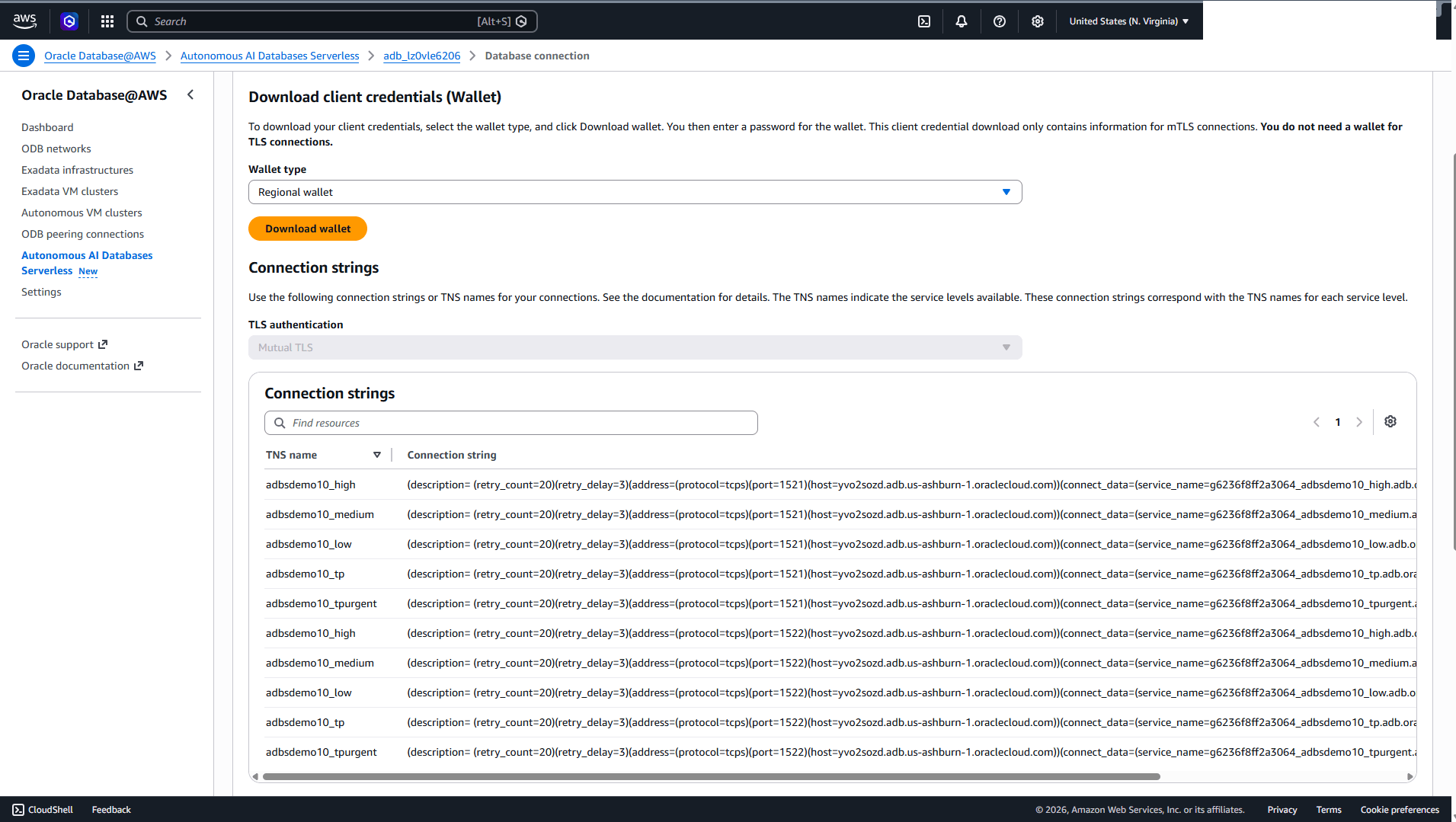
Because encryption is negotiated when the connection is made, TCP connections do not require the connection wallet needed for TCPS connections. However, the client will still need information about the database connection services. This information is available by selecting DB Connection on the database’s Autonomous AI Database Details page in the OCI console, and in the
tnsnames.orafile included in the same downloadable ZIP file that contains the files necessary to connect using TCPS.
-
These connection services are designed to support different types of database operations:
-
tpurgent_tls and tpurgent: For high priority, time critical transaction processing operations.
-
tp_tls and tp: For typical transaction processing operations.
-
high_tls and high: For high priority reporting and batch operations.
-
medium_tls and medium: For typical reporting and batch operations.
-
low_tls and low: For low priority reporting and batch operations.
Encryption at Rest for Oracle AI Database@AWS
Oracle AI Database@AWS supports encryption at rest to safeguard sensitive data residing in database files, backups, and configuration files. This protection is enabled by Transparent Data Encryption (TDE), which ensures that data is encrypted whenever it is written to persistent storage and transparently decrypted when accessed by authorized Oracle processes with no customer configuration is required. The master key encrypts tablespace keys, which in turn encrypt the data.
Transparent Data Encryption (TDE)
Encryption at rest is provided through TDE, a feature included in Oracle Advanced Security. TDE automatically encrypts tablespaces, redo logs, and undo logs, ensuring that all database data is written to disk in encrypted form and transparently decrypted for authorized users and applications. Database backups created using Oracle Recovery Manager (RMAN) or managed backup solutions adopt these encryption settings, protecting all database copies stored on persistent media.
Key Management
TDE uses a master encryption key to protect your tablespaces and columns. For Oracle AI Database@AWS , there are two key management options:
-
Oracle-managed keys: The master encryption key is automatically generated and stored in an Oracle Wallet, which is secured within the database environment. Oracle handles all key lifecycle tasks, including backups and restores.
-
Customer-managed keys: You can integrate Oracle Autonomous AI Database with services like OCI Vault to generate and store the master encryption key outside the database, enabling centralized key control, lifecycle management, rotation, and auditing of key usage events. With customer-managed keys, you control the encryption keys used to protect your data. You can enable customer-managed keys when creating databases, switch from Oracle-managed to customer-managed keys, and rotate keys to meet security and compliance requirements.
Oracle Autonomous AI Database Service offers the following data at rest encryption methods:
-
Oracle-managed Key (OMK)
-
Customer-managed Key (CMK)
-
Oracle Cloud Infrastructure Vault
-
Oracle Key Vault (OKV)
-
AWS Key Management Service (AWS KMS)
-
Oracle-managed Key (OMK) is the default method for securing data encryption in Oracle AI Database@AWS. In Oracle AI Database, data encryption at rest is powered by TDE. When you choose OMK, the database system automatically handles all key management, including key generation, secure storage, and rotation required by TDE. There are no prerequisites or additional configuration steps required to use Oracle-managed Key on Oracle AI Database@AWS.
View Encryption Details
-
From Oracle AI Database@AWS dashboard, select Autonomous AI Databases Serverless, and then select name field of the Autonomous AI Database Serverless that you want to verify.
-
From the central bar, select the Encryption tab. Review your encryption key details.
- The Key type section displays the current configuration. By default, this is set to Oracle-Managed Key.
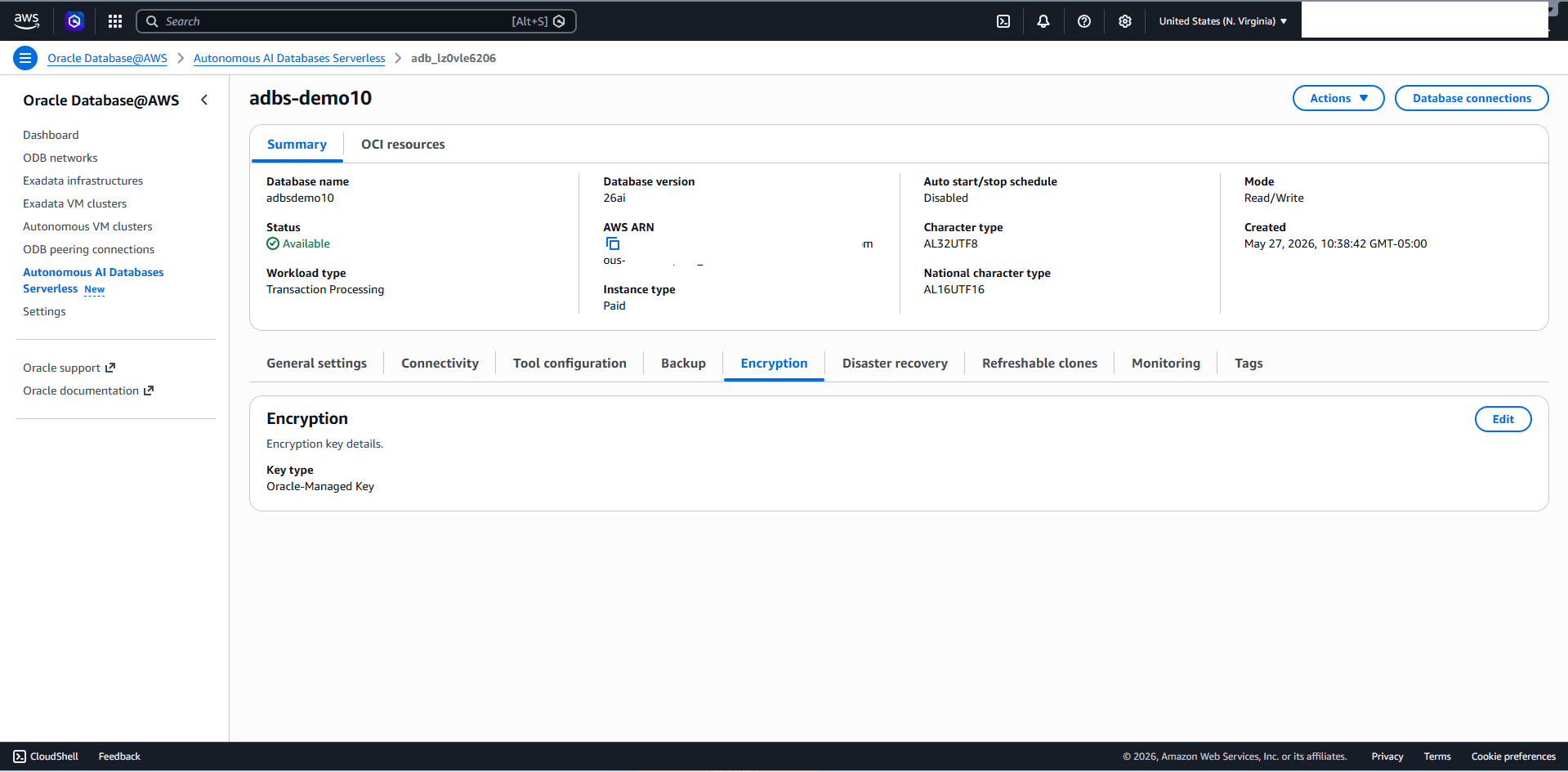
- The Key type section displays the current configuration. By default, this is set to Oracle-Managed Key.
-
Customer-Managed Keys on Oracle AI Database@AWS with OCI Vault
Using customer-managed encryption keys on Oracle AI Database@AWS with Oracle Cloud Infrastructure (OCI) Vault service involves creating a master key in your OCI Vault and configuring your Oracle AI Database@AWS to use encryption keys in the OCI Vault.
Complete the following steps to use customer-managed keys on Oracle AI Database with OCI Vault:
-
Create an Oracle Cloud Infrastructure Vault (OCI Vault)
For more information, see Create an Oracle Cloud Infrastructure Vault.
-
Create a Master Encryption Key in the Vault
For more information, see Create a Master Encryption Key in the Vault.
-
Configure a Service Gateway, Route Rule, and Egress Security Rule
For more information, see Configure a Service Gateway, Route Rule, and Egress Security Rule.
-
Create an OCI Dynamic Group
-
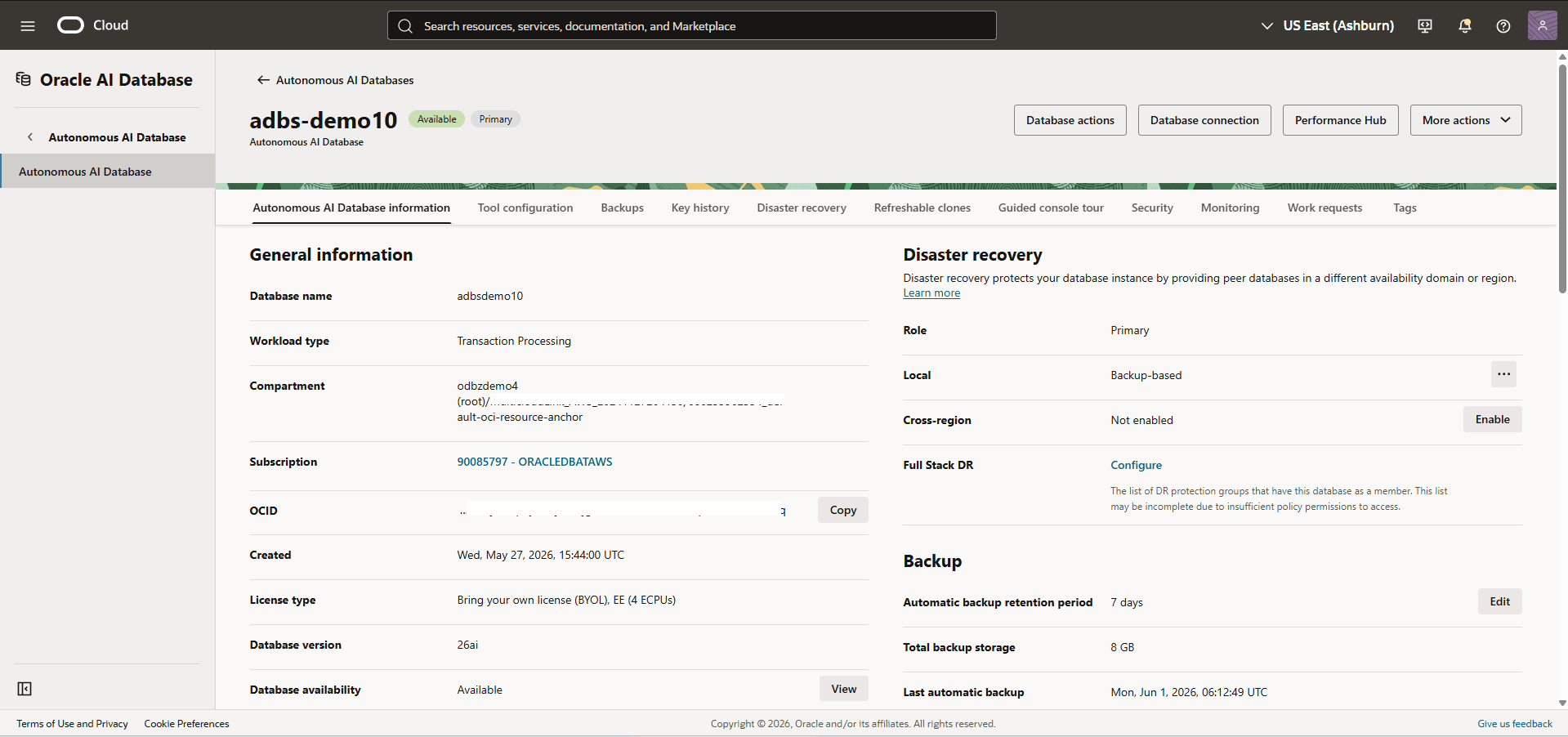
From the OCI console, select Oracle AI Database, and then select Autonomous AI Database.
-
Select the name field of your Autonomous AI Database.
-
Select the General information tab, scroll down to the General information section. Take a note of your Autonomous AI Database Compartment information.
-
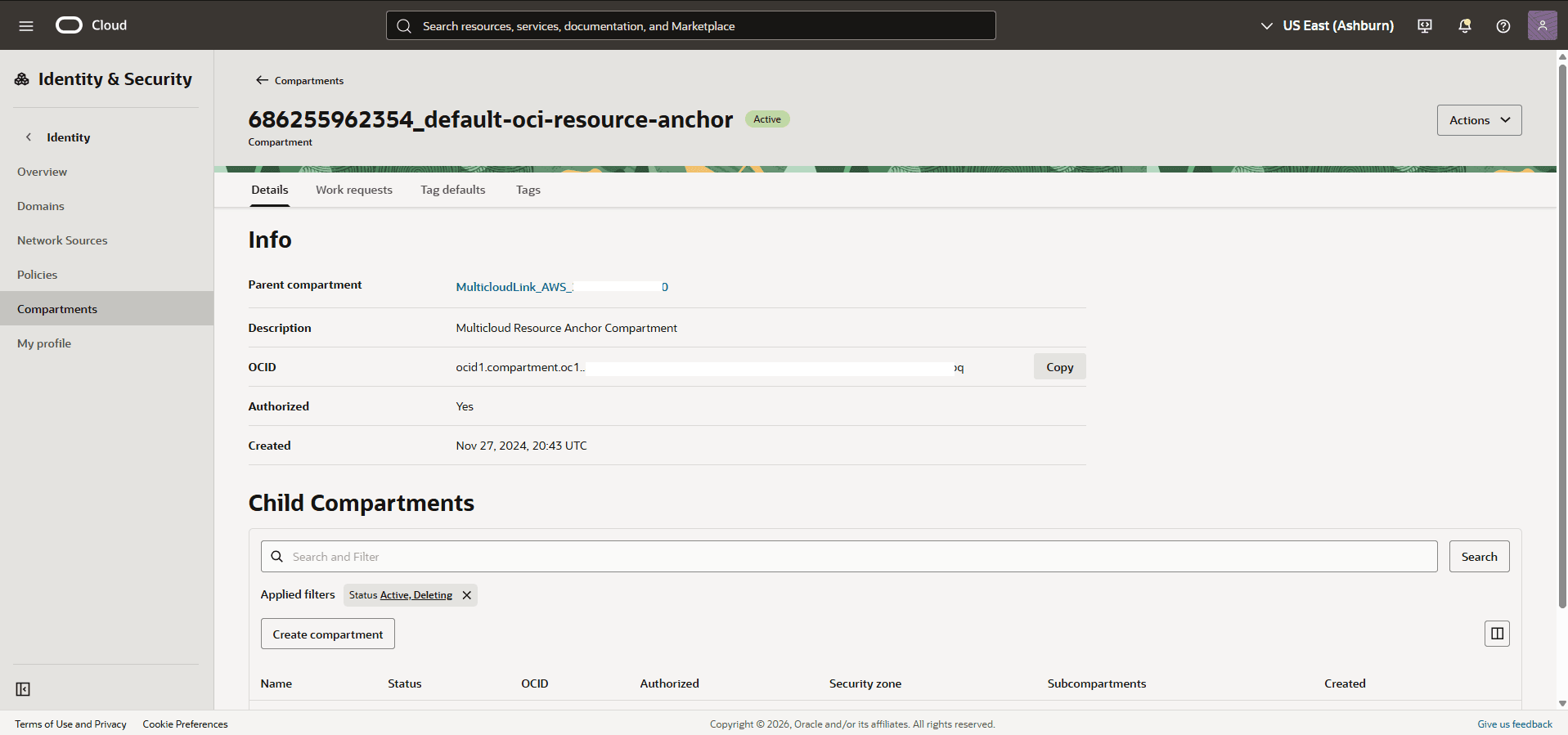
From the navigation menu , select Identity & Security, and then select Compartments.
-
Locate the Compartment that you previously noted, and then take a note of the compartment OCID.
-
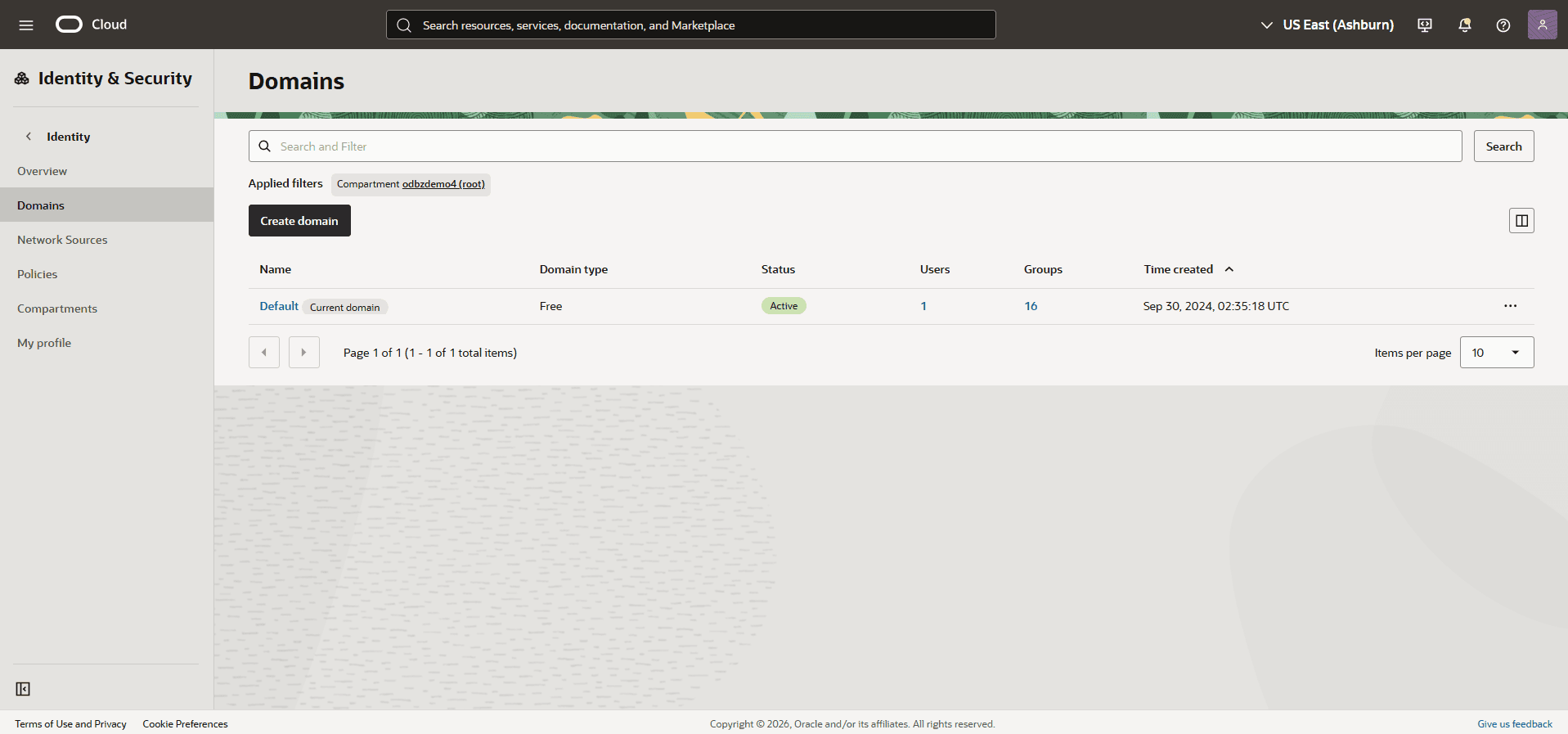
From the navigation menu , select Identity & Security, and then select Domains.
-
From the Applied filters section, select the Root Compartment, then choose your domain.
-
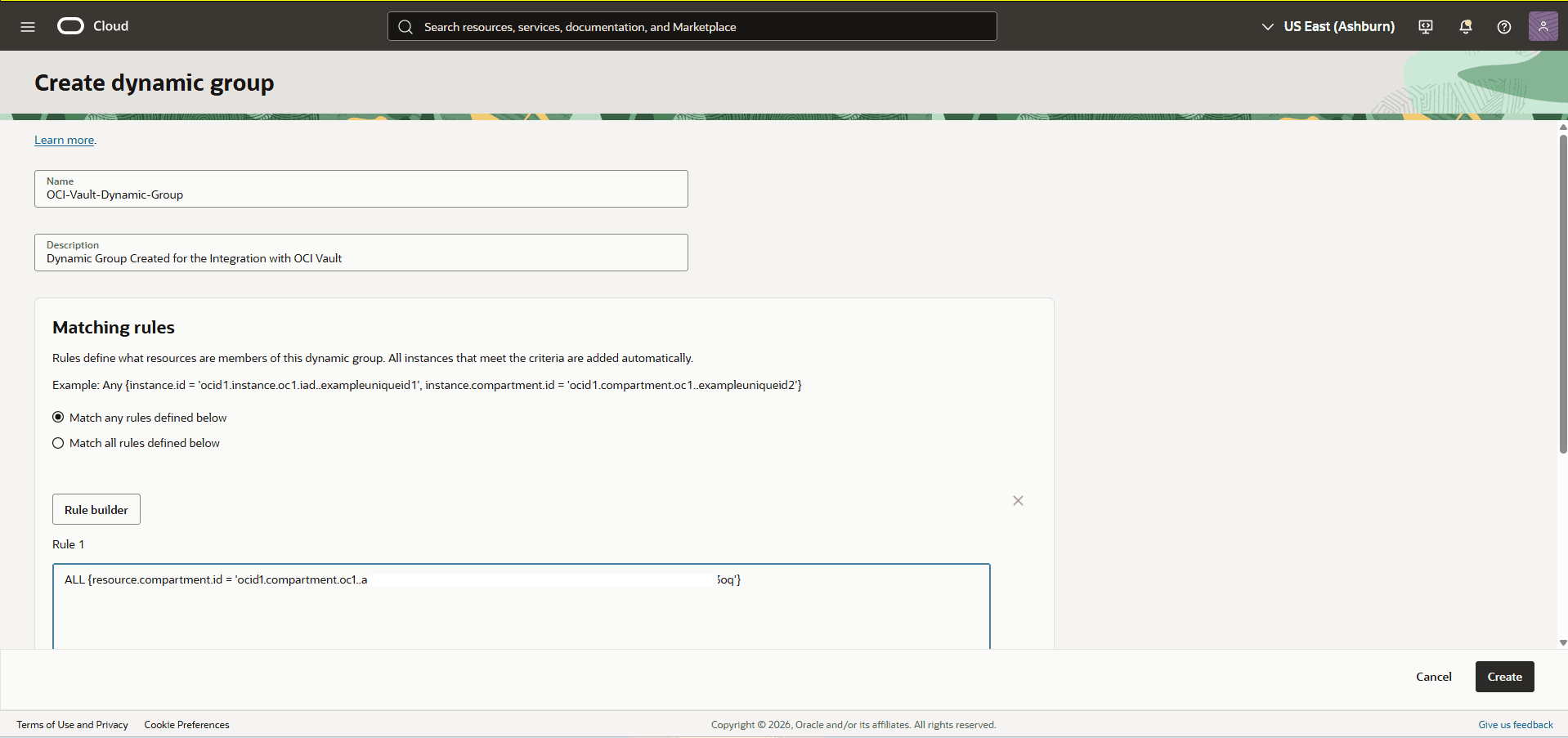
Select the Dynamic groups tab, and then select the Create dynamic group button.
-
Name: Enter a descriptive name for the group.
-
Description: Provide a brief description of the dynamic group’s purpose.
-
Matching Rules: Enter the following statement, replacing
<your_Compartment_OCID>with the compartment OCID you noted in the previous step:ALL {resource.compartment.id = '<your_Compartment_OCID>'} -
Review your information, and then select the Create button.
-
-
-
Create an OCI Policy
-
From the navigation menu , select Identity & Security, and then select Policies.
-
In the Applied Filter section, select the Root Compartment, and then select the Create Policy button.
-
Name: Enter a descriptive name for the group.
-
Description: Provide a brief description of the dynamic group’s purpose.
-
Enable the Show manual editor button, and then enter the following statements. Replace
<dynamic-group-name>with the name of the dynamic group created in the previous step, and<your_Compartment_OCID>with your specific compartment OCID:Allow dynamic-group <dynamic-group-name> to manage keys in compartment id <your_Compartment_OCID>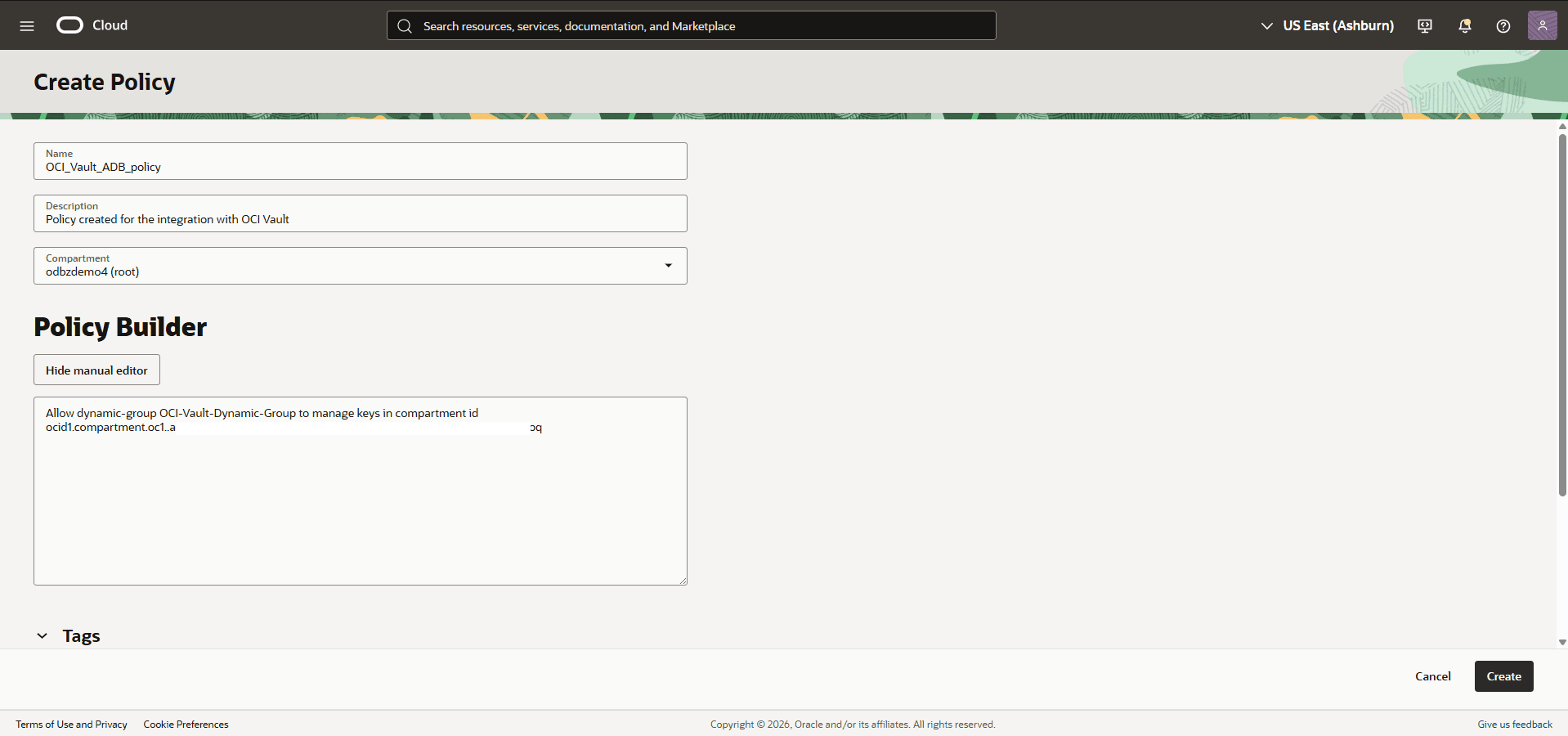
Note
Note: To use customer-managed keys with Autonomous Data Guard and a remote standby database, the following policy is also required:
- Review your information, and then select the Create button.
-
-
-
Modify an Autonomous AI Database to Use OCI Vault as the Key Management Solution
-
From the OCI console, select Oracle AI Database, and then select Autonomous AI Database.
-
Select the name field of your Autonomous AI Database.
-
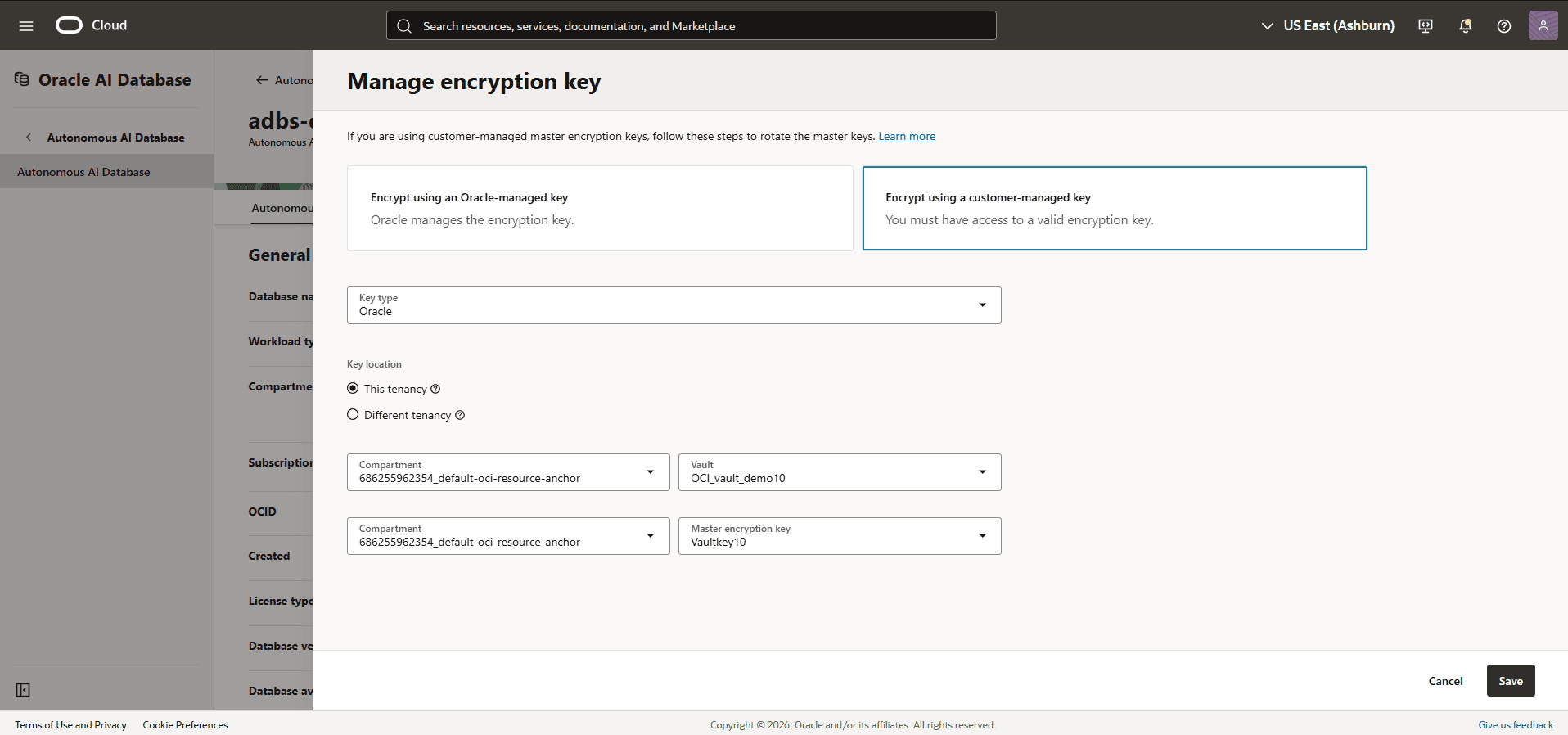
Select the More actions button and then select the Manage encryption key option.
-
Choose the Encrypt using a customer-managed key option.
-
From the Key type dropdown list, select Oracle.
-
As your Key location, select either the This tenancy or Different tenancy option based on your specific vault configuration.
-
Select the Compartment where you created the OCI Vault, then select the Vault from the dropdown list.
-
Select the Compartment where you created the OCI key, then select the Master encryption key from the dropdown list.
-
Select the Save button to save your configuration settings.
-
-
7.
1. **Verify the Database Encryption Method from the OCI Console** 1. From the OCI console, select **Oracle AI Database**, and then select **Autonomous AI Database**. 2. Select the **name** field of your Autonomous AI Database. 3. Scroll down to **Encryption** section. You can verify that the **Encryption Key** is used to protect your Autonomous AI Database with the **Encryption key OCID**.  2. **Verify the Database Encryption Method from the AWS Console** 1. From Oracle AI Database@AWS dashboard, select **Autonomous AI Databases Serverless**, and then select name field of the Autonomous AI Database that you want to verify. 2. From the central bar, select the **Encryption** tab and review the following information: 1. **Key type**: If the value displayed is **OCI Vault Key**, your Autonomous AI Database is using OCI Vault as its encryption method. Rotate Customer-Managed Encryption Keys for an Autonomous AI Database with OCI Vault
-
Create a new master encryption key within your OCI Vault. For more information, see Create a Master Encryption Key in the Vault.
-
From the OCI console, select Oracle AI Database, and then select Autonomous AI Database.
-
Select the name of your Autonomous AI Database.
-
Select the More action button, and then select Manage encryption key option.
-
Select the OCI Vault that contains the key you want to use.
-
Select a Master Encryption Key that is different from the one currently in use for your Autonomous AI Database instance.
-
Select the Save button.
Note
Note:
-
You cannot switch to a different customer-managed key more than two times in a 24-hour period.
-
If you plan to use OCI Vault in a different tenancy than your database, see the Create Dynamic Group and Policies for Customer Managed Keys with Vault in Different Tenancy than the Database documentation for step-by-step instructions.
-
There is currently no content for this page. The Oracle AI Database@AWS team intends to add content here, and this placeholder text is provided until that text is added.
The Oracle AI Database@AWS team is excited about future new features, enhancements, and fixes to this product and this accompanying documentation. We strongly recommend you watch this page for those updates.
Oracle Autonomous AI Database Serverless Service on Oracle AI Database@AWS supports integration with AWS Key Management Service (KMS). This capability allows users to manage Transparent Data Encryption (TDE) master encryption keys (MEKs) using AWS customer managed keys.
To configure AWS KMS to encrypt your database, complete the following steps:
-
Enable Security Token Service and AWS KMS in ODB Network
-
Obtain OCI Trusted Service Account Role ARN
-
Create an IAM Policy
-
Create an IAM Role
-
Create a Customer Managed Key
-
Grant Permissions to an IAM Role
-
Enable AWS KMS for Autonomous AI Database Serverless
- Rotate an AWS KMS Key
-
Enable Security Token Service and AWS KMS in ODB Network
To use AWS KMS for data-at-rest encryption, the ODB network must have both Security Token Service (STS) and AWS KMS integrations enabled. For more information, follow the Create ODB Network or Modify ODB Network steps.
-
Obtain the OCI Trusted Service Account Role ARN
-
Select Autonomous AI Database Serverless.
-
From the AWS Console, select Oracle AI Database@AWS, and then select Autonomous AI Databases Serverless.
-
Select your Autonomous AI Database Serverless that you want to encrypt.
-
Select the Encryption tab. The Key type is set to Oracle-Managed Key.
-
Select the Encryption tab. The Key type is set to Oracle-Managed Key.
-
Select the Edit button.
-
From the Edit Encryption page, choose the Customer managed key option, and then copy the OCI trusted service account role ARN information.
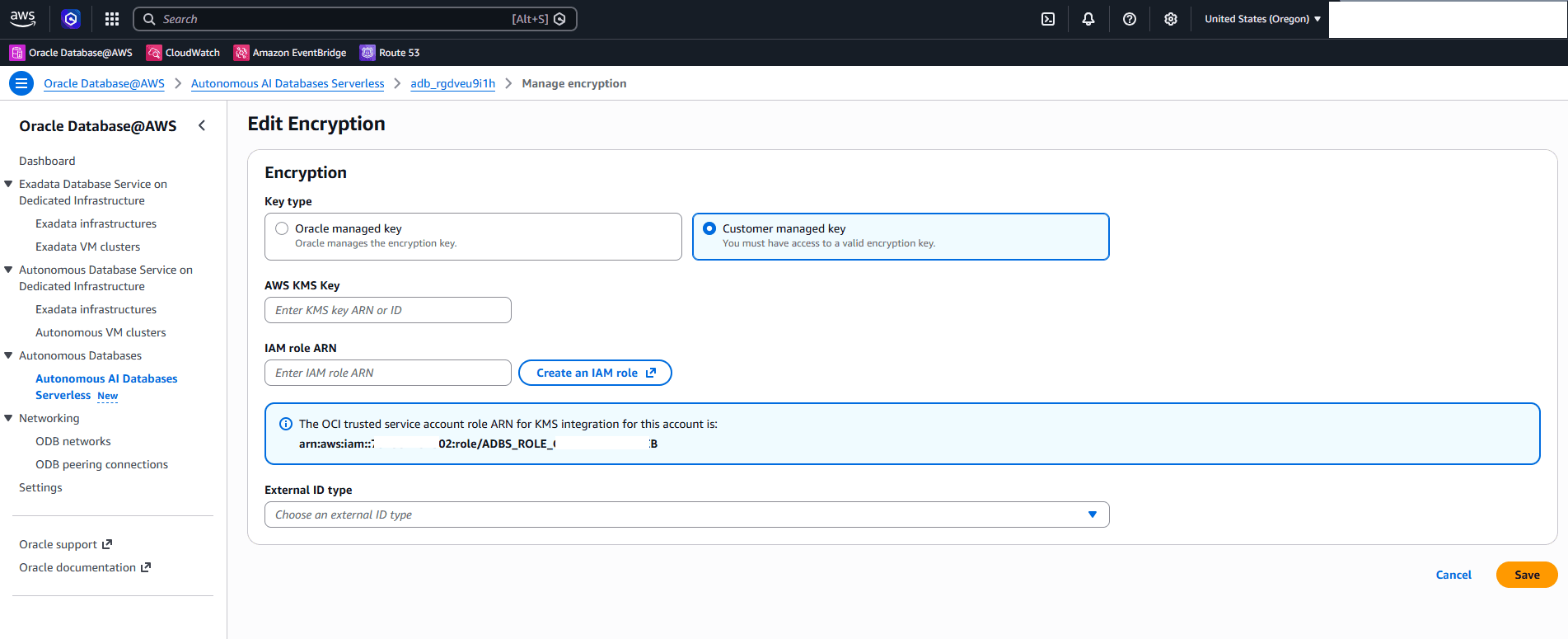
-
-
Select Autonomous AI Database Serverless, OCI tenancy and Compartment OCID.
-
From the OCI Console, select Oracle AI Database, and then select Autonomous AI Database.
-
Select your compartment, and then select your Autonomous AI Database that you are using.
-
From the Autonomous AI Database information tab, copy the OCID information. This is required if you need to configure the
DATABASE_OCIDas theexternalIdin the role trust relationship.
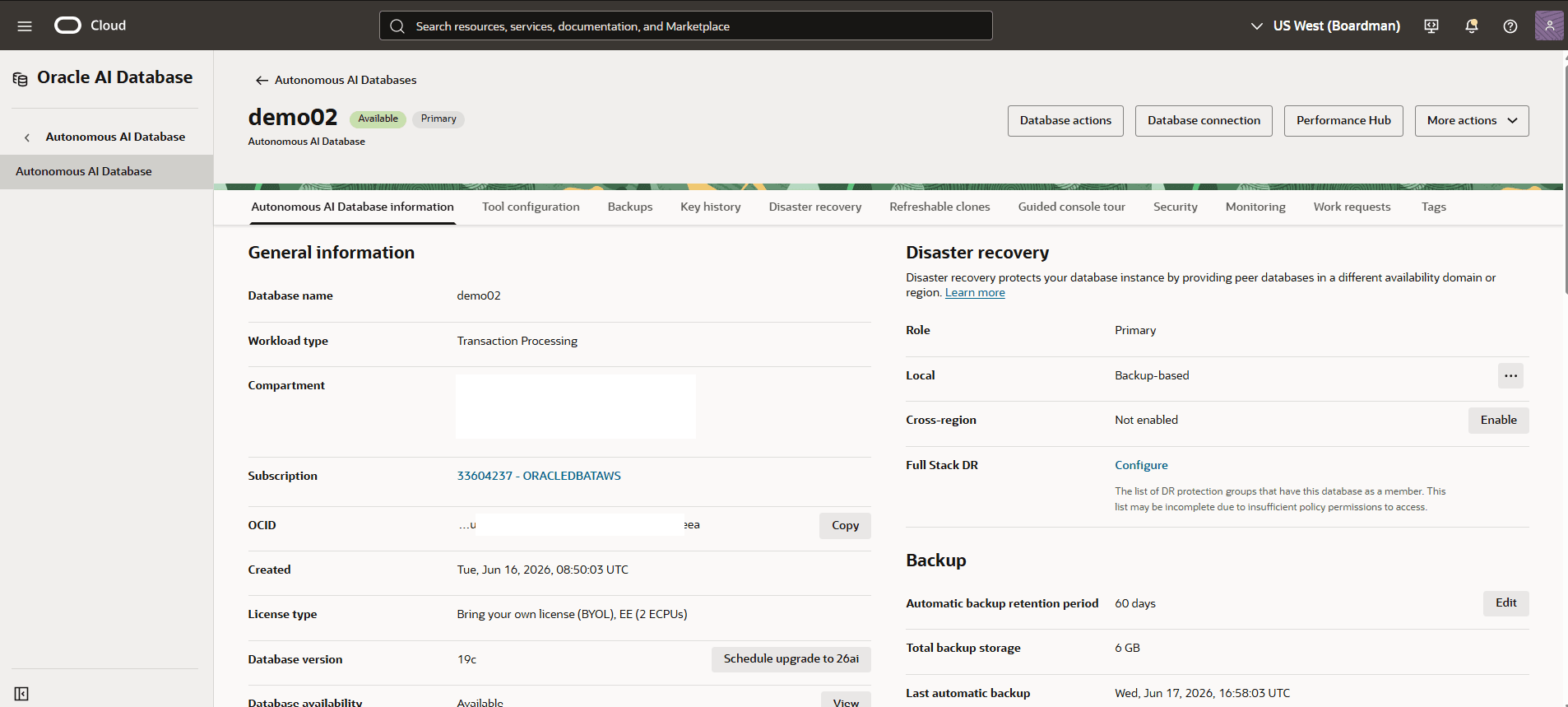
-
-
From the AWS Console, select Oracle AI Database@AWS, and then select Settings to copy the Tenancy OCID and Compartment OCID information. This is required if you need to configure the
TENANT_OCIDorCOMPARTMENT_OCIDas theexternalIdin the role trust relationship.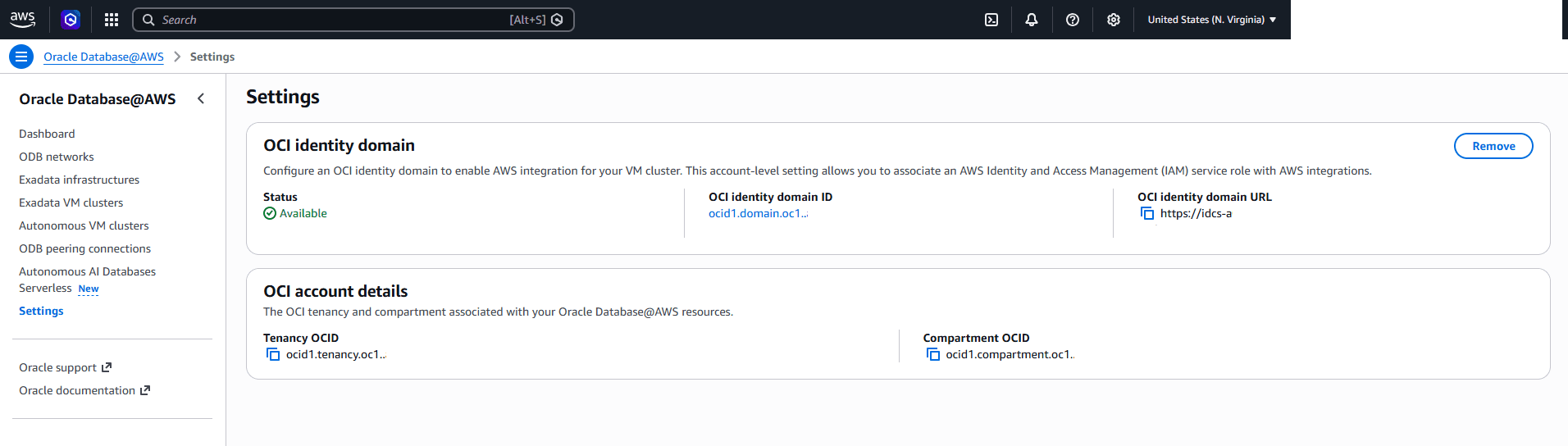
-
-
Create an IAM Policy
Complete the following steps to create a policy to grant permission to list keys.
-
From the AWS Console, navigate to IAM.
-
Expand the Access Management section, and then select the Policies.
-
Select the Create policy button.
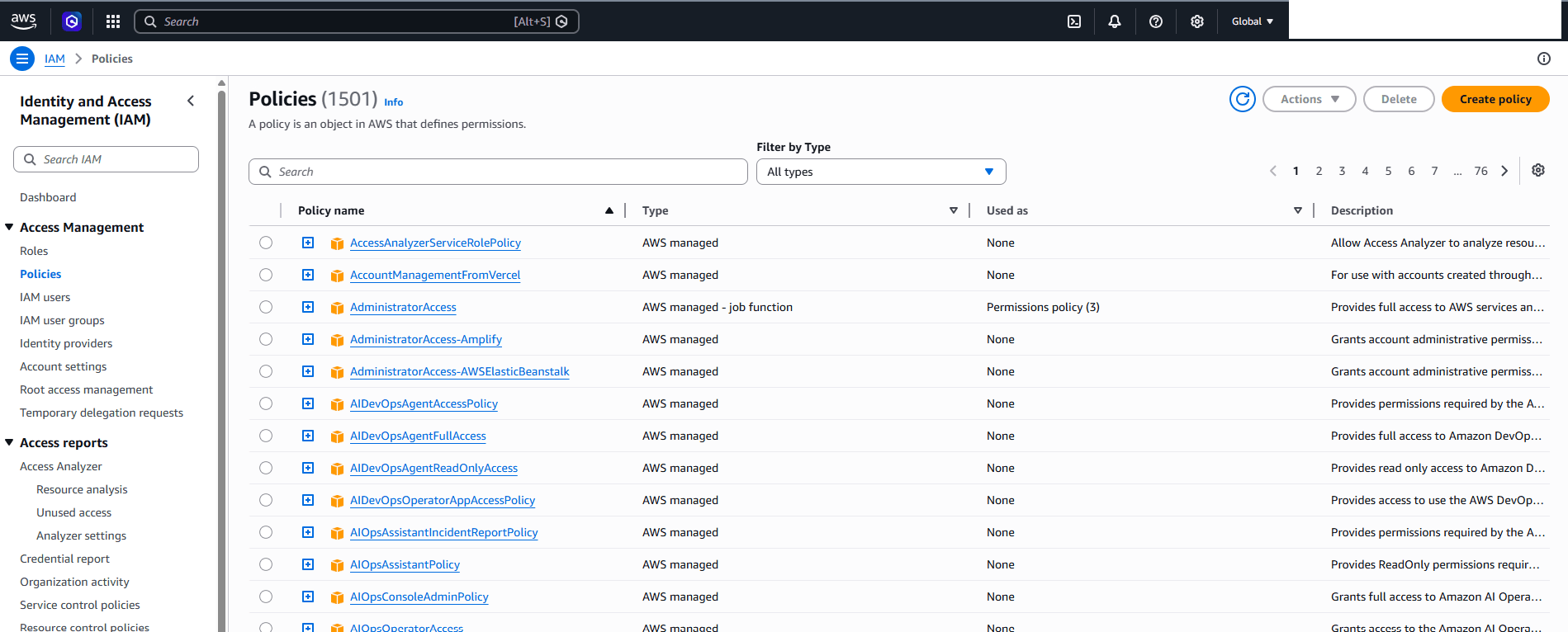
-
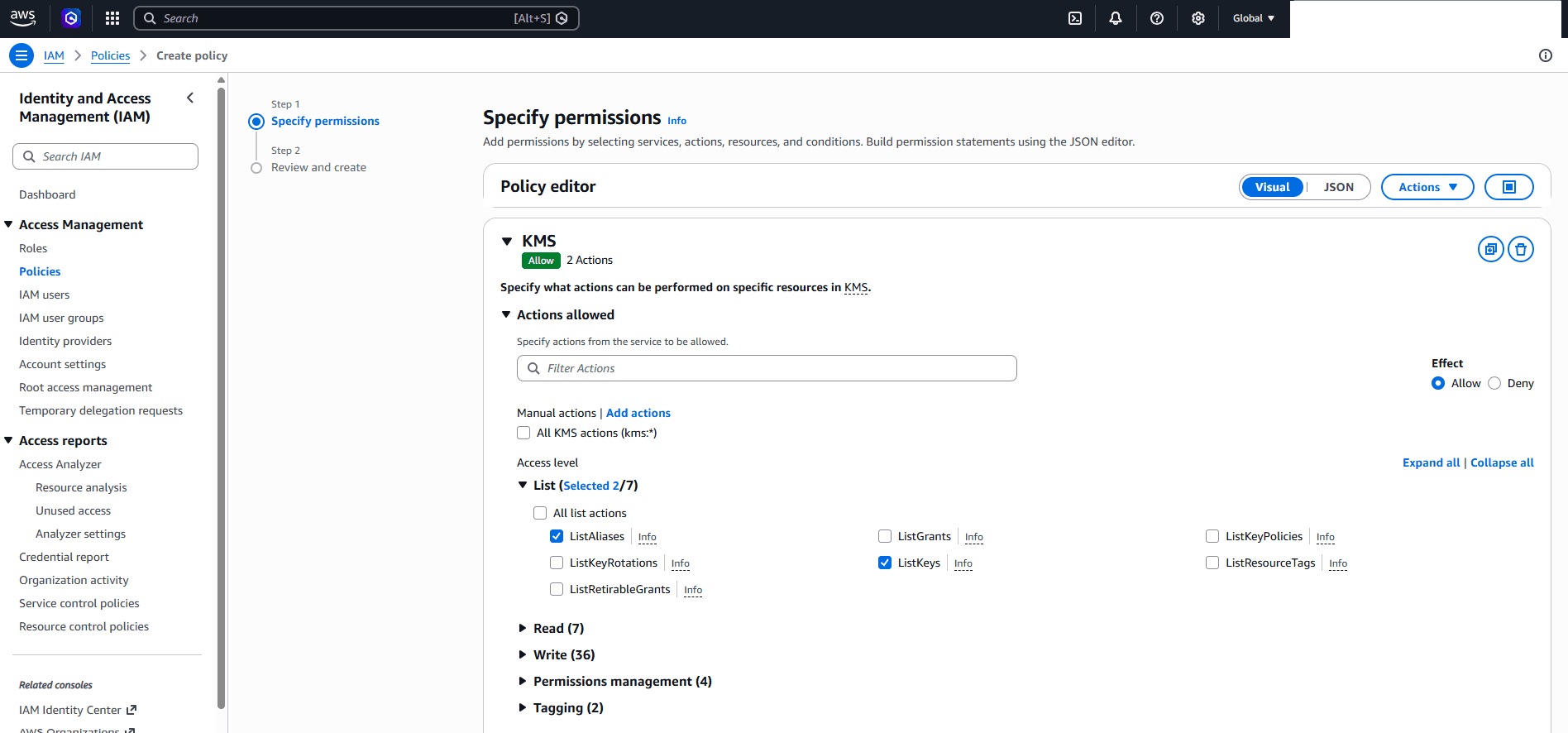
In the Specify permissions step, complete the following steps:
-
Select the Visual as the Policy editor. The Visual editor lets you choose permissions using checkbox instead of writing the IAM policy manually in JSON.
-
From the Select a service section, select the KMS service.
-
Expand Actions allowed if it is not already open.
-
On the right side of the Actions allowed section, locate Effect. Choose the Allow option.
-
Expand the List section, and then select the ListAliases and ListKeys actions.
-
Review the Resources and Request conditions - optional sections.
-
Select the Next button.
-
-
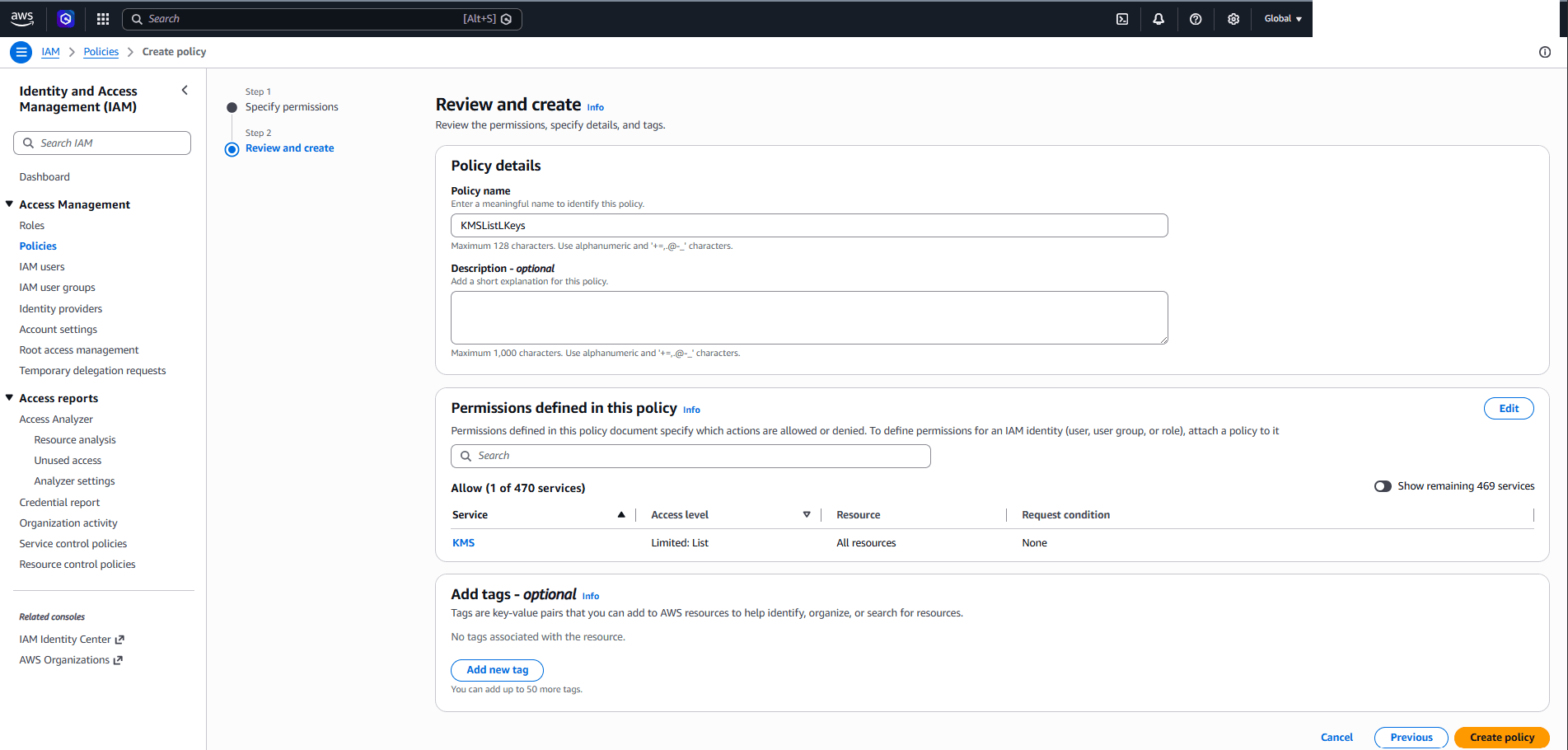
In the Review and create step, complete the following steps:
-
Enter a descriptive policy name in the Policy name field. The policy name can contain up to 128 characters. Use alphanumeric characters and the following special characters: plus sign (+), equals sign (=), comma (,) , period (.), at sign (@), underscore (_), and hyphen (-).
-
Enter a short explanation in the Description field. Your description can contain up to 1000 characters. Use alphanumeric characters and the following special characters: plus sign (+), equals sign (=), comma (,) , period (.), at sign (@), underscore (_), and hyphen (-).
-
Review the Permissions defined in this policy section. If any changes are required, select the Edit button.
-
The Add tags section is optional. If you want to add a new tag, select the Add new tag button and then enter Key and Value information.
-
After reviewing all details, select the Create policy button.
-
-
Once it is created, you can review your policy from the Policies list.
-
-
Create an IAM Role
Complete the following steps to create an IAM role for allowing access to AWS KMS.
-
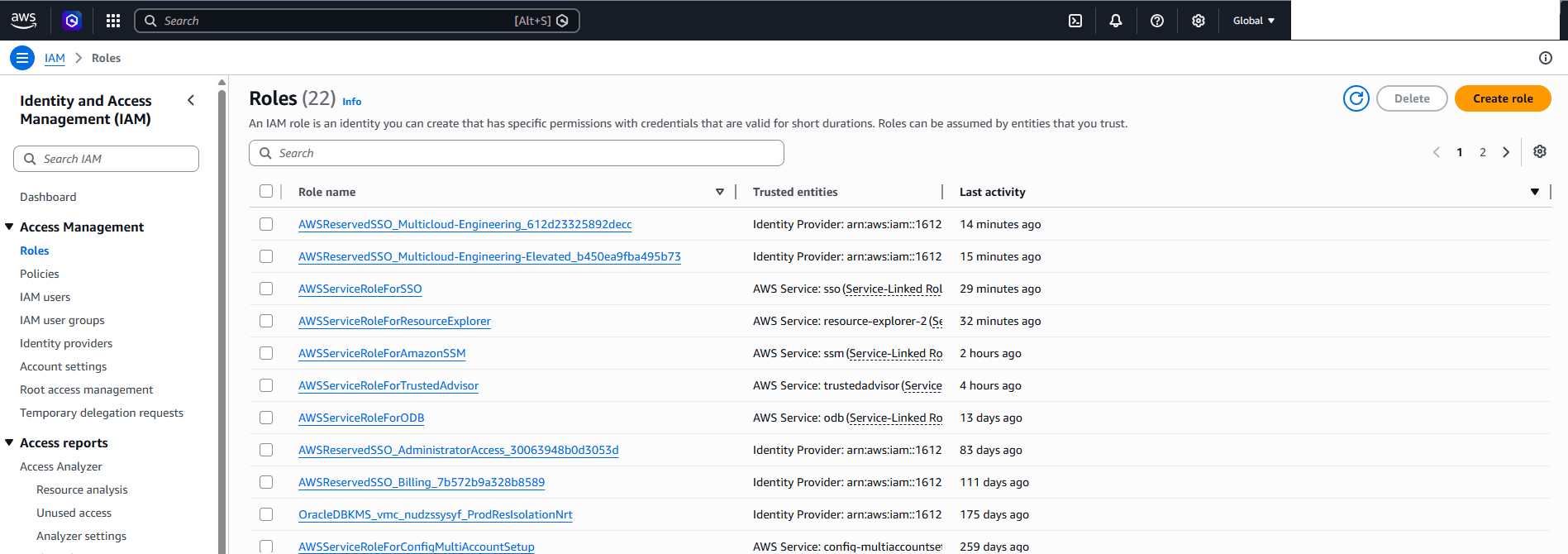
From the AWS Console, navigate to IAM.
-
Expand the Access Management section, and then select the Roles.
-
Select the Create role button.
-
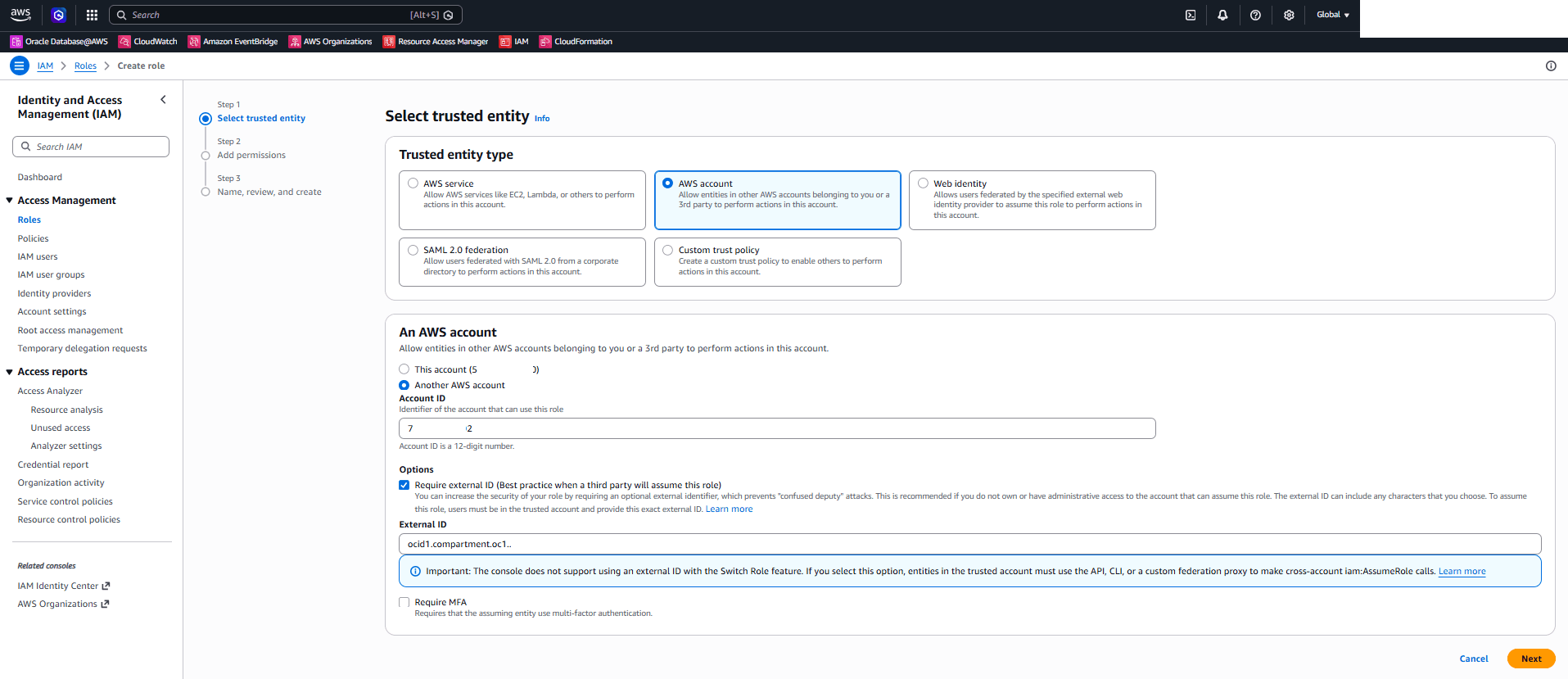
In the Select trusted entity step, complete the following steps:
-
Choose the AWS account option from the Trusted entity type section.
-
Choose the Another AWS account option as the role is in the another AWS account.
-
Enter the Account ID information. The AWS account ID is part of the OCI trusted service account role ARN that you copied in step 2. For example, in
arn:aws:iam::754XXXXXX502:role/ADBS_ROLE_G5XXXXXXXXXX196,754XXXXXX502is AWS account ID. -
Select the Require external ID option to require an external ID when a third party assumes the role. This configuration helps improve security. This is optional.
-
Enter your External ID. This ID can be Compartment OCID or Tenancy OCID information that you copied in the step 2c.
-
Select the Next button.
-
-
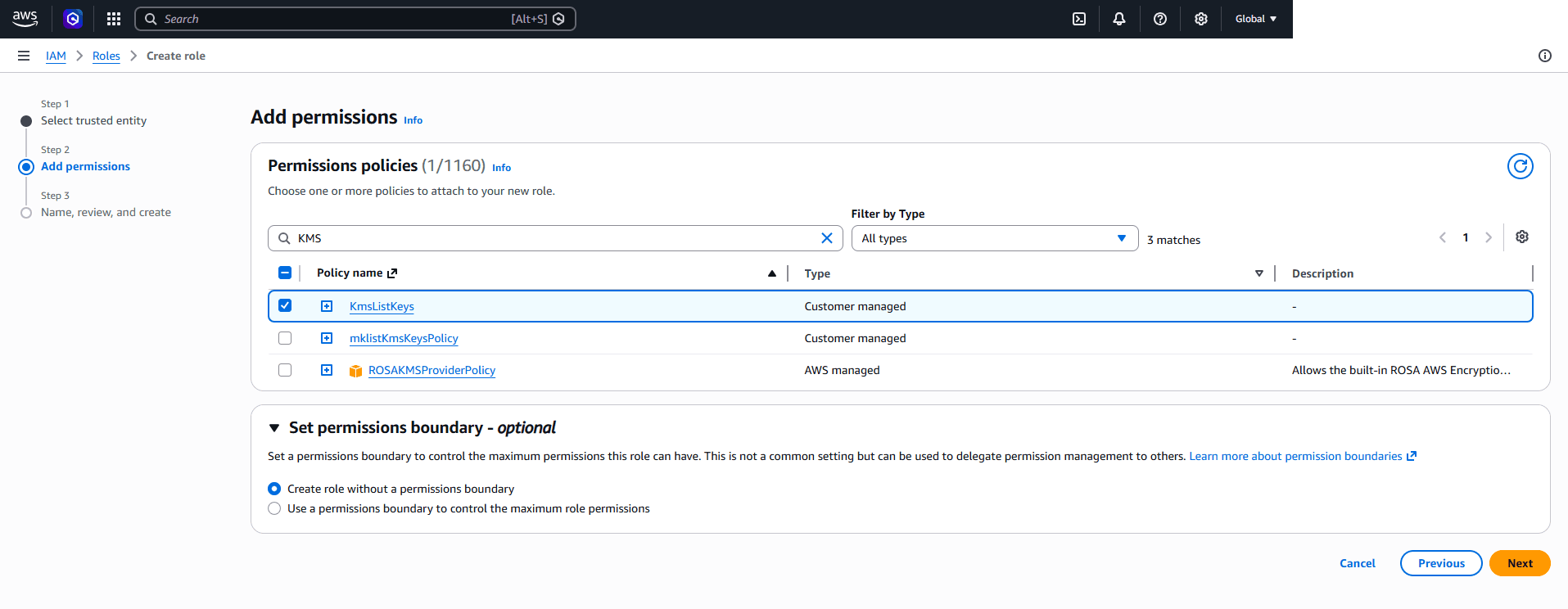
In the Add permissions step, complete the following steps:
-
From the Permissions policies section, select the policy that you previously created in the step 3.
-
The Set permissions boundary section is optional. This option allows you to set a permissions boundary to control the maximum permissions this role can have.
-
Select the Next button.
-
-
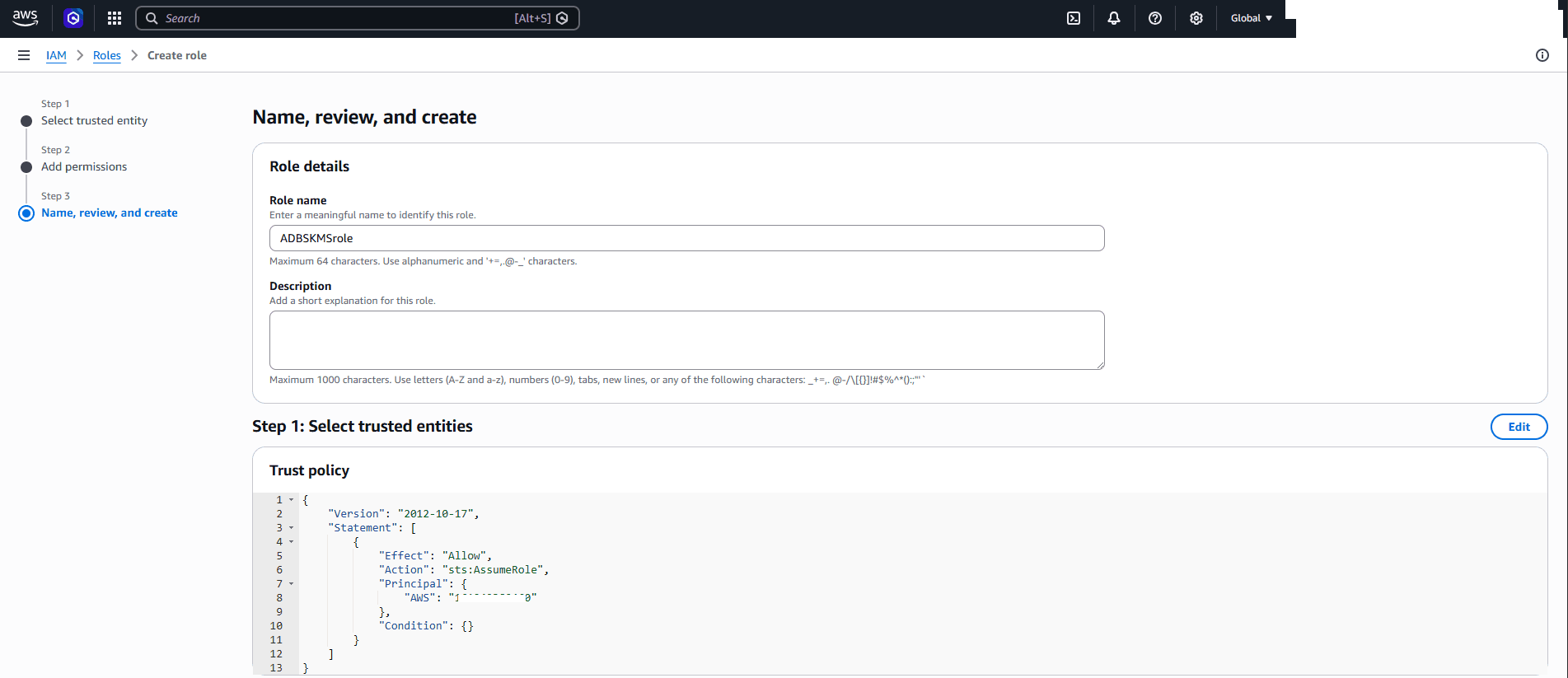
In the Name, review, and create step, complete the following steps:
-
Enter a descriptive role name. The role name can contain up to 64 characters. Use alphanumeric characters and the following special characters: plus sign (+), equals sign (=), comma (,) , period (.), at sign (@), underscore (_), and hyphen (-).
-
Enter a short explanation in the Description field. Your description can contain up to 1000 characters. Use letters (A-Z and a-z), numbers (0-9), tabs, new lines, or any of the following characters:
_+=,. @-/[{}]!#$%^*():;"'` -
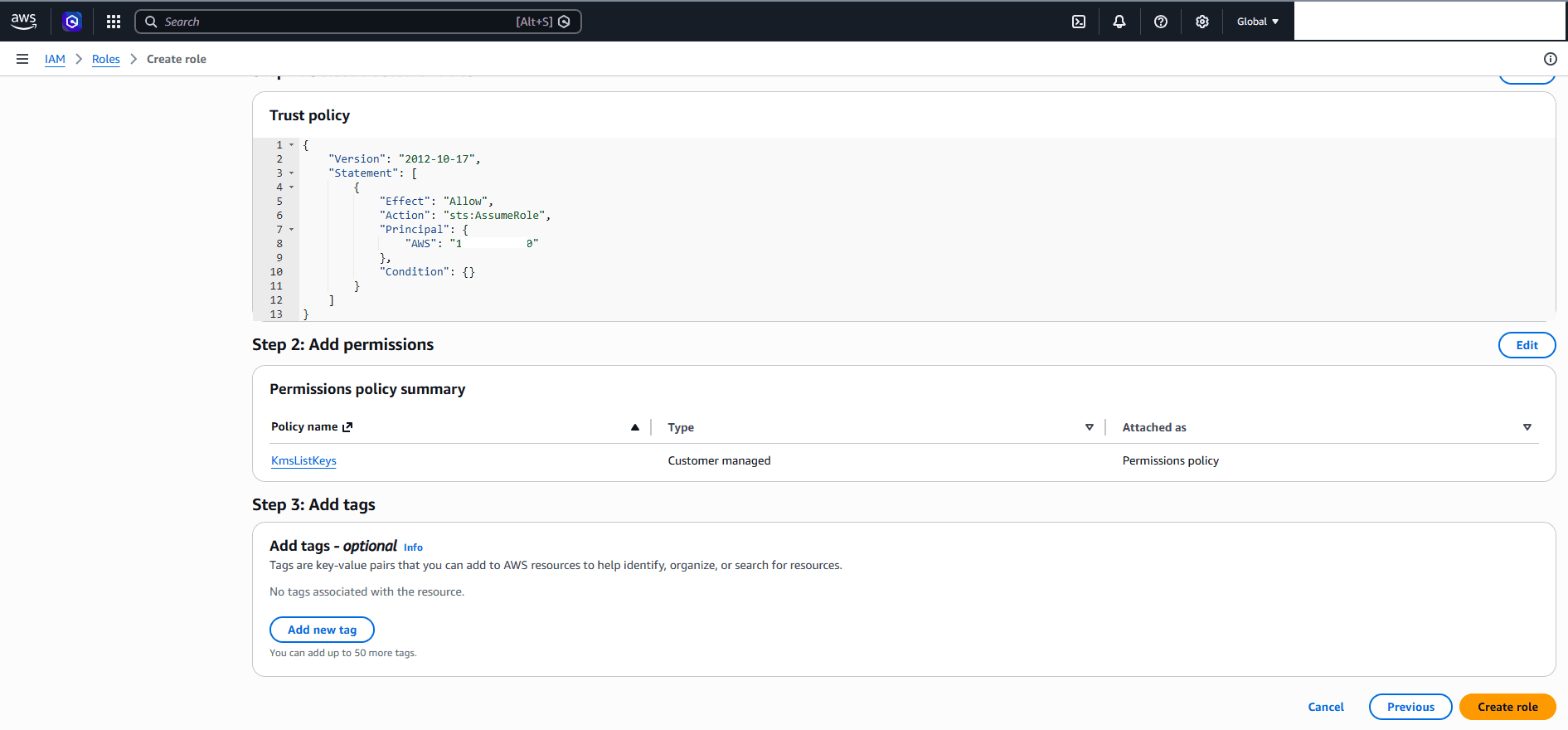
The Add tags section is optional.
-
After reviewing all details, select the Create role button.
-
-
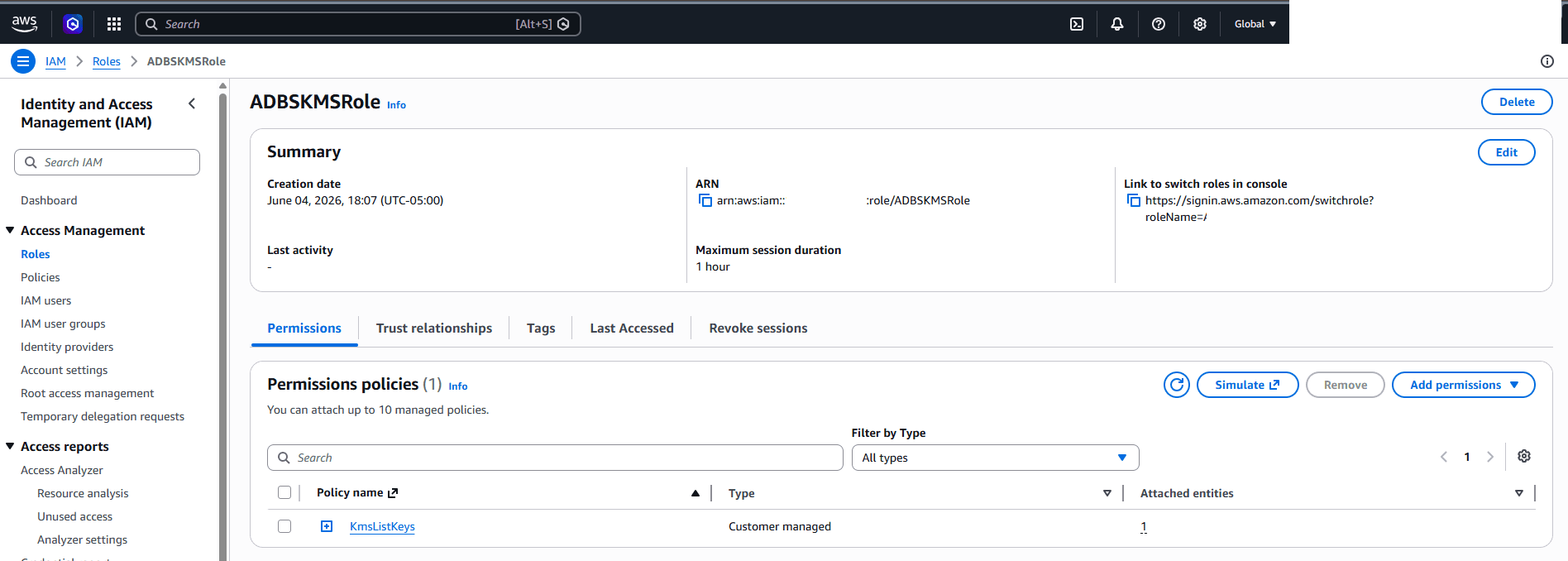
Once it is created, you can review the role details from the Summary section. Take a note of the ARN information.
-
Optionally, you can add trust relationship to allow only the service role that you copied in step 2a.
-
Select the Edit button to edit the trust policy.
-
Add
"ArnLike": { "aws:PrincipalArn": "<roleARN>that copied in step 2a.
-
-
-
Create a Customer Managed Key
-
From the AWS Console, select Key Management Service (KMS).
-
From the left menu, select Customer managed keys, and then select the Create key button.
-
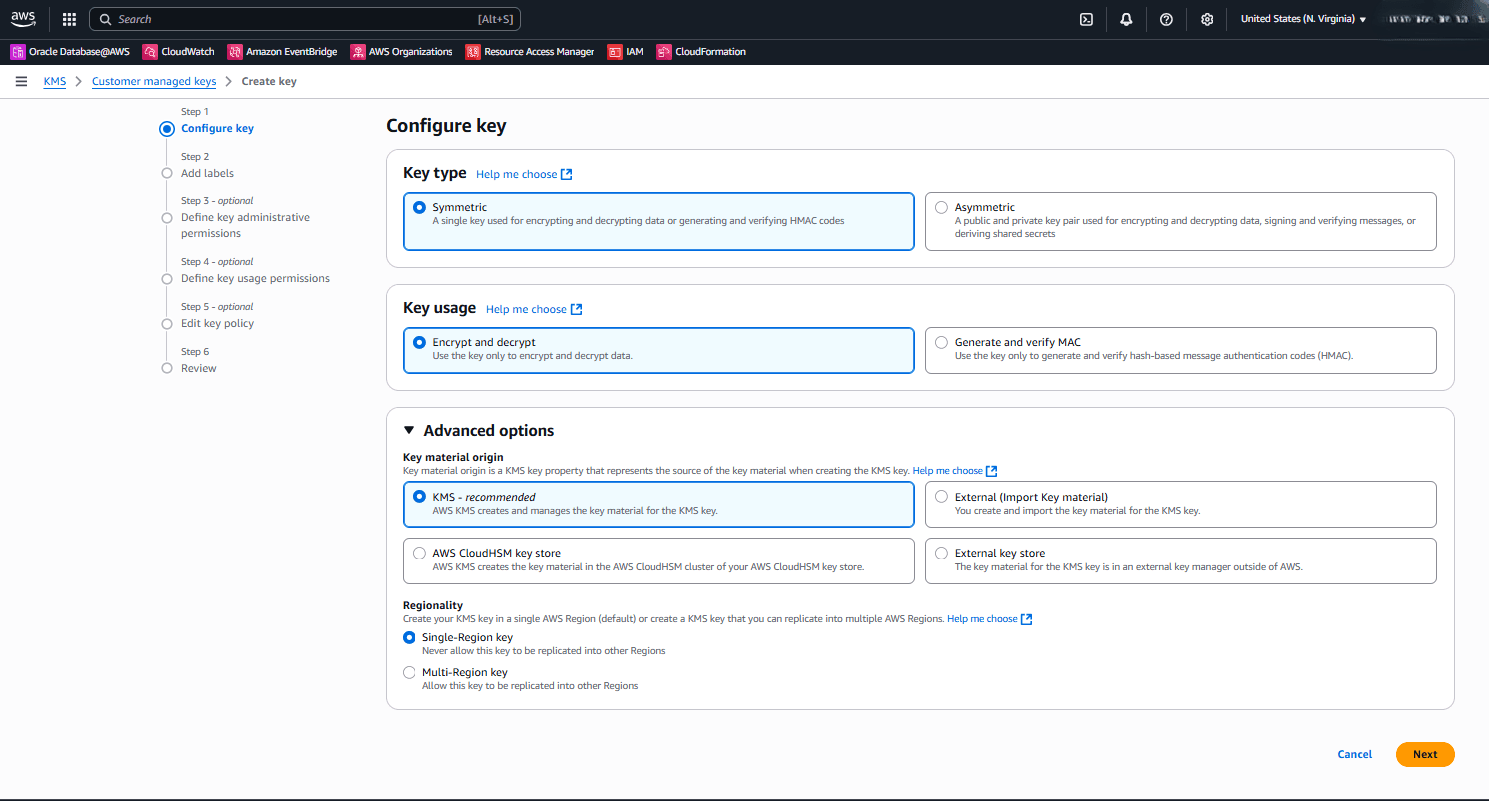
In the Configure key section, enter the following information.
-
Choose the Symmetric option as the Key type.
-
Choose the Encrypt and decrypt option as the Key usage.
-
Expand the Advanced options section. Both AWS KMSand AWS CloudHSMare supported.
- If you want to use KMS, choose the KMS - recommended option as Key material origin, and then choose either the Single-Region key or the Multi-Region key option from the Regionality section.
Note
Note: Restoring databases to a different region are currently not supported for databases that use AWS customer managed keys for key management.
- If you want to use AWS CloudHSM, choose the AWS CloudHSM key store option as Key material origin.
-
Select the Next button to continue the creation process.
-
-
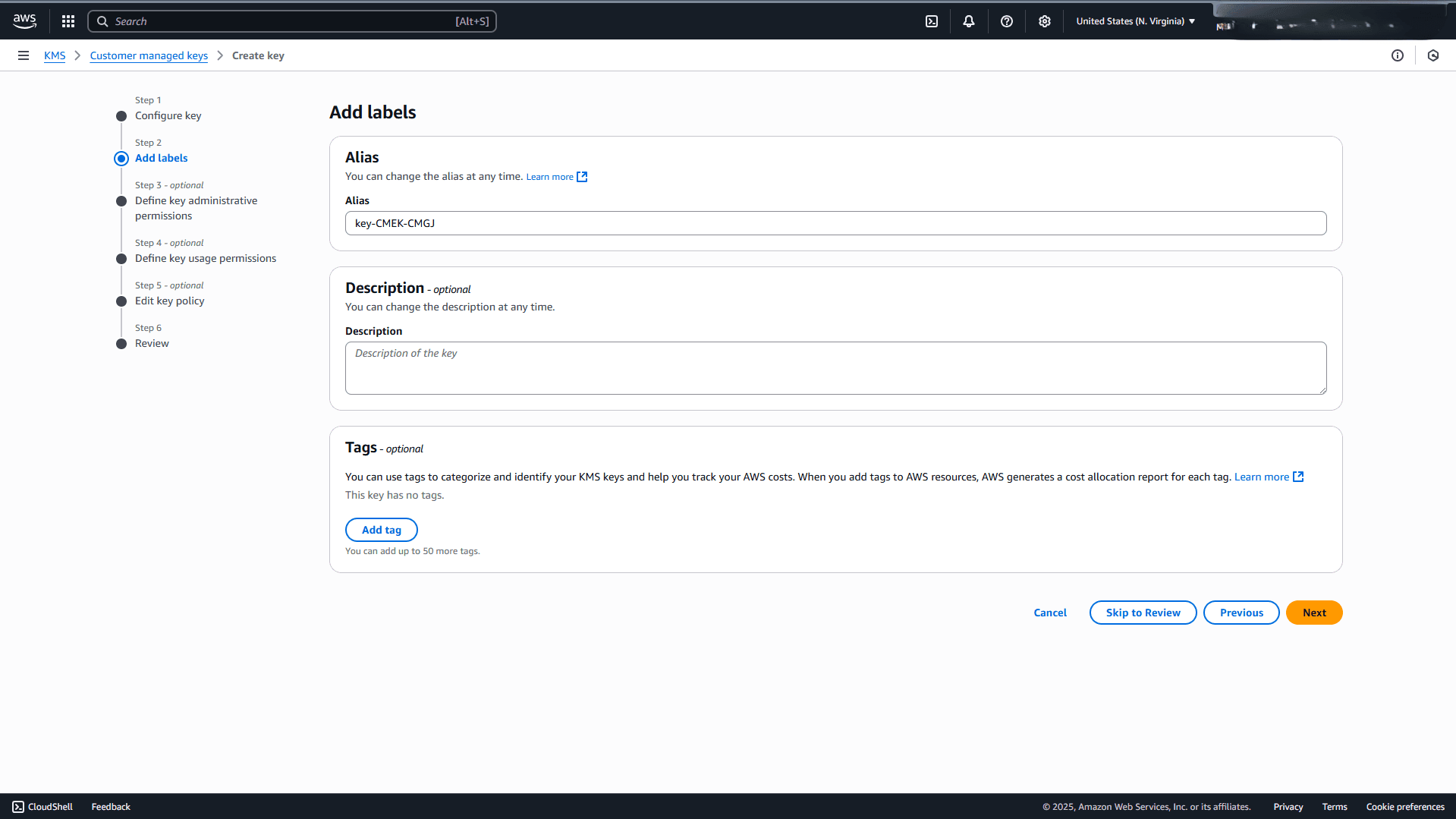
In the Add labels section, enter the following information.
-
Enter a descriptive display name in the Alias field. Maximum 256 characters. Use alphanumeric and ‘_-/’ characters.
Note
Note:
- The alias name cannot begin with
aws/. Theaws/prefix is reserved by AWS to represent AWS managed keys in your account. - An alias is a display name that you can use to identify the KMS key. We recommend that you choose an alias that indicates the type of data you plan to protect or the application you plan to use with the KMSkey
- Aliases are required when you create a KMS key in the AWS Console.
- The alias name cannot begin with
-
The Description field is optional. You can enter a brief description of the key.
-
The Tags section is optional. You can use tags to categorize and identify your KMS keys and help you track your AWS costs.
-
Select the Next button to continue the creation process.
-
-
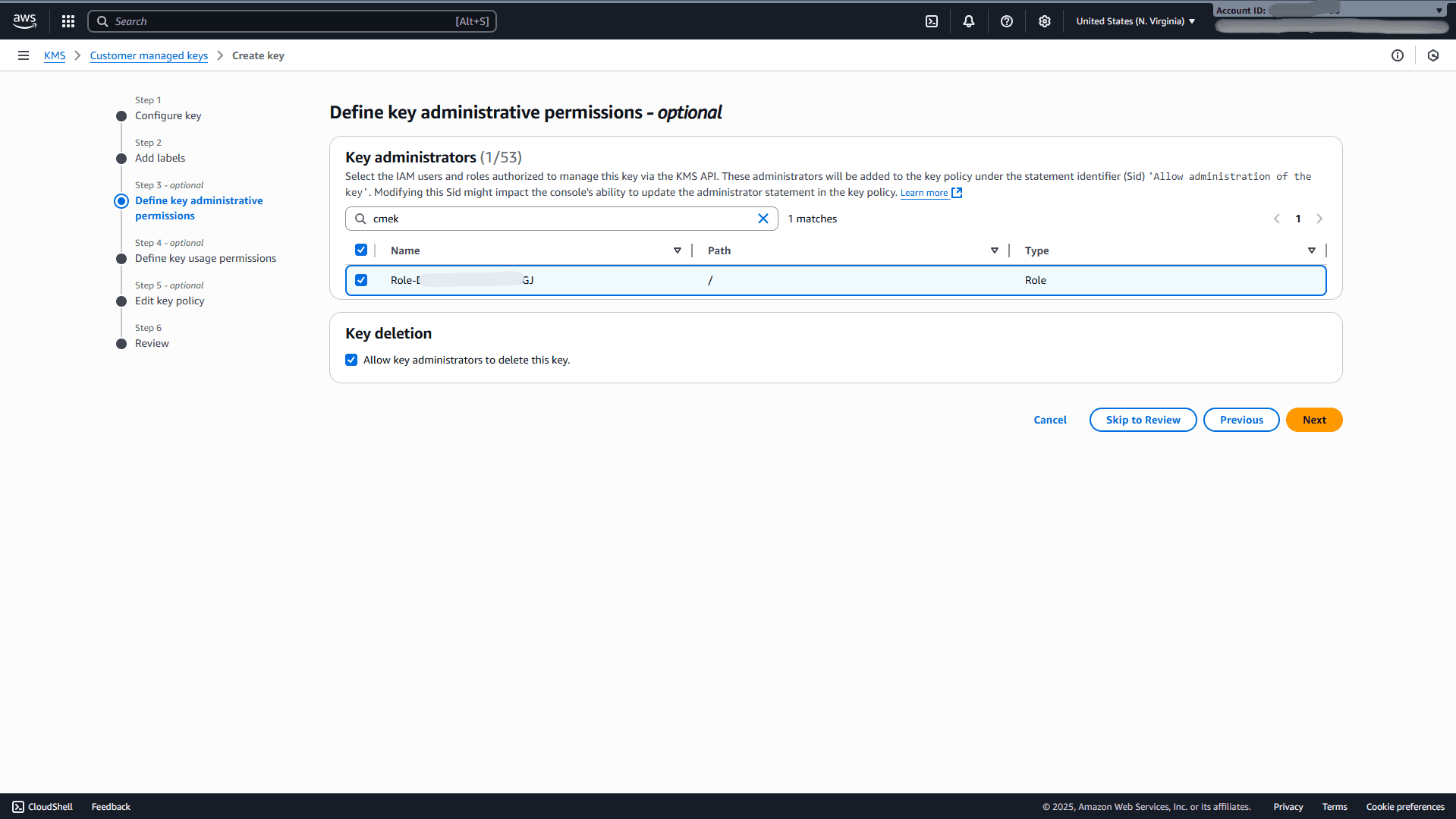
In the Define key administrative permissions section, complete the following substeps.
-
Search the role that you previously created, and then select the checkbox. Select the IAM users and roles that can administer the KMS key.
-
From the Key deletion section, the Allow key administrators to delete this key checkbox is selected by default. To prevent the selected IAM users and roles from deleting the KMS key, you can deselect the checkbox.
-
Select the Next button to continue the creation process.
-
-
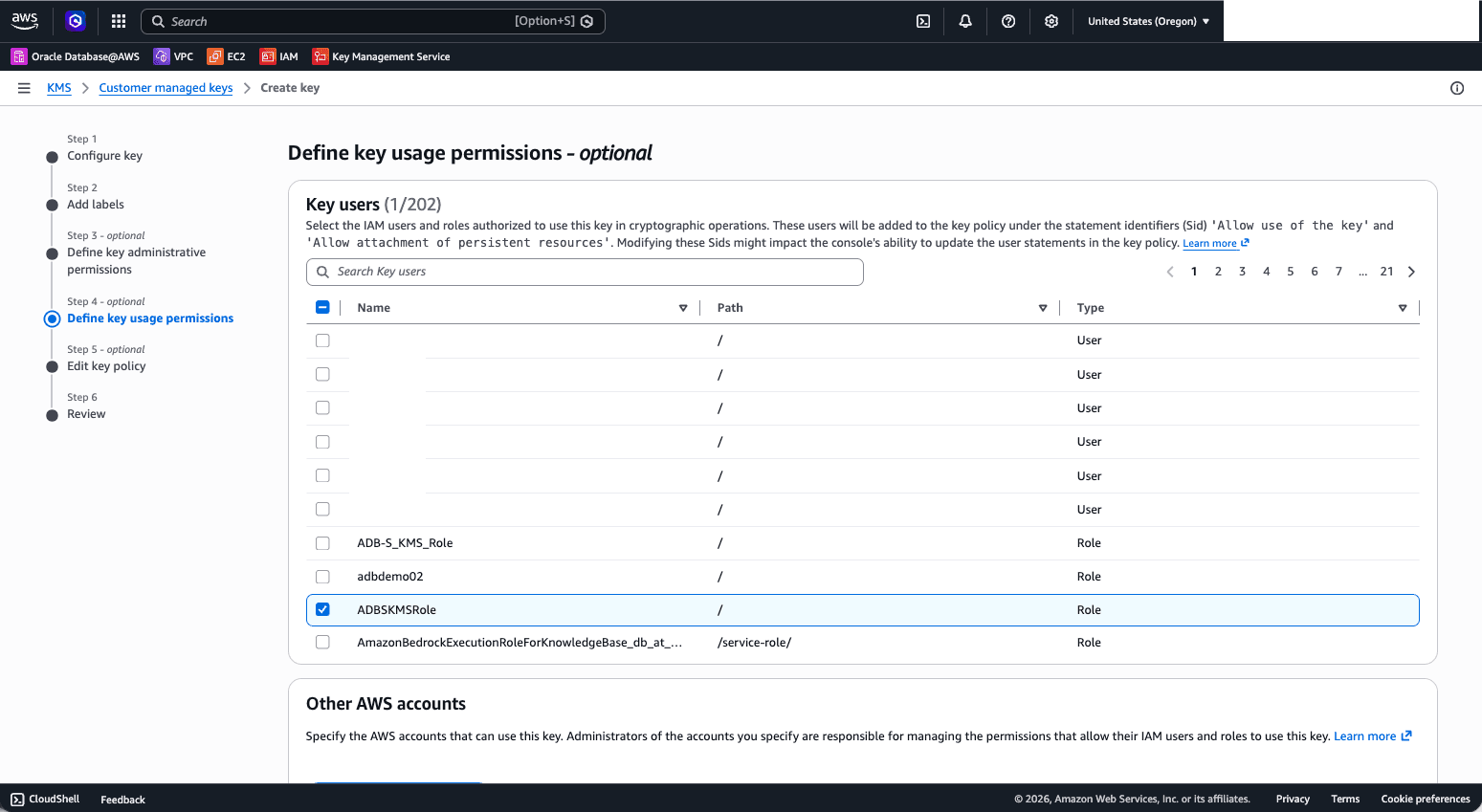
In the Define key usage permissions section, complete the following substeps.
-
Search the role that you previously created, and then select the checkbox.
-
Select the Next button to continue the creation process.
-
-
In the Edit key policy section, complete the following substeps.
-
From the Preview section, you can review the key policy. If you want to make a change, select the Edit tab.
-
Select the Next button to continue the creation process.
-
-
In the Review section, review your information, and then select the Finish button.
-
Once it is created, you can review the customer managed key details from the General configuration section. Take a note of the ARN information as it is required in the following step.
-
-
Grant Role Access to an Existing AWS KMS Key
Complete the following steps to grant permissions to the role for accessing an existing AWS KMS key that will be used as Master Encryption Key for the Autonomous AI Database Serverless instance.
-
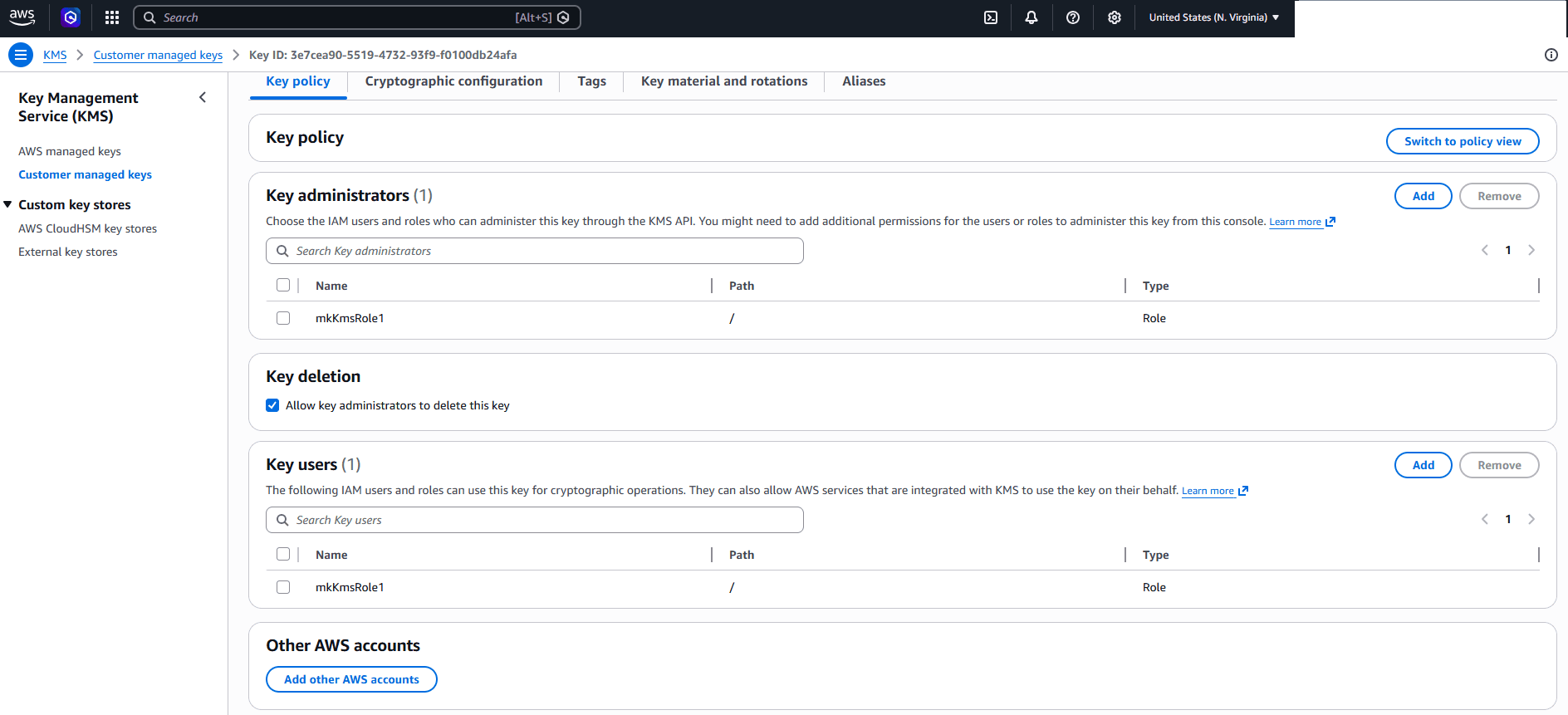
From the AWS Console, navigate to Key Management Service (KMS), and then select Customer managed keys.
-
Select the customer managed key from the list.
-
Select the Key policy tab, and then scroll down to the Key users section.
-
Select the Add button.
-
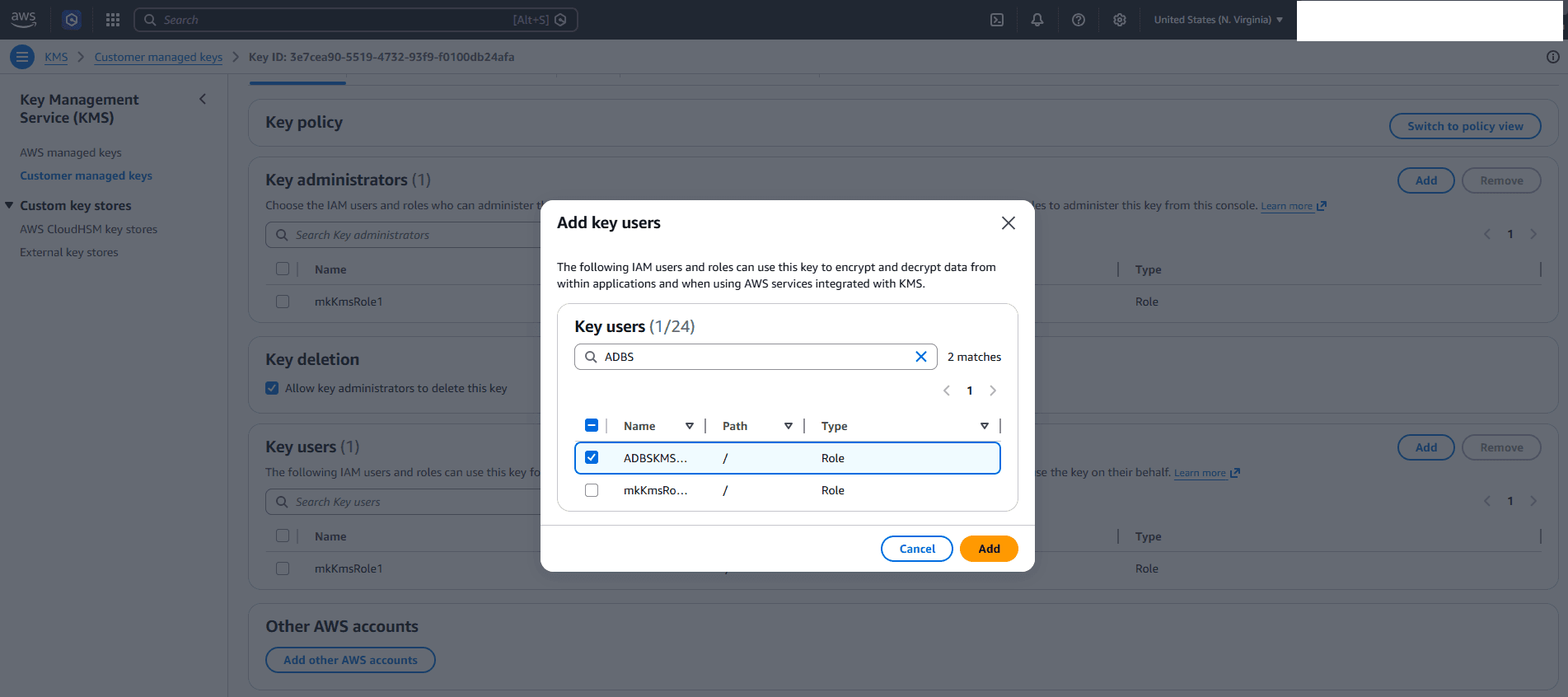
From the Add key users page, enter the following information.
-
Select the role that you previously created in the step 4.
-
Select the Add button to save your changes.
-
-
-
Enable AWS KMS for Autonomous AI Database Serverless
-
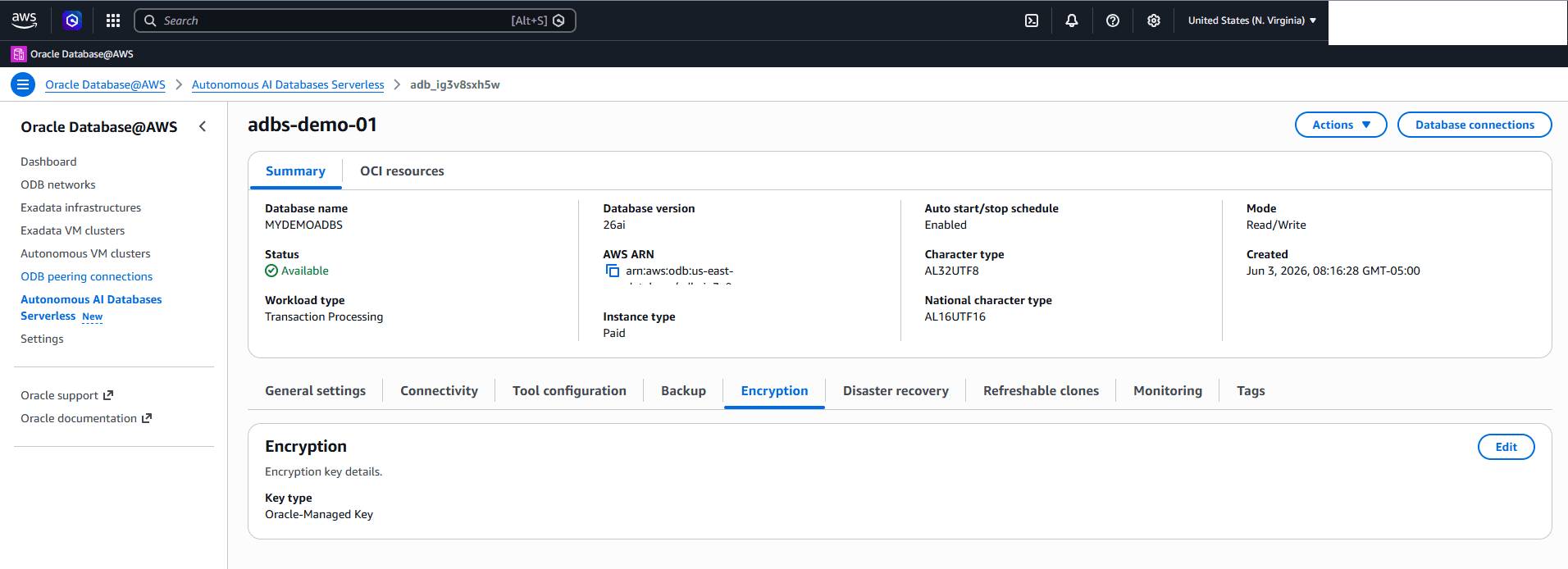
From the AWS Console, select Oracle AI Database@AWS, and then select Autonomous AI Databases Serverless.
-
Select your Autonomous AI Database Serverless that you want to encrypt.
-
Select the Encryption tab. The Key type is set to Oracle-Managed Key.
-
Select the Edit button.
-
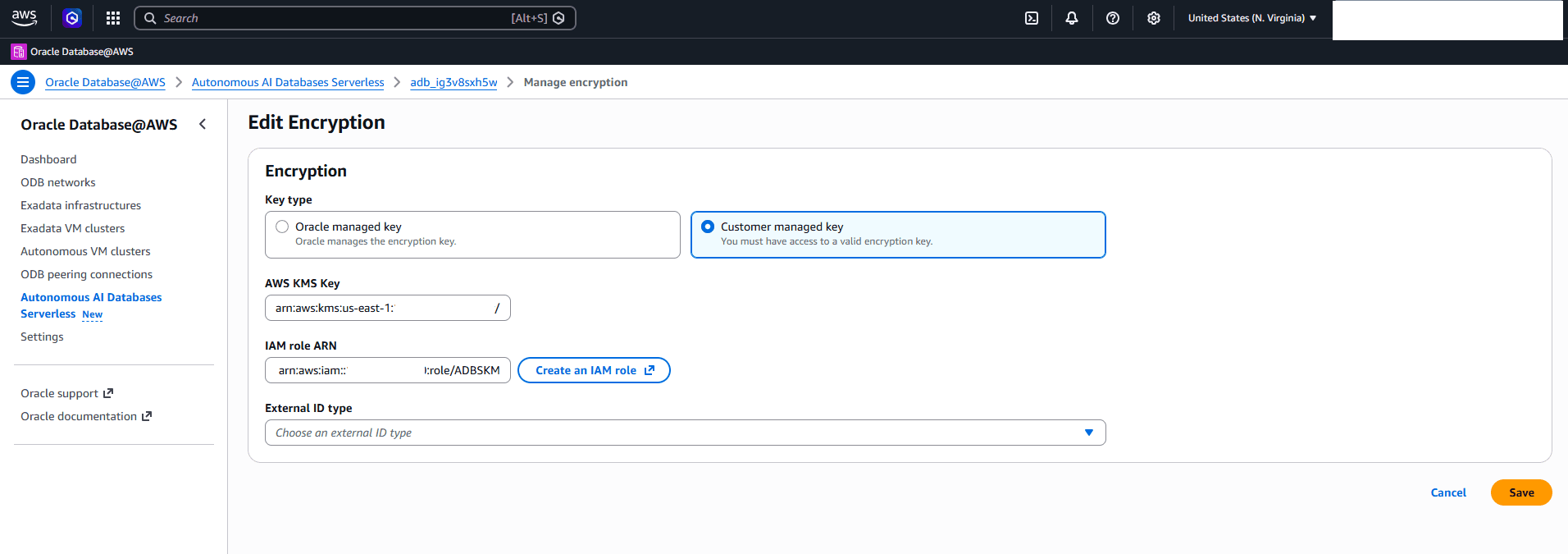
From the Edit Encryption page, enter the following information.
-
Choose the Customer managed key option.
-
Enter your AWS KMS Key ARN or ID in the AWS KMS Key field that you previously copied in the step 5i.
-
Enter your IAM role ARN that you previously copied in the step 4g.
-
From the dropdown list, select TENANCY_OCID as your External ID type.
- The options include DATABASE_OCID, COMPARTMENT_OCID and TENANCY_OCID.
-
Select the Save button to save your changes.
-
-
Once it is complete, you can review that the Key type is set to AWS KMS Key.
Note
Note: After you enable AWS KMS for Autonomous AI Database Serverless, the change may take 30 minutes or longer to be reflected in the AWS Console. -
-
Rotate an AWS KMS Key
-
From the AWS Console, navigate to Key Management Service (KMS), and then select Customer managed keys.
-
Select the customer managed key from the list.
-
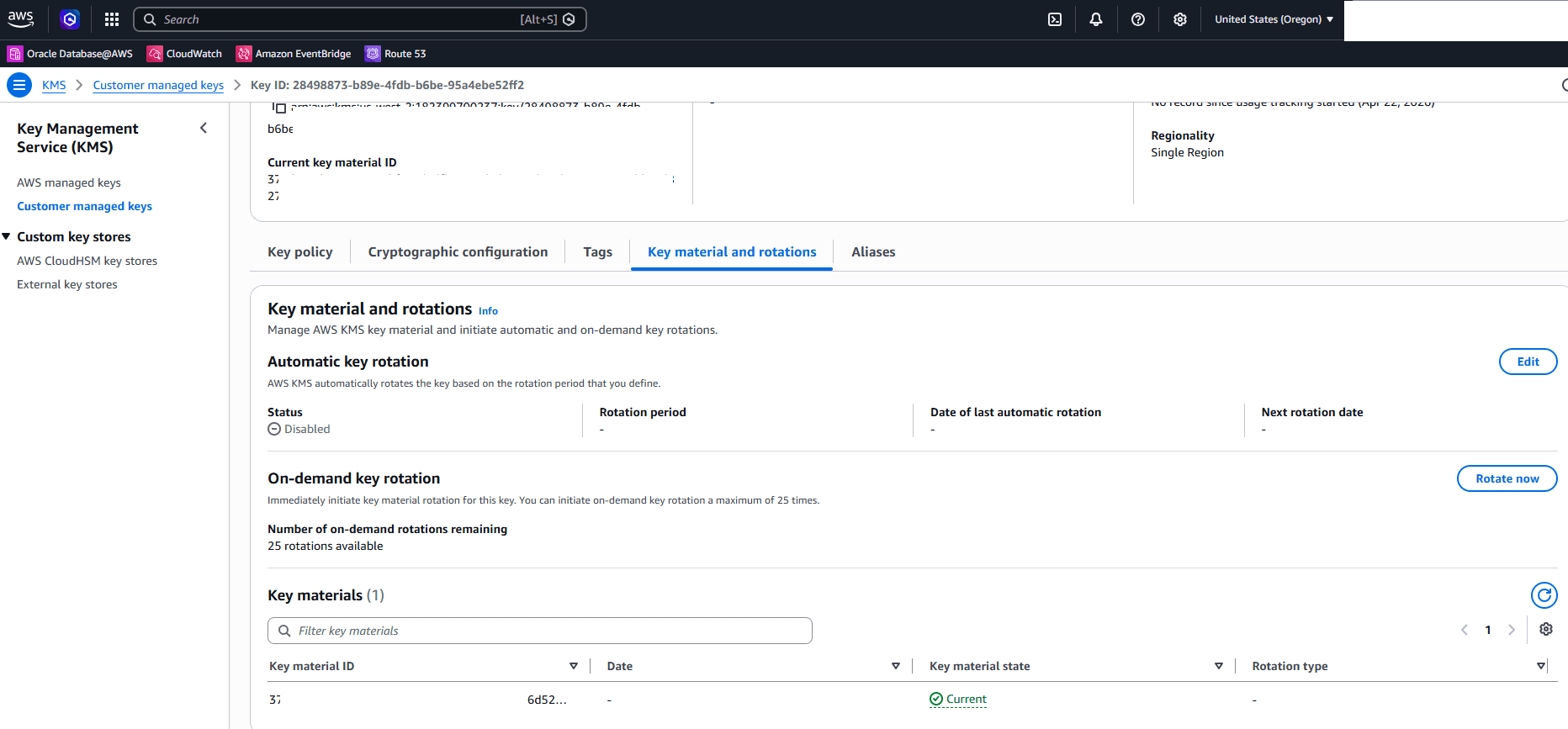
Select the Key material and rotations tab.
-
Scroll down to the On-demand key rotation section, and then select the Rotate now button.
-
From the Confirm on-demand key rotation page, select the Rotate key button.
Note
Note: This action immediately initiates key material rotation for the following key ID. You can initiate on-demand key rotation a maximum of 25 times.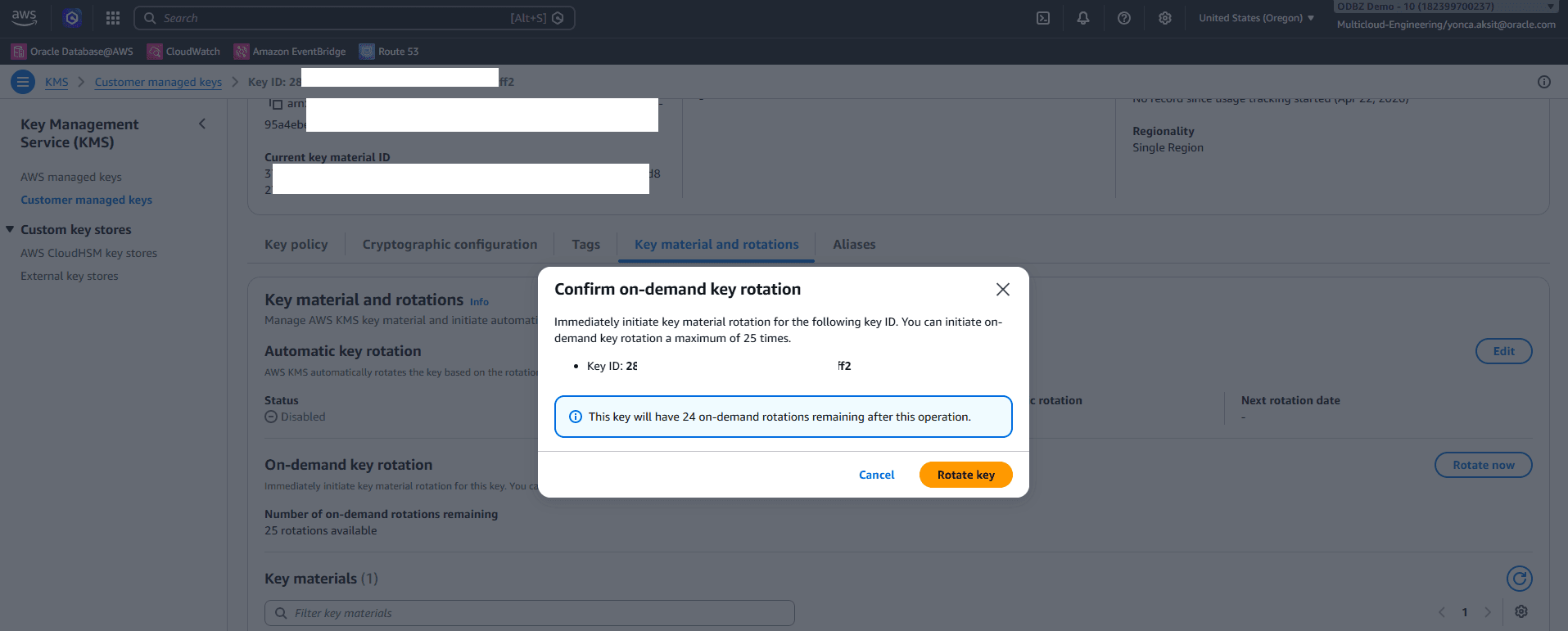
-
-