Restore Base Database
This topic explains how to restore a Base Database.
Database (CDB) Point-in-Time Restore
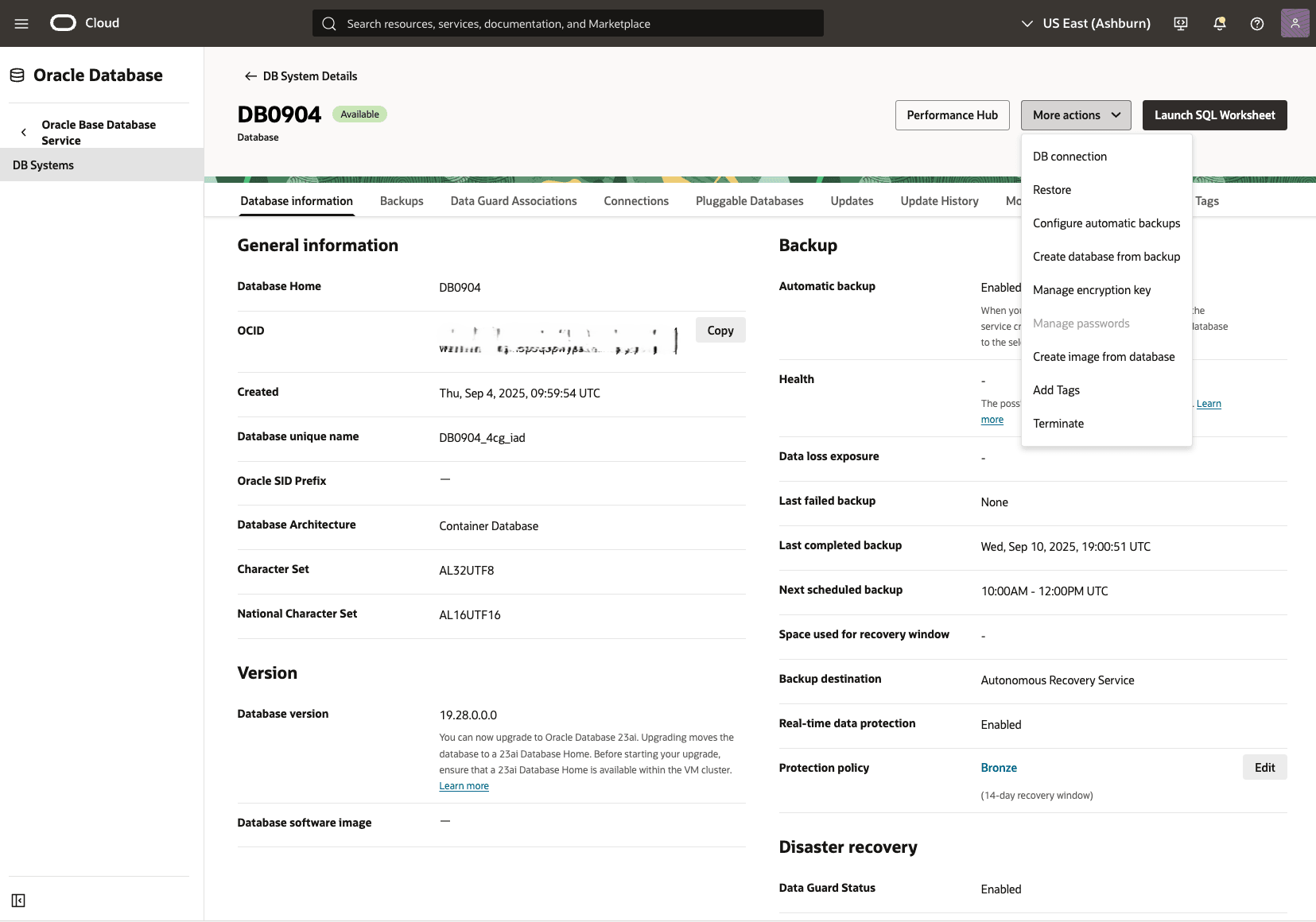
These are the steps to perform a point-in-time restore on the Container Database in the OCI console.
- From the OCI console, select Oracle Base Database Service and then select DB Systems.
- Select your Base Database that you are using.
- Select the More actions button, and then select the Restore.
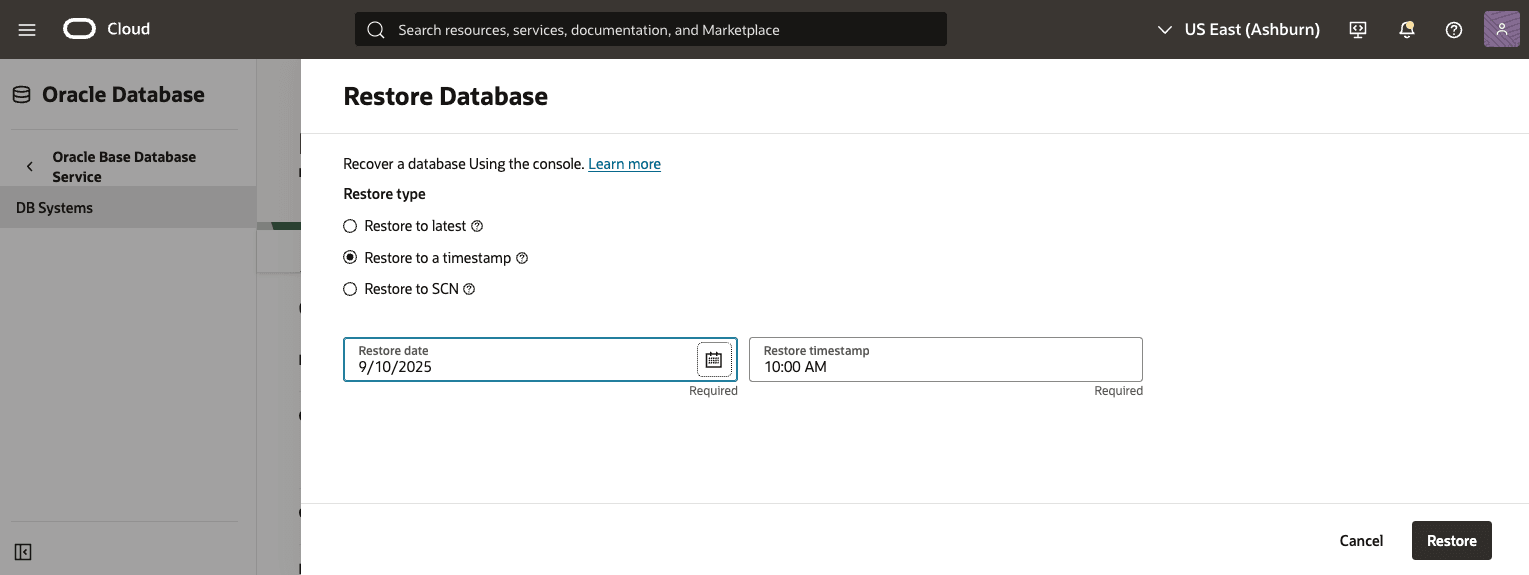
- From the Restore page, select Restore to a timestamp as your Restore type.
- Specify your Restore date and Restore timestamp.
- Select the Restore button.
- Navigate back to Database information tab to view the State of the restore process.

Pluggable Database (PDB) Point-in-Time Restore
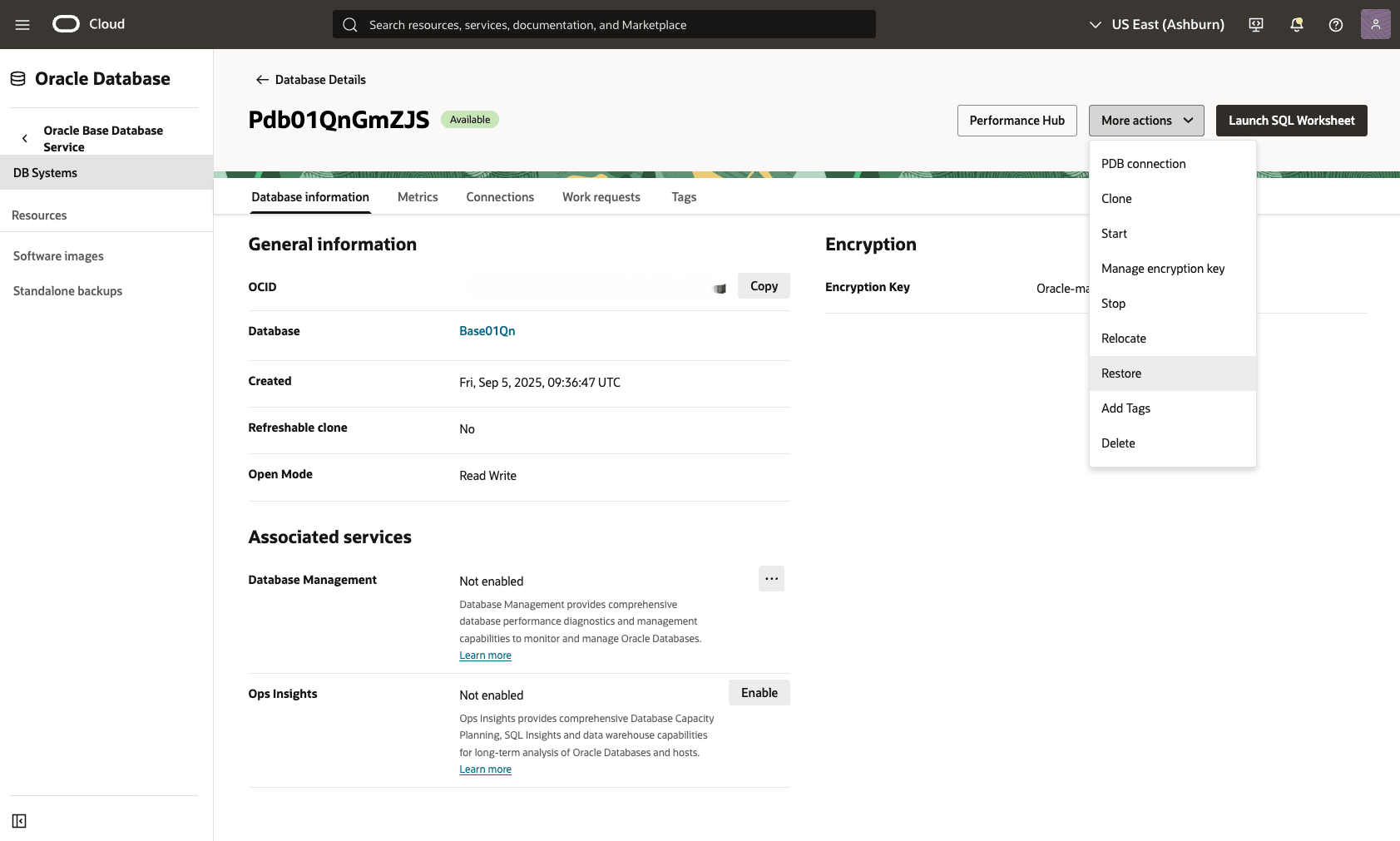
These are the steps to perform a point-in-time restore on the Pluggable Database in the OCI console.
- From the OCI console, select Oracle Database and Oracle Base Database Service.
- Select DB Systems and then select the database that you are using.
- Select the Pluggable Databases tab, and then select the PDB that you want to restore.
- Select the More actions button, and then select the Restore.
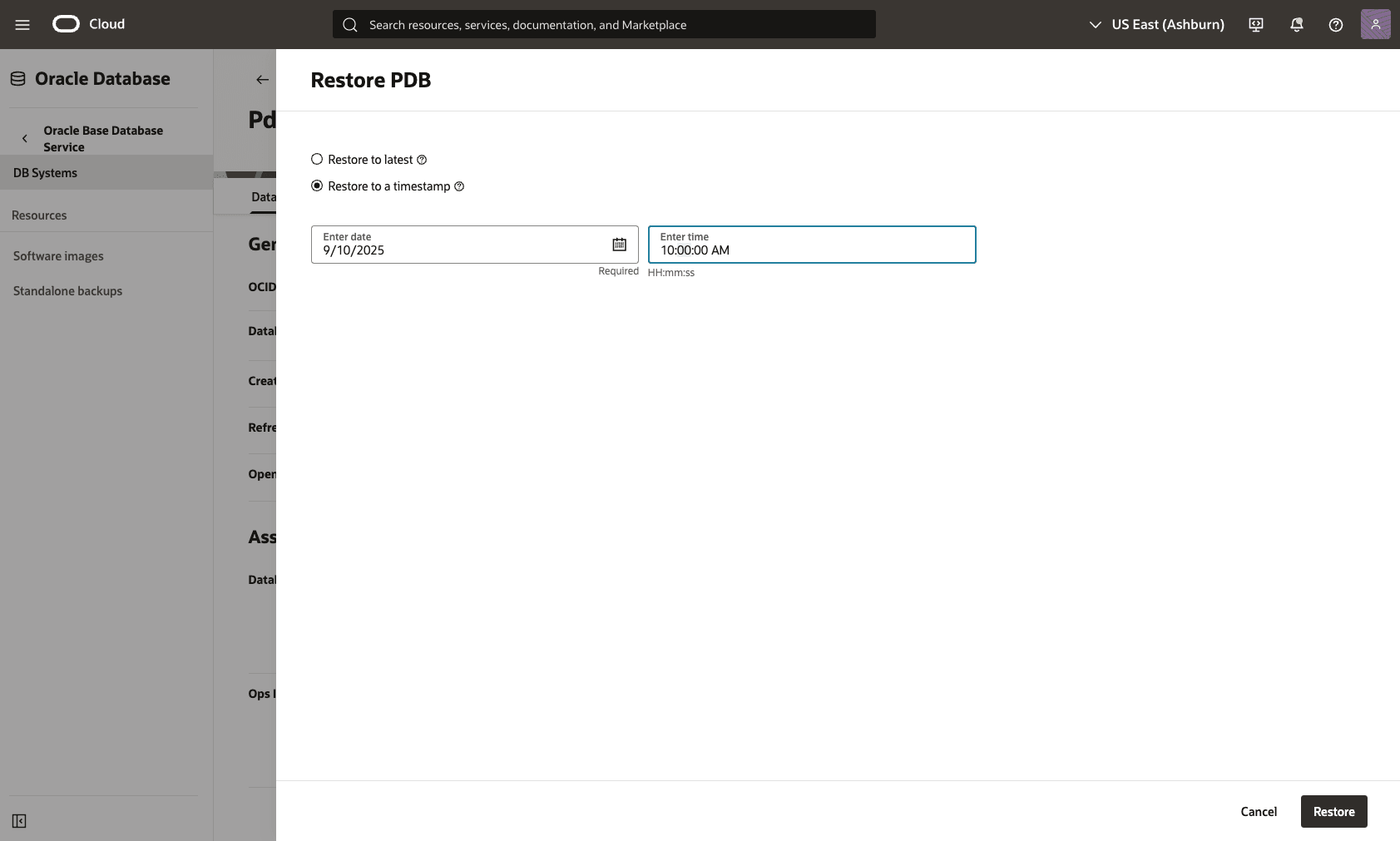
- From the Restore page, select Restore to a timestamp as your Restore type.
- Specify your date and time.
- Select the Restore button.
- Return to the Pluggable Database to view the State of the restore process.

Restore from Automatic or Manual Backup
These are the steps to restore a database from Automatic or Manual Backup.
- From the OCI console, select Oracle Base Database Service and then select DB Systems.Optionally, you can select the compartment from the Applied filters.
- Select DB Systems, and then select the database that you are using.
- Select the Backups tab.
- From the backup list, select your backup, and then click the three-dot navigation menu.
- Select the Create database.
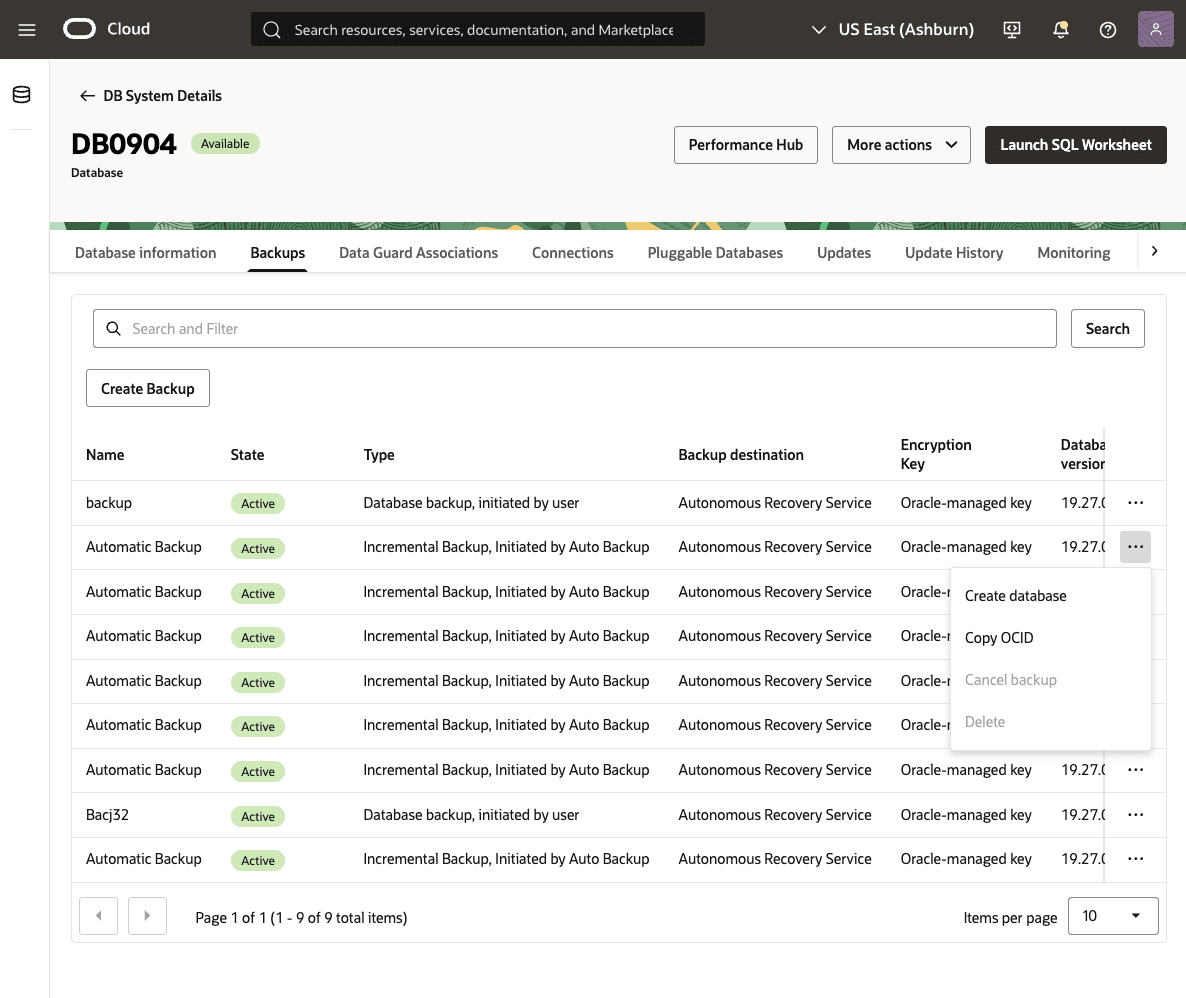
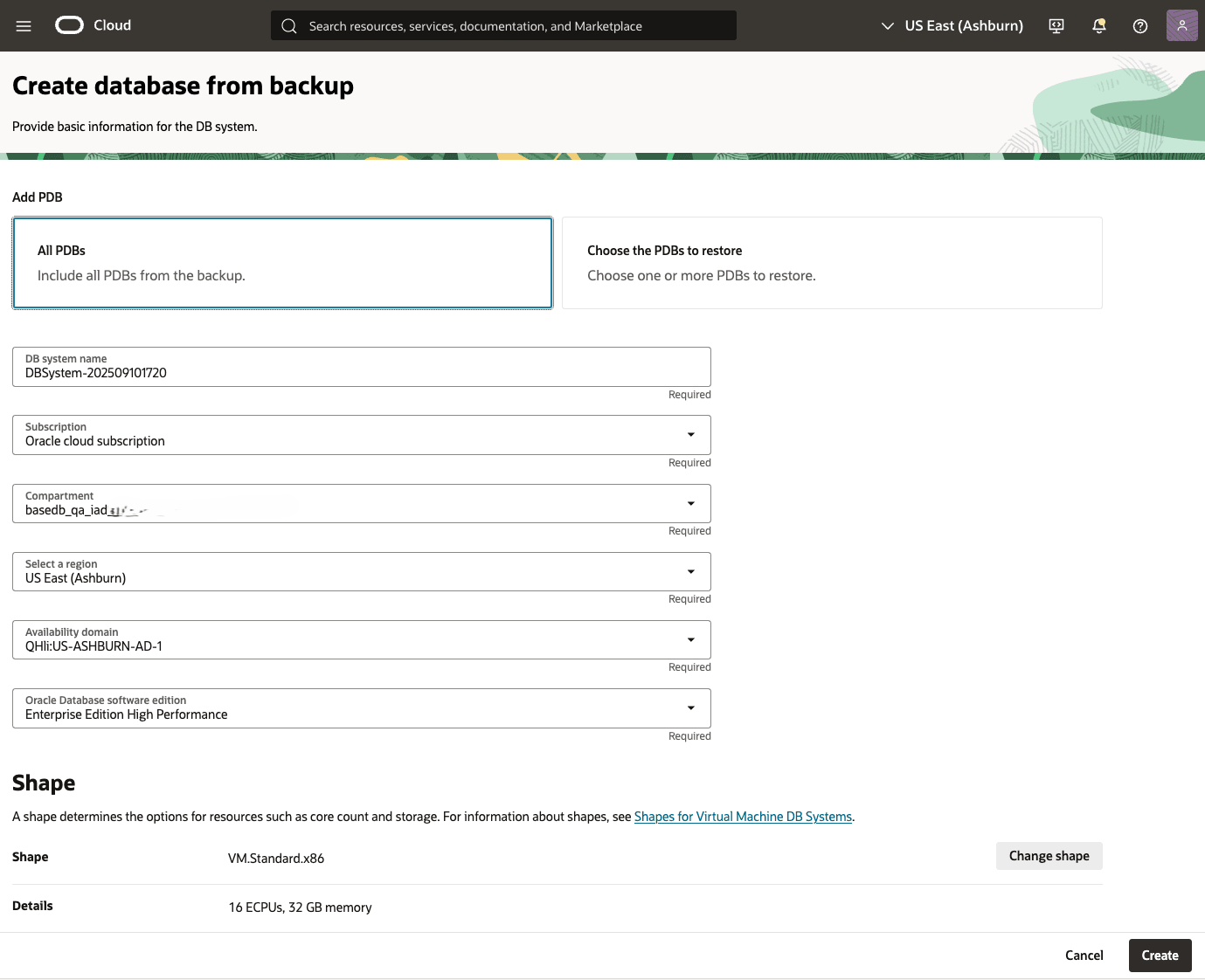
- From the Create Database from Backup page, complete the following substeps:
- Choose the All PDBs option from PDB section.
- Select your preferred Subscription, Compartment, Region and Availability Domain from the dropdown list.
- The Shape and Storage fields are selected by default.
- The Choose Software section allows you to provide SSH public key soure , Use existing key stored in Azure, and Use existing public key as Generate new key pair,
- The Generate new key pair option allows you to provide Key pair name, generated automatically and stored with the provided name.
- The Use existing key stored in Azure option allows you to select key from Azure Key Vault Stored keys.
- The Use existing public key option allows you to provide an RSA public key in either the single-line format starting with
ssh-rsaor the multi-line PEM format. You can generate SSH keys using ssh-keygen on Linux and macOS, or PuTTYGen on Windows. For more information , see generate SSH Key.
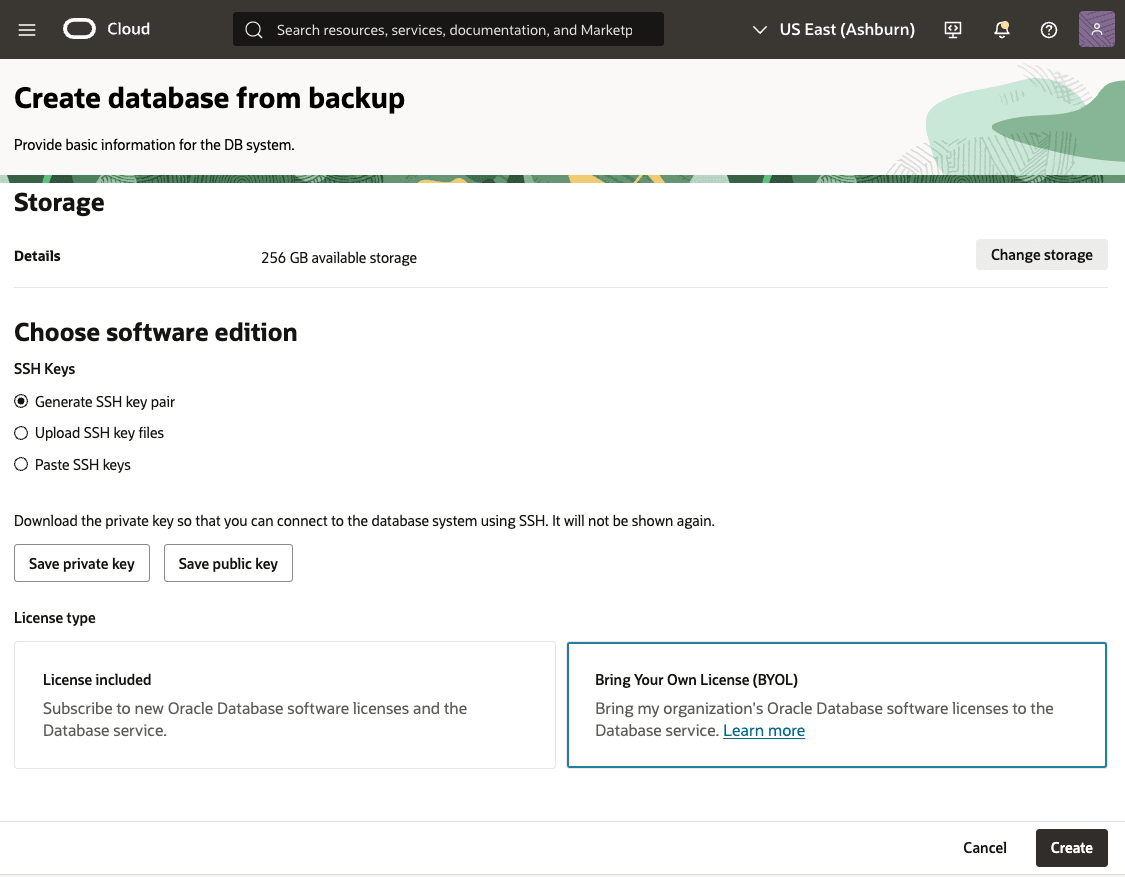
- The Choose Software section allows you to select either Select License Included or Bring Your Own License .
- From the Network Information section, select your Compartment, Virtual Cloud Network and Client Subnet from the dropdown lists. Enter a Hostname .
- From the Network Information section, you can select either the Automatically assign IPv4 addresses from subnet or Manually assign IPv4 addresses option.
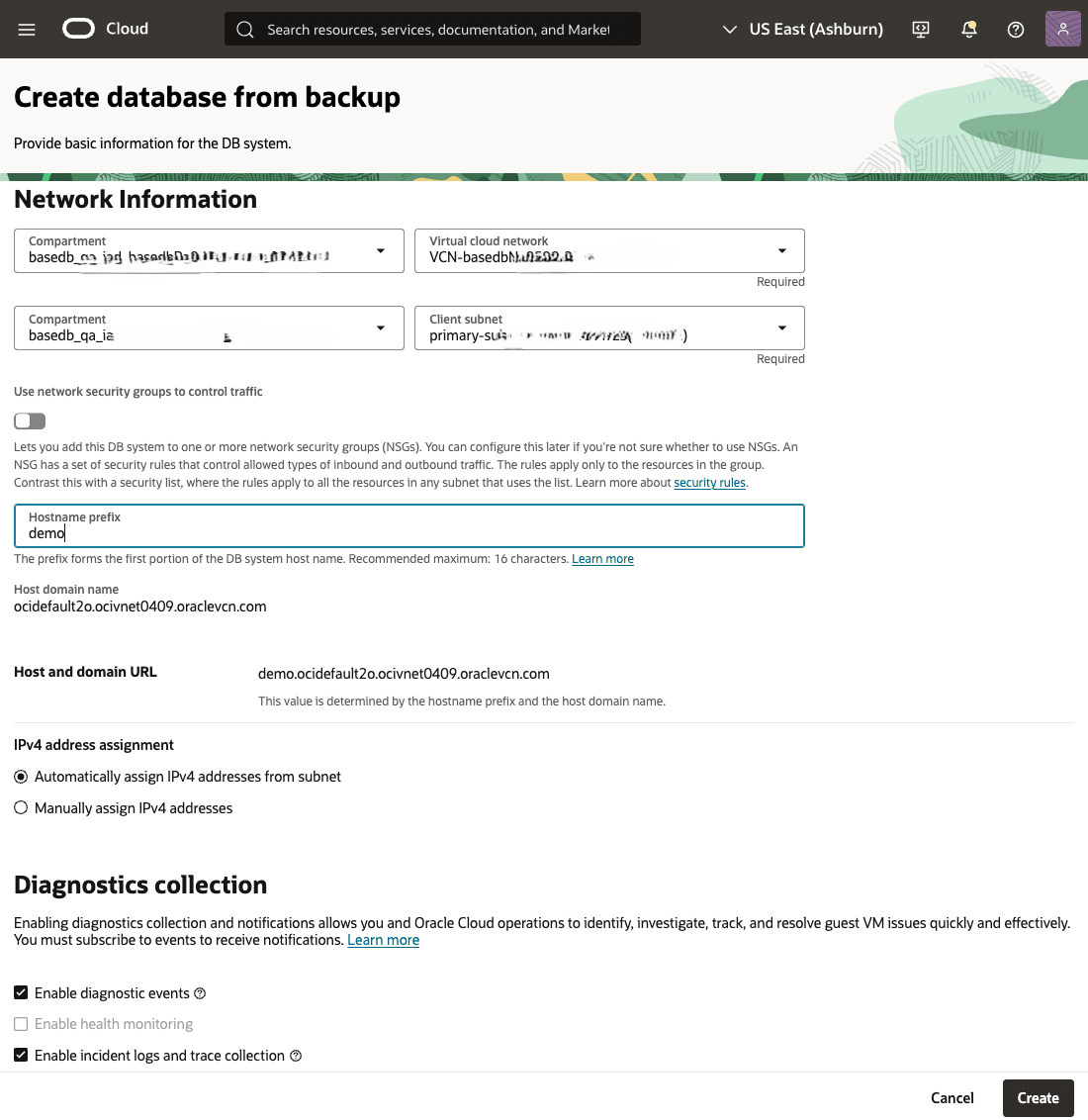
- Enter a descriptive database name in the Database name field that helps you easily identify the resource.
- Enter a descriptive database name in the Database unique name suffix field that helps you easily identify the resource.
- Enable the Unified Auditing option.
- If you want to change the database image, click on the Change database image button.
- Enter your Password, Confirm password and TDE's wallet or RMAN password.
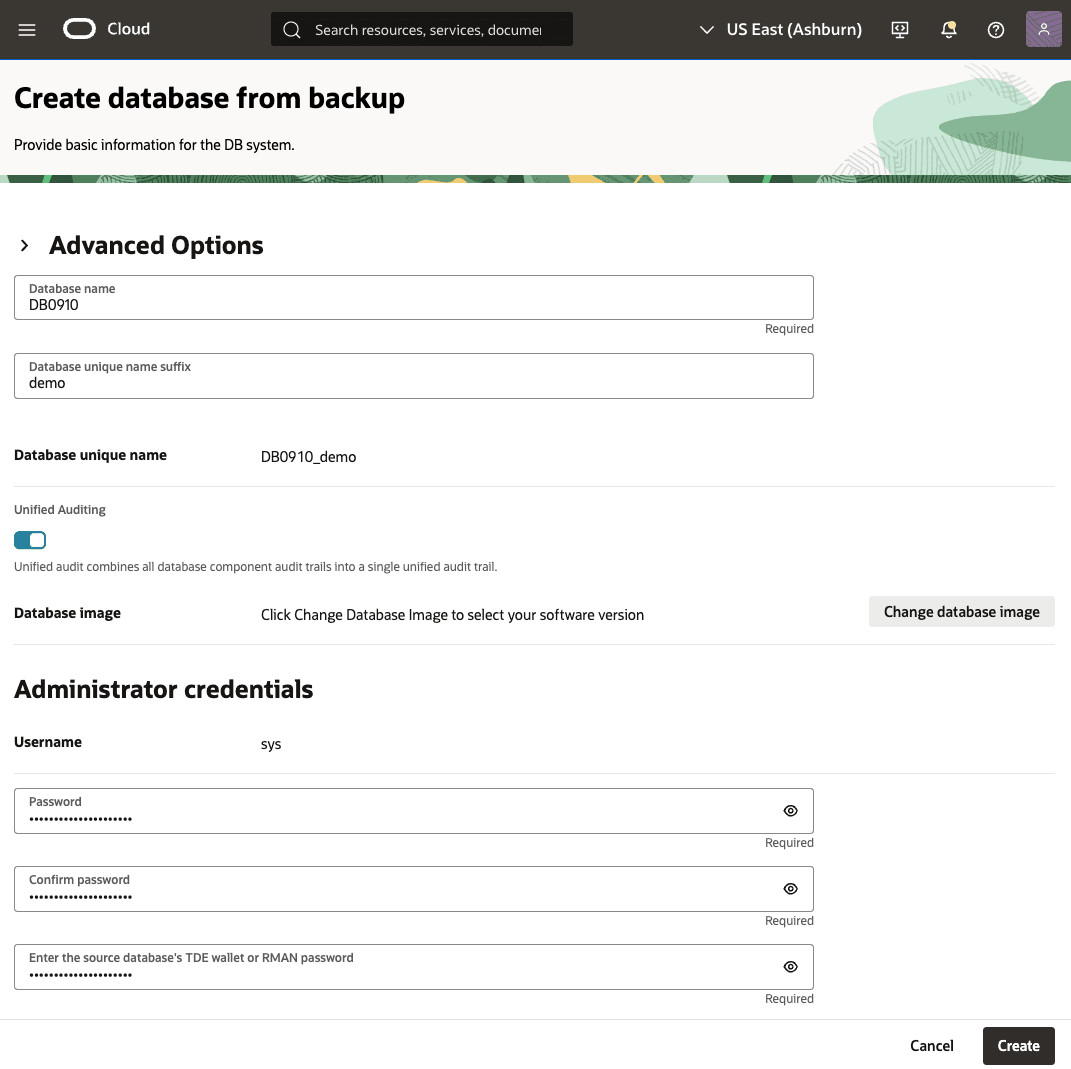
- Select the Create button.
- Return to the DB Systems to view the State of your restore process.