Autonomous AI Database (Serverless)
This topic explains the required steps to connect to Autonomous AI Database from Azure Virtual Machine (VM). Configuring Network Security Group (NSG) and connection to Azure VM are prerequisites for connecting to Autonomous AI Database.
Note
Note: Direct use of a custom FQDN as the service FQDN is not supported. You can create a DNS alias (CNAME) that points to the system-designed FQDN, but it fails if TLS hostname verification or mutual TLS (mTLS) is required.Configuring Network Security Group (NSG) and connection to Azure VM are prerequisites for connecting to Autonomous AI Database.
-
Obtain Autonomous AI Database Wallet
-
From the Azure portal, navigate to Autonomous AI Database, and then select Database from the list.
-
From the database Overview, navigate to Settings, and then Connections.
-
Select the Download wallet, select Instance wallet for Wallet Type and enter a wallet password in the Password field and confirm the password in the Confirm password field.
-
Select Download to save the client security credentials zip file. By default the file name is
Wallet_databasename.zip. You can save this file as any file name you want.
-
-
Connect Oracle SQL Developer to Autonomous AI Database
-
Upload the Wallet_databasename.zip file to Azure VM.
-
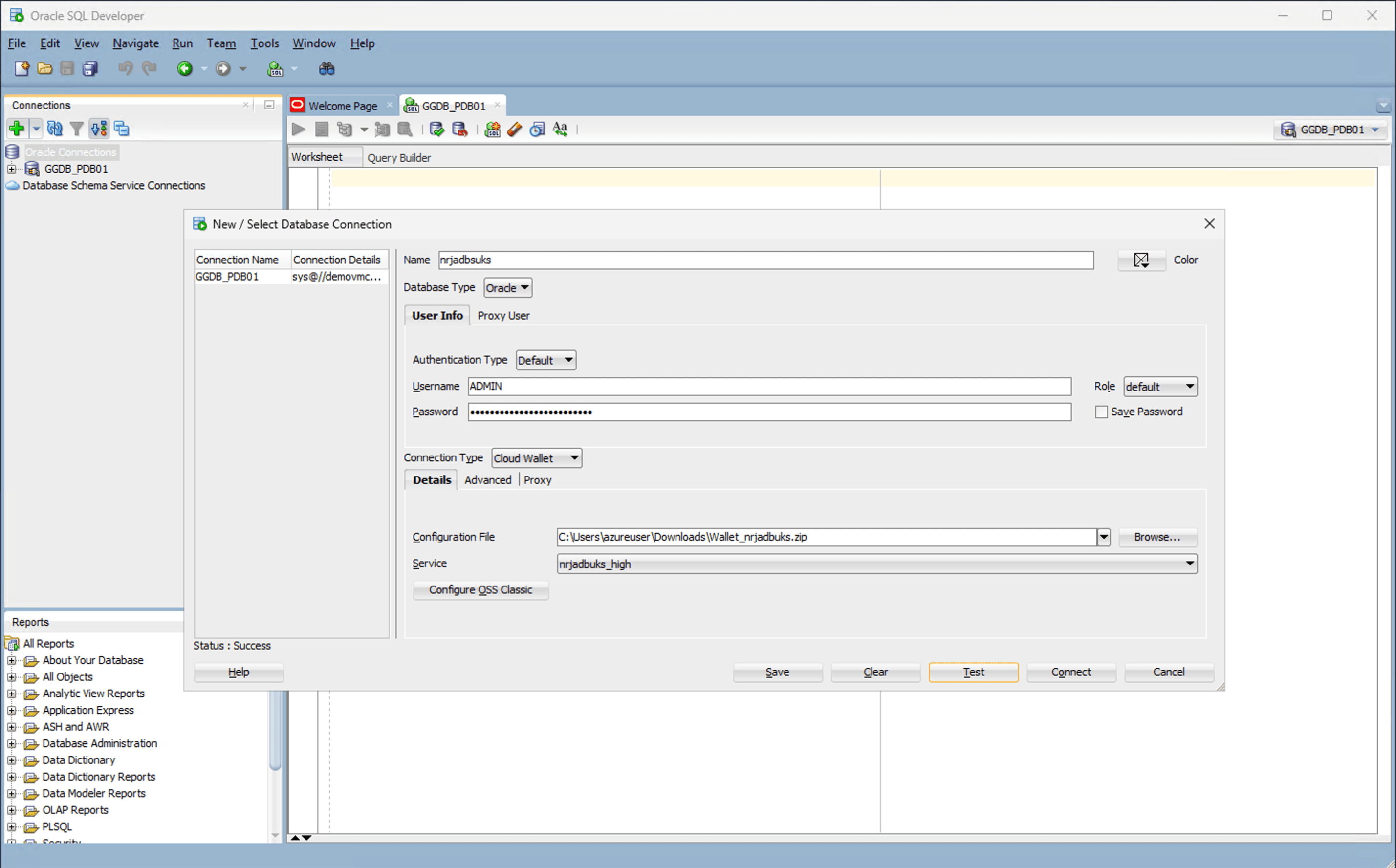
On Azure VM, Launch the SQL Developer application and select the + icon to create a new database connection.
-
To configure SQL Developer, complete the following substeps:
-
In the Name field, enter a descriptive name to use for this database connection.
-
From the Database Type dropdown list, select Oracle.
-
In the Username field, enter the name of the user for whom this database connection is being created. For example, you can enter ADMIN.
-
In the Password field, enter the password of the user.
-
From the Role dropdown list, select the default role to assign to the user.
-
Select the Save Password checkbox if your security rules allow.
-
From the Connection Type field, select the Cloud Wallet option as your database connection type.
-
In the Configuration File field, select the Browse button to select Wallet zip file.
-
From the Service dropdown list, select your service to use for this connection.
-
Select the Test button to validate connection to the database.
-
Select the Test button. The Status at the bottom of the connection list should show Success.
-
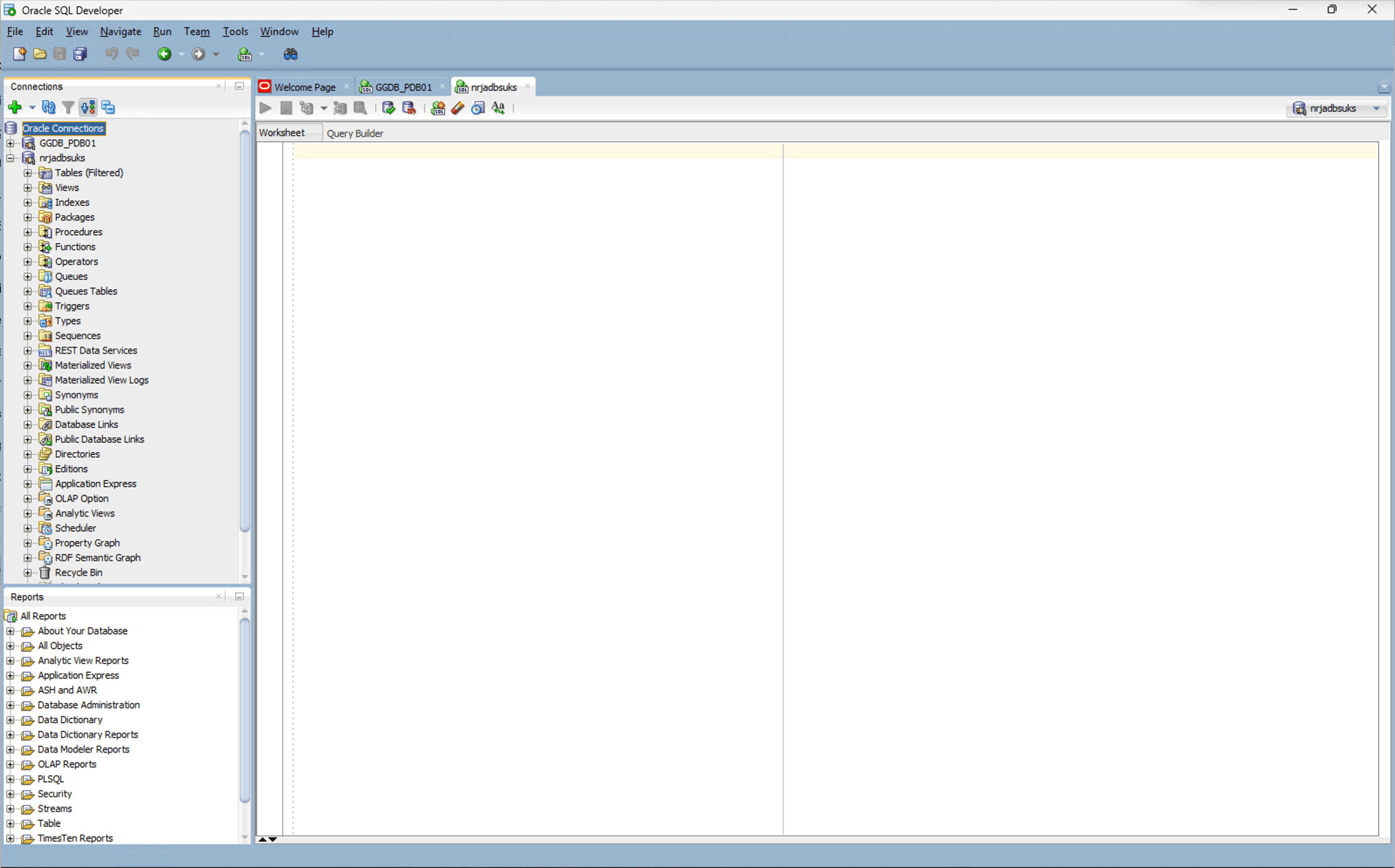
Once the connection is successful, select the Save button.
-
-
-
There is currently no content for this page. Oracle AI Database@Azure team intends to add content here, and this placeholder text is provided until that text is added. The Oracle AI Database@Azure team is excited about future new features, enhancements, and fixes to this product and this accompanying documentation. We strongly recommend you watch this page for those updates.
You can download an Oracle Autonomous AI Database Wallet in Oracle AI Database@Azure using the Azure CLI .
Prerequisites
-
Azure CLI installed
-
Delegated Subnet is created using Azure CLI.
Sample Azure CLI Command (Download Wallet)
# ----------------------------- FIND ADB NAME and RESOURCE GROUP # ----------------------------- az resource list \ --resource-type Oracle.Database/autonomousDatabases \ --query "[].{ADB_Name:name,Resource_Group:resourceGroup,Location:location}" \ -o table # ----------------------------- Example output: # ----------------------------- ADB_Name Resource_Group Location -------------- ---------------- ------------------ demoadbsazcli demo-rg-azcli eastus # ----------------------------- Set variables from the discovered values # ----------------------------- export RESOURCE_GROUP=demo-rg-azcli export ADB_NAME=demoadbsazcli # ----------------------------- Generate and Download Wallet # ----------------------------- export WALLET_PASSWORD='YourWalletPassword123!' az oracle-database autonomous-database generate-wallet \ --autonomousdatabasename $ADB_NAME \ --resource-group $RESOURCE_GROUP \ --password $WALLET_PASSWORD \ --query walletFiles \ -o tsv | base64 --decode > Wallet_${ADB_NAME}.zip # ----------------------------- Verify # ----------------------------- ls -lh Wallet_${ADB_NAME}.zip # ----------------------------- Extract Wallet # ----------------------------- mkdir -p ~/adb_wallets/${ADB_NAME} unzip Wallet_${ADB_NAME}.zip \ -d ~/adb_wallets/${ADB_NAME} # ----------------------------- Set TNS_ADMIN # ----------------------------- export TNS_ADMIN=~/adb_wallets/${ADB_NAME} # ----------------------------- Find Connection Strings # ----------------------------- az oracle-database autonomous-database show \ --resource-group $RESOURCE_GROUP \ --name $ADB_NAME \ --query "properties.connectionStrings" # ----------------------------- Show Available Wallet Service Names # ----------------------------- grep "=" $TNS_ADMIN/tnsnames.ora | grep -v DESCRIPTION # ----------------------------- Example output: # ----------------------------- demoadbsazcli_high demoadbsazcli_medium demoadbsazcli_low demoadbsazcli_tp demoadbsazcli_tpurgent # ----------------------------- Get SQL Developer Web URL # ----------------------------- az oracle-database autonomous-database show \ --resource-group $RESOURCE_GROUP \ --name $ADB_NAME \ --query "properties.connectionUrls.sqlDevWebUrl" \ -o tsv # ----------------------------- Get Private Endpoint # ----------------------------- az oracle-database autonomous-database show \ --resource-group $RESOURCE_GROUP \ --name $ADB_NAME \ --query "properties.privateEndpoint" \ -o tsv # ----------------------------- Connect Using SQL*Plus # ----------------------------- sqlplus admin/<ADMIN_PASSWORD>@demoadbsazcli_high-
There is currently no content for this page. Oracle AI Database@Azure team intends to add content here, and this placeholder text is provided until that text is added. The Oracle AI Database@Azure team is excited about future new features, enhancements, and fixes to this product and this accompanying documentation. We strongly recommend you watch this page for those updates.
There is currently no content for this page. Oracle AI Database@Azure team intends to add content here, and this placeholder text is provided until that text is added. The Oracle AI Database@Azure team is excited about future new features, enhancements, and fixes to this product and this accompanying documentation. We strongly recommend you watch this page for those updates.