Configure
This topic explains the required permissions to create Virtual Network, Subnets, Network Security Group, and Virtual Machine to connect Oracle AI Database@Azure from Azure Virtual Machine.
Required Permissions
The table lists the permissions required to create Azure VM and configure connectivity. If you already have permissions that exceed these requirements, no additional role assignment is necessary.
| Task | Cloud | Persona | Permissions |
|---|---|---|---|
| Create Virtual Network, Virtual Machine and Configure connectivity between the Azure Virtual Machine. | Azure | Infrastructure Admin | Built-in roles: Resource Group Contributor, Network Contributor and Virtual Machine Contributor. Custom Role: |
| View Database VM Cluster and Database details | OCI | Infrastructure Admin | Custom Policies: |
| Modify NSG rules | OCI | Network Admin | Custom Policies: |
Jump Box
A Jump Box virtual machine is required to connect to Oracle AI Database@Azure resources that are configured with private IP addresses.
Create Azure Windows VM
-
In the Azure portal, navigate to the Overview page for your Oracle AI Database@Azure resources. For example: Exadata Database or Exascale Database.
-
Obtain the VNet details for the Oracle Database integrated via a Delegated Subnet Design or Network Anchor Design.
-
Create a new Azure Windows VM with a public IP in a public subnet within the same VNet that contains the Oracle Database.
To connect to the Oracle Database VM using SSH or to establish a database connection, ensure the required tools and libraries are installed before initiating the connection.
SSH Connection
SSH library is available on Windows VM and no additional tools are required.
Database Connection with GUI
Download and install Oracle SQL Developer on Azure Windows VM.
Network Security Group (NSG)
To allow ingress traffic, enable the required ports in the Network Security Group for connections from the Azure VM to the Oracle Database.
SSH Connection
For SSH connectivity, ensure that TCP protocol port 22 is enabled for ingress traffic originating from the subnet CIDR that contains the Azure VM.
Note:
If default NSG rule (Ingress all TCP from Azure VNET) exists which allows port 22 from Azure VM, then you do not need to configure new rules. 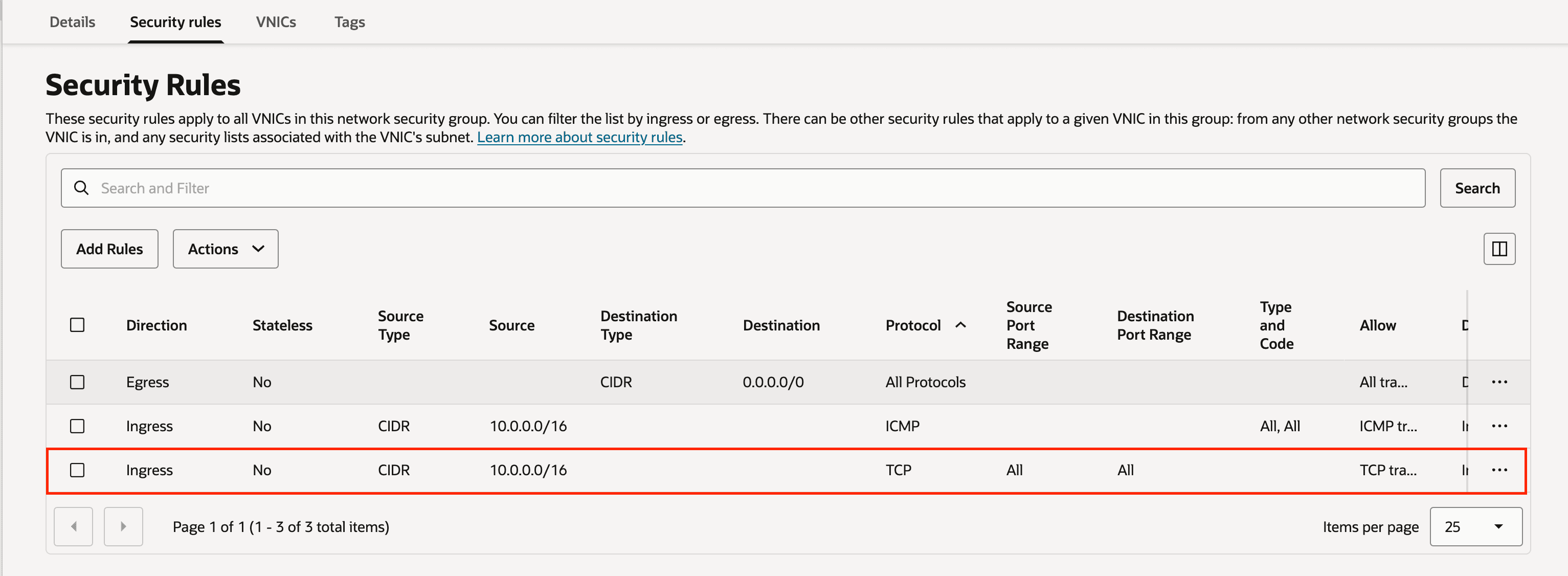
Add Ingress TCP 22 Port Rule (Optional)
These steps describe how to add an ingress rule to allow TCP port 22.
-
On Azure portal, navigate to Oracle AI Database@Azure resources such as Exadata Database or Exascale Database, and then select the Overview of the resource.
-
Select the Go to OCI link.
-
Select the Client network security groups link from the Network section in OCI Console.
-
Switch to the Security rules tab.
-
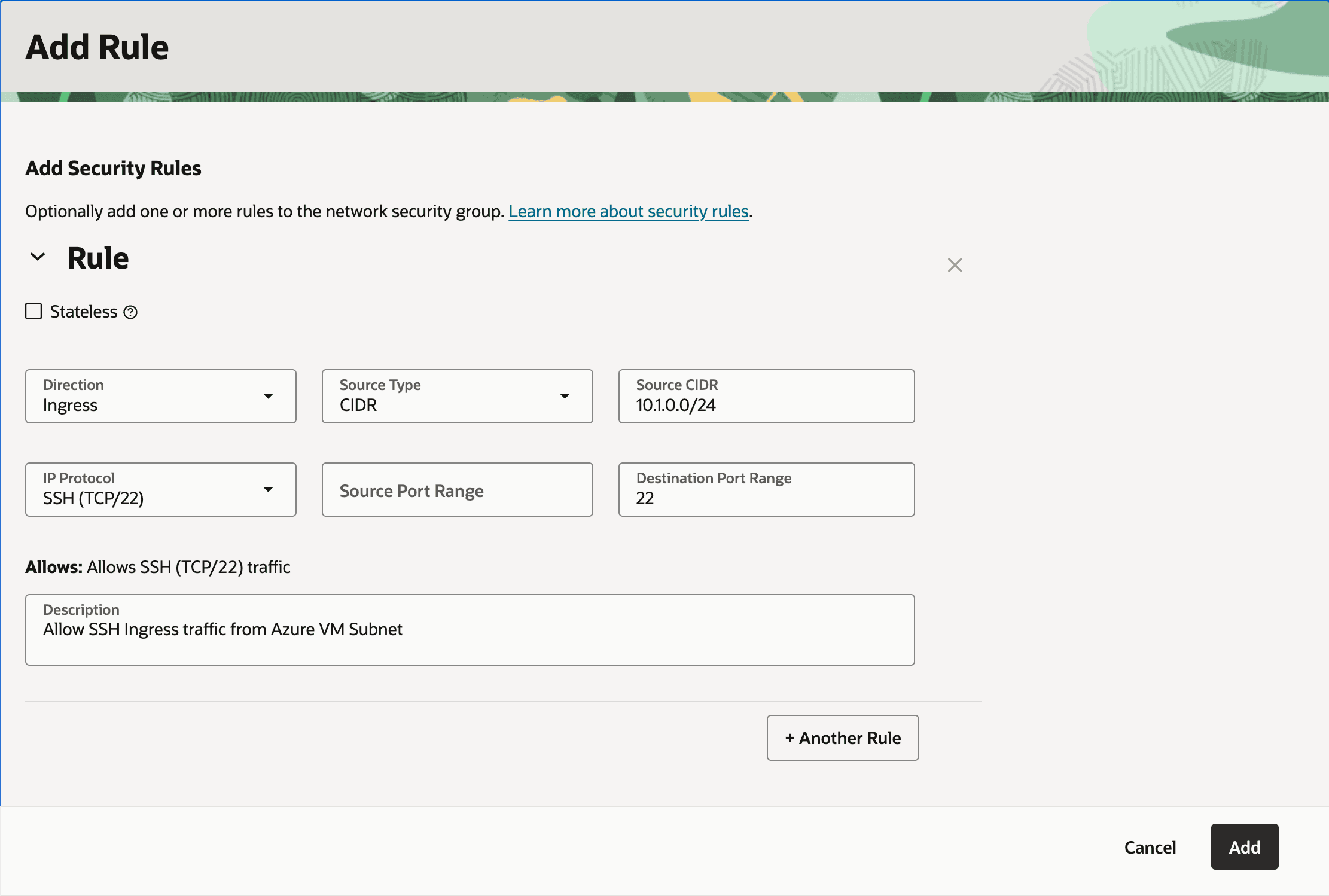
Select the Add Rule button, and then enter the following information:
-
Select Ingress as Direction.
-
Select CIDR as Source Type.
-
Enter the CIDR for the Azure Windows VM in the Source CIDR field.
-
Select TCP as IP Protocol.
-
Select All as Source Port Range.
-
Enter 22 (Listener Port) as Destination Port Range.
-
In the Description, you can enter a description that helps you to identify it.
For example: Allow SSH Ingress traffic from Azure VM Subnet.
-
Database Connection
A database connection requires TCP 1521 / TCPS 1522 (ADB-S TLS) port to be enabled to allow ingress traffic from the subnet CIDR that contains the Azure VM.
Note:
If default NSG rule (Ingress all TCP from Azure VNET) exists and allows ports 1521 and 1522 from the Azure VM, then you do not need to configure new rules. 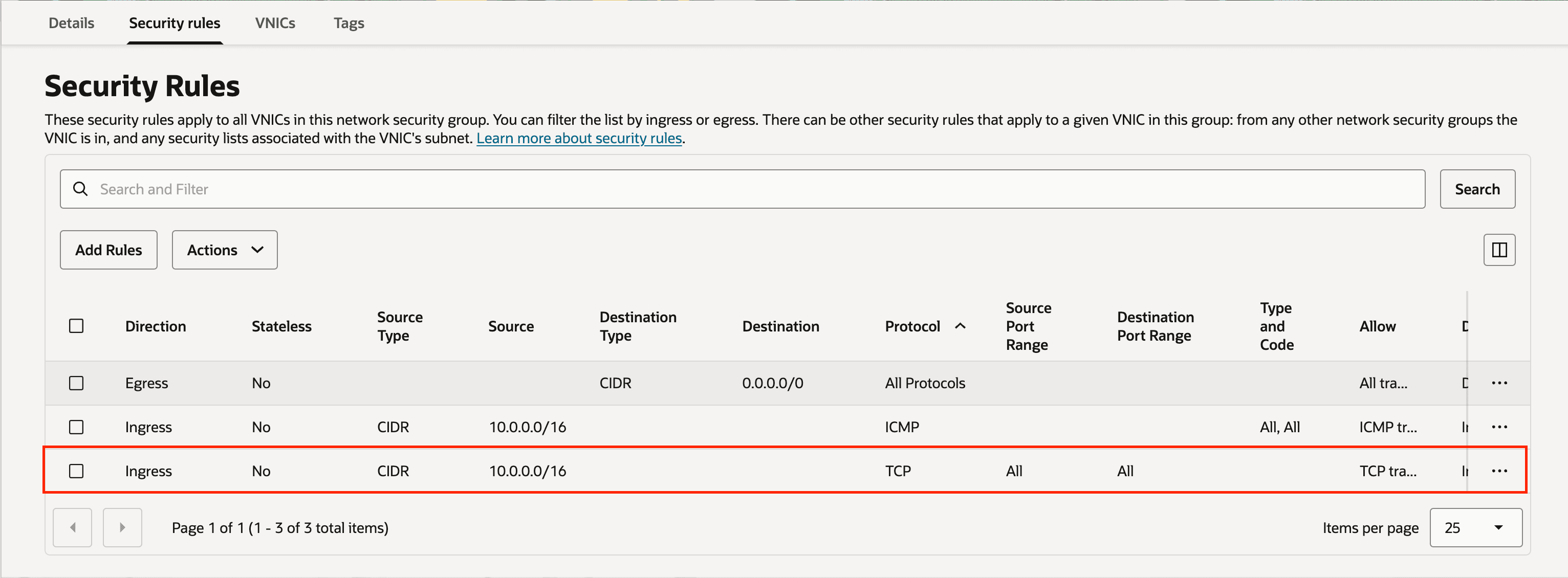
Add Ingress TCP 1521 Port Rule (Optional)
These steps describe how to add an ingress rule to allow TCP port 1521.
-
On Azure portal, navigate to Oracle AI Database@Azure resources such as Exadata Database or Exascale Database, and then select the Overview of the resource.
-
Select the Go to OCI link.
-
Select the Client network security groups link from the Network section in OCI Console.
-
Switch to the Security rules tab.
-
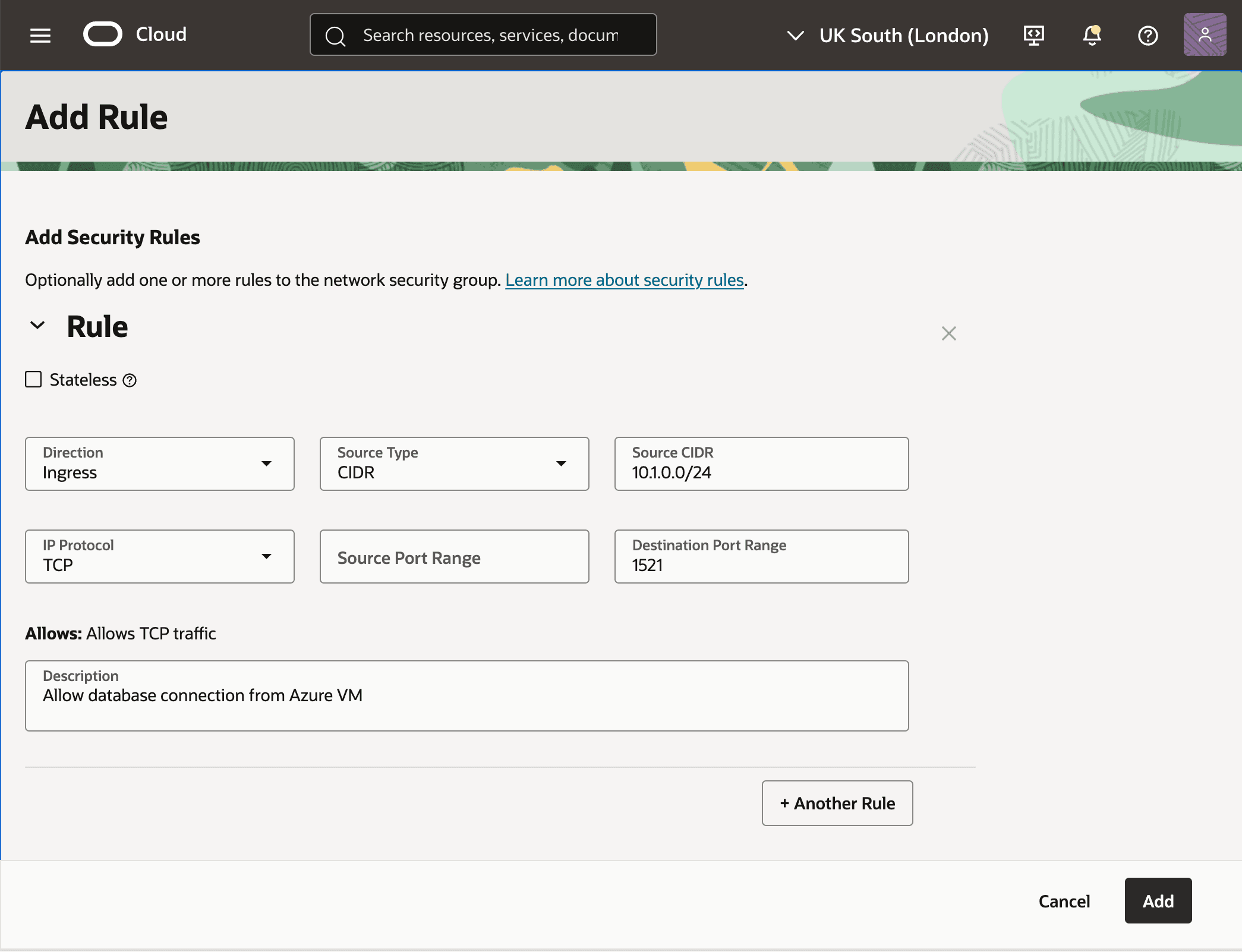
Select the Add Rule button, and then enter the following information:
-
Select Ingress as Direction.
-
Select CIDR as Source Type.
-
Enter the CIDR for the Azure Windows VM in the Source CIDR field.
-
Select TCP as IP Protocol.
-
Select All as Source Port Range.
-
Enter 1521 or 1522 (Listener Port) as Destination Port Range.
-
In the Description, you can enter a description that helps you to identify it.
For example: Allow the database connection from the Azure VM.
-
Connect to Jump Box
Connect to Azure Windows VM to initiate a connection to the Oracle Database VM and Oracle Database.
-
In the Azure portal, navigate to the Windows VM you created.
-
On the Overview page, select the Connect button in the action bar.
-
Follow the steps to sign in. For more information, see Connect to Virtual Machine.
Note:
You can connect to Azure and on-premises resources from the OCI client subnet however, you cannot connect to Azure and on-premises resources from the backup subnet.
Connectivity to Azure and on-premises resources is through the Azure delegated subnet, which is available only from the client subnet. For more information, see Core networking for Oracle AI Database@Azure. The backup subnet is created only for OCI-managed backups.