Exadata Database
This topic explains the required steps to connect to Exadata Database from Azure Virtual Machine (VM). Configuring Network Security Group (NSG) and connection to Azure VM are prerequisites for connecting to Exadata Database.
Configuring Network Security Group (NSG) and connection to Azure VM are prerequisites for connecting to Exadata Database.
-
Obtain Exadata Database Connection String
-
From the Azure Portal, navigate to your Exadata VM Cluster, and then select the Go to OCI button from the Overview section.
-
From VM Cluster information tab, switch to the Databases tab.
-
For obtaining Container Database (CDB) connection string, complete the following:
-
Select the three dots (...) at the end of row item, and then select the View DB connection option.
-
Copy the Connection String information where the Format is set to Easy Connect.
# Example CDB Easy connection string
demovmc04-y6qpc-scan.ocidemosubneto.ocidemovnet02.oraclevcn.com:1521/GGDB01.ocidemosubneto.ocidemovnet02.oraclevcn.com
-
-
For obtaining Pluggable Database (PDB) connection string, complete the following:
-
Select the Container Database (CDB) name in the list.
-
Switch to the Pluggable Databases (PDB) tab.
-
Select the three dots (...) at the end of row item, and then select the PDB connection option.
-
Copy the Connection String information where the Format is set to Easy Connect.
# Example PDB Easy connection string
demovmc04-y6qpc-scan.ocidemosubneto.ocidemovnet02.oraclevcn.com:1521/GGDB_PDB01.paas.oracle.com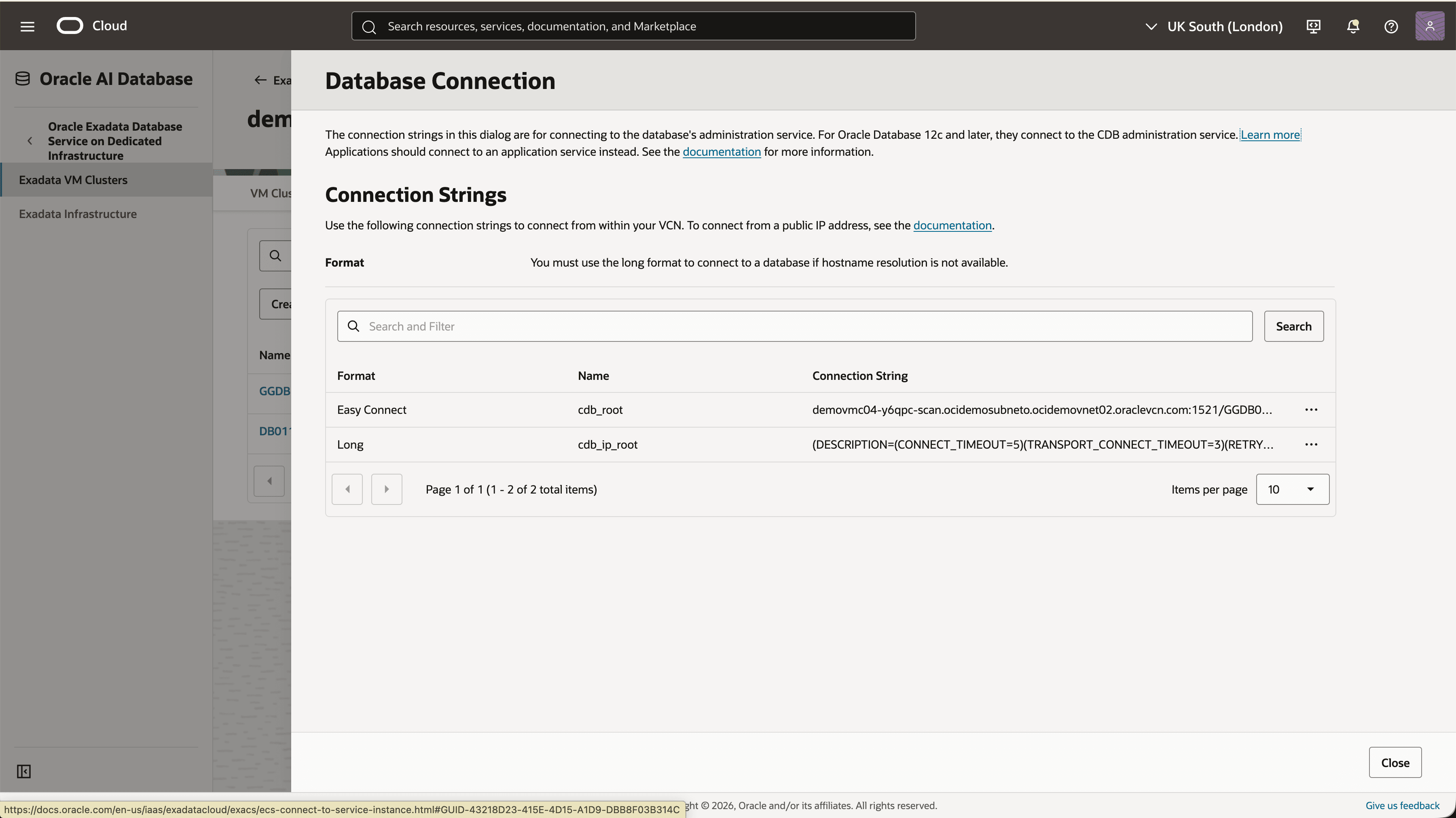
-
Take a note of Connection String for the following steps.
-
-
-
Connect Oracle SQL Developer to Exadata Database
-
On Azure VM, launch the SQL Developer application, and select the + icon to create a new database connection.
-
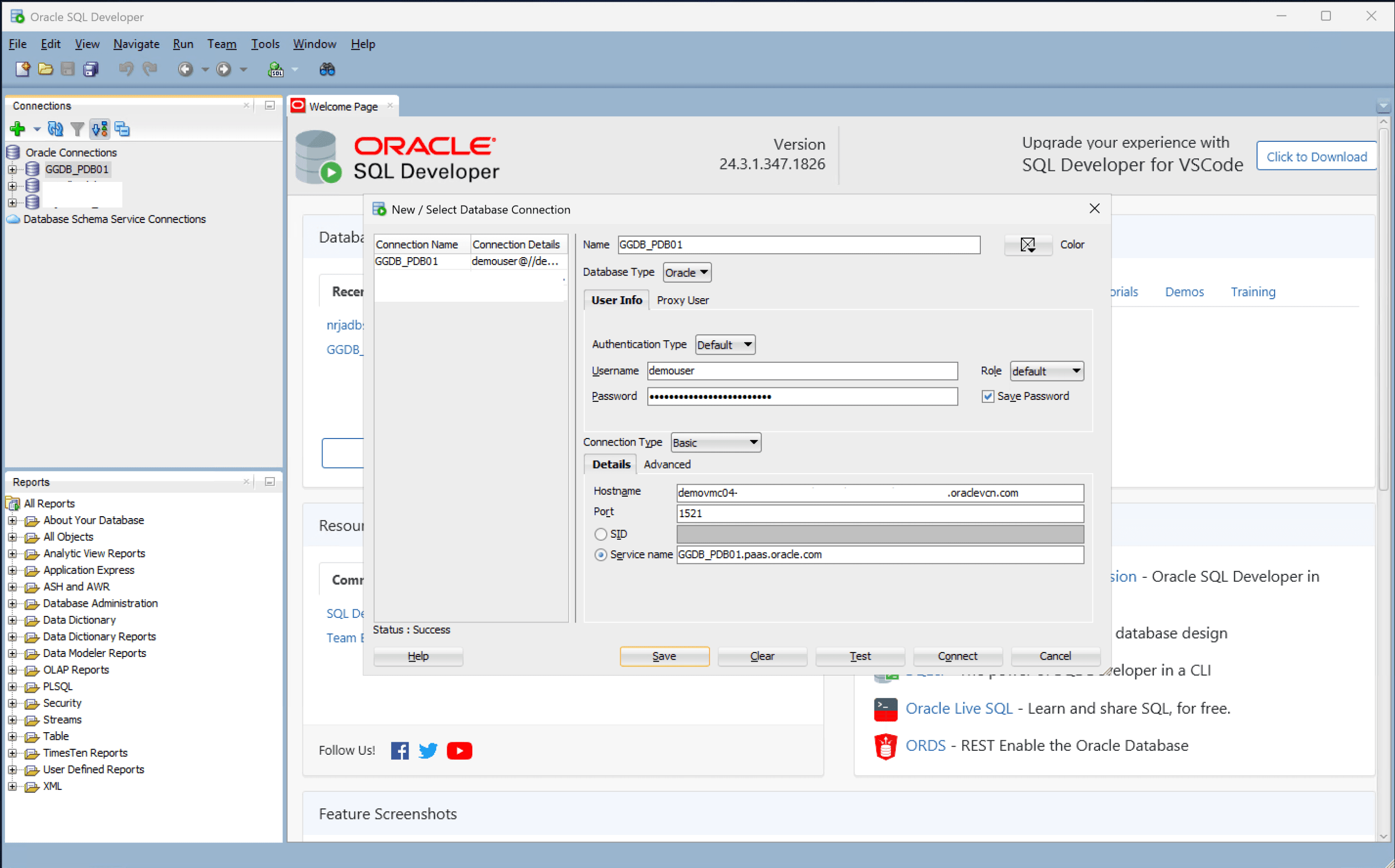
To configure SQL Developer, complete the following substeps:
-
In the Name field, enter a descriptive name to identify the database connection.
-
From the Database Type dropdown list, select Oracle.
-
From the Authentication Type dropdown list, select Default.
-
In the Username field, enter the name of the database user.
-
In the Password field, enter the password of the user.
-
From the Role dropdown list, select the database role to assign to the user.
-
Select the Save Password checkbox to save password with connection in SQL Developer.
-
From the Connection Type dropdown list, select the Basic option as your database connection type.
-
Enter the Hostname information from the Easy connect connection string. For example: First part is known as SCAN DNS Name.
-
You can enter 1521 as the Port information or provide your listener port.
-
Enter a Service name from the Easy connect connection string. For example: Second part after forward slash “/”.
-
Select the Test button. The Status at the bottom of the connection list should show Success.
-
Once the connection is successful, select the Save button.
-
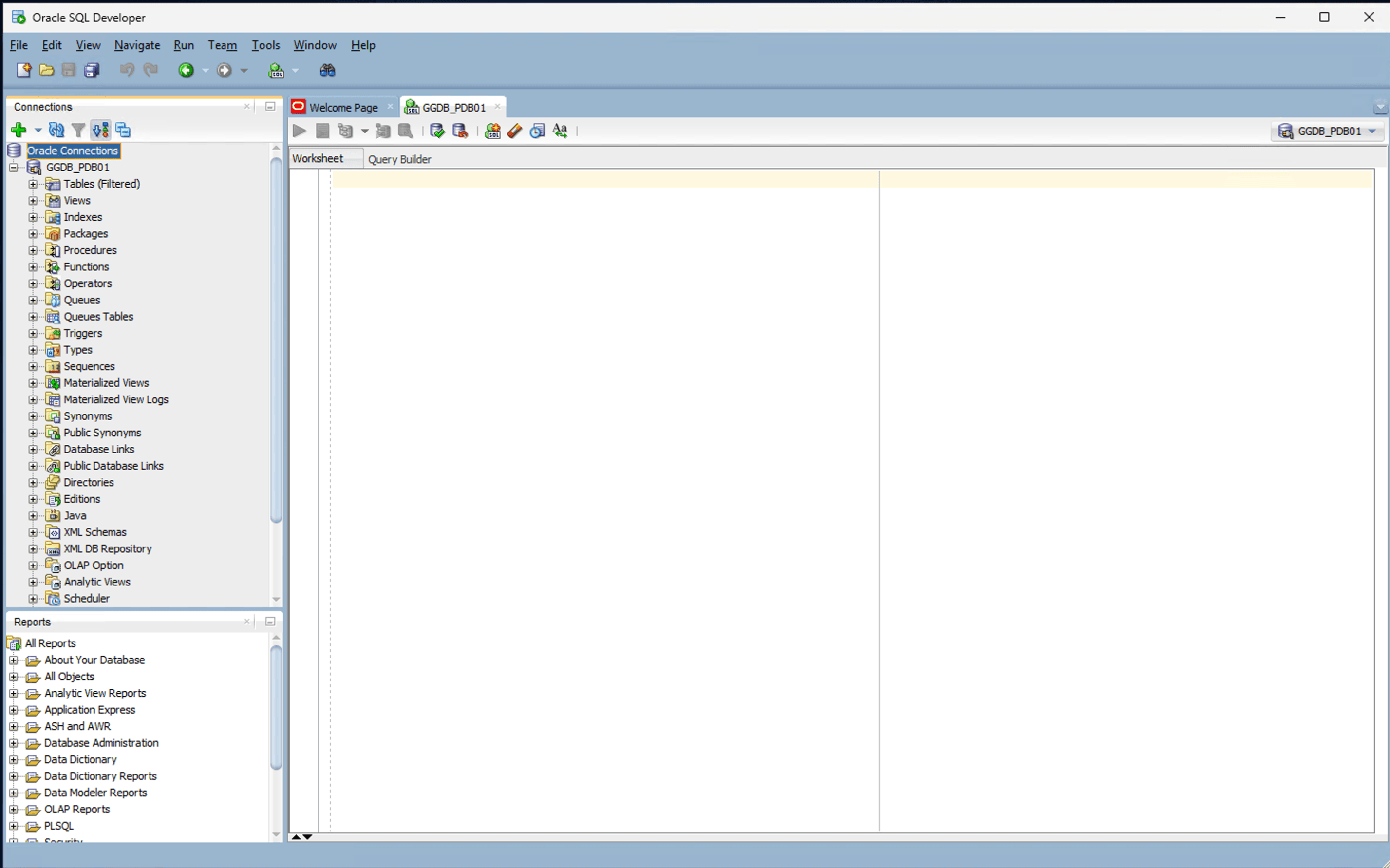
Select the Connect button to initiate the connection.
-
-
-
There is currently no content for this page. Oracle AI Database@Azure team intends to add content here, and this placeholder text is provided until that text is added. The Oracle AI Database@Azure team is excited about future new features, enhancements, and fixes to this product and this accompanying documentation. We strongly recommend you watch this page for those updates.
You can download an Oracle Exadata Database Wallet in Oracle AI Database@Azure using the Azure CLI.
Prerequisites
- Azure CLI installed.
- Azure CLI configured.
- Delegated Subnet is created using Azure CLI.
Sample Azure CLI Command
# -------------------------------------
# Install the Azure CLI Oracle Database extension.
# -------------------------------------
az extension add --name oracle-database

# -------------------------------------
# Sign in to Azure CLI.
# -------------------------------------
az login

# -------------------------------------
# Set the Azure subscription and resource group.
# -------------------------------------
export AZURE_SUBSCRIPTION_ID="<azure-subscription-id>"
export RESOURCE_GROUP="<azure-resource-group>"

az account set \
  --subscription "$AZURE_SUBSCRIPTION_ID"

# -------------------------------------
# Obtain Exadata Database Connection Details.
# List the Oracle Exadata VM Clusters in the resource group.
# -------------------------------------
az oracle-database cloud-vm-cluster list \
  --resource-group "$RESOURCE_GROUP" \
  --query '[].{Name:name,DisplayName:properties.displayName,Status:properties.lifecycleState}' \
  --output table

# -------------------------------------
# Copy the name of the Exadata VM Cluster you want, then set it.
# -------------------------------------
export VM_CLUSTER_NAME="<azure-cloud-vm-cluster-name>"

# -------------------------------------
# Display the SCAN DNS name and listener port for the selected Exadata VM Cluster.
# -------------------------------------
az oracle-database cloud-vm-cluster show \
  --resource-group "$RESOURCE_GROUP" \
  --cloudvmclustername "$VM_CLUSTER_NAME" \
  --query '{ScanDnsName:properties.scanDnsName,ListenerPort:properties.listenerPort}' \
  --output table


# -------------------------------------
# Azure CLI does not provide a command to retrieve the CDB or PDB Easy Connect string. Follow the Azure console steps to obtain the connection string.
# Once you have all the details On the Azure Windows VM, open SQL Developer and follow the SQL developer connection steps from Azure Portal
# -------------------------------------
There is currently no content for this page. Oracle AI Database@Azure team intends to add content here, and this placeholder text is provided until that text is added. The Oracle AI Database@Azure team is excited about future new features, enhancements, and fixes to this product and this accompanying documentation. We strongly recommend you watch this page for those updates.
There is currently no content for this page. Oracle AI Database@Azure team intends to add content here, and this placeholder text is provided until that text is added. The Oracle AI Database@Azure team is excited about future new features, enhancements, and fixes to this product and this accompanying documentation. We strongly recommend you watch this page for those updates.