Protect Autonomous AI Database
Learn about various data protection methods available for Autonomous AI Database on Oracle AI Database@Azure.
Data in Transit Encryption
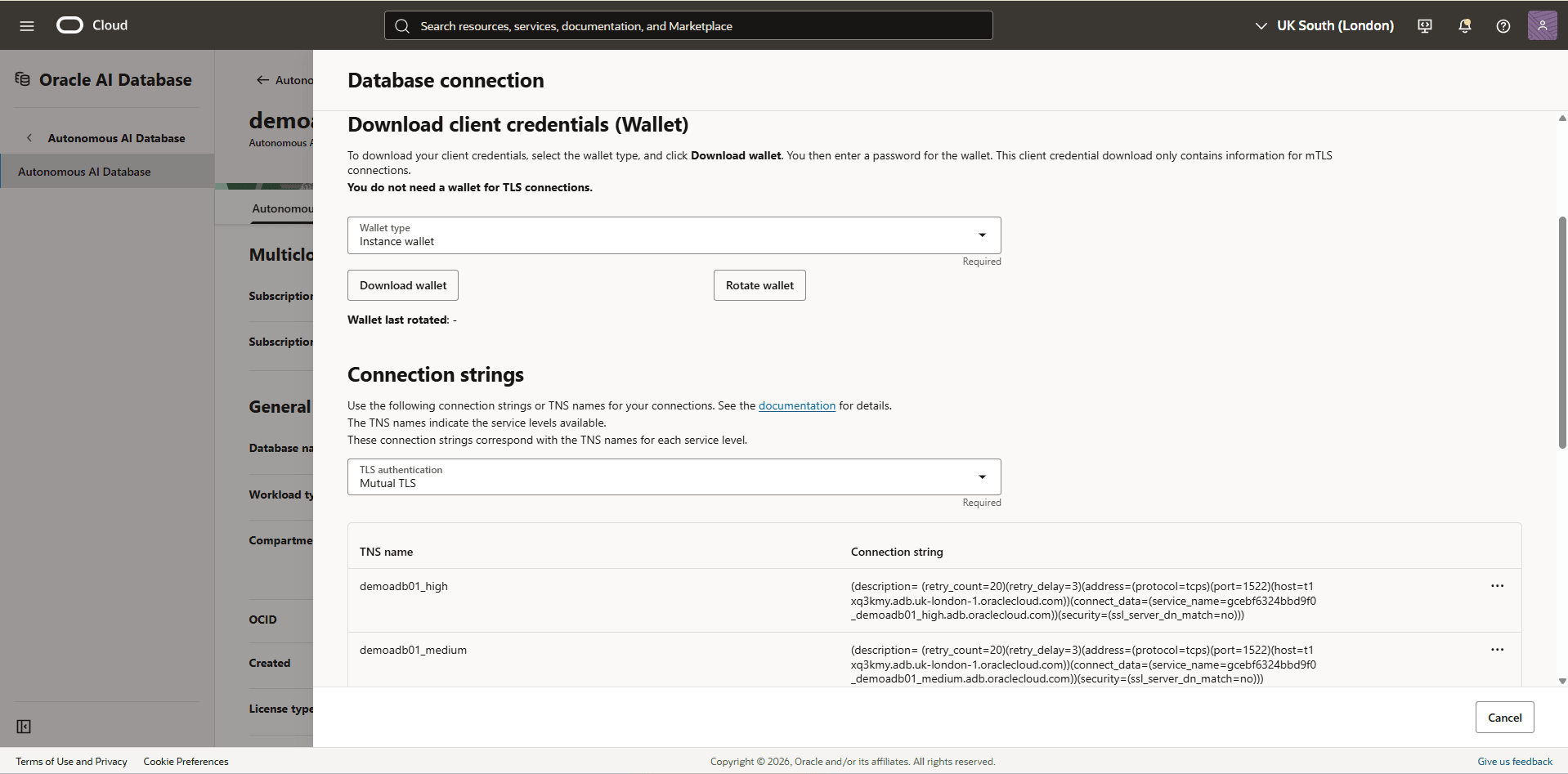
Autonomous AI Database is protected with encryption of data in transit by default. This ensures that data moving between application and the database is secured from unauthorized interception or tampering
Encryption in transit is implemented using Transport Layer Security (TLS) and mutual TLS (mTLS) for database connections. These protocols provide secure communication channels between database clients and servers, protecting authentication credentials and query data.
Connection Options
- TLS: Encrypts traffic between the client and the database using standard X.509 certificates.
- mTLS: Provides two-way authentication, where both the client and the database present valid certificates before a connection is established. This option offers stronger identity assurance for enterprise workloads.
Connections on Autonomous AI Database
- You are using JDBC Thin Client (version 12.2.0.1 or higher) with JDK 8(u163+) or higher.
- You are using the Python python-oracledb driver.
- You are using ODP.NET version 19.14 (or higher), or 21.5 (or higher).
- You are using an Oracle Call Interface based driver with Oracle Client libraries version 19.14 (or higher), or 21.5 (or higher).
Encryption at Rest for Oracle AI Database@Azure
Oracle AI Database@Azure supports encryption at rest to safeguard sensitive data residing in database files, backups, and configuration files. This protection is enabled by transparent data encryption (TDE), which ensures that data is encrypted whenever it is written to persistent storage and transparently decrypted when accessed by authorized Oracle processes with no customer configuration is required. The master key encrypts tablespace keys, which in turn encrypt the data.
Transparent Data Encryption (TDE)
Encryption at rest is provided through TDE, a feature included in Oracle Advanced Security. TDE automatically encrypts tablespaces, redo logs, and undo logs, ensuring that all database data is written to disk in encrypted form and transparently decrypted for authorized users and applications. Database backups created using Oracle Recovery Manager (RMAN) or managed backup solutions adopt these encryption settings, protecting all database copies stored on persistent media.
Key Management
- Oracle-managed keys: The master encryption key is automatically generated and stored in an Oracle Wallet, which is secured within the database environment. Oracle handles all key lifecycle tasks, including backups and restores.
- Customer-managed keys: You can integrate Autonomous AI Database with services like OCI Vault to generate and store the master encryption key outside the database, enabling centralized key control, lifecycle management, rotation, and auditing of key usage events. With customer-managed keys, you control the encryption keys used to protect your data. You can enable customer-managed keys when creating databases, switch from Oracle-managed to customer-managed keys, and rotate keys to meet security and compliance requirements.
- Oracle-managed Key (OMK)
- Oracle Wallet
- Customer-managed Key (CMK)
- OCI Vault
- Oracle Key Vault (OKV)
- Azure Key Vault (AKV)
Oracle-Managed Keys (OMK) are the default method for securing data encryption in Oracle AI Database@Azure. In Oracle AI Database, data encryption at rest is enabled by transparent data encryption (TDE). When you choose Oracle-Managed Keys, the database system automatically manages all key operations, including key generation, secure storage, and rotation required by TDE. There are no prerequisites or additional configuration steps required to use Oracle-Managed Keys in Oracle AI Database@Azure.
View Encryption Details
- Navigate to the Oracle AI Database@Azure portal.
- From the left menu, select Oracle Autonomous AI Database.
- .From the list, select the Name of your Autonomous AI Database to open the Overview page.
- From the Essentials section, select the Go to OCI link which redirects you to the OCI console
- From the OCI console, select Oracle AI Database and then select Autonomous AI Database.
- From the list, select your Autonomous AI Database that you want to check the key management.
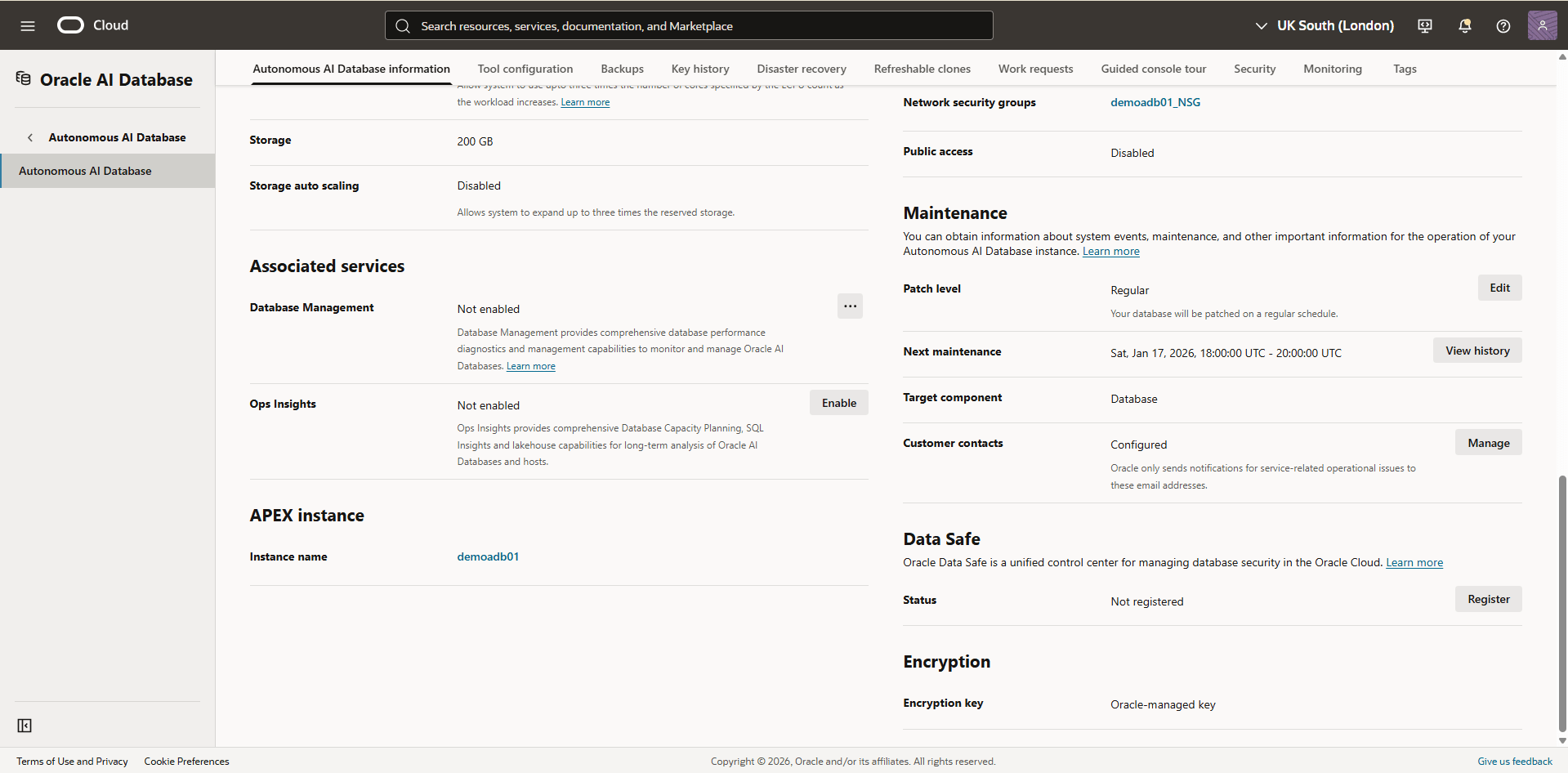
- Select the Autonomous AI Database information tab, and then navigate to the Encryption section to view the Encryption key details. By default, it is set to Oracle-managed key.
Autonomous AI Database integrates with OCI Vault to provide data encryption using a customer-managed key (CMK). This integration centralizes key storage and management, which simplifies the overall key lifecycle.
To enable OCI Vault for Autonomous AI Database, complete the following steps.
Note
The customer-managed encryption key option is not available during Autonomous AI Database instance creation. This option is available after the database instance is created.- Create an OCI Vault
For more information, see Create an Oracle Cloud Infrastructure Vault.
- Create a Master Encryption Key in the Vault
For more information, see Create a Master Encryption Key in the Vault.
- Create an OCI Dynamic Group
- From the OCI console, select Oracle AI Database, and then select Autonomous AI Database.
- Select the name of your Autonomous AI Database.
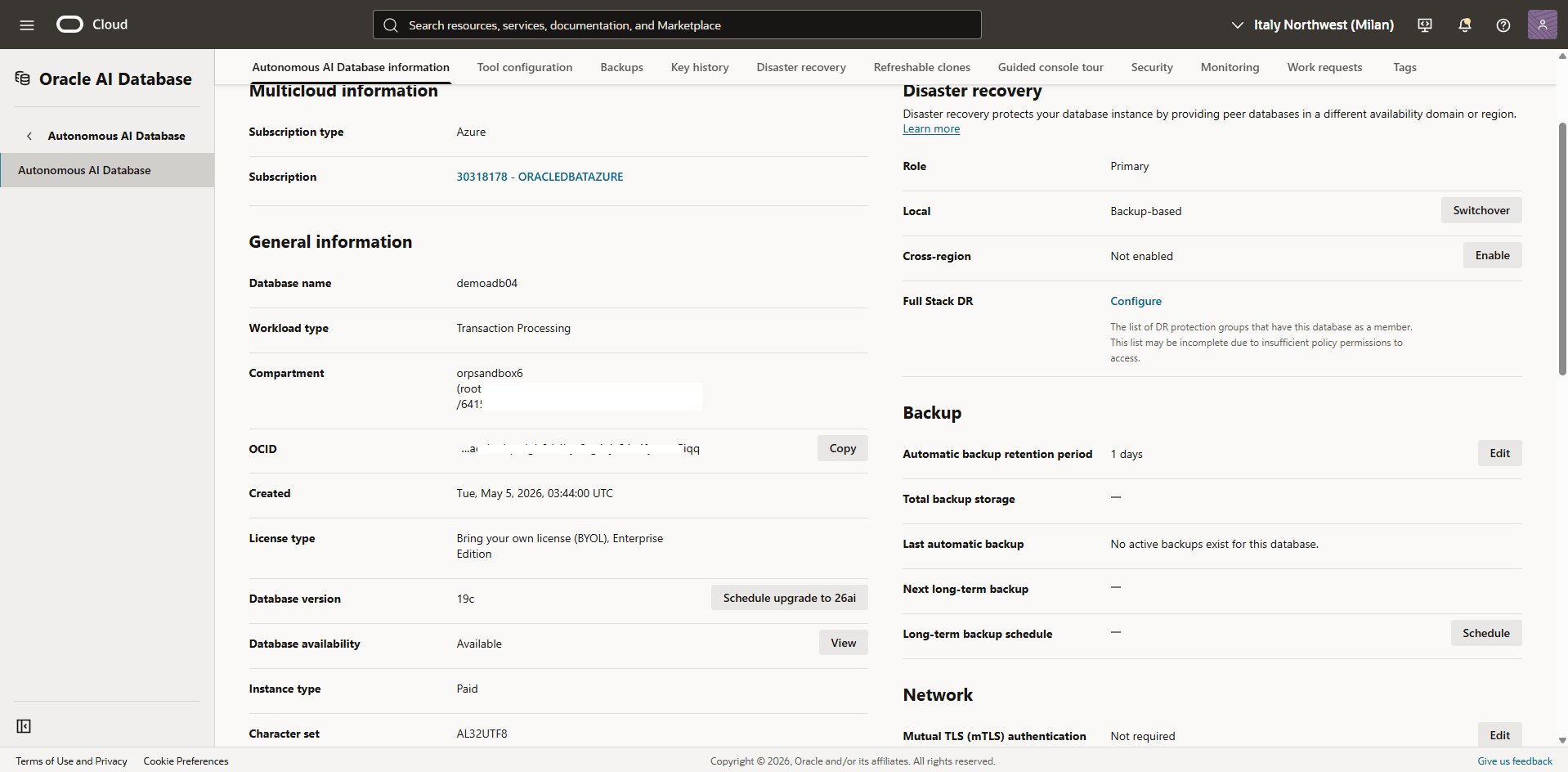
- Scroll down to the General information section. Take a note of your Autonomous AI Database Compartment information.
- From the navigation menu , select Identity & Security, and then select Compartments.
- From the Compartments list, navigate to the compartment validated in the previous step and take a note of the OCID information.
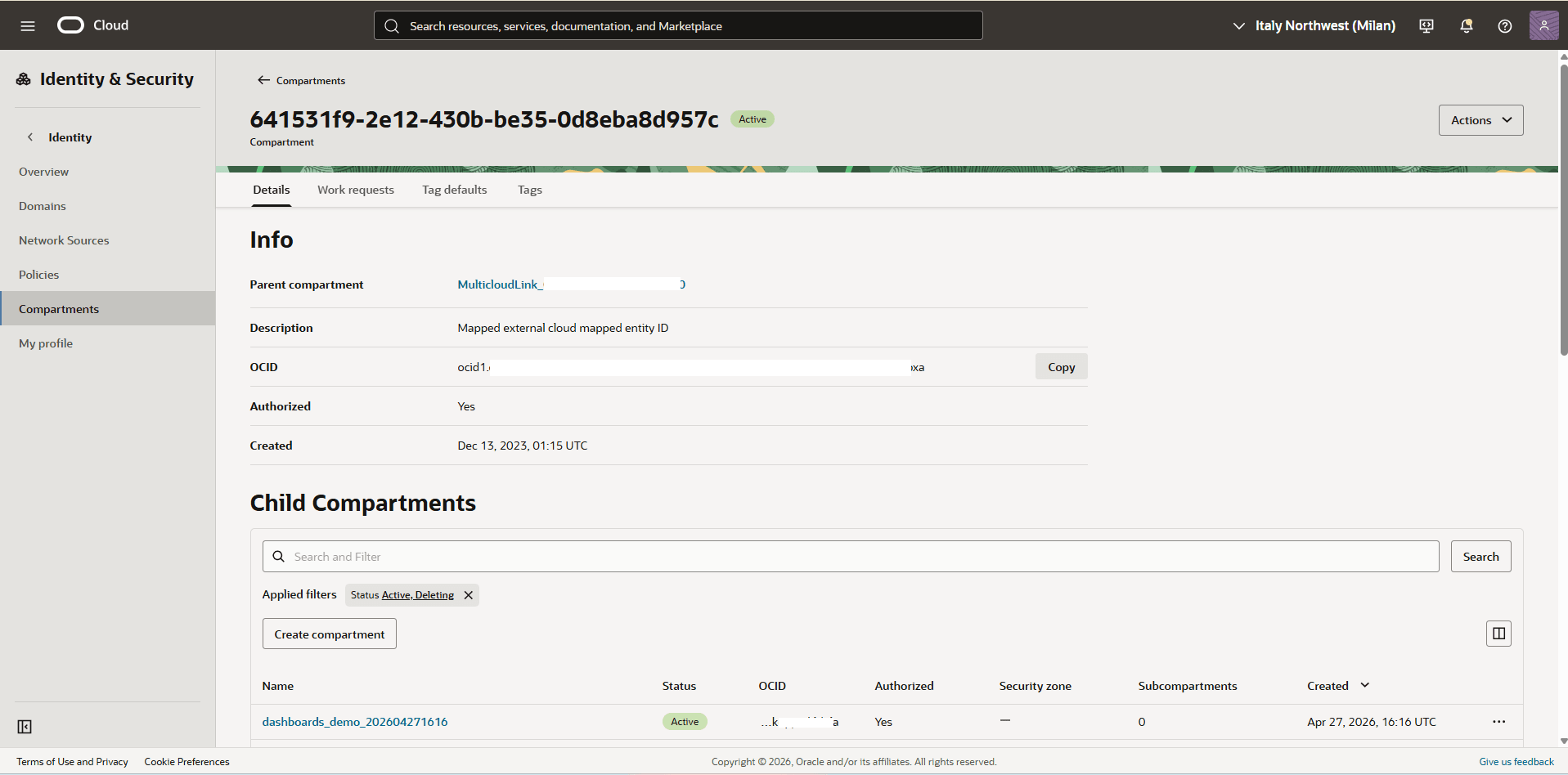
- From the navigation menu , select Identity & Security, and then select Domains.
- From the Applied filters section, select the Root Compartment and then choose the name of you domain.
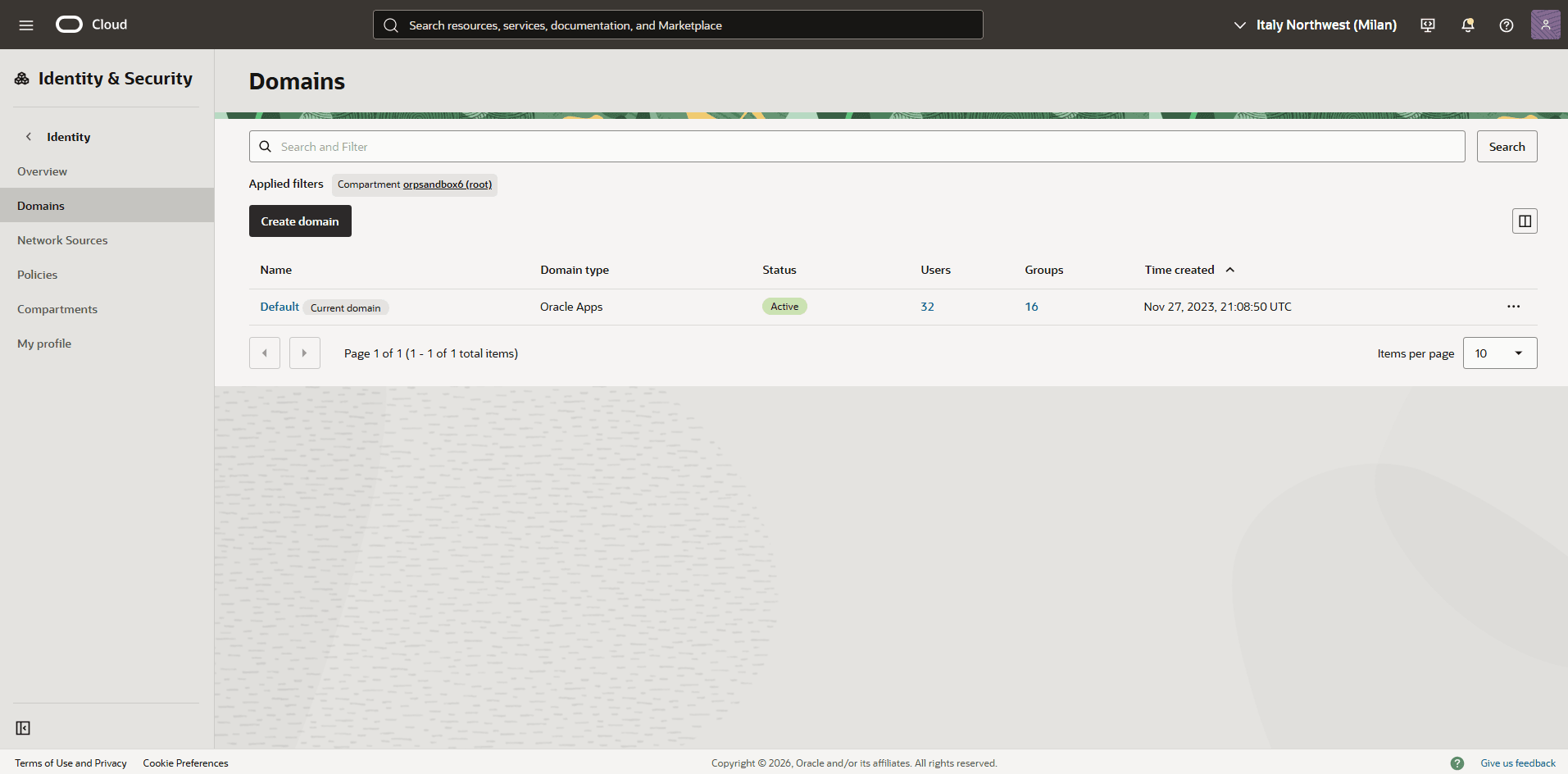
- Select the Dynamic groups tab, and then select the Create dynamic group button.
- Name: Enter a descriptive name for the group.
- Description: Provide a brief description of the dynamic group’s purpose.
- Matching Rules: Enter the following statement, replacing
<your_Compartment_OCID>with the compartment OCID you noted in the previous step:ALL {resource.compartment.id = '<your_Compartment_OCID>'} - Review your information, and then select the Create button.
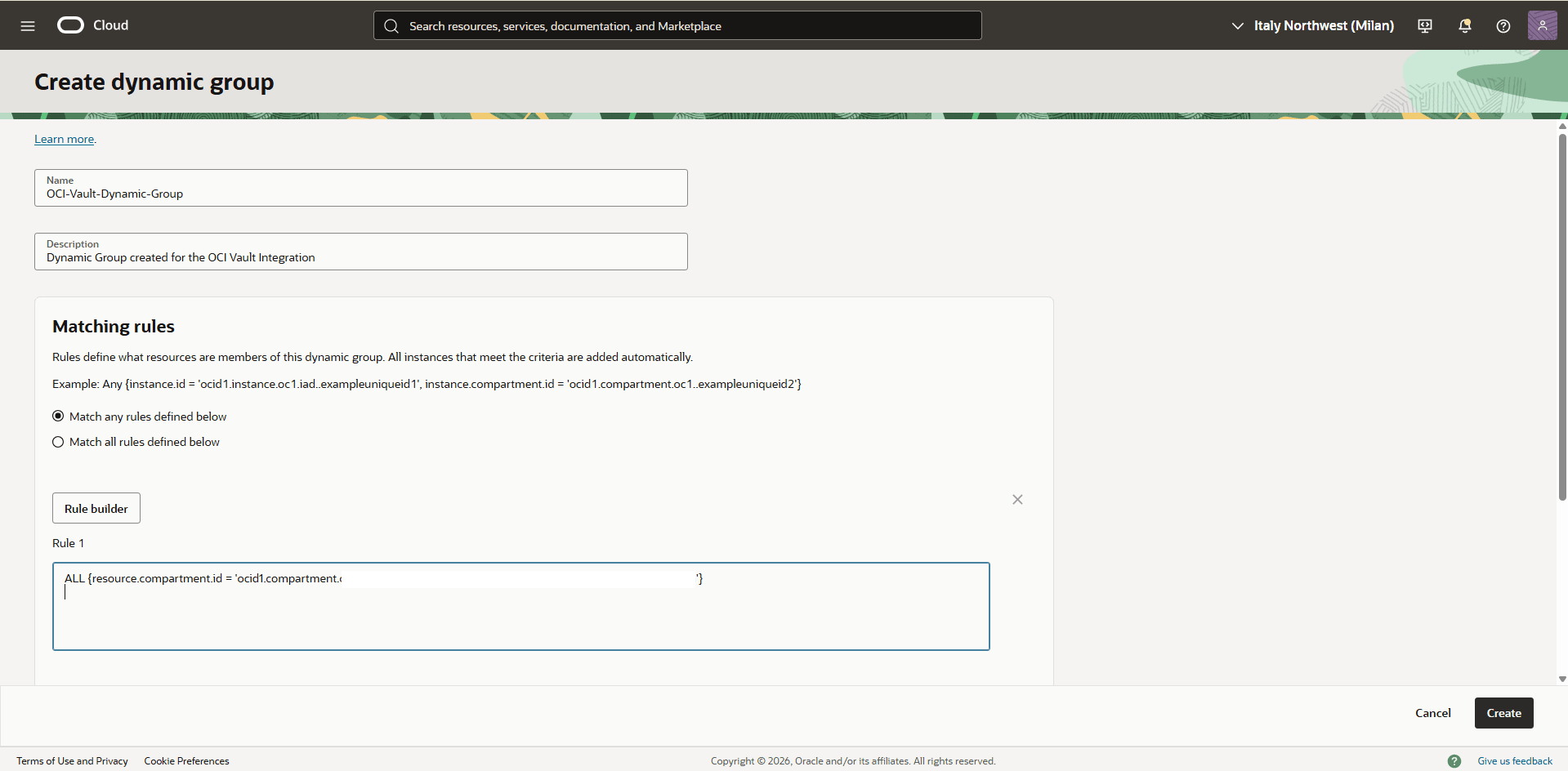
- Create an OCI Policy
- From the navigation menu , select Identity & Security, and then select Policies.
- In the Applied Filter section, select the Root Compartment, and then select the Create Policy button.
- Name: Enter a descriptive name for the group.
- Description: Provide a brief description of the dynamic group’s purpose.
- Enable the Show manual editor button, and then enter the following statements. Replace
<dynamic-group-name>with the name of the dynamic group created in the previous step, and<your_Compartment_OCID>with your specific compartment OCID:Allow dynamic-group <dynamic-group-name> to use vaults in compartment id <your_Compartment_OCID> Allow dynamic-group <dynamic-group-name> to use keys in compartment id <your_Compartment_OCID>Note
To use customer-managed keys with Autonomous Data Guard with a remote standby, the following policies are required:Allow dynamic-group <dynamic-group-name> to manage vaults in compartment id <your_Compartment_OCID> Allow dynamic-group <dynamic-group-name> to manage keys in compartment id <your_Compartment_OCID> - Review your information and then select the Create button.
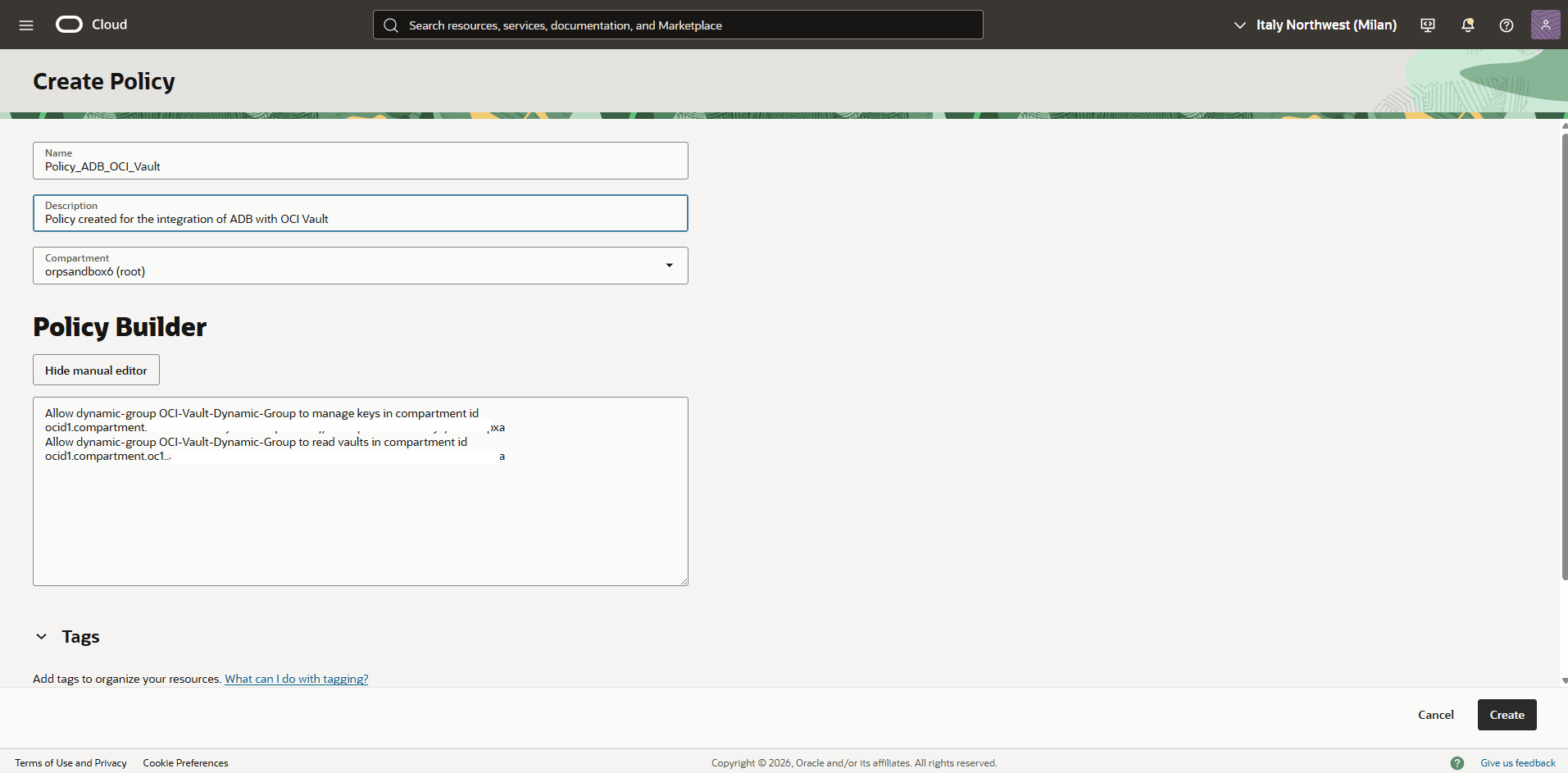
- Modify the Customer Management Key to OCI Vault
- From the OCI console, select Oracle AI Database, and then select Autonomous AI Database.
- Select the name of your Autonomous AI Database.
- Select the More action button, and then select Manage encryption key option.
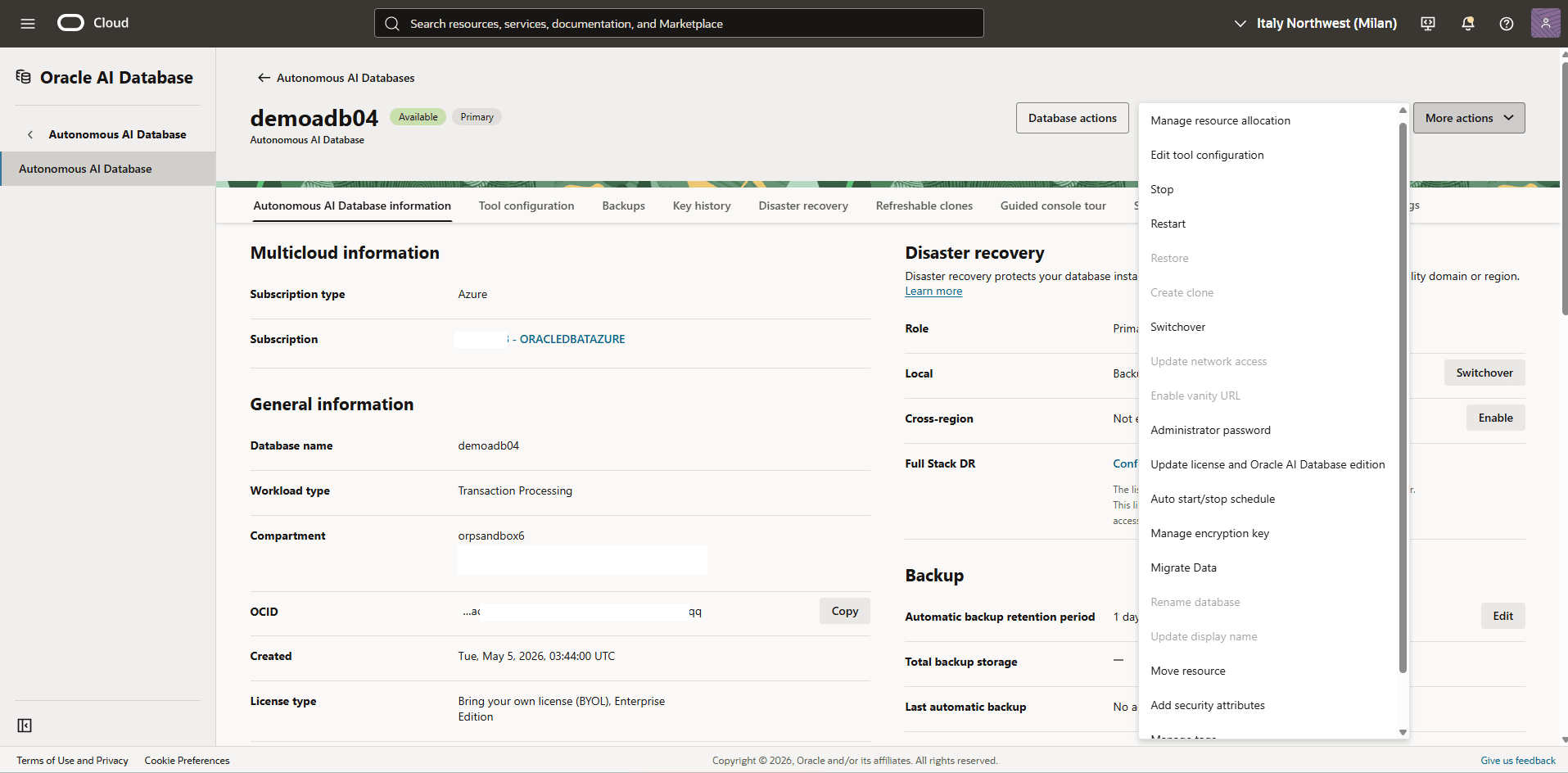
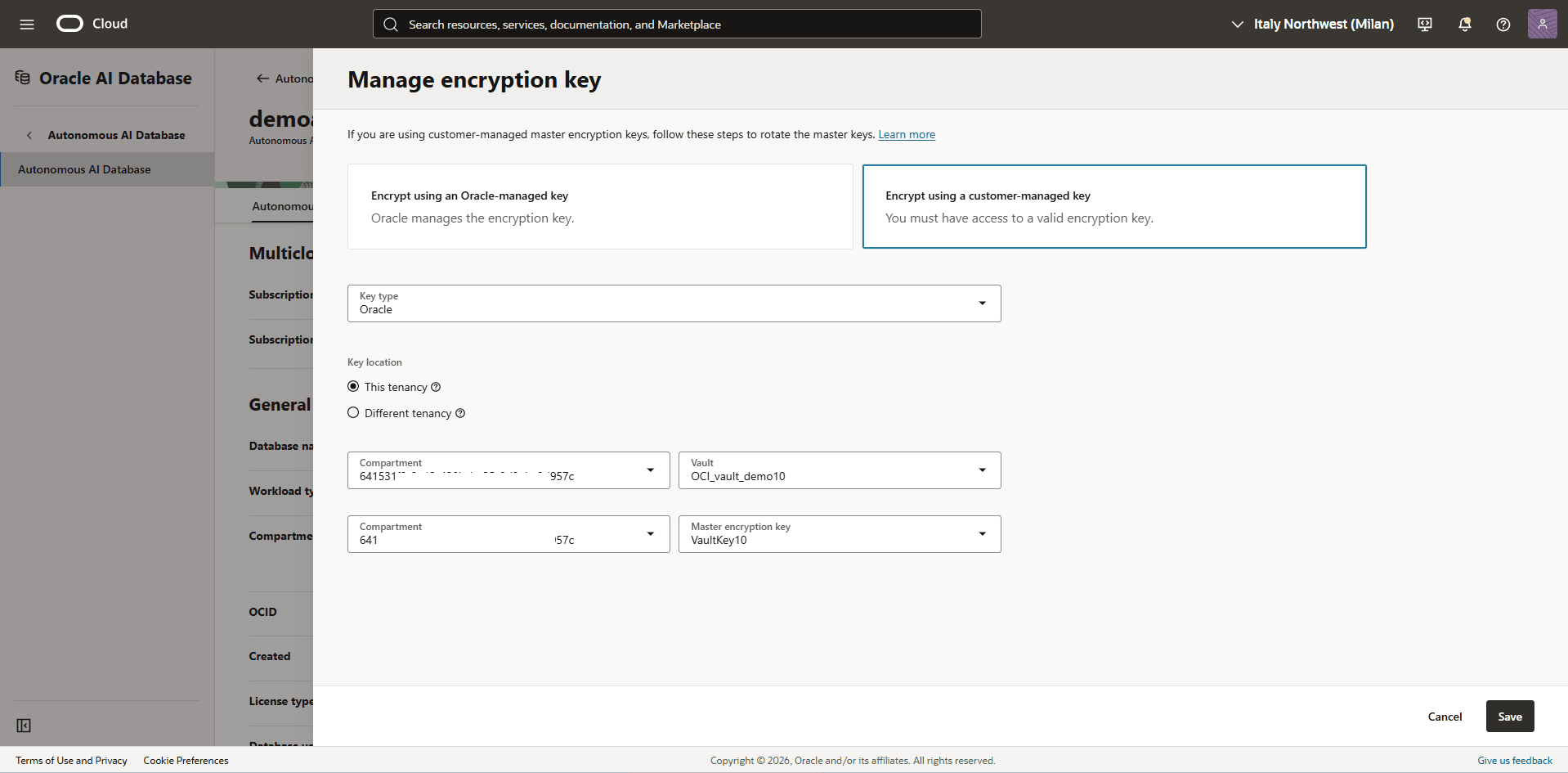
- From the Manage encryption key page, enter the following information.
- Choose the Encrypt using a customer-managed key option.
- Select Oracle as the Key type.
- Choose the This tenancy option.
- Select the compartment where you created your OCI Vault, then select the Vault that you want to use.
- Select the compartment where you created your Master encryption key, then select the key that you want to use.
- Select the Save button.
- Verify Autonomous AI Database Encryption Method
- From the OCI console, select Oracle AI Database, and then select Autonomous AI Database.
- Select the name of your Autonomous AI Database.
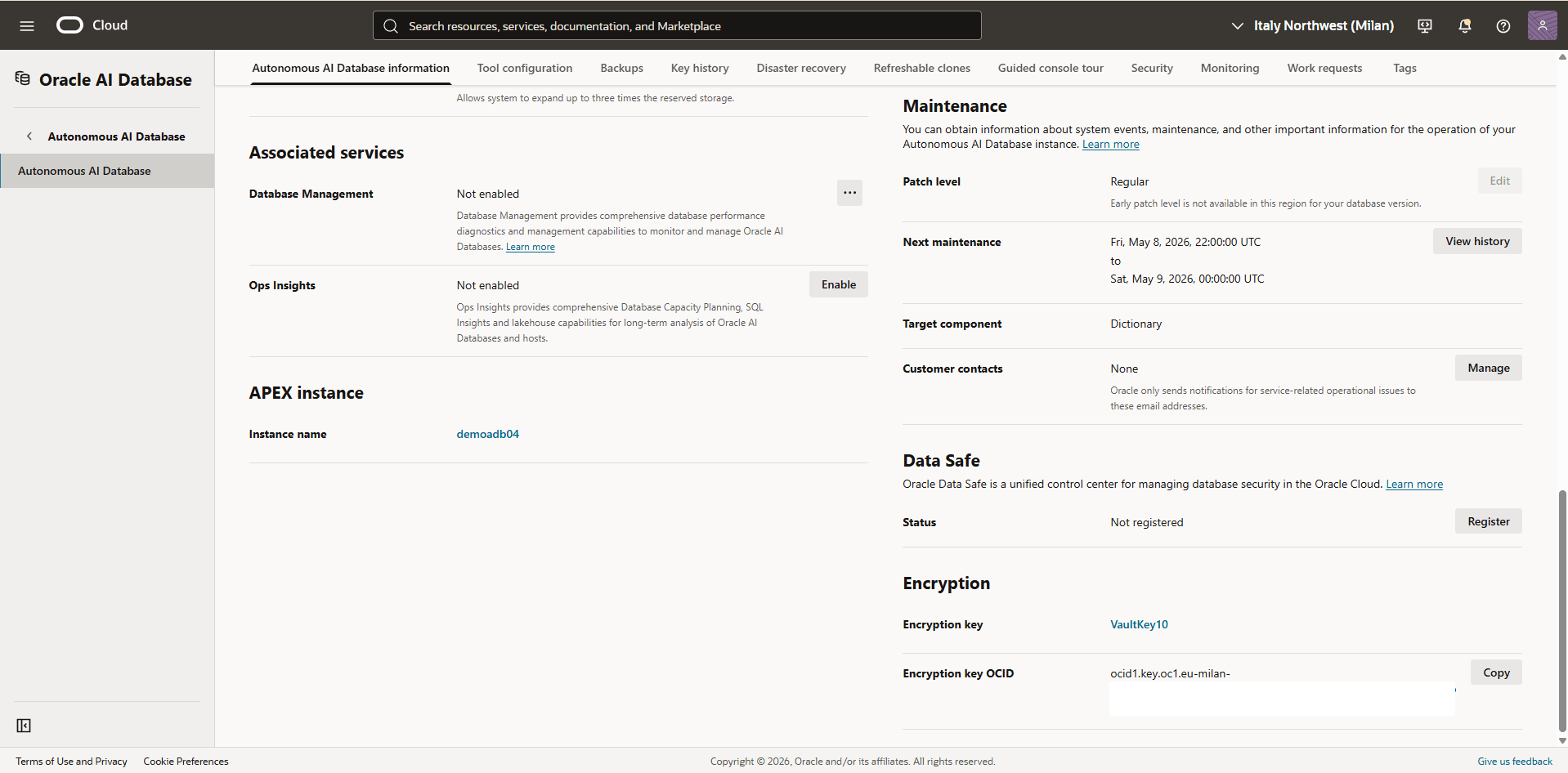
- Select the Autonomous AI Database information tab, scroll down to the Encryption section to view the Encryption key details. You can verify the key used to encrypt your Encryption Key and view the Encryption key OCID of the key.
Note
The customer-managed encryption key is stored in OCI Vault, external to the database host. If the customer-managed encryption key is disabled or deleted, the database will be inaccessible.
Rotate Customer-Managed Encryption Key(s) on Autonomous AI Database with OCI Vault
To rotate your customer-managed encryption key(s), complete the following steps.
- Create a new master encryption key within your OCI Vault. For more information, see Create a Master Encryption Key in the Vault.
- From the OCI console, select Oracle AI Database, and then select Autonomous AI Database.
- Select the name of your Autonomous AI Database.
- Select the More action button, and then select Manage encryption key option.
- Select the OCI Vault that contains the key you want to use.
- Select a Master Encryption Key that is different from the one currently in use for your Autonomous AI Database instance.
- Select the Save button.
Note
- You cannot switch to a different customer-managed key more than two times in a 24-hour period.
- If you plan to use OCI Vault in a different tenancy than your database, see the Create Dynamic Group and Policies for Customer Managed Keys with Vault in Different Tenancy than the Database documentation for step-by-step instructions.
- Create an OCI Vault
There is currently no content for this page. The Oracle AI Database@Azure team intends to add content here, and this placeholder text is provided until that text is added.
The Oracle AI Database@Azure team is excited about future new features, enhancements, and fixes to this product and this accompanying documentation. We strongly recommend you watch this page for those updates.
Oracle AI Database@Azure now supports integration with Azure Key Vault. This capability allows you to manage transparent data encryption (TDE) master encryption keys (MEKs) using Azure Key Vault. Previously, TDE master encryption keys can only be stored in a file-based Oracle Wallet, Oracle Cloud Infrastructure (OCI) Vault, or Oracle Key Vault (OKV).
With this update, you can now store and manage CMKs directly in Azure Key Vault , providing improved key lifecycle control and alignment with your organization’s security policies.
To configure Azure Key Vault to encrypt your database, complete the following steps.Note
Customer-managed key option is not available during the Autonomous AI Database instance creation. This option is available after the database instance is created.- Create an Autonomous AI Database
- Create an Azure Key Vault
- Create a Key on Azure Key Vault
- Disable Azure Key Vault Public Access
- Obtain Azure Key Vault DNS Zones Information
- Add Private DNS Zones in OCI
- Enable Azure Service Principal Authentication
- Provide the Azure Application Permission to Access to Azure Resources
- Obtain the Azure Application ID
- Assign the Roles for the Azure Application to Access to Azure Key Vault
- Modify an Autonomous AI Database to Use Azure Key Vault
- Create an Autonomous AI Database
For step-by-step instructions, see Create Autonomous AI Database.
- Create an Azure Key Vault
For step-by-step instructions, see the CMK - AKV tab in the Prerequisites section.
- Create a Key on Azure Key Vault
For step-by-step instructions, see the CMK - AKV tab in the Prerequisites section.
- Disable Azure Key Vault Public Access
- From the Azure portal, select Key vaults.
- Select the Name field of the Key vault that you want to use.
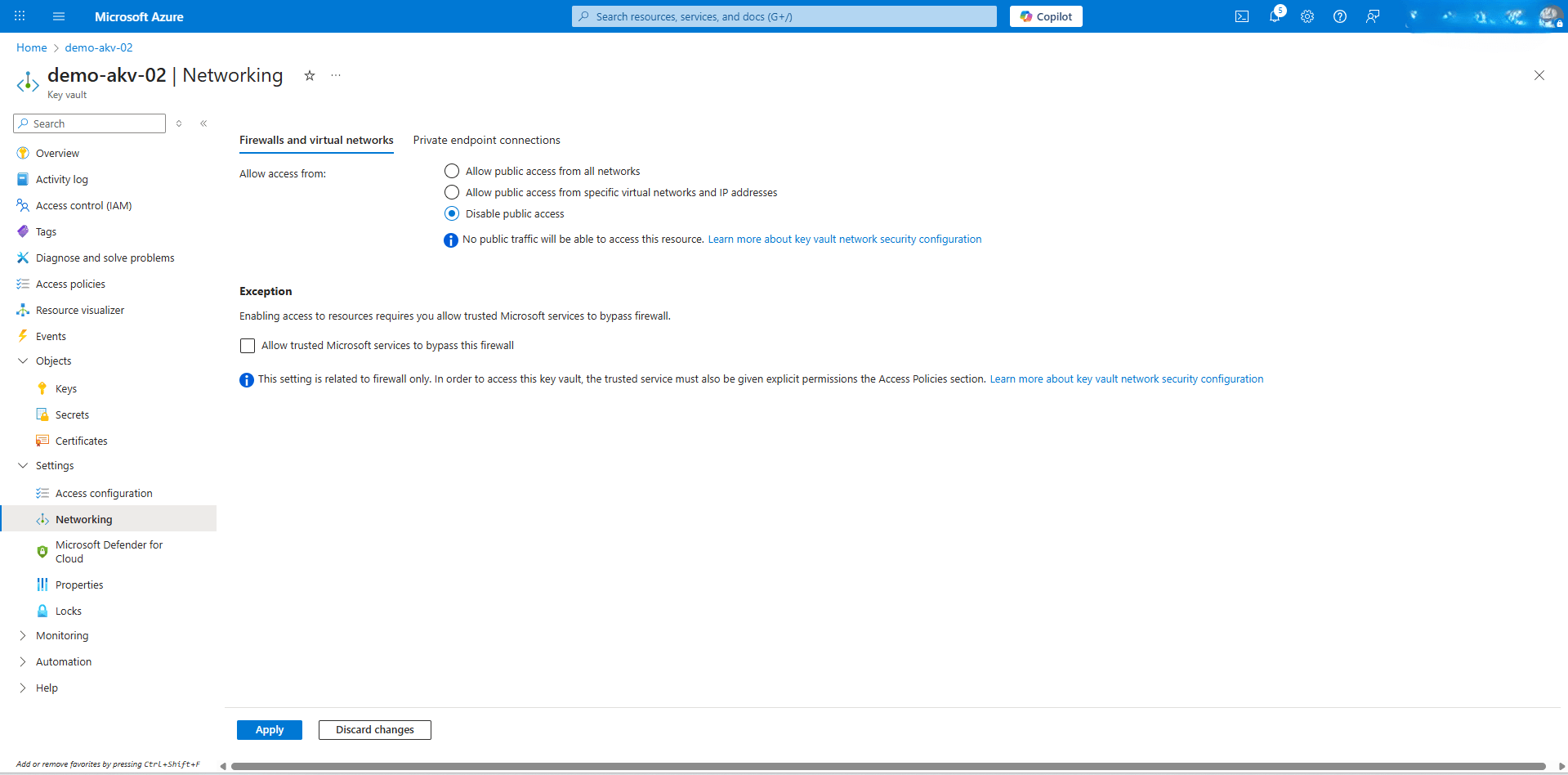
- Expand the Settings section, and then select Networking.
- From the Firewalls and virtual networks tab, choose the Disable public access option.
 Note
Note
After the public access is disabled, Azure Key Vault is accessible only through a Private Endpoint. - Select the Apply button to save the changes.
- Obtain Azure Key Vault DNS Zones InformationNote
During Azure Key Vault creation, when the private endpoint (privatelink.vaultcore.azure.net) is set up, a private DNS zone is created by the workflow. To allow Autonomous AI Database to resolve private endpoint URLs to the correct private IP addresses, add two private DNS zones in OCI.- From the Azure portal, select Key vaults.
- Select the Name field of the Key vault that you want to use.
- Expand the Settings section, and then select Networking.
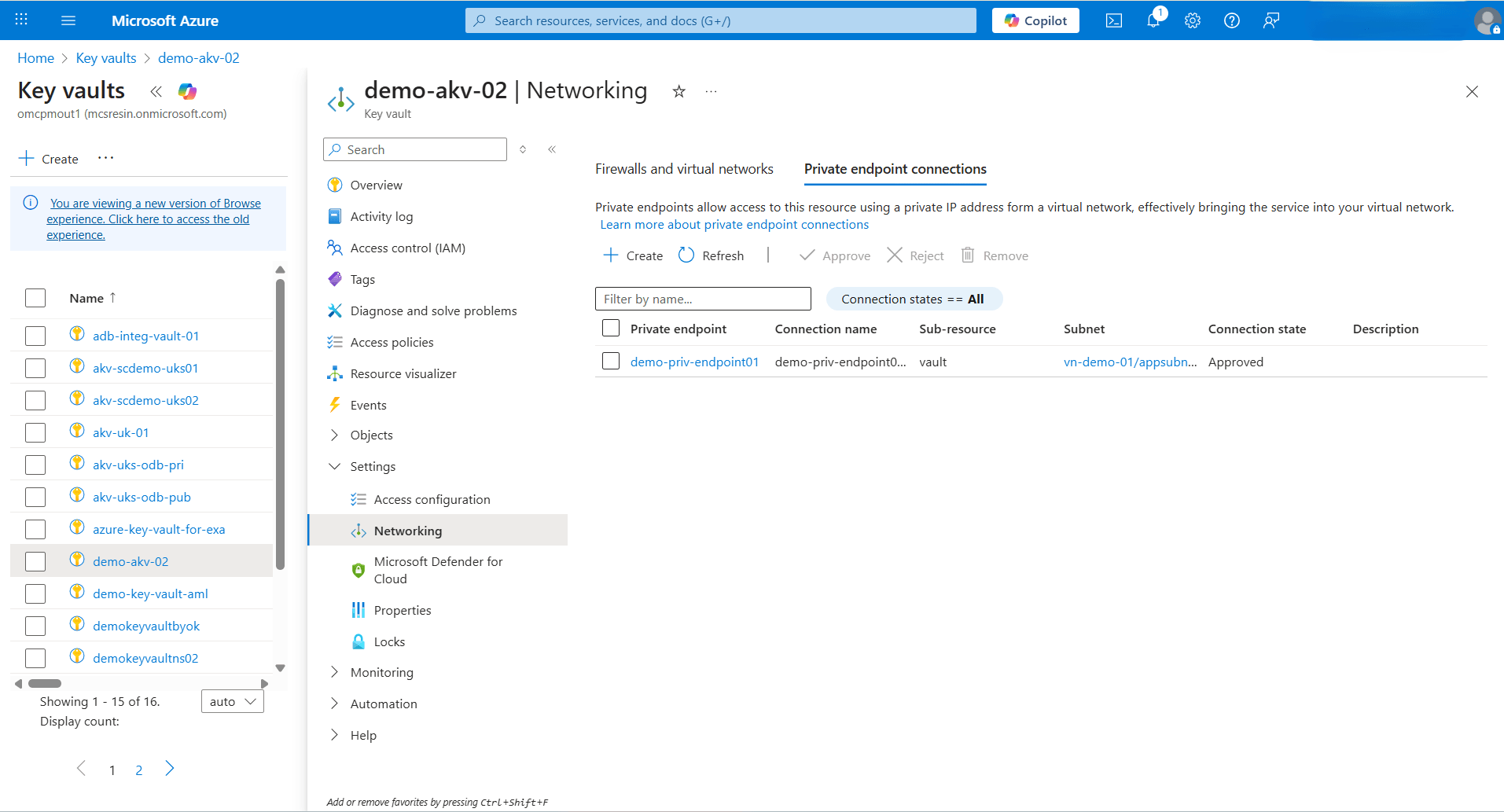
- From the Private endpoint connections tab, select the Private endpoint name.
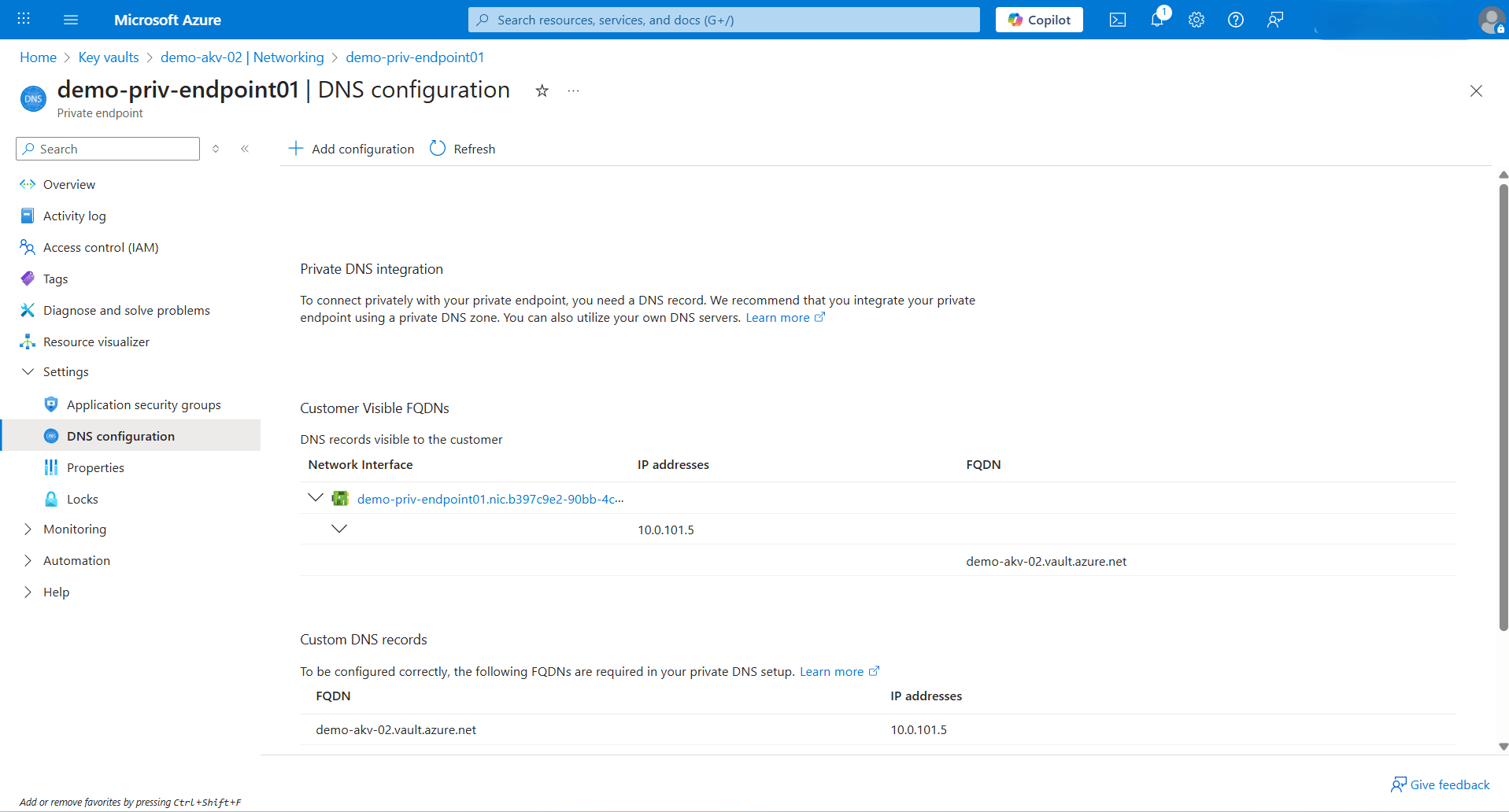
- From the left menu, expand the Settings section, and then select DNS configuration. Note the FQDN and IP addresses information.
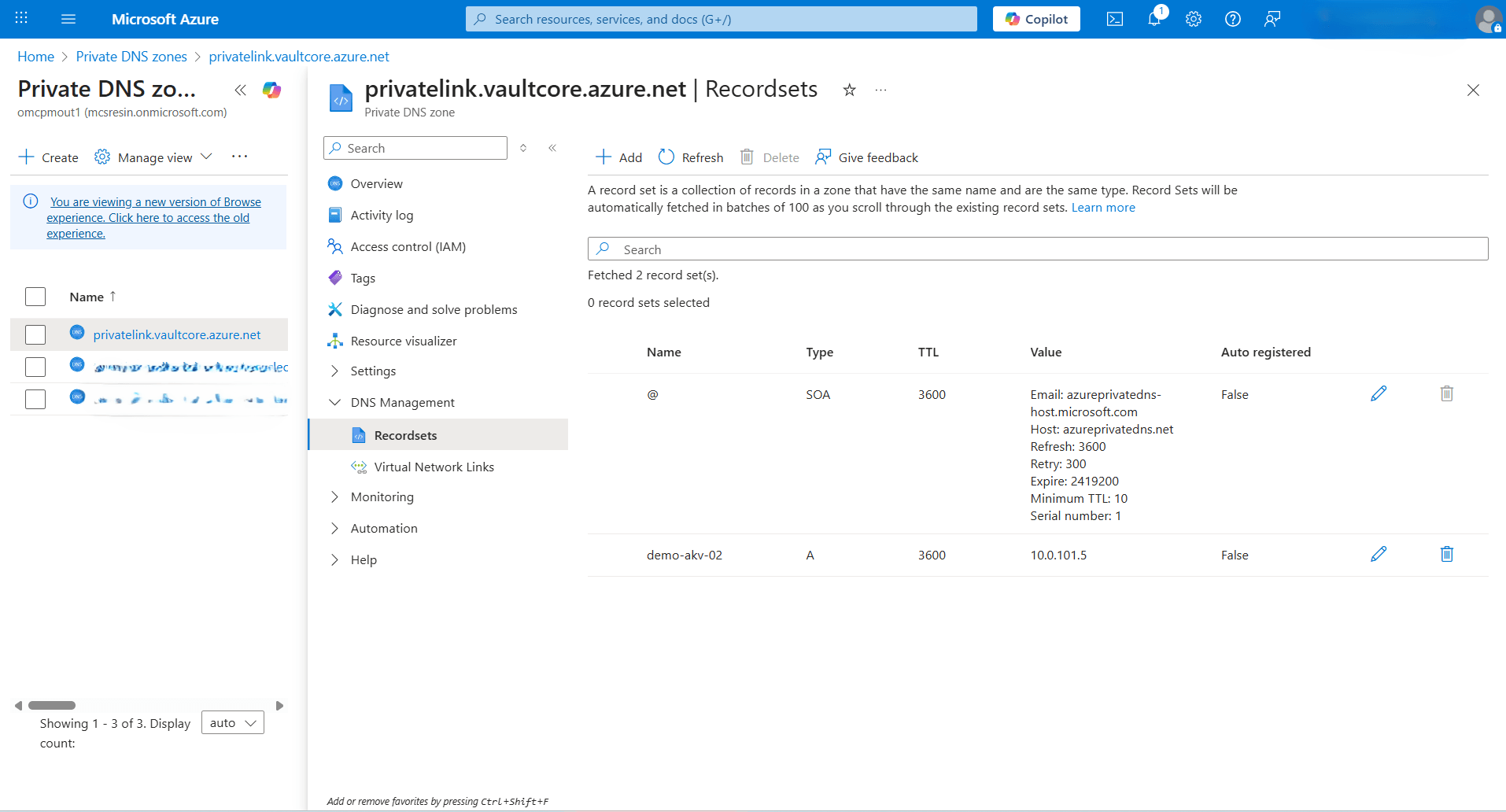
- Navigate to Azure portal and then select Private DNS zones.
- From the list, select the
privatelink.vaultcore.azure.netDNS zone. Expand the DNS Management section, and then select Recordsets. - Note the A record created for Azure Key Vault.
- Add Private DNS Zones in OCI
- From the OCI console, select Oracle AI Database, and then select Autonomous AI Database.
- From the list, select your Autonomous AI Database.
- Navigate to Network section, and then select Virtual Cloud Network.
- From the Details tab, select DNS Resolver link.
- From the Private resolvers page, select the Default private view link..
- In the Private view page, select the Private zones tab.
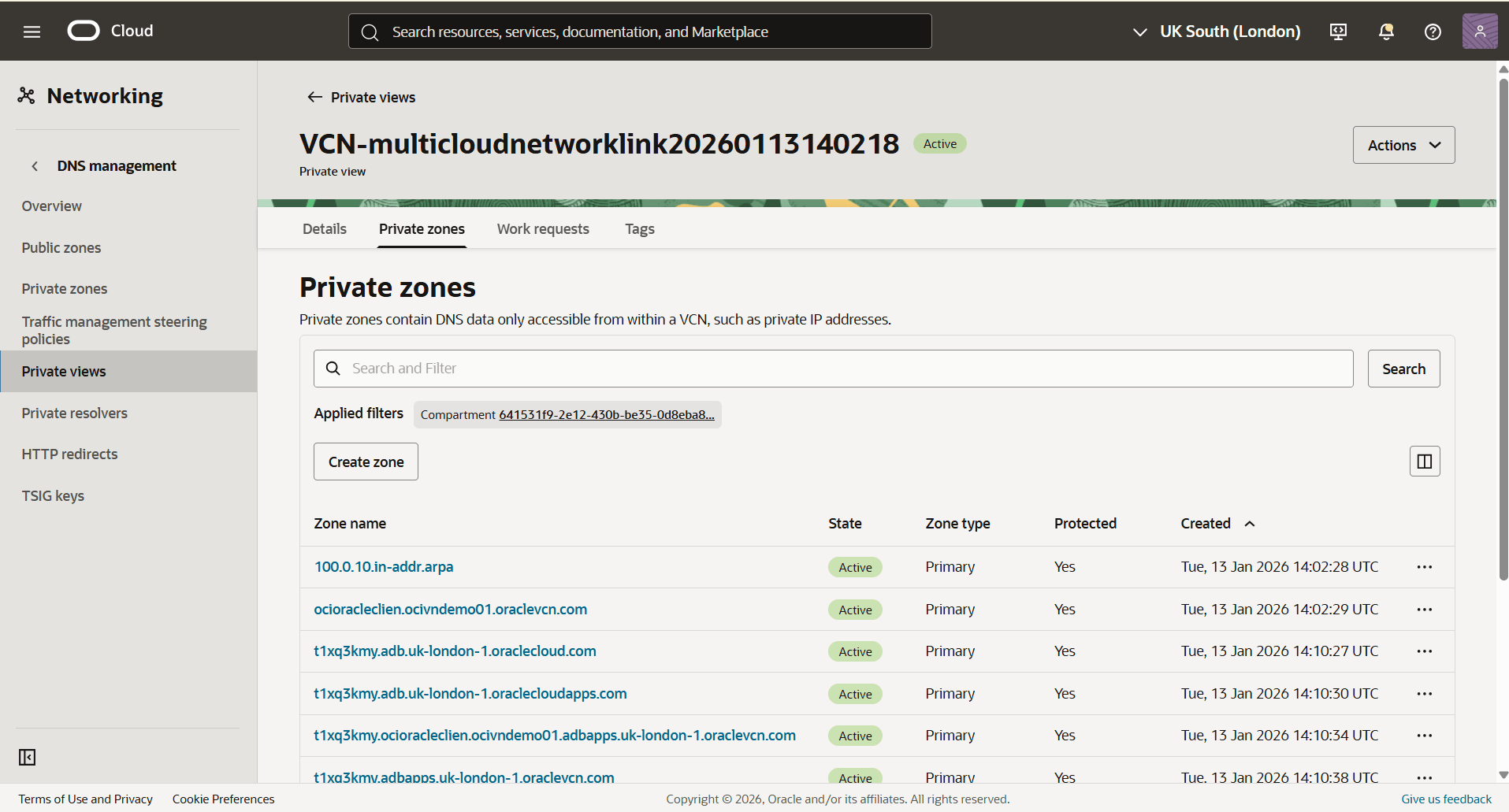
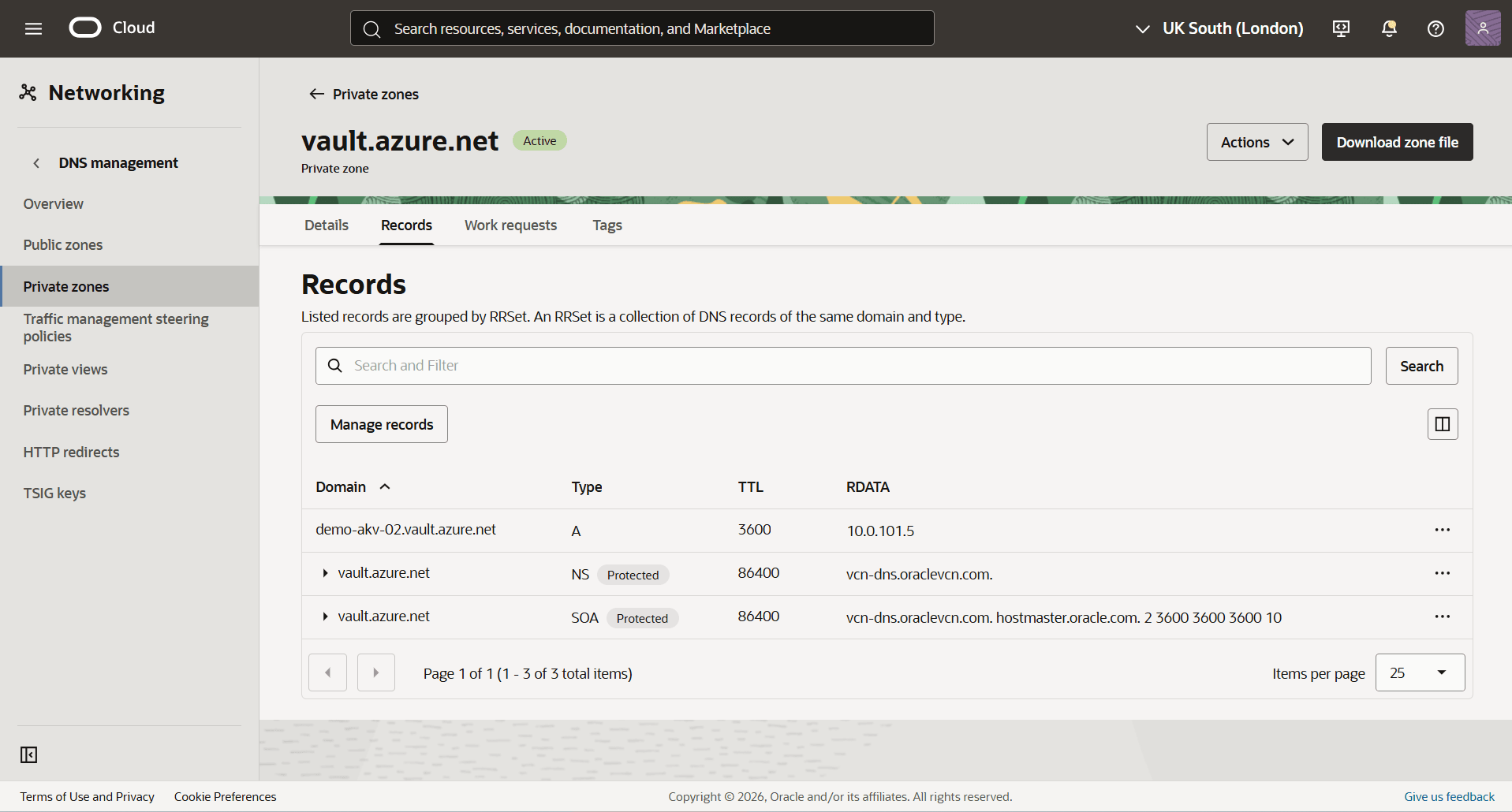
- In the Private Zones section, select the Create zone button to create the first private zone.
- The Zone type field is set to Primary by default.
- Enter a descriptive Zone name. Select the zone name that matches the domain FQDN copied in the previous step. For example,
vault.azure.net. - From the dropdown list, select the Compartment in which you want to create a private zone.
- The Tags section is optional.
- Select the Create.
- Select the Zone name field of the zone created previously, and then select the Records tab.
- Select the Manage records button.
- From the Manage records page, select the Add record button.
- For the Name field, enter the FQDN name that you noted previously.
- Select the A- IPv4 address option as your Type.
- Adjust the TTL in seconds based on your requirements.
- Select your RDATA mode.
- In the Address field, enter the IP address that you noted previously, then select the Save changes button.
- Select the Review changes button, then select the Publish Changes button.
- To create a second zone, select the Create zone button.
- The Zone type field is set to Primary by default.
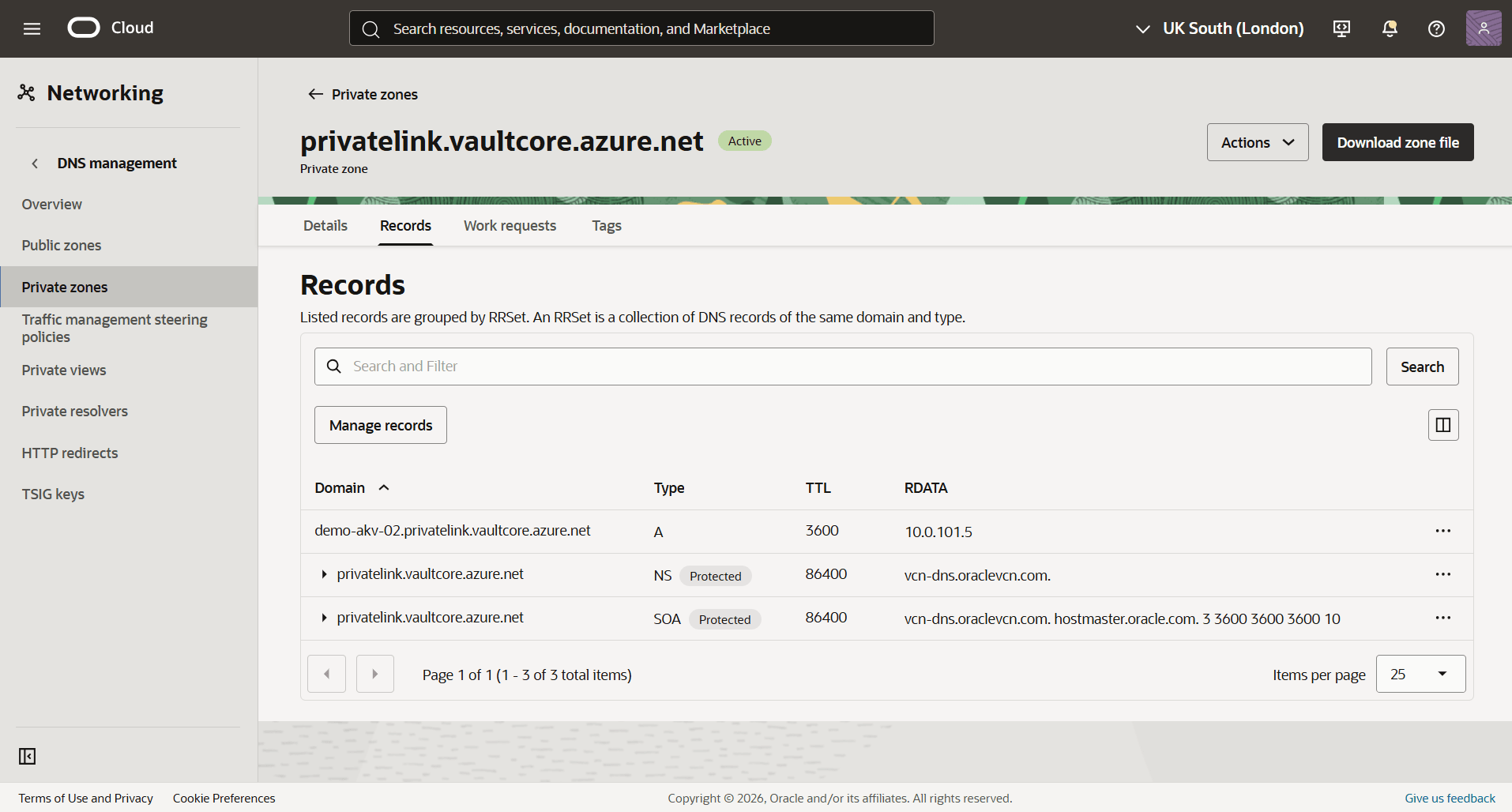
- In the Zone name field, enter a zone name based on your Private DNS Zone domain. For example,
privatelink.vaultcore.azure.net. - From the dropdown list, select the Compartment in which you want to create a private zone.
- The Tags section is optional.
- Select the Create button.
- Select the Zone name field of the zone created previously, and then select the Records tab.
- Select the Manage records button.
- From the Manage records page, select the Add record button.
- For the Name field, enter your Azure Private zone record set name.
- Select the A- IPv4 address option as your Type.
- Adjust the TTL in seconds based on your requirements.
- Select your RDATA mode.
- In the Address field, enter the IP address that you noted previously, then select the Save changes button.
- Select the Review changes button, then select the Publish Changes button.
- Enable Azure Service Principal Authentication
- Obtain your Microsoft Azure Active Directory tenant ID
- From the Azure portal, select Key vaults.
- Select the Name field of the Key vault that you want to use.
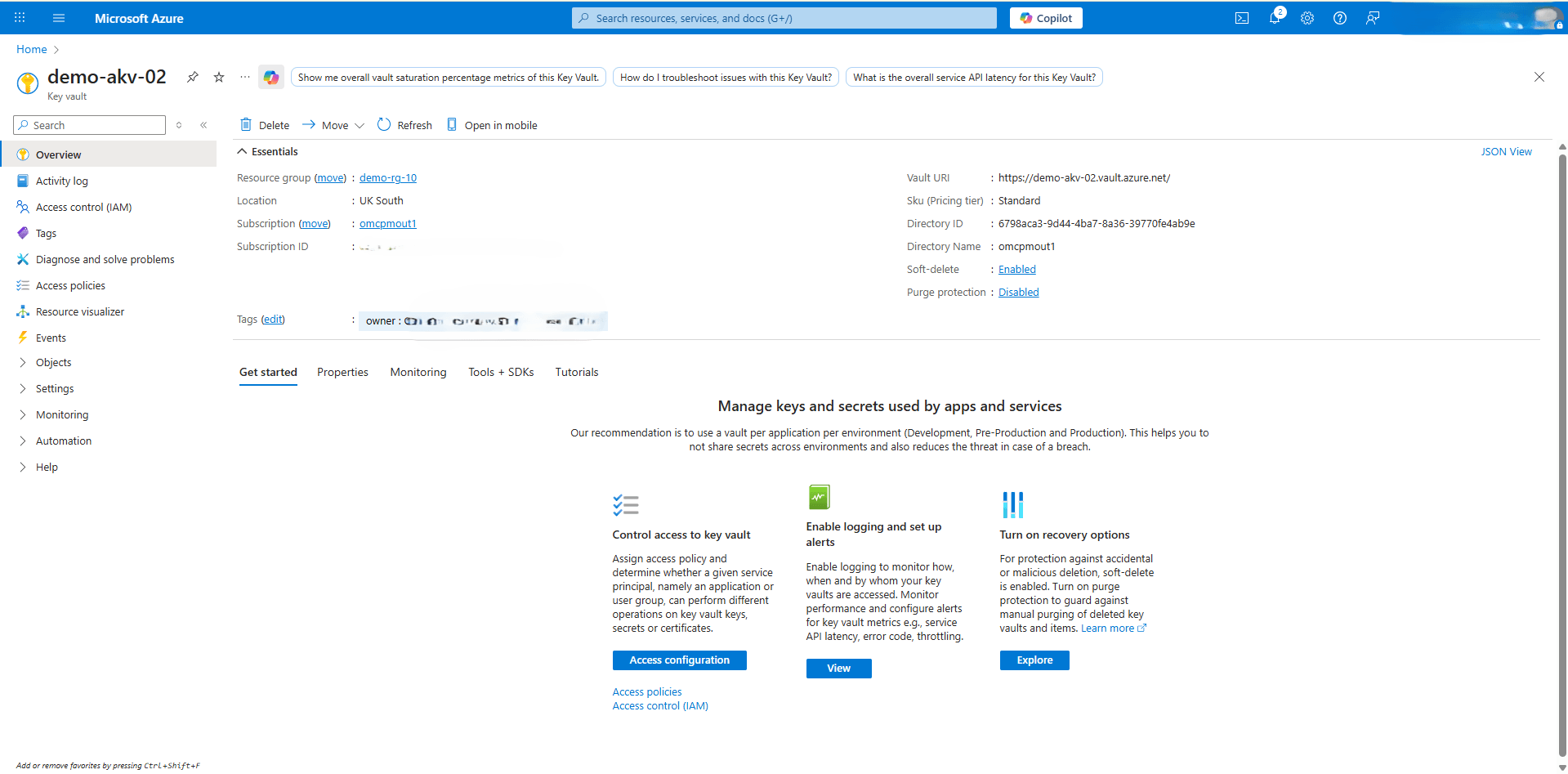
- From the Overview page, navigate Essentials section to identify to note of the Directory ID.
- Connect to Autonomous AI Database with the ADMIN user.
Note
To connect to Autonomous AI Database, you need to use a SQL client tool such as SQL*Plus or Oracle AI Database actions. - Enable the Azure service principal using the
DBMS_CLOUD_ADMIN.ENABLE_PRINCIPAL_AUTHsubprogram, and replace the<azure_directoryID>with Directory ID copied in the previous step.BEGIN DBMS_CLOUD_ADMIN.ENABLE_PRINCIPAL_AUTH( provider => 'AZURE', params => JSON_OBJECT('azure_tenantid' value '<azure_directoryID>')); END; /This enables the Azure service principal authentication and creates an Azure application for Autonomous AI Database on the Azure portal. For more information, see Enable Azure Service Principal.
- Obtain your Microsoft Azure Active Directory tenant ID
- Provide the Azure Application Permission to Access the Azure Resources
- Execute the following query in your Autonomous AI Database.
SELECT * FROM CLOUD_INTEGRATIONS;

PARAM_NAME        PARAM_VALUE
--------------- ------------------------------------------------------------------------------------------------------------------------------------------
azure_tenantid    29...eb
azure_consent_url https://login.microsoftonline.com/f8...5a/oauth2/v2.0/authorize?client_id=d4f5...d5&response_type=code&scope=User.read
azure_app_name    ADBS_APP_OCID1.AUTONOMOUSDATABASE...
Note
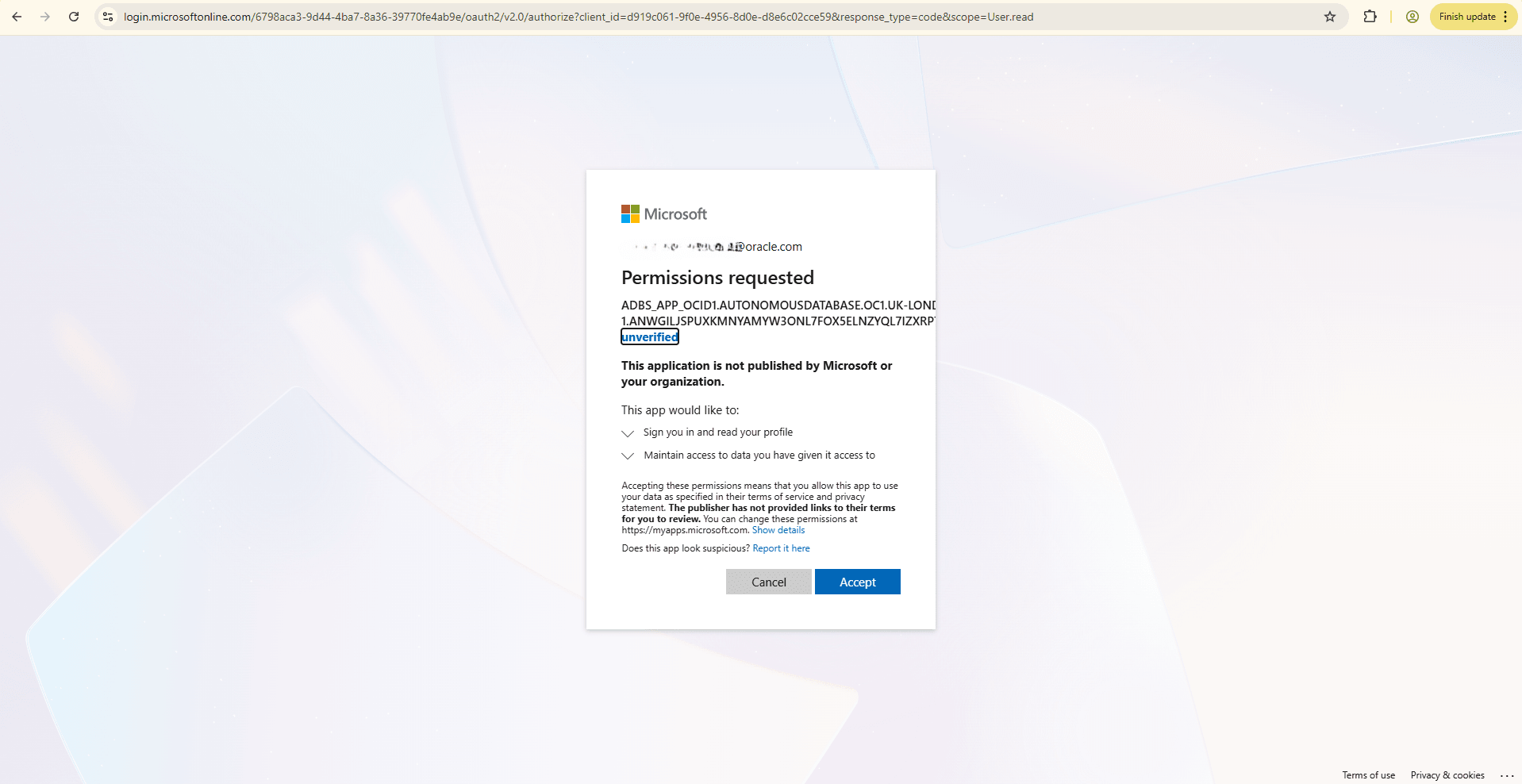
The view CLOUD_INTEGRATIONS is available to the ADMIN user or to a user with DWROLE role. - In a browser, open the Azure consent URL specified by the
azure_consent_urlparameter then select the Accept button. - The Permissions requested page opens and shows a consent request, similar to the following screenshot.
Note
The Application Administrator and Application Developer roles are required to consent the permissions and view the application within the Azure Portal. - Execute the following query in your Autonomous AI Database.
- Obtain the Azure Application ID
- Execute the following query in your Autonomous AI Database.
SELECT * FROM CLOUD_INTEGRATIONS; PARAM_NAME PARAM_VALUE --------------- ------------------------------------------------------------------------------------------------------------------------------------------ azure_tenantid 29...eb azure_consent_url https://login.microsoftonline.com/f8...5a/oauth2/v2.0/authorize?client_id=d4f5...d5&response_type=code&scope=User.read azure_app_name ADBS_APP_OCID1.AUTONOMOUSDATABASE... - Copy the client_id value included in the consent_url.
For example:
https://login.microsoftonline.com/f8...5a/oauth2/v2.0/authorize?client_id=d4f5...d5&response_type=code&scope=User.read - From the Azure portal, search for the client_id. The application ID is displayed under Microsoft Entra ID.
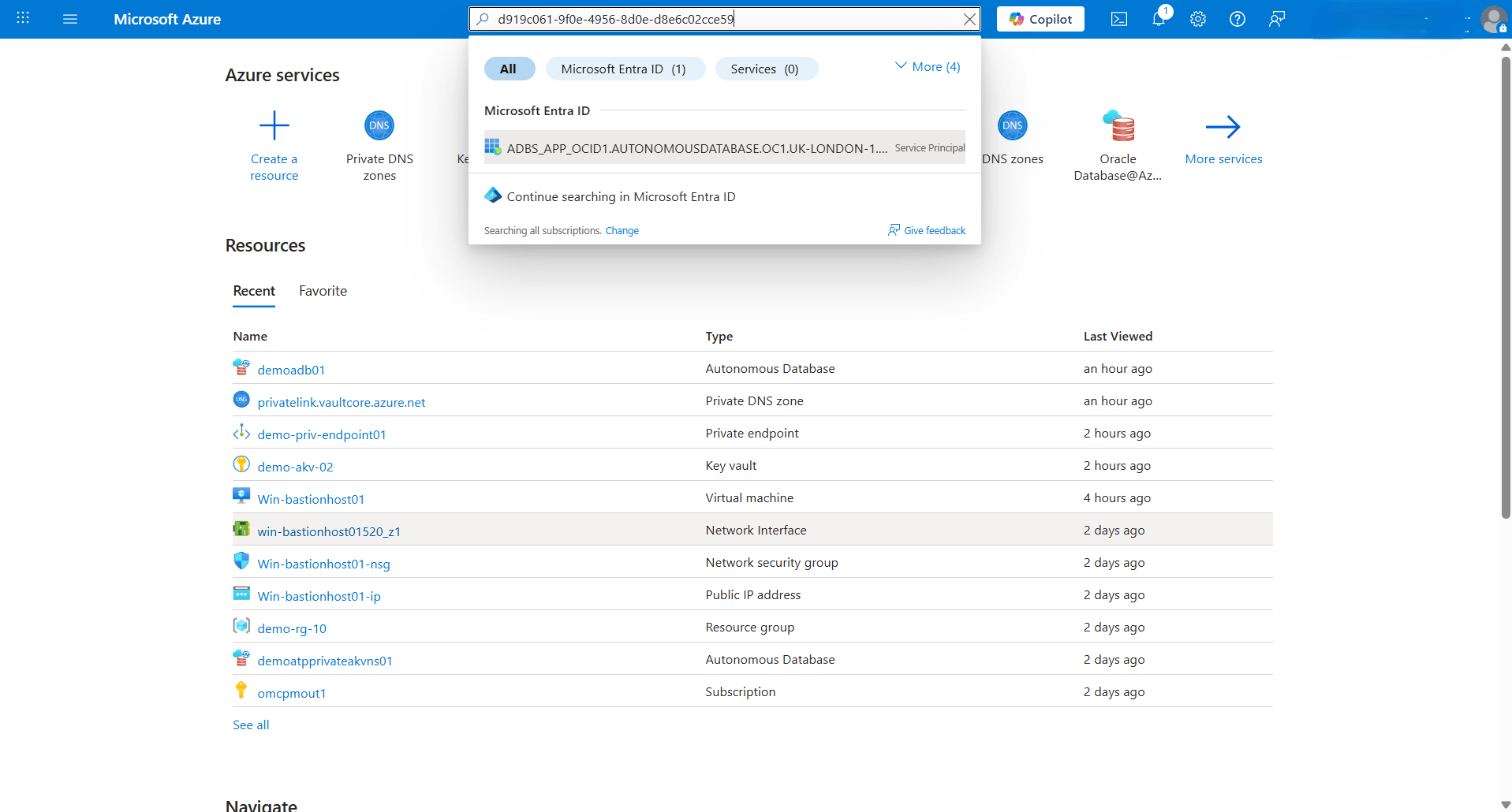
- Note the application id value. This value is required for the following steps to allow the application to access keys in the Azure Key Vault.
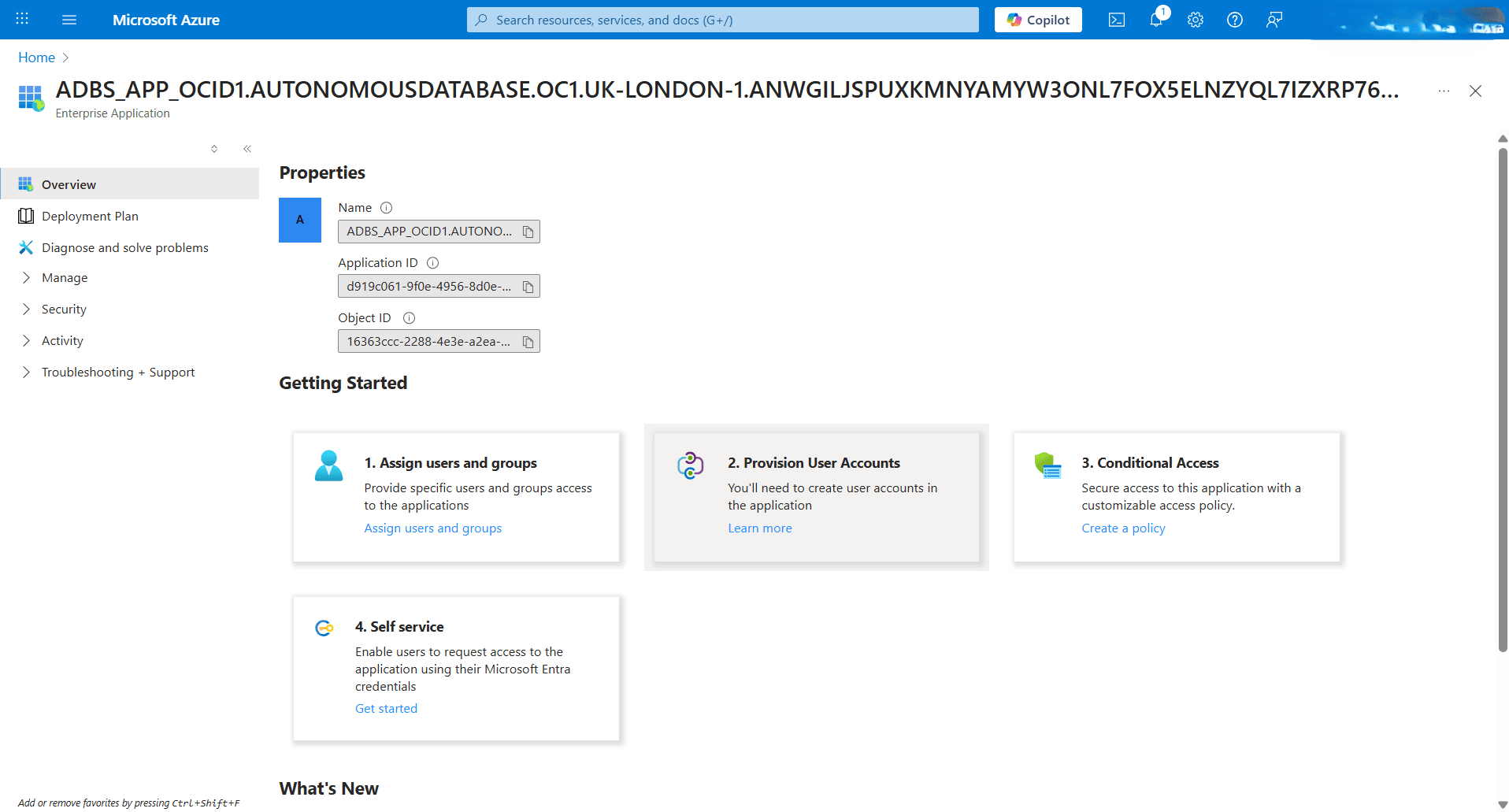
- Execute the following query in your Autonomous AI Database.
- Assign the Roles for the Azure Application to Access Azure Key Vault
- From the Azure portal, select Key vaults, and then select the Name field of the key vault that you want to use.
- From the left menu, select Access policies.
- Select the Create button.
- From the Create an access policy page, select the Permissions tab. Select Get and List permissions located under the Key Management Operations section, and then select the Next button.
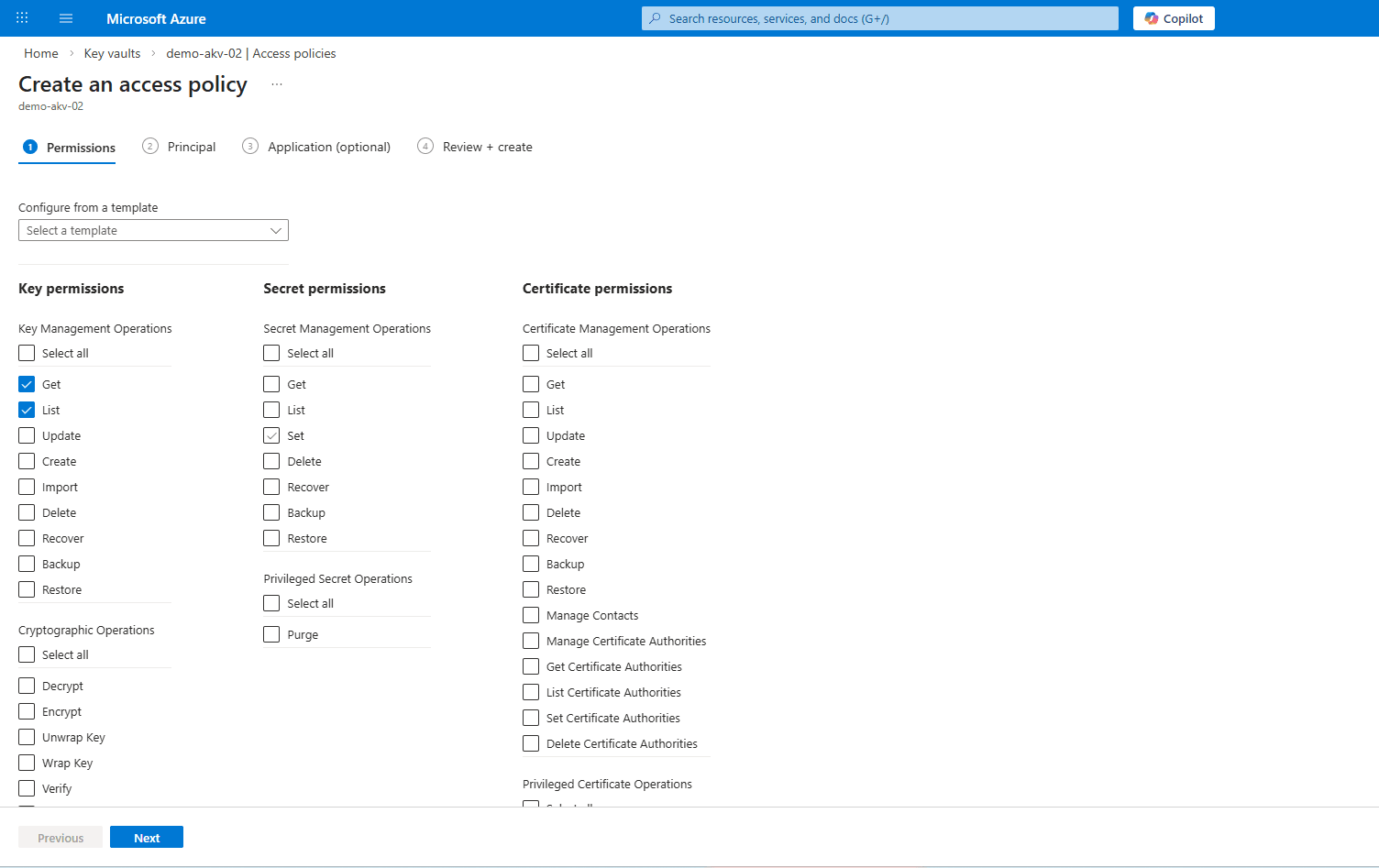
- From the Principal tab, complete the following substeps:
- Paste the application id that you copied in the previous step, and then select ADBS_APP.
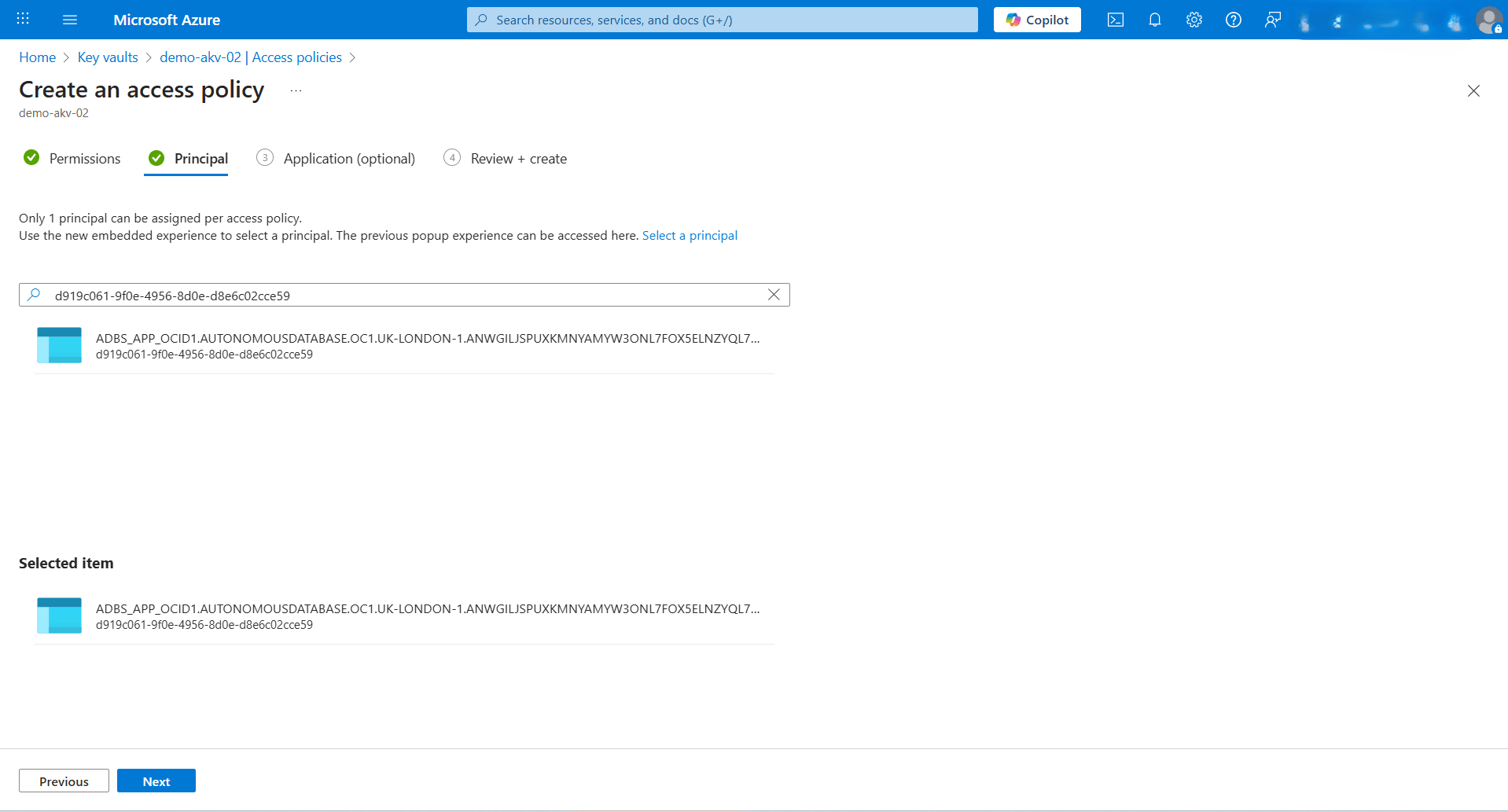
- Select the Next button.
- Paste the application id that you copied in the previous step, and then select ADBS_APP.
- The Application (optional) section is optional. Select the Next button.
- From the Review + create section, verify your configuration, and then select the Create button.
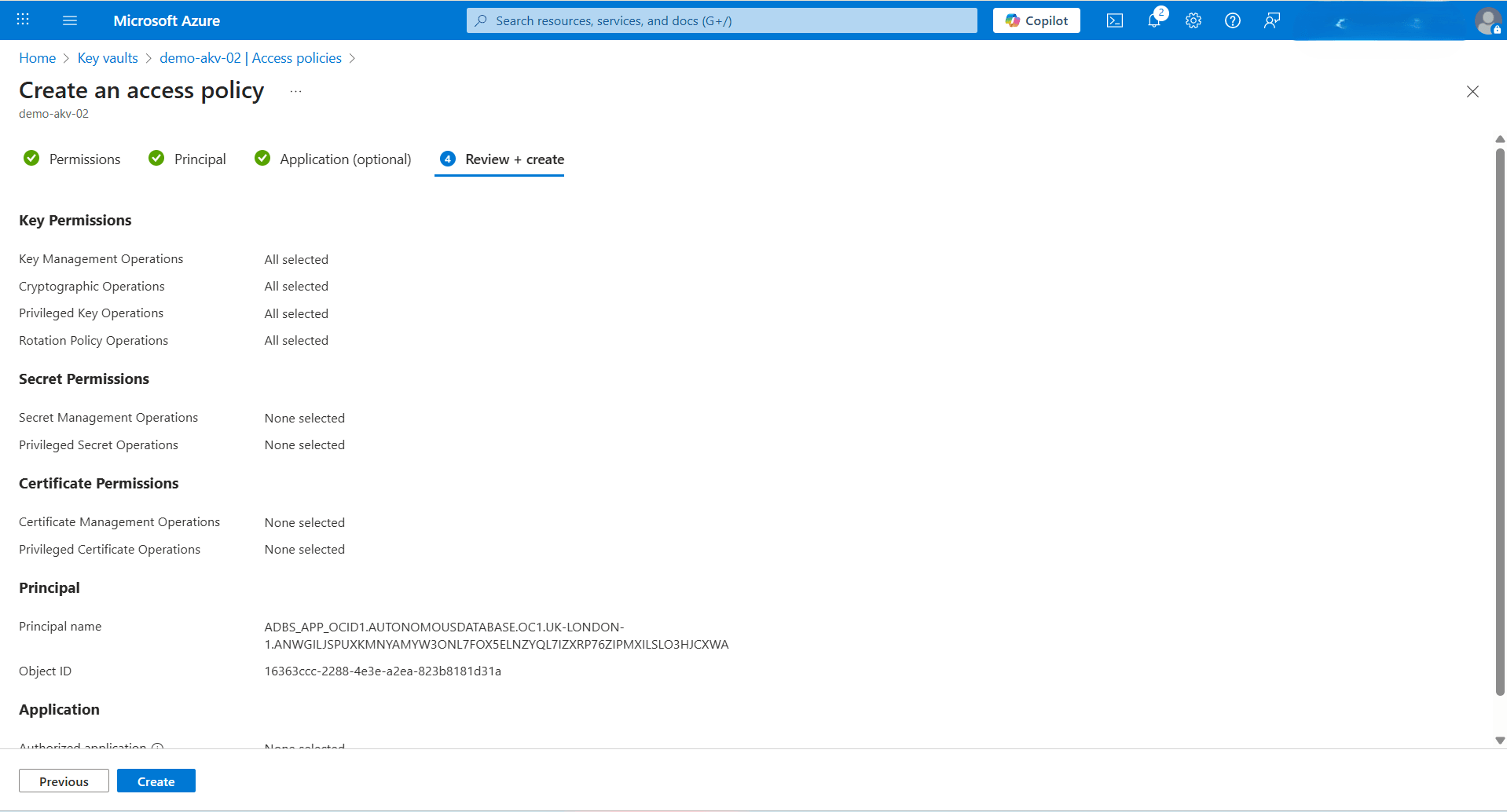
- From the Key Vault page, select the Refresh button and search for the application name. It is included in the list of applications that have permission to access keys in this Azure Key Vault.
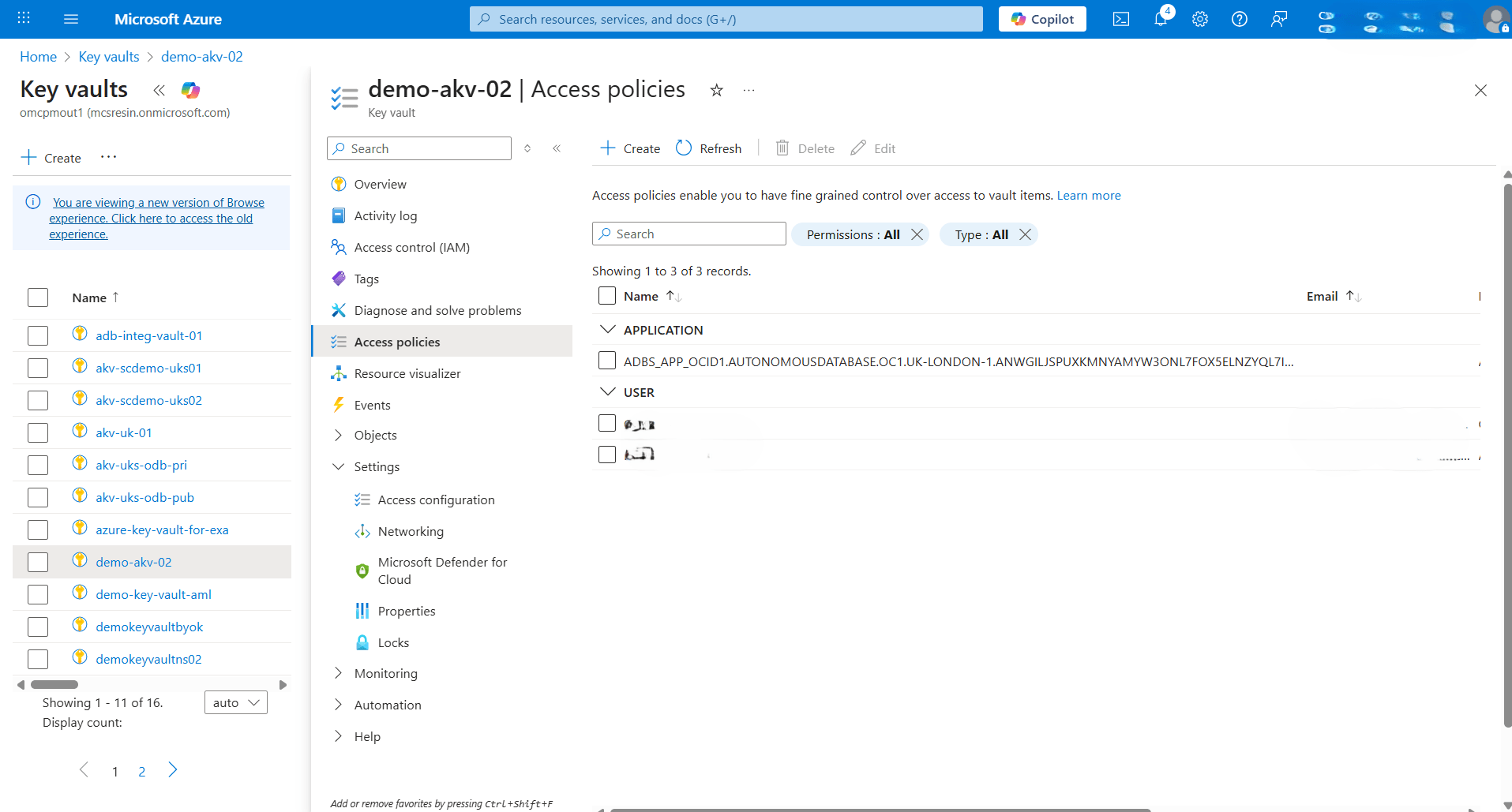
- From the Create an access policy page, select the Permissions tab. Select Get and List permissions located under the Key Management Operations section, and then select the Next button.
- Enforce Network Routing to Use Private Endpoint
- Connect to Autonomous AI Database with the ADMIN user.
- Enforce network routing using private endpoint by running the following command:
alter database property set route_outbound_connections = 'enforce_private_endpoint'; - Verify the changes by executing the following command:
SELECT * FROM DATABASE_PROPERTIES WHERE PROPERTY_NAME = 'ROUTE_OUTBOUND_CONNECTIONS';
Note
If you need to unset the database to use public endpoint instead of private endpoint, use the following command:alter database property set route_outbound_connections = ''; - Modify an Autonomous AI Database to Use Azure Key Vault
- From the OCI console, select Oracle AI Database, and then select Autunomous AI Database.
- Select the Display name field of your Autonomous AI Database.
- Select the More action button, then choose the Manage encryption key option.
- Choose the Encrypt using a customer-managed key option.
- From the dropdown list, select Microsoft Azure as your Key type.
- Enter the Vault URI of your Azure Key Vault. For more information, see the Obtain the Azure Key Vault URI section described in the CMK - AKV tab of the Prerequisites documentation.
- Enter the Name of the Azure Key Vault that you want to use.
- Select the Save button.
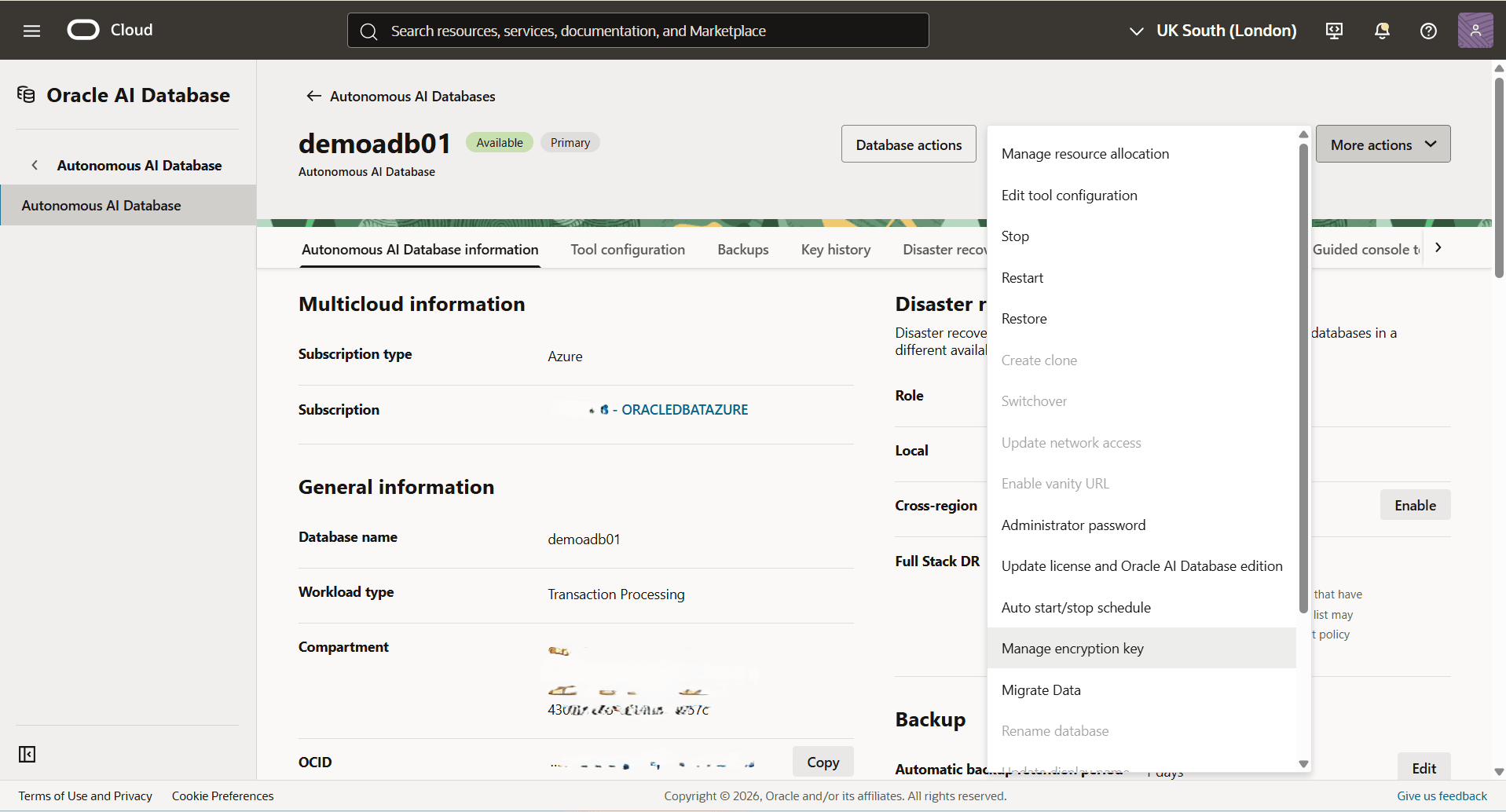
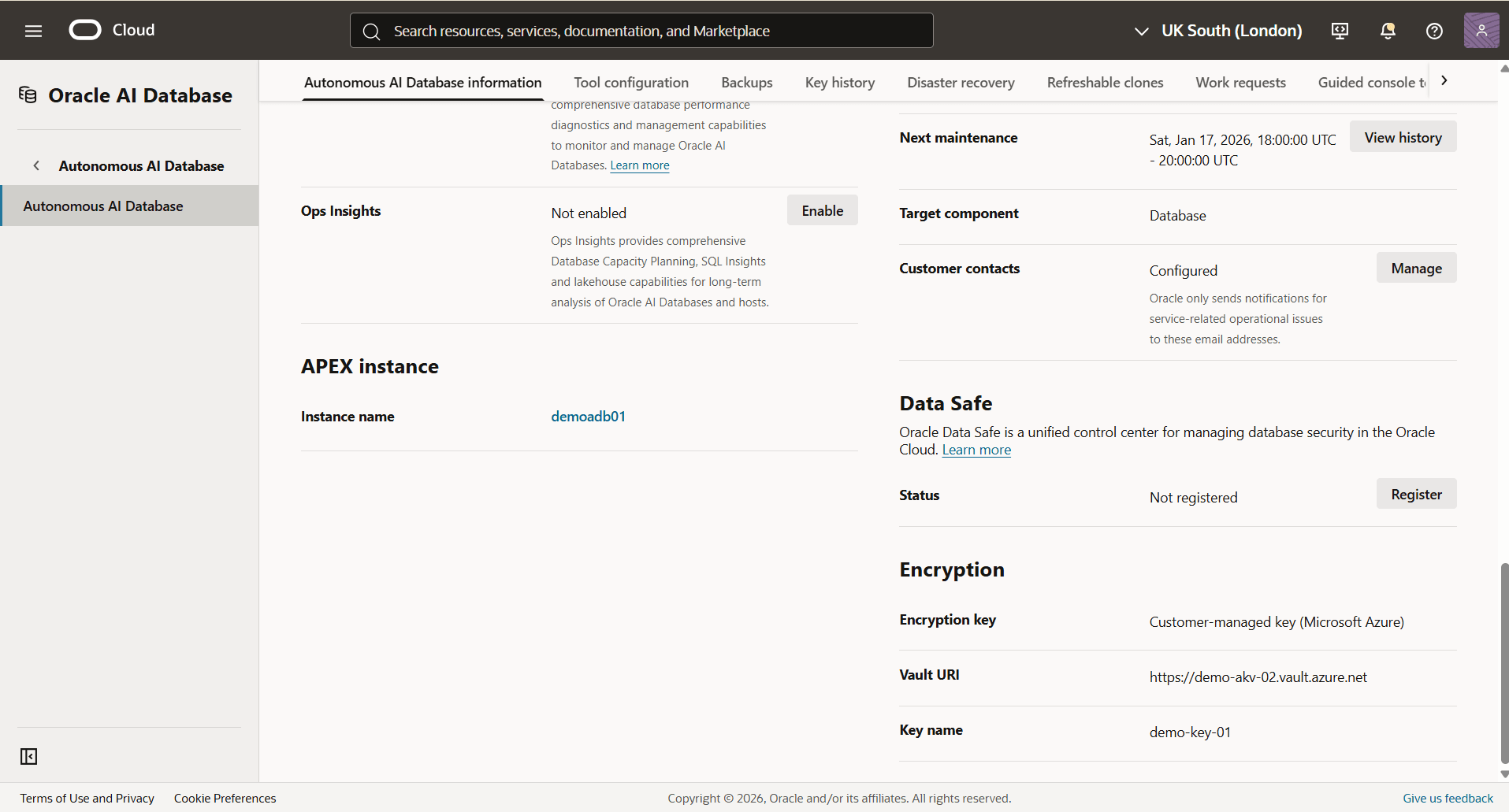
- To validate your encryption detail, see the View Encryption Details section for step-by-step instructions in the OMK - Oracle Wallet tab.
- In the Encryption section, you can view the Encryption key details which is set to Customer-managed key (Microsoft Azure)