Autonomous AI Database
This topic describes the steps required to connect to an Autonomous AI Database from a Jump Box (Google Cloud VM instance).
Configuring Network Security Group (NSG) and connection to Google Cloud VM instance are prerequisites for connecting to Autonomous AI Database.
- Obtain Autonomous AI Database Wallet
- From the Google Cloud console, navigate to Autonomous AI Database, and then select your Autonomous AI Database from the list.
- From the Autonomous AI Database Details page, select the Connections tab.
- From the Download client credentials (Wallet) section, select the Download Wallet button.
- Enter a wallet password in the Password field and confirm the password in the Confirm password field.
- Select the Download button to save the client security credentials as zip file. By default the file name is:
Wallet_databasename.zip. You can save this file as any file name you want.
- Connect Oracle SQL Developer to Autonomous AI Database
- Upload the
Wallet_databasename.zipfile to Jump Box. - On Jump Box, launch the SQL Developer application, and then select the + icon to create a new database connection.
- To configure SQL Developer, complete the following substeps:
- In the Name field, enter a descriptive name to use for this database connection.
- From the Database Type dropdown list, select Oracle.
- In the Username field, enter the name of the user for whom this database connection is being created. For example, you can enter ADMIN.
- In the Password field, enter the password of the user.
- In the Role field, select the default role to assign it to the user.
- Select the Save Password checkbox if your security rules allow.
- In the Connection Type field, select the Cloud Wallet option as your database connection type.
- In the Configuration File field, select the Browse button to select
Wallet_databasename.zipfile. - In the Service dropdown list, select your service to use for this connection.
- Select the Test button to validate connection to the database.
- Once the connection is successful, the Status will change to Success.
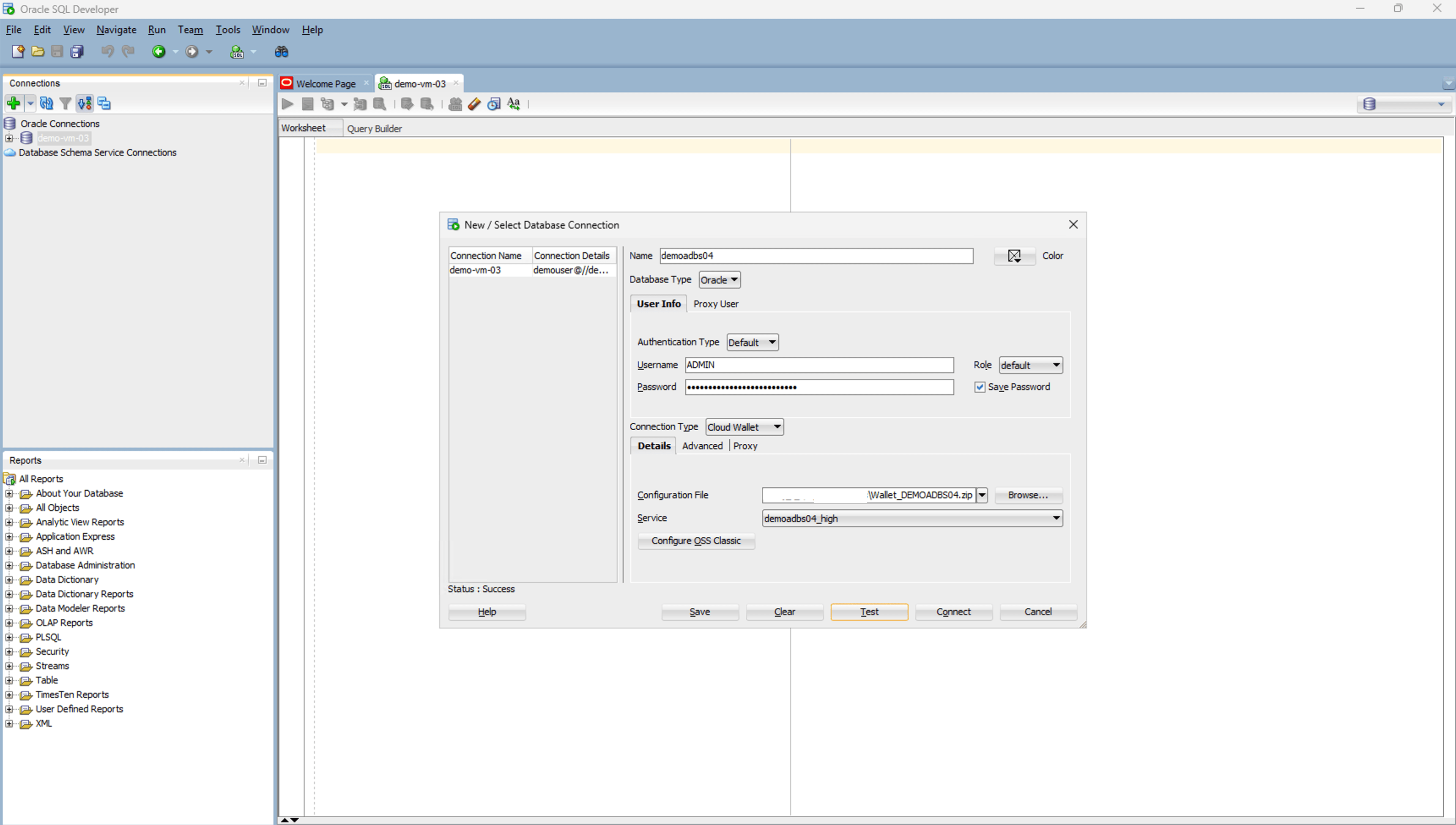
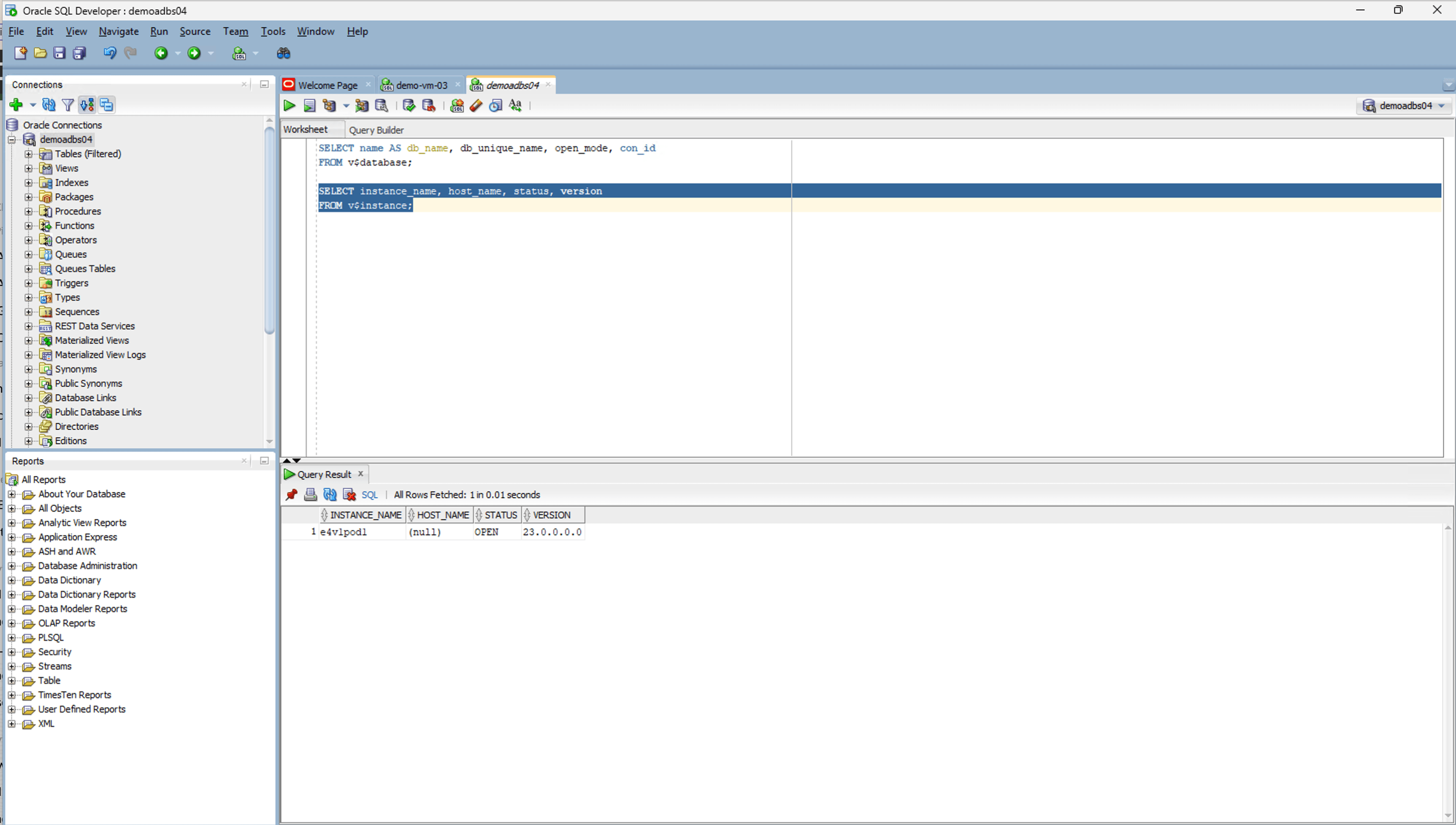
- Select the Save button, and then select the Connect button.
- Upload the