Configure
This topic explains the required steps to establish secure connectivity between your Google Cloud Virtual Private Cloud (VPC) and the Oracle AI Database@Google Cloud (ODB) network, including DNS resolution configuration. It also outlines the connectivity prerequisites for Oracle AI Database@Google Cloud Cloud deployments running Oracle Exadata Database and Exadata VM Cluster, Oracle Exascale Database and Oracle Exascale VM Cluster, Oracle Autonomous AI Database, and Oracle Base Database and Oracle Base Database VM.
Jump Box
A Jump Box virtual machine is required to connect to Oracle AI Database@Google Cloud resources that are configured with private IP addresses.
- Create Windows VM Instance
- SSH Connection
- Database Connection with GUI
Create Windows VM Instance
- From the Google Cloud console, navigate to the Details page for your Oracle AI Database@Google Cloud resources. For example, Exadata Database or Exascale Database.
- Scroll down to the Network section, and then select the ODB network link.
- From the ODB network details page, select the Details tab, and then Select the Associated VPC network link.
- From the VPC network details page, select the Subnets tab and then select the + Add subnet button to create a new public subnet.
- Once you create your subnet, take a note of subnet details to host a Jump Box for the Oracle Database connectivity.
- Create a new Windows VM Instance in a public subnet within the same VPC peered with ODB Network that contains the Oracle Database.
To connect to the Oracle Database VM using SSH or to establish a database connection, ensure the required tools and libraries are installed before initiating the connection
SSH Connection
SSH library is available on Windows VM and no additional tools are required.
Database Connection with GUI
Download and install Oracle SQL Developer on Windows VM Instance.
Network Security Group (NSG)
To allow ingress traffic, enable the required ports in the Network Security Group for connections from Jump Box to Oracle Database.
Update your NSG to allow ingress traffic from on-premises or the cloud, to connect from the client CIDR or client IP.
SSH Connection
For SSH connectivity, ensure that TCP protocol port 22 is enabled for ingress traffic originating from the subnet CIDR that contains the Virtual Machine (VM) instance.
If default NSG rule (Ingress all TCP from Jump Box subnet) exists which allows port 22 from Jump Box, then you do not need to configure new rules.
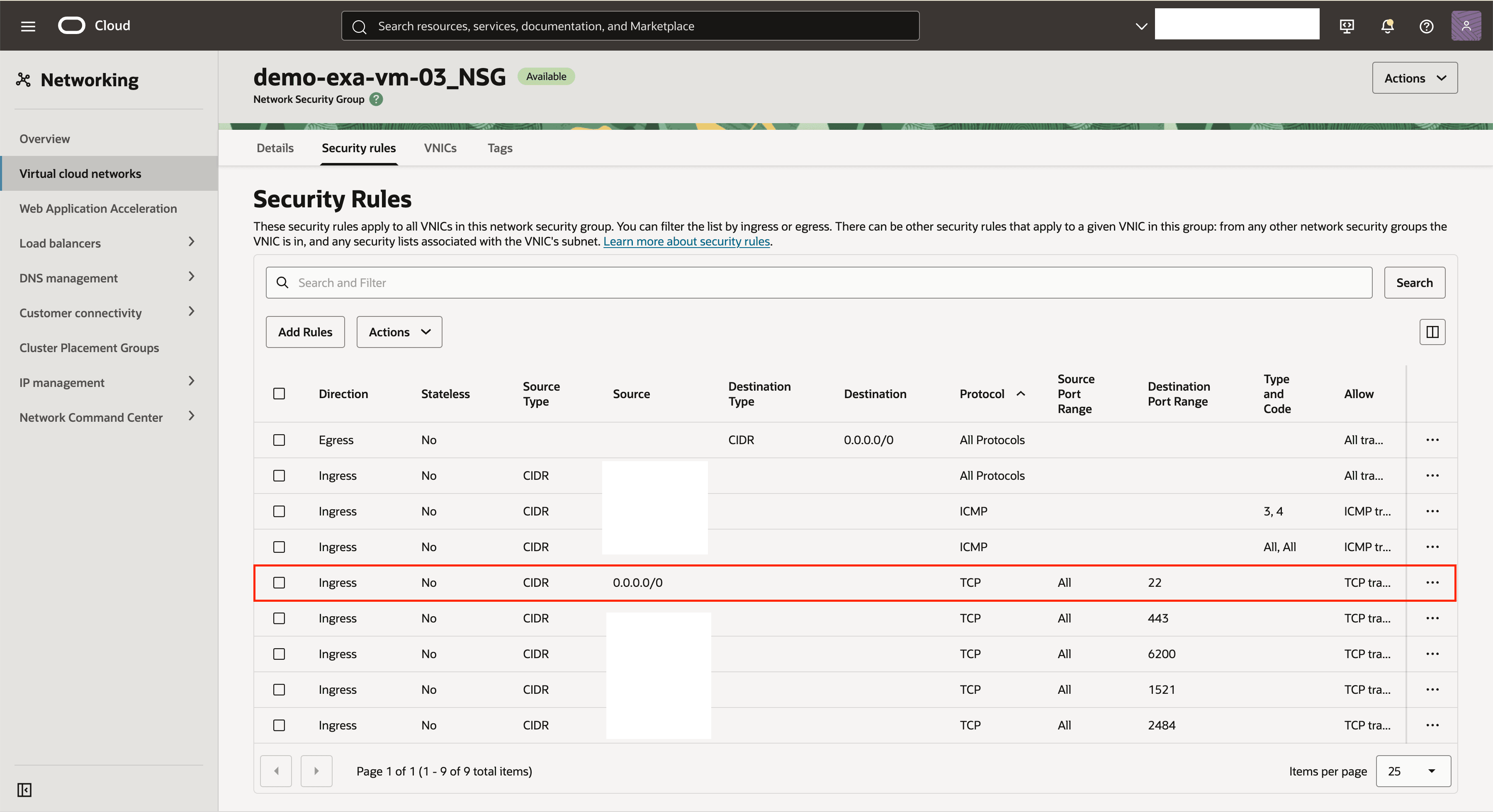
Add Ingress TCP 22 Port Rule (Optional)
These steps describe how to add an ingress rule to allow TCP port 22.
- On Google Cloud Console, navigate to Oracle AI Database@Google Cloud resources such as Exadata Database or Exascale Database, and then select the Details of the resource.
- Select the Manage in OCI link.
- Select the Client network security groups link from the Network section in OCI Console.
- Switch to the Security rules tab.
- Select the Add Rule button, and then enter the following information:
- Select Ingress as Direction.
- Select CIDR as Source Type.
- Enter the CIDR for the Jump Box in the Source CIDR field.
- Select TCP as IP Protocol.
- Select All as Source Port Range.
- Enter 22 (Listener Port) as Destination Port Range.
- In the Description, you can enter a description that helps you to identify it.
For example: Allow SSH Ingress traffic from Jump Box Subnet.
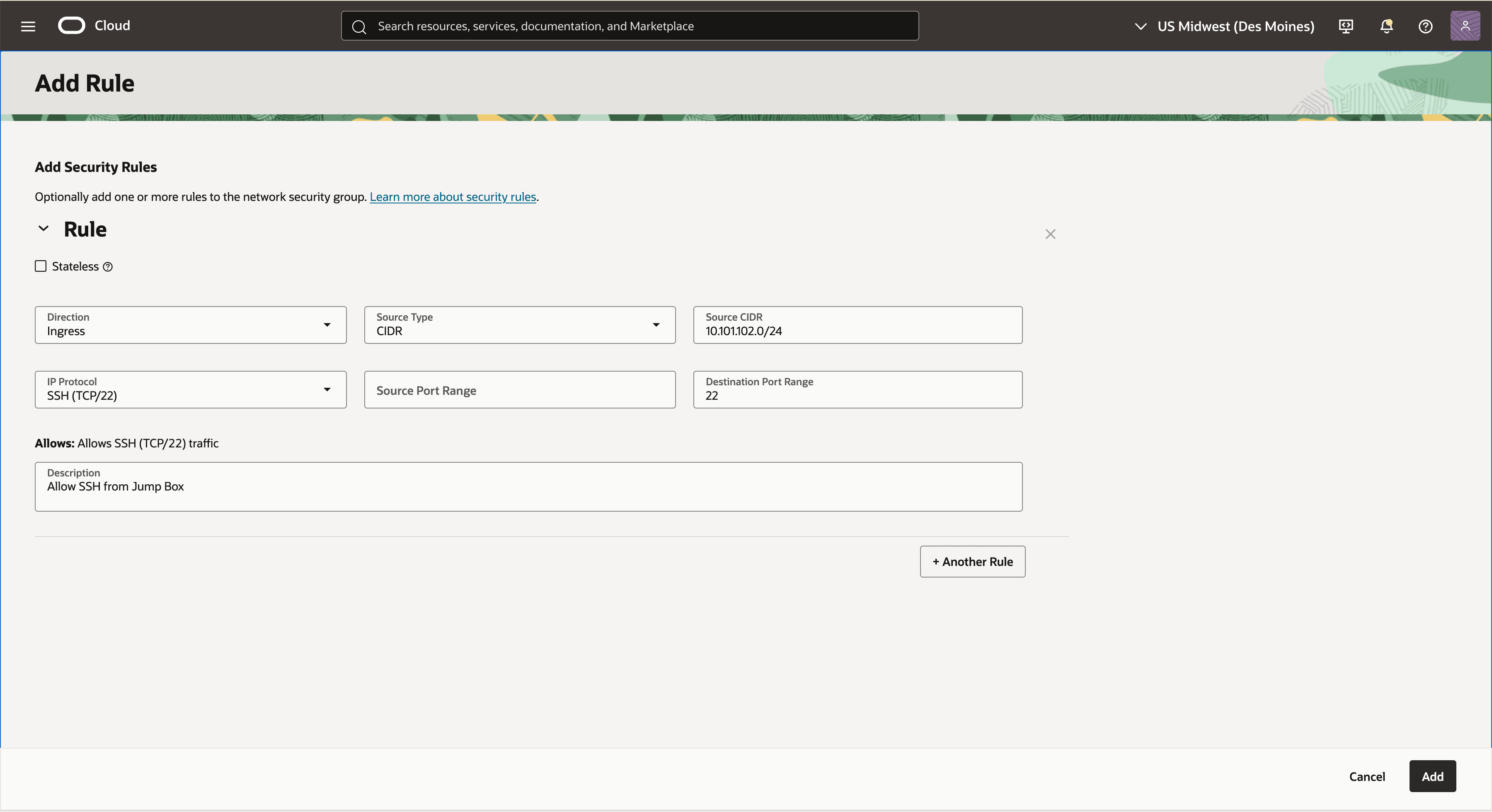
Database Connection
A database connection requires TCP 1521 / TCPS 1522 (ADB-S TLS) port to be enabled to allow ingress traffic from the subnet CIDR that contains Jump Box.
If default NSG rule (Ingress all TCP from any) exists and allows ports 1521 and 1522 from Jump Box, then you do not need to configure new rules.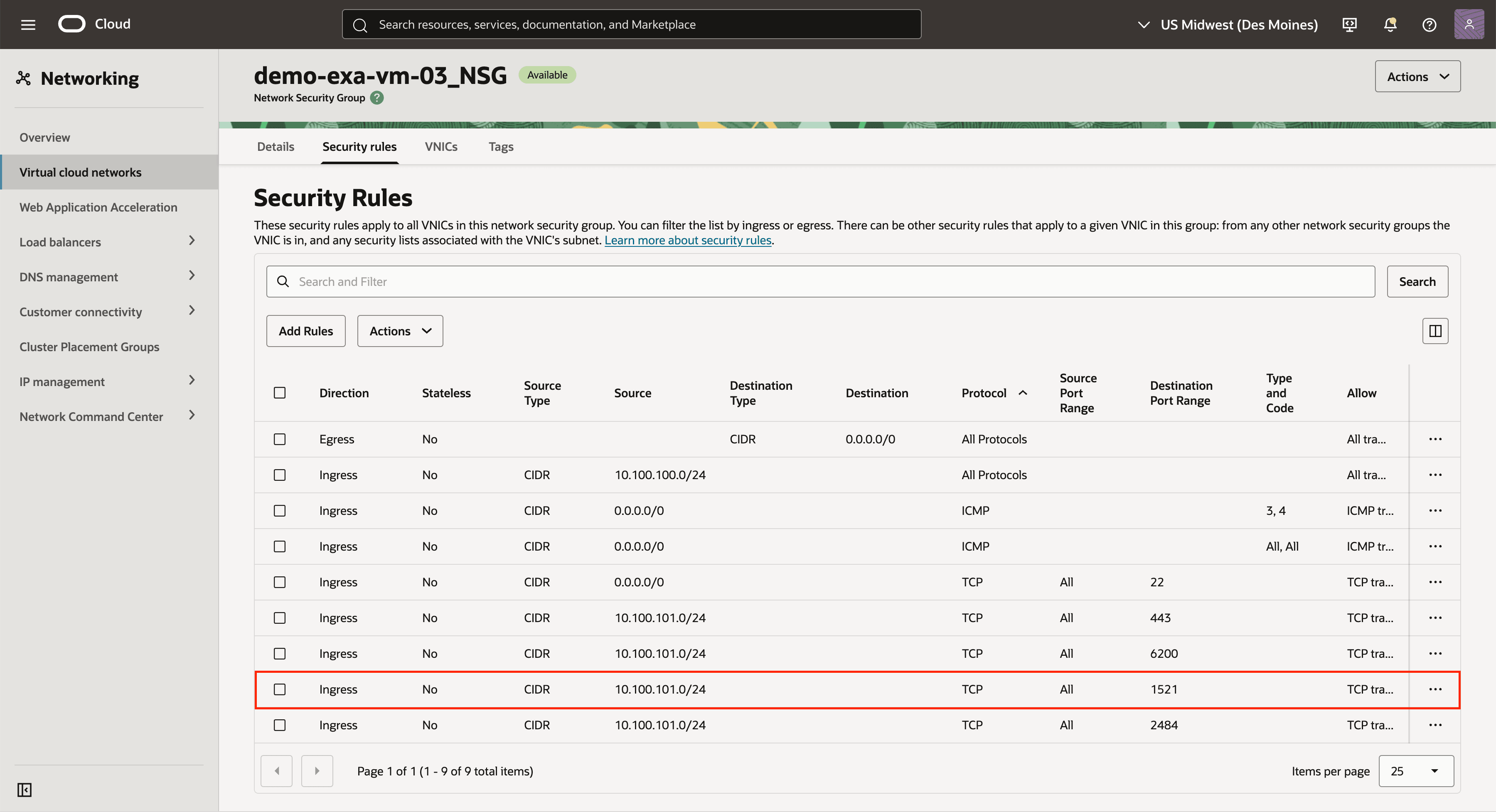
Add Ingress TCP 1521 Port Rule (Optional)
These steps describe how to add an ingress rule to allow TCP port 1521.
- On Google Cloud Console, navigate to Oracle AI Database@Google Cloud resources such as Exadata Database or Exascale Database, and then select the Details of the resource.
- Select the Manage in OCI link.
- Select the Client network security groups link from the Network section in OCI Console.
- Switch to the Security rules tab.
- Select the Add Rule button, and then enter the following information:
- Select Ingress as Direction.
- Select CIDR as Source Type.
- Enter the CIDR for Jump Box in the Source CIDR field.
- Select TCP as IP Protocol.
- Select All as Source Port Range.
- Enter 1521 or 1522 (Listener Port) as Destination Port Range.
- In the Description, you can enter a description that helps you to identify it.
For example: Allow database connection from Jump Box Subnet.
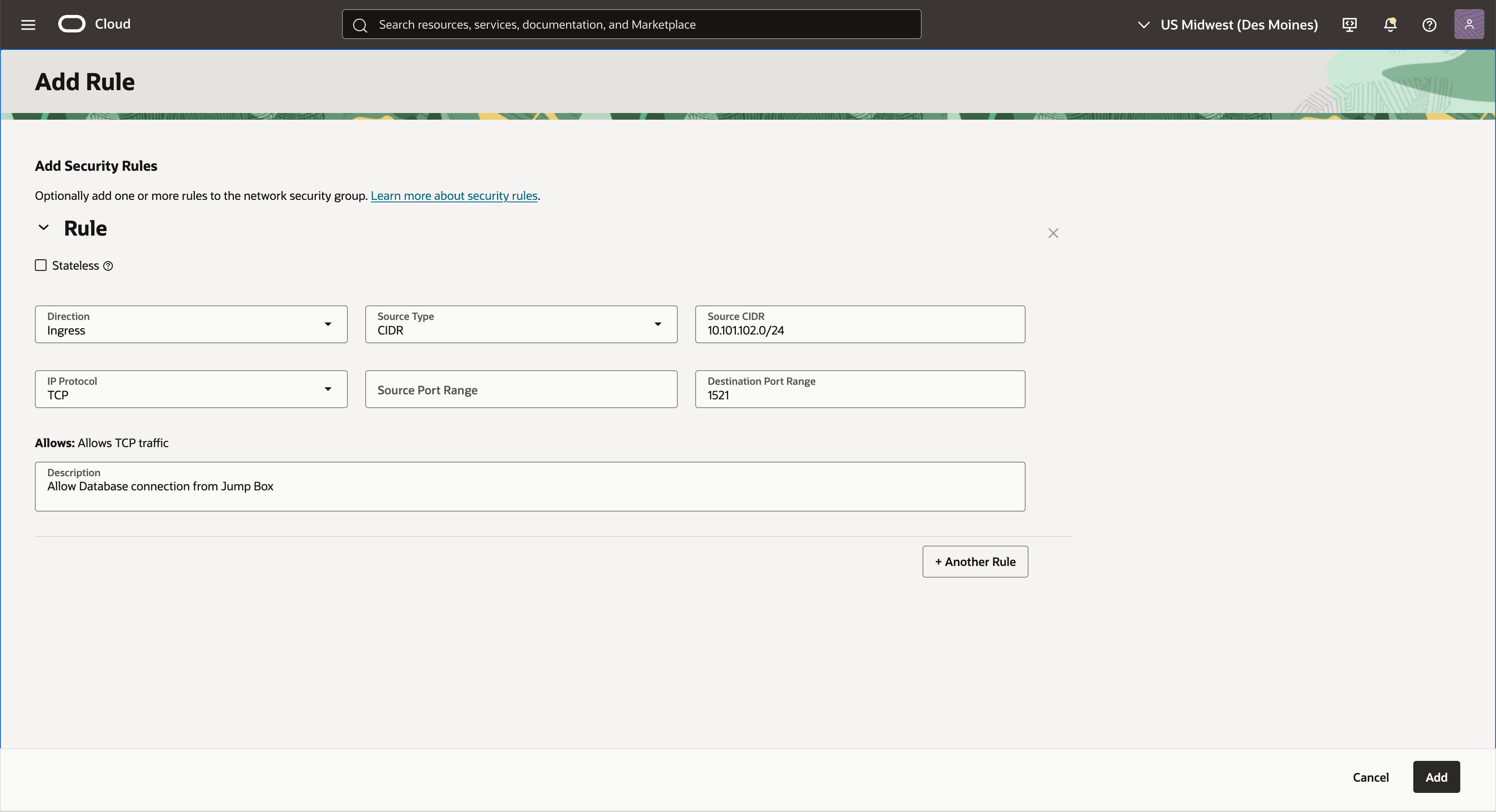
Connect to Jump Box
Connect to the Jump Box to initiate a connection to the Oracle Database VM and Oracle Database.
- From the Google Cloud console, navigate to the created VM instance. page for your Oracle AI Database@Google Cloud resources. For example, Exadata Database or Exascale Database.
- From the Details tab, select the RDP button in the action bar and download the RDP file.
- Follow the steps to sign in. For more information, see Connect to Virtual Machine.
Configure DNS Resolution
This topic describes how to configure DNS to resolve host names and establish secure connectivity between your Google Cloud Virtual Private Cloud VPC and the Oracle AI Database@Google Cloud ODB network.
Prerequisites
Use the configurations detailed below to implement advanced DNS resolution scenarios from Google Cloud to Oracle Cloud Infrastructure (OCI) and to configure DNS forwarding from OCI to Google Cloud.
- Review the DNS section covering the default configuration.
- Obtain the following information:
- Define the domain name or delegated sub-domain for the database resources.
- Obtain the DNS server IP address in GCP or on-premises.
- Ensure that the ODB Network and VPC have connectivity to the listener or DNS server.
- Note
The following use cases are covered:- Creating a custom domain in Google Cloud and a CNAME to the default domain name.
- Creating DNS peering to resolve domain names from a different VPC.
- Create a CNAME Custom Domain Name
To use a canonical name, for example during database migrations, you can configure a CNAME to point to the default domain name. This option is supported for Oracle Exadata Database Service on Dedicated Infrastructure, Oracle Exadata Database Service on Exascale Infrastructure, and Oracle Base Database Service in Oracle AI Database@Google Cloud.
By default, the DNS forwarder is created for Oracle Database resource names. You can create a CNAME record in your Google Cloud DNS private zone that points to the database’s FQDN.
For example, to create a
scan-dnssubdomain such asscan-dns.mydomain.localin Google Cloud DNS, create a CNAME record set that points to the canonical name of the database (*.oraclevcn.com).Prerequisite:
These are the steps to obtain Hostname domain name from the OCI console :- From the Google Cloud Console, select Dedicated Infrastructure and then select the Exadata VM Clusters tab.
- From the list, select your Exadata VM Cluster that you are using.
- Select the Manage in OCI button to open your Exadata VM Cluster in OCI.
- From the VM Cluster information tab, note the Hostname domain name which displays the fully qualified domain name (FQDN).
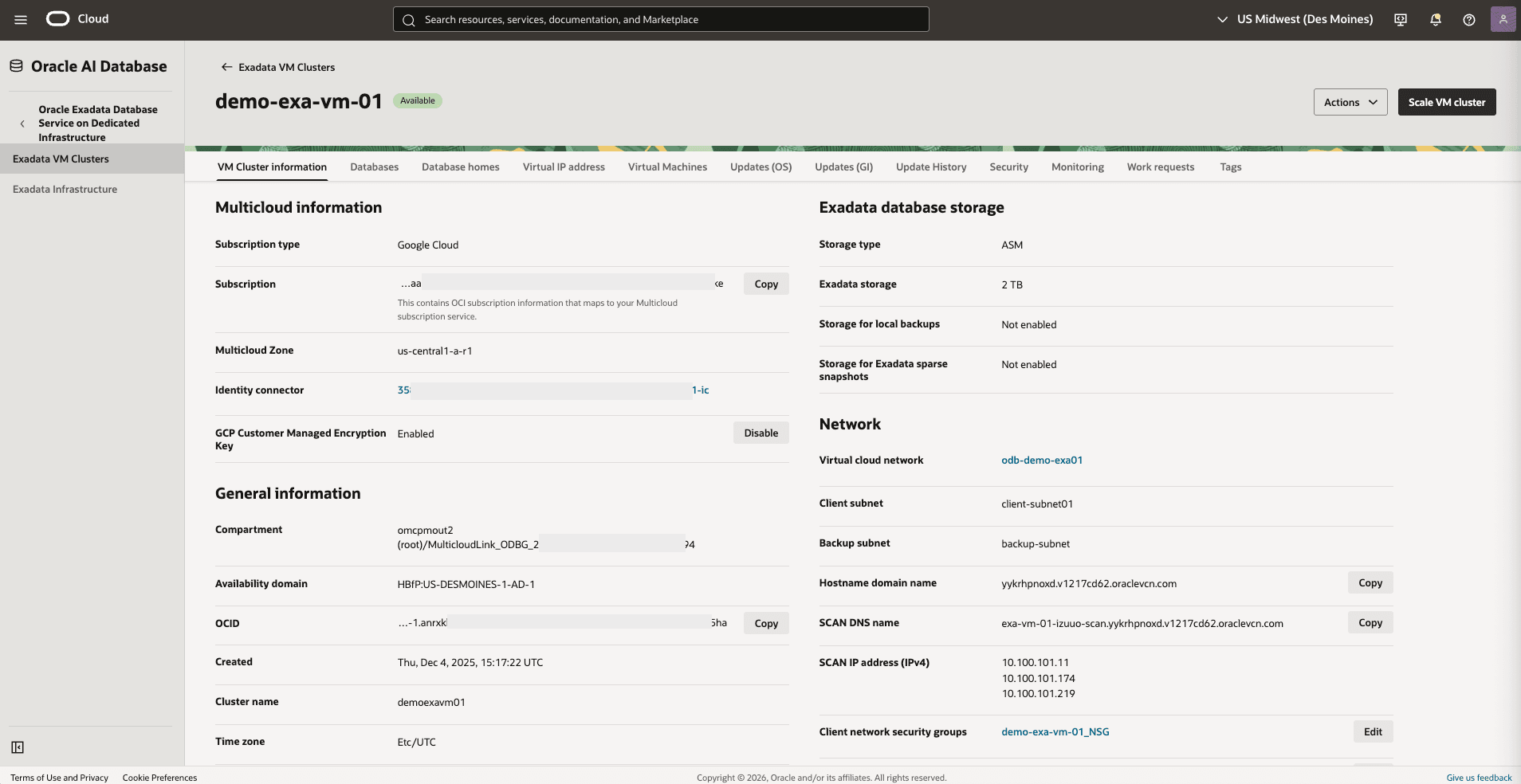 These are the steps to create a custom domain name in Google Cloud DNS and CNAME to the default oraclevcn.com domain.
- From the Google Cloud Console, select Network Services.
- From the left menu, select Cloud DNS.
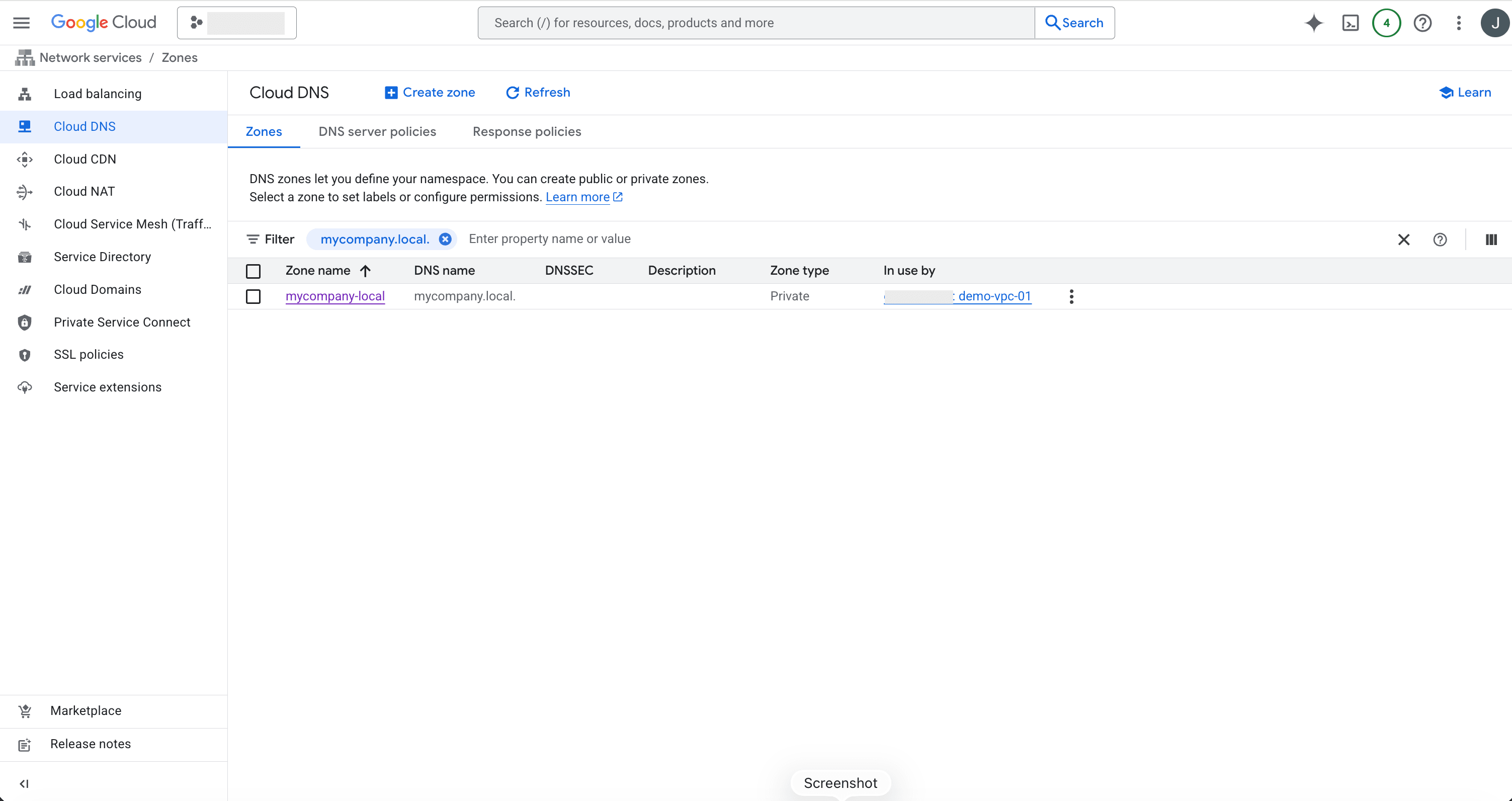
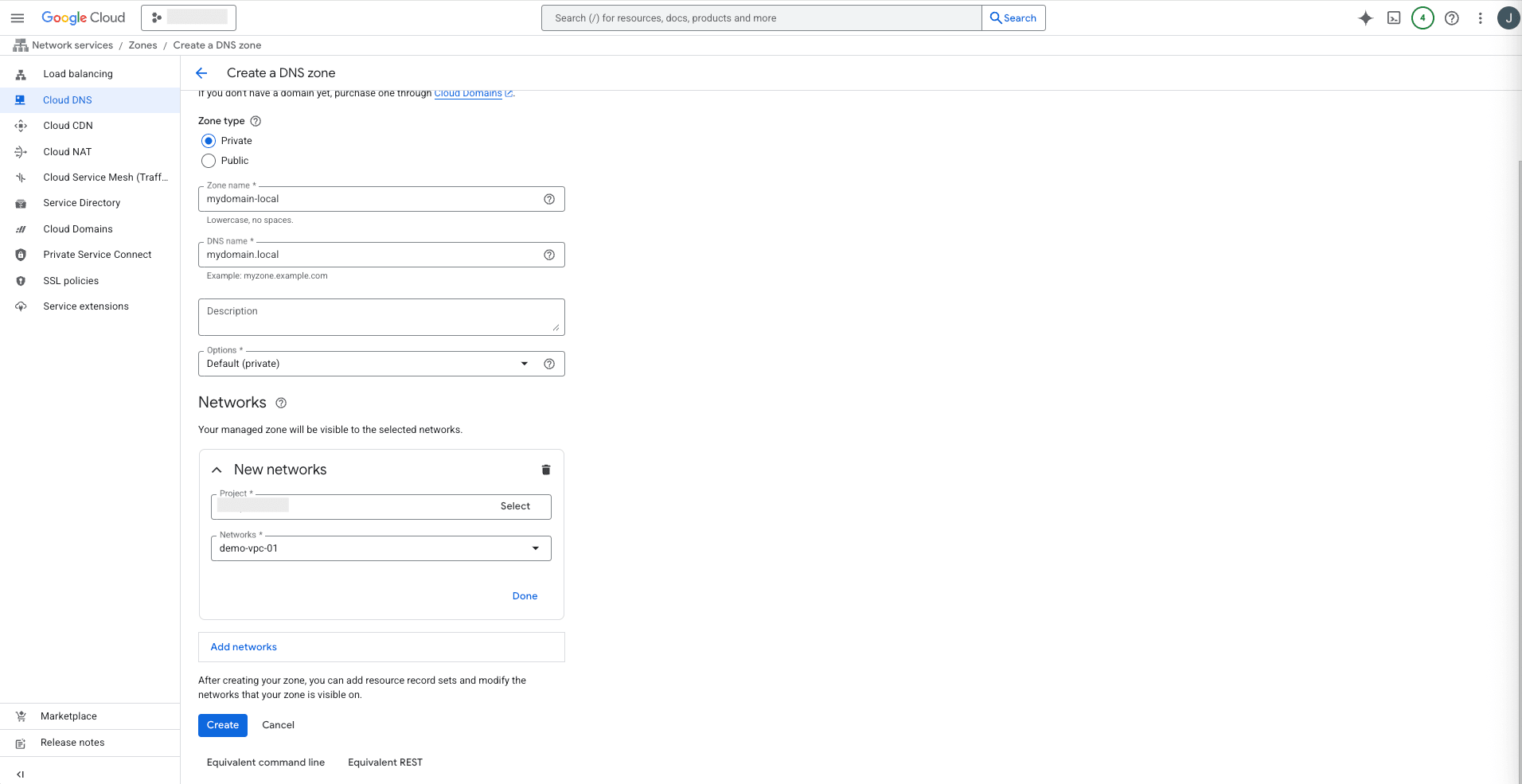
- Select the + Create zone button and complete the following substeps:
- Select the Private option as Zone type.
- Enter a zone name in the Zone name field to match with your custom domain name. The Zone name must be lowercase letters, numbers, and hyphens. Do not use any spaces.
- Enter your DNS name. This field is required.
- The Description field is optional.
- From the Options dropdown list, select the Default (private) option.
- Select the Add networks button, and then select your Project and Networks.
gcloud dns --project=XXXX managed-zones create mydomain-local --description="" --dns-name="mydomain.local." --visibility="private" --networks="https://compute.googleapis.com/compute/v1/projects/XXX/global/networks/demo-vpc-01"
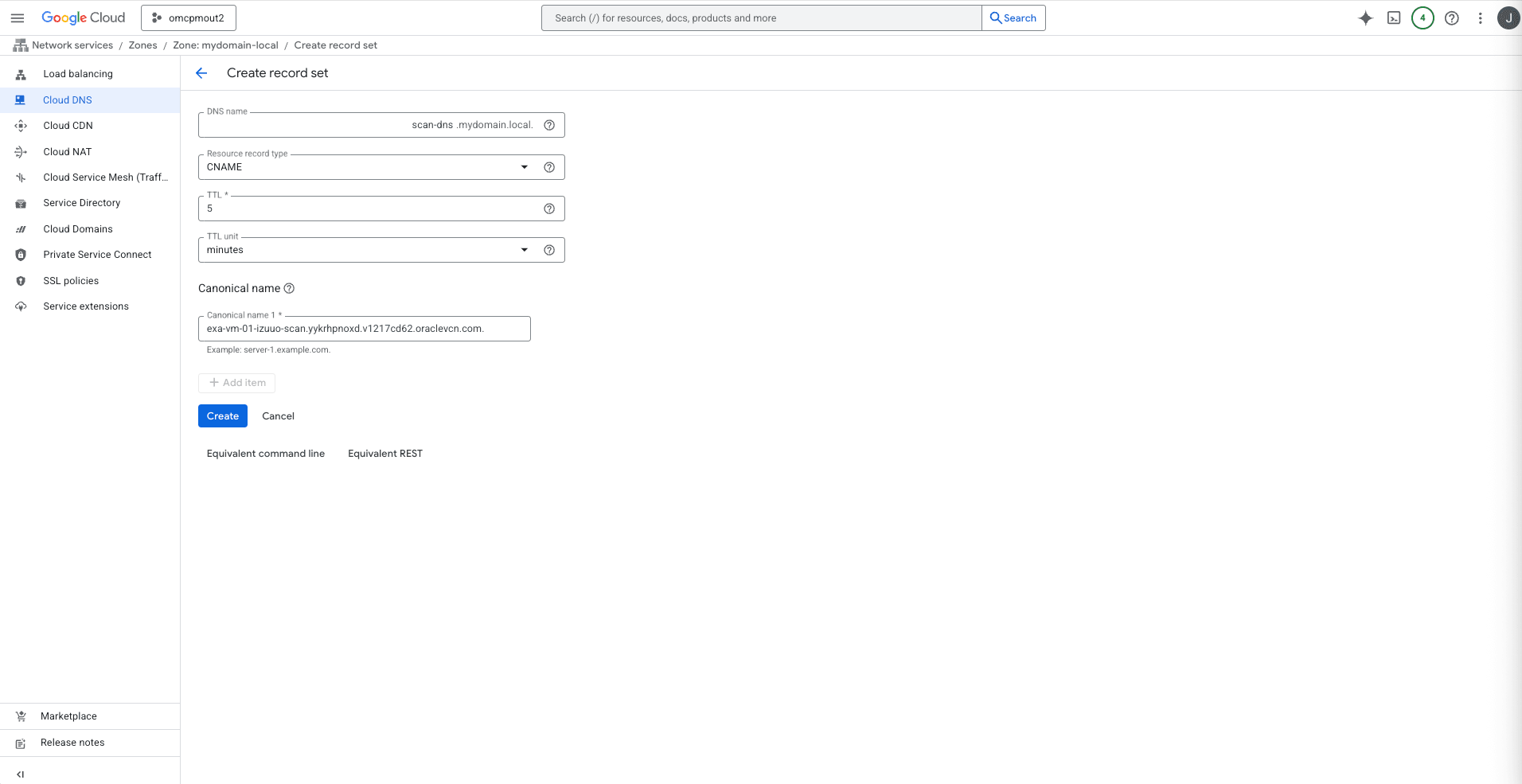
- Select the Add standard button and complete the following substeps:
- From the Create record set page, enter scan-dns in the DNS name field.
- From the Resource record type dropdown list, select the CNAME option.
- Select minutes from the TTL dropdown list.
- Provide the FQDN information in the Canonical name 1 field followed by a period. See the Prerequisites section to obtain your FQDN information. For example:
exa-vm-01-izuuo-scan.yykrhpnoxd.v1217cd62.oraclevcn.com. - Review your information, and then select the Create button. As a result, DNS resolution returns the CNAME record and forwards traffic through the default DNS forwarder.
- Create Google DNS Zone Peering
Using multiple VPCs or projects can increase DNS complexity. To resolve database resources from multiple VPCs, configure DNS peering to allow clients in different VPCs or projects to resolve hostnames directly from Google Cloud DNS.
Configure Cloud DNS peering to access Oracle AI Database@Google Cloud resources across VPCs. By default, the Cloud DNS forwarding zone is configured when an Oracle AI Database@Google Cloud instance is deployed.
To resolve Oracle Database resources from multiple VPCs, create a private DNS zone with DNS peering to query the same resolver for a forwarding zone in another VPC.
Prerequisite:
These are the steps to obtain Hostname domain name from the OCI console :- From the Google Cloud Console, select Dedicated Infrastructure and then select the Exadata VM Clusters tab.
- From the list, select your Exadata VM Cluster that you are using.
- Select the Manage in OCI button to open your Exadata VM Cluster in OCI.
- From the VM Cluster information tab, note the Hostname domain name which displays the fully qualified domain name (FQDN).
These are the steps to configure a private Cloud DNS peering zone.- From the Google Cloud Console, select Network Services.
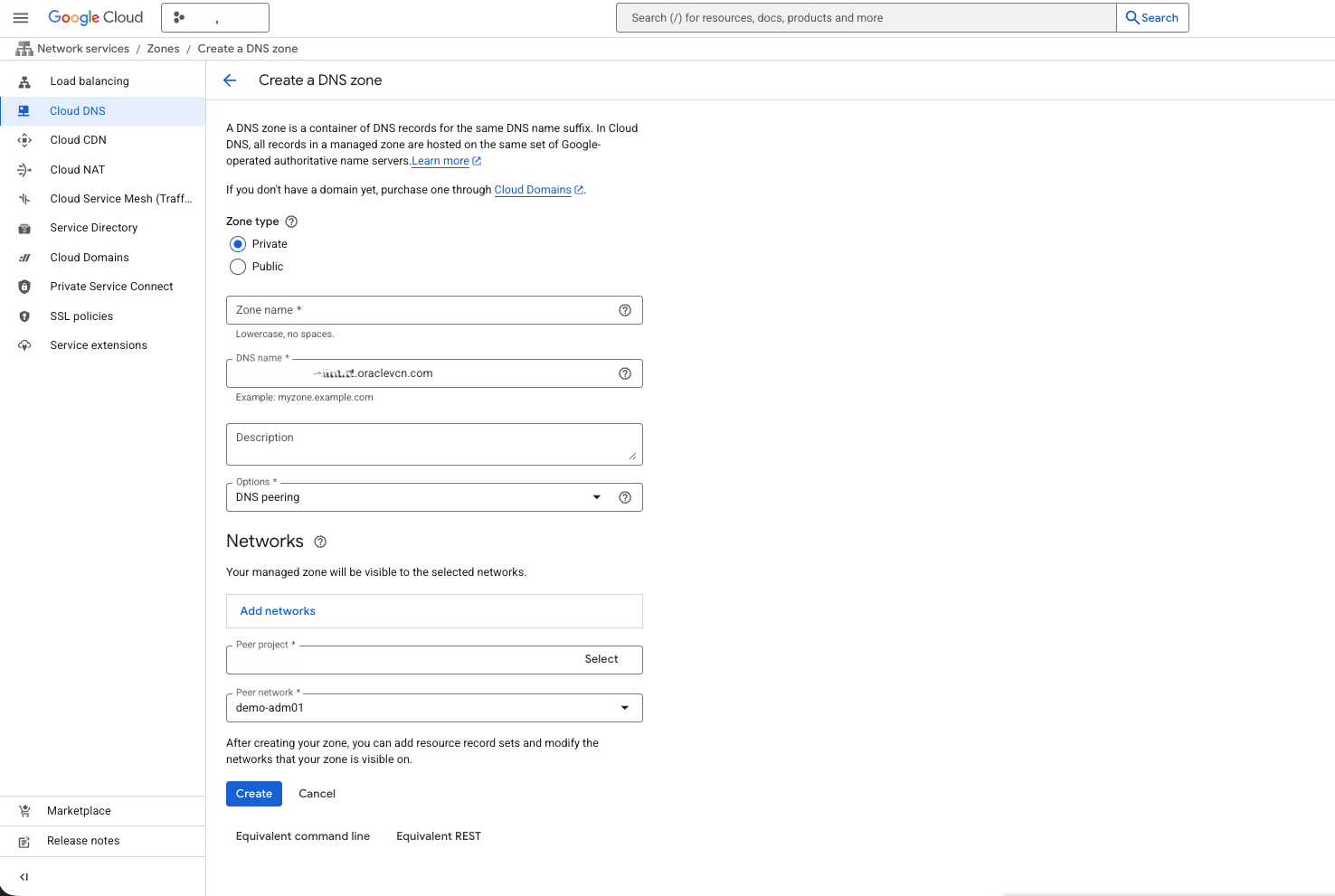
- From the left menu, select Cloud DNS, and then select the + Create zone button.
- Select the Private option as Zone type.
- Enter a zone name in the Zone name field to match with your custom domain name. The Zone name must be lowercase letters, numbers, and hyphens. Do not use any spaces.
- Enter your DNS name suffix for the private zone. All records in the zone share the suffix such as
example.private. - The Description field is optional.
- From the Options dropdown list, select the DNS peering option.
- Select the Networks where the private zone is available.
- From the Peer project dropdown list, select your peer project.
- From the Peer network dropdown list, select your peer network.
- Review your information, and then select the Create button. This creates an additional DNS peering zone in the peered VPC, which forwards queries to the OCI VCN resolver.
- Note
The following use cases are covered:- Forwarding DNS resolution to Google Cloud.
- Creating a custom zone and records.
Both use cases are mutually exclusive. The private DNS system evaluates DNS requests in the following sequence:- Private views (zones)
- Rules
- Internet
Attached views are evaluated first, in the order they are configured. The default view is evaluated next, unless it is included in the list of attached views. A match in the sequence ends the resolution, even if the match results in an
NXDOMAIN. For more information, see DNS and Traffic Management.- Forward DNS to Google Cloud
The topic explains how to resolve a private host zone hosted in Google Cloud from Oracle Database@Google Cloud.
- Forward OCI DNS to Google Cloud
- Create inbound forwarding in Google Cloud.
gcloud dns policies create mydomain --description="DNS resolution" --networks=poc-oracle-vpc --enable-inbound-forwarding
- Note the IP of the endpoint.
- Create inbound forwarding in Google Cloud.
- Create OCI DNS forwarder and domain rule
- From the Google Cloud Console, select Dedicated Infrastructure and then select the Exadata VM Clusters tab.
- From the list, select your Exadata VM Cluster that you are using.
- Select the Manage in OCI button to open your Exadata VM Cluster in OCI.
- Select the VM Cluster information tab and then navigate to Network section.
- Under the Network section, select the Virtual cloud network link which opens the Virtual cloud networks page.
- Select the Details tab, and then select the DNS Resolver link.
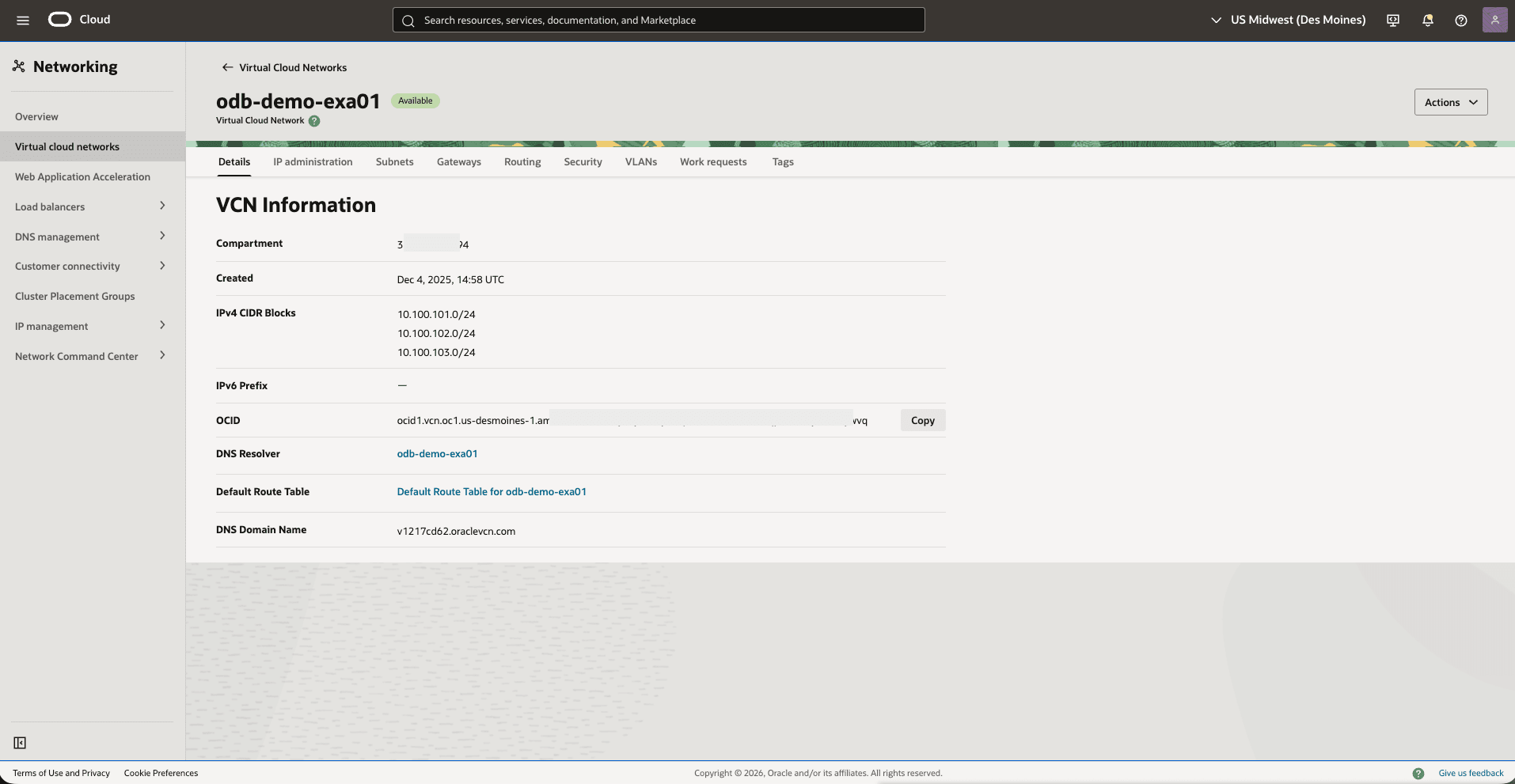
- From the Private resolvers page, you can view the details of your private resolver.
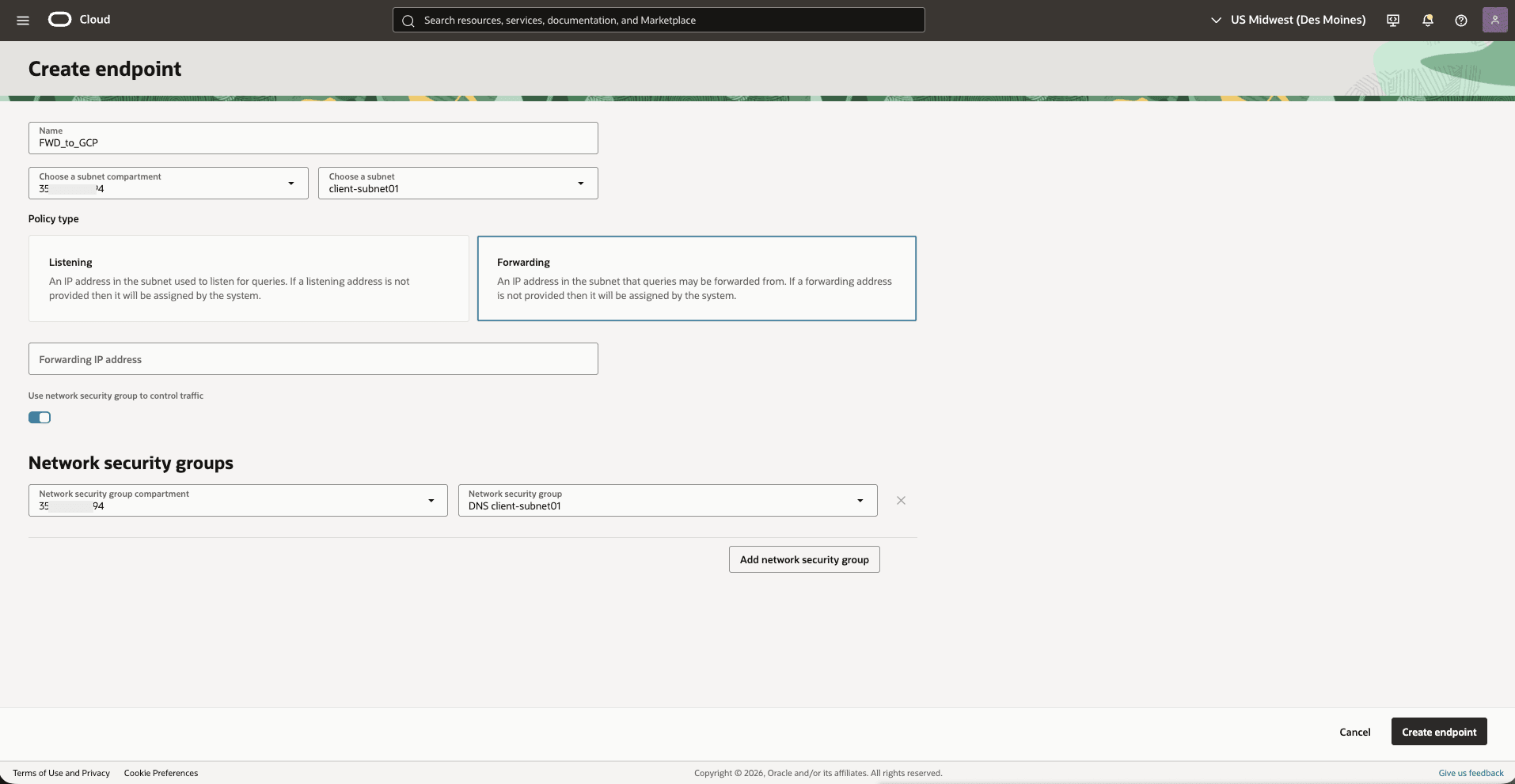
- Select the Endpoints tab, and then select the Create endpoint button.
- Enter a unique Name for the endpoint.
- Select the subnet compartment from the dropdown list.
- Select the Subnet of the VCN from the dropdown list.
- Choose a policy type as Forwarding.
- Enter a forwarding IP address in the subnet if required.
- Toggle the switch to enable the use of network security groups for traffic control.
- Select the Network security group compartment from the dropdown list.
- Select a Network security group from the dropdown list.
- After filling in all required fields, select the Create endpoint button to complete the process.
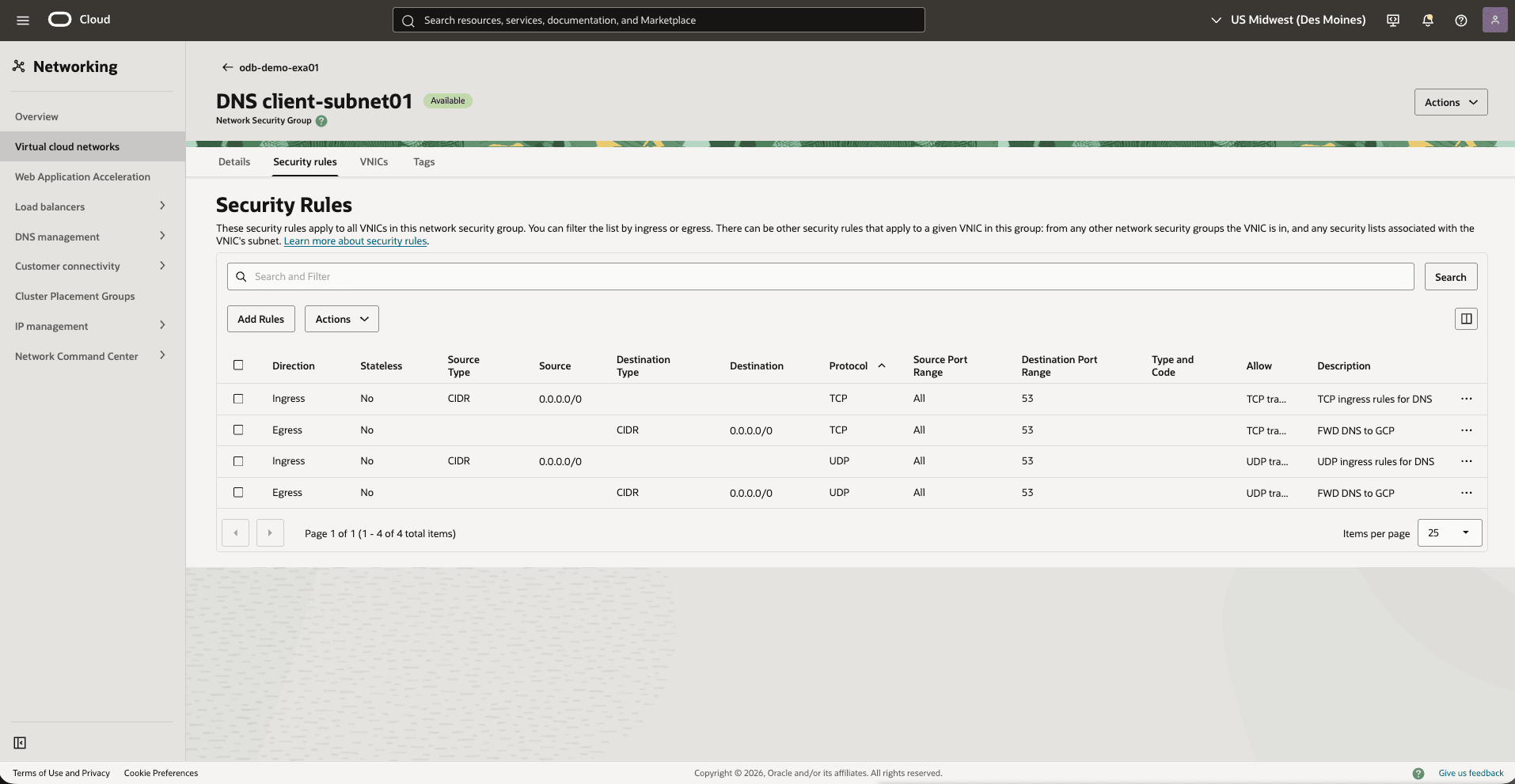
- From the Virtual cloud networks page, select the Security rules tab to add an egress rule that allows outgoing traffic from the endpoint to the Google Cloud inbound forwarding IP. Select the Add rules button and complete the following substeps:
- Leave the Stateless checkbox is unselected.
- Select the Egress option as Direction.
- Set the Destination Type as CIDR.
- Set the Destination CIDR as
0.0.0.0/0. - Select your IP Protocol as UDP.
- Select the Source Port Range as All.
- Enter the Destination Port Range as 53.
- Enter a description.
- From the left menu, select DNS management, select Private resolvers.
- Select the Rules tab.
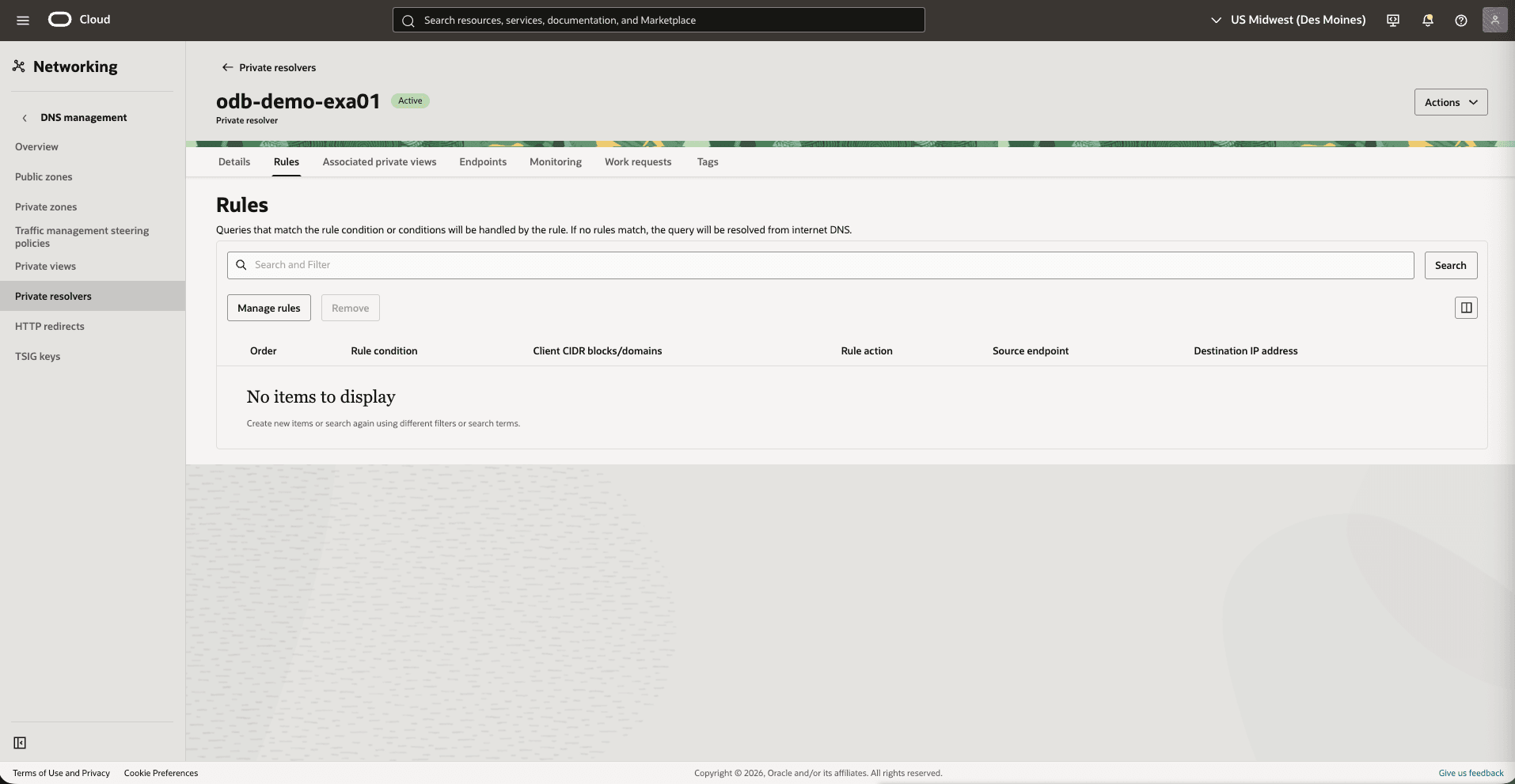
- To create a rule, complete the following substeps:
- From the Rule condition dropdown list, select Domains.
- From the Domains dropdown list, select mydomain.local.
- The Rule action is set to Forward.
- Select the Source endpoint as FWD_to_GCP.
- Enter the Destination IP address. The Destination IP address is the inbound query forwarding IP created in the policy rule. See the step 1b.
- Choose the First rule in list option as Position.
- Select the Add rule button.
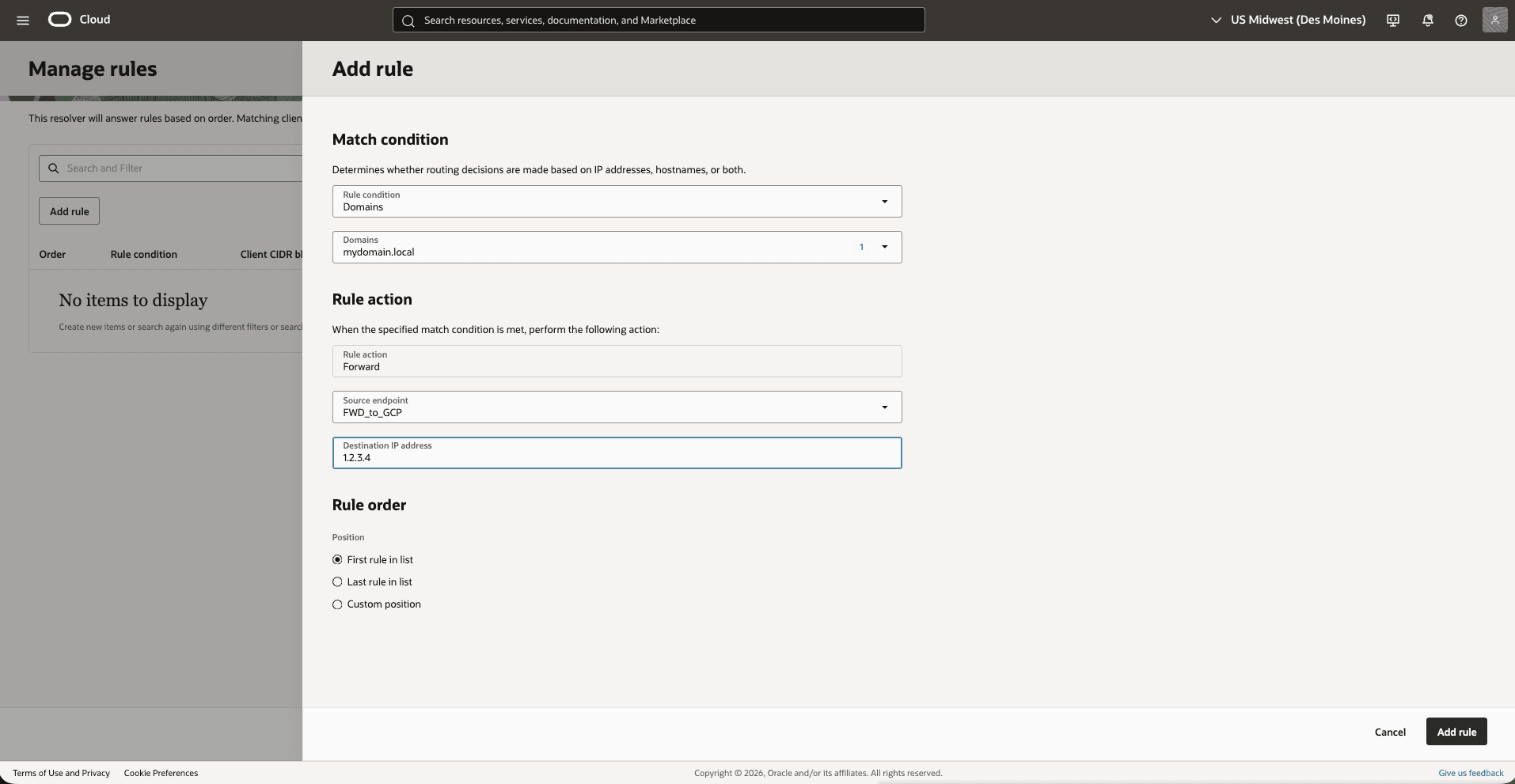
You can resolve the service in Google Cloud from Exadata VM Cluster. For example,
nslookup test1.mydomain.local.
- Forward OCI DNS to Google Cloud
- Resolution to OCI DNS
This topic explains how to create a custom zone and records to resolve resources hosted in Google Cloud or on-premises.
These are the steps to resolve DNS within OCI DNS.- From the Google Cloud Console, select Dedicated Infrastructure and then select the Exadata VM Clusters tab.
- From the list, select your Exadata VM Cluster that you are using.
- Select the Manage in OCI button to open your Exadata VM Cluster in OCI.
- Select the VM Cluster information tab, and then navigate to Network section to view your Virtual cloud networks details.
- From the OCI console, navigate to Networking and then select DNS management.
- From the left menu, select the Private views and then select the private DNS view form the list that you are using.
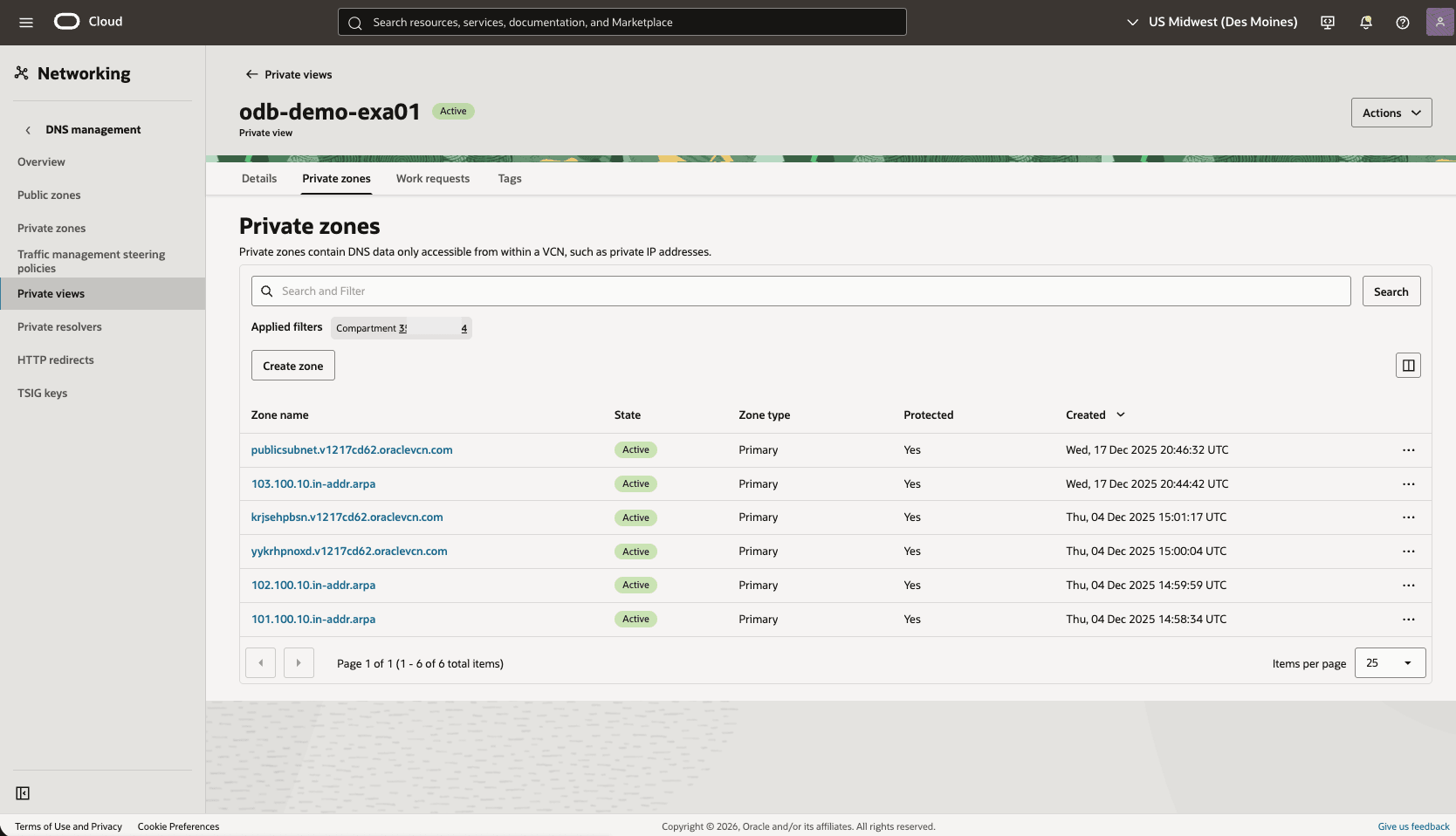
- Select the Private zones tab, and then select the Create zone button.
- Enter Primary as Zone type.
- Enter a zone name. For example:
mycompany.local. - Select the compartment.
- The Tags section is optional.
- Review your information and then select the Create button.
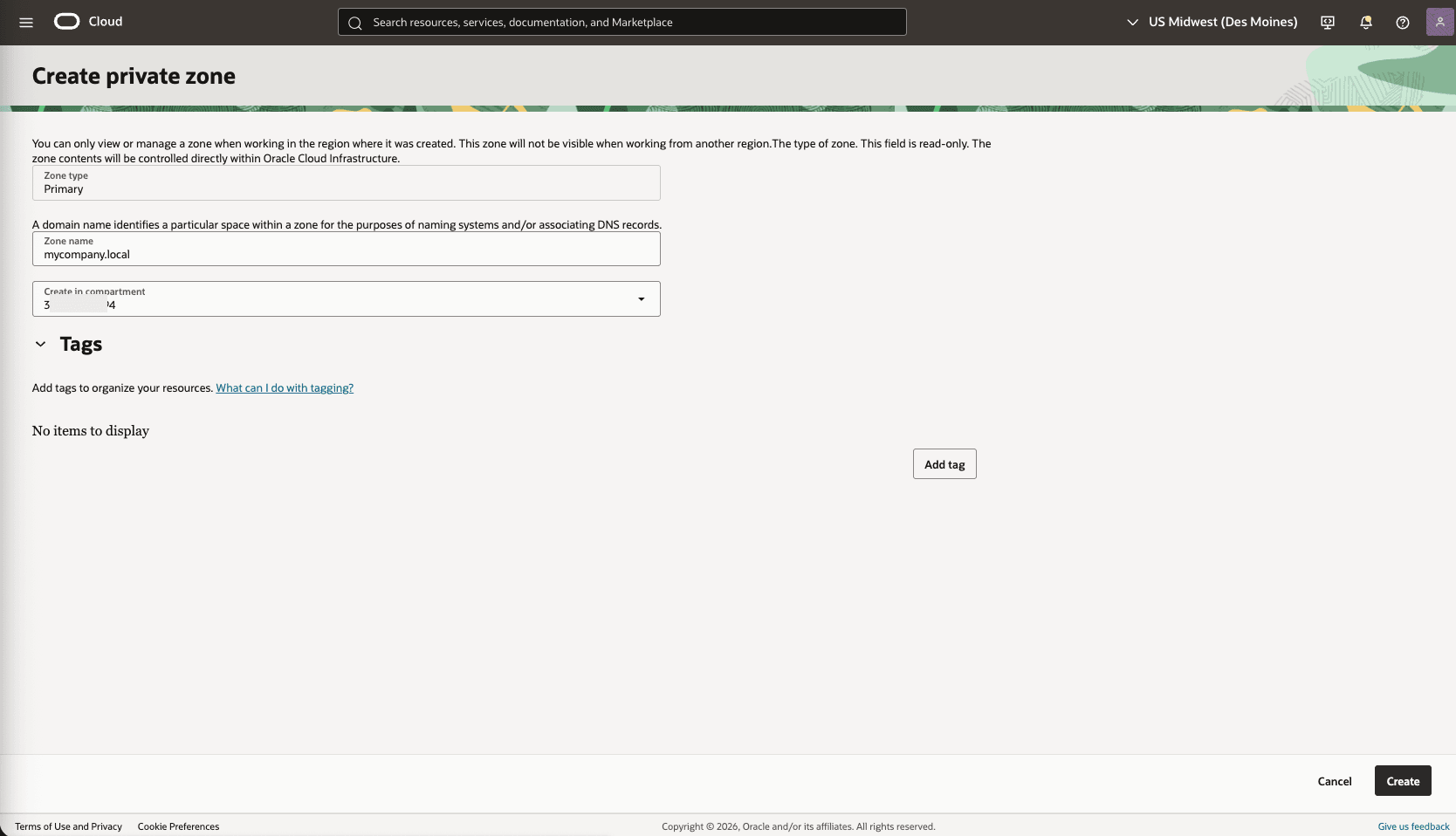
- Select the private zone that you are using and then select the Records tab.
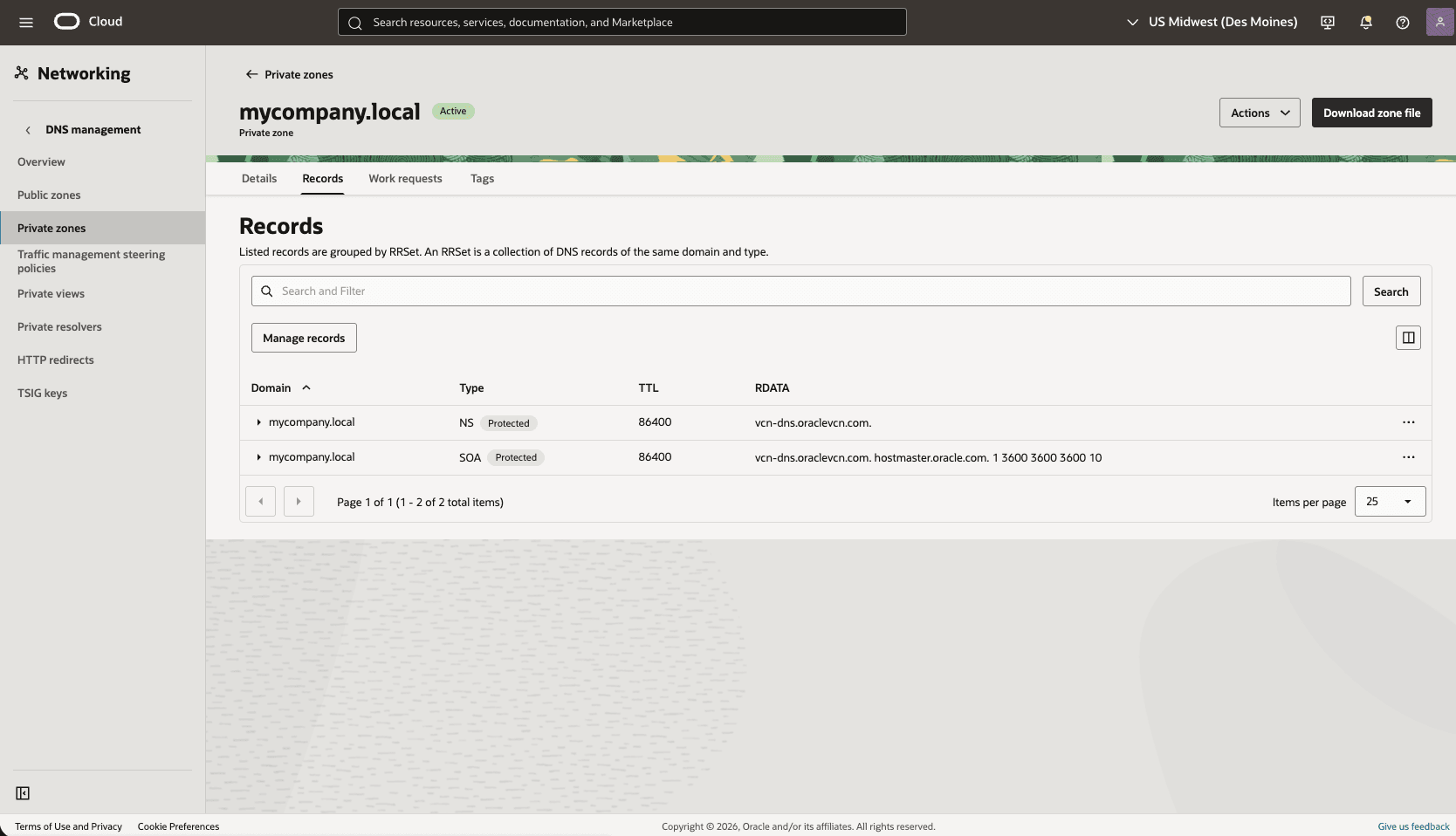
- To edit your records, select the Manage records button and then select the Add record button.
- Enter a name for the record.
- Select the record type as A - IPv4 address from the dropdown list.
- Enter the TTL in seconds value.
- Choose the Basic option as RDATA mode.
- Enter the IPv4 address for the record.
- Select Save changes to complete the record creation or modification.
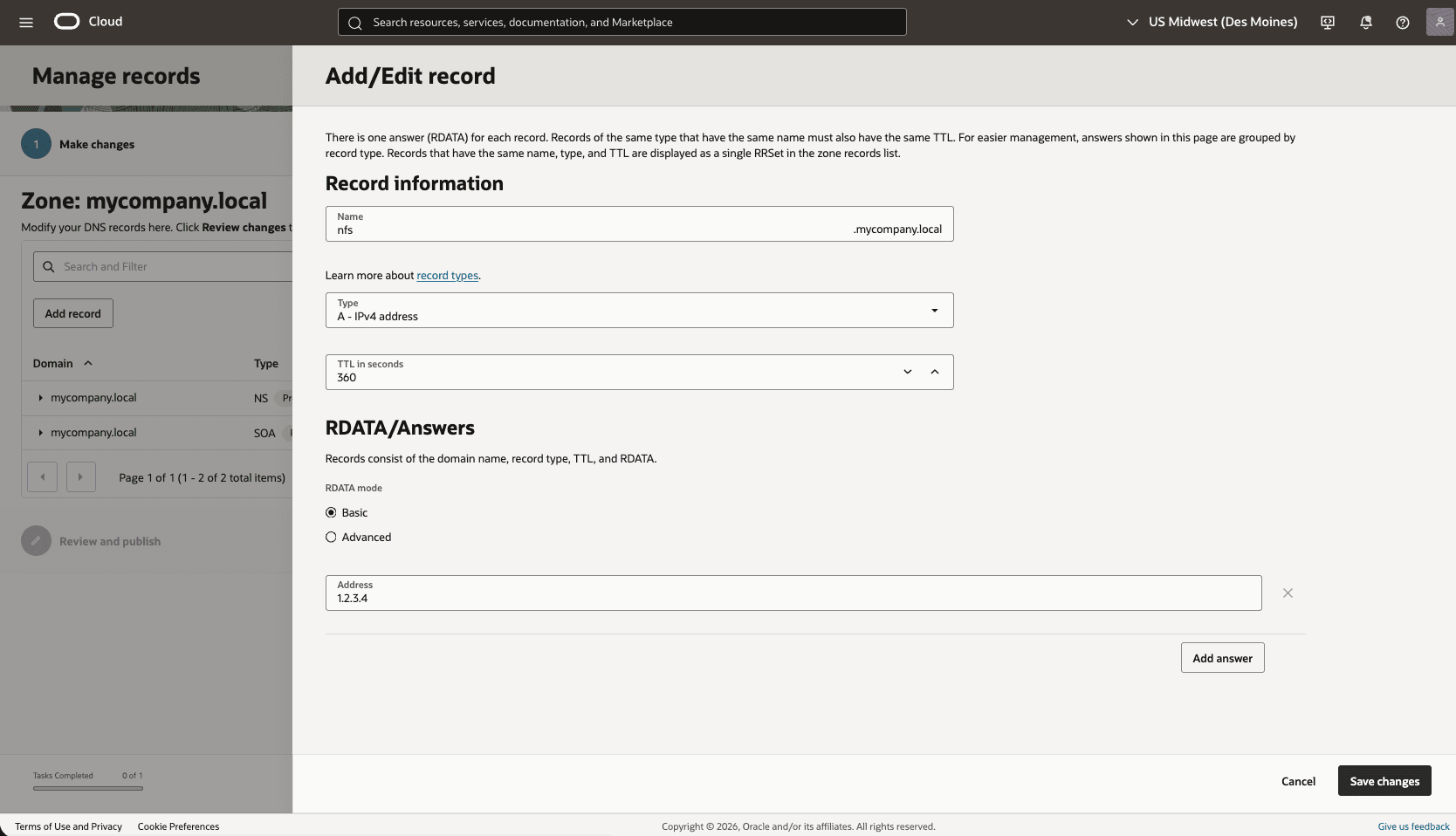
The Oracle AI Database@Google Cloud resource can resolve custom resources.