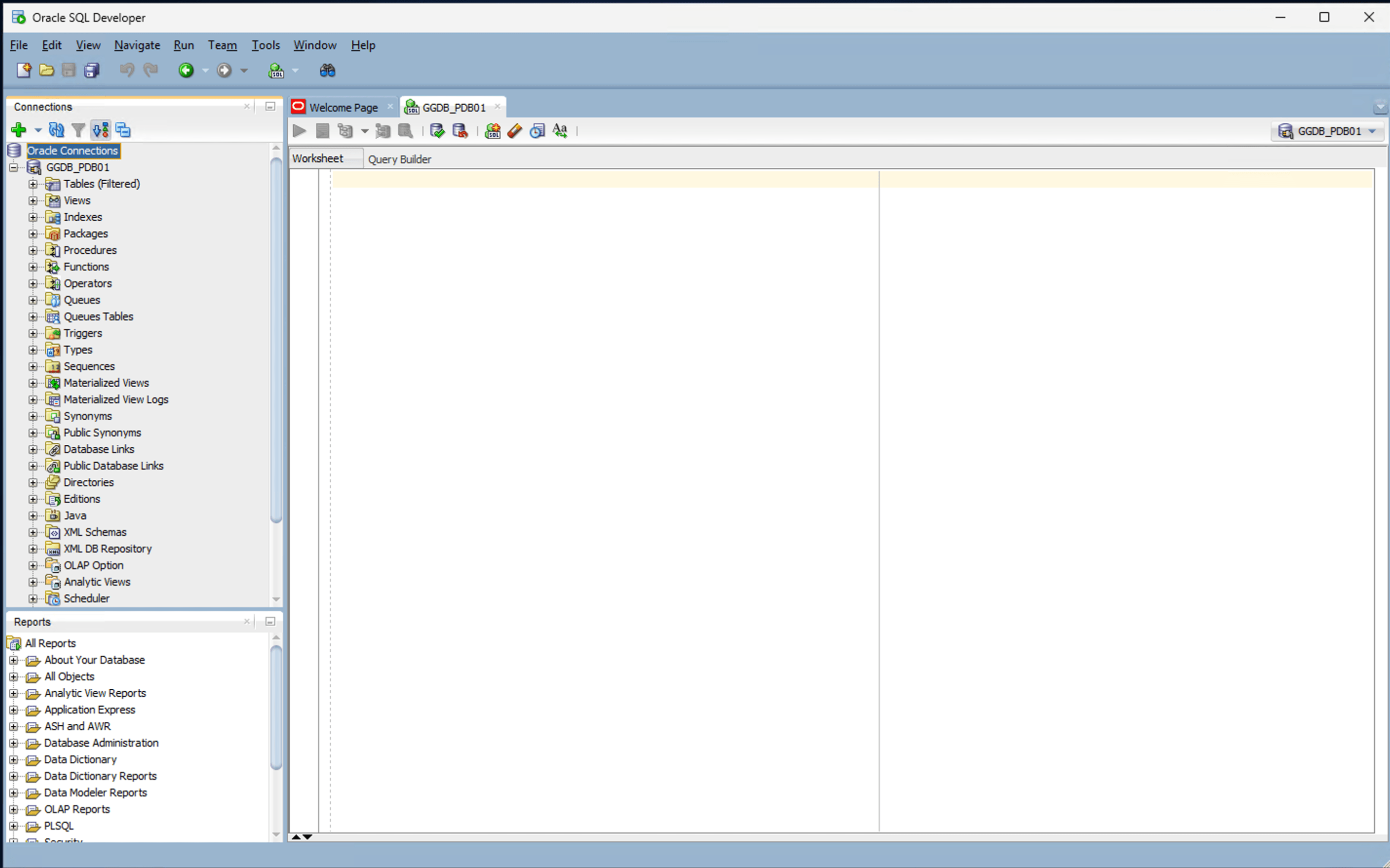
Base Database
This topic describes the steps required to connect to an Base Database from a Jump Box (Google Cloud VM instance).
Configuring Network Security Group (NSG) and connection to Google Cloud VM instance are prerequisites for connecting to Base Database.
- Obtain Base Database Connection String
- From the Google Cloud console, navigate to Base Database Service, and then select your Base Database from the list.
- Select the Manage in OCI button from the DB system details page.
- From the DB System information tab, switch to Databases tab.
- For obtaining Container Database (CDB) connection string, complete the following:
- Select the three dots (...) at the end of row item, and then select the View DB connection option.
- Copy the Connection String information where the Format is set to Easy Connect.
# Example CDB Easy connection string
vm.xyjpkojvor.va3f34dd1.oraclevcn.com:1521/demodbtf.xyjpkojvor.va3f34dd1.oraclevcn.com
- For obtaining Pluggable Database (PDB) connection string, complete the following:
- Select the Container Database (CDB) name in the list.
- Switch to the Pluggable Databases (PDB) tab.
- Select the three dots (...) at the end of row item, and then select the PDB connection option.
- Copy the Connection String information where the Format is set to Easy Connect.
# Example PDB Easy connection string
vm.xyjpkojvor.va3f34dd1.oraclevcn.com:1521/demodbtf_pdb1.xyjpkojvor.va3f34dd1.oraclevcn.com
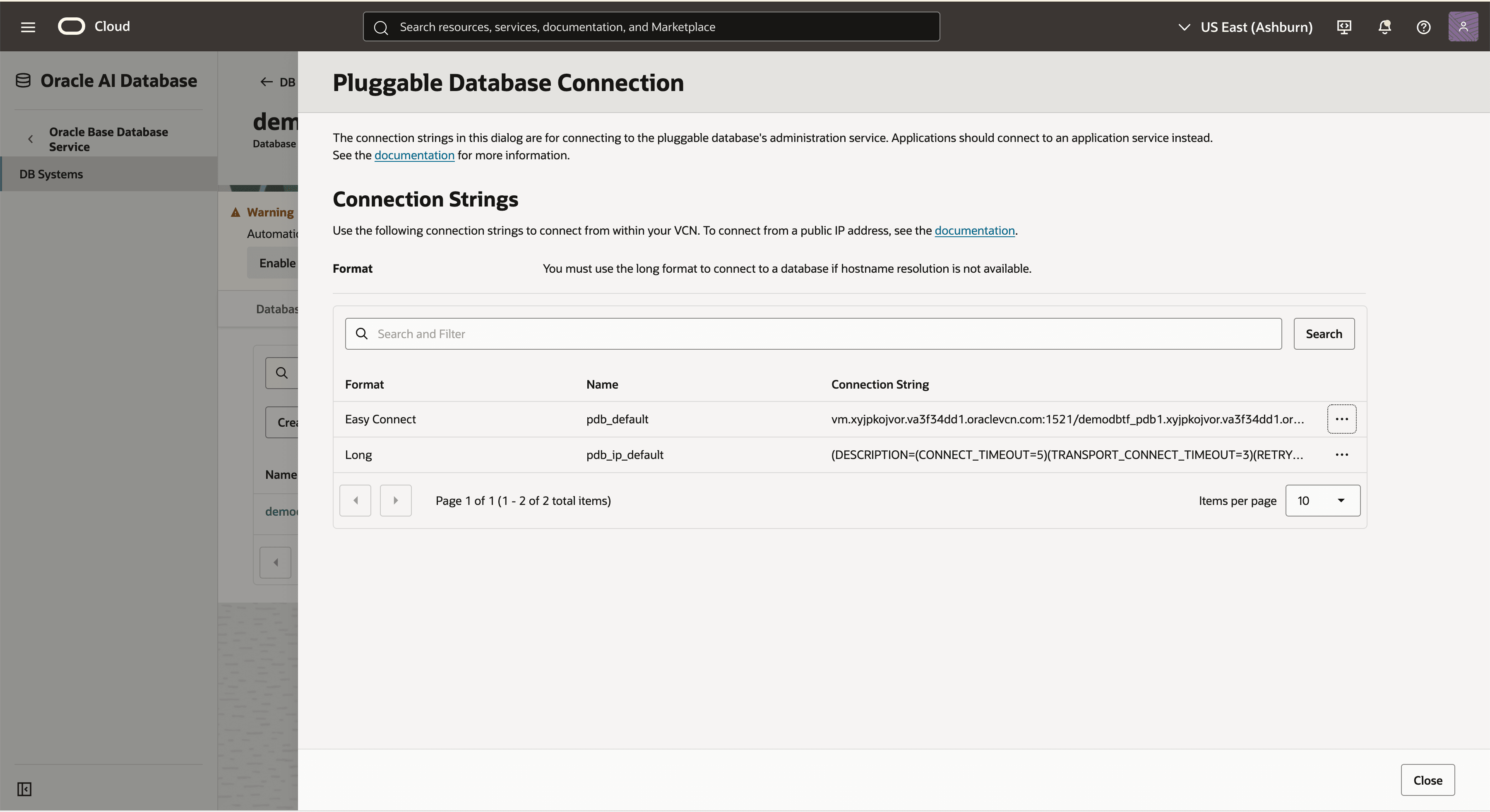
- Take a note of Connection String for the following steps.
- Connect Oracle SQL Developer to Base Database
- Launch the SQL Developer application and select the + icon to create a new database connection.
- To configure SQL Developer, complete the following substeps:
- In the Name field, enter the Name to use for this database connection.
- In the Database Type field, select Oracle.
- In the Username field, enter the name of the user for whom this database connection is being created. For example, you can enter ADMIN.
- In the Password field, enter the password of the user.
- In the Role field, select the default role to assign to the user.
- Select the Save Password checkbox if your security rules allow.
- In the Connection Type field, select the Basic option as your database connection type.
- Enter the Hostname information by providing your Exadata Database private IP address.
- You can enter 1521 as the Port information or provide your listener port.
- Enter a descriptive Service name.
- Select the Test button. The Status at the bottom of the connections list should show Success. If the connection is not successful, the wallet may be out of date or the Exadata Database may not be running.
- Once the connection is successful, select the Save button.
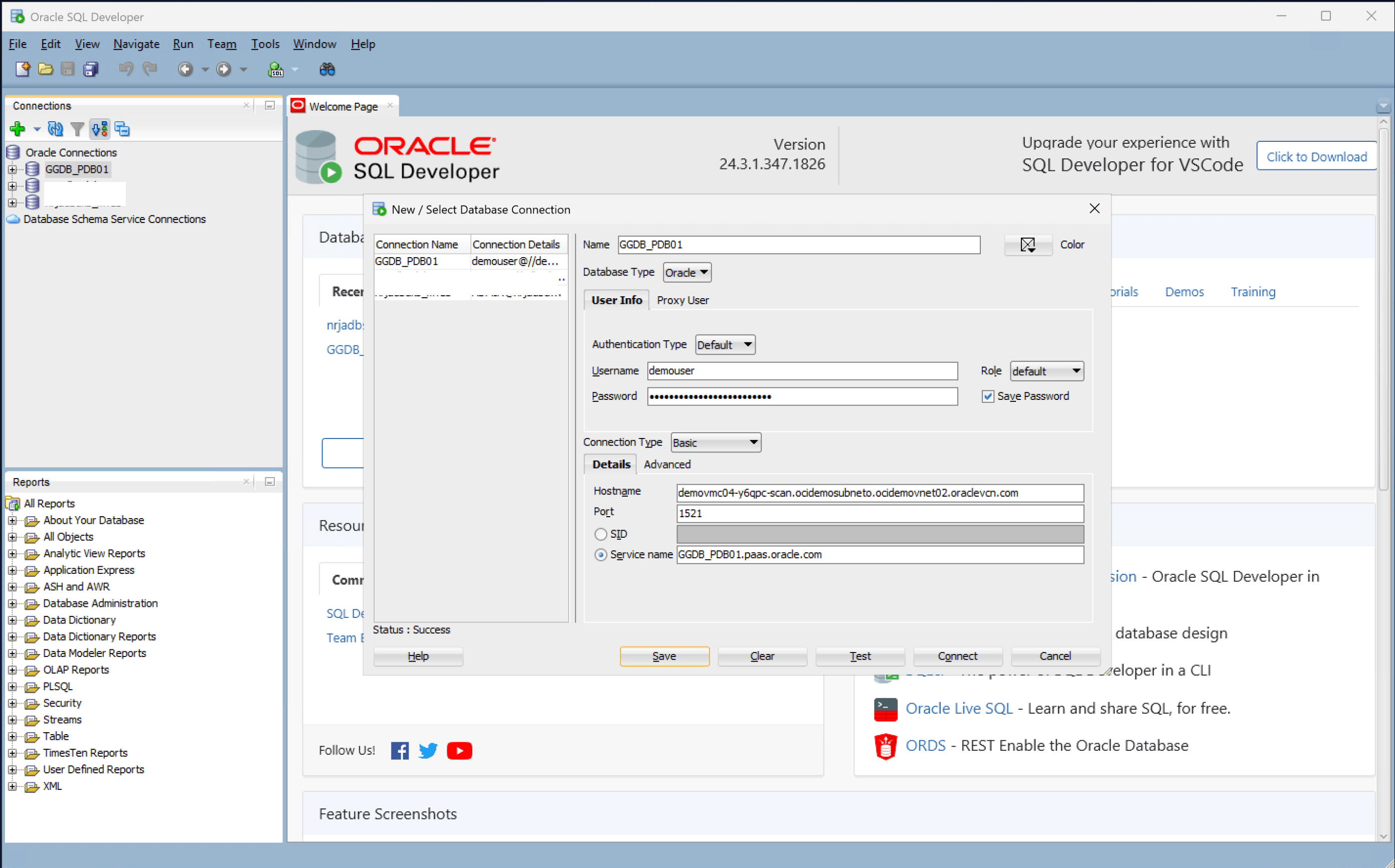
- Select the Connect button to initiate the connection.