Exascale Database
This topic describes the steps required to connect to an Exascale Database from a Jump Box (Google Cloud VM instance).
Configuring Network Security Group (NSG) and connection to Google Cloud VM instance are prerequisites for connecting to Exascale Database.
- Obtain Exascale Database Connection String
- From the Google Cloud console, navigate to your Exascale VM Cluster and then select the Manage in OCI button from the Details page.
- From the VM Cluster information tab, switch to Databases tab.
- For obtaining Container Database (CDB) connection string, complete the following:
- Select the three dots (...) at the end of row item, and then select the View DB connection option.
- Copy the Connection String information where the Format is set to Easy Connect.
# Example CDB Easy connection string
demodr02-scan-nutvo.qrlnrkxgak.vc98a9ea4.oraclevcn.com:1521/fsdrdb01_b.qrlnrkxgak.vc98a9ea4.oraclevcn.com
- For obtaining Pluggable Database (PDB) connection string, complete the following:
- Select the Container Database (CDB) name in the list.
- Switch to the Pluggable Databases (PDB) tab.
- Select the three dots (...) at the end of row item, and then select the PDB connection option.
- Copy the Connection String information where the Format is set to Easy Connect.
# Example PDB Easy connection string
demodr02-scan-nutvo.qrlnrkxgak.vc98a9ea4.oraclevcn.com:1521/fsdrdb01_PDB1.paas.oracle.com
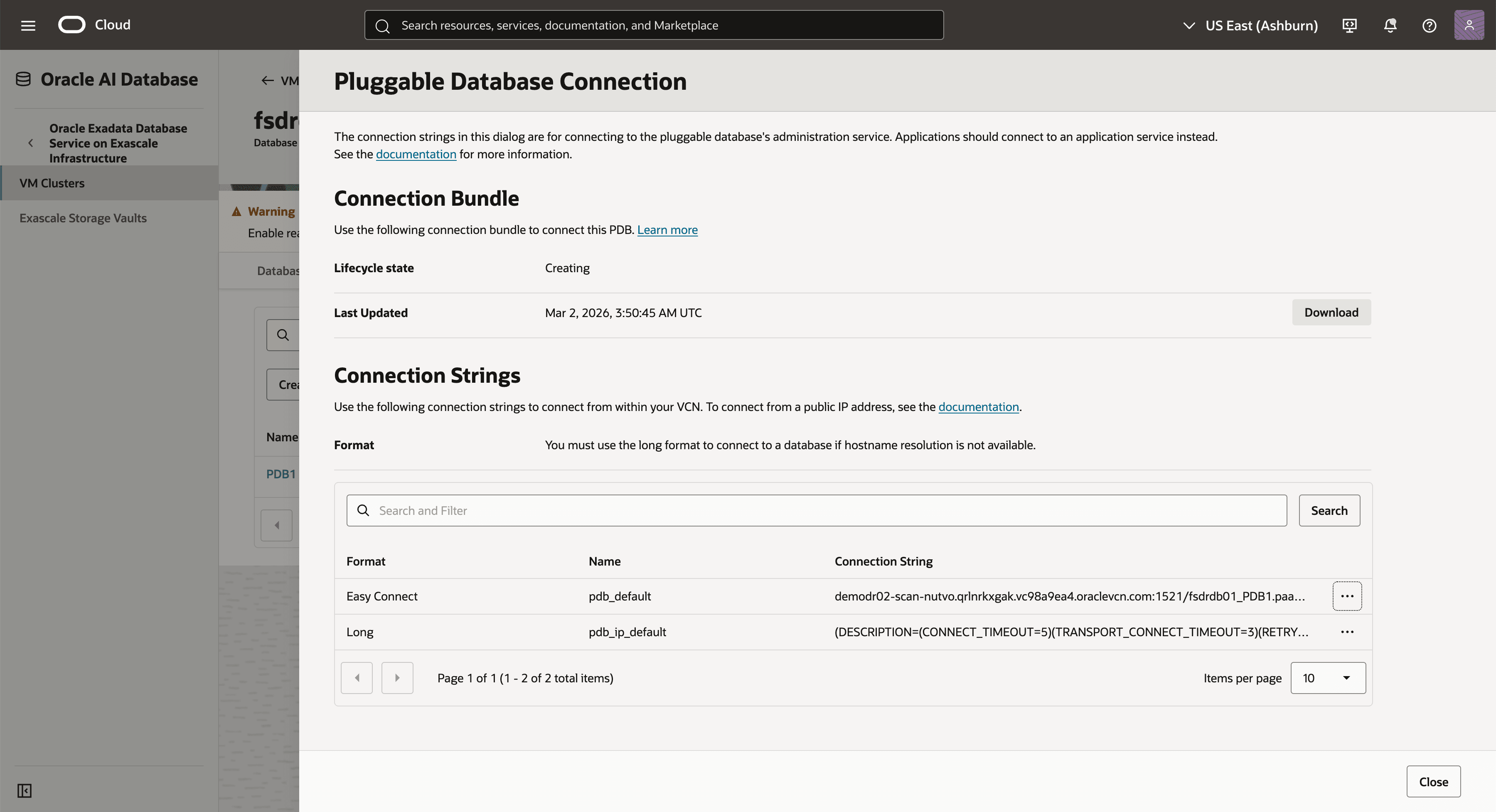
- Take a note of Connection String for the following steps.
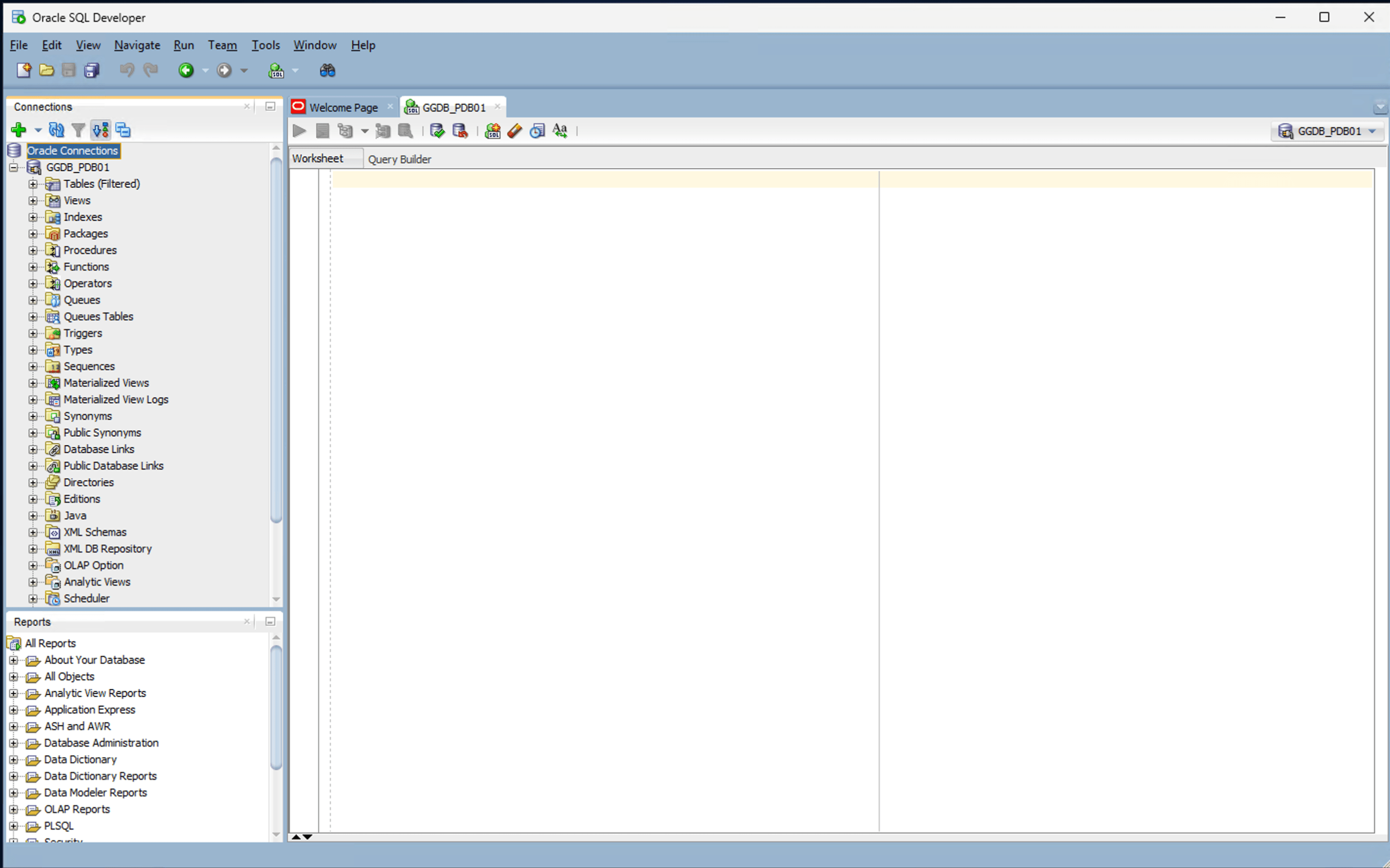
- Connect Oracle SQL Developer to Exascale Database
- Launch the SQL Developer application and select the + icon to create a new database connection.
- To configure SQL Developer, complete the following substeps:
- In the Name field, enter the Name to use for this database connection.
- In the Database Type field, select Oracle.
- In the Authentication Type field, select Default.
- In the Username field, enter the name of the database user.
- In the Password field, enter the password of the user.
- In the Role field, select the database role to assign to the user.
- Select the Save Password checkbox to save password with connection in SQL Developer.
- In the Connection Type field, select the Basic option as your database connection type.
- Enter the Hostname information from the Easy connect connection string. For example, first part is known as SCAN DNS Name.
- You can enter 1521 as the Port information or provide your listener port.
- Enter a Service name from the Easy connect connection string. For example, second part after forward slash "/".
- Select the Test button. The Status at the bottom of the connections list should show Success.
- Once the connection is successful, select the Save button.
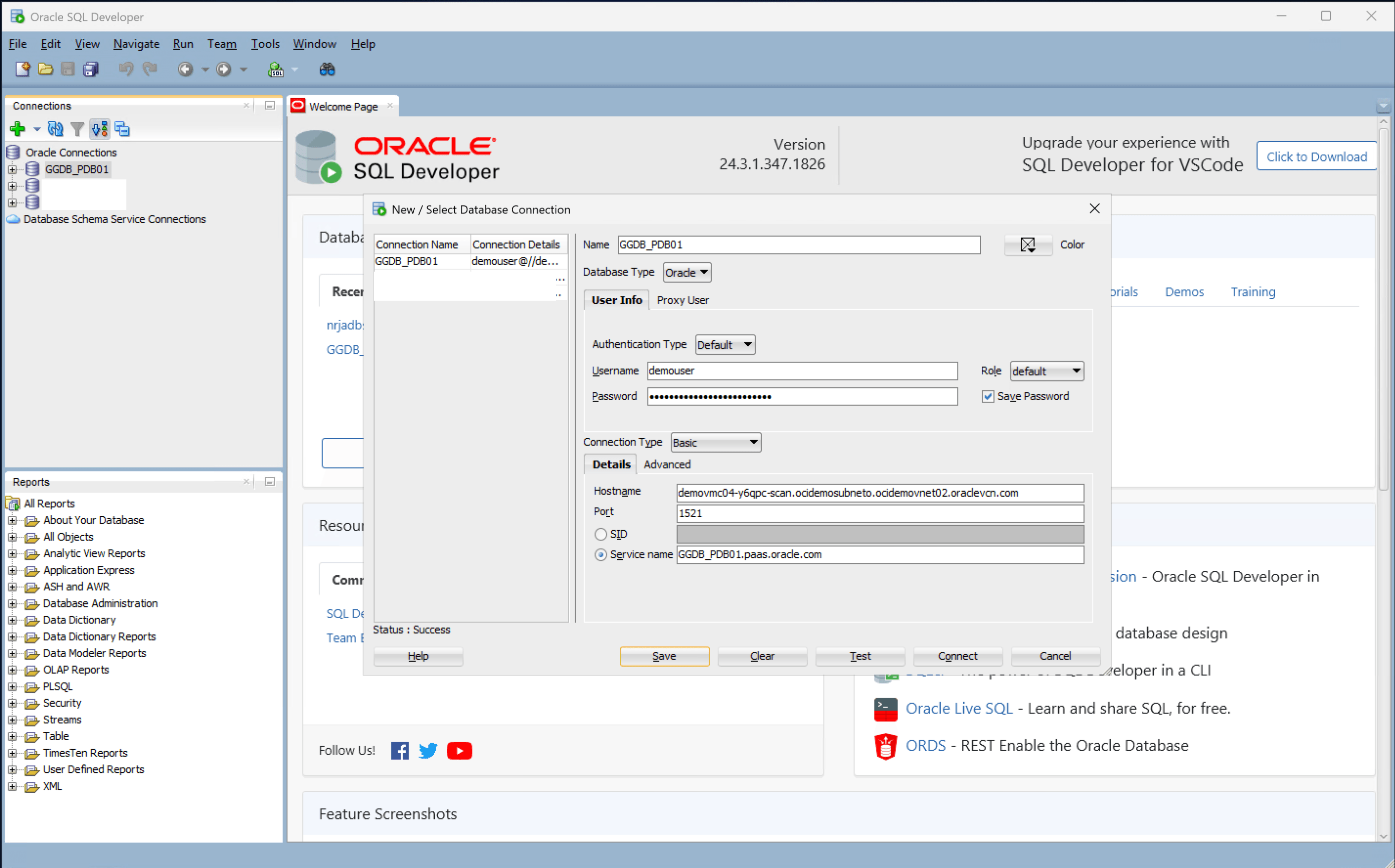
- Select the Connect button to initiate the connection.