Interconnect for AWS
Oracle Interconnect for AWS is a managed dedicated connectivity service that allows you to provision secure, private cross-cloud connections directly between Oracle Cloud Infrastructure (OCI) and AWS in specific regions listed under the Availability section. This connection lets you set up cloud-to-cloud workloads without the traffic between the clouds going over the internet or through third-party providers. This topic describes how to set up virtual networking infrastructure resources to enable this deployment.
Highlights
- Fully managed, private interconnect solution powered by FastConnect. OCI and AWS configures and manages all BGP routing exchange, load balancing, encryption, redundancy, and network isolation.
- Fast, on-demand provisioning. Provision an interconnect virtual circuit within minutes over preconfigured cross-connects.
- Built-in redundancy. Each interconnect virtual circuit maps across multiple redundant FastConnect devices and two separate FastConnect locations.
- All traffic between OCI FastConnect devices and AWS network devices is encrypted using industry-standard MACsec (IEEE standard 802.1AE).
- You can connect an Oracle Cloud Infrastructure (OCI) virtual cloud network (VCN) with an Amazon virtual private cloud (VPC) and run a cloud-to-cloud workload. A sample use case could be that you have AI training data and applications in AWS which would like to take advantage of the GPU infrastructure and capacity in OCI.
Availability
Oracle Interconnect for AWS is only available in the following paired regions.
North America (NA)
| OCI region | AWS region |
|---|---|
US East (Ashburn) (us-ashburn-1) - IAD |
US East (N. Virginia) (us-east-1) |
Oracle Interconnect for AWS Architecture
Oracle Interconnect for AWS is automatically configured to provide device and location redundancy. Each Oracle Interconnect for AWS virtual circuit is mapped to redundant FastConnect devices across two separate FastConnect locations for an OCI region. Customer traffic is always load balanced across all available paths using Equal-Cost Multi-Path (ECMP). The following diagram illustrates the high-level physical connectivity between OCI and AWS.
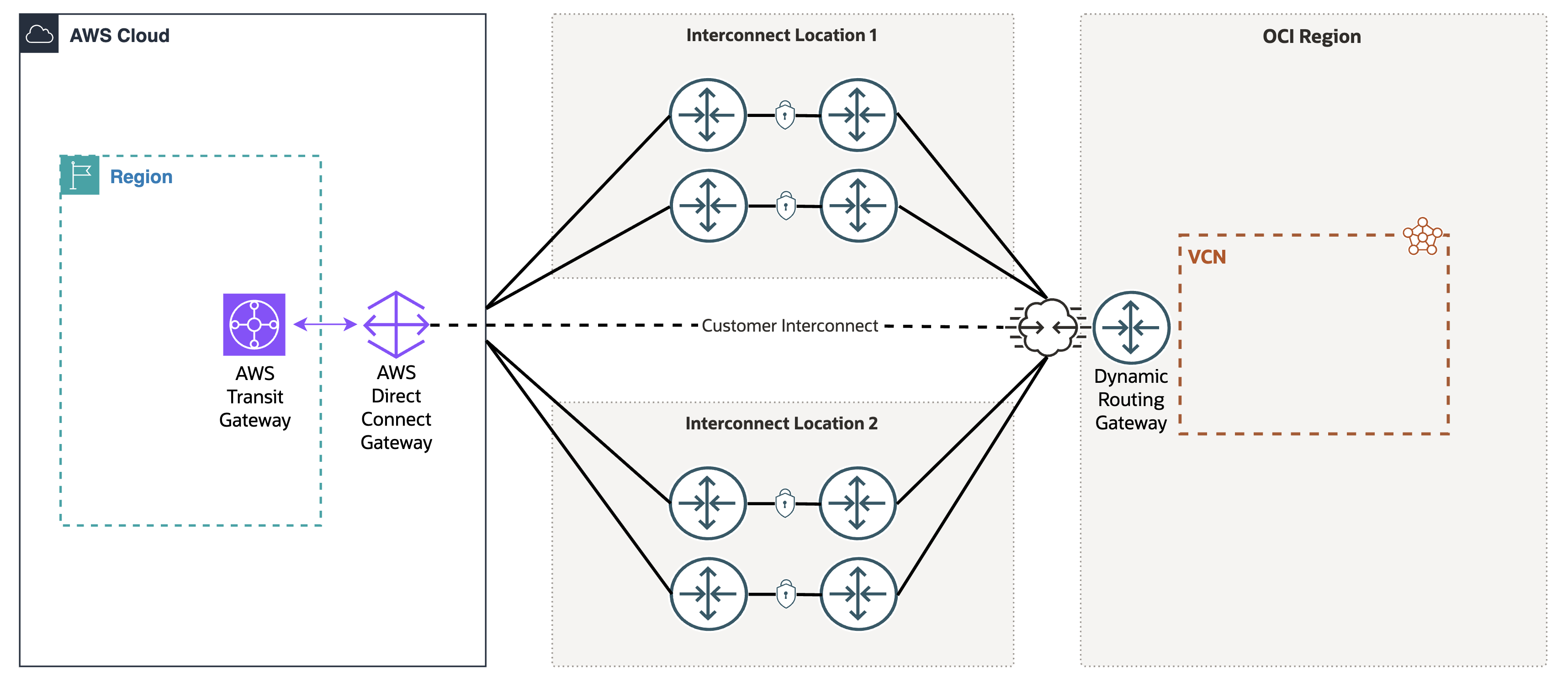
Interconnect virtual circuit traffic is encrypted using industry-standard MACsec (IEEE standard 802.1AE) when routed between the OCI FastConnect devices and AWS network devices.
All redundancy, routing, and encryption for your interconnect is represented by a single virtual circuit in your OCI tenancy. The interconnect virtual circuit is attached to your Dynamic Routing Gateway (DRG) using a standard virtual circuit DRG attachment. Similar to other DRG attachments, use DRG route tables and import route distributions to influence the subnet CIDRs advertised to AWS and control which attachments have access to your interconnect virtual circuit. To learn more, see Dynamic Routing Gateways.
Overview of Supported Traffic
Here are more details about the supported types of traffic.
VCN-to-VPC Connection: Extension from One Cloud to Another
You can connect a VCN and VPC so that traffic that uses private IP addresses goes over a cloud-to-cloud connection.
For example, the following diagram shows a VCN connected to a VPC. The traffic between the OCI VCNs and AWS VPCs uses a logical circuit that runs on the cloud-to-cloud connection between AWS and OCI.
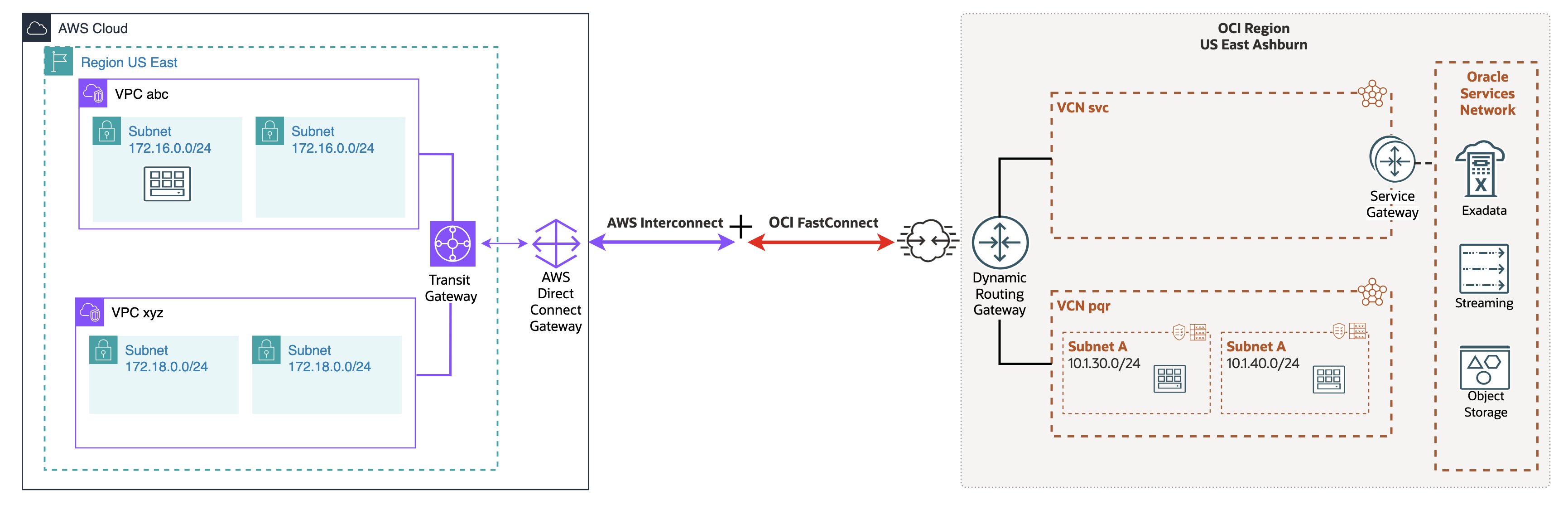
To enable the connection between the VCN and VPC, you setup an OCI FastConnect interconnect virtual circuit and an AWS interconnect. The resulting connection automatically has built-in location redundancy, with no requirement to set up additional connections to enable a highly available, resilient network.
Peered VCNs
The connection traffic can flow from one or more VPCs to one or more peered VCNs in the same OCI region or in other OCI regions through the OCI global backbone.
Types of Traffic Not Supported by the Connection
This connection doesn't enable traffic between an on-premises network through OCI to the VPC, or from an on-premises network through AWS to OCI.
Controlling Traffic Flow Over the Connection
Even if a connection has been established between VCN and VPC, you can control the packet flow over the connection with a combination of DRG route tables and VCN route tables. For example, you can restrict traffic to only specific subnets in the VPC.
Without terminating the connection, you can stop traffic flow to the VPC by removing route rules that direct traffic from the VCN to the VPC. You can also effectively stop the traffic by removing any security rules that enable VPC ingress or egress traffic. This action doesn't stop traffic flowing over the connection, but stops it at the VNIC level.
Using Default Security List Rules with the VCN
If the VCN's subnets use the default security list with the default rules, two rules in that list allow ingress traffic from anywhere (0.0.0.0/0, and thus the VPC):
- Stateful ingress rule that allows traffic on TCP port 22 (SSH) from
0.0.0.0/0and any source port - Stateful ingress rule that allows traffic on ICMP type 3, code 4 from
0.0.0.0/0and any source port
Evaluate these rules and whether additional rules are required to enable traffic flow between VCN and VPC. Ensure that all allowed inbound or outbund traffic is intended or expected and defined.
Setting Up Oracle Interconnect for AWS
This section describes how to set up Oracle Interconnect for AWS.
The Amazon Web Services side of this connection uses what AWS refers to as "AWS Interconnect." The OCI side uses the FastConnect interconnect virtual circuit.
Prerequisites: Resources You Need
You must have:
- An AWS VPC with subnets, a Direct Connect gateway.
- An OCI VCN with subnets and an attached dynamic routing gateway (DRG). Remember to attach the DRG to the VCN after you create it. If you already have Site-to-Site VPN or FastConnect between an on-premises network and VCN, then the VCN already has an attached DRG. You can use that same DRG here when setting up Oracle Interconnect for AWS.
- IAM permissions to configure the resources needed for the required OCI components.
- A valid subscription in both OCI and AWS for the regions you want to connect.
- Note your AWS account ID or your OCI tenancy OCID.
Prerequisites: Required IAM Policy
You must already have the necessary AWS access and Oracle Cloud Infrastructure IAM access to create and work with the relevant AWS and Oracle networking resources. If your user account is in the Administrators group, you already have the required authority. Otherwise, this policy covers all the Networking resources:
Allow group NetworkAdmins to manage virtual-network-family in tenancyTo only create and manage a virtual circuit, you must have a policy such as this:
Allow group VirtualCircuitAdmins to manage drgs in tenancy
Allow group VirtualCircuitAdmins to manage virtual-circuits in tenancy
For more information, see IAM Policies for Networking.
Provisioning Overview
The overall provisioning process requires configuration steps in both OCI and AWS consoles. Creation of a new Oracle Interconnect for AWS virtual circuit can be started from the OCI console and completed in the AWS console. Alternatively, begin in the AWS console, then complete the configuration in OCI.
Depending on your starting console, you're asked for either your AWS account ID or your OCI tenancy OCID for the remote cloud provider. After you initially create a new interconnect virtual circuit, a service key is generated. Use the provided service key to approve the request when you complete the configuration in the remaining console.
After you complete the configuration, OCI and AWS proceeds with the full provisioning process. The Oracle Interconnect for AWS virtual circuit attaches to your OCI dynamic routing gateway and AWS Direct Connect gateway. BGP sessions automatically establish and the contents of the DRG route table associated with your interconnect virtual circuit are advertised to AWS.
Option 1: Start from OCI Console
Create an interconnect virtual circuit in the OCI console for a connection to AWS.
This section details the configuration process if you start the configuration for OCI Interconnect for AWS in the OCI console and complete the configuration in the AWS console.
Task 1: Setup OCI Interconnect for AWS virtual circuit
- On the FastConnect connections list page, select Create FastConnect. If you need help finding the list page, see To list virtual circuits.
- Select FastConnect interconnect to configure the OCI Interconnect for AWS.
- Select Next.
- Enter the following for the virtual circuit:
- Name: A descriptive name for the virtual circuit. The value doesn't need to be unique across virtual circuits, and you can change it later. Avoid entering confidential information.
- Compartment: Leave as is (the compartment you're working in) or select a different compartment for this resource.
- Select the cloud provider to initiate your interconnect configuration: Select Configure in OCI first.
- AWS account ID: Input your AWS account ID for the AWS end of the OCI Interconnect for AWS to attach to. See, Viewing your AWS account ID.
- Dynamic Routing Gateway: Select the DRG to route the virtual circuit traffic to. This DRG could be attached to several VCNs or to other DRGs with attached VCNs.
- Provisioned Bandwidth: Select a value:
500M,1G,2G,5G,10G,20G,50G,100G.Note
500Mis charged at the1Gusage rate.If the bandwidth needs to be modified later, you can update the virtual circuit to use a different value (see To edit a virtual circuit).
- After inputting all the required values in Step 4, select Next.
- On the following Review and create page, verify all configuration, then select Create.
The virtual circuit is created and displays a status page. Select Close to return to the list of virtual circuits.
Until you complete the next task in the AWS console, the virtual circuit's Lifecycle State is PENDING PARTNER and the BGP state is DOWN.
Task 2: Complete the AWS end of the virtual circuit
- Browse to the details page for the interconnect virtual circuit. If you need help finding the list page, see To list virtual circuits.
- In the banner at the top of the virtual circuit details page, select Copy activation key.
The key is copied to your clipboard.
- Select AWS portal to open a link to the AWS console.
- Complete the OCI Interconnect for AWS configuration in the AWS console.
See Accepting a new multicloud Interconnect created from another CSP using the AWS Console.
After the AWS side configuration is completed, the Lifecycle State switches to PROVISIONING, then PROVISIONED when completed. When the BGP session is established and working, the BGP state changes to UP.
Option 2: Start from AWS Console
This section details the configuration process if you start the configuration for OCI Interconnect for AWS in the AWS console and complete the configuration in the OCI console.
Task 1: Begin configuration in the AWS console
If you haven't already, complete your configuration in the AWS console by following the instructions for Create your first multicloud Interconnect starting from the AWS Console.
Copy the activation key provided to you by AWS. This key is required for completing Task 2 in this section.
Task 2: Complete the OCI Interconnect for AWS configuration in the OCI console
- On the FastConnect connections list page, select Create FastConnect. If you need help finding the list page, see To list virtual circuits.
- Select FastConnect interconnect to configure the OCI Interconnect for AWS.
- Select Next.
- Enter the following for the virtual circuit:
- Name: A descriptive name for the virtual circuit. The value doesn't need to be unique across virtual circuits, and you can change it later. Avoid entering confidential information.
- Compartment: Leave as is (the compartment you're working in) or select a different compartment for this resource.
- Select the cloud provider to initiate your interconnect configuration: Select Configured in AWS first.
- Service key: Input the key provided by AWS in Task 1. AWS calls this the activation key.
- Dynamic Routing Gateway: Select the DRG to route the virtual circuit traffic to. This DRG could be attached to several VCNs or to other DRGs with attached VCNs.
- After inputting all the required values in Step 4, select Next.
- On the following Review and create page, verify all configuration, then select Create.
The virtual circuit is created and displays a status page. Select Close to return to the list of virtual circuits.
The configured bandwidth of your interconnect virtual circuit is automatically inherited from the AWS side configuration.
After the OCI side of the configuration is completed, the Lifecycle State switches to PROVISIONING. After several minutes, the Lifecycle State changes to PROVISIONED when completed. When the BGP session is established and working, the BGP state changes to UP.
Managing a Virtual Circuit
You can perform the following tasks with virtual circuits.
To list virtual circuits
- Open the navigation menu and select Networking. Under Customer connectivity, select FastConnect.
The FastConnect connections list page opens. All virtual circuits in the selected compartment are displayed in a table.
- To view the connections in a different compartment, use the Compartment filter to switch compartments.
You must have permission to work in a compartment to see the resources in it. If you're not sure which compartment to use, contact an administrator. For more information, see Understanding Compartments.
To edit a virtual circuit
You can change these items for a virtual circuit:
- The name.
- The bandwidth. Changes to the bandwidth are automatically updated on the AWS side of your interconnect. Optionally, bandwidth can also be changed from the AWS console.
- Which DRG it uses.
- Tags.
Changing the DRG for a virtual circuit while it's already in the PROVISIONED state causes an outage.
- On the FastConnect connections list page, select the virtual circuit that you want to work with. If you need help finding the list page, see To list virtual circuits.
- Select Edit and make changes. Avoid entering confidential information.
- Select Update.
To deactivate and activate a virtual circuit
This action is provided so you can test failover of redundant virtual circuits. The BGP session between on-premises and OCI networks is temporarily shut down (this isn't a "graceful shutdown") and resumes quickly after failover is validated.
- On the FastConnect connections list page, select the virtual circuit that you want to work with. If you need help finding the list page, see To list virtual circuits.
- Select Actions and then select Deactivate.
- To enable BGP again, select the Actions and then select Activate.
To terminate a virtual circuit
Terminating your OCI Interconnect for AWS virtual circuit can be initiated from either the OCI or AWS console. The resource is deleted in the remote cloud automatically.
- On the FastConnect connections list page, select the virtual circuit that you want to work with. If you need help finding the list page, see To list virtual circuits.
- From the for the virtual circuit, select Delete.
- When prompted, confirm the deletion.
The virtual circuit's Lifecycle State changes to TERMINATING and then to TERMINATED.