View Work Orders with Start Dates Inside and Completion Dates Outside Time Horizon Filter
Mobile work lists include work orders whose start dates are within the time horizon even when their completion dates fall outside that horizon. This improves visibility to work that begins in the selected planning window but continues beyond it. The enhancement helps technicians and supervisors avoid missing longer-running work that should still appear in mobile work views.
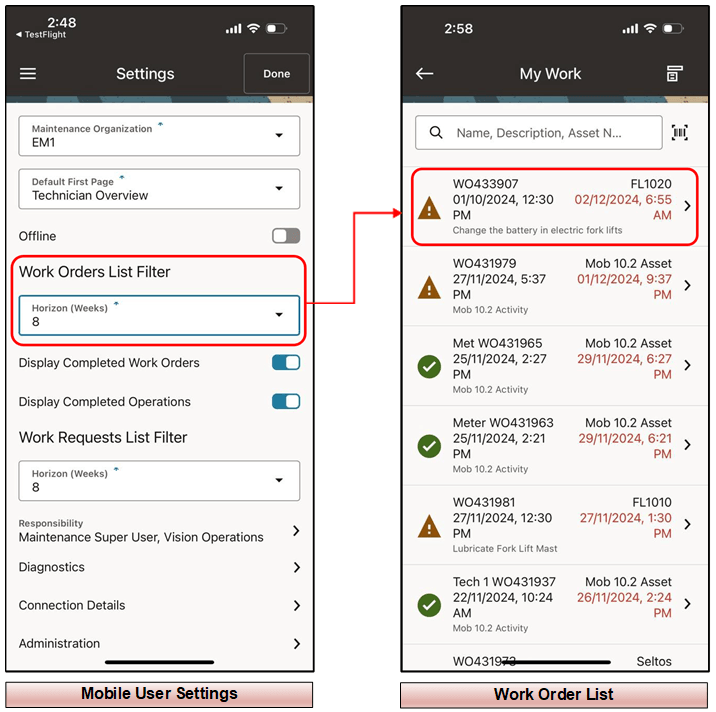
View Work Orders with Start Dates Inside and Completion Dates Outside Time Horizon Filter
Steps to enable and configure
- Review the time horizon settings used by the Mobile Maintenance work list.
- Create or identify a work order with a start date inside the mobile time horizon and a completion date outside it.
- Synchronize the mobile app and open the relevant work list or calendar view.
- Confirm that the work order appears based on its start date and remains available for mobile processing.
Tips and considerations
- Explain the horizon behavior to users so long-duration work orders are not mistaken for date errors.
- Use consistent start dates when dispatching work to mobile users.
- Include cross-boundary work orders in test scripts for mobile upgrades.
Key resources
- My Oracle Support Knowledge Document KB858915, Oracle Mobile Maintenance for Oracle E-Business Suite Release Notes
- Oracle E-Business Suite Mobile Apps Administrator's Guide
- Oracle Enterprise Asset Management Implementation Guide
- Setting Up (chapter)
- Oracle Enterprise Asset Management User's Guide