Mass Update of Item Reservations
You can create, update, and delete high-level component reservations for multiple discrete jobs using the Manage Component Reservations for Discrete Jobs concurrent program. Prior to this release, updating item reservations for work orders often required manual adjustments.
To mass update item reservations for discrete jobs:
- Create discrete jobs.
- In the Submit Requests window, select the Manage Component Reservations for Discrete Jobs concurrent program.
- Use the Parameters window to define the request. Enter the organization and other parameters to filter your request.
- You can select to include or exclude the following jobs:
- Unreleased Jobs
- Released Jobs
- On Hold Jobs
- Completed Jobs
- Standard Jobs
- Non-standard jobs
- You can select to include or exclude the following supply types:
- Push Supply Type
- Operation Pull Supply Type
- Assembly Pull Supply Type
- Use the other available fields to specify a range using Assembly, Lines, Schedule Group, Component, and Component Category. You can also enter a project.
- The Component Category Set defaults as Inventory items.
- In the Component Required within Days field, enter the number of days. The default is 7 days.
- In the Reservations field, select from the following:
- Create Only New Reservations
- Delete All Reservations
- Update All Reservations
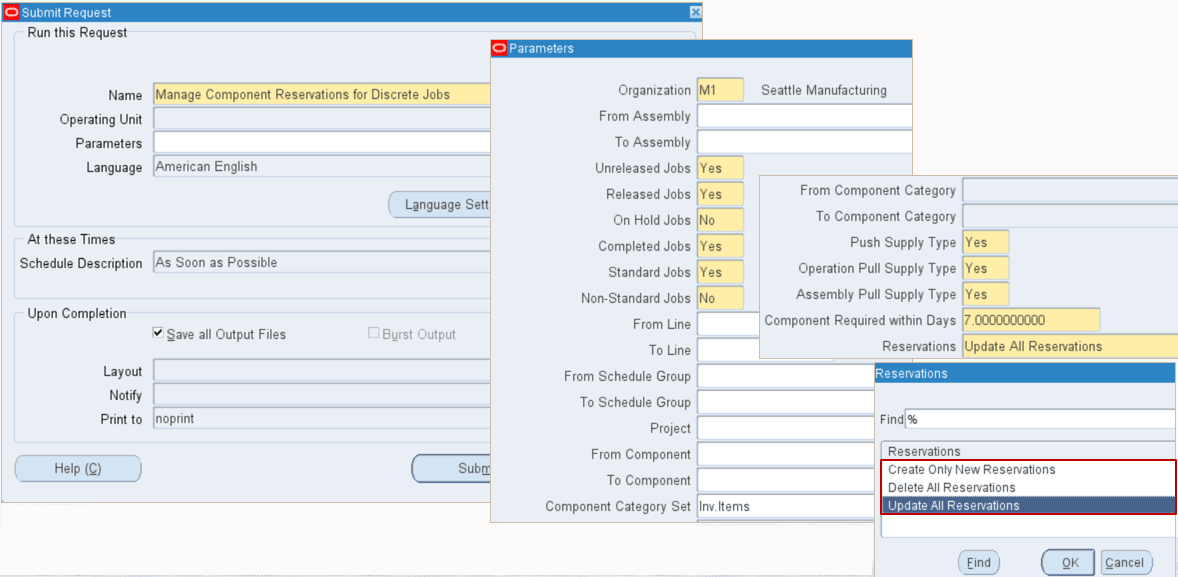
- Click Submit and use the Requests window to confirm that the program runs successfully.
- View the reserved quantity details of component items for the discrete job in material requirements
The ability to mass update item reservations for discrete jobs enables you to:
- Create, update, or delete component reservations for multiple work orders based on changing job priorities.
- Reduce the manual effort of invoking reservations on Forms based user interface and reserving items for each work order.
Steps to enable and configure
You don't need to do anything to enable this feature.
Tips and considerations
- The Manage Component Reservations for Discrete Jobs concurrent program reserves components by default based on the following priority order in sequence:
- Components with open move orders
- Earliest required date for the job component
- Earliest start date for the first unit of the operation
- Earliest completion date for the last unit of the operation
- Job status - Complete, released, unreleased, or on hold
- Job type - Standard or non-standard
- Operation sequence number
- The default value for the Reservations field is Update All Reservations.
Key resources
- Oracle Work in Process User’s Guide
- Chapter: Material Control
- Topic: Managing Component Reservations
- Chapter: Material Control
- R12.2.13 TOI: Implement and Use Discrete Manufacturing - WIP, MES and CTO Enhancements