Define and Manage Acceptance Quality Limit (AQL) Sampling Plans
Oracle Process Manufacturing Quality Management now supports quality inspection processes with the Acceptance Quality Limit (AQL) sampling plans for lot based quality control. You can create an AQL sample based on an AQL specification and use AQL single sampling plans for normal inspections to define the maximum number of defective units that can be rejected in a lot quantity. For example, if 3 has been defined as maximum number of rejections for a sample lot, then if there are 3 or more rejections, the sample lot is rejected.
Note the following:
- AQL single sampling plans for normal inspections of ISO-2589-1 are supported in this release.
- AQL sampling plan details are provided as seeded values.
AQL standards represent the maximum number of defective units, beyond which a batch is rejected. When you create an AQL sample using an AQL specification and AQL validity rules, the application calculates the sample size, as well as the accept and reject quantity for each test method group. The Sample Size calculation is based on the seeded AQL standards according to ISO 2859-1 standards for single sampling plans for normal inspections for a given lot quantity. The enhanced user interface provides new windows to enter AQL test groups, AQL samples, and AQL results. Existing UIs such as the Specifications and the Quality Change Disposition windows are now enhanced to provide support to Acceptance Quality Limit (AQL) sampling plans for lot based quality control.
Use Acceptance Quality Limit (AQL) sampling plans for lot based quality control when you want to assess the quality and acceptability of a production batch without inspecting all the items in that batch.
To use Acceptance Quality Limit (AQL) sampling plans for lot based quality control:
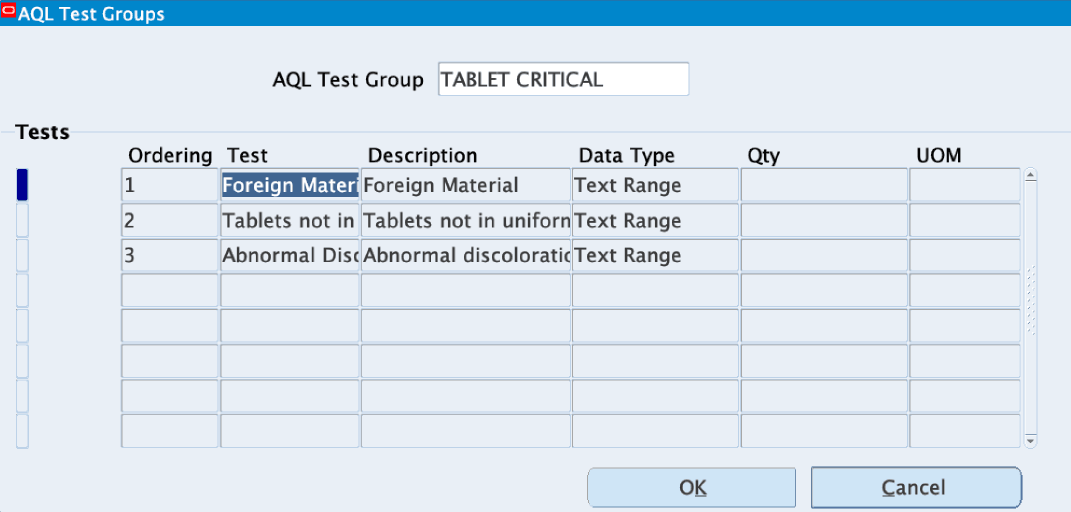
- You can create AQL tests as well as other tests and then add them to an AQL test group. Use the AQL Test Groups window to create an AQL test group and then add the tests. The AQL test group enables you to organize and group the tests that you created into a meaningful set for collaborative analysis.
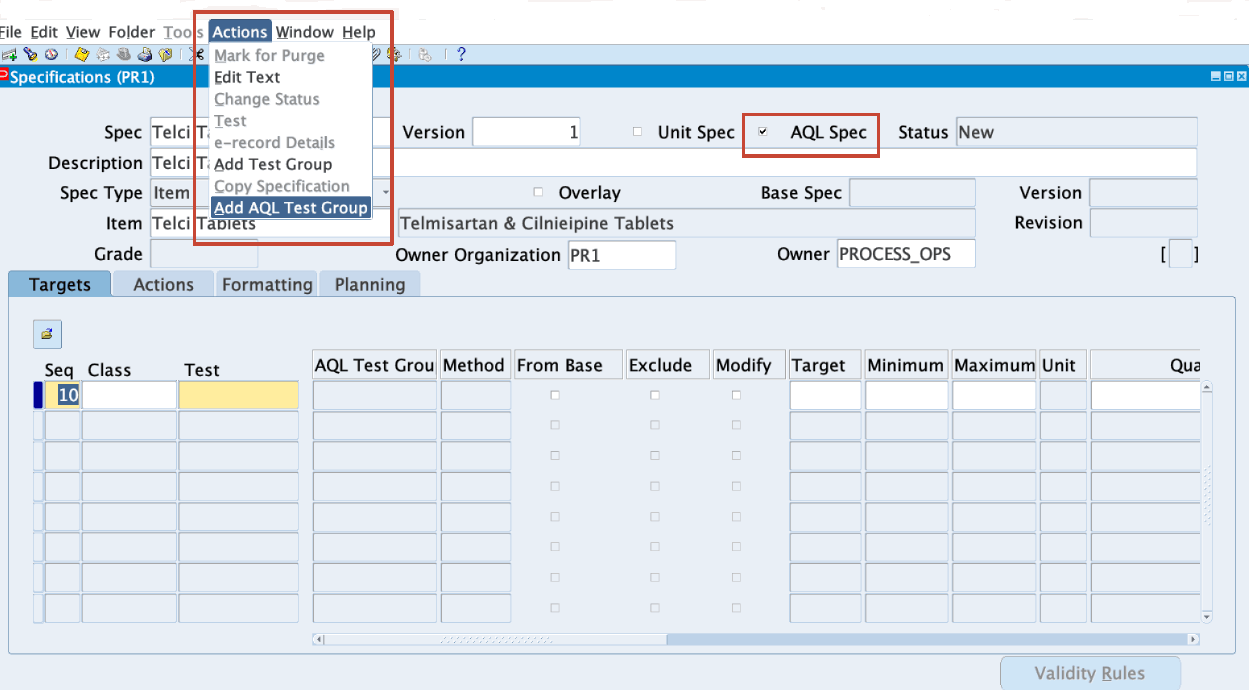
- Create AQL specifications that can be used for AQL based single sampling inspections. On the Specifications window, enter the required specification information and then select the AQL Spec check box. Save your changes.
- From the Specifications window's Action menu select Add AQL Test Group and AQL test groups to the AQL specification. You can also add other tests to the AQL specification.
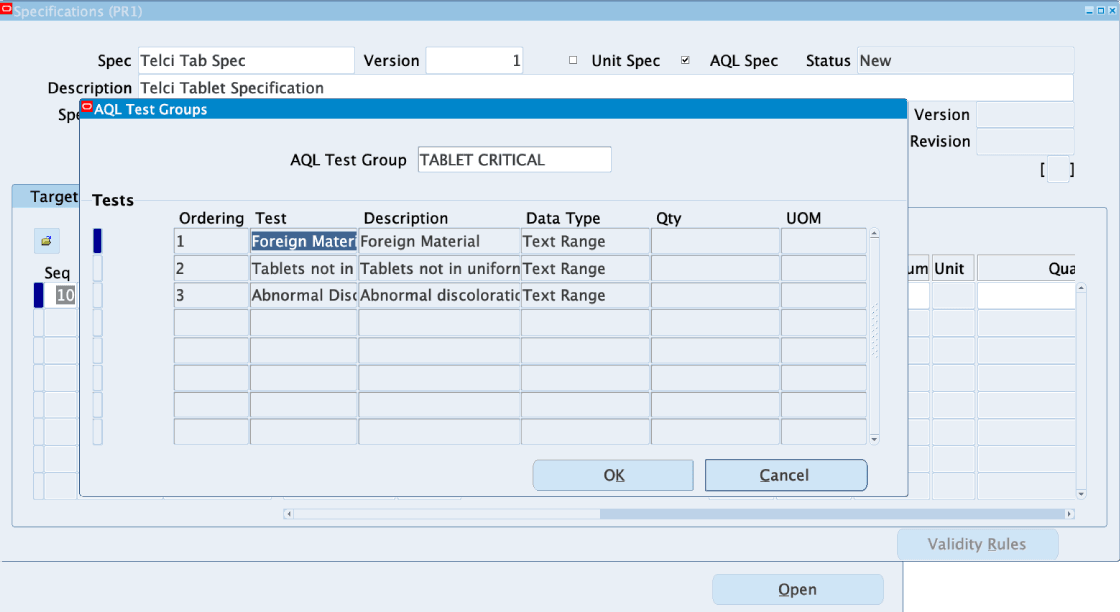
Note that apart from the AQL test groups, you can also add other tests that are not defined as AQL test groups. - On the Spec Validity Rule Details window enter validity rules for the AQL specification. Click AQL Sampling Plan to enter sampling plan information. The AQL Sampling Plan window displays all the AQL test groups associated with the specification. For each test group that displays in the AQL Group Name field, provide the Inspection Type, Inspection Level, and the AQL level.
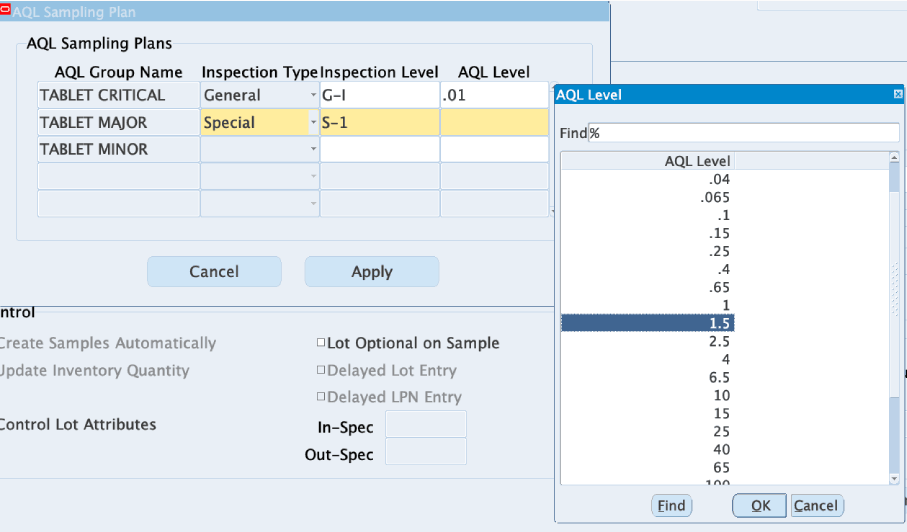
Apply and save the AQL specification validity rule and ensure that the AQL specification validity rule is approved for general use. - Use the AQL Samples window to create an AQL sample using AQL specifications associated to an item, organization, and sample source. Enter the required sample information and then click Get Spec and use the Specification Association dialog box that opens, to associate the specification validity rules to the AQL sample.
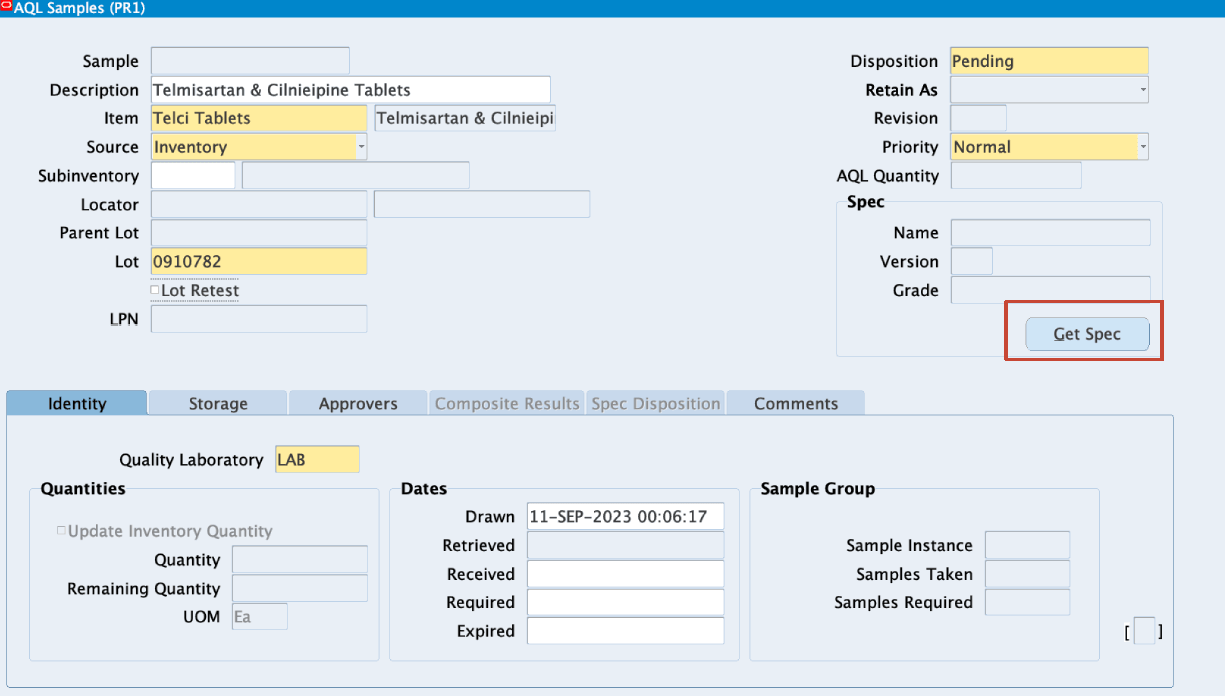
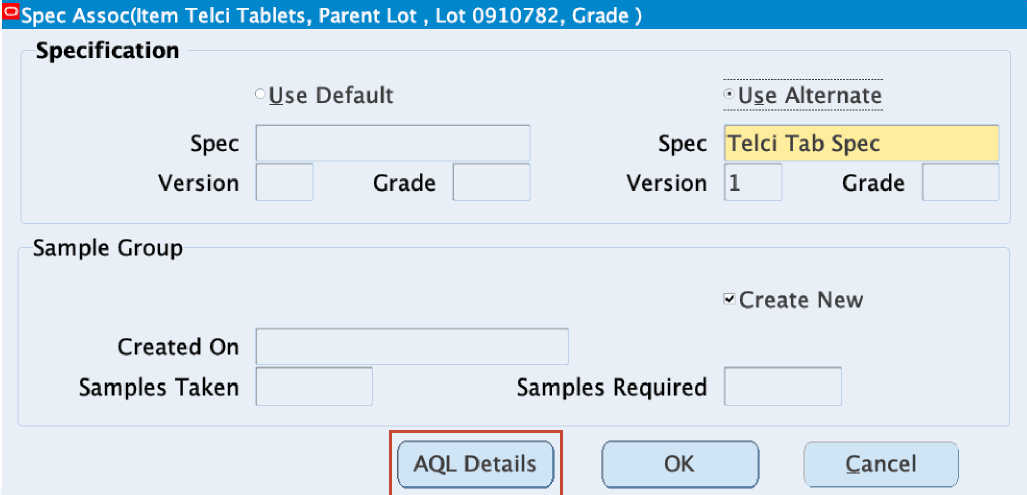
- Click AQL Details to view the AQL Sampling plan.
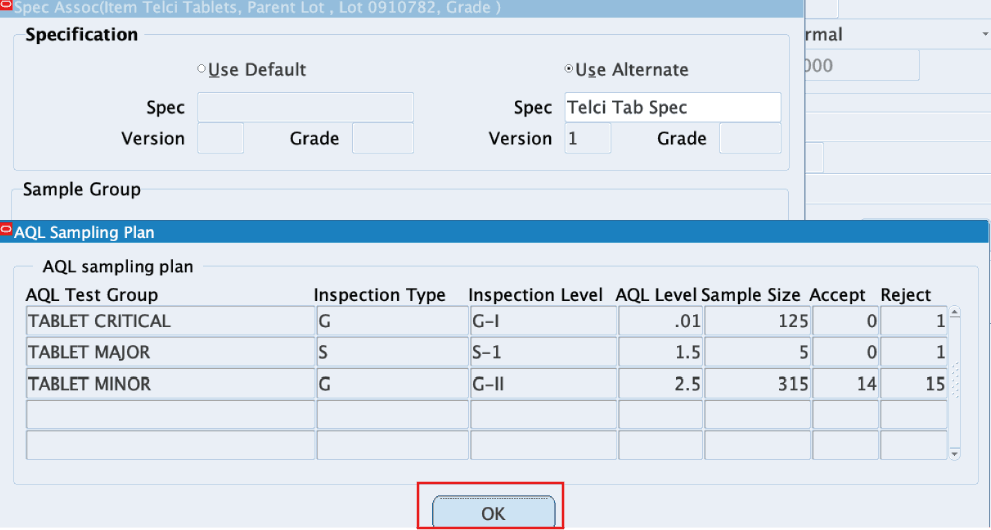
- When you create an AQL sample based on an AQL specification, the application calculates the sample size, as well as the accept and reject values for each test method group for the AQL sampling plan. View the AQL Sampling plan that shows the automatically calculated values for the sample size and the accept and reject criteria. Click OK.
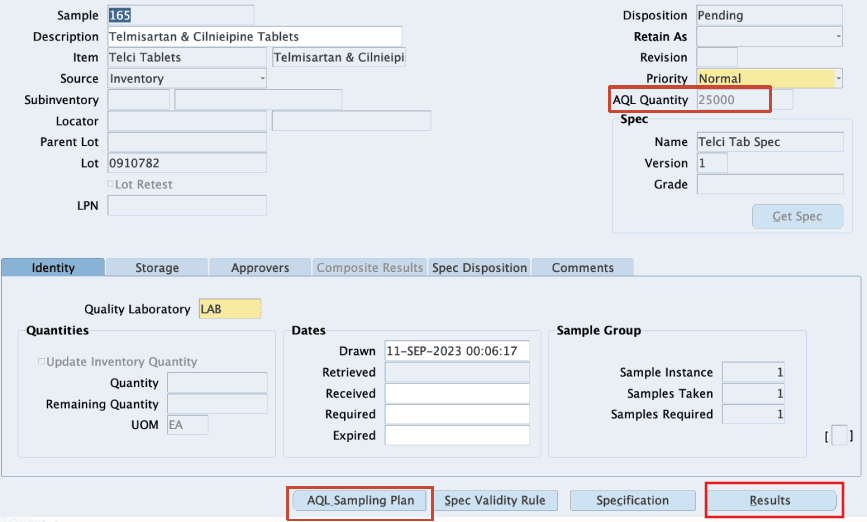
- View the AQL Quantity on the AQL Samples window. You can also click AQL Sampling Plan to view the plan details. You can now enter results for the AQL sample. Click Results to open the AQL Results window.
- Enter results in the AQL Results window. Click View Sampling Plan on the AQL Results window to view the AQL details associated with the AQL sampling plan you have queried. The Sample Size displays the sample size for the AQL test group.
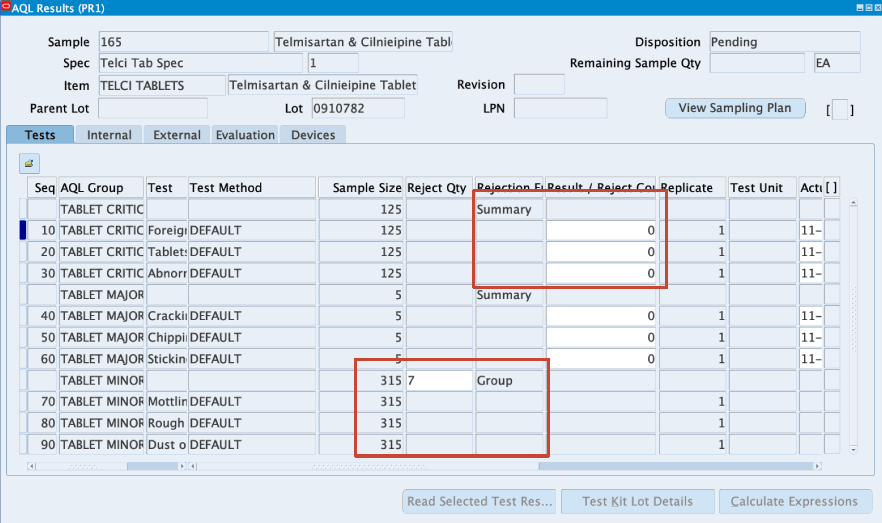
- For an AQL summary group, enter Result/ Reject Count for each test that is included in the summary test group.
- For an AQL summary override group, enter Result/ Reject Count for each test that is included in the summary override test group.
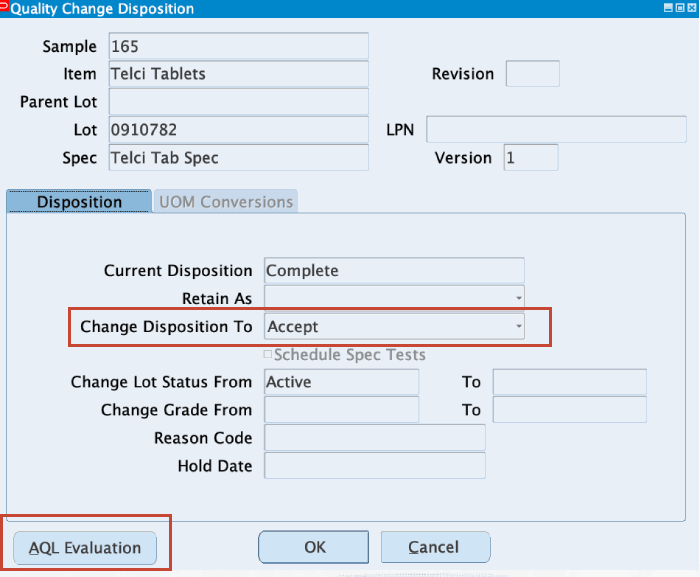
- Use the Quality Change Disposition window to change the disposition of the sample. Click AQL Evaluation to see the evaluation information for the AQL test group as well as the included tests that are not part of the AQL test groups. Depending on the test results, change the disposition of the sample to Accept or Reject. Note that for AQL samples, the Accept with Variance option is not available:
AQL sampling plans for lot based quality control:
- Ensures that products meet predetermined quality standard and reduces the risk of defects.
- Expedites the inspection process and reduces delays.
- Reduces inspection costs by sampling a subset of a production batch instead of inspecting every single item in the batch.
Steps to enable and configure
You don't need to do anything to enable this feature.
Tips and considerations
- Ensure that for an item at least one unit is defined as count based UOM.
- In the Specification window, ensure that the AQL Spec check box is selected.
- Define AQL test groups before you define the AQL specifications.
- When defining an AQL specification validity rule, select Change Status from the Actions menu to change the status of the AQL specification validity rule from New to Approved for General Use.
- If the lot quantity is in decimals, note that the sample is created for the nearest positive integer.
- Associate the specification validity rules to the AQL sample using the Specification Association dialog box.
Key resources
- Oracle Process Manufacturing Quality Management User's Guide:
- Chapter: Setting Up
- Topic: Setting Up AQL Test Groups
- Chapter: Specifications
- Topic: Entering a Specification
- Chapter: Samples
- Topic: Entering AQL Samples
- Chapter: Results
- Topic: Entering AQL Results
- Topic Changing Quality Disposition
- Chapter: Setting Up
- R12.2.13 TOI: Implement and Use Process Manufacturing - Process Quality and MES Enhancements