Manage Calibration and Certification of Quality Instruments
You can monitor and manage the calibration of instruments used in laboratory tests to ensure that the instruments are performing efficiently and at optimal levels. You can:
- Define calibration requirements as calibration specifications.
- Define a schedule according to which calibration events must occur.
- Record, evaluate, and test equipment.
The enhanced user interface provides new windows to enter calibration specifications, calibration specification validity rules, and calibration samples. Existing UIs such the Results and Quality Change Disposition windows are now enhanced to provide support for instrument calibration.
To manage calibration for quality instruments:
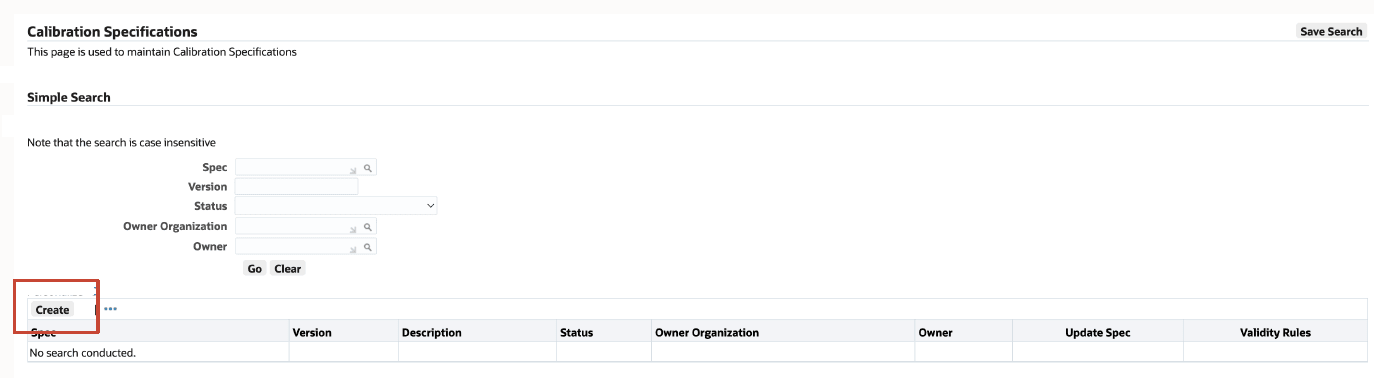
- Navigate to the Calibration Specifications page. After selecting an organization, click Create to enter a calibration specification.
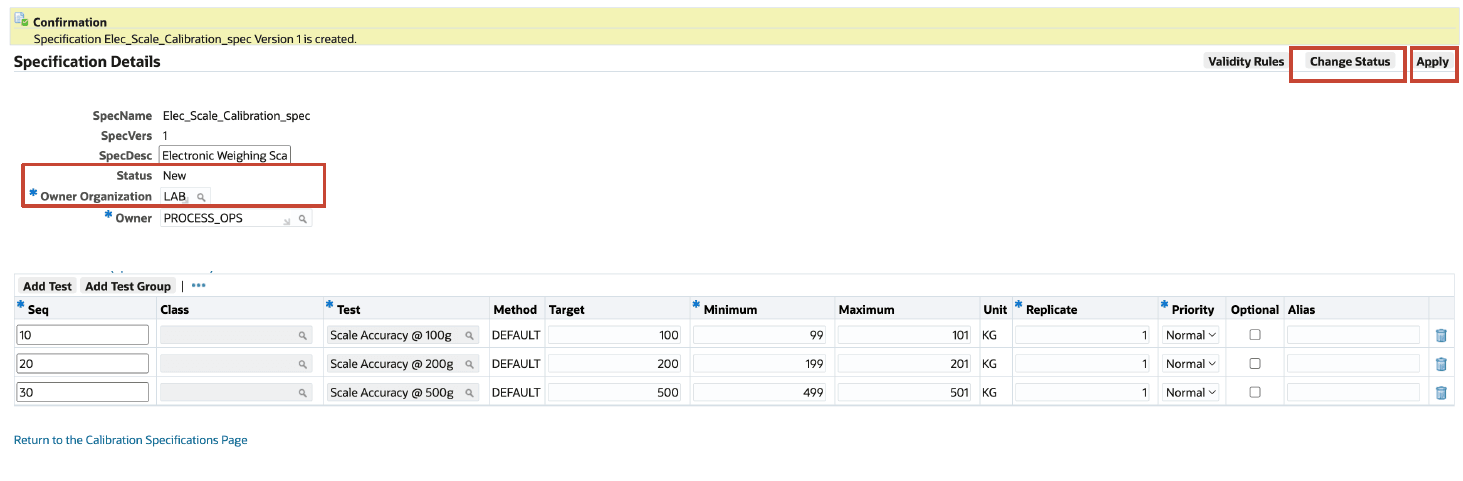
- On the Specification Details page, enter the specification name, version, and description. Click Change Status to change the status of calibration specification to Approved for Calibration or for Approved for Calibration Assessment and then click Apply.
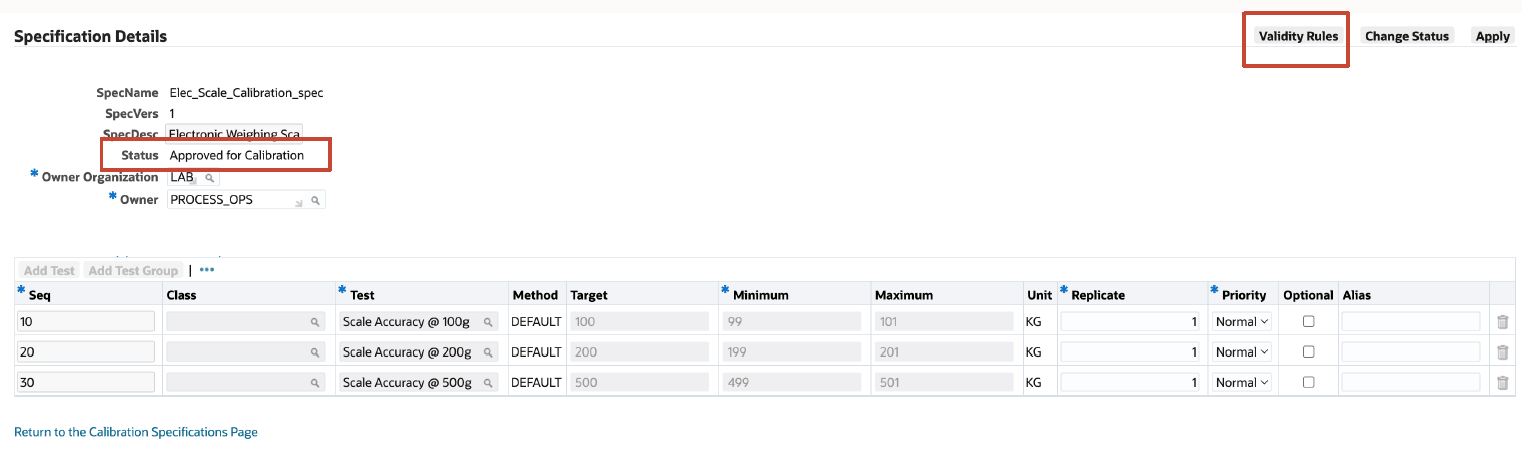
- Ensure the specification is changed. On the Specification Details page, select Validity Rules.
- Click Create Validity Rule.
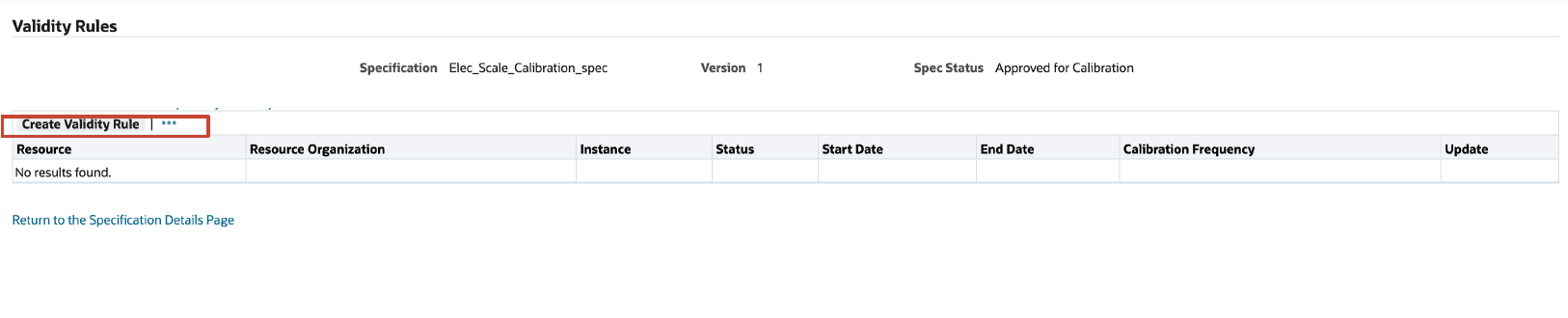
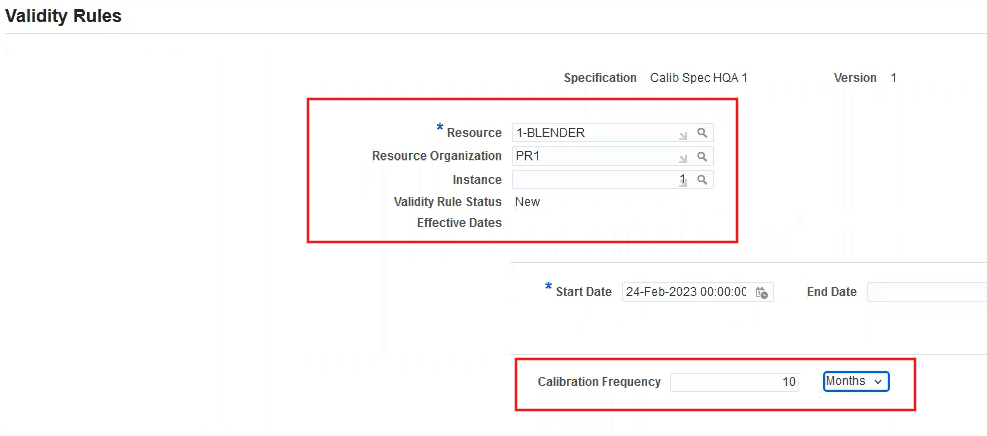
- On the Validity Rules page that opens, enter the required Resource information details and Calibration Frequency. Ensure that you change the status of calibration specification validity rule to Approved for Calibration or for Approved for Calibration Assessment.
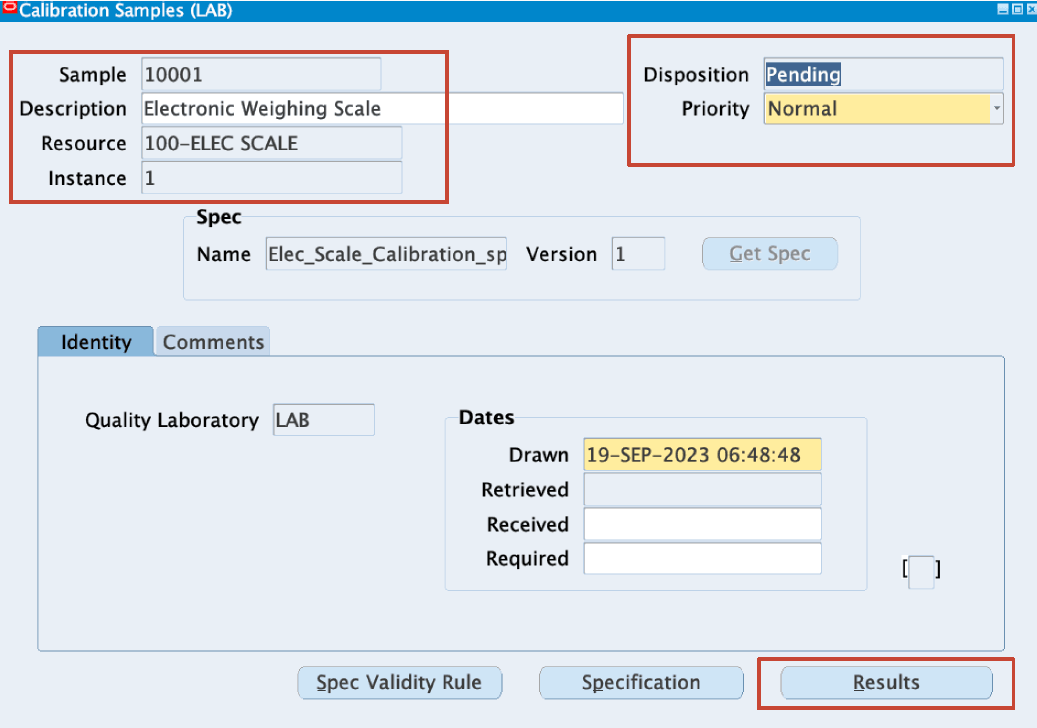
- Once you create a calibration specification, create a calibration sample. Navigate to the Calibration Samples window and in the Resource field, enter the instrument you want to calibrate. Click Get Spec and confirm the specification association that is defined for the resource. You can use this page to view the calibration specification for this resource in the Specification Details page, as well as the calibration spec validity rules, and the calibration frequency for this resource. Use the Identity tab in the Calibration Samples window to select the Quality Laboratory as the organization where the sample is tested. Once you save the information, select Results to enter results for the calibration sample.
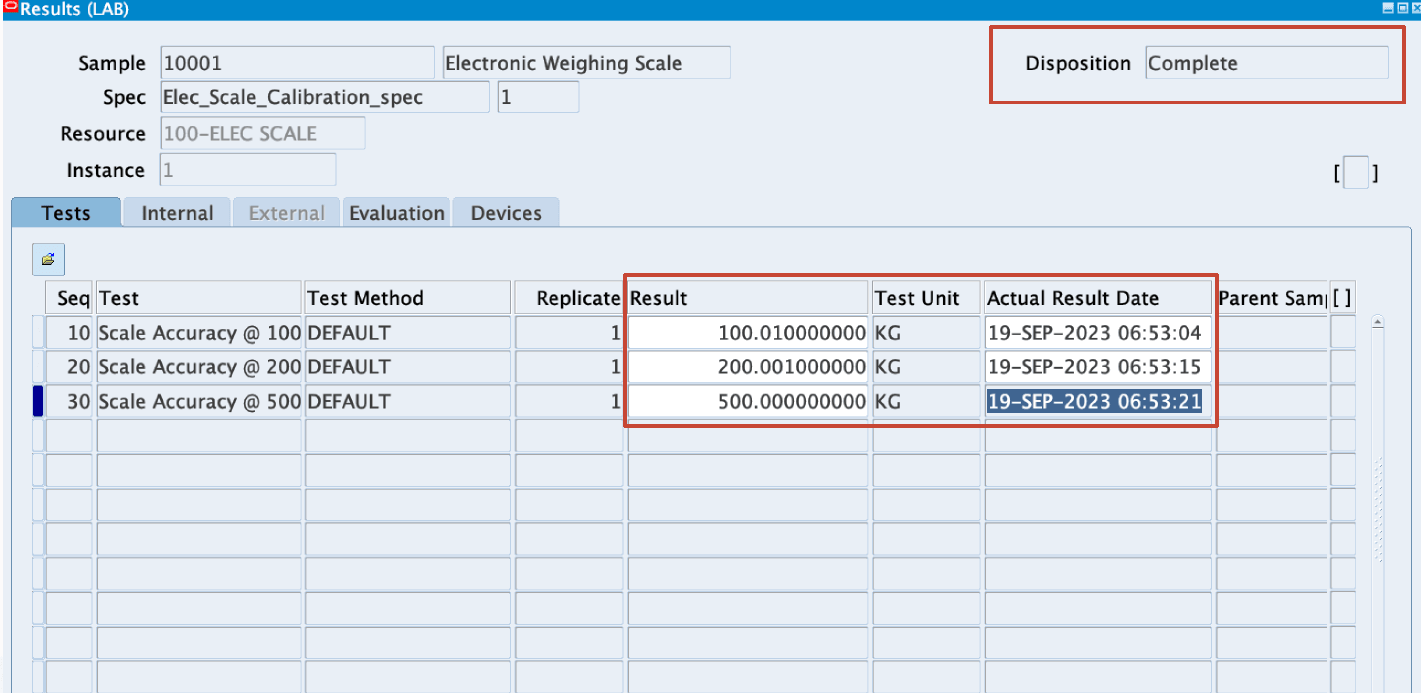
- In the Results window, enter the quality results for each of the tests and save your work.
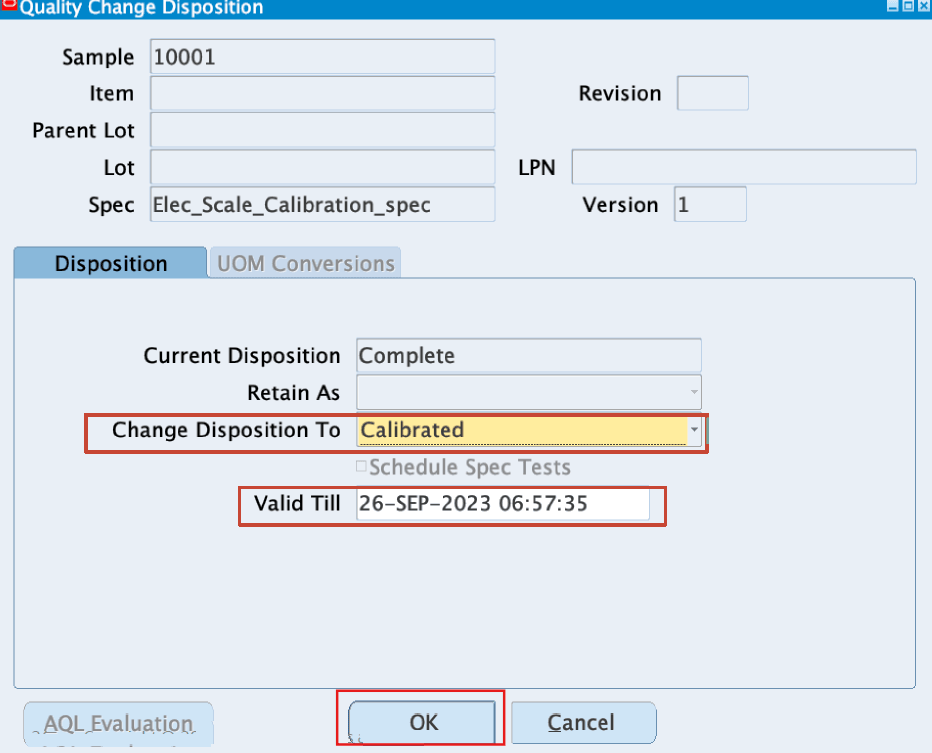
- From the Actions menu, select Change Disposition and in the Quality Change Disposition window, select Calibrated to confirm that the equipment is now calibrated for optimum use or else, select Reject to reject the calibration for this resource.
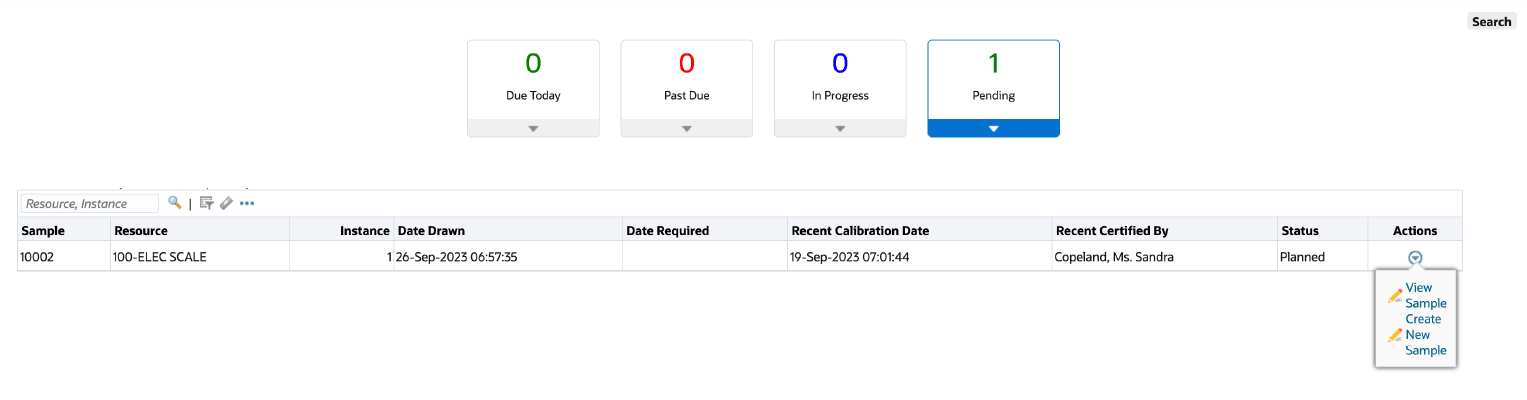
- You can also use the Calibration Sample Details page to view details and monitor existing calibration samples using the following key metrics:
- Due Today
- Past Due
- In Progress
- Pending
- From the Actions list on the Calibration Sample Details page, you can also select to view a sample or create a new sample.
You can use this instrument calibration to:
- Detect and correct deviation and inaccuracies in quality measurement instruments.
- Ensure that equipment standards are complied with.
- Record consistent readings from equipment.
- Maintain quality of products, processes, and data through accurate measurements.
Steps to enable and configure
You don't need to do anything to enable this feature.
Tips and considerations
- Ensure resources are defined in both Generic and Plant resources.
- Enter the calibration frequency when you create the calibration specification validity rule.Ensure resources are defined in both Generic and Plant resources.
Key resources
- Oracle Process Manufacturing Quality Management User's Guide:
- Chapter: Specifications
- Topic: Entering a Calibration Specification
- Chapter: Samples
- Topic: Entering Calibration Samples
- Topic: Viewing Calibration Samples Details
- Chapter: Results
- Topic: Entering Calibration Results
- Topic Changing Quality Disposition
- Chapter: Specifications
- R12.2.13 TOI: Implement and Use Process Manufacturing - Process Quality Laboratory Enhancements