Quotes Dashboard
The Quotes Dashboard provides a centralized workspace for sales representatives and order management users to monitor, manage, and take action on customer quotes throughout the quote lifecycle. You can now better manage quotes in Order Management using the Quotes Dashboard. You can view actionable insights of open quotes count and amount by quote date and expiration date, quote status, customer, product, and salesperson, in order to identify quotes to focus on and take action. For example, you can identify open high value quotes pending customer approval, narrow by specific customers, and then drill to the quote to review more details and make updates.
Using the Quotes Dashboard, you can expedite the quote-to-order process, focusing on open quotes for which to take action to convert the quote to an order. You can also improve the overall quoting process by reviewing the quote history and related metrics of average time to convert a quote to an order and the quote conversion percent by key dimensions, and then identifying process improvement opportunities.
Prior to the introduction of the Quotes Dashboard, users often had to navigate through multiple pages, searches, or reports to locate and manage customer quotes. Monitoring quote status, identifying pending approvals, and tracking expiring quotes required additional effort and limited users' ability to proactively manage quote-related activities.
Quotes Dashboard
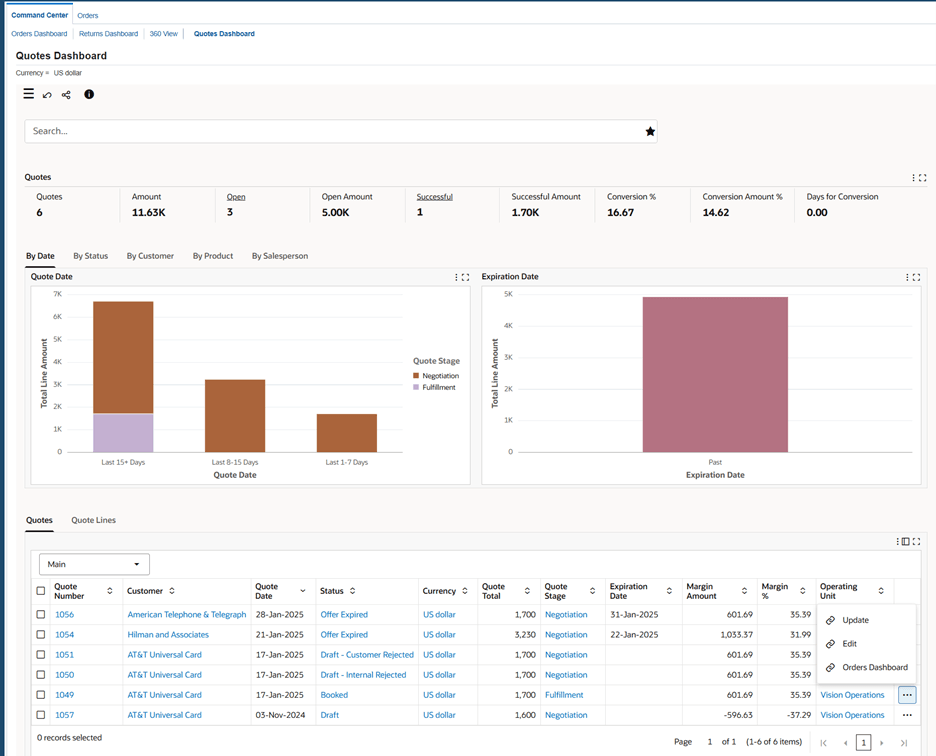
Use the Quotes Dashboard to:
- Review quotes data.
- Search for quotes using the quote header and quote line attributes.
- Review open quotes and the amount for open quotes.
- Streamline the quote-to-sales order process.
- Track performance metrics such as quote conversion and the average time to convert a quote to a sales order.
- Use the quote-to-sales order conversion metric to identify the issues in the approval process for quotes.
- Gain insight into the various attributes of quotes management.
- Focus on the quotes that require attention based on the expiration date.
- Monitor the number of days in which quotes are in a specific quote stage.
- Review the number of quotes at each quote status.
- Focus on customer specific quotes and the corresponding quote stages.
- Review quotes by products.
- Identify salespersons for quotes and the corresponding quote stages.
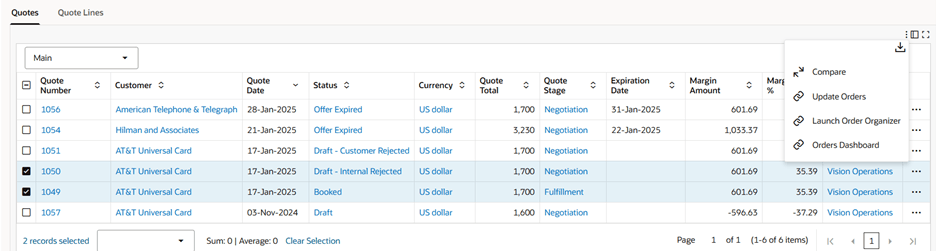
Quotes Tab Table-Level Actions
Steps to enable and configure
- Set the following profile options:
- OM: ECC Months for Quote Load: This new site level profile option defines the maximum age (in months) of both quotes and converted quotes (orders) considered for full load. Default value is 6 (months).
- OM: ECC Display Currency: This existing site level profile option controls the conversion of the transaction amounts into the specified currency in the Quotes Dashboard.
- OM: ECC Bulk Load Size: This existing site level profile option determines the number of records that the data load progream processes in memory at one time.
- Run the OM Command Center Quote Data Load program to load quotes data.
Tips and considerations
- Access the Quotes Dashboard through the existing Order Management ECC Role.
- Manage and perform the administrator tasks through new ECC data sets Quotes (ont-qheaders) and Quote Lines (ont-qlines).
- Configure user roles carefully to ensure appropriate access to quote information and actions.
- Regularly monitor quotes nearing expiration to maximize conversion opportunities.
- Leverage dashboard filters and search capabilities to quickly identify quotes requiring attention.
- Establish approval workflows to ensure timely processing of high-value or exception-based quotes.
- Review dashboard metrics and trends periodically to identify process bottlenecks and improve sales effectiveness.
- Ensure quote data is synchronized with related customer, pricing, and order management processes for accurate visibility and reporting.
Key resources
- Oracle Order Management User's Guide
- Oracle Order Management Command Center
- Quotes Dashboard
- Oracle Order Management Command Center
- Oracle Order Management Implementation Manual
- Oracle Order Management Command Center Setup
- Setup and Configuration Steps for Order Management Command Center
- Loading Quotes Data
- Setup and Configuration Steps for Order Management Command Center
- Oracle Order Management Command Center Setup
Transfer of Information
R12.2.14+ TOI: Implement and Use Order Management - Oracle Order Management Command Center