Installing OHS Manually
Note:
Before proceeding with manual installation, check if a working backup is available.
If no backup exists, you may copy the OHS folder from another
similar and working environment. Ensure that the user who installed
OHS in the source environment is the same as the user in the
current environment, and that the MIDDLEWARE_HOME path is
identical.
If these options are not available, proceed with manual installation using the steps:
Table 11-2 Verify and Reinstall OHS
| Step | Details |
|---|---|
| Manual OHS Installation (If EPM Installer option is unavailable) | To manually install OHS:
|
The following screens will walk you through the installation process:
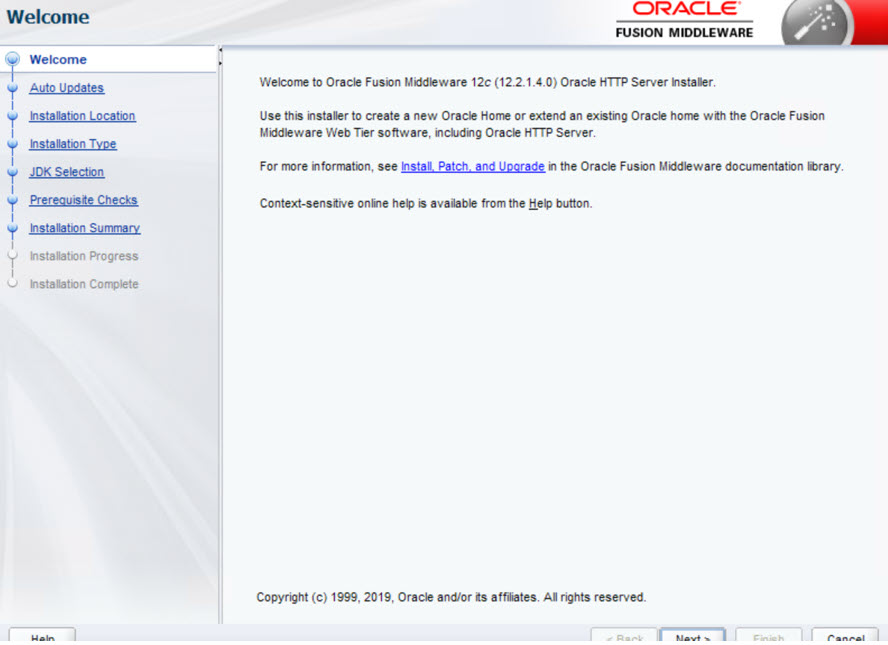
- Launch Windows or Linux installer to proceed with the installation process.
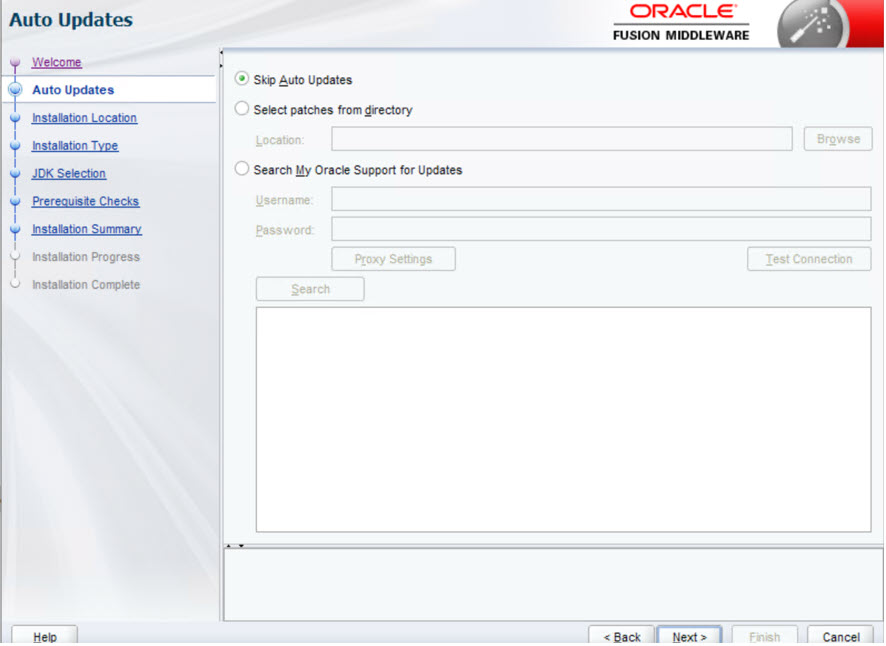
- Select the Skip Auto Updates option, then click
Next.
- Select the Oracle home directory for OHS installation. It must be
MIDDLEWARE_HOME/ohs.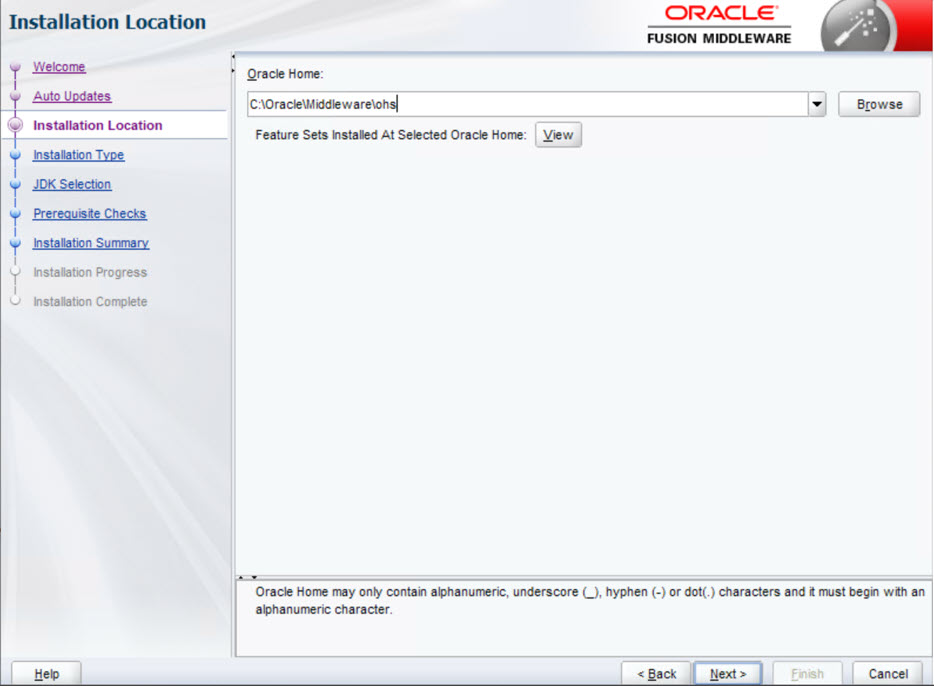
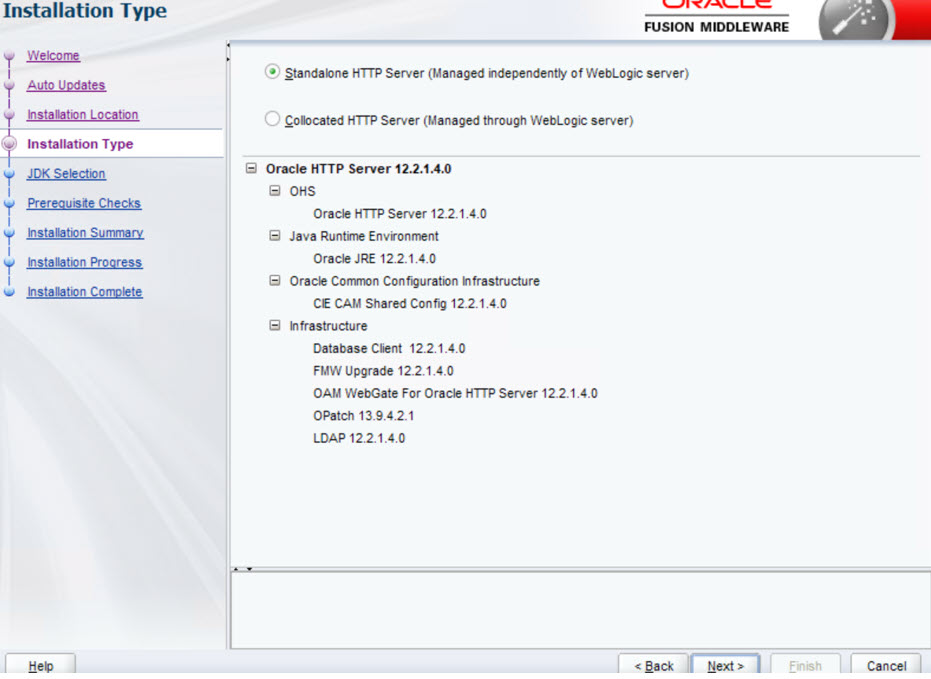
- Select Standalone HTTP Server (Managed independently of WebLogic
server) option, then click Next to
proceed with the installation.