Creating an Enterprise Process Using a Predefined Template
If the business process for which you are designing a process model matches one of the predefined process model templates delivered by the Oracle JD Edwards product team, for example, Order-to-Cash or Procure-to-Pay, then the easiest way to create the process model is to load the appropriate template into Enterprise Process Manager, provide a few configuration details, and save the process model. Enterprise Process Manager enables you to select a template that has been uploaded into the system (typically by a system administrator). The design options, data filtering and grouping options, metrics, and analytics have all been preconfigured for you in the template. You simply have to make a few configuration choices. You can then save your process model, which EnterpriseOne manages as a user-defined object (UDO).
For more information, see User Defined Object (UDO) Features in Enterprise Process Manager.
To create a new enterprise process from a template:
-
Access the JD Edwards EnterpriseOne application.
-
From the User menu, click Manage Content, and select Processes.
The system displays the Create Process window.
Note:The Create Process window is only displayed when you are creating an enterprise process for the first time. After creating a process, when you click Processes again, the system displays the previously created process.
If you want to create a new process, in the Enterprise Process Manager window, click the Name drop-down list, and in the Personal section, select Create.
-
On the Create Process window, from the Foundation of Process drop-down list, select Enterprise Process Template.
-
From the Import Process Template drop-down list, select a template. The available templates are:
-
JDE TMPL Procure to Pay. See Enterprise Process Model Template for Purchase Orders.
-
JDE TMPL Order to Cash. See Enterprise Process Modeler for Order to Cash.
-
JDE TMPL Requisition. See Enterprise Process Model Template for Requisition.
-
JDE TMPL O2C with Warehouse. See Enterprise Automation for Order to Cash Warehouse.
Starting with Tools Release 9.2.26.0, you can create Procure to Pay enterprise processes using process definition IDs. The templates available are:- JDE TMPL P2P Procure to Pay. See Procure to Pay Process Model Template Metrics.
- JDE TMPL P2P Purchase Order. See Purchase Orders Process Model Template Metrics.
- JDE TMPL P2P Requisition. See Requisition Process Model Template Metrics.
- JDE TMPL P2P Approval. See Approvals Process Model Template Metrics.
- JDE TMPL P2P Receipt. See Receipts Process Model Template Metrics.
- JDE TMPL P2P Receipt Routing. See Receipt Routing Process Model Template Metrics.
- JDE TMPL P2P Voucher Match. See Voucher Match Process Model Template Metrics.
Note: The Oracle JD Edwards product team may periodically deliver additional process model templates. For details about the availability of new templates, review the EnterpriseOne Release Announcements. -
- Click OK. The available design time options are displayed in the Create Process window.
- You can either change the values for these options or accept the default values.
Note:
If you are on Tools Release 9.2.9.3, refer to the next step (step 7) to understand how to make the design option changes in the Create Process window.
For example, the Procure to Pay template provides design options for Order Type, Line Type, and Start Status. Although you cannot change these three design options, you can change their values from the default values, for example, to create your process around a document type other than the default value OP (Purchase Order) or the default Line Type S (Stock).
-
Order Type (DCTO): Depending on the template you select, this value may be read-only or editable.
-
Line Type (LNTY): Depending on the template you select, this value may be read-only or editable.
Important:The system displays the design options based on the template you select. Therefore, the field names displayed in your environment may differ. The system allows editing the design options depending on the template you select.
-
Start Status: Select the value from the drop-down list. The system displays the available nodes from the template you selected in this drop-down list. The value you select in this field becomes the first (start) node in the automatically generated process model.
-
- (Tools Release 9.2.9.3) You can either enter values for these design options or
accept the default values. The design options are displayed depending on the
template you select. The Create Process window also enables you to choose a color theme for the nodes.
- If the selected template does not contain any connected templates, select the color from the Color Theme drop-down list and select the node from the Start Status drop-down list.
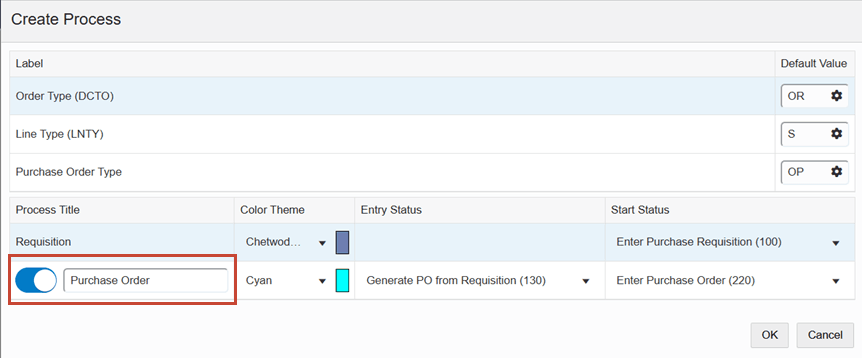
If the selected template contains connected templates, the Create Process window provides the option to disable the connected templates. This option is enabled by default.
In the parent template row, select the color from the Color Theme drop-down list and select the node from the Start Status drop-down list.
In the child template row, you can disable the option to remove the connected template. When the option is enabled, you can select the color from the Color Theme drop-down list and select the node from the Entry Status and Start Status drop-down lists.
The Entry Status node determines the node from where the connected process starts from the parent process. The node you select in the Start Status field becomes the first (start) node in the child process.In the following example, the Purchase Order child process is enabled for the Requisition parent process.
Click OK. The Main Module tab is displayed in the Enterprise Process Manager window, where you can see the automatically generated enterprise process diagram based on the selected template and values defined in the Create Process window.
The nodes represent the tasks in the process template and the links represent the connection between the nodes.
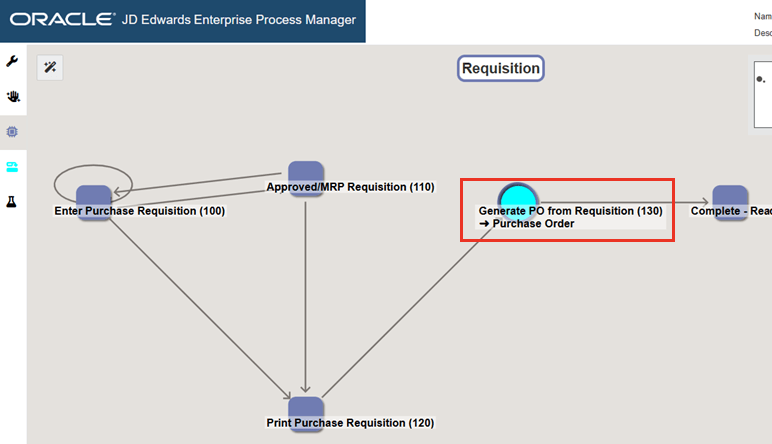
Starting with Tools Release 9.2.9.3, to indicate that a child template is linked to a node, the Enterprise Process Manager shows a circular node in the specified color scheme. In the following example, the name (Requisition) of the parent template is displayed on the generated process diagram. The child template is linked from the Generate PO from Requisition node (indicated by the Cyan color).
Before saving your process model, you can review the configurations to ensure that the data and metrics are defined according to your requirements.
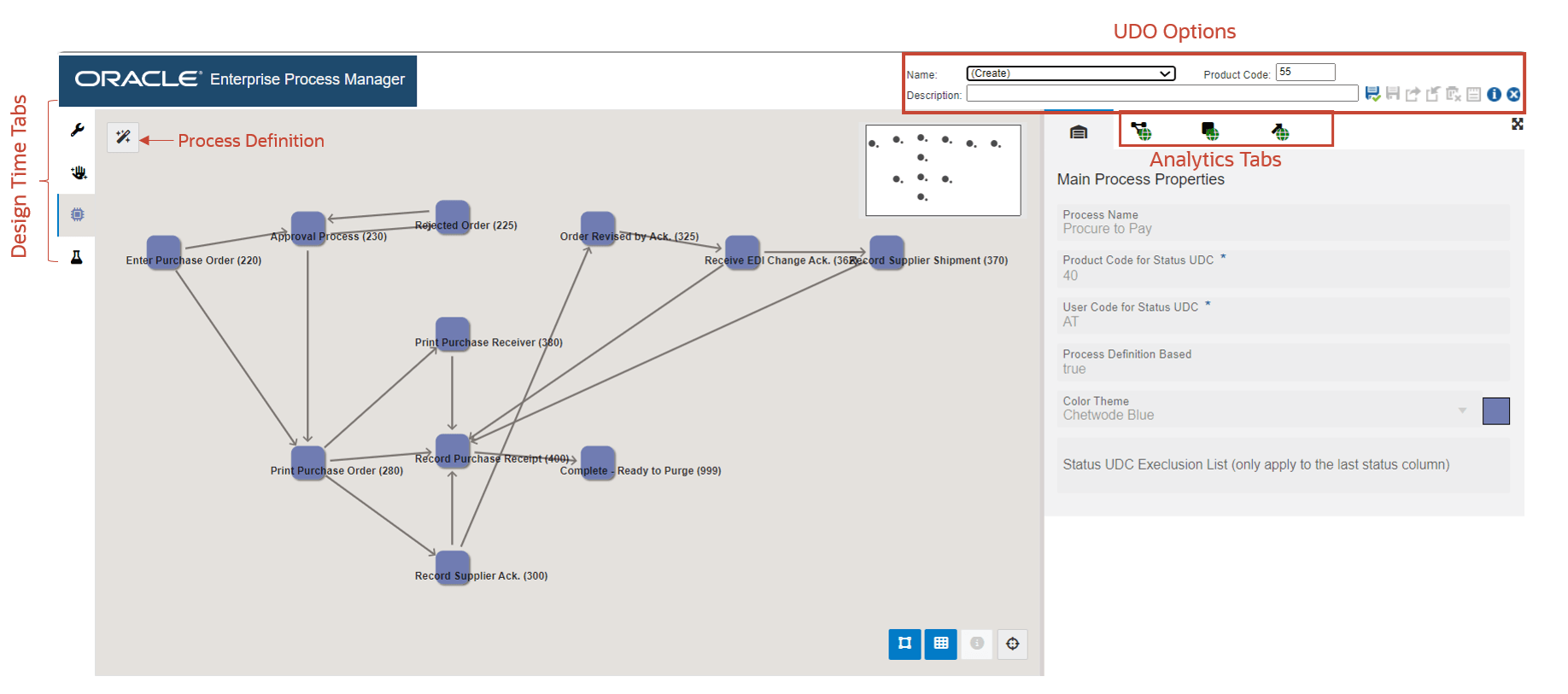
- You can drag and drop the nodes to the required position and use the following
options to adjust the layout of the process model:Note: Your users can also use these options to make changes to the enterprise process diagram in Enterprise Process Modeler:
- Snap to Node: Click the Snap to Node icon
 to align the template to the node points.
 - Snap to Grid: Click the Snap to Grid icon
 to align the template to the grid points.
 - Zoom to Fit: Click the Zoom to Fit icon
 to resize the template to fit into the model pane.
You can hold down the Ctrl key when dragging and dropping a node to disable Snap to Grid and Snap to Node features temporarily.
- Snap to Node: Click the Snap to Node icon
Click the Open Process Definition icon
 (next to Design Option) to review the settings in the read-only
mode.
(next to Design Option) to review the settings in the read-only
mode.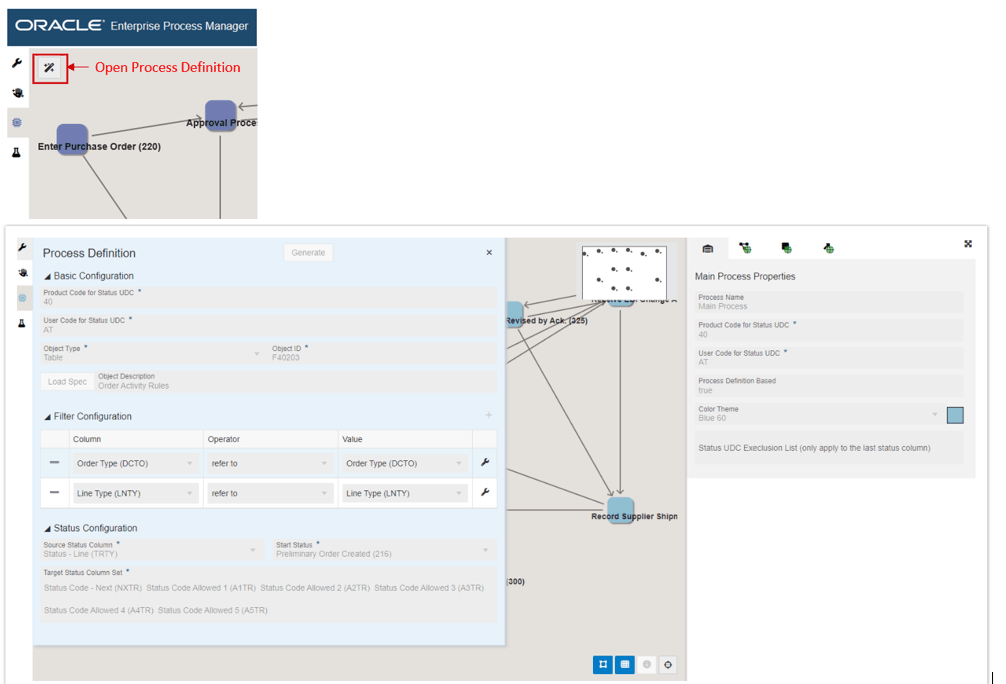
- In the Process Model tab, to review the details of the metrics, click the following
tabs on the right:Note: You can click the subtabs on these tabs to review the table specific metrics and business views. Use Maximize
 or Minimize
  on the tabs to view them in maximized or minimized modes.
- Main Process Properties
 : Displays the process name, status codes, and color themes in
read-only mode.
: Displays the process name, status codes, and color themes in
read-only mode. - Process Analytics
 : Displays tabs with details such as Filter Criteria, Return Fields,
Context Analytics and so on for the related tables and business views of the
selected enterprise process template.
: Displays tabs with details such as Filter Criteria, Return Fields,
Context Analytics and so on for the related tables and business views of the
selected enterprise process template. - Nodes Metrics and Analytics
 : Displays tabs with details such as Filter Criteria, Return Fields,
Context Analytics and so on for the node specific tables and business
views.
: Displays tabs with details such as Filter Criteria, Return Fields,
Context Analytics and so on for the node specific tables and business
views. - Links Metrics and Analytics
 : Displays tabs with details such as Filter Criteria, Return Fields,
Context Analytics and so on for the link specific tables and business
views.
: Displays tabs with details such as Filter Criteria, Return Fields,
Context Analytics and so on for the link specific tables and business
views.
- Main Process Properties
-
Starting with Tools Release 9.2.26.2, the Shown at Runtime option is available on the Process Analytics, Node Metrics and Analytics, and Link Metrics and Analytics tabs. This option is enabled by default. When enabled, metrics and analytics are displayed to users in Enterprise Process Modeler. Disable this option to hide metrics and analytics from users in Enterprise Process Modeler. This is helpful when you extend your process by defining your custom metrics and analytics. See Extending an Enterprise Process Created from a Template.
- To review the node properties such as Type and UDC status, click the individual
nodes in the process model diagram. The system displays the Selected Node Properties
tab (read-only)
 on the right.
 - To review the link properties, click the individual links in the process model
diagram. The system displays the Selected Link Properties tab (read-only)
 on the right.
 - Click the following tabs on the left to review the details:
- Design Option (read-only)
 : This tab displays the values you entered in the Create Process
window.
: This tab displays the values you entered in the Create Process
window. - Data Filtering and Grouping Options (read-only)
 : This tab displays the template specific data filtering and
grouping options.
: This tab displays the template specific data filtering and
grouping options. -
Process Model (The name of the template is displayed for this tab)
 : This tab displays the automatically generated process model
diagram.
: This tab displays the automatically generated process model
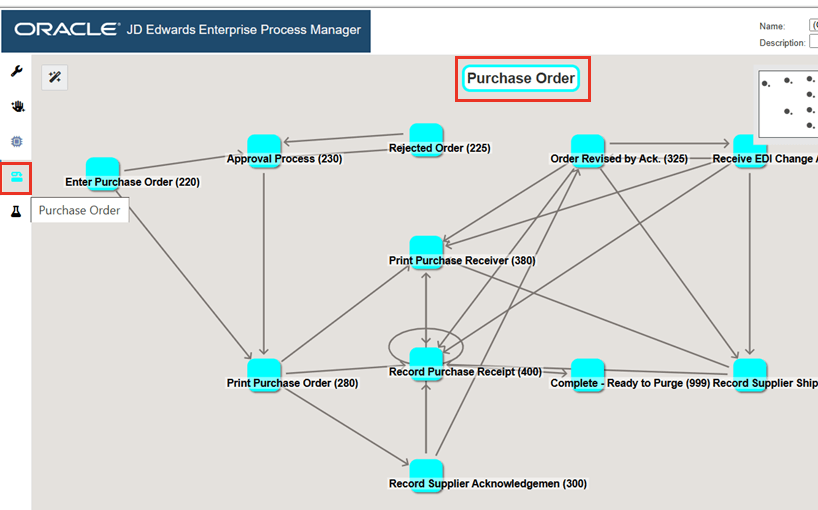
diagram. Starting with Tools Release 9.2.9.3, if a template contains a child process, the system displays a child process tab icon below the Process Model tab icon. This tab displays the automatically generated process model diagram of the child process. The name and the color theme (in this example, Cyan) of the child process is displayed for this tab as shown in the following example:
- Preview
 : In this tab, you can preview the process model approximately how
your users will see it in Enterprise Process Modeler. For more information
on how to preview the metrics by using the Preview tab, see Previewing the Enterprise
Process Model.
: In this tab, you can preview the process model approximately how
your users will see it in Enterprise Process Modeler. For more information
on how to preview the metrics by using the Preview tab, see Previewing the Enterprise
Process Model.If the process model generated from the template, including your inputs to the design options, meets your requirements, you can save the process model with a name of your choosing. You can then review it with your process owners. When it is ready to be shared with a broader set of users, you can use the user-defined object (UDO) framework to request to publish, approve, and share the model with users or roles.
If the process model does not meet your requirements or expectations, you cannot change the design option decisions that you made at the beginning. You must go back to choose (Create) from the Name field and begin the process again making different design option choices.
If the process model still does not meet your requirements, you may need to proceed with the next section, “Extending an Enterprise Process Created from a Template,” or even create a user-defined process from scratch.
- Design Option (read-only)