Configuring the Server Manager Account
This section shows how to configure the Server Manager account in JD Edwards One-Click Provisioning Console.
If you are a new user, you are required to change the administrator passwords for WebLogic Server and Server Manager Console. Remember the Server Manager password you entered in the Change Password window for future logins.
Prerequisite
Downloaded the One-Click archive files from the Oracle Software Delivery Cloud (also called OSDC or E-Delivery). For more information see the section entitled: Setting Up the Provisioning Server.
Configure the Server Manager Account
Use this procedure to provide the account information.
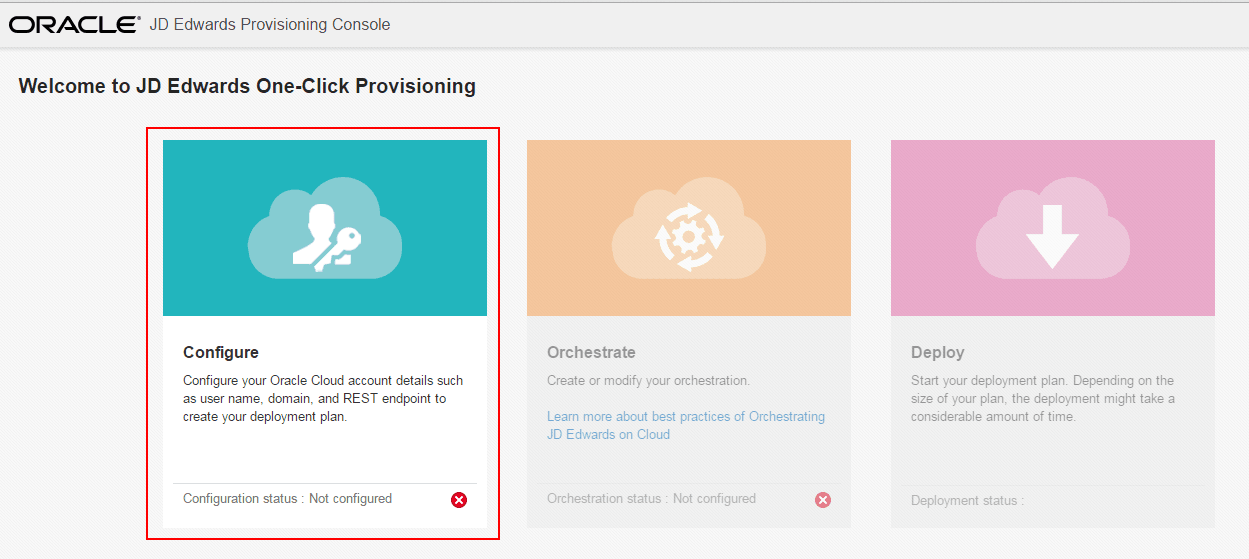
- On Welcome to the JD Edwards Provisioning Console, click the Configure
icon.
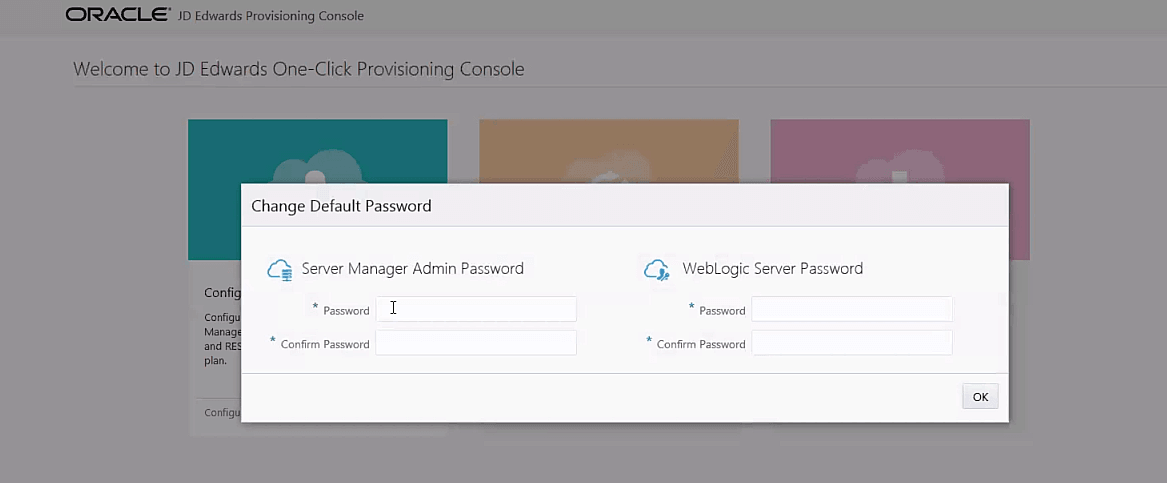
- If you are a new user, as prompted by the JD Edwards Provisioning Console, you
are also required to change the administrator passwords for WebLogic Server and
Server Manager Console.
On Change Password, enter the passwords for the Server Manager Administrator. The password must only have numbers, alphabets, and special characters (@,!,$,_,#), and is between 8 and 30 characters long.
Also, enter the password for the WebLogic Server. The password must start with a letter, is between 8 and 30 characters long, contains at least one number, and optionally, any number of special characters (#,_). For example, Ach1z0#d
Click the OK button.Important: The password for any WebLogic Server user cannot contain the $ or ! character. Using either of these characters violates the Oracle password policy and will result in denied access.Tip: Valid values for the passwords are displayed in the tooltip when you click the field.Note:The system displays a message indicating that is changing default passwords; this may take a few minutes to complete before the next screen is displayed.
-
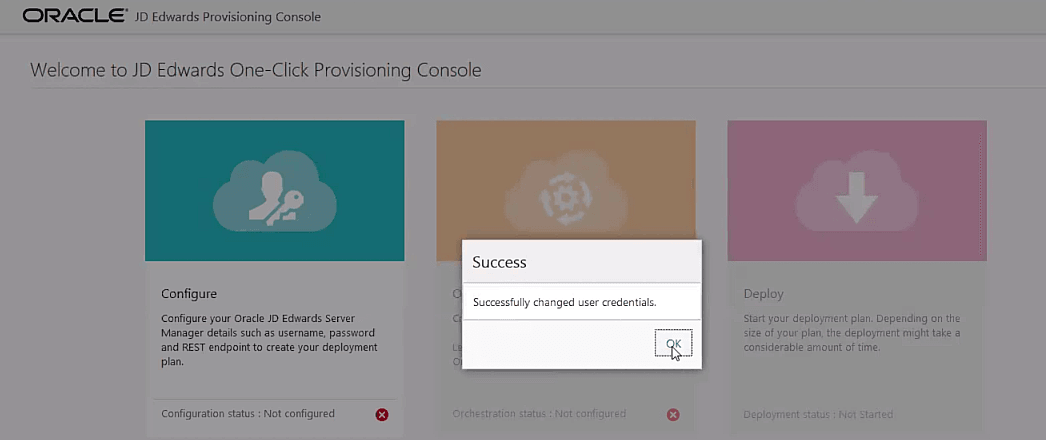
On the Success window, click the OK button.
-
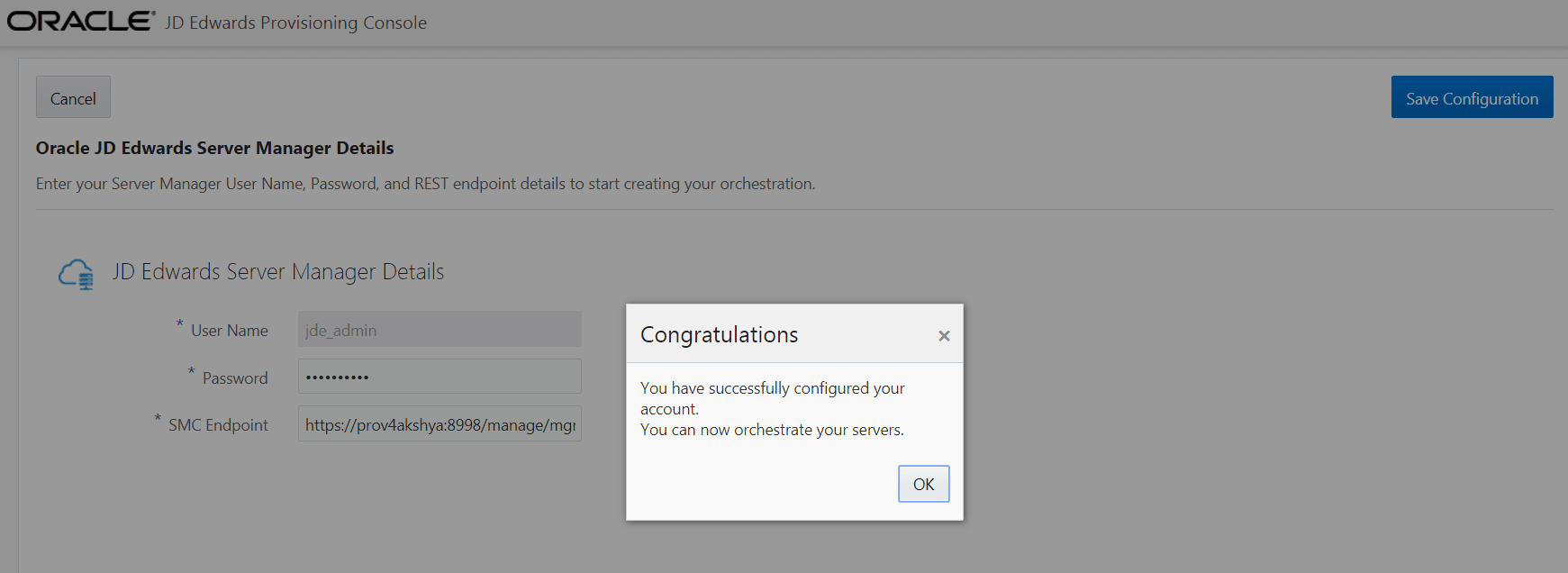
On Oracle JD Edwards Server Manager Details, reenter the Admin password for the Server Manager Console. The SMC Endpoint is pre-populated automatically.
Important: It is recommended that you record this value on the Pre-Install Worksheet, which you created as described in the companion document to this tutorial in the section entitled: Create the Pre-Install Worksheet.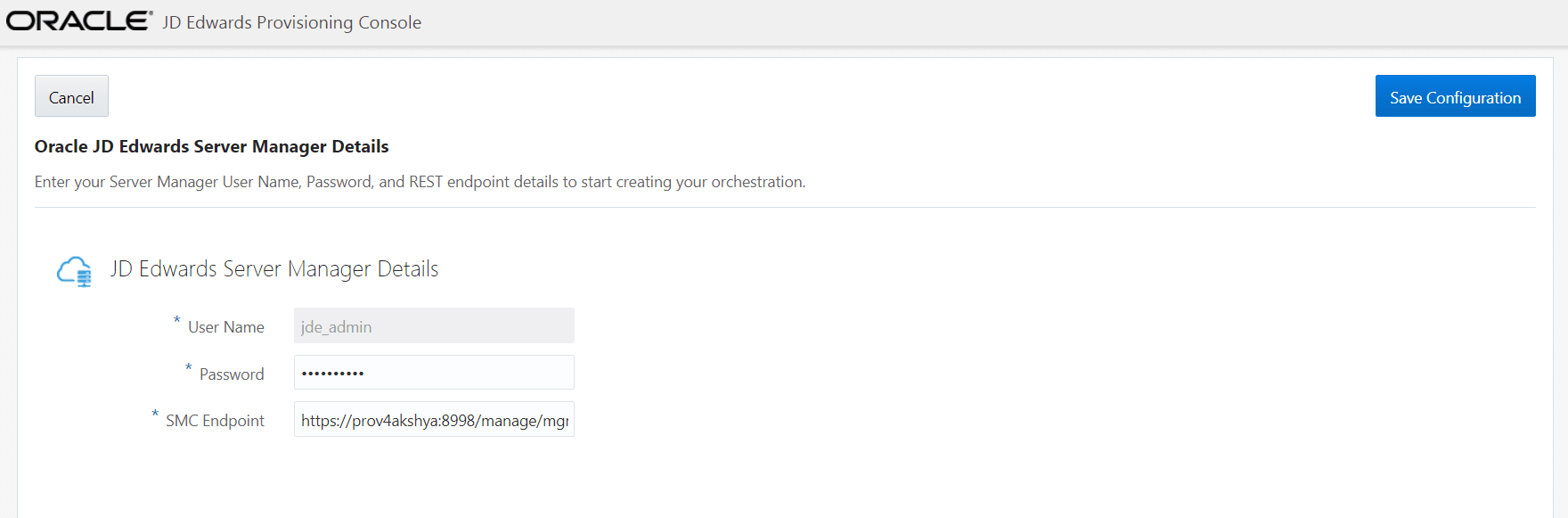
-
Click the Save Configuration button.
The system will take some time to authenticate the Server Manager Endpoint and Credentials. When the authentication is verified, click the OK button on the Congratulations box.