Orchestrating Using Quick Start Mode
This section shows you how to orchestrate a a basic deployment plan using the Quick Start mode. For performance reasons, creating an orchestration by using only the Quick Start mode is not recommended for production environments.
Use the Quick Start mode in the JD Edwards One-Click Provisioning Console to create a plan to deploy all the core components of JD Edwards EnterpriseOne on Oracle Cloud Infrastructure.
Refer to the "Fundamentals" section of this Learning Path for a description of the various servers that can be deployed by One-Click Provisioning.
Prerequisite
You must have configured the administrator passwords for the WebLogic Server and the Server Manager Console in the Configure section of the JD Edwards One-Click Provisioning Console.
Orchestrating a Quick Start Deployment Plan
To orchestrate a Quick Start deployment plan:
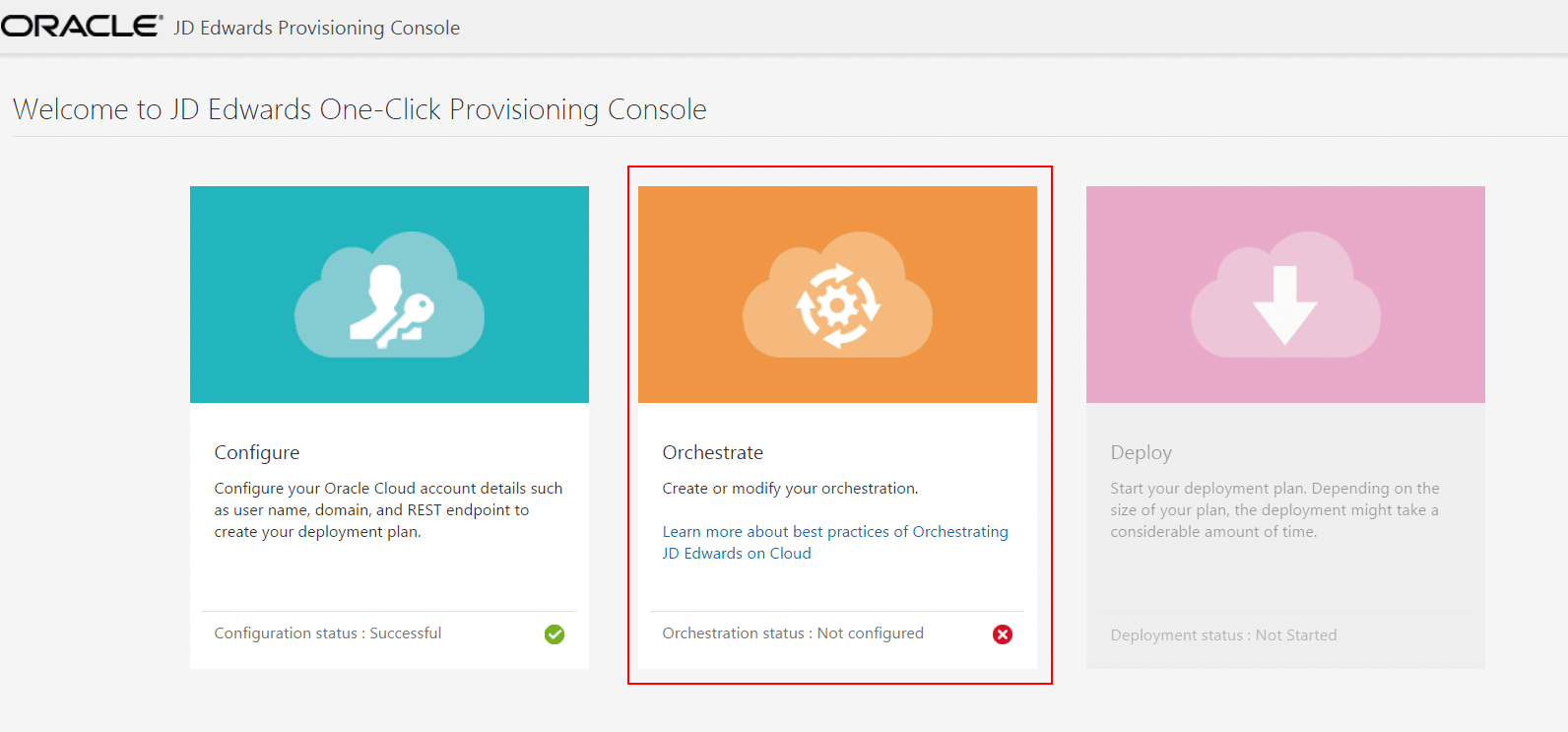
- On the Welcome to JD Edwards One-Click Provisioning Console page, click the
Orchestrate icon.
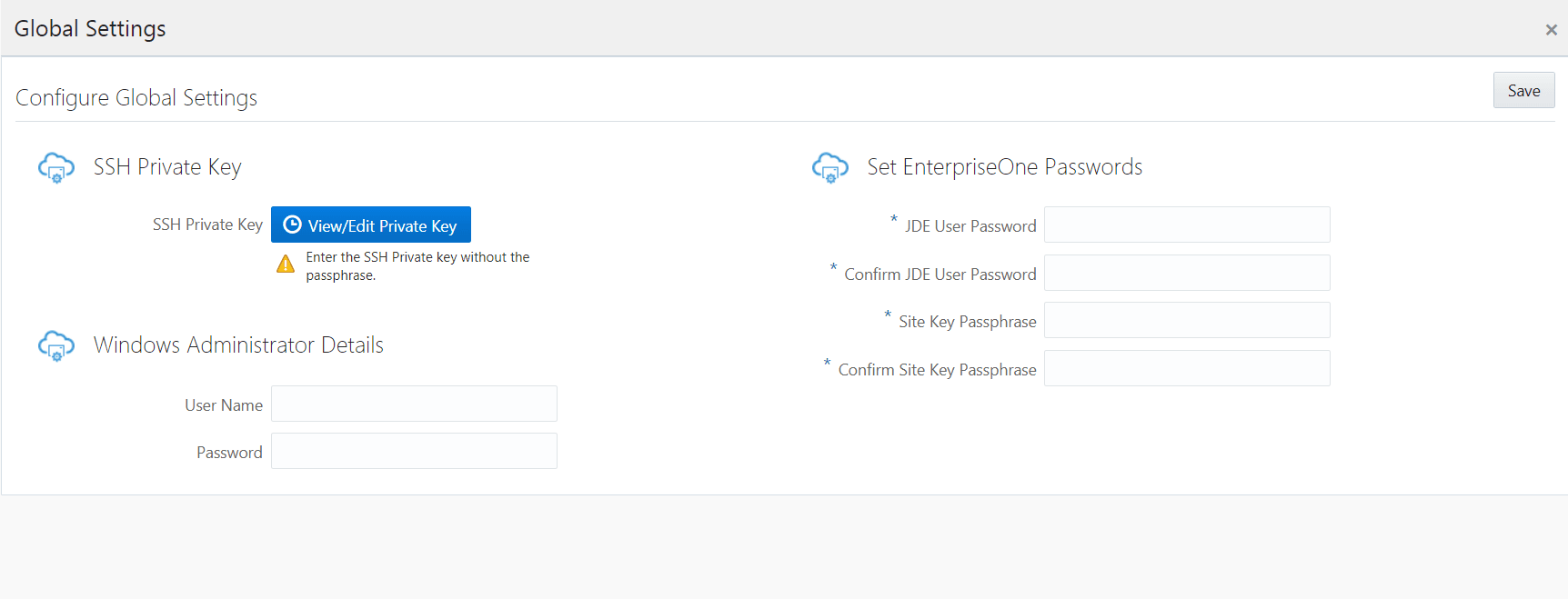
- If this is the first pass through a JD Edwards One-Click Provisioning
orchestration, the following Global Settings screen will appear first. In the
SSH Private Key section, click the View/Edit Private Key button.
- To access all the instances that are provisioned using this tool, on the Private
Key input for VM access window, you must either specify the values for the SSH
private key text, or browse and select the file that contains the SSH private
key contents.
To select a file, select the option SSH Private Key File and then click the Choose File button. For more information regarding SSH Keys, refer to the section "Generate Secure SHell (SSH) Key Pairs on Your Local System" of this Learning Path.
Important: The One-Click Provisioning Console validates the private keys and you cannot save the Global Settings if this field is empty.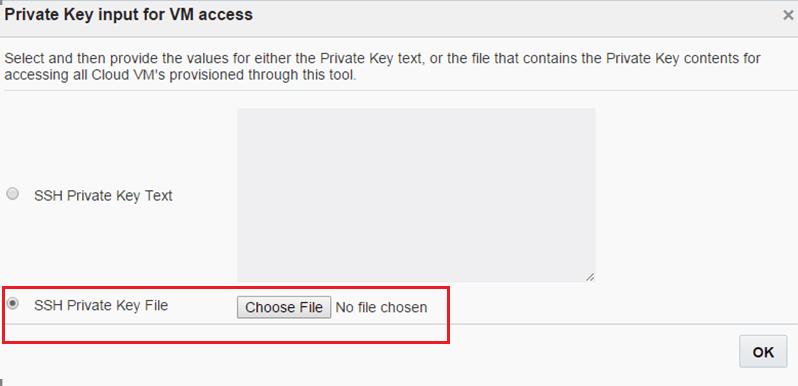
-
Browse and select the appropriate file, and then click OK.
Note: If you click the View/Edit Private Key button again, you can see the Public Key for VM access window with the SSH Public Key value in the SSH Public Key text field. To change the private key, click the Change button and provide the new value.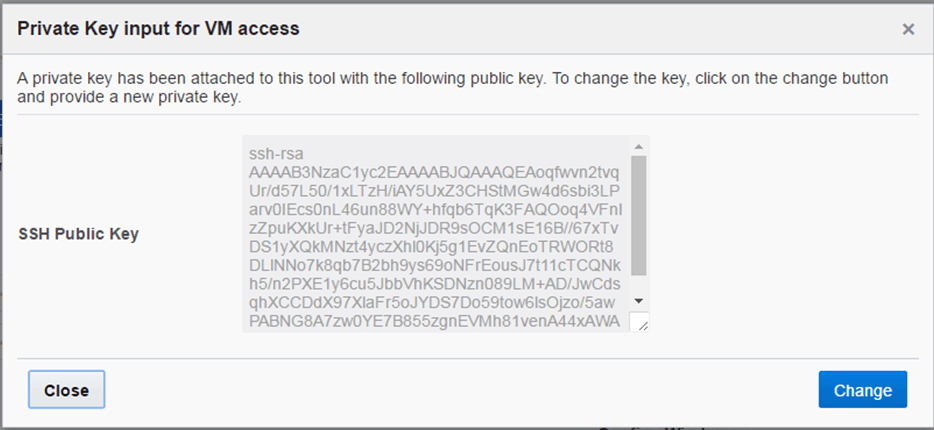
-
Click the Close button.
-
In the Windows Administrator Details section, enter the Windows user name and password. Ensure that the user name is opc and that this user has the administrative privileges.
Important: You must enter the same password for this Windows Server that you previously specified in the section of this OBE entitled: Logging in to the Windows VM. -
In the Set EnterpriseOne Passwords section, enter and then confirm these passwords
- JDE User Password
Create the password for JD Edwards EnterpriseOne. In support of the long password functionality, the password must be between 12 and 30 characters. It can contain letters and numbers, and can only include this special character: underscore (_).
-
Site Key Passphrase
Enter the passphrase for generating the site key. The passphrase must start with a letter, end with either a letter or a number, must be between 8 and 40 characters, and contain at least 2 uppercase letters, 2 lowercase letters, 2 numbers, and 2 underscore (_) symbols.
Note: The conditions to set the passwords appear in a tooltip when you click each field.Important: It is highly recommended that you keep a record of these critical passwords. If you have not already done so, you must record these values on the Preinstallation Worksheet. - JDE User Password
-
Click the Save button to exit the Global Settings screen.
-
On the Choose your Orchestration Template window, click the Quick Start icon to create your Quick Start JD Edwards deployment plan.
Note: Refer to the applicable sections of this guide for instructions on using the Advanced, Export, and Import orchestration functions.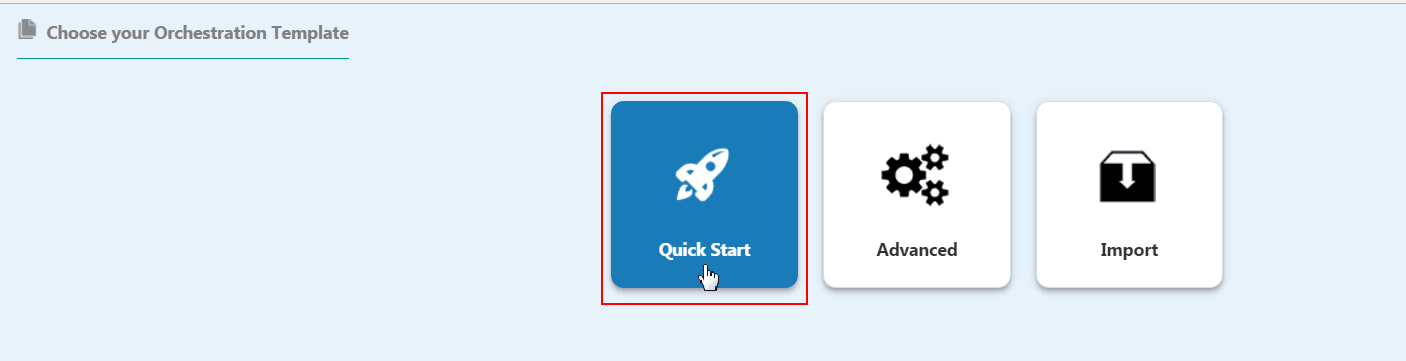
-
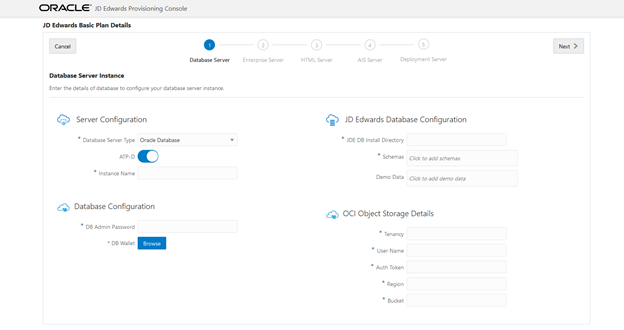
On the Database Server Instance window, complete these fields to create and configure the Database Server instance.
Server Configuration
- Database Server Type
The Database Server Type is displayed as Oracle Database.
-
ATP-D
Enable this selector button for ATP-D.
-
Platform
This field is disabled and it is automatically populated as Linux.
-
Instance Name
Create an instance name for your database instance.
-
Host Name
Enter the host name.
Database Configuration
- DB Admin Password
Enter the password of the database administrator.
- DB Wallet
Click the Browse button to locate and select the DB Wallet that you created by following the steps in the section "Downloading a Database Wallet for Autonomous Transaction Processing on Dedicated Infrastructure" of this Learning Path.
JD Edwards Database Configuration
- JDE DB Install Directory
Enter the installation path.
Path Rules. All directories in the specified path must preexist, except the last directory. Therefore you must manually create the directory structure except for the last directory, which the Provisioning Server deployment process creates. For example, if you specify /u01/ORCL/INSTALL, the /u01/ORCL directory must preexist and the Provisioning Server deployment creates the /INSTALL directory.
-
Schemas
Click the Schemas field and select the schemas from the auto-suggest text. The schemas available are: Shared, Development, Prototype, Production, and Pristine with Demo Data.
Note: It is mandatory to add the Shared schema.Important: At this point, you should ensure that you specify all the schemas you plan to use. The schemas you choose to install on the Database Server can only be deployed once, which is specified at this point in the Provisioning Console. You can use the Provisioning Console to programmatically add additional schemas after deploying the orchestration. -
Demo Data
Click the Demo Data field and select the demo data available from the auto-suggest text. Demo data will be available depending on the schema selected. For example, if you select the schema as Development, the Development demo data will be available.
OCI Object Storage Details
- Tenancy
Enter the tenancy where you have access to the Object Storage Service in Oracle Cloud Infrastructure.
-
User Name
Enter the user name with which you can access the Object Storage Service in Oracle Cloud Infrastructure.
-
Auth Token
Enter the Auth Token for the given user. This token is used to upload the JD Edwards database dump files into the Object Storage Service in Oracle Cloud Infrastructure.
For additional details, see the section "Getting an Auth Token for a User."
-
Region
OCI Region
-
Bucket
Enter the bucket name that you have previously created for use with Oracle Cloud Infrastructure Object Storage Service.
For additional details, see the section "Creating an Object Storage Bucket for an Autonomous Database" in this Learning Path.
- Database Server Type
-
Click the Next button. Because you will be connecting to an existing Oracle Cloud Infrastructure Service database instance, the system validates all the inputs that are provided. If the validation is successful, the JD Edwards Enterprise Server page is displayed.
-
In the Enterprise Server Instance section, complete these fields to create and configure the Enterprise Server instance.
Server Configuration
- Platform
This field is disabled and it is automatically populated as Linux.
-
Instance Name
Create an instance name for the Enterprise Server. The conditions to set the instance name is displayed in the tooltip when you click the field.
-
Host Name
Enter the host name.
Enterprise Server Preferences
- Server Type
Select one or both of the available Server Types for this Enterprise Server.
Single Enterprise Server: If you are deploying only a single Enterprise Server, select both logic and batch servers.
Multiple Enterprise Servers: If you are deploying multiple Enterprise Servers, at least one server must be specified as a logic server for each pathcode. The other servers can be specified as batch servers.
-
Pathcodes
Click the Available Pathcodes field and select the pathcodes from the auto-suggest text. The four available pathcodes are: Development, Prototype, Pristine, and Production.
Important: It is good practice to select pathcodes here that correlate to the schemas you selected for the Database Server. The Provisioning Console programmatically enforces this correlation. If you select pathcodes on the Enterprise Server that are a superset of the database schemas you selected, the Enterprise Server will not be able to access the data required to function correctly. The pathcodes you choose to install on the Enterprise Server can only be deployed once, which is specified at this point in the Provisioning Console. You can use the Provisioning Console to programmatically add additional schemas after the deploying the orchestration. -
Oracle JDBC Driver Details
This driver is required for connectivity between the Enterprise Server and the Oracle database server.
Click the Browse button to select each of the required components for the Oracle JDBC driver. For example:
- odbc8.jar
- ons.jar
- ucp.jar
Note: Refer to Oracle Certifications for the version of the supported driver and associated components.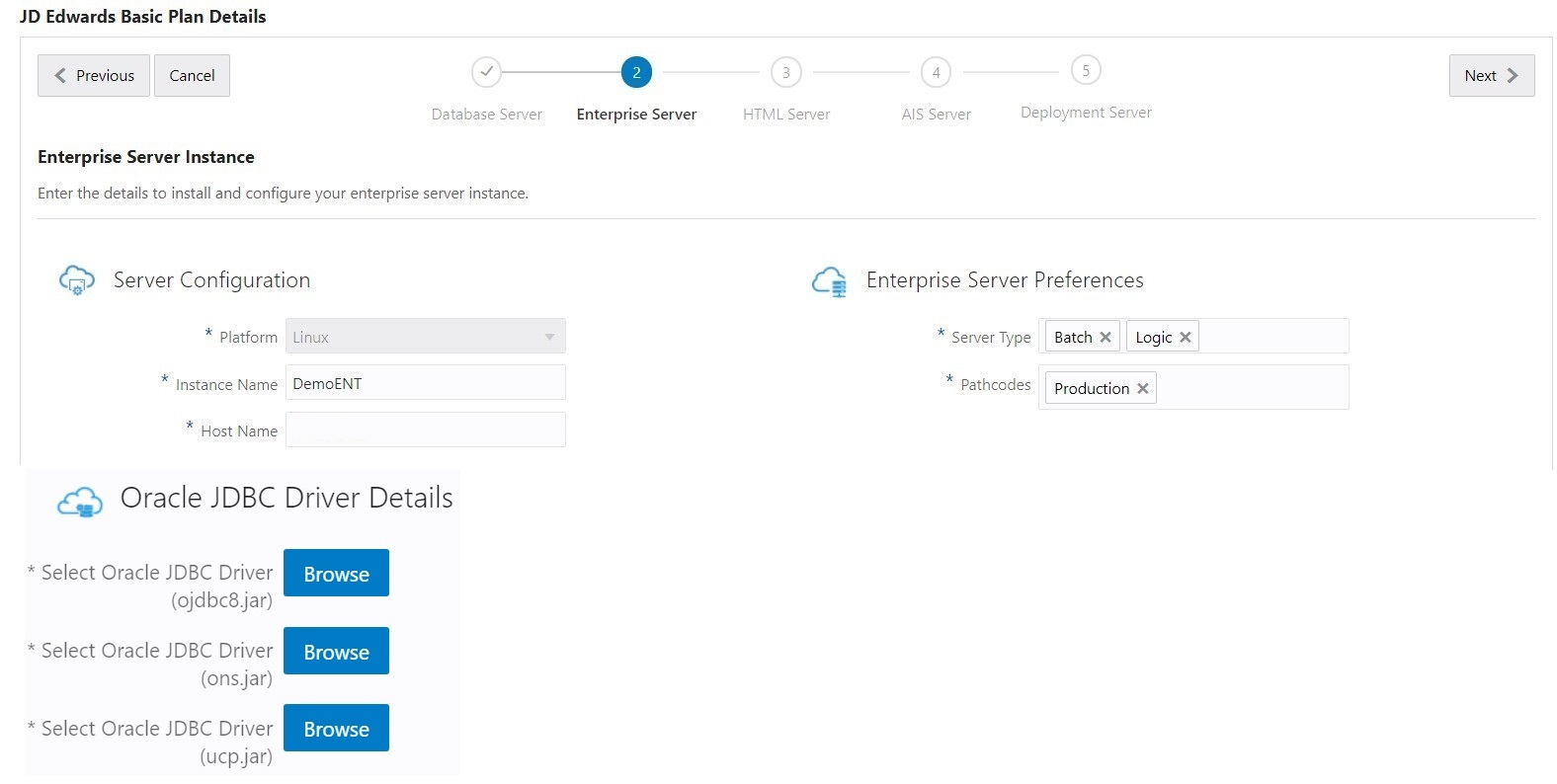
-
Click the Next button. Because you will be connecting to an existing Oracle Cloud Infrastructure Service EnterpriseOne instance, the system validates all the inputs that are provided. If the validation is successful, the JD Edwards HTML Server page is displayed.
-
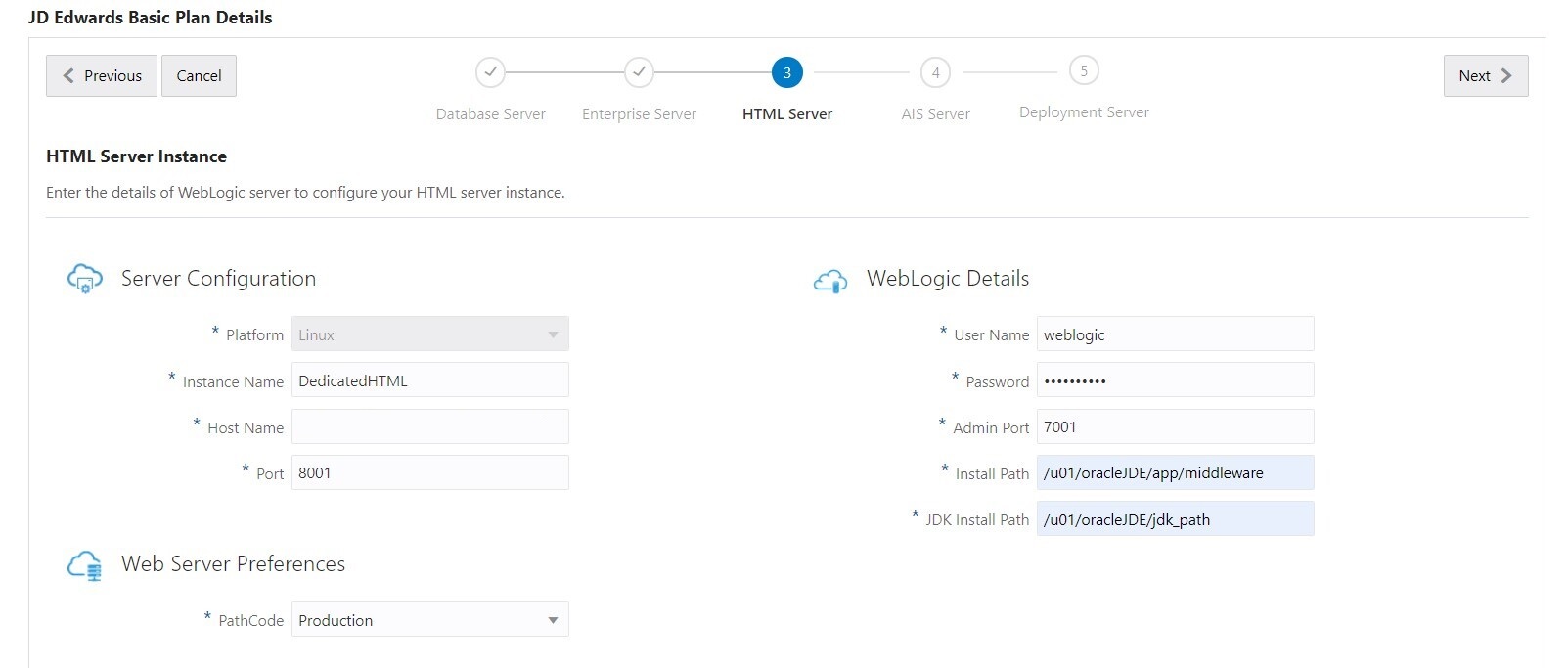
In the HTML Server Instance section, complete these fields to create and configure the HTML Server instance.
Server Configuration
- Platform
This field is disabled and it is automatically populated as Linux.
- Instance Name
Create the instance name of the HTML Server instance.
- Host Name
Enter the host name.
- Port
For this server, enter a unique (available) port that will use an SSL connection. This port must have a numerical value between 1024 and 65535. This port number is used by HTTPS to create a container and deploy the web component. For the port number you enter here, ensure that the port for one less is also available. That is, if you specify Port 8081, also ensure that Port 8080 is available.
Important: For each SSL port that you open in the firewall, you must also open a companion port for non-SSL access required for Server Manager. The companion port must have a numeric value that is one less than the value specified for the SSL port. For example, if you specify a port value of 8081 for SSL, in the firewall you must also open a port one less than that value, that is, in this case you must open Port 8080. For more information, refer to the subsection "Enable Inbound Ports in the Firewall" in the OBE "Performing Common Setup for All Microsoft Windows Servers" of this Learning Path.
Web Server Preferences
Pathcode
Select the required pathcode from the drop-down menu.
Important: Using the Quick Start mode, you can only specify a dedicated HTML Server for AIS. If you want to create a standard HTML Server, which is strongly recommended for production environments, you must use the Advanced Deployment mode. For a description of each HTML server type, refer to the"Fundamentals" section of this Learning Path.Important: Each dedicated HTML and AIS Server pair can support only one pathcode. If you want additional HTML instances to support additional pathcodes, you must configure additional HTML Server pairs using the Advanced mode of the Provisioning Console. For more information, refer to the section "Orchestrating Using Advanced Mode" of this Learning Path.WebLogic Details
- User Name
Enter the user name.
- Password
Enter the WebLogic Server password.
- Admin Port
Enter the port number to access the WebLogic Administration Console.
- Install Path
Enter the installation path of the WebLogic instance.
-
JDK Install Path
Enter the JDK installation path.
Important: Each dedicated HTML and AIS Server pair can support only one pathcode. If you want additional HTML instances to support additional pathcodes, you should configure additional pathcoodes using the Advanced mode of the Provisioning Console. Refer to the section "Orchestrating Using Advanced Mode" of this Learning Path.
- Platform
-
Click the Next button. The system validates the inputs. If the validation is successful, the AIS Server Instance page is displayed.
-
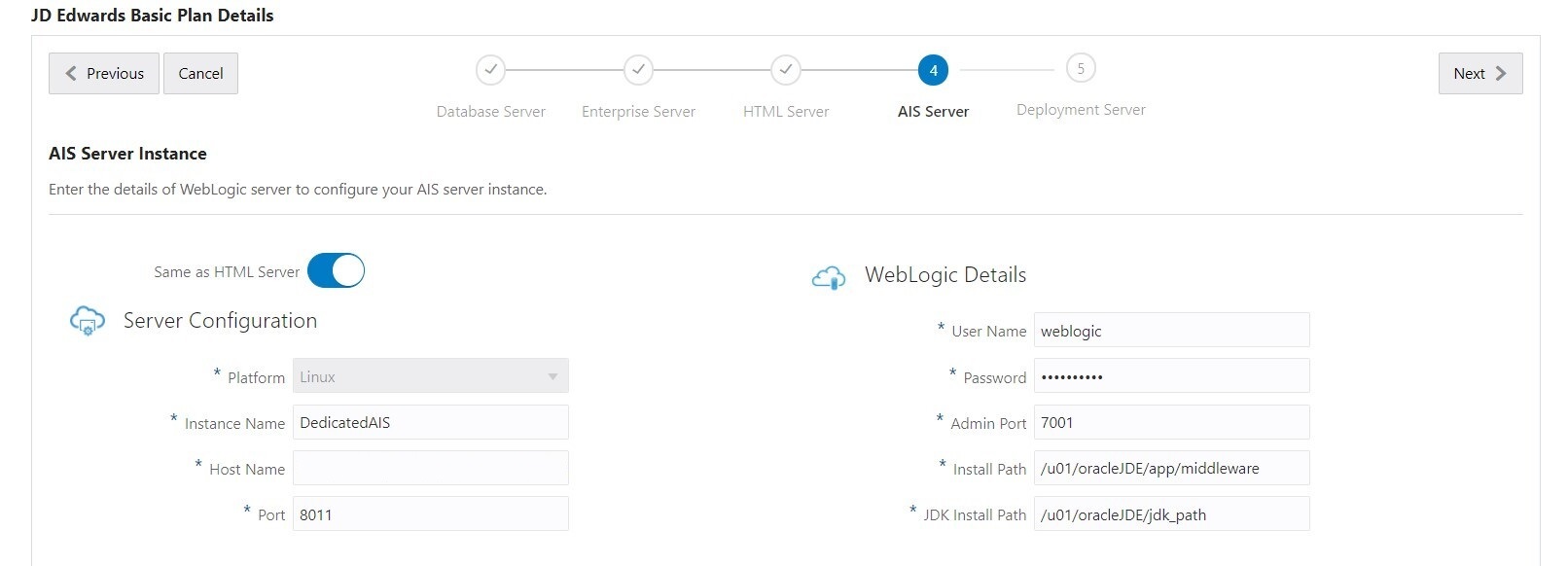
In the AIS Server Instance section, complete these fields to configure your AIS Server instance.
Same as HTML Server
This option is selected by default. You cannot deselect it because this AIS Server must be paired with the dedicated HTML Server that was configured in the preceding step.
Server Configuration
- Platform
This field is disabled and it is automatically populated as Linux.
- Instance Name
Create an instance name for the WebLogic Server.
- Host Name
Enter the host name.
- Port
For this server, specify a unique (available) port that will use a SSL connection. This port must have a numerical value between 1024 and 65535. This port number is used by HTTPS to create a container and deploy the web component. For the port number you enter here, ensure that the port for one less is also available. That is, if you specify Port 8081, also ensure that Port 8080 is available.
Important: For each SSL port that you open in the firewall, you must also open a companion port for non-SSL access required for Server Manager. The companion port must have a numeric value that is one less than the value specified for the SSL port. For example, if you specify a port value of 8081 for SSL, in the firewall you must also open a port one less than that value; in this case you must open Port 8080. Refer to the subsection "Enable Inbound Ports in the Firewall" in the OBE "Performing Common Setup for All Microsoft Windows Servers" for this Learning Path.
Web Server Details
- Type
This field is disabled and is automatically populated as AIS Server.
- HTML Server Instance
Use the drop-down menu to choose the dedicated HTML Server for AIS for this pod.
WebLogic Details
- User Name
Enter the user name.
- Password
Enter the WebLogic password.
- Admin Port
Enter the admin port number.
- Install Path
Enter the installation path of the WebLogic instance.
- JDK Install Path
Enter the JDK installation path.
- Click the Next button. The system validates the inputs. If the validation is successful, the JD Edwards Deployment Server page is displayed.
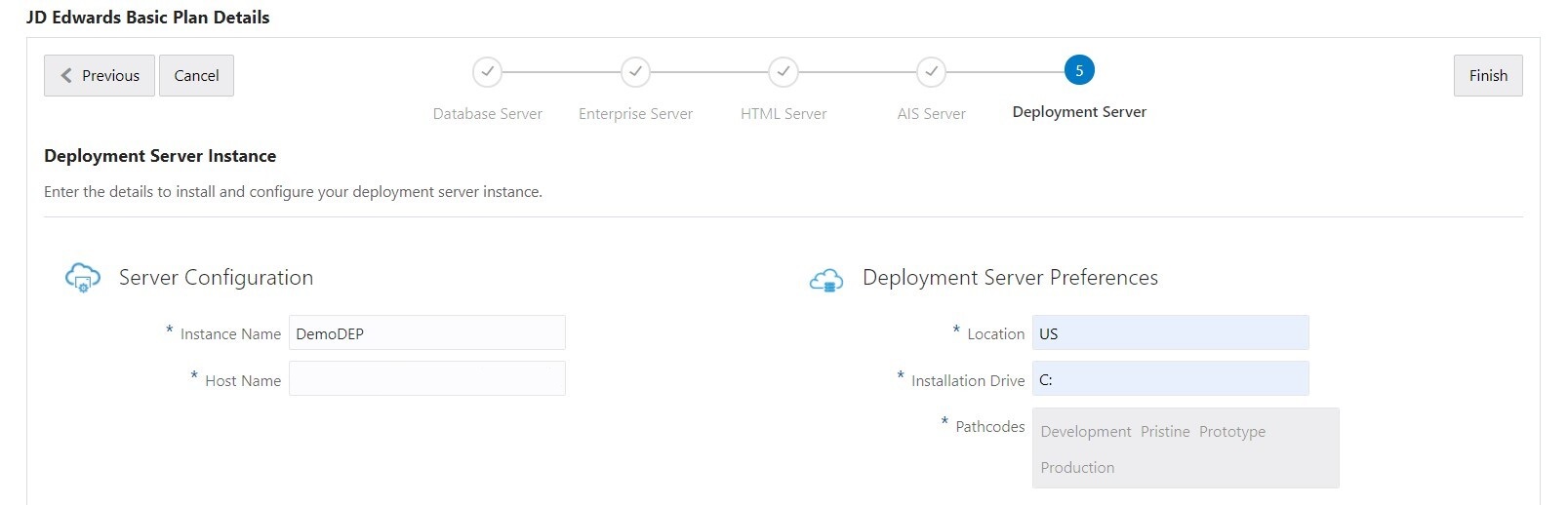
- On the JD Edwards Deployment Server page, complete these fields to create and configure your Deployment Server instance.
Server Configuration
- Instance Name
Create an instance name for the Deployment Server instance. The conditions to set the instance name is displayed in the tooltip when you click the field.
- Host Name
Enter the host name.
- Windows User
Enter the name of the windows user.
- Windows Password
Enter the password of the Windows user.
Deployment Server Preferences
- Location
Enter the location.
This value is the base location for your JD Edwards EnterpriseOne machines. For example, typical values might be a city name (such as Denver or Austin), a geographical region name (such as US or India), or a general location name (such as Corporate).
- Installation Drive
Enter the drive for the installation.
- Pathcodes
This field is automatically populated.
- Click the Finish button.
- Click the OK in the success message window.
- The system displays the summary window. In the summary window, you can see that one instance is created for each of the servers. Click the Back button to deploy your services by following the steps described in the section "Deploy an Orchestration" of this Learning Path.
- Platform
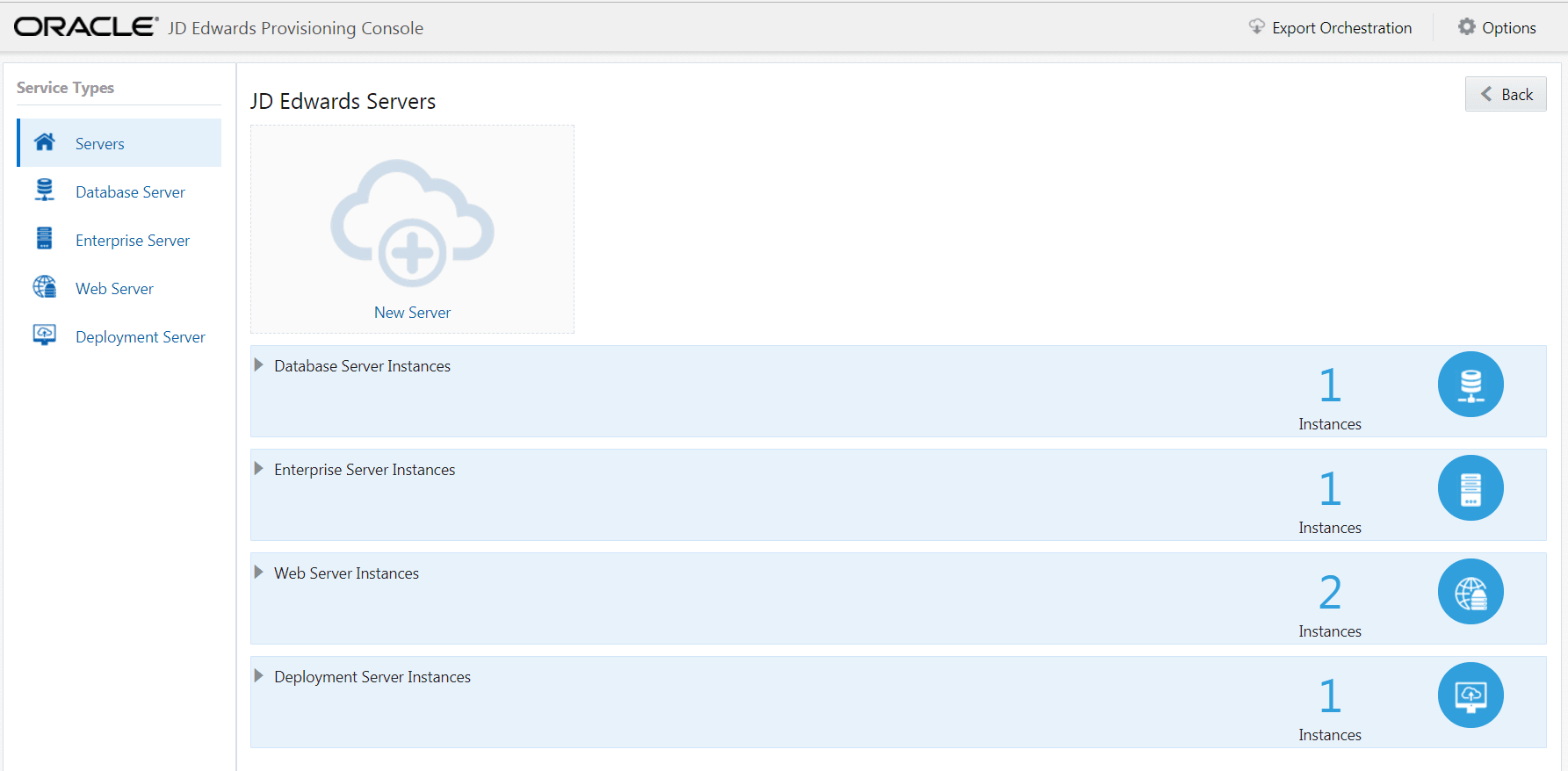
Note: For this Quick Start deployment plan, you can click Options from the menu bar to change your global settings or to reset your settings (that is, to delete your configuration details, global settings, and orchestration data). Also optionally, you can further customize a completed Quick Start deployment plan using the Advanced mode of the JD Edwards Provisioning Console. Refer to the section "Orchestrate Using Advanced Mode" of this Learning Path. - Platform