Orchestrating Using Advanced Mode
This section section shows how to orchestrate a deployment plan using the advanced mode on Linux using the JD Edwards One-Click Provisioning Console.
You can orchestrate a Deployment Plan using Advanced mode, which allows you to:
- Modify and add servers to an existing Orchestration that was created using the Quick Start wizard.
- Create a new Orchestration with no guidance from a wizard. Unlike using the Quick Start wizard, the Advanced mode will not guide you through the required sequence of machines to satisfy dependencies of the configuration. For example, the allowable pathcodes for an Enterprise Server are dependent on the schemas previously selected for the Database Server.
Prerequisite
- You must have configured the administrator passwords for WebLogic Server and Server Manager Console in the Configure section of the JD Edwards One-Click Provisioning Console.
- Before orchestrating an Advanced Deployment Plan, the recommended practice is to first orchestrate a basic Deployment Plan using the Quick Start mode. The Quick Start procedure is documented in the section of this document entitled: Orchestrate Using Quick Start Mode. After this Quick Start orchestration is created, you can use the Advanced mode to modify, delete, or add on additional server instances.
- Alternately, experienced users can use Advanced Mode to create an orchestration without assistance from a structured wizard, which assumes they are aware of the required sequence of creation and the inter dependencies.
Orchestrating an Advanced Deployment Plan
The required sequence of adding instances to an orchestration and the rules related to the machines and pathcodes is as follows:
- Database Server
You can create five database instances if you select one schema per instance.
-
Enterprise Server
One to many Enterprise Servers can be created. At least one Enterprise Server must be created with selected pathcodes available from the available schemas that were selected for the Database Server. An Enterprise Server must be configured before you can add HTML Servers. If multiple Enterprise Servers are deployed, at least one must be configured as a Logic Server per pathcode. Additional Enterprise Servers can be added to an Orchestration and they can be deployed after your initial plan is deployed.
-
Web Servers
HTML Server. Web Servers include the JD Edwards EnterpriseOne HTML Server. There are two types of HTML Servers: Standard JAS and Dedicated HTML for AIS.
One to many HTML Server instances can be created and each will be associated with one specific pathcode that is available on the Enterprise Server. Additional HTML Servers can be added to an Orchestration and they can be deployed after your initial plan is deployed.
Refer to the Fundamentals section of this Learning Path for a description of each type of HTML Server.
AIS Server. Another type of Web Server for JD Edwards EnterpriseOne is the AIS Server, which must be installed and configured along with a Dedicated HTML Server for AIS.
Zero to many AIS Server instances can be created and each will be associated with a specific HTML Server instance. Additional AIS Server instances can be added on to your plan and deployed after your initial plan is deployed.
Important: If you do not specify at least one AIS Server, the full functionality of certain JD Edwards EnterpriseOne applications will not be available. If you used the Quick Start mode to configure a basic environment, the workflow required the inclusion of this server.Important: You cannot specify a single HTML Server instance to also support an AIS Server; that is, you cannot combine two servers in the same instance. You must create a separate instance for each AIS Server. -
Deployment Server
A single Deployment Server can be created and all pathcodes can be selected regardless of pathcodes selected for your runtime servers.
Note: For any orchestration created or modified using the Advanced Mode Deployment Plan, you can click the Options function from the menu bar to change your Global Settings or to Reset your settings (that is, to delete your configuration details, global settings, and orchestration data).
To use the JD Edwards Provisioning Console to orchestrate an Advanced Deployment Plan:
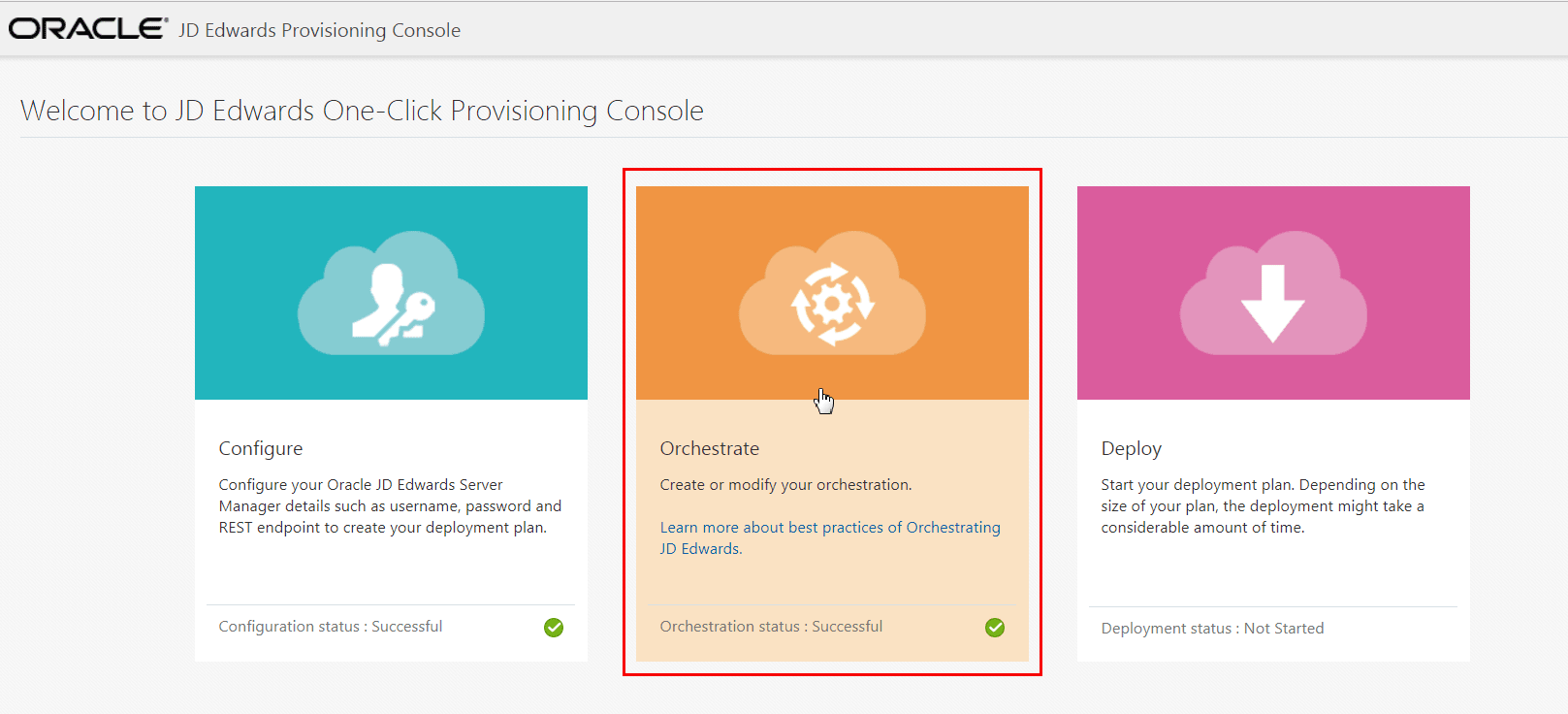
- On the JD Edwards Provisioning Console, click the Orchestrate icon.
- On JD Edwards Servers, click on the instance of an existing server, or click the
New Server icon to add a new JD Edwards service. Alternately you can select the
desired server from Service Types on the left tab, and then click New Server to
add a New Server.
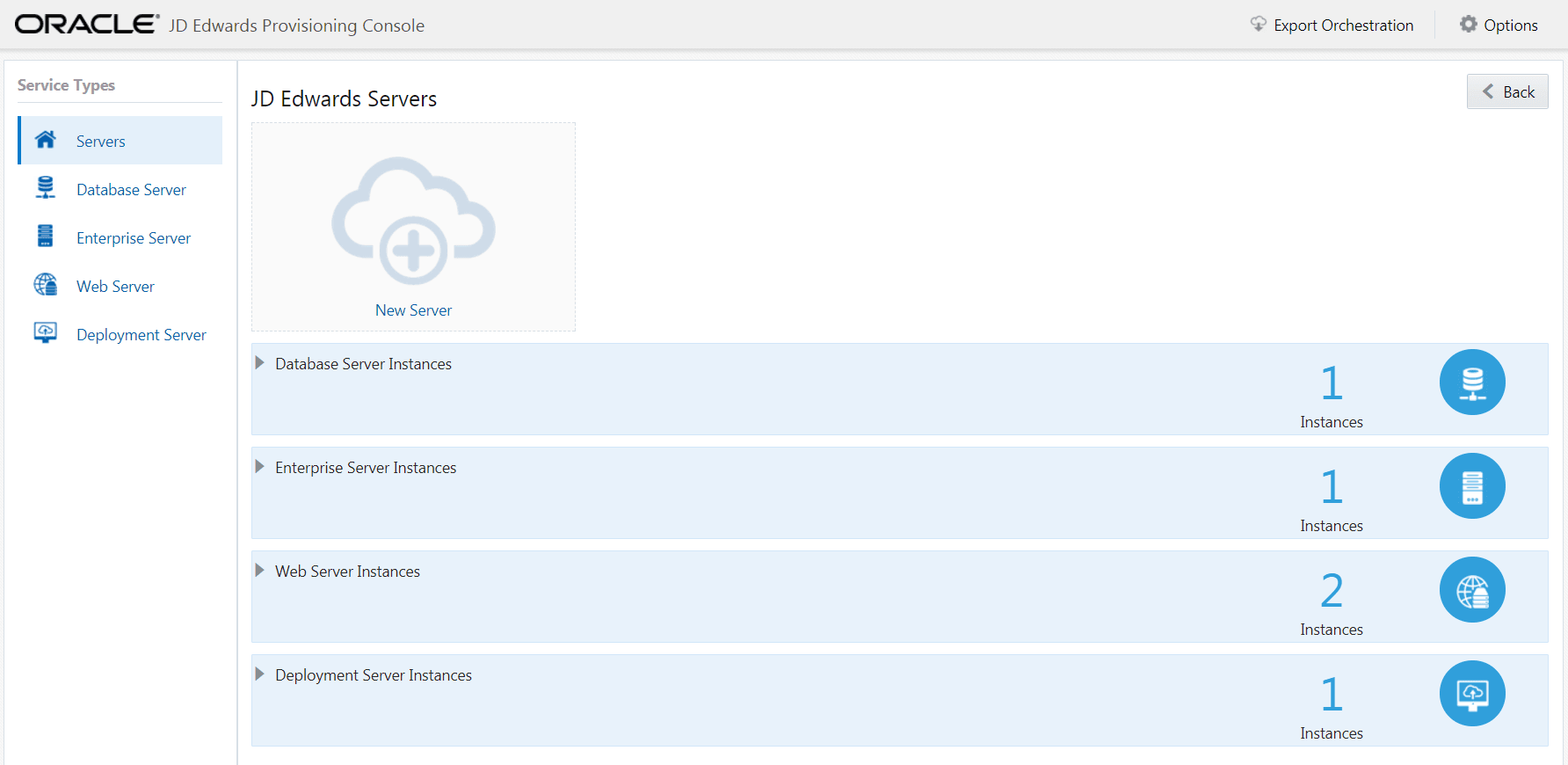 Note: The remainder of this procedure includes steps to either add (where allowed) or modify (existing) these instances:
- Database Server
- Enterprise Server
- Web Server (for example, HTML Server and AIS Server)
- Deployment Server*
* The Provisioning Console will not allow you to add more than one of these server types because only one server of this type is supported per deployment.
Database Server
You can create five database instances if you select one schema per instance. For example, if you select Development and Shared schemas for an instance, you can create three more database instances. For one deployment instance, you can have a maximum number of five schemas distributed across one or many database instances.
You can provision the Database Server instance with the available schemas as required. The following schemas are available for the database instance:
- Development
- Shared (required)
- Prototype
- Production
- Pristine
To add a Database Server:
-
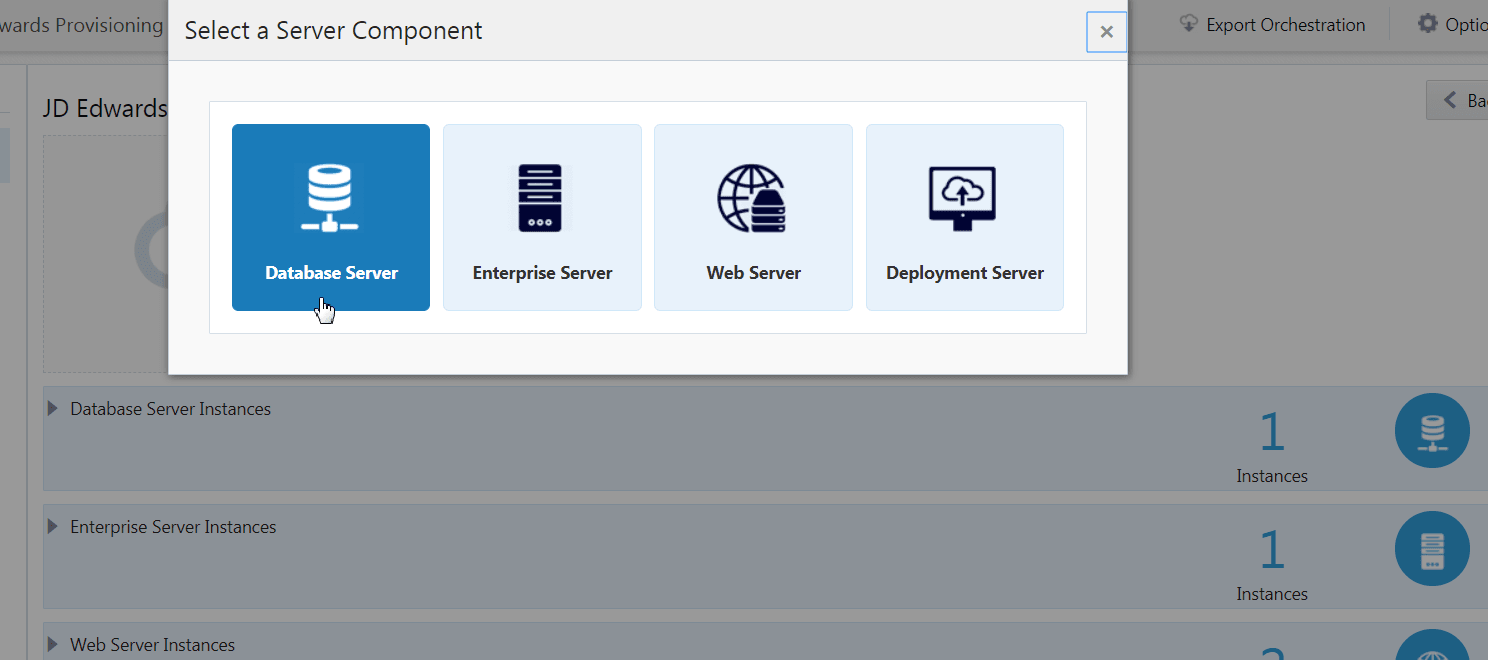
Click the New Server icon and select Database Server from the Select a Server Component window.
-
On Database Server Instance page, complete the following fields to create and configure the Database Server instance.
The below sections and supported screens are separated for Standard Oracle Database and Oracle Autonomous Database.
Standard Oracle Database
Server Configuration
- Database Server Type
The Database Server Type is populated by default as Oracle Database.
-
ATP-D
You should only enable the ATP-D option if you are using an Oracle Autonomous Database Dedicated; this database is only supported in Oracle Cloud Infrastructure. This functionality is described in the Learning Path "Deploying JD Edwards EnterpriseOne on Oracle Cloud Infrastructure on Linux with Autonomous Database."
A description of the fields specific to Autonomous Database are presented below the first figure below.
-
Platform
This field is disabled and it is automatically populated as Linux.
-
Instance Name
Create an instance name for your database instance.
-
Host Name
Enter the host name.
Database Configuration
- DB Install Path
Enter the DB installation path.
-
DB Admin Password
Enter the password of the database administrator.
-
Net Service Name
Enter the net service name.
JD Edwards Database Configuration
- Use ASM feature
Enable this option if you are using RAC DB as your Database Server.
If you disable ASM in your Orchestration, you must enter valid values for the install, table, and index directories for your Oracle database. For example:
/u01/DataDB/u01/ORATABLE/u01/ORAINDEX
If you enable ASM in your Orchestration, you must enter valid values for your DISK group. By default the values for are assumed to be DATA. Otherwise, you can enter any other name that you have created. An example screen is shown below as Database Server Instance - ASM Enabled.
- JDE DB Install Directory
Enter the installation path.
Path Rules. All directories in the specified path must preexist, except the last directory in the path. Therefore you must manually create the directory structure except for the last directory, which the Provisioning Server deployment process creates. For example, if you specify /u01/ORCL/INSTALL, the /u01/ORCL directory must preexist and the Provisioning Server deployment creates the /INSTALL directory. -
JDE DB Table Directory
Enter the path to install the table data.
Path Rules: All directories in the specified path must preexist, except the last directory in the path. Therefore you must manually create the directory structure except for the last directory, which the Provisioning Server deployment process creates. For example, if you specify /u02/ORCL/TABLE, the /u02/ORCL directory must preexist and the Provisioning Server deployment creates the /TABLE directory.
-
JDE DB Index Directory
Enter the path to install the indexes.
Path Rules: All directories in the specified path must preexist, except the last directory in the path. Therefore you must manually create the directory structure except for the last directory, which the Provisioning Server deployment process creates. For example, if you specify /u03/ORCL/INDEX, the /u03/ORCL directory must preexist and the Provisioning Server deployment creates the /INDEX directory.
-
Schemas
Click the Schemas field and select the schemas you want from the auto-suggest text. The schemas available are: Shared, Development, Prototype, Production, and Pristine with Demo data.
Note: Note: It is mandatory to add the Shared schema.Important: At this point, you should ensure that you specify all the schemas you might plan to use. The schemas you choose to install on the Database Server can only be deployed once, which is specified at this point in the Provisioning Console. You can use the Provisioning Console to programmatically add additional schemas after deploying the orchestration. -
Demo Data
Click the Demo Data field and select the demo data from the auto-suggest text. Demo data is available depending on the schema selected. For example, if you select the schema as Development, the Development demo data will be available.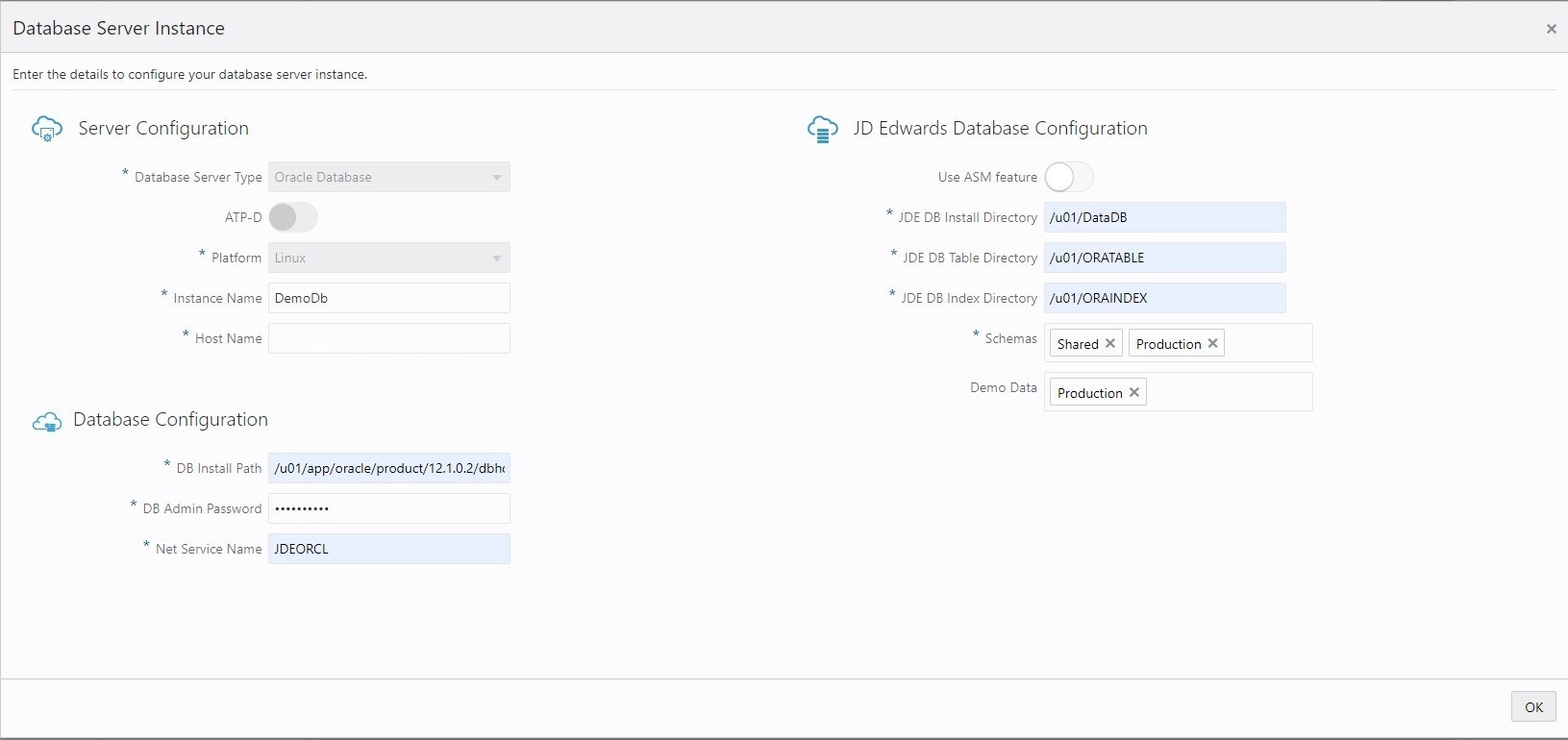
Oracle Autonomous Database
Server Configuration
- Database Server Type
The Database Server Type is displayed as Oracle Database.
-
ATP-D
Enable this selector button for Oracle Autonomous Database ATP-D.
-
Platform
This field is disabled and it is automatically populated as Linux.
-
Instance Name
Create an instance name for your database instance.
-
Host Name
Enter the host name.
Database Configuration
- DB Admin Password
Enter the password of the database administrator.
-
DB Wallet
Click the Browse button to locate and select the DB Wallet that you created by following the steps in the section "Downloading a Database Wallet for Autonomous Transaction Processing on Dedicated Infrastructure" of this Learning Path.
JD Edwards Database Configuration
- JDE DB Install Directory
Enter the installation path.
Path Rules. All directories in the specified path must preexist, except the last directory. Therefore you must manually create the directory structure except for the last directory, which the Provisioning Server deployment process creates. For example, if you specify /u01/ORCL/INSTALL, the /u01/ORCL directory must preexist and the Provisioning Server deployment creates the /INSTALL directory.
-
Schemas
Click the Schemas field and select the schemas from the auto-suggest text. The schemas available are: Shared, Development, Prototype, Production, and Pristine with Demo Data.
Note: Note: It is mandatory to add the Shared schema.Important: point, you should ensure that you specify all the schemas you plan to use. The schemas you choose to install on the Database Server can only be deployed once, which is specified at this point in the Provisioning Console. You can use the Provisioning Console to programmatically add additional schemas after deploying the orchestration. -
Demo Data
Click the Demo Data field and select the demo data available from the auto-suggest text. Demo data will be available depending on the schema selected. For example, if you select the schema as Development, the Development demo data will be available.
OCI Object Storage Details
- Tenancy
Enter the tenancy where you have access to the Object Storage Service in Oracle Cloud Infrastructure.
-
User Name
Enter the user name with which you can access the Object Storage Service in Oracle Cloud Infrastructure.
-
Auth Token
Enter the Auth Token for the given user. This token is used to upload the JD Edwards database dump files into the Object Storage Service in Oracle Cloud Infrastructure.
For additional details, see the section Getting an Auth Token
-
Region
OCI Region
-
Bucket
Enter the bucket name that you have previously created for use with Oracle Cloud Infrastructure Object Storage Service.
For additional details, see the section "Managing Buckets" in this Learning Path.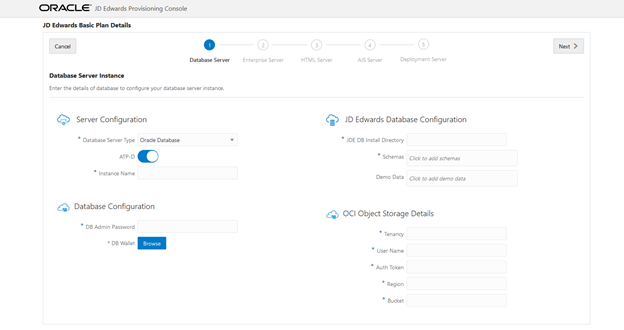
- Database Server Type
-
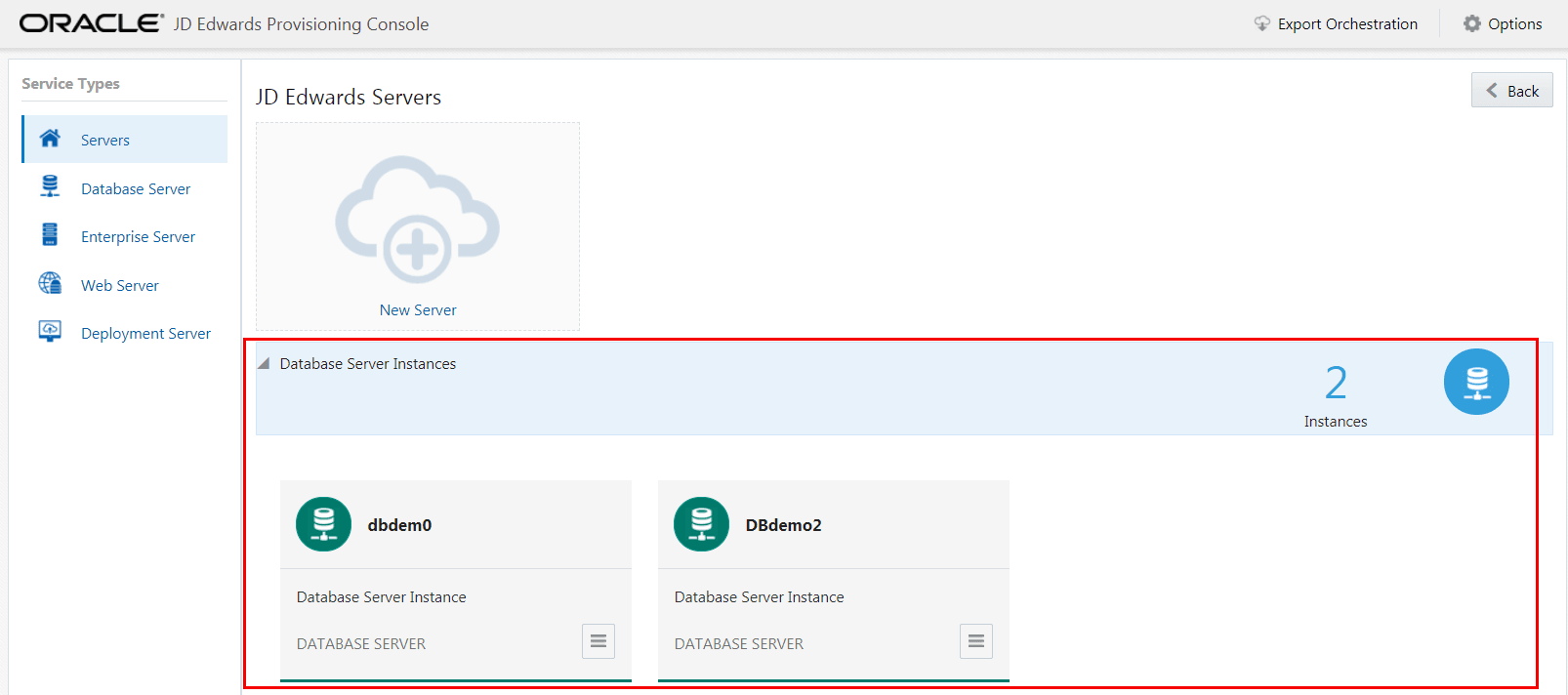
You should now be able to view multiple instances of the Database Server.
-
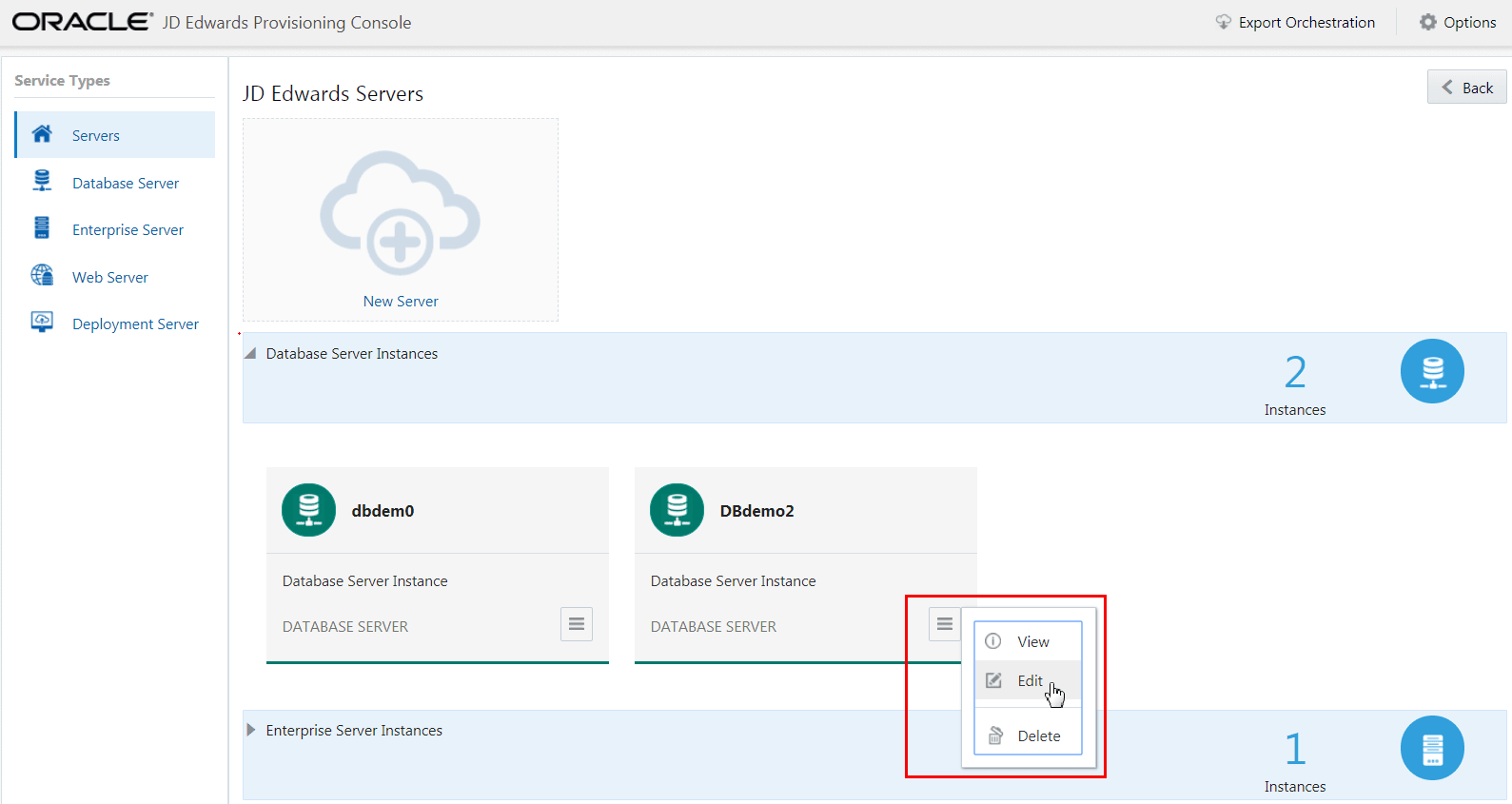
If a Database Server exists, click View from the Application Options tab to view the existing configuration for the Database Server. To modify the instance configuration use the Application Options tab and choose the Edit option.
-
To delete the instance, use the Application Options tab to select Delete.
Enterprise Server
You can define any number of Enterprise Server instances. If you only want one Enterprise Server, you should define it to run both Logic and Batch. If you want to define multiple Enterprise Servers, at least one must be a Logic Server per pathcode.
To add an Enterprise Server:
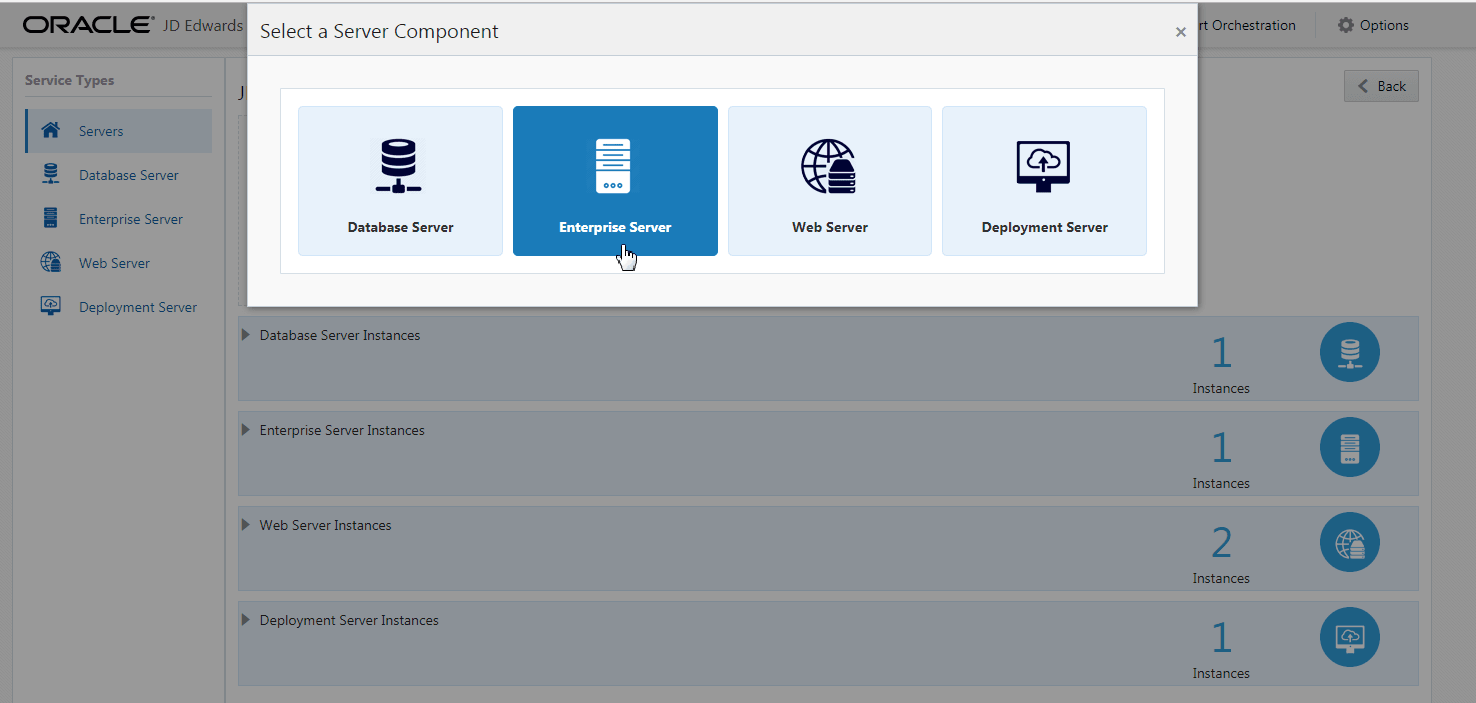
- Click the New Server icon and select Enterprise Server from the Select a Server
Component window.
- On Enterprise Server Instance page, complete these fields to create and
configure the Enterprise Server instance.
Server Configuration
- Platform
This field is disabled and it is automatically populated as Linux.
-
Instance Name
Create an instance name for the Enterprise Server. The conditions to set the instance name is displayed in the tooltip when you click the field.
-
Host Name
Enter the host name.
- Server Type
Select one or both of the available server types for this Enterprise Server.
Single Enterprise Server. If you are deploying only a single Enterprise Server, select both Logic and Batch as the server types.
Multiple Enterprise Servers. If you are deploying multiple Enterprise Servers, at least one server must be specified as a Logic server for each pathcode. The other servers can be specified as Batch servers.
-
Pathcodes
Click the Available Pathcodes field and select the pathcodes required from the auto-suggest text. The four available pathcodes are: Development, Prototype, Pristine, and Production.
Important: Important: It is good practice to select pathcodes here that correlate to the schemas you selected for the Database Server. The Provisioning Console programmatically enforce this correlation. If you select pathcodes on the Enterprise Server that are a superset of the database schemas you selected, the Enterprise Server will not be able to access the data required to function correctly. In the Provisioning Console, the pathcodes that you specify at this point for installation on the Enterprise Server can be deployed only once. You can use the Provisioning Console to programmatically add additional schemas after deploying the orchestration. -
Oracle JDBC Driver Details
This driver is required for connectivity between the Enterprise Server and the Oracle database server.
Click the Browse button to select each of the required components for the Oracle JDBC driver. For example:
- odbc8.jar
- ons.jar
- ucp.jar
Note: Refer to Oracle Certifications for the version of the supported driver and associated components.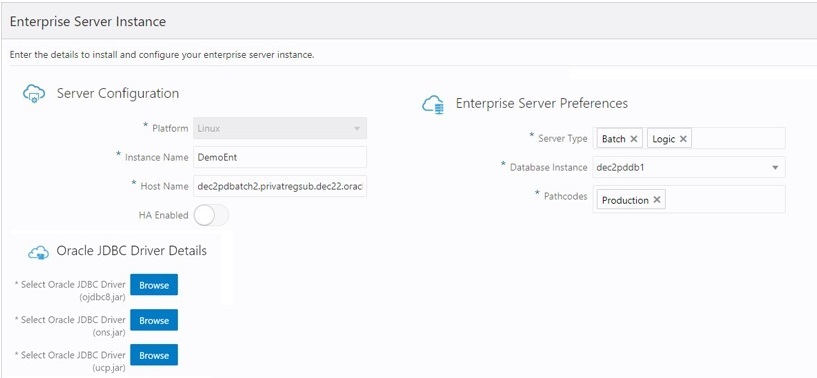
- Platform
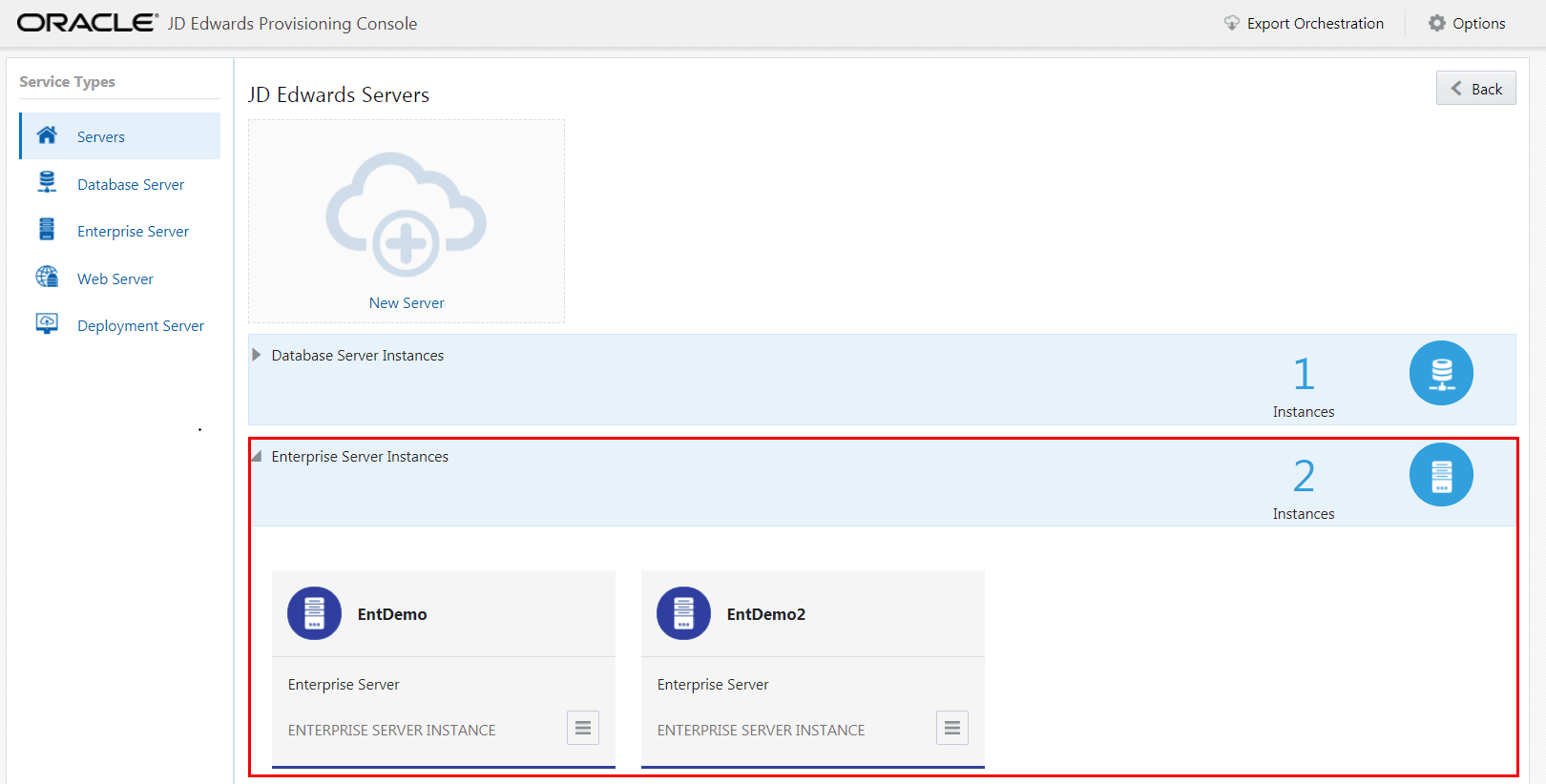
- You should now be able to view multiple instances of the Enterprise
Server.
- If an Enterprise Server exists, click View from the Application Options tab to view
the existing configuration for the Enterprise Server. To modify the instance
configuration use the Application Option tab and choose the Edit option. Use the
Clone option to clone the Enterprise Server instance.
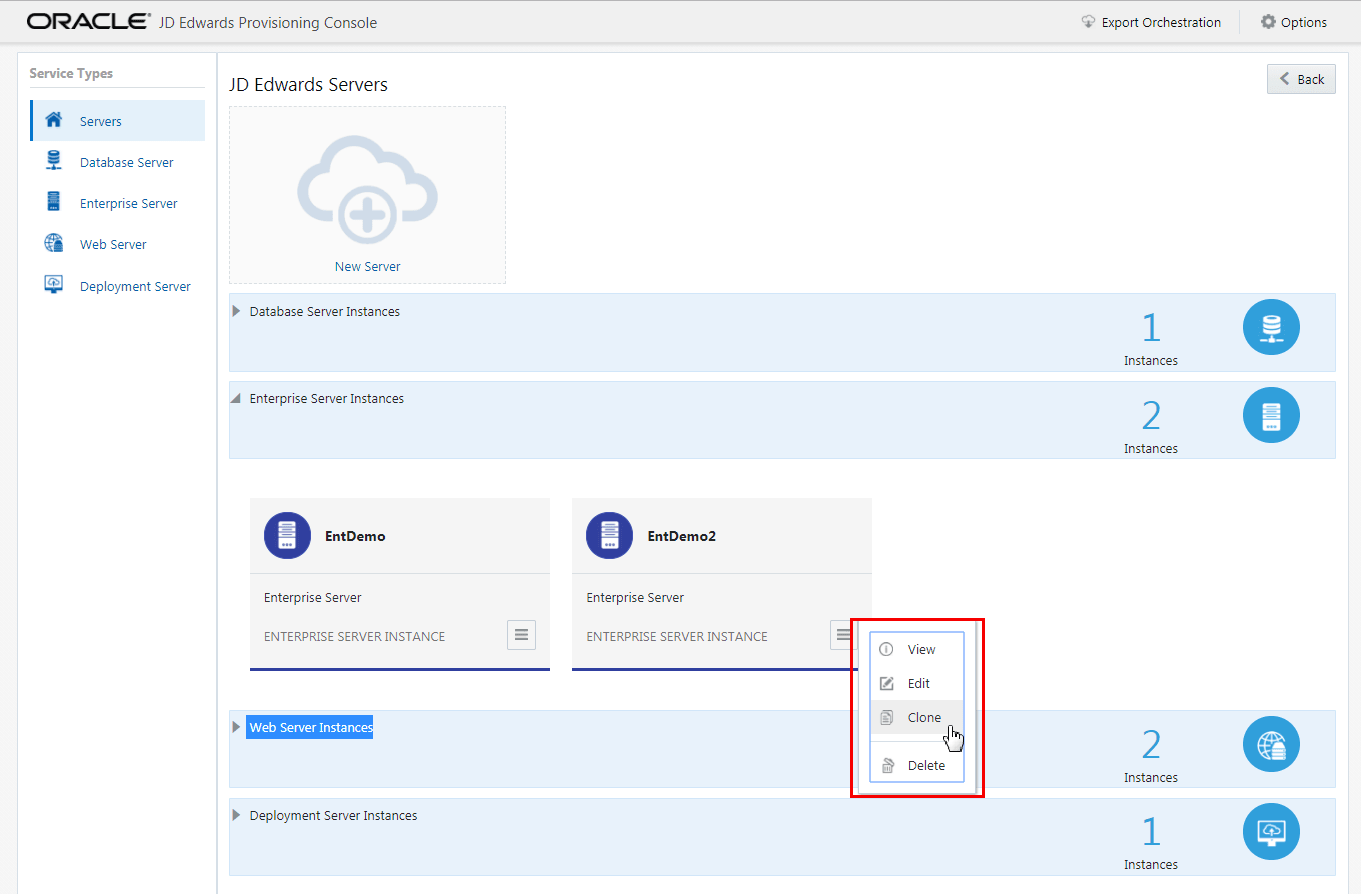
- To delete the instance, use the Application option tab to select Delete.
Web Server
The Instance Type for Web Servers can be any of the available servers types that are selectable from the drop-down list; however, you must have at least one configured Dedicated HTML Server saved prior to creating an associated AIS instance.
You can define any number of Web Server instances.
To add or modify a Web Server instance:
- Select the Service Type for Web Server.
- To create a new Web Server, click the New Server icon and then the Web Server icon and complete the required fields.
- To modify an existing Web Server, click View from the Application Actions tab to view the existing configuration for the Web Server. To modify the instance configuration use the action tab and choose the Edit option.
- On the Web Server Instance, you can configure each of these Web Server types:
- HTML Server (Dedicated HTML Server for AIS)
At least one of these servers must be specified in a pair with an AIS Server.
- Application Interface Services (AIS) Server
At least one of these servers must be specified in a pair with a Dedicated HTML Server for AIS.
- Standard JAS Server
This is a traditional JAS Server, which is optional and can be none to many.
Note: For Oracle Cloud Infrastructure only, you can select the HA Enabled option if required, and when prompted, should enter the Virtual Host Name, and then click OK.
Important: For a description of each HTML server type (Dedicated for AIS or Standard), refer to the Fundamentals section of this Learning Path.Important: Because multiple Web Servers instances can run on the same WebLogic Server running in Oracle Cloud Infrastructure, you MUST specify different ports for each instance. - HTML Server (Dedicated HTML Server for AIS)
-
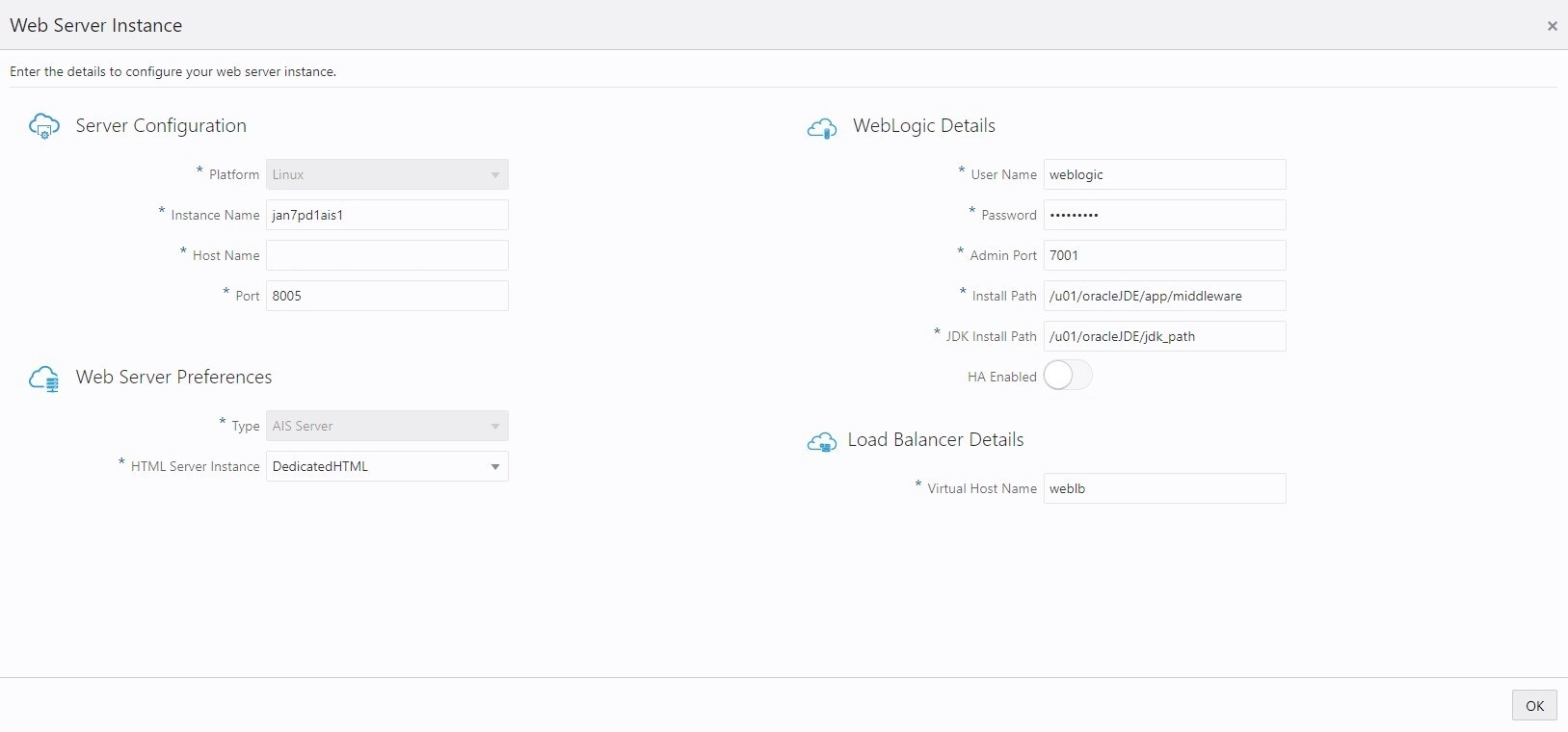
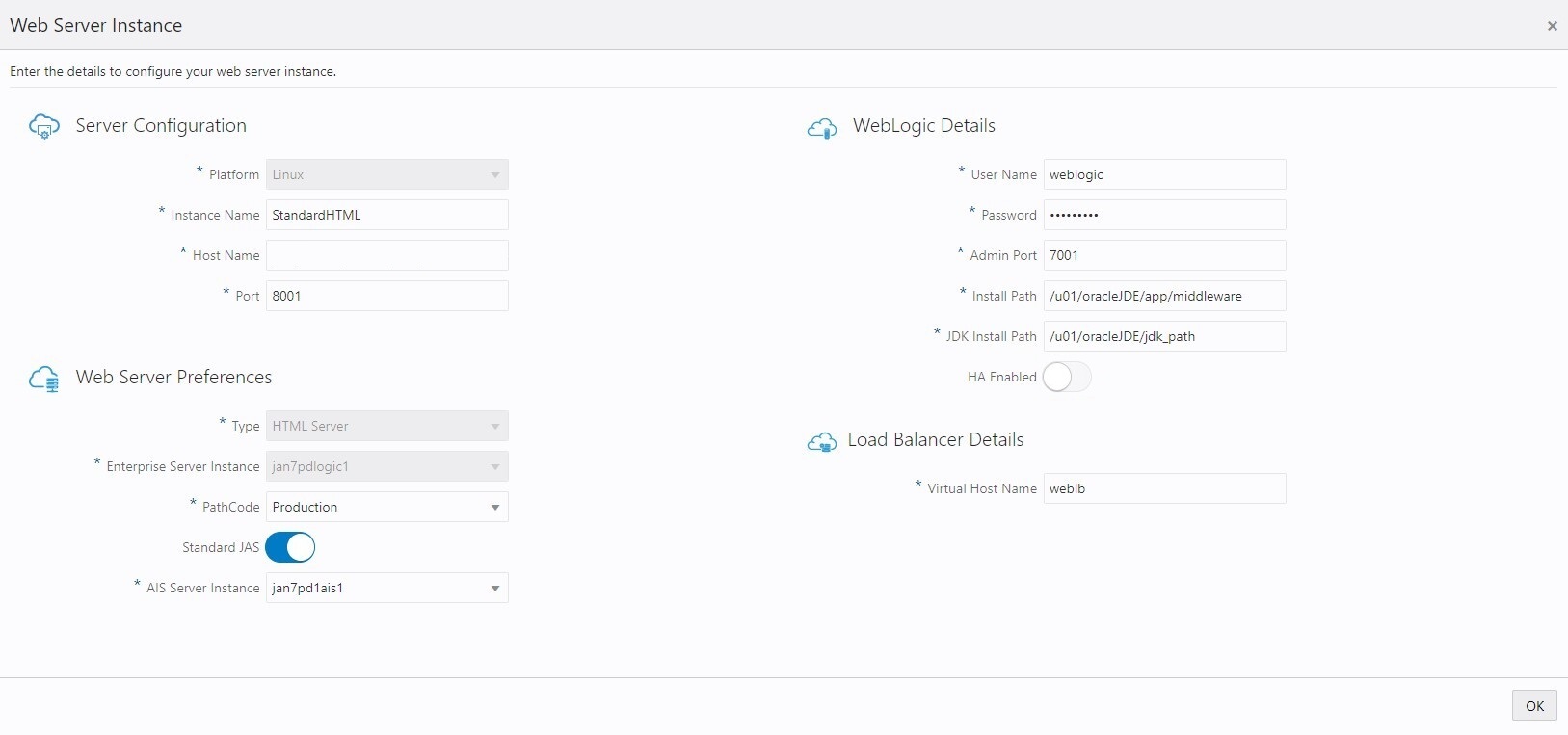
On the HTML Server Instance page, complete these fields to create and configure the HTML Server instance.
Server Configuration
- Platform
This field is disabled and it is automatically populated as Linux.
-
Instance Name
Create the instance name of the HTML Server instance.
-
Host Name
Enter the host name.
-
Port
Enter a unique (available) port number for this server that will use an SSL connection. This port number must be between 1024 and 65535. This port number is used by HTTPS to create a container and deploy the web component. Ensure the availability of a port that is one less than the port number that you enter here. That is, if you specify port 8081, you must also ensure that port 8080 is available.
Important: For each SSL port that you open in the firewall, you must also open a companion port for non-SSL access required for Server Manager. The numeric value for the companion port must be one less than the value specified for the SSL port. For example, if you specify a port value of 8081 for SSL, in the firewall you must also open a port one less than that value; in this case you must open port 8080. Refer to the section "Enable Inbound Ports in the Firewall for Compute Instances" in the OBE "Performing Common Setup for All Linux Servers" of this Learning Path.Web Server Preferences
- PathcodeSelect the required pathcode from the drop-down menu.Important: Using the Quick Start mode, you can specify only a dedicated HTML Server for AIS. If you want to create a standard HTML Server, which is strongly recommended for Production environments, you must use the Advanced Deployment mode. For a description of each HTML Server type, refer to the section "Fundamentals" of this Learning Path.Important: Each dedicated HTML Server and AIS Server pair can support only one pathcode. If you want additional HTML instances to support additional pathcodes, you must configure additional HTML Server pairs using the Advanced deployment mode of the Provisioning Console. For more information, refer to the OBE "Orchestrating Using Advanced Mode" of this Learning Path.
WebLogic Details
- User Name
Enter the user name.
-
Password
Enter the WebLogic Server password.
-
Admin Port
Enter the port number to access the WebLogic Administration Console.
-
Install Path
Enter the installation path of the WebLogic instance.
-
JDK Install Path
Enter the JDK installation path.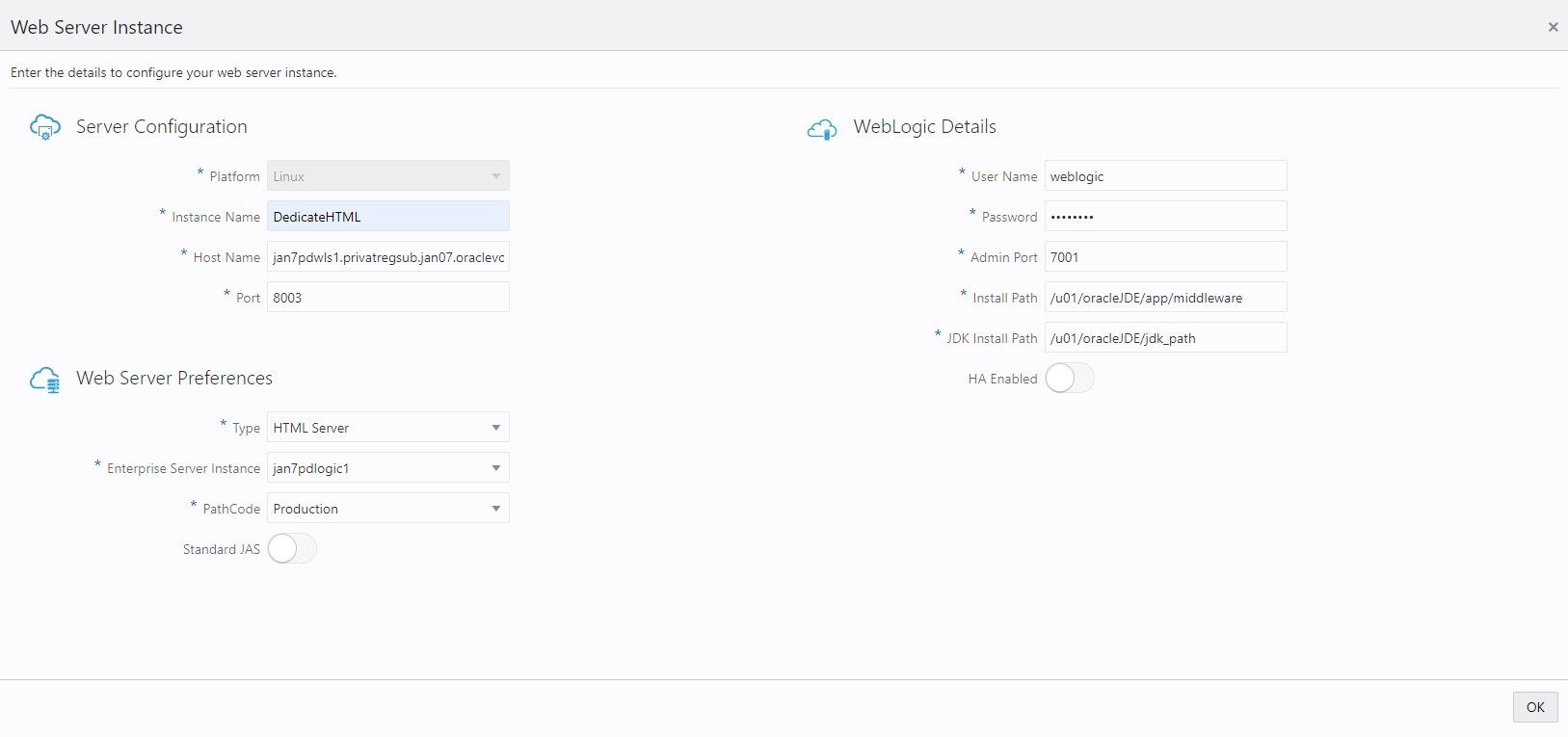
- Platform
-
Click the OK button.
-
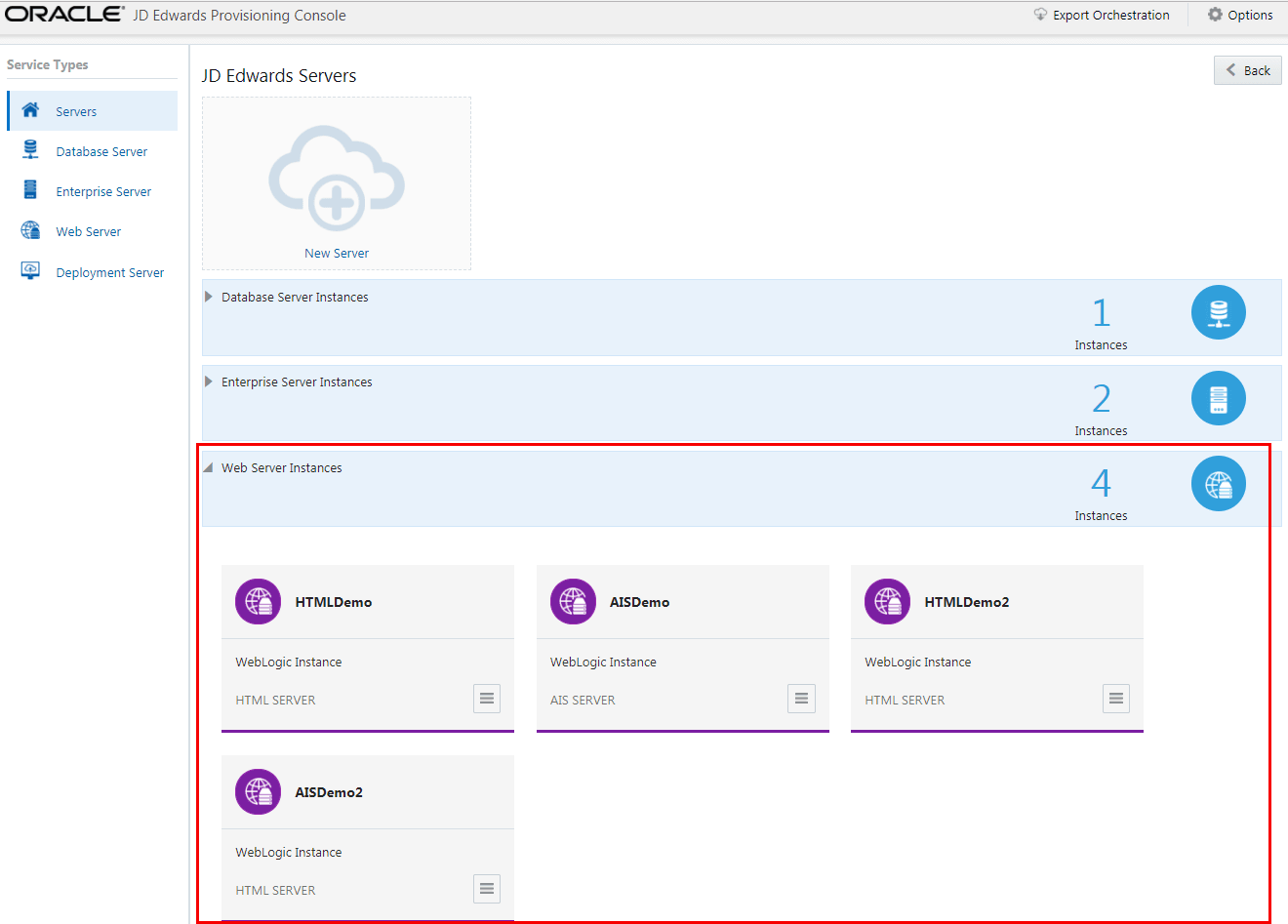
Verify the Web Server instances you modified or added is displayed in the JD Edwards Servers window.
-
To delete any web instance, use the Application Options tab to select Delete.
Deployment Server
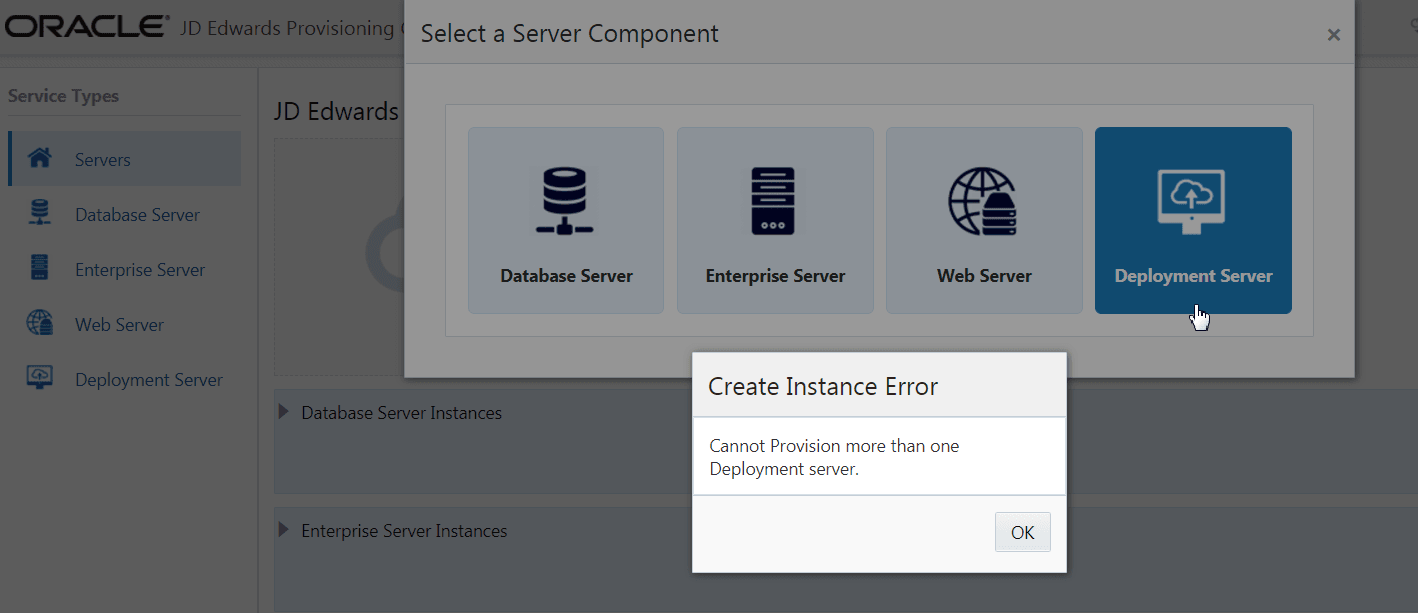
To modify the Deployment Server instance:
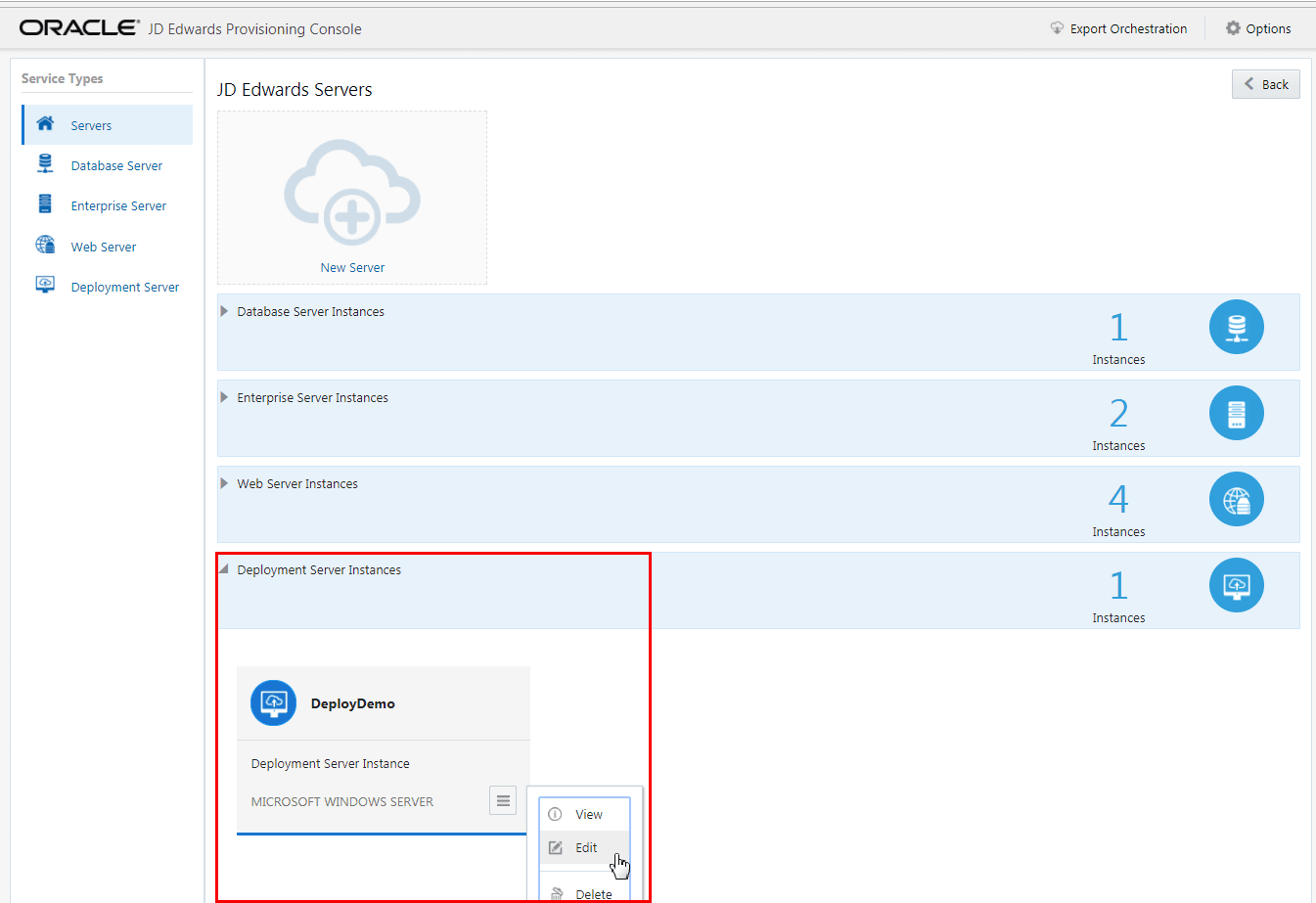
- On JD Edwards Servers, click the existing Deployment Server instance, click the
Applications Options icon, and then click Edit.
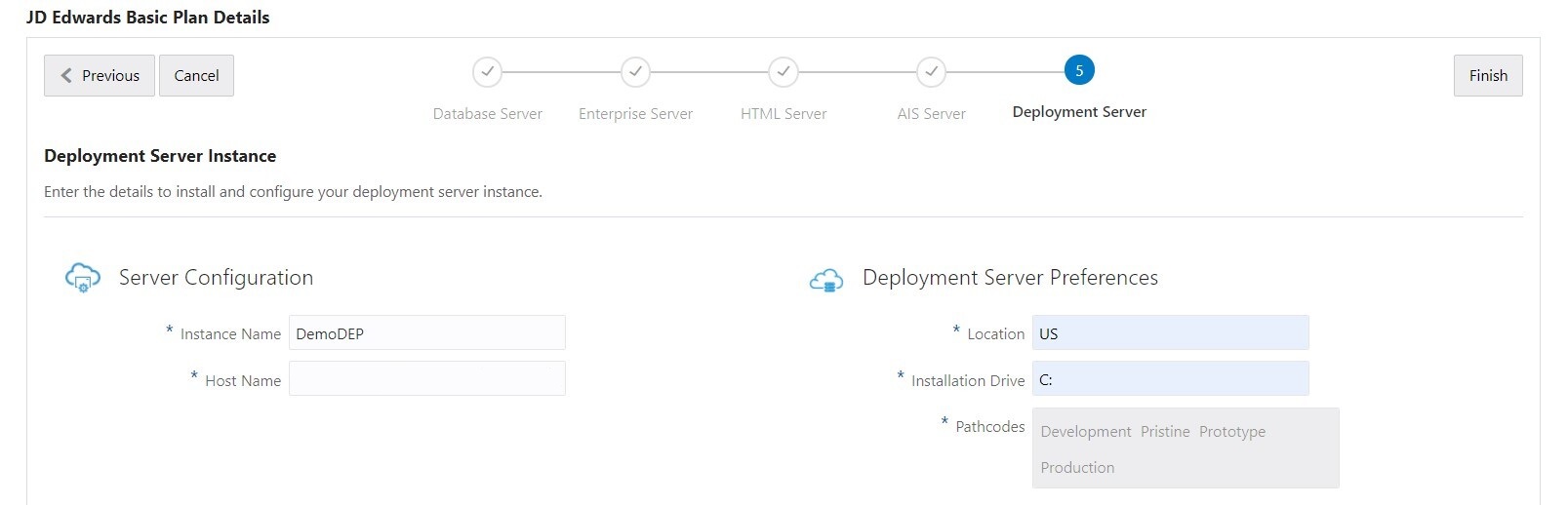
- On JD Edwards Deployment Server page, complete these fields to create and
configure your Deployment Server instance.
Server Configuration
- Instance Name
Create a name for the Deployment Server instance. The conditions to set the instance name is displayed in the tooltip when you click the field.
- Host Name
Enter the host name.
- Windows User
Enter the name of the Windows user.
- Windows Password
Enter the password of the Windows user.
Deployment Server Preferences
- Location
Enter the location.
This value is the base location for your JD Edwards EnterpriseOne machines. For example, typical values might be a city name (such as Denver or Austin), a geographical region name (such as US or India), or a general location name (such as Corporate).
- Installation Drive
Enter the drive for the installation.
- Pathcodes
This field is automatically populated.
- Instance Name
-
Verify that the Deployment Server instance you modified is displayed in the JD Edwards Servers window.
- You can choose the Delete option in the action tab to delete the Deployment Server instance. After you delete the existing Deployment Server instance, you can click the New Server icon, and then select Deployment Server from the Select a Component page to add a new Deployment Server instance.