Downloading a Database Wallet for Autonomous Transaction Processing on Dedicated Infrastructure
This section describes how to download the database wallet, which is required to connect to the Autonomous Database. Because there is no direct machine access for Autonomous Transaction Processing on Dedicated Infrastructure, you must connect to the underlying database by using:
Database Wallet (which contains
tnsnames.ora and sqlnet.orarelated files)Connection Strings
Web SQL Developer
For additional details, see Connecting to Autonomous Transaction Processing
Creating a Database Wallet for Autonomous Transaction Processing on Dedicated Infrastructure
This wallet is required as input to the Infrastructure Provisioning console during the orchestration to facilitate JD Edwards EnterpriseOne Infrastructure Provisioning.
- On the Oracle Cloud Infrastructure home page, click the navigation menu in the
upper-left corner and select Autonomous Transaction Processing.
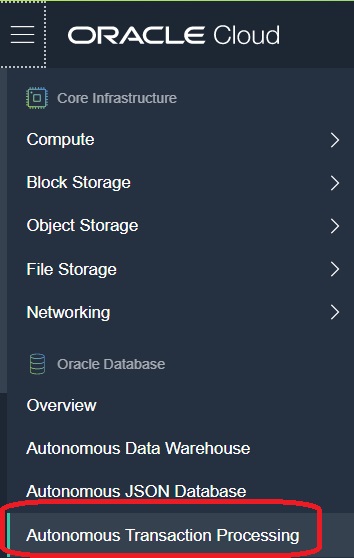
- Click the instance of Autonomous Transaction Processing (ATP) that you
previously created in the section of this learning path entitled "Creating an
Autonomous Transaction Processing Instance on Dedicated Exadata Infrastructure
in Oracle Cloud Infrastructure".
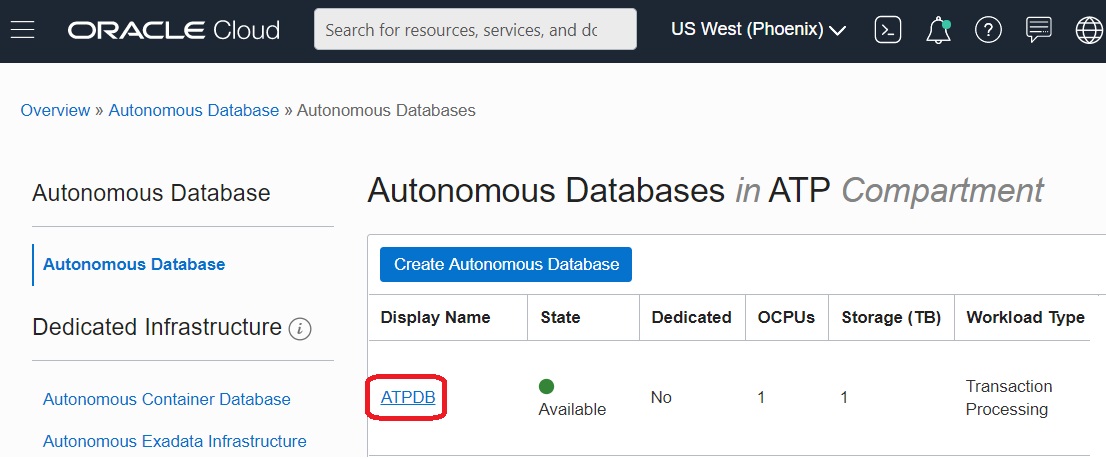
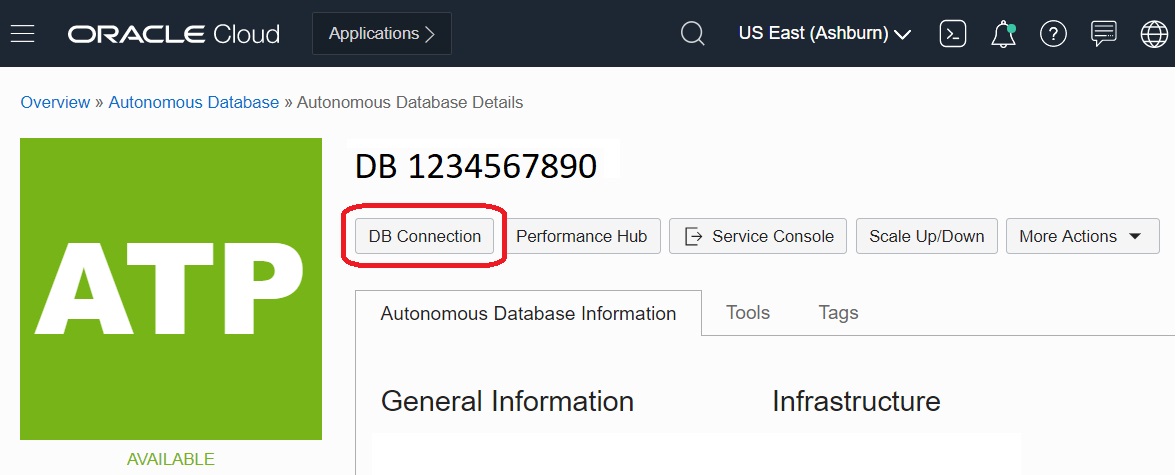
- On the Autonomous Database Details section, click the DB Connection button.Note: The selected ATP instance must be in an Available state before you can download the database wallet. If the state is Unavailable, the DB Connection button is disabled.
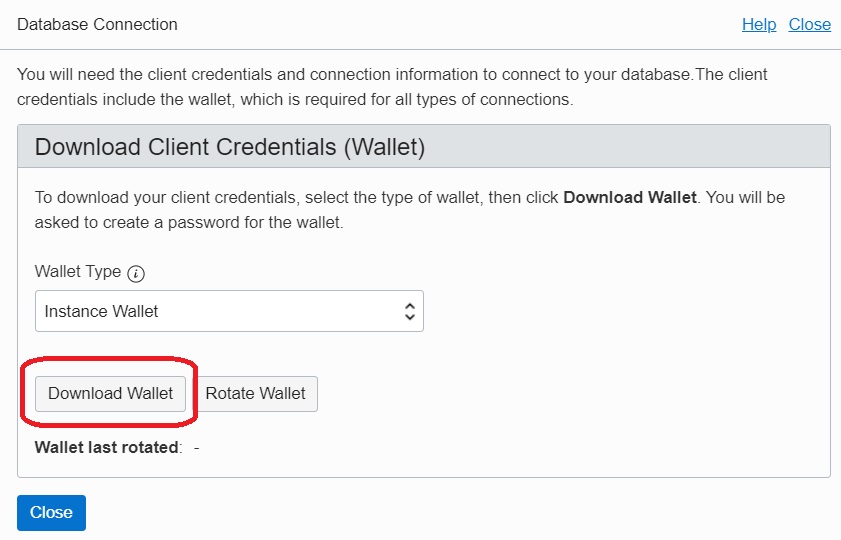
- On the Database Connection dialog box, click the Download Wallet
button.
- On the Download Wallet dialog box, provide a password to encrypt the keys inside
the wallet. The password must have at least 8 characters and must include at
least 1 letter and either 1 numeric character or 1 special character.Important: This password should be the same as the ADMIN user of ATP.
See About Downloading Client Credentials for information about the files included in the download. Take note of or copy the TNS names or connection strings you need for your connection.
See About Connecting to Autonomous Databases for information about making connections.
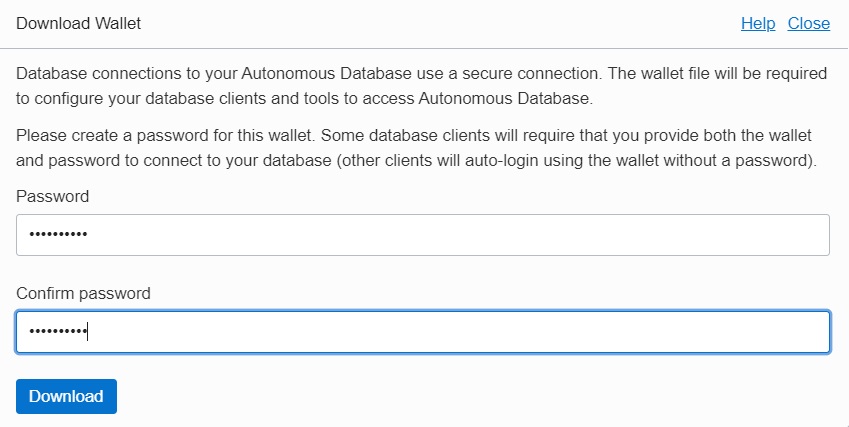
- Click the Download button.
- Save the downloaded compressed file containing client credentials to a secure location.