Accessing the JD Edwards Provisioning Console
This section shows you how to access the JD Edwards Provisioning Console.
As described in the the subsequent OBEs in this Learning Path, you will access and use the Provisioning Console to set up a completely functional EnterpriseOne environment using the JD Edwards One-Click Provisioning Console by performing these three steps:
- Configure – Provide the Server Manager details.
- Orchestrate – Create the deployment plan.
- Deploy – Initiate the scripts for the automated provisioning of the EnterpriseOne system.
Prerequisites
- You should have a fundamental understanding of the Oracle Cloud Infrastructure. It is highly recommended that you review the extensive collateral information, including training, at this site: Oracle Cloud Infrastructure
- You must have a subscription and an Administrator account to Oracle Cloud Infrastructure as described at this site: Getting Started with Oracle Cloud Applications
- To access the Provisioning Console, you must use a supported browser. See Supported Browsers in Troubleshooting Signing In to the Console.
Accessing the JD Edwards Provisioning Console
The recommended browsers for accessing the One-Click Provisioning Console are:
- Google Chrome
- Mozilla Firefox
Open the browser and connect to the URL using this syntax:
https://XXX.XXX.XXX.XXX:3000Where:
- https is the only supported browser protocol.
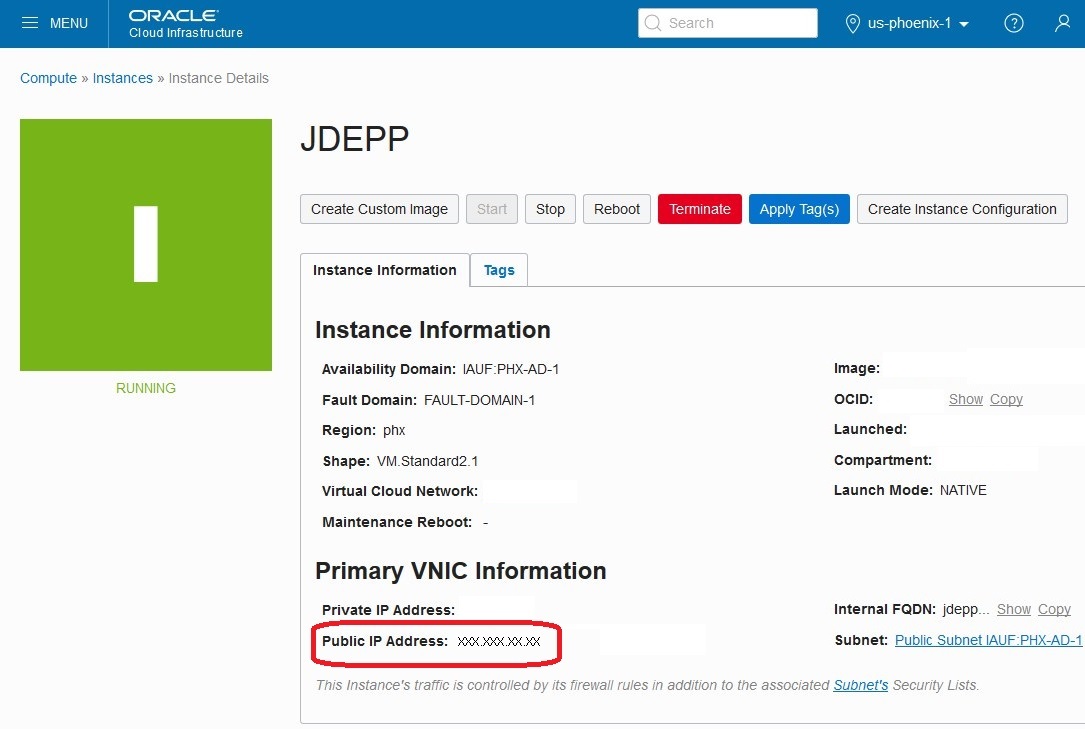
- XXX.XXX.XXX.XXX is the public IP address for the One-Click
Provisioning Server Instance. This IP address is shown in the Oracle
Cloud Infrastructure user interface on the Instance Details screen for
the instance that you created for the One-Click Provisioning Server, as
shown in the below example:
- 3000 is the port on which the One-Click Provisioning Server is running, and which you must include as part of the address.
Important: Should you exit the Provisioning Console or experience a
timeout, the next time you enter the Provisioning Console it displays the point
where you left off. When you click the Configure icon, you will be prompted for
the same credentials that you entered during your first access to the One-Click
Provisioning Console.