Copying Files from the OpenTofu Staging Server
This section shows you how to copy files from the OpenTofu Staging Sever.
After you have completed first-time configuration, you will need to copy files from the OpenTofu Staging Server to your local workstation by performing these steps:
- Establishing a Secure FTP (SFTP) Connection
- Copying Your Private SSH Keys from the OpenTofu Staging Server
- Copying JSON Files from the OpenTofu Staging Server
Prerequisites
- Your OpenTofu Staging Server must be created and configured as described in the preceding OBEs in this Learning Path.
- You must have previously created key pairs in openssh format as described in
the preceding OBE "Generating Instance Key Pairs in openssh Format" of
this Learning Path. Tip: The best practice is to use separate key pairs for accessing the Bastion host and all other servers.
- You must have an FTP program to copy your local private SSH keys to the
OpenTofu Staging Server. Tip: If you followed the recommendation in the referenced section above, you have given this file a significant name such as jdeSSHKey.openssh.
Establishing a Secure FTP (SFTP) Connection
Use this procedure to create a secure FTP (SFTP) connection from your Microsoft Windows workstation to the JD Edwards EnterpriseOne Reference Architecture OpenTofu Staging Server.
Start your SFTP program, such as WinSCP.
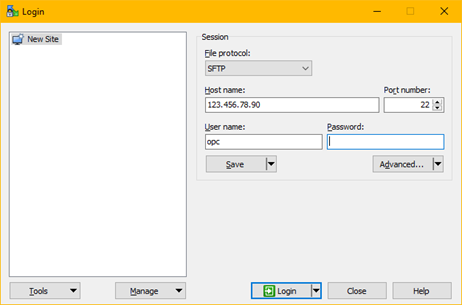
- On the Login page, complete these fields:
- File protocolFTP
- Host name
Enter the public IP address of the Linux instance you created in Oracle Cloud Infrastructure for the OpenTofu Staging Server.
- PortEnter the value 22.
- User nameEnter the value opc.
- PasswordAt this point, you cannot enter a password in the FTP program to complete the connection. Instead you must use the Advanced option and wait until prompted to enter a private key password by following the procedure described in Step 3 below.
-
Advanced
Select Advanced Site Settings from the drop-down menu.
In the tree structure in the left pane, navigate to SSH, Authentication.
In the Private key file field, use the browse button to locate the private key file. If you followed the recommendation provided earlier, this file is named jdeSSHKey.ppk.
Click the OK button to save the setting and return to the Login screen.
After completing all the above fields, click the Login option on the Login screen.
After the SFTP program establishes a connection to the OpenTofu Staging Server, a warning is displayed.
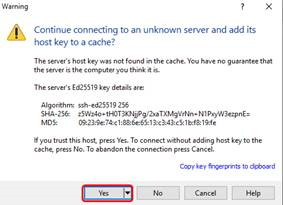
- Unknown Server - Click Yes
-
On the Warning dialog box, click the Yes button to accept the connection to the “unknown server” and to add the host key of this server to the cache.
After the connection is made, the SFTP program is ready to be used for file transfers from your workstation to the JD Edwards EnterpriseOne Reference Architecture OpenTofu Staging Server.
Copying Your Private SSH Keys from the OpenTofu Staging Server
Use this procedure to copy your SSH keys from the OpenTofu Staging Server. These keys were created by the createStage.sh script run on the server and enable you to access all provisioned hosts, except the Bastion server. As a best practice, this key pair should be different than the one used to create and access the OpenTofu Staging Server.
-
Using an SFTP program (a secure connection to which can be created by following the preceding procedure), open a connection to the JD Edwards EnterpriseOne Reference Architecture OpenTofu Staging Server.
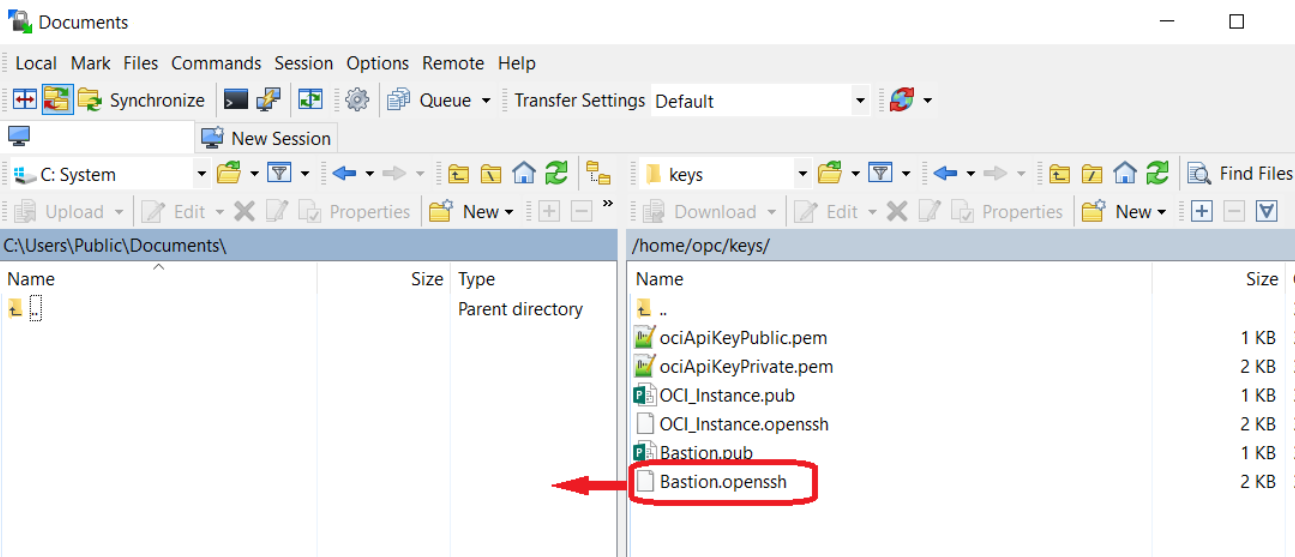
- Locate the Bastion.openssh file that was generated on the OpenTofu
Staging Server when you ran the configuration. The file is located in this
directory:
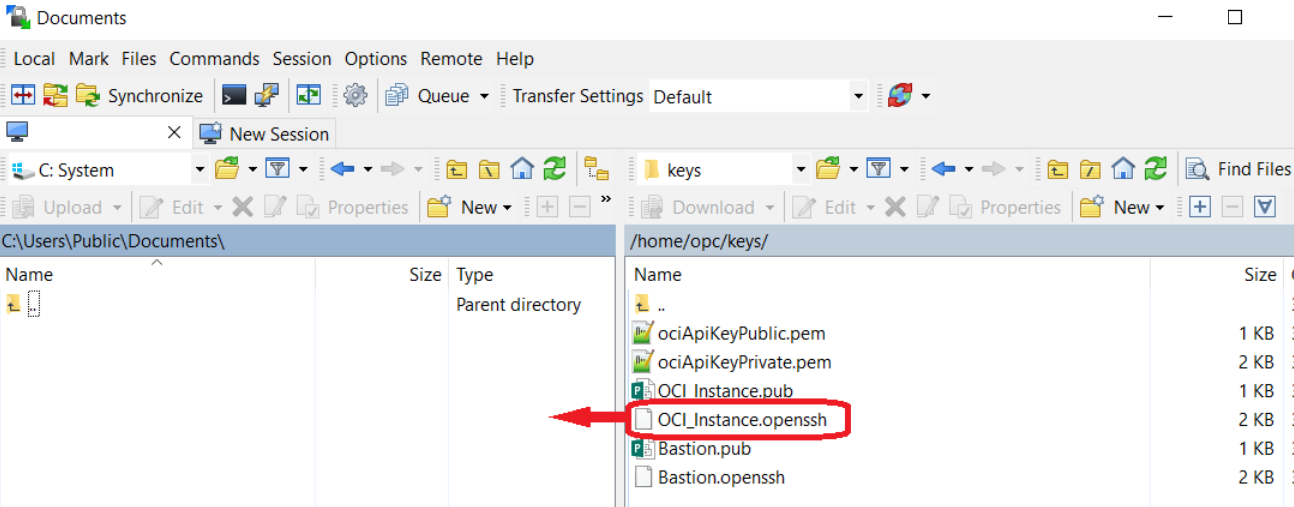
/home/opc/keys Copy the Bastion.openssh file to your local workstation as shown in the following example.
- Locate the OCI_Instance.openssh file that was generated on the OpenTofu
Staging Server when you ran the configuration. The file is also located in:
/home/opc/keys Copy the OCI_Instance.openssh file to your local workstation as shown in the following example.
Copying JSON Files from the OpenTofu Staging Server
Use this procedure to copy the generated JSON files from the JD Edwards EnterpriseOne Reference Architecture OpenTofu Staging Server to your local workstation. These JSON files will be used to quickly configure the JD Edwards One-Click Provisioning Server to automatically define the servers on the infrastructure provisioned by OpenTofu.
-
Using an SFTP program (which can be created by following the preceding procedure), open a connection to the JD Edwards EnterpriseOne Reference Architecture OpenTofu Staging Server.
-
Locate the JSON files generated on the OpenTofu Staging Server when you ran the configuration. The files are located in:
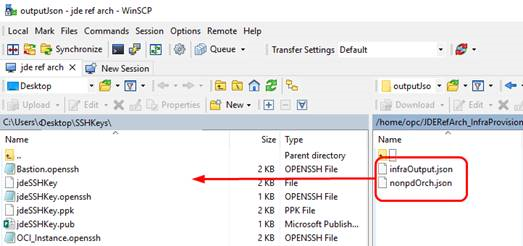
/home/opc/JDERefArch_InfraProvisioning/E1InfroProvisionConsole/outputJson Copy all JSON files to your local workstation as shown in the following example.