Enabling Oracle Data Guard on Oracle Cloud Infrastructure
This section describes how to enable Oracle Data Guard on Oracle Cloud Infrastructure by performing these tasks:
- Enabling Oracle Data Guard in Oracle Cloud Infrastructure
- Postinstallation of JD Edwards EnterpriseOne Servers
- Switch Over to the Disaster Recovery (DR) Region
- Limitations of Switch Over
It is your responsibility to synchronize and maintain the primary and DR region. For example, such activities would include such functions as applying security patches, and JD Edwards EnterpriseOne package build and deploy.
Refer to these Oracle web sites for additional details:
Enabling Oracle Data Guard in Oracle Cloud Infrastructure
Use this procedure to enable Oracle Data Guard in Oracle Cloud Infrastructure.
- Go to the DB system for which you want to enable Oracle Data Guard.
- Click Databases on the left panel.
- Click on an existing database (for example, ORCL).
- Click on Data Guard Associations on the left panel.
- Click the Enable Data Guard button.
- On the popup screen to enter details, complete these fields:
- Display name
Enter any name that is different than the primary instance.
-
Region
Select the same Disaster Recovery region you have previously chosen.
-
Availability domain
Select the same availability domain that is specified for the primary instance.
-
Select a shape
Select shape is based on your requirement.
Important: Initially only shapes with a 1 Node Count RAC are supported for use with JD Edwards EnterpriseOne using Oracle Data Guard on Oracle Cloud Infrastructure. -
Virtual Cloud Network
Select the VCN in the Disaster Recovery region in which you want to provision the standby database system.
-
Subnet
Select the private subnet for use by this Oracle Data Guard.
-
Configure network security groups (NSGs)
Leave this checkbox unchecked.
-
Hostname prefix
Provide hostname prefix of your choice. Ensure this value is different than that specified for the primary instance.
-
Configure standby database
Provide the database password. The standby database admin password must be the same as the primary database admin password.
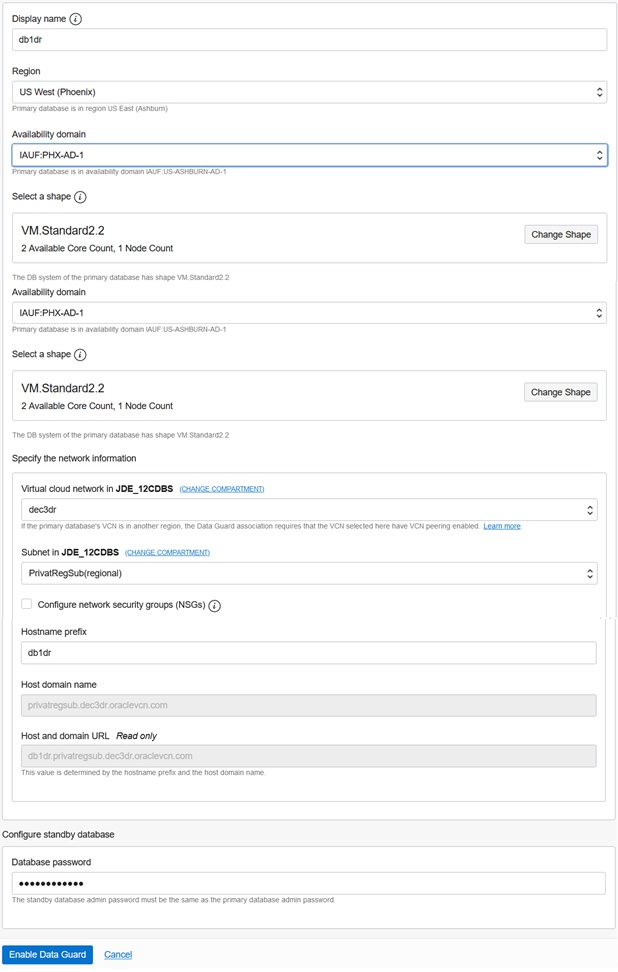
- Display name
-
Click the Enable Data Guard button to complete the form.
Postinstallation of JD Edwards EnterpriseOne Servers
After you have enabled Oracle Data Guard as described in the preceding procedure, use this procedure to perform postinstallation for these JD Edwards EnterpriseOne servers:
- Enterprise Server
- HTML Server
- AIS Server
Enterprise Server
- Determine the DB system server name. For example, jdepddb1 or jdepddb1-scan.
- Login to Enterprise server instance using Putty.
- Edit the tnsnames.ora file at below
location:
/u01/oracle19/product/19.0/client_1/network/admin/tnsnames.ora
-
Update the below bolded values for HOST= and SERVICE= using valid values for your DR region:
JDEORCL = (DESCRIPTION = (ADDRESS = (PROTOCOL = TCP) (HOST = jdepddb1dr.privatregsub.vcndr.oraclevcn.com) (PORT = 1521)) (CONNECT_DATA = (SERVER = DEDICATED) (SERVICE_NAME = jdepdb.privatregsub.vcndr.oraclevcn.com) ) ) - From the JD Edwards EnterpriseOne Server Manager Console, navigate to the Enterprise Server instance.
- In the Enterprise Server instance, navigate to Advance Configuration > Database > Database Server Name.
- For Database Server Name, enter the DB system name for the DR region.
- If multiple Enterprise Server are in the same DR region, repeat this process for each.
- Restart each Enterprise Server instance that you modified.
HTML Server
- Determine the DB system server name. For example, jdepddb1 or jdepddb1-scan.
- From the JD Edwards EnterpriseOne Server Manager Console, navigate to the HTML Server instance.
- In the HTML Server instance, navigate to Advance Configuration > Database > Database Server Name.
- For Database Server Name, enter the DB system name for the DR region.
- On the same screen, update the TNSNAMES.ora file with the below bolded values
for HOST= and SERVICE= using valid values the DR region for your DR
region:
JDEORCL = (DESCRIPTION = (ADDRESS = (PROTOCOL = TCP) (HOST = jdepddb1dr.privatregsub.vcndr.oraclevcn.com) (PORT = 1521)) (CONNECT_DATA = (SERVER = DEDICATED) (SERVICE_NAME = jdepdb.privatregsub.vcndr.oraclevcn.com) ) ) - If multiple HTML Servers are in the same DR region, repeat this process for each.
- Restart each HTML Server instance that you modified.
AIS Server
- Determine the DB system server name. For example, jdepddb1 or jdepddb1-scan.
- From the JD Edwards EnterpriseOne Server Manager Console, navigate to the AIS Server instance.
- In the AIS Server instance, navigate to Advance Configuration > Miscellaneous > JDBC URL.
- Update the below setting with values using valid values for your DR region:
jdbc:oracle:thin:@jdepddb1:1521/jdepdb1.privatregsub.vcndr.oraclevcn.com - If multiple AIS Servers are in the same DR region, repeat this process for each.
- Restart each AIS Server instance that you modified.
Switch Over to the Disaster Recovery (DR) Region
Use this procedure to manually initiate a switch over (also called switchover or failover) to the DR region when the primary region is malfunctioning or is down.
- Ensure all servers in DR region are up and running.
- Go to the DB system instance in the active primary region.
- In the left panel, click Databases to display the list of all of your databases in the region.
- Click on the database you want to switch over to the DR region. For example, your database might be named ORCL.
- In the left panel, click Data Guard Associations.
- On the right side, click the ellipses and select Switchover.

- The system will take a few minutes to change the DB system that was in the Standby state in the DR region to the Active state.
At this point users can access the HTML and AIS server instances using the ip/port of the load balancer in the DR region.
Limitations of Switch Over
The only instance that was running in primary region and the instance running in DR region that is in sync is the DB System, which is using Data Guard. When the switch over occurs:
- Any active session of web components at the time of the switch over are lost. Users must login again to the switch over instances of in the DR region,
- Any currently running JD Edwards EnterpriseOne business function (BSFN) or batch processes (UBE) at the time of the switch over will fail. To recover, a failed BSFN or UBE must be resubmitted in an instance of DR region.