Logging in to the Linux Instance for the OpenTofu Staging Server
This section describes how to log in to the Linux instance that you created for the OpenTofu staging server for JD Edwards EnterpriseOne One-Click Provisioning on Oracle Cloud Infrastructure.
You must log in to the OpenTofu staging server to perform the subsequent setup at the Linux operating system level.
Prerequisite
- You must have previously created a Linux instance for the OpenTofu staging server by following the steps described in the section "Obtaining the Image and Creating an Instance for the OpenTofu Staging Server" of this Learning Path.
- You must have the open source Putty terminal emulator program installed on the client machine that you will use to connect to the OpenTofu staging server.
Logging in from a Microsoft Windows System
Use this procedure to log in to the Linux instance that you created for the OpenTofu staging server.
- On your local machine, launch the PuTTY terminal emulator application.
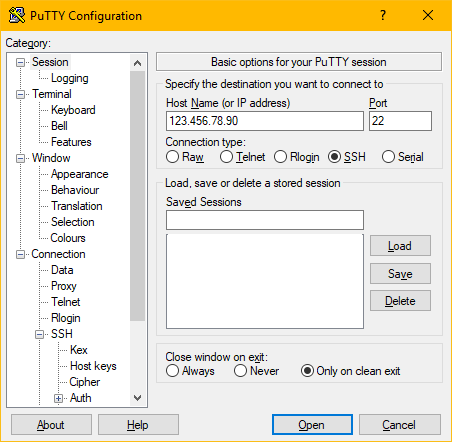
- PuTTY, in the Sessions category, complete these fields:
- Host Name (or IP Address)
Use the public IP address that was assigned by Oracle Cloud Infrastructure when you created the Compute instance for the OpenTofu staging server.
-
Port
Use Port 22. <Use port 22.>
-
Connection Type
Ensure that the SSH option is selected.
- Host Name (or IP Address)
-
In PuTTy, navigate to Connection, SSH, Auth category, and browse to the location of your local private key for authentication.
Note: If you followed the recommendation in the previous section "Generating Instance Key Pairs in openssh Format", this file is namedjdeSSHKey.ppk.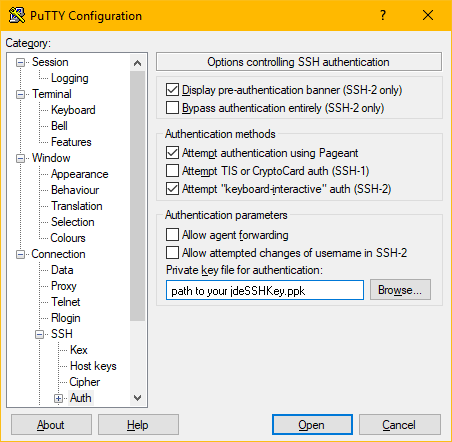
-
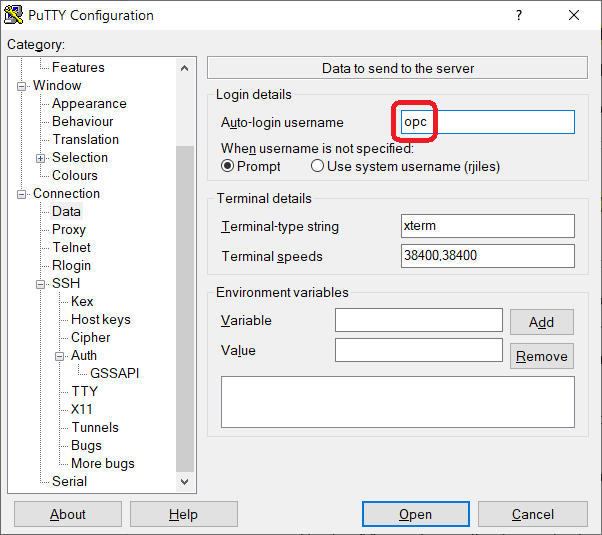
In PuTTy, navigate to Connection, Data, and in the Login details section enter opc as the value for Auto-login username.
-
Click the Open button to establish a connection between your local machine and the Linux instance in Oracle Cloud Infrastructure for the OpenTofu staging server.
Logging in from a UNIX or UNIX-Like Host
Use this procedure to log in to the Linux instance that you created for the OpenTofu staging server.
- The format of this command can vary depending upon your UNIX server. Enter one
of the following commands:
ssh -l opc
                            <public_ip_address_of_the_instance>
-or-
ssh
                            -i /path_to_private_key
                            opc@<public_ip_address_of_the_instance>
Note: To determine the public IP address of your instance, go to Instance Information for the instance that you created for the OpenTofu staging server. This is illustrated in an example in the previous section in this Learning Path. -
If the message Are you sure you want to continue connecting (yes/no)? is displayed, select yes.
-
When prompted, enter the passphrase you had provided for your SSH key pair.
-
On first login, you will be prompted for the public IP address. Enter the IP address used in Step 2 to connect to this server. This step is only done once on the first login.
Note: If you are not prompted for the public IP address on the first login, log out and log back in after a few minutes.
Enabling the Custom Boot Volume Size
If you followed the recommendation in this Learning Path and specified a Custom Boot Volume Size when you created the Linux instance for the OpenTofu Staging Server, you must run the following commands to complete the resize functionality.
sudo /usr/libexec/oci-growfs
sudo yum install
                    python3-oci-sdk python3-oci-cli
sudo yum update
                    oci-utils
sudo systemctl start
                ocid.service
For additional information, refer to this Oracle documentation:
https://docs.oracle.com/en-us/iaas/Content/Compute/References/oci-growfs.htm