Deploying the Special Migration Tool (SMT)
The SMT deployment will create the 64-bit registry key, the bin64 directory containing 64-bit dynamic link libraries, and upgrade the ODBC data sources to 64-bit.
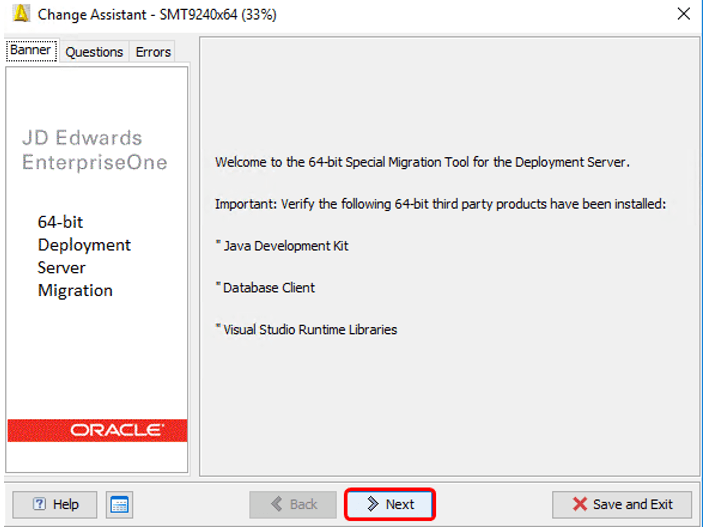
- Java Development Kit
- Database Client
- Visual Studio Runtime Libraries
Deploying the SMT
To deploy the SMT:
- Launch Change Assistant as Administrator. (Right-click and Run as Administrator)
- Select the folder that the SMT9240X64 PAR file was downloaded to under Work with Packages.
- Select SMT9240X64-Upgrade Deployment Server 64-bit.
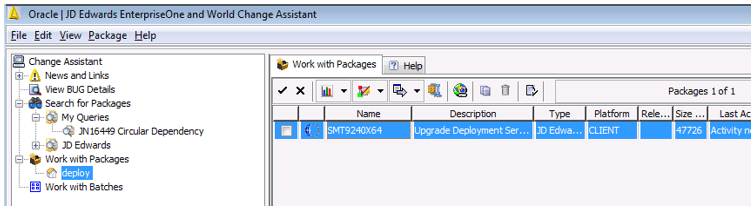
- Click the Deploy button on the tool bar.
- On the Welcome screen, click the Next button.
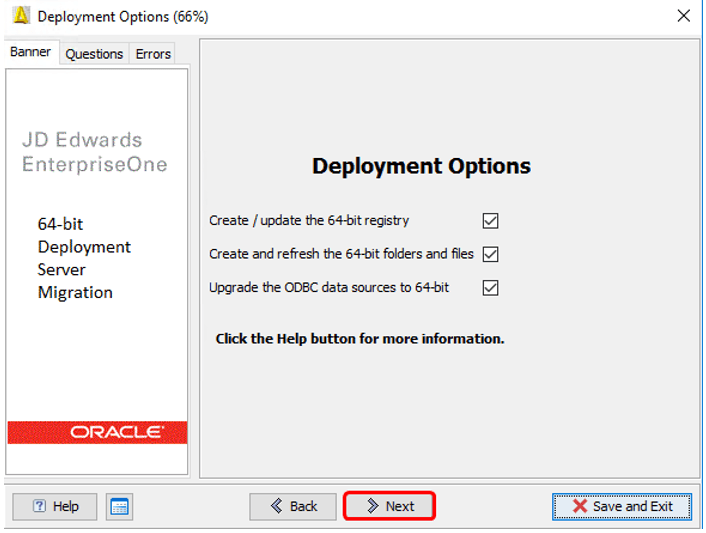
- On the Deployment Options, check the following three options:
-
Create / update the 64-bit registry
This option will create the 64-bit registry key from the 32-bit registry key. If the 64-bit registry exists, it is updated from the current package. The 64-bit registry is required in order to use the Planner environments.
Registry key locations:
32-bit
[HKEY_LOCAL_MACHINE\Software\Wow6432Node\JDEdwards\]
64-bit
[HKEY_LOCAL_MACHINE\Software\JDEdwards\]
-
Create and refresh the 64-bit folders and files
This option will create a bin64 folder containing 64-bit dynamic link libraries.
-
Upgrade the ODBC data sources to 64-bit
This option creates / upgrades the necessary ODBC data sources to 64-bit versions in the 64-bit registry key. The 64-bit versions of the third-party ODBC database software must be installed.
To view the ODBC configuration, navigate to the Deployment Server location \client\ODBCDataSource.inf on the Deployment Server.
This ODBC option does not apply when using Oracle database since the tnsnames.ora file is used. Access the x:\jde_odbcx64.log for errors and warnings.
-
- Click the Next button.
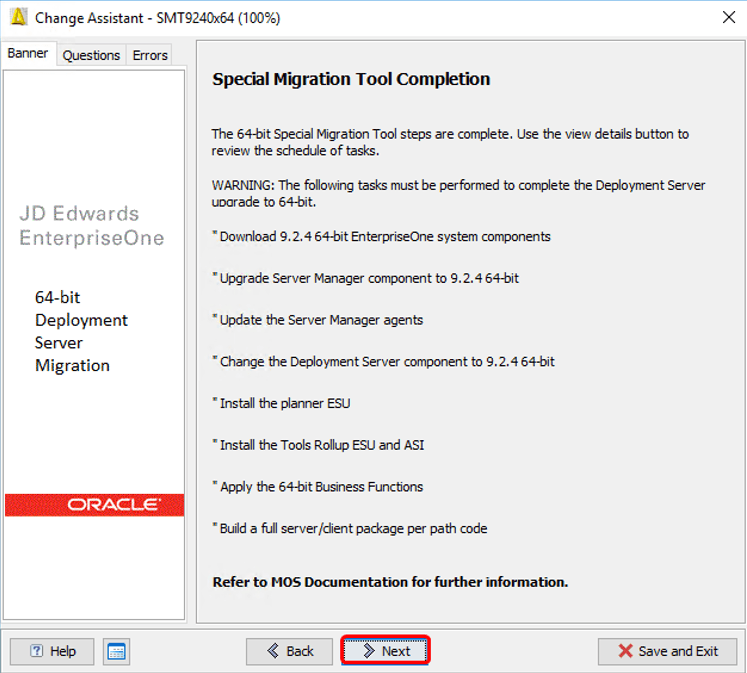
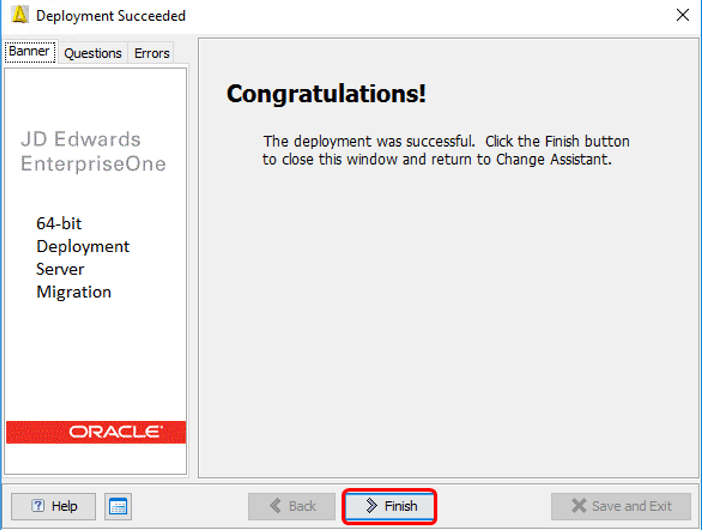
- On the Deployment Succeeded screen, click the Finish button.