Third-Party Components
Upgrading Third-party Components
Implementing 64-bit with JD Edwards EnterpriseOne requires upgrading third-party
components to the latest supported version. This must be performed on Deployment
Servers, Enterprise Servers, and Development Clients. EnterpriseOne web servers are
not affected. The following chart indicates the component that must be updated to
the latest supported version on each platform.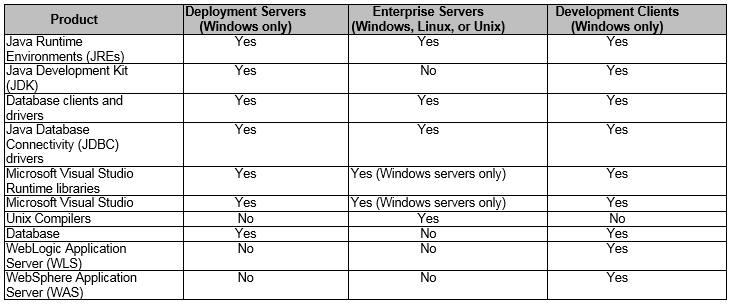
Java Runtime Environment (JRE) and Java Development Kit (JDK)
A JDK provides tools to compile Java source files and to generate jar files containing Java class files. Java-based programs run within a JRE. A JRE provides files that are neccessary at runtime such as Dynamic Linked Libraries (DLL) on Windows, shared libraries on UNIX platforms, and jar files that contain compiled Java class files. If a JDK is installed, a JRE does not need to be installed separately because a JDK already contains a JRE. A WLS application server requires a JDK to be installed prior to installation of WLS. A JDK is provided with a WAS installation.
The EnterpriseOne foundation included in a client package should contain a JRE that is used on the Development Client. The bitness of the JRE should match the bitness of the foundation. To include a new JRE in a package, replace the JRE in the Deployment Server’s system\jre folder before building the package; be sure that the package includes the proper foundation.
Downloading
Click the following link to download: https://www.oracle.com/java/technologies/downloads/
Under Java Platform, Standard Edition, you can download the JDK or JRE, depending on the particular EnterpriseOne component (Server Manager Console or Agent, EnterpriseOne Development Client, EnterpriseOne Enterprise Server) for which the JDK or JRE is to be used. Each JDK includes a JRE. Some EnterpriseOne components require a JDK, but others require a JRE only. Do not use any non-supported version or edition of the Java JRE or JDK.
Follow the navigation aids to download the JDK/JRE that is appropriate for your operating system.
Follow the installation instructions that are provided with the JDK/JRE.
Verifying on UNIX
After installing the JDK/JRE, run the following test to verify the version of Java is recognized by the system:
Access the command line of the operating system and enter:
cd <JDK_or_JRE_install_dir>/bin
java -version
Verify the output shows the version that you downloaded.