Creating an Enterprise Process Model for Receipt
A Process Designer or Business Analyst can create the procure to pay Receipt process model in the Enterprise Process Manager. To create a process model, you must select a template provided by the system and configure the source of data for metrics, measurements, and KPIs, and define certain aggregations or calculations (sum, average, and so on) for those metrics. You can then save your configurations as a process UDO.
To create a new enterprise process for Receipt:
- Access the JD Edwards EnterpriseOne application.
- From the user drop-down list, click Manage Content, and select
Processes.
The system displays the Create Process window.
Note: The Create Process window is only displayed when you are creating an enterprise process for the first time. After creating a process, when you click Processes again, the system displays the previously created process layout along with the template used for its creation and the Enterprise Process Manager options.If you want to create a new process, in the Enterprise Process Manager window, click the Name drop-down list and select Create. - From the Import Process Template drop-down list, select JDE TMPL P2P Receipts template.
- Click OK. The Process Definition ID field, along with the default value for the
receipts process is displayed in the Create Process window. You can edit the value
or accept the default value.
-
Use the Work with Process Definition application (P00201) to define process flows using values from the User-Defined Codes (UDC) tables. The following example shows a reference process definition configuration for the receipt process. For more information, see Setting Up Process Definition Records for Procure to Pay Process Model Templates.
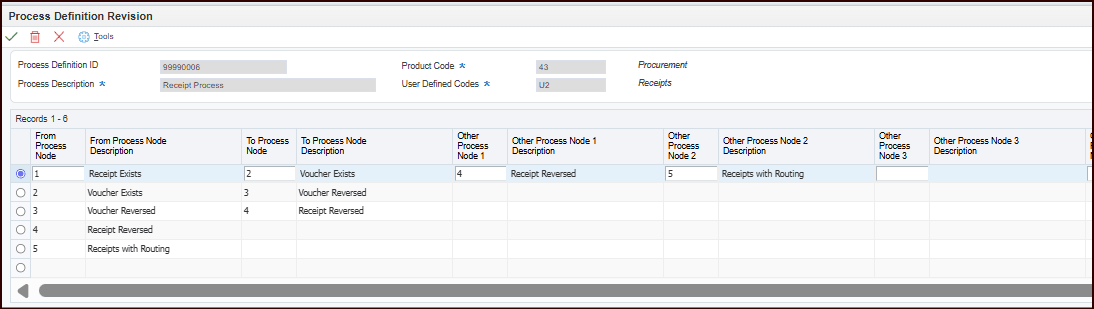
Note: You must set up process definition IDs for the enterprise processes. The Enterprise Process Modeler uses your process definition setup to automatically generate process flow diagrams. For more information, see Setting Up a Process Definition Record Using P00201 in the JD Edwards EnterpriseOne Tools Enterprise Process Modeler Guide. -
- For the receipt process, view and review the Color Theme and Start Status from their
respective drop-down lists. The system populates the drop-down list with available
nodes for the receipt process. The selected value in this field serves as the first
(start) node in the automatically generated process model. By default, the Start
Status is set to
Receipt to Stock (STK).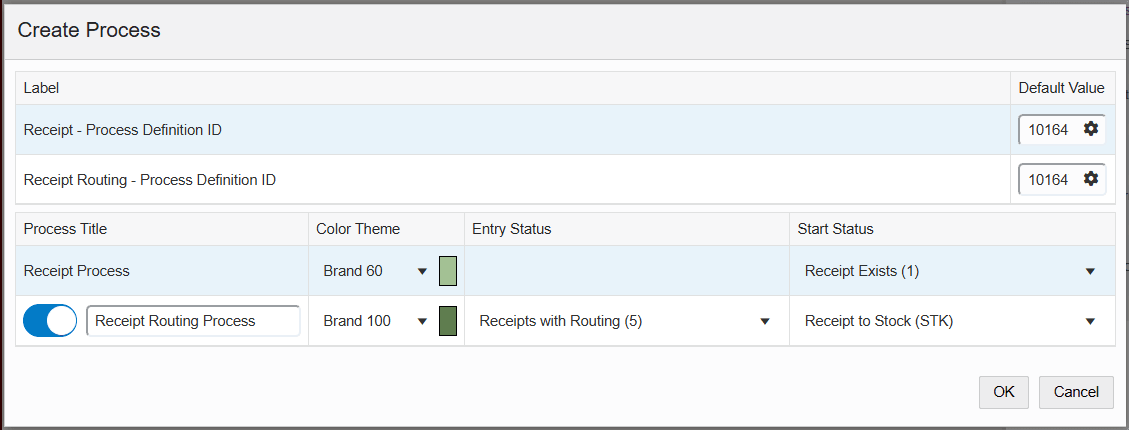
- Click OK. The Main Module tab is displayed in the Enterprise Process Manager window,
where you can see the automatically generated enterprise process diagram based on
the values defined in the Create Process window and the Process Definition that you
set in P00201.
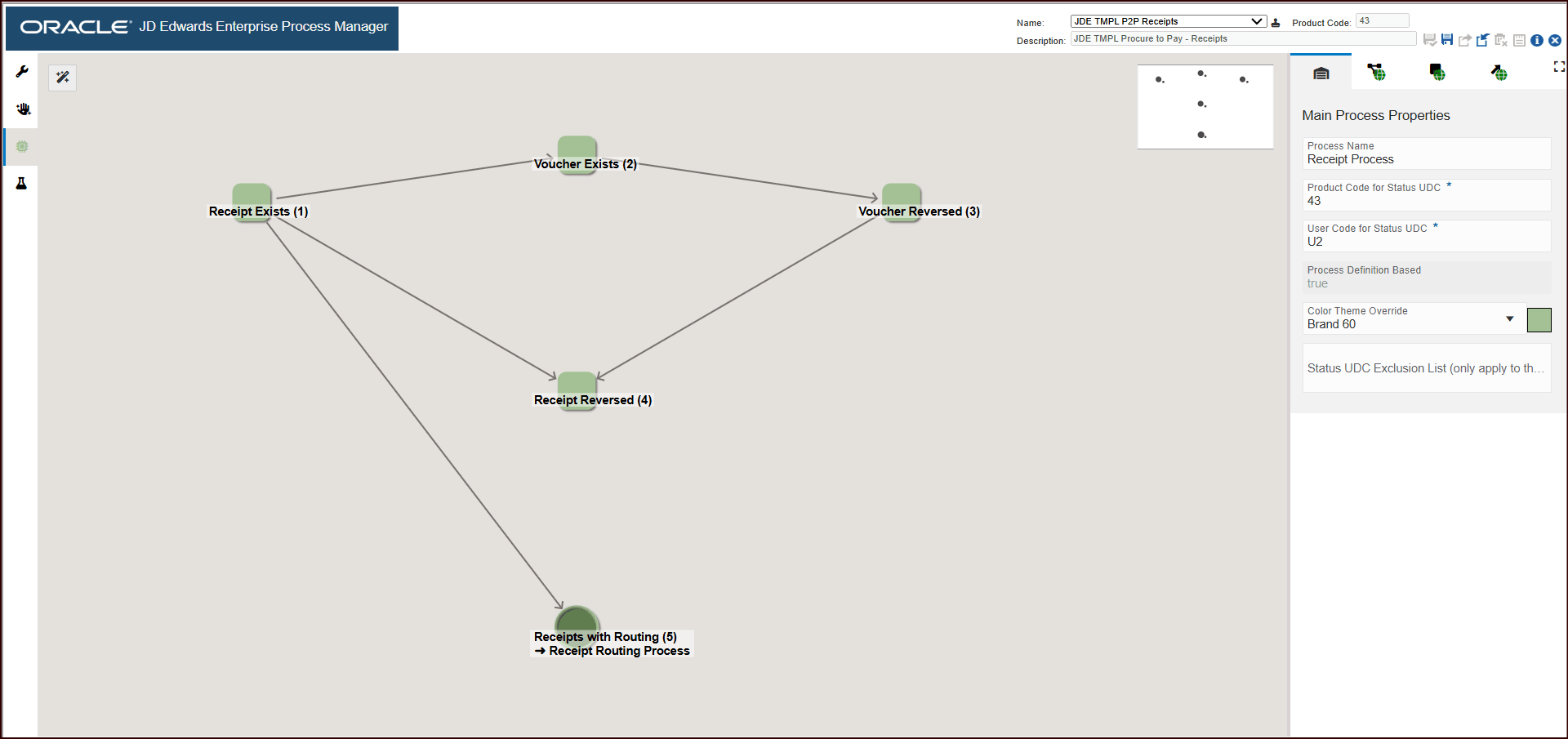
The Receipt process diagram displays nodes and the links between the nodes. The nodes represent the tasks in the process template and the links represent the connection between the nodes.
-
Click the Open Process Definition icon (next to Design Option) to review the settings in the read-only tab.
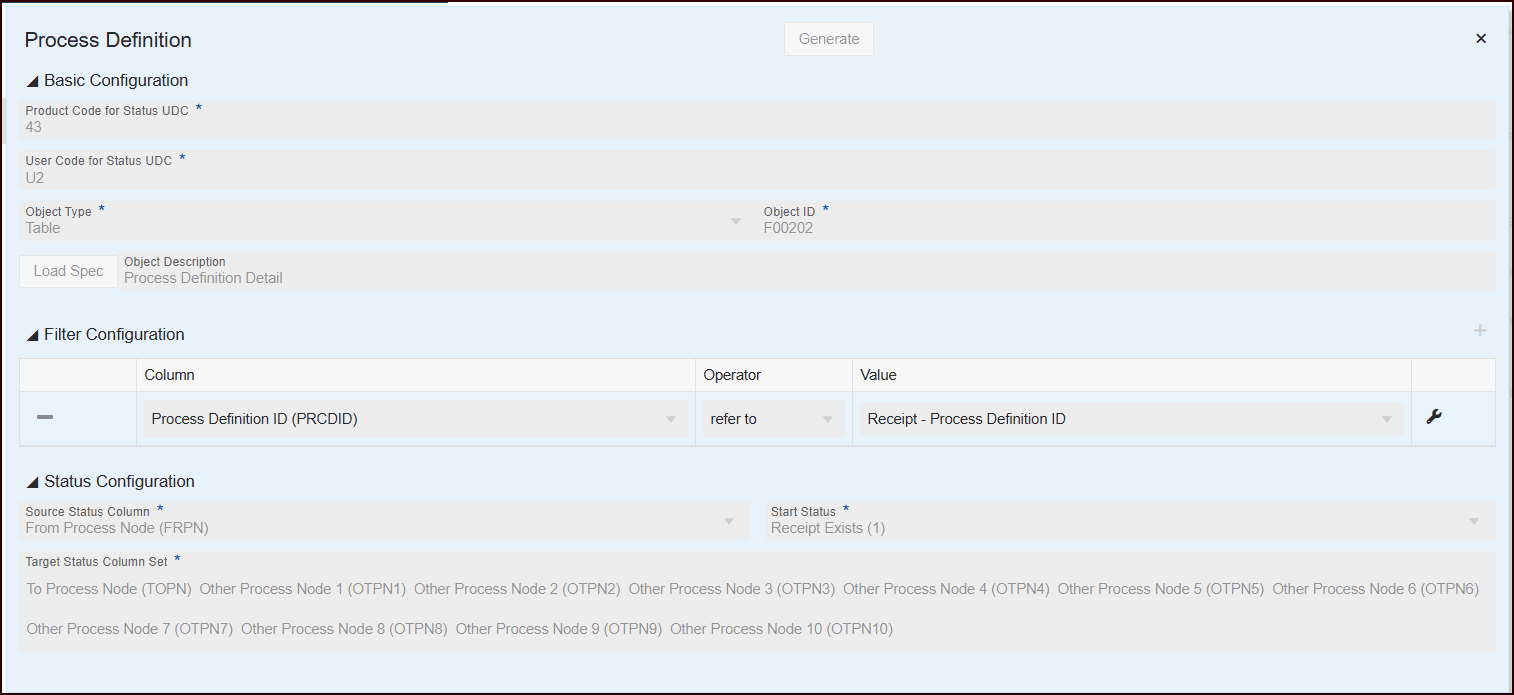
The Process Definition window opens. You can view the Basic Configuration, Filter Configuration, and Status Configuration details based on the values defined in the Create Process window and the process definitions that you have set. These configurations are used to build the nodes and links and to automatically generate the process model.
- The Basic Configuration section displays the UDC - Procurement/Receipts (43/U2) and the table that the system uses to generate the template - Process Definition Detail table (F00202).
- The Filter Configuration section displays the columns based on which the data is filtered. The system filters the data based on Process Definition ID values for the Procure to Pay process model.
- The Status Configuration section displays the Source Status Column, Start Status, and Target Status Column Set.