Applying Rule Concepts and Adding Statements to a Rule
In this section, an example Rule illustrates how Rule Options, Variables, Criteria, and Statements are used together. Previous sections of the documentation describe creating Variables, using Criteria to define a data set, and the features of delivered Statements for Rule evaluation and calculation.
The objective of this example Rule is to evaluate whether a student has obtained enough credits to be able to progress to the next phase of an academic program after having completed Year 1. To start, the Rule accesses the courses for the program of study for Year 1 and sums the credits for the courses the student has passed. In order to insure an accurate TotalCredit value, the Rule sets the TotalCredit Variable to zero prior to passing the sum result into a Variable, TotalCredit.
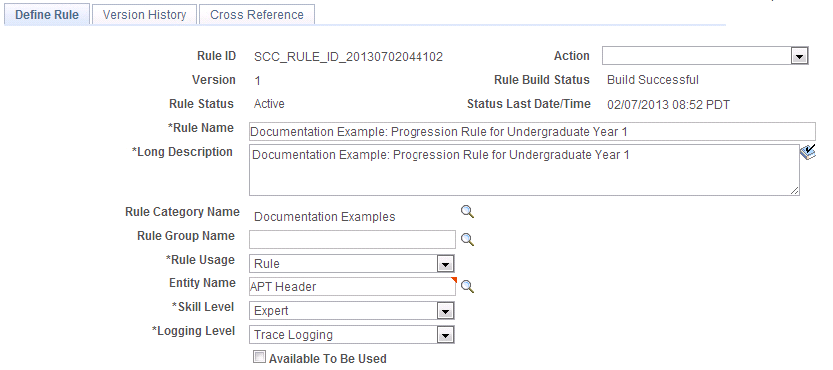
This example illustrates the fields and controls on the Example of Define Rule page for Progression Rule. You can find definitions for the fields and controls later on this page.
Add an ASSIGN Statement to Set the TotalCredit Field to Zero
With Rule Options, Variables, and Criteria defined, begin by adding an ASSIGN statement that selects the Variable TotalCredit and set it equal to the Number 0 (zero):
This example illustrates the fields and controls on the Example of Assignment Statement Definition. You can find definitions for the fields and controls later on this page.

Upon saving, the ASSIGN statement is added to the Evaluations and Calculations grid of the Define Rule page with the Rule text automatically generated using the text color setup:
This example illustrates the fields and controls on the Example of ASSIGN Rule Text. You can find definitions for the fields and controls later on this page.

For more information about ASSIGN statements, see “Understanding Statement-Specific Attributes, ASSIGN Statements.”
Add a FOR EACH Statement to Select All Courses
The next step is to retrieve all courses for the academic program of study which is associated with the Academic Progress tracker through the APT header. You need to retrieve the correct APT Program of Study before selecting all associated courses. Select the APT program of study using a FOR-Each statement.
This example illustrates the fields and controls on the Example of FOR EACH Statement Definition. You can find definitions for the fields and controls later on this page.
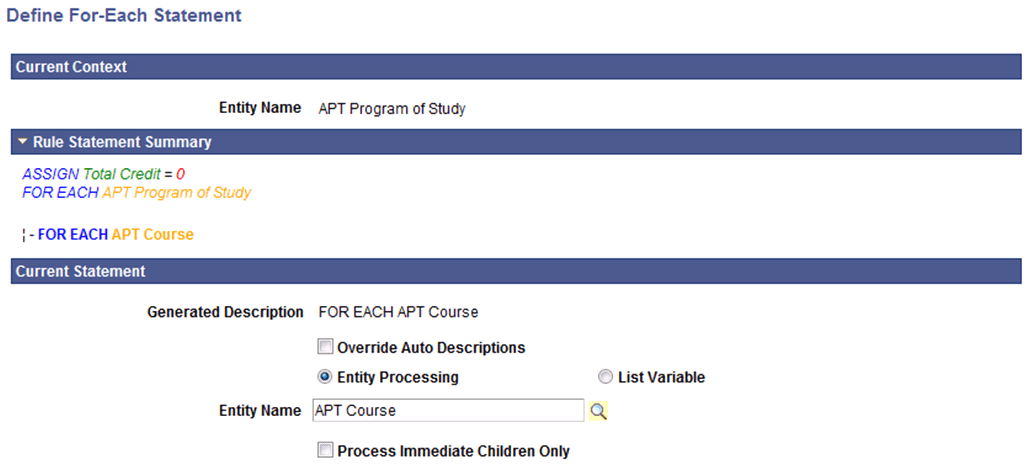
Select Entity Processing to activate the Entity Name field and prompt. Select the Search icon and choose the APT Course Entity. By selecting APT Course, you can retrieve all courses that are part of the APT instance selected as Base Entity. Do not select Process Immediate Children Only so the Rule selects Courses wherever they exist in the structure and not just the immediate children of the APT Program of Study.
Upon saving, the FOR EACH statement is added to the Evaluations and Calculations grid of the Define Rule page with the Rule text automatically generated using the text color setup:
This example illustrates the fields and controls on the Example of FOR EACH Rule Text. You can find definitions for the fields and controls later on this page.

Add a FOR EACH Statement to Select a Result for Each Course
Next, you add another FOR EACH Statement to Select APT Results for each Course. This statement is indented under the FOR EACH APT Course Statement so that it is executed for each to retrieve the APT Result for each APT Course.
This example illustrates the fields and controls on the Example of Indented FOR EACH APT Result Rule Text. You can find definitions for the fields and controls later on this page.

Note:
The Rules Engine Manager has logic which validates FOR EACH statements upon saving the Rule. A FOR EACH statement cannot be added to a Rule that is invalid, but it is possible to invalidate an existing FOR EACH statement by removing a statement from the Evaluations and Calculations grid or by deactivating a line on the Evaluations and Calculations grid. This would make the overall Rule invalid.
For example, if an APT Attempt row is removed from the Evaluations and Calculations grid or moved to a new position after having been added, the overall Rule becomes invalid.
The APT Result can only exist in the rule as a child to APT Course and not as a child to APT attempt. This allowed while the Rule is being built because the action may have been done in the course of correcting the rule. However, when the rule is saved, the whole Rule is validated and appropriate warning messages are displayed. If a nested FOR EACH statement is used in combination with a CREATE ENTITY statement, the same logic applies.
Add an IF Statement
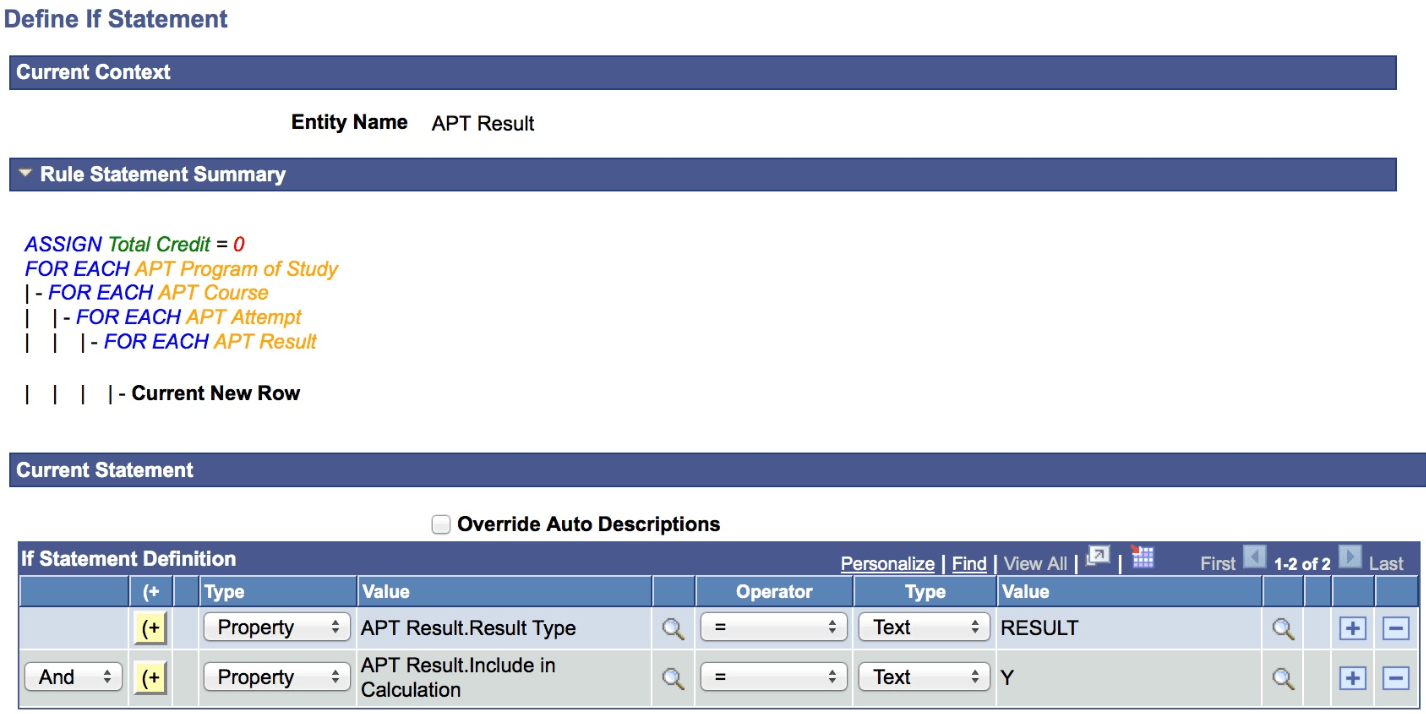
Next add an IF statement to make sure that we select the correct result before we add it to our total credit count. Do this by restricting the APT Results by Result Type and whether the Result is included in the Calculation:
This example illustrates the fields and controls on the Example of Define IF Statement Definition. You can find definitions for the fields and controls later on this page.
Add a CALL Statement to Sum Credits
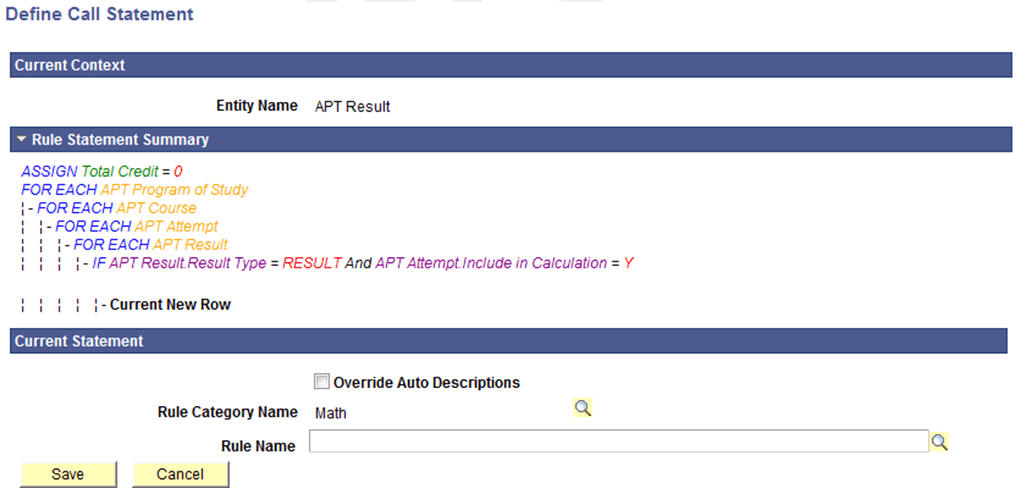
After adding specified criteria for selecting results, use a CALL statement to call a Function to sum the retrieved credits. In the Define CALL Statement page, pre-delivered Functions are available that are restricted to those which are available in the Rule Categories, including common math functions.
When calling a Function, the required parameters are automatically displayed and the available parameter values are restricted to those that can retrieved for the Rule. For example, when selecting Rule Category Math and Rule Name Add, the Input and Output parameters are displayed. The selection of variables and properties and variables are restricted to show the correct property and variable types. In this case only numeric variables and properties can be selected:
This example illustrates the fields and controls on the Example of Define CALL Statement. You can find definitions for the fields and controls later on this page.
When calling a Function, the Function itself indicates which Input and Output parameters are required. Only the valid Property and Variable Types are shown. In this case, only numeric Variables and Properties can be selected:
This example illustrates the fields and controls on the Example of CALL Statement Inputs and Outputs. You can find definitions for the fields and controls later on this page.

Upon saving, the CALL statement is added to the Evaluations and Calculations grid of the Define Rule page with the Rule text automatically generated using the text color setup:
This example illustrates the fields and controls on the Example of CALL Statement Rule Text. You can find definitions for the fields and controls later on this page.

Add a CALL Statement to Determine Academic Progression
After calculating a student's total credits, you can use that result to evaluate whether the student may progress to Year 2 of his program of study. Assuming that multiple programs of study use the same credit requirement for academic progression, you can create a Rule of type Function that can be used by multiple academic progression Rules:
This example illustrates the fields and controls on the Example of Academic Progression Function (1 of 2). You can find definitions for the fields and controls later on this page.
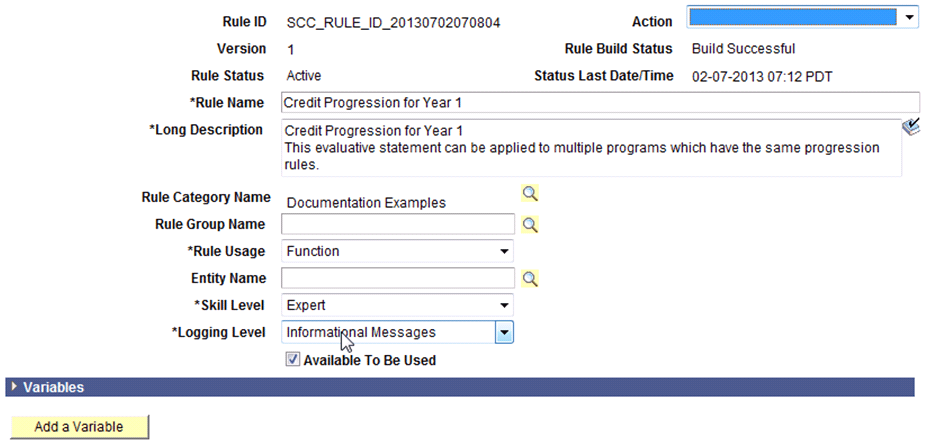
This example illustrates the fields and controls on the Example of Academic Progression Function (2 of 2). You can find definitions for the fields and controls later on this page.
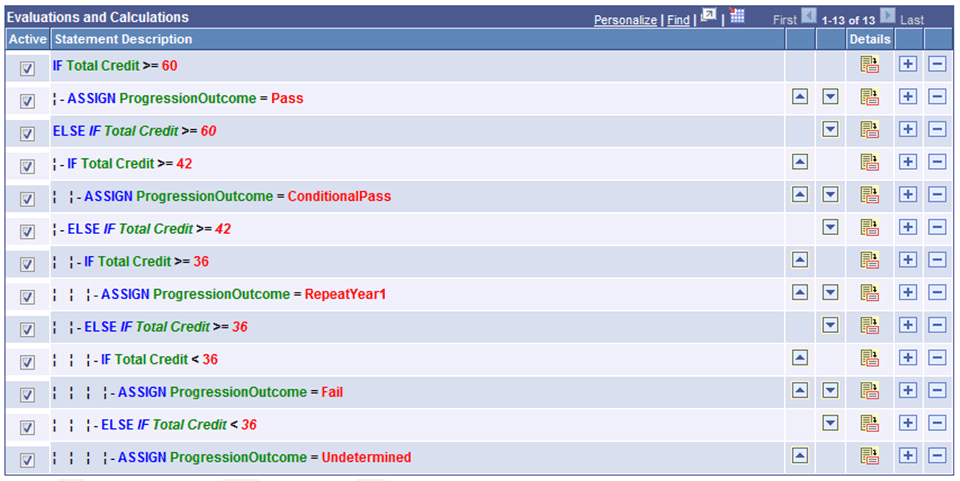
This Function can be called from the main Rule by adding a row to the Evaluations and Calculations grid and using the CALL statement. The Parameters from the Rule are automatically offered as Input and Output parameters on the Define Call Statement page:
This example illustrates the fields and controls on the Example of Academic Progression Function Input and Output. You can find definitions for the fields and controls later on this page.

Upon saving, the academic progress CALL Function is added to the Evaluations and Calculations grid of the Define Rule page with the Rule text automatically generated using the text color setup. However, its placement would result in its being executed at the wrong time:
This example illustrates the fields and controls on the Example of Academic Progression Rule Text with Progression Function Incorrectly Indented. You can find definitions for the fields and controls later on this page.

With the CALL Function in the current position, the evaluation takes place for each result selected as follows:
-
Fetch of Course A
-
Retrieval of Result for Course A
-
— Add retrieved result for Course A to TotalCredit
-
— Call Function Credit progression Year 1
-
-
Fetch of Course B
-
Retrieval of Result for Course A
-
— Add retrieved result for Course B to TotalCredit
-
— Call Function Credit progression Year 1
-
The evaluation of academic progression takes place each time a result is retrieved. This is not what you want the Rule to do. What you want is for the academic progression evaluation to take place after all the course credit have been added up:
-
Fetch of Course A
-
Retrieval of Result for Course A
-
— Add retrieved result for Course A to TotalCredit
-
-
Fetch of Course B
-
Retrieval of Result for Course A
-
— Add retrieved result for Course B to TotalCredit
-
-
Call Function Credit progression Year 1
Use the remove indentation field to place the statement in the correct place:
This example illustrates the fields and controls on the Example of Academic Progression Rule Text with Progression Function Correctly Indented. You can find definitions for the fields and controls later on this page.
