Activating and Moving Statements within a Rule
Once Statements are added to a Rule, they can be activated or inactivated, and they can be moved within the Rule to alter the Rule logic.
Activating and Inactivating Statements
Select the Active check box to the right of each Statement to activate or inactivate the Statement.
An Inactive statement (check box is unchecked) is ignored by the Rules Engine compiler and skipped when executing a Rule build. Inactivated statement are displayed in non-bold italic text.
Moving Statements within a Rule
One way that Rule logic can be modified is by moving Statements within the Rule. There are two ways that a Statement can be moved within a Rule:
-
Up and Down
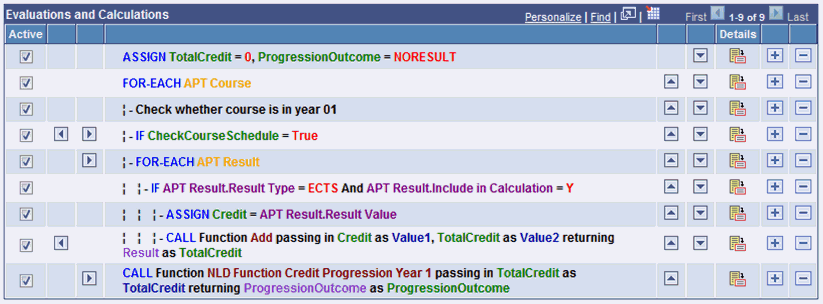
Use the Up and Down Toggle fields to move a Statement before or after other Statements, changing the order in which Statements are executed. The type of Statement and where it is located in relation to other Statements determines if it can be moved up and/or down.
-
By Indentation
Use the Indentation Toggle fields to move a Statement within or outside of other Statements, changing when a Statement is executed in relation to Statements above or below it.
This example illustrates the fields and controls on the Example Showing Statements with Indentations and Up and Down Toggles. You can find definitions for the fields and controls later on this page.
For an example of incorrectly indented Statements, see Applying Rule Concepts and Adding Statements to a Rule, Add a CALL Statement to Determine Academic Progression.