Understanding Statement–Specific Attributes
Each delivered Statement contains Statement-specific features; as described below with examples.
IF Statements
Use this statement to create evaluative Statements in your business rule. This is an encompassing statement; meaning that within the context of this statement, you can use other statements.
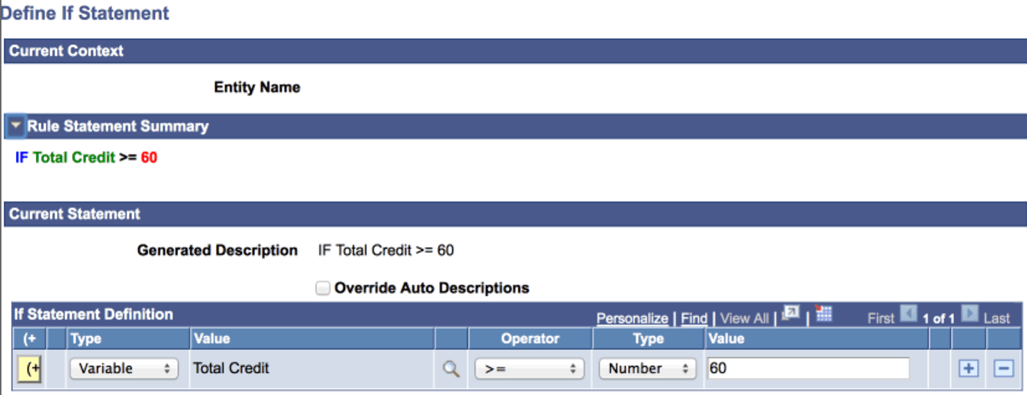
This example evaluates whether or not a student has achieved a sum of credits higher than 60 in Year 1 of his program. If the condition is met, the student may progress to Year 2.
This example illustrates the fields and controls on the Example of IF Statement before Saving. You can find definitions for the fields and controls later on this page.
The possible combinations of Objects and Types in IF Statements are:
| Type | Object | Operator | Type | Value |
|---|---|---|---|---|
|
Property or Data Set Property (DS Prop) or Variable |
Prompts on Properties or Prompts on Variables |
> < >= <= = Like Not like |
Variable or Text (String Property) or Number (Number Property or Number Variable) or Date(time) or Data Set Property |
Prompt on Variable which matches a Data Set Property or Variable Type. or Text entry in an open field if Type is Text. or Numeric entry in open field if a Variable is numeric. or Date(time) in an open field if a Data Set Property or Variable is Date(time). or Prompt on Data Set Property which matches Property or Variable Type |
|
Property or Data Set Property (DS Prop) or Variable |
Prompts on Data Set Properties or Variables |
In Not in |
Variable |
List Variable |
|
Property or Data Set Property (DS Prop) or Variable |
Prompts on Data Set Properties or Variables |
Exists Not exists |
no value |
no value |
The saved IF Statement looks like this:
This example illustrates the fields and controls on the Example of IF Statement After Saving. You can find definitions for the fields and controls later on this page.

ELSE Statements
Combine ELSE statements with IF statements to create complex evaluative business Logic. This statement can only exist in the context of an IF statement. The ELSE statement page itself offers no features besides the possibility to override the auto-generated text.
Note:
If you do not already have an IF statement in your Rule, the ELSE statement is not shown as an option on the Select a Statement page.
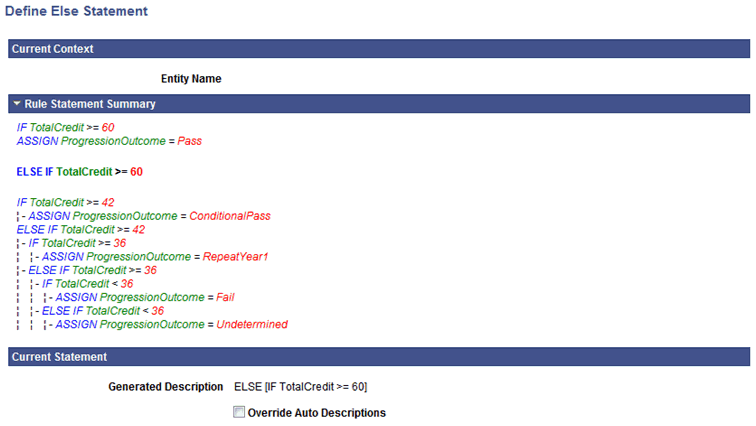
This example evaluates whether or not a student has achieved a sum of credits higher than 60 in Year 1 of his program. If the condition is met, the student may progress to Year 2. However, if the student has less than 60 credits but greater than 40 credits, this student may need to repeat courses from Year 1.
This example illustrates the fields and controls on the Define ELSE Statement page. You can find definitions for the fields and controls later on this page.
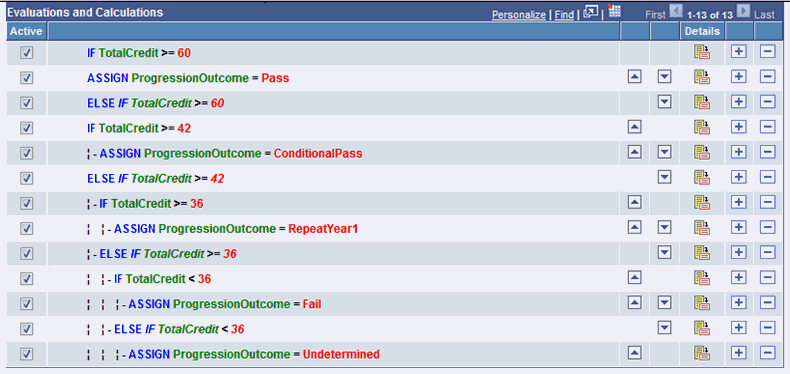
Here is an example of how an Evaluative Statement can be created combining IF and ELSE statements:
This example illustrates the fields and controls on the Example of IF and ELSE Statements Used Together. You can find definitions for the fields and controls later on this page.
FOR EACH Statements
Use this statement to scroll through a set of elements which has been retrieved into the Rule. These elements can be Entities retrieved in the context of a Rule or Variables from a list of Variables. The FOR-EACH statement is an encompassing statement; meaning you can use other statements within the context of the FOR-EACH.
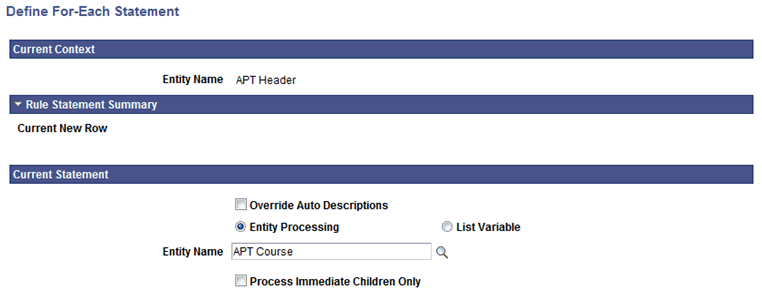
For example, to scroll through the Academic Progress Tracker entity to retrieve all courses in a program, select a FOR-EACH statement:
This example illustrates the fields and controls on the Define FOR-EACH Statement page. You can find definitions for the fields and controls later on this page.
Statement-specific fields on this page are:
| Field or Control | Description |
|---|---|
|
Entity Processing |
Select this option to activate the Entity Name prompt and Process Immediate Children Only check box. |
|
List Variable (list variable radio button) |
Select this option to activate the List Variable prompt. |
|
Entity Name |
Select an Entity. |
|
List Variable (list variable field) |
Select a List Variable. |
|
Process Immediate Children Only |
Select this check box to process only immediate child records of the selected Entity. This means only a direct child record of the Entity is used in the process; not grand children of great-grand children in the same Entity structure. |
For example, you want to evaluate whether a student has achieved a sum of credits higher than 60 in Year 1 of his program of study in order to progress to Year 2. To calculate the overall credit total, you must first retrieve all courses for Year 1 and sum the credits of each course. First, you retrieve Year 1 for the student, and then you use a FOR EACH (course) statement to loop through all courses and retrieve the credits.
Since the Courses in Year 1 may be part of a Course List or a Requirement and not an immediate child of the Year, you do not want to select the "Process Immediate Children Only" option. However, if you wanted to make sure that you only process immediate children of the Year, you do want to select this option.
EXIT FOR EACH Statement
The EXIT FOR EACH statement is only available in the context of a FOR EACH statement. Use this statement to exit scrolling through a set of elements which has been retrieved into the Rule. These elements can be Entities retrieved in the context of a Rule or Variables from a list of Variables.
For example, you want to evaluate whether a student completed Course Math 101 in Year 1 of his program of study. If the condition is met, the student may progress to Year 2. When the condition has been met (Math 101 course has been found), there is no need to retrieve other Courses from the system. The EXIT FOR EACH can be used to exit the for each loop at this time.
ASSIGN Statements
Use this statement to assign values to Variables or Properties in your Rule
For example, to assign Credit = 2 to Variable Credit, select the ASSIGN statement from the Select a Statement page:
This example illustrates the fields and controls on the Define Assignment Statement page. You can find definitions for the fields and controls later on this page.
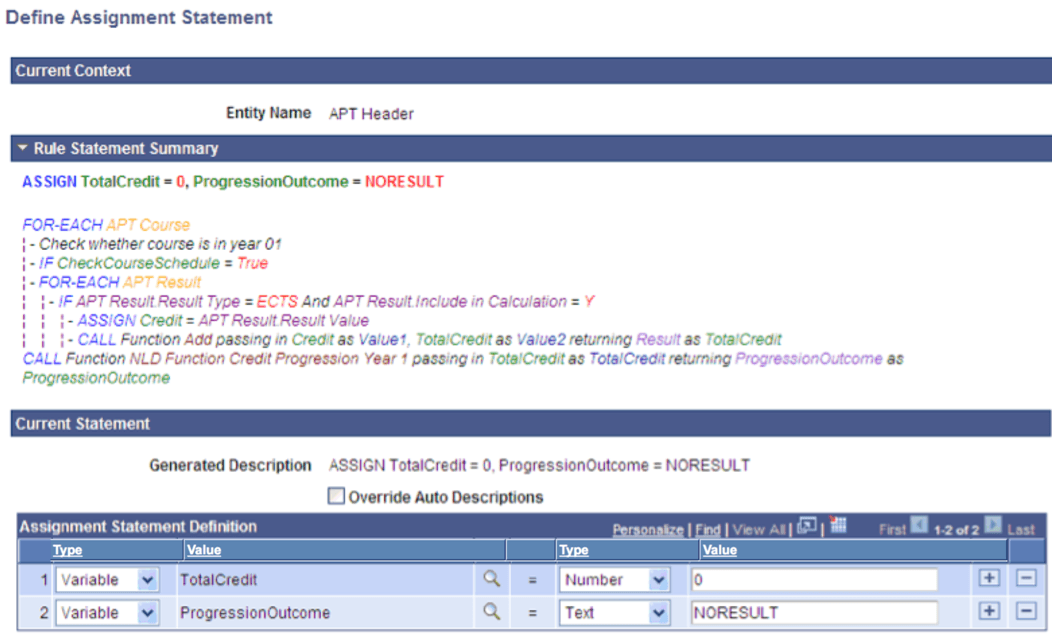
The possible combinations of Objects and Types in ASSIGN Statements are:
| Type | Object | Operator | Type | Value |
|---|---|---|---|---|
|
Property or Data Set Property (DS Prop) or Variable |
Prompts on Properties or Prompts on Variables |
= |
Variable or Text (String Property or Number (Number Property or Number Variable) or Date(time) or Data Set Property |
Prompt on Variable which matches Data Set Property Type or Variable Type. or Text entry in open field if Type is Text. or Numeric entry in open field if Data Set Property or Variable is numeric. or Date(time) in open field if Data Set Property or variable type is Date(time). or Prompt on Data Set Property which matches Property or Variable Type. |
CALL Statements
Use this statement to call a Function or Rule from within the current Function or Rule. The current Rule is the Calling Rule. The Function or Rule called executes a piece of business logic in the context of the Calling Rule.
When you call a Rule, you need to pass all Criteria for that Rule as input to that Rule otherwise the correct data cannot be selected.
When you call a Function which uses Entity Data, you do not need to provide Criteria to find the correct data. That data is passed to the called Function automatically through Contextual Referencing.
In this example, a student is evaluated to see if he has achieved a sum of credits greater than 60 in Year 1 of his program of study 1. If that condition is met, the student may progress to Year 2. In order to obtain the student's credit total, you must first to retrieve all courses for Year 1 and sum the credit result by retrieving each course to obtain the overall sum of credit. This is done using a FOR EACH statement that retrieves Year 1 and loops through all Courses and retrieves credits. This uses an Add math Function to add Course Credits to a variable, SumCredit. At the end of the FOR EACH loop, the total number of credits for all courses in Year 1 is counted. Here is a similar example of the Add Function Add being called from a Rule:
This example illustrates the fields and controls on the Define Call Statement page. You can find definitions for the fields and controls later on this page.
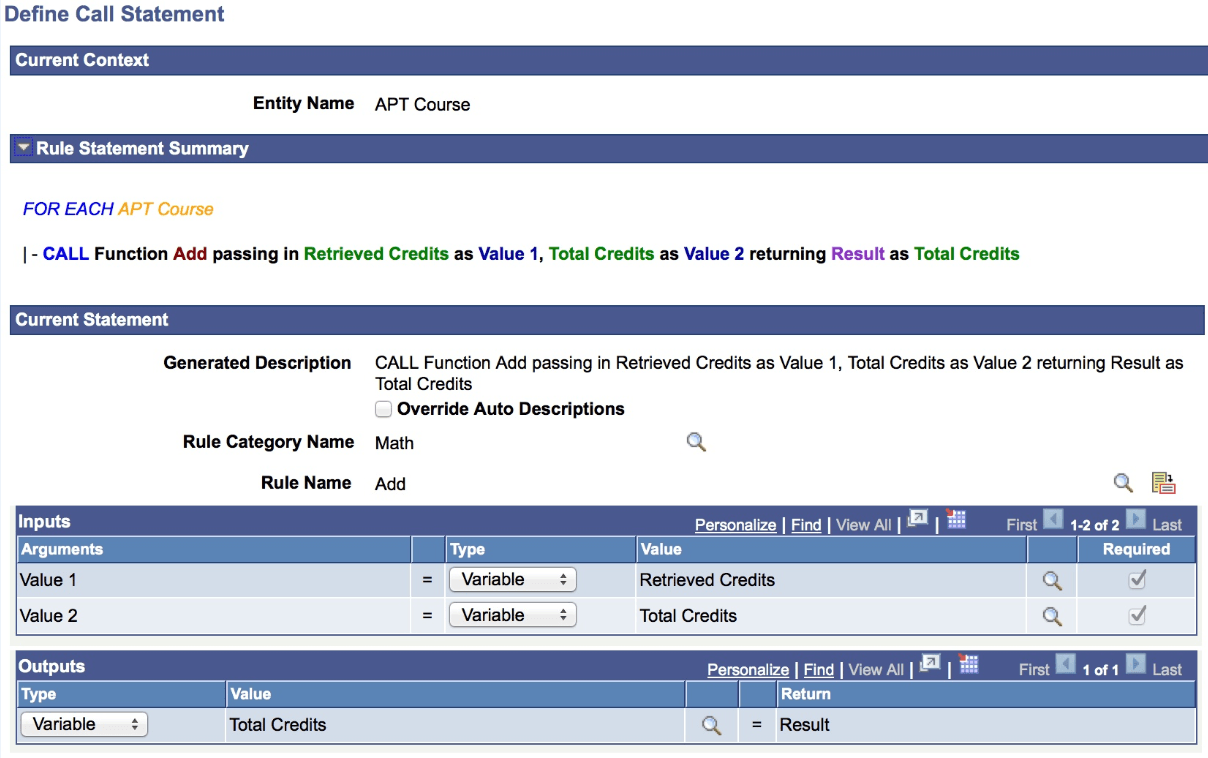
These are the Call Statement-Specific fields:
| Field or Control | Description |
|---|---|
|
Rule Category |
Select a valid Rule Category from which to retrieve the Function you want to use. The Rule Category available must be one of the valid categories on the Rule Category Definition page. |
|
Rule Name |
Click the Search icon to the right of the Rule Name to open the Rules Engine Search page and select a Rule. Click the Go To icon to the right of the Rule Name to open a new page that displays information on Rule Definition, Version History, and Cross Reference. |
|
Inputs |
Select an Argument and Type for each Object. This is required so that all Input can be passed from the Calling Rule to the Called Function. The arguments are the Input Variables that have been defined in the Called Function. The Operator field is restricted to only show the Equals to operator. The Type is restricted to the Type that is assigned to the Argument. |
|
Outputs |
Select a Type and Object for each Output. The Return represents the Variable(s) that has been defined as Output Variable in the called Function. The Type is restricted to the Type that is assigned to the Argument. |
EXIT RULE Statement
Use this statement to exit a Rule or Function in its entirety. The outcome for this Rule would be to process to success.
For example, to find out whether a student completed Course Math 101 in Year 1 of his program of study, you can create a Rule to retrieve only that information. If you have use a FOR EACH statement in the Called Rule to scroll through all of the courses in Year 1, you can use an EXIT RULE statement to exit the FOR EACH loop and the Rule entirely once the condition has been met.
CREATE ENTITY Statement
Use this statement to create an Entity. After the Entity is created, the user is transferred to the context of the created Entity and all Entity properties are available.
You can only create an Entity in the context of a parent Entity. For example, when in the context of APT Course, you can create Entity APT Attempt, and when working in the context of APT Attempt, you can create and APT Result Entity or APT Schedule Entity.
This example illustrates the fields and controls on the Example of APT Header Hierarchy. You can find definitions for the fields and controls later on this page.
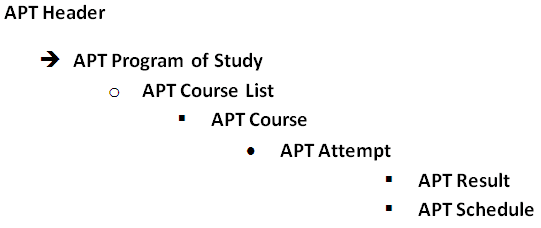
When the Entity is created, it does not yet exist in the database. The CREATE ENTITY statement can be used together with the delivered Function Save Entity to insert new rows into database tables.
Note:
You can only create an Entity as a child within the Entity of the Current Context.
The following Functions can be used after having changed an entity or after having created an entity:
| Function | Function Description |
|---|---|
|
SaveEntity |
Saves the Current Entity in context and all of its children. Performs all validation and pre-save logic and deletes any entities marked for deletion. |
|
SaveAllEntities |
Saves all the Entities in context and all of their children. Performs all validation and pre-save logic and deletes any entities marked for deletion. |
|
DeleteEntity |
Marks the Current Entity and all of its children for deletion. SaveEntity Function must be called to actually delete the Entity. |
|
UndeleteEntity |
Marks the Current Entity and all of its children to be un-deleted. SaveEntity Function must be called to actually delete the Entity |
WARNING:
Using the CREATE ENTITY statement in combination with delivered Functions which can save an Entity, like the Save Entity Function, inserts data into referenced database tables. These Statements and Functions should only be used by experienced users with a Skill Level of Expert who have a good understanding of the Campus Solutions record structure. Rules Engine administrators should minimize risk by allowing Functional Experts to create Entities but not authorizing them to use one of the Save Entity Functions or by creating separate Functions in which CREATE ENTITY and SAVE ENTITY statements are combined.
For example, continuing the example of evaluating whether a student has achieved a sum of credit higher than 60 in his program of study year 1, you can use the CREATE ENTITY statement to create and Entity to store the result of that calculation in the APT result. Once the Entity is created, you populate the appropriate fields with values. In this case, Result value with the Sum of Credits retrieved by the Rule. To do this, use the Assign statement to assign the actual Sum of Credits to the Result value property for Result Type Sum Credit. Once assigned, you can save the Entity, which creates a row in the database using the system delivered Function Save Entity.
Note:
The Rules Engine Manager has logic which validates nested Create Entity Statements that are present in the Evaluations and Calculations Grid upon saving the Rule.
A Create Entity Statement cannot be added to a Rule that is invalid, but it is possible to invalidate an existing Create Entity statement by removing a Statement from the Evaluations and Calculations grid or by deactivating a line on the Evaluations and Calculations grid. This would make the overall Rule invalid.
For example, if a Create Entity statement is used to create the APT Attempt followed by a Create Entity statement to create the APT Result row, and the Create Entity APT attempt row is removed from the Evaluations and Calculations grid or moved to a new position after having been added, the overall Rule becomes invalid.
The APT Result can only exist in the Rule as a child to APT Course and not as a child to APT Attempt. Deletion, moving, and deactivating statements while the Rule is being built is allowed because the action may have been done in the course of correcting the Rule. However, when the Rule is saved, the whole Rule is validated and appropriate warning messages are displayed.
CALL DYNAMIC RULE GROUP Statements
Use this statement to call a Rule from a dynamic Rule Group. A Rule Group provides Rules with a standard template with predefined input and output parameters as well as a Base Entity. Rules which share the same template characteristics can be grouped in the same Rule Group. When calling Dynamic Rule Groups, all Rules belonging to this Rule Group are called and executed. The following example passes a retrieved Rule ID to the Rule Group PRECON-Minor Precondition. The Rule associated with the ID is then called.
For more information, see Understanding Rule Groups and Define Rule Groups.
This example illustrates the fields and controls on the CALL DYNAMIC RULE GROUP Statement page. You can find definitions for the fields and controls later on this page.
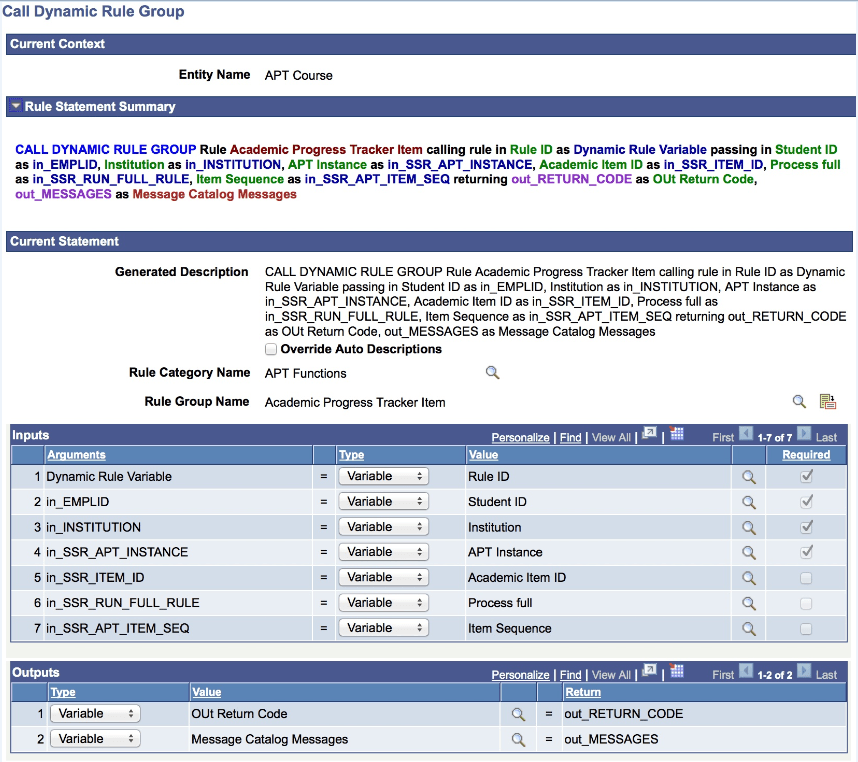
These are the Call Statement-Specific fields:
| Field or Control | Description |
|---|---|
|
Rule Category |
Select a valid Rule Category from which to retrieve the Rule Group you want to use. The Rule Category available must be one of the valid categories on the Rule Group Category Definition page. |
|
Rule Group Name |
Click the Search icon to the right of the Rule Name to open the Rule Group Search page and select a Rule Group. Click the Go To icon to the right of the Rule Group Name to open a new page that displays information on Rule Group Definition, Categories, and Cross Reference. |
|
Inputs |
Select an Argument and Type for each Object. This is required so that all Input can be passed from the Calling Rule to the Called Function. The arguments are the Input Variables that have been defined in the Called Function. The Dynamic Rule Variable is always the first required Input parameter when calling Dynamic Rule Groups. The Operator field is restricted to only show the Equals to operator. The Type is restricted to the Type that is assigned to the Argument. |
|
Outputs |
Select a Type and Object for each Output. The Return represents the Variable(s) that has been defined as Output Variable in the called Function. The Type is restricted to the Type that is assigned to the Argument. |
ADD TO LIST Statements
Use this statement add values to a List.
The List to which you want add Variables must have been created before using this statement. ADD TO LIST statements can also be used in the context of a FOR EACH loop; however, when using ADD TO LIST, you cannot add to the same List that you are scrolling through within the context of a FOR EACH loop.
This example illustrates the fields and controls on the Define ADD TO LIST Statement page. You can find definitions for the fields and controls later on this page.
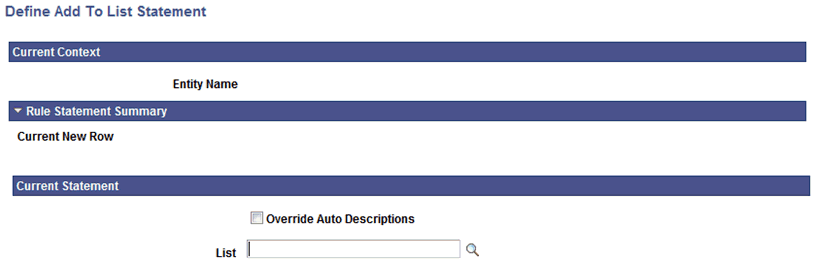
Click the Search icon to the right of the List field to open the Add/Select a Variable page:
This example illustrates the fields and controls on the Example of Add/Select a Variable page with only List Variables. You can find definitions for the fields and controls later on this page.

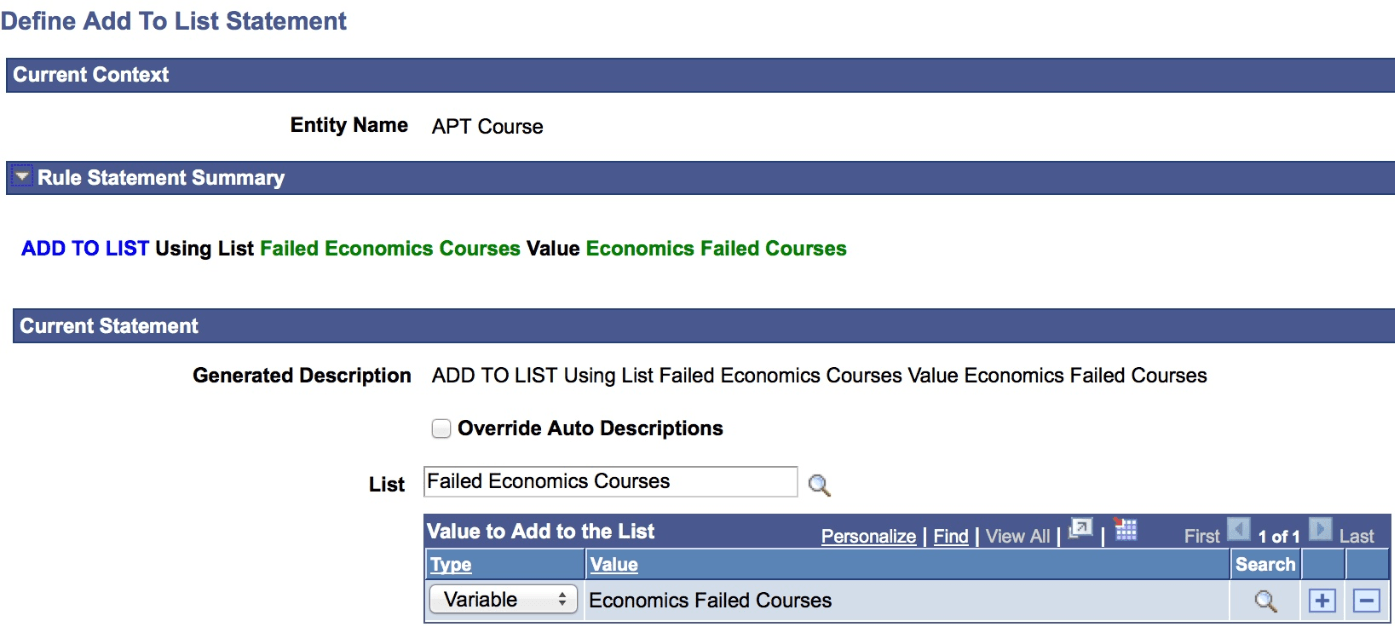
After having selected the List, you are returned to the ADD TO LIST statement page to add relevant Variables to the list:
This example illustrates the fields and controls on the Example of ADD TO LIST statement page with Value to Add to the List Grid. You can find definitions for the fields and controls later on this page.
-
If the selected List is a Data Set, you may only add Type Variable to the List, and the Variable must be a Data Set.
-
If the list is not a Data Set, you may add the following to the List:
-
A Variable which matches the Type of the List (for example, Text).
-
A Data Set Property which matches the Type of the List.
-
A Property which matches the Type of the List.
-
A user–defined value of Type Text .
-
For example, a curriculum requirement dictates that students may only fail three courses in subject area “Economics”. A Rule is needed to capture a List which contains both the Course as well as the failed Mark. For this, use a Data Set for the purpose of capturing the failed courses in subject area Economics. At the time of creation, the List is empty. Associate the List Variable with the created Data set. In the same Rule, also add a simple List containing all Courses. In a FOR EACH loop which scrolls through all the Courses in a program of study, evaluate the subject area for each course, determine whether the course is failed and, if meeting the criteria, add the Course ID as well as the Mark to the Data Set list. Use a ADD TO LIST to add Course ID’s and Marks as they are found.
LENGTH OF LIST Statement
Use this statement to determine the length of any List.
Click the Search icon to the right of the List field to open the Add/Select a Variable page.
Enter a Number Variable in the Length filed or create a Numeric Variable on the fly to designate the Length of the List.
SORT LIST Statements
Use the SORT LIST statement to sort a List by any List value. Depending of the type of List you select, you are presented different options upon returning to the Define statement page.
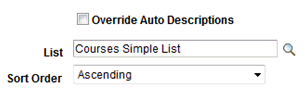
For Lists that are not Data Sets, select a Sort Order of Ascending or Descending.
This example illustrates the fields and controls on the Example of a Sort Order Specification that is not a Data Set. You can find definitions for the fields and controls later on this page.
For Lists that are Data Sets, select the Search icon to the right of the Object to open theData Set Property Search page and select a Data Set. Upon return to the Define SORT LIST statement page, select a Sort Order of Ascending or Descending for selected Data Set.
This example illustrates the fields and controls on the Example of a Sort Order Specification that is a Data Set. You can find definitions for the fields and controls later on this page.

CLEAR LIST Statements
Use this statement to clear a list and remove all list data.
Click the Search icon to the right of the List field to open the Add/Select a Variable page and select a List.
WRITE TO LOG Statements
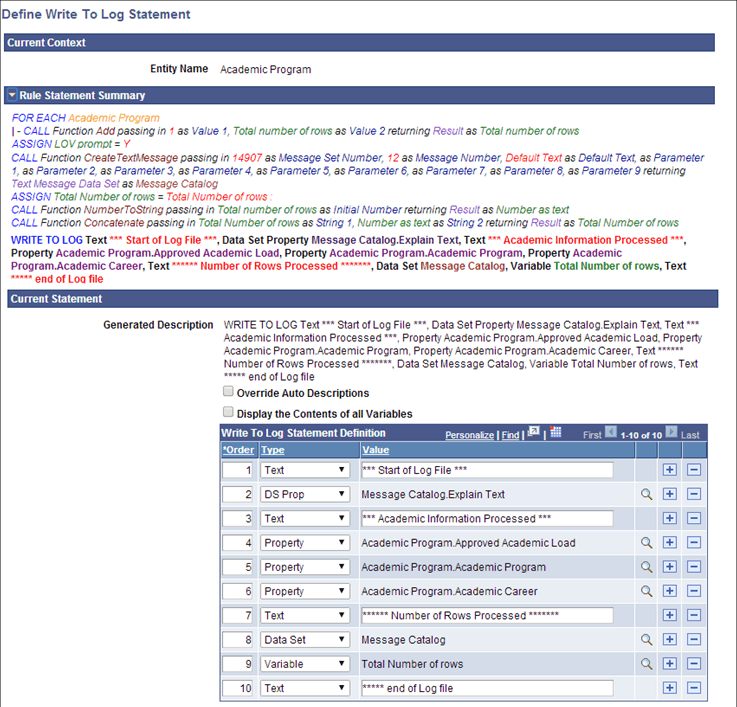
Write to Log functionality can be used to provide Rule users with useful processing feedback when Rules are run in batch. For example, a log file can show information such as numbers of rows processed or retrieved.
The Logging Level Write to Log must be set for a log file to be created. Subsequently, the a Write to Log statement can be used to write text strings as well as the contents of Variables, Data Set Properties, and Entity Properties to a log file.
This example illustrates the fields and controls on the Define Write To Log Statement page. You can find definitions for the fields and controls later on this page.
| Field or Control | Description |
|---|---|
|
Display the Contents of All Variables |
Select this option to write all Rule Variable and their contents to the log file. |
Use the Write to Log Statement Definition grid to add one or more values to be written to the log file. The Order number is automatically augmented when rows are added. Rows are written to the log file in the same order.
| Field or Control | Description |
|---|---|
|
Type |
Select a Value Type to include in the log:
|