Understanding Common Statement Attributes
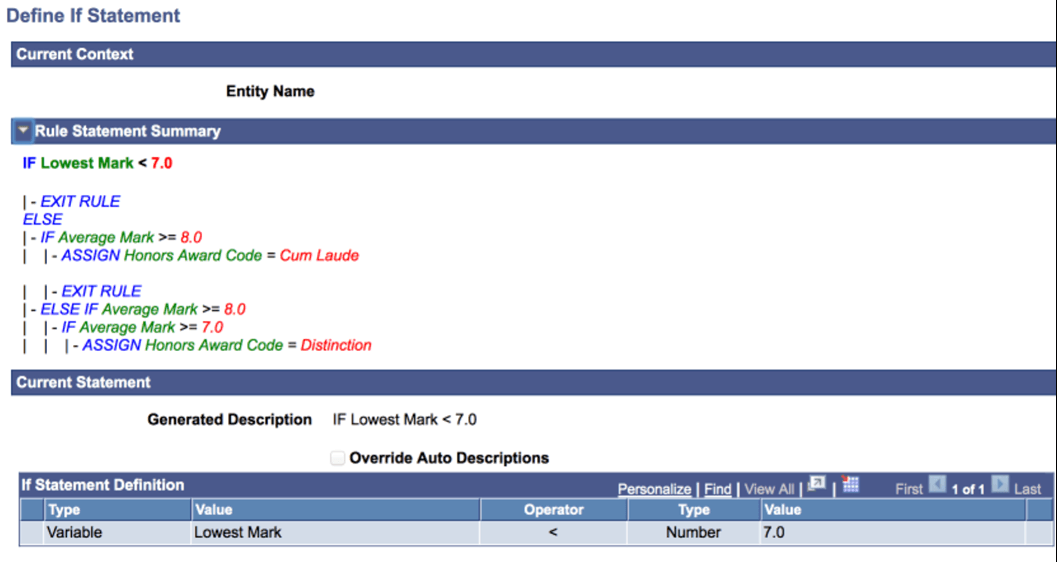
When you select a Statement, a Define Statement page opens. Each Statement has a Define Statement page created specifically for that Statement. Although each Define Statement page is different, there are common fields and elements shared by all Statements. Each Define Statement page for each delivered Statement is explained below, but, first, to illustrate the common attributes of the Statement, access the Define If Statement page (select the check box next to the IF Statement Name on the Select a Statement page).
This example illustrates the fields and controls on the Example of Common Statement Attributes on a Statement page.. You can find definitions for the fields and controls later on this page.
Connectors and Parentheses
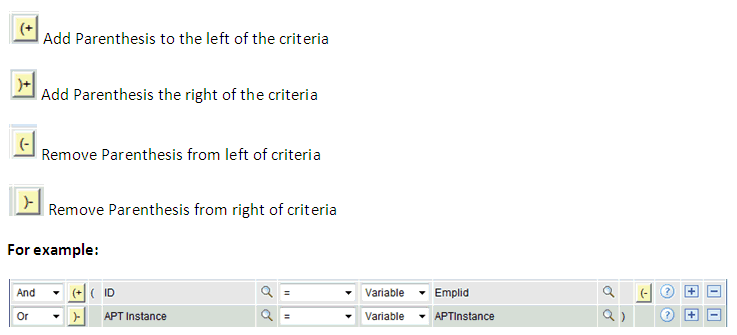
Use the AND/OR connectors and parenthesis to create complex (nested) Statement definitions.
This example illustrates the fields and controls on the Example of Connectors and Parentheses. You can find definitions for the fields and controls later on this page.
Current Context
Displays the Current Context of the Statement. The Current Context provides information about the current Entity you are working with when you have a Rule that accesses multiple layers in a Data Hierarchy represented by the Base Entity. You always have access to properties from the Current Context and the immediate Parent. For example, when working with the Academic Progress Tracker (APT) using System Data only, your Current Context could be one of the following:
This example illustrates the fields and controls on the Example of Academic Progress Tracker Entity Hierarchy. You can find definitions for the fields and controls later on this page.
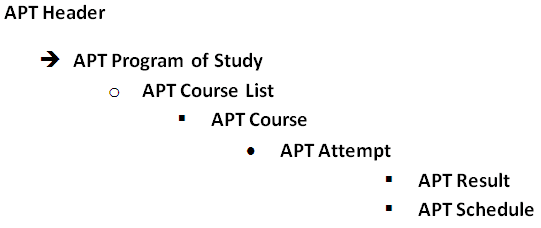
In our example, the context is set to APT Header which means that we are able to use as data, within our IF Statement, all properties from the APT Header. If our current context had been APT Program of Study we would have been able to use all properties from the APT Program of study as well as the APT Header.
Rule Statement Summary
Displays a summary of the entire evaluative statement. The view is shown in color. Bold type indicates which Statement you are currently working with.
If you have not yet added a Statement, this is shown as "Current New Row".
Current Statement
Displays the short description of the Current Statement you are working with as well as the options for this Statement.
Override Auto Description
Select the Override Auto Description check box to override the Generated Description and provide your own using a Rich Text Editor.