Building and Testing a Functional Rule
The first step is to build and the test a Functional Rule to integrate with Student Special GPA page; in this example, a Rule that calculates a Special Grade Point Average based on a student’s Academic Program, Academic Plan, or Academic Sub-Plan. Using the functional business requirement as a starting point, start by looking at how to retrieve the needed data.
Data and Entity Considerations
To determine how to retrieve the data, decide which role to use to build the Rule: Functional Expert Role or Developer Role. This example uses the Functional Expert Role instead of the Developer Role to create an Expert Rule. This assumes that Functional Experts want to create similar grade point average calculation Rules at a later stage and/or adjust the business logic for the created Rule over time. Rules created by a Developer Role are created in Application Package PeopleCode by developers. So, while Functional Experts are able to use such Rules, they have no means to adjust their business logic. By creating an Expert Rule, Functional Experts are able to clone or adjust the Rule.
Since this is an Expert Rule, an Entity is required to be in place for this data. For this example, system-delivered Entities are used, but new Entities can be created if needed. For information on creating Entities, see Creating a New Entity.
In this example, the Student Grade Inquiry page (Records and Enrollment > Student Term Information > Student Grades) is based on the record view CLASS_TBL_SE_VW, which contains all the information needed for this Rule. Since record tables are not being updated with this Rule, a record view is suitable.
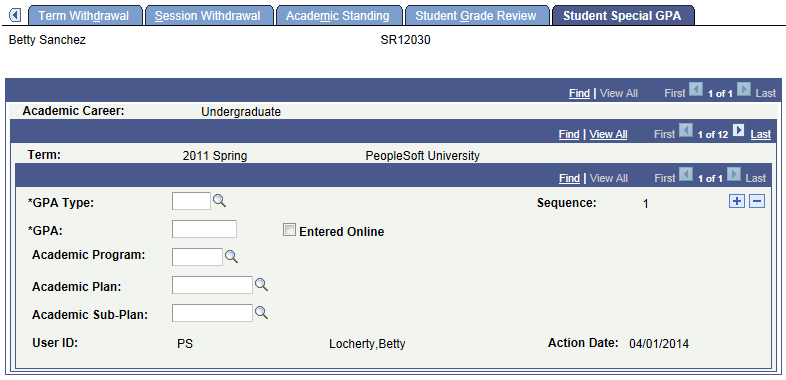
This example illustrates the Student Special GPA page before a custom integration with the Rules Engine.
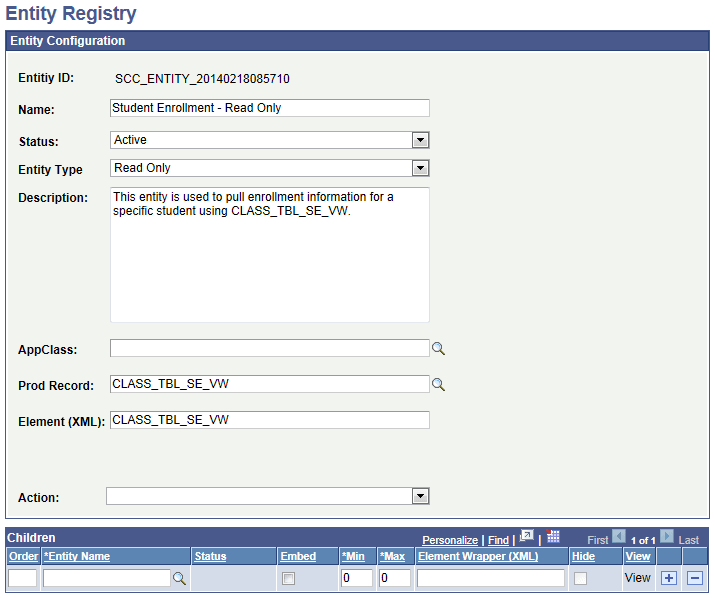
Navigate to the Entity Registry () to find that there is an existing matching Entity, Student Enrollment – Read Only, for record view CLASS_TBL_SE_VW. For this Entity, Entity Type is set to Read Only for Prod Record CLASS_TBL_SE_VW. The Read Only Entity Type does not allow an update or save to be executed by the Rules Engine. The Entity Status is set to Active. No AppClass (application class) is needed for Read Only Entities. The AppClass is reserved for Application Class PeopleCode which controls the save Validation logic for the Entity. Use the Action drop down and select View Hierarchy to view the Entity structure and its properties.
This example illustrates the Entity Registry page for the Student Enrollment – Read Only Entity.
Although this Rule is not updating CLASS_TB_SE_VW, it does access and update the calculated Special GPA. The production record for Special GPA is STDNT_SPCL_GPA.
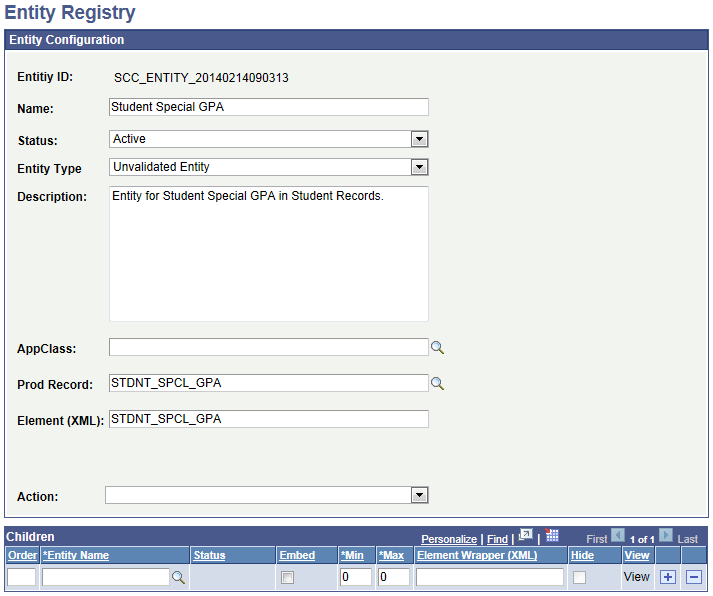
Navigate to the Entity Registry ( ) to find that there is an existing matching Entity, Student Special GPA, for production record STDNT_SPCL_GPA. For this Entity, Entity Type is set to Unvalidated Entity for Prod Record STDNT_SPCL_GPA. The Unvalidated Entity Type allows data to be inserted and updated with no validation. The Entity Status is set to Active. No AppClass (application class) is needed for Unvalidated Entities. The AppClass is reserved for Application Class PeopleCode which controls the save Validation logic for the Entity. Use the Action drop down and select View Hierarchy to view the Entity structure and its properties.
This example illustrates the Entity Registry page for the Student Special GPA Entity.
If you want to limit access to only certain properties of any Entity that you are using, you can do so by creating an Entity View. Do this by selecting Entity View from the Action drop down on the Entity Registry page.
This example illustrates the Entity View Editing page for the Student Enrollment Partial View of the Student Enrollment – Read Only Entity.
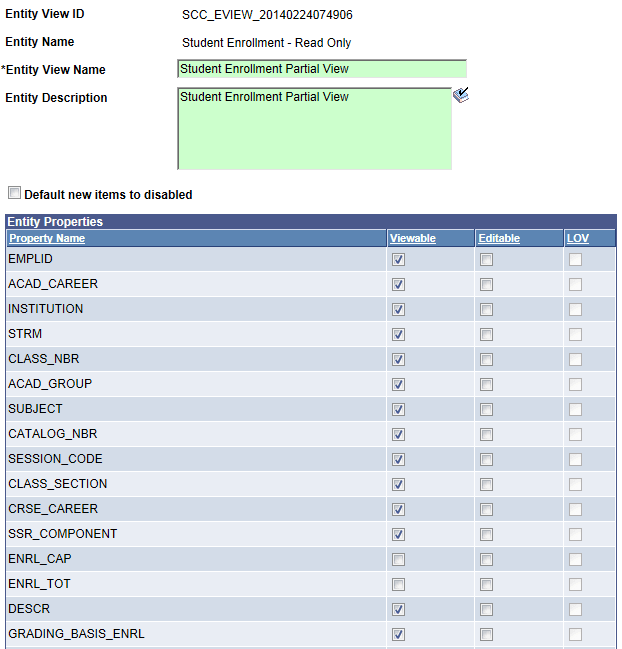
Provide the Entity View with a name and deselect the property options as required:
-
Viewable – The property can be viewed by not changed.
-
Editable – The property is changed when saved.
Note:
When a new Entity is created from a production record and saved, the Entity Registry is automatically updated. The record fields become available as Entity Properties and existing Yes/No, translate value, and prompt table validations on the RECORD.FIELD definition are made available for prompting without specifically defining a LOV. .
Providing Entity Security Access
Before an Entity can be used in the Rules Engine, you must create the appropriate security setup. This is done using the Entity Profile and Define Rule Category setups.
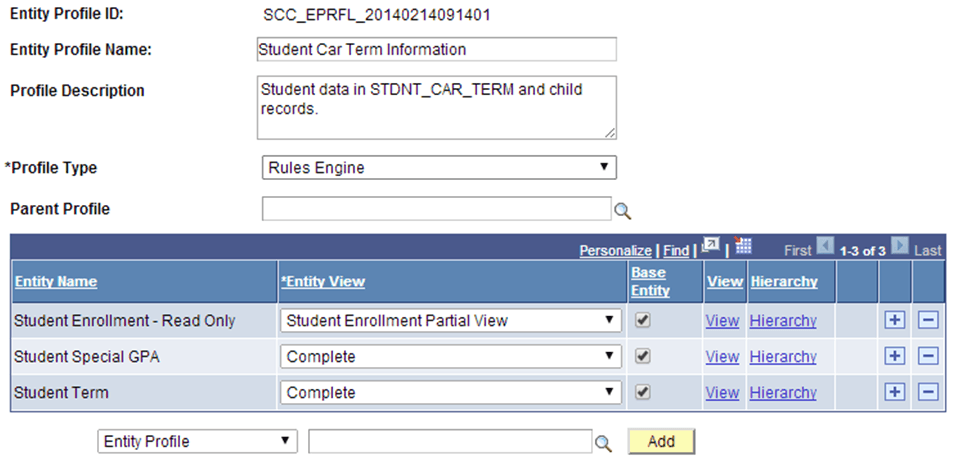
The Entity Profile controls how the Entity can be accessed by selection of a Profile Type. In this example, Rules Engine. The Entity Profile also controls whether the Rule is allowed to use the Entity Structure as a starting point for data access in the Rule. This is controlled by the selecting Base Entity for each Entity Name in the Entity Profile to which you want to have access.
This example illustrates the Entity Profile page for Student Car Term Information for the Rules Engine User Interface Example.
The next part of Entity Security is setup using Rule Category Definition. Here, you can:
-
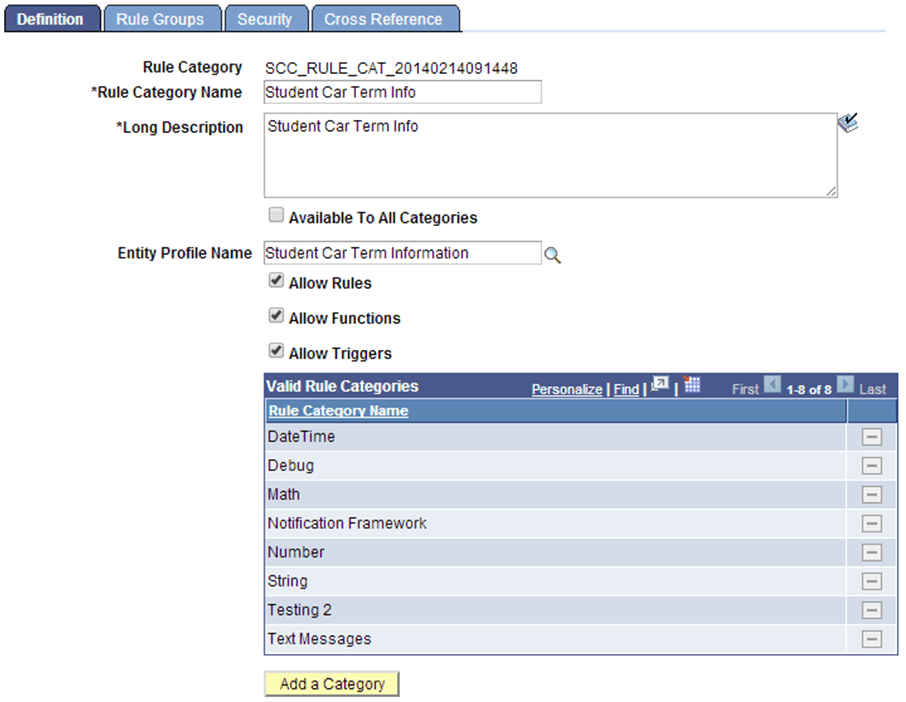
Create a Category in which to create the Functional Rule. In this example, we want all Student Car Term related Rules created in one Rule Category.
-
Grant access to the Entity Profile Student Car Term Information.
-
Control access to types of Rules. we want to create Functions, Rules and Triggers.
-
Control which from Valid Rule Categories business logic can be accessed. We are creating a Rule that uses business logic from other Rule Categories; for example, to perform calculations (category Math) .
-
Control who can create Rules for Student Car Term Information; this may be one or more specified users or all users in associated Role.
This example illustrates the Define Categories page for Rules Engine User Interface Integration Example.
Build and Test the Functional Rule
With Entity security in place, t the Functional Rule to calculate the Special GPA for our business case can be created and tested.
Access the Define Rule page ().
This example illustrates the Define Rule page for Functional Rule for Rules Engine User Interface Example
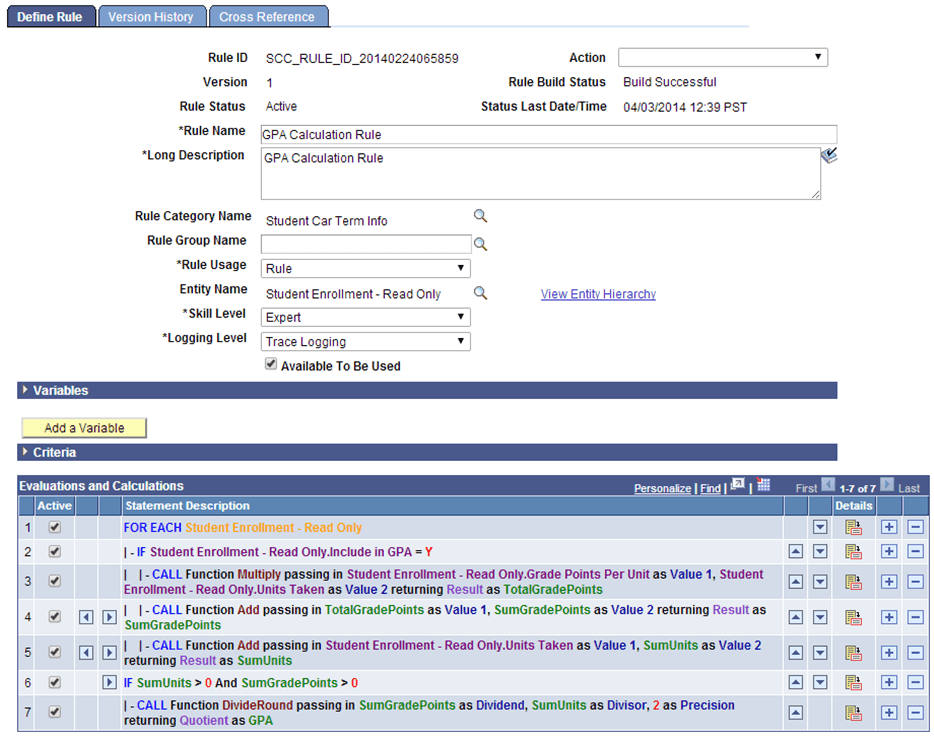
This Functional Rule uses the Student Enrollment – Read Only Entity, created from production record CLASS_TBL_SE_VW. Assumed is the selection of data using the following Criteria:
-
EmplID
-
Academic Career
-
Institution
-
Term
-
Subject
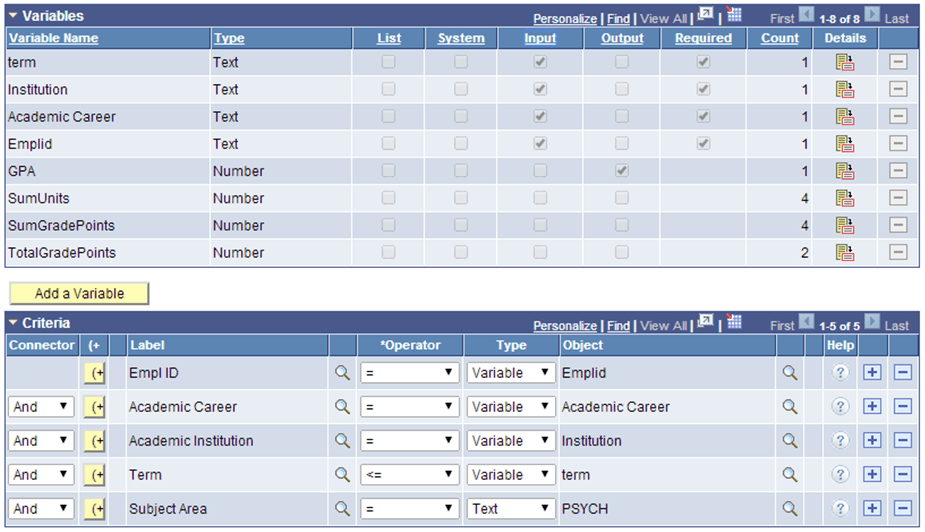
Using these Criteria, the Rule returns all Psychology class results for the specified Student ID, Academic Career, Institution and those Academic Terms which are less than or equal to the specified Term. The Criteria need to be passed into this Rule. The needed Values are obtained from Variables designated as required input:
This example illustrates the Variables and Criteria for Define Rule Page for Functional Rule for Rules Engine User Interface Example.
Test the Rule (select Test Rule from the Action drop down on the Define Rule page) to ensure it is producing the desired results before proceeding with the next step of generating a Trigger to call the Rule.