Creating Functional Rules
The section describes how to create functional Rules.
Access the Rules Engine Manager Define Rule page (, select Add a New Rule, Define Rule).
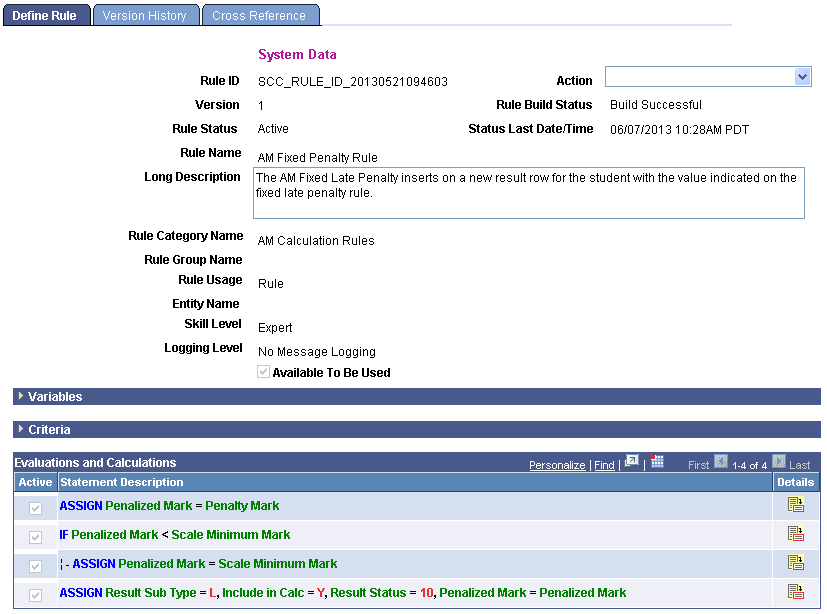
This example illustrates the fields and controls on the Define Rule page. You can find definitions for the fields and controls later on this page.
Note:
For Rules delivered with the system and that have System Data displayed in the Rules Engine user interfaces, only the Long Description can be modified.
| Field or Control | Description |
|---|---|
|
Rule ID |
Displays a unique ID generated by the system. When adding a new value the default value is NOID. The unique ID is generated when the Rule is saved. The Rule ID is created by combining prefix SCC_RULE_ID_ with the system date and time stamp in format YYYYMMDDHHMMSS. |
|
Action |
Note: The list of available Actions is dynamic depending upon the Rule Status. Note: For System-delivered Rules, only the Build Rule, Create New Group from Rule, Create New Rule from Rule, and Update Status Information (if Rule Status is Not Built) Actions are available. Select an Action for this Rule Group:
|
|
Version |
Displays the Version number of the Rule. Rules are automatically versioned. The first version of a Rule is 1. Only one version of a Rule can be active at any given time. The Action drop down can be used to inactivate an Active Rule and to create a new Rule Version. When creating a new Version, the previous Version automatically becomes Inactive. |
|
Rule Status |
Displays the Rule Status
|
|
Rule Build Status |
Displays the Rule Build Status. Values are:
|
|
Status Last Date/Time |
Displays the Last Date/Time of the Rule Build Status in native format including an indication of time zone. This field does not display until after an attempt to build this Rule. |
|
Rule Name |
Enter a Rule Name. The Rule Name is used when searching for a Rule and for display. |
|
Long Description |
Enter descriptive text explaining the function of the Rule. |
|
Rule Category Name |
Enter the Rule Category Name. The Rule Category restricts access to Rule Usages, Rule Categories, and Entities. Available Rule Categories are limited to those for which you have been authorized. This is determined by a Role or our User ID. If you have access to multiple Rule Categories, you should choose the Rule Category that is most appropriate considering the data that the Rule needs to access and any Functions that the Rule may need to call. Functional Expert users who create Rules may not necessarily be familiar with how to create Rule Categories so should be provided with instructions by Rules Engine Administrators about the Rule Categories for which they have been authorized. For example, depending on your institution's policy, Functional Experts may only be authorized to use a single Rule Category. |
|
Rule Group Name |
Enter a Rule Group Name if this Rule needs to conform to a specific template with predefined input and output Variables and a predetermined Base Entity. Note: Oracle recommends adding a Rule Group Name directly after you have created your Rule or Function and before adding Entity Profiles, Rule Usages, or Variables as they may conflict with those that are defined in the Rule Group. If you select a Rule Group that has Variables, a Rule Usage, or Base Entity that conflicts with the Rules you are creating, a warning message appears and the Rule Group is not added. |
|
Rule Usage |
Select a Rule Usage of Function, Rule, or Trigger. The available Rule Usages are limited to those for which the user has been authorized through Rule Category setup. The selected Rule Usage impacts availability of Rules Engine Manager functionality as follows:
Selection of Rule Usage needs to consider how this Rule is used and what tasks it needs to perform.
|
|
Entity Name |
Enter the Entity to use as the Base Entity for the Rule. The Base Entity controls which application data you have access to when creating a Rule, Function, or Trigger. The Entities available are limited to those for which user has been authorized by attaching Entity Profiles to Rule Categories in the Rule Category setup. Identifying which data to use by designating the Base Entity can be considered the “starting point” of the creation of a functional Rule. Further, using the designated Base Entity with the Rule Criteria makes it possible to identify the exact record to use in the Rule. For a Function that uses a Base Entity, the exact data needed is passed from caller to called Function using Contextual Reference. In this example, a Rule is being created that look at Student Progression; therefore, the Rule needs to access Student Results Data as stored in the Academic Progress Tracker (APT) records. The APT data is represented in the Entity APT Header. By selecting the APT Header as the Base Entity, you can access all of the data associated with the APT Header Entity Tree. This means that you have access to all logical child Entities in that Tree structure like APT Program of Study, APT Course List, and APT Course as well as other data associated with those Entities. As with Rule Categories, Functional Expert users should be provided with instructions on selecting Base Entities. Also consider that since the available Base Entity is determined by the selected Rule Category, it could be that only one Base Entity is presented for selection. For more information, refer to Defining Rule Category Security and Understanding Contextual Referencing. |
|
View Entity Hierarchy |
Click this link to display the Entity Hierarchy view for the Base Entity attached to the Rule. |
|
Skill Level |
Select the Skill Level required for creating this Rule:
In this example, a functional Rule is being created and there is no “coding” occurring. Therefore, a Skill Level of Expert is being used to demonstrate the Statement, Operator, Function, and Variable features. |
|
Rule Application Class |
Note: This field is available and required when Skill Level is Developer. Enter or select a Rule Application Class. A Rule Application Class can be selected from a list of Extension Application Classes. Warning! Developer Rules should be built by Developers/Programmers who have extensive experience with Application Package/Class PeopleCode programming. Developers working with the Rules Engine should be familiar with Entity Registry concepts. |
|
Entity Data Load Option |
Note: This field is available and required when the Rule Usage is Rule and an Entity Name has been entered. Select the Data Load Option when creating a Rule.
|
|
Logging Level |
Select the Logging Level to use when testing this Rule:
Note: Oracle recommends using the Trace Logging option to see correct trace results when testing Rules. |
|
Available To Be Used |
Select this check box if you want to allow this Rule or Function to be available for use by other Rules or feature functionality. If you do select this check box, it is recommended that you do so after adding Variables and Criteria to the Rule and finalizing the functionality for your Rule. |
Note:
Save the Rule after completing the first portion of the Definition tab (everything above the Available in Other Rules check box) and before adding Variables and Criteria. At this point the Rule Status is In Progress, and the Rule can still be changed and retested.
Note:
You cannot version Rules with a Rule Usage of Rule or Function that are delivered with the System and that have System Data displayed in the Rules Engine user interfaces. These Rules must be copied (cloned) and a new Rule or Function created.
You can version Rules with a Rule Usage of Trigger that are delivered with the System and have System Data displayed in the Rules Engine user interfaces.