Adding Variables to a Rule
Once Rule options are defined, you can add the Variables you want to use in the Rule. The Variables grid on the Rules Engine Manager Definitions tabs is display-only. The grid shows whether variables are in use and whether they are used as input, output or required. Variables can be created before starting to incorporate evaluations or calculations or added on the fly.
Since the object of this example Rule is to determine whether students may or may not progress from Year 1 to Year 2 within an Academic Program, you already know that you want to return the Progression Status as output. You also know that you want to ensure that the process that calls this Rule can pass the correct parameters to retrieve a specific student. That is our input.
To add a Variable, access the Add a New Variable page (click the Add a Variable button on the Rule Definition page).
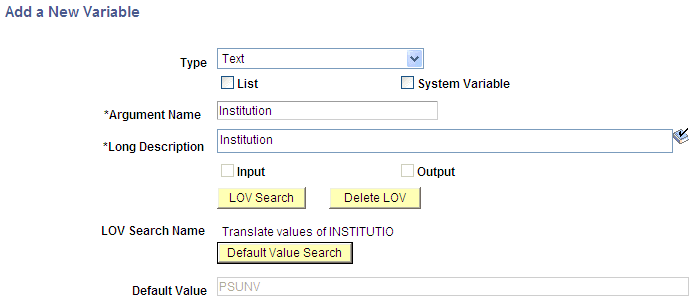
This example illustrates the fields and controls on the Add a New Variable page. You can find definitions for the fields and controls later on this page.
| Field or Control | Description |
|---|---|
|
Type |
Select the Variable Type that you want to add:
Type is displayed in the Variables grid and can be selected when viewing or adding Variables. |
|
List |
Select this check box if the variable is a List variable which can contain multiple values. Use this option in combination with Type to obtain a list of specific values. List is displayed in the Variables grid and can be selected when viewing or adding Variables. Selecting this check box activates the Default Values button and the Default List Values field. |
|
System Variable |
Select this check box if the variable is a System Variable predefined in setup outside of this Rule. System Variable is displayed as System in the Variables grid and can be selected when viewing or adding Variables. Selecting this check box activates the System Variable Search button and the System Variable Name field. |
|
Argument Name |
Enter an Argument Name for Variable. The Argument Name is used when searching for a Variable and for display. |
|
Long Description |
Enter descriptive text explaining the function of the Variable. |
|
Input |
Select this check box if the variable is an Input Variable. Input is displayed in the Variables grid and can be selected when viewing or adding Variables. |
|
Required |
Select this check box if the variable is required. Required is displayed in the Variables grid and can be selected when viewing or adding Variables. |
|
Output |
Select this check box if the variable is an Output Variable. Output is displayed in the Variables grid and can be selected when viewing or adding Variables. |
|
Default Value |
Click this button to open the Create Default List Values page. Add List Values in the Value column and click the OK button. Note: This button is available when the List option is selected. To remove a List Value, select the corresponding Remove check box for a Value and click the Remove Selected Values button. Note: If the List option is not selected, Default Value is an edit field. A Default Value can be entered here for this Variable. |
|
Default List Values |
Displays values for this Variable created using the Create Default List Values page. |
|
System Variable Search |
Click this button to open the Prompt for Rules Engine System Variables page. This button only appears when System Variable is selected above. |
|
System Variable Name |
Displays the selected System Variable Name. This field only appears when System Variable is selected above. |
|
LOV Search |
Click this button to open the Prompt for LOV Searches page. Search on a Field Name of Description, Dropdown Prompt Filed, Edit Table, LOV Context, or LOV Unique ID. Results display a Descr (description) link. Click the link to select an LOV. This returns you to the Add a New Variable page with the LOV Search Name displayed. Note: LOV Search results display a list of all available LOV values. The list is not limited to those LOV values which have been created specifically for the Rules Engine. |
|
Delete LOV |
Click this button to remove an LOV. This button becomes visible when a LOV has been attached to the variable |
|
LOV Search Name |
Displays selected LOV. |
|
Default Value Search |
Click this button to open the Prompt for (selected LOV) page. Search on a Field Name of Description or Value. Results display a Values link. Click the link to select a Default Value. This returns you to the Add a Variable page with the Default Value displayed. |
|
Default Value |
Displays Default Value. |
|
Clear Default Value |
Removes default value from Variable. |
Adding a Data Set Variable to a Rule
When a Data Set variable Type is selected, there are different options to select.
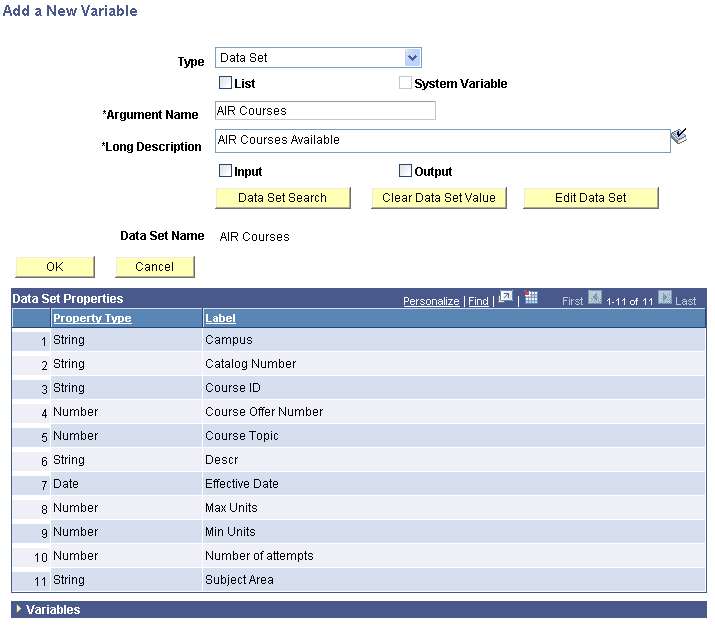
This example illustrates the fields and controls on the Add a New Variable – Data Set Option. You can find definitions for the fields and controls later on this page.
| Field or Control | Description |
|---|---|
|
Data Set Search |
Click this button to open the Prompt for Entity page. Search on a Field Name of Data Set ID, Entity Name, or Entity Profile Name. Results display a Entity Profile link. Click the link to select an Entity. This returns you to the Add a New Variable page with the Data Set Name and the Data Set Properties grid displayed. The Data Set Properties grid displays the Property Type and Label of each Variable in the Data Set |
|
Data Set Name |
Displays the Data Set Name. |
|
Clear Data Set Value |
Click this button to remove the Data Set from the Variable. |
|
Edit Data Set |
Click this button to open a secondary page to add default values to the Data Set. |