Adding Criteria to a Rule
Once Rule options are defined and Variables are added for a Rule Usage of Rule, you can add Criteria to identify data from the chosen Base Entity. In the example being followed in this documentation, you want to add all criteria needed to identify and select the correct APT instance record for a particular student.
Note:
If you are creating a Rule with a Rule Usage of Function, there is no option to add Criteria. For more information, see Understanding Contextual Referencing.
To add Criteria, expand the Criteria group box by clicking the arrow to the left of Criteria in the group box header.
This example illustrates the fields and controls on the Criteria Grid – Initial Row. You can find definitions for the fields and controls later on this page.

Then, click the Search icon to the right of the Label field to open the Prompt for page where you can select an Entity Property.
This example illustrates the fields and controls on the Prompt for page. You can find definitions for the fields and controls later on this page.
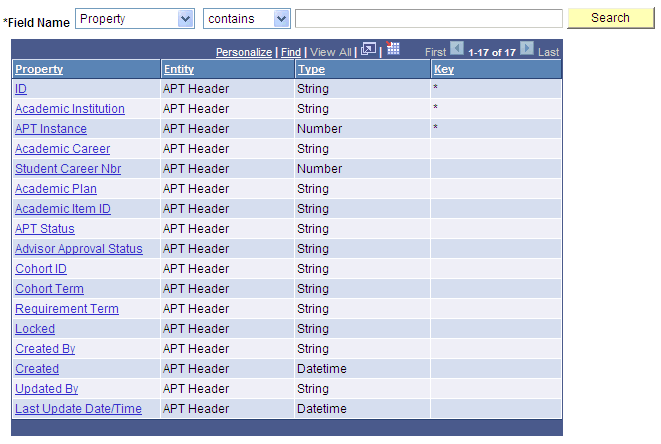
Click the Academic Institution link to select it as a Property. The Prompt for page closes, and you return to the Criteria grid with the Label column in the first row populated with Academic Institution. The Operator you want to use is = and the Variable Type you want to use is Variable, both of are already populated by default in this case. Since Type Variable is selected, the Search icon appears to the right of the Object field.
This example illustrates the fields and controls on the Example of Criteria Grid – Label Populated. You can find definitions for the fields and controls later on this page.

Click the Search icon to the right of the Object field to open the Add/Select Variable page.
This example illustrates the fields and controls on the Add/Select a Variable page. You can find definitions for the fields and controls later on this page.
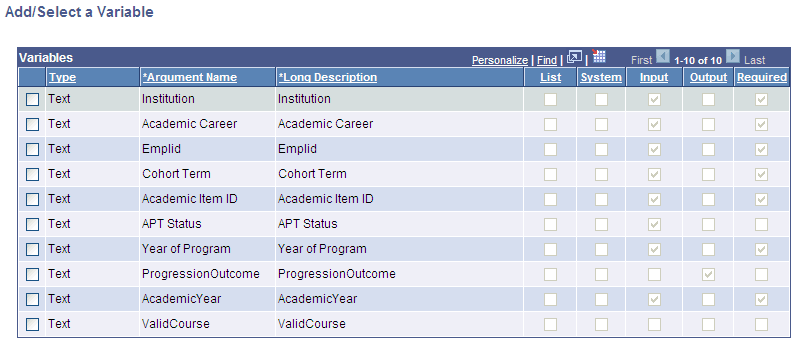
Select the check box next to the Variable you want to add, and click the Add button.
Once you've selected all the Criteria you want to add, the Criteria grid looks something like this:
This example illustrates the fields and controls on the Example of Criteria Grid. You can find definitions for the fields and controls later on this page.
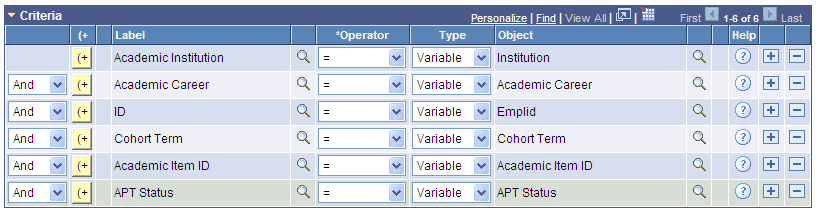
In this example, there is an assumption that a batch process is responsible for supplying the correct Variables to our Rule. This is why the Variables selected for the Criteria grid are Input Variables.
Here is more information about fields in the Criteria grid:
| Field or Control | Description |
|---|---|
|
Label |
Displays the name of the Property. Clicking the Search icon to the right of the Label field opens the Prompt for page where you can select from a list of properties from the Base Entity that is added in field Entity Name on the Rule Definition page. |
|
Connectors and Parentheses |
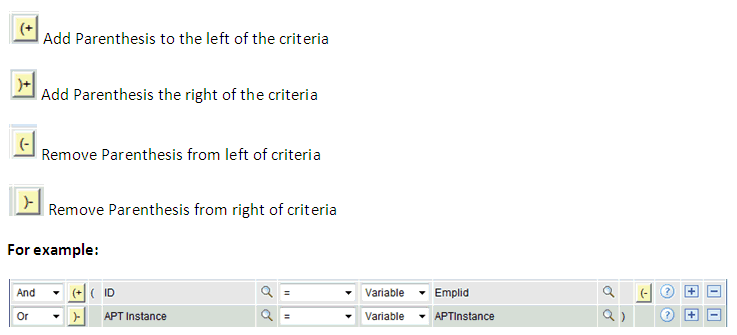
In the left-most columns of the Criteria grid are the AND/OR connectors and parenthesis. Select these to create complex (nested) Select Criteria. |
This example illustrates the fields and controls on the Example of Connectors and Parentheses. You can find definitions for the fields and controls later on this page.
| Field or Control | Description |
|---|---|
|
Operator |
Select an Operator to relate the Property Label to the Type/Variable. The Operator is a symbol or function used to express a mathematical function or logical action. The following Operators can be used when adding a Criteria line:
|
|
Type |
Select the Type of Object Property to be compared to the Label Property. The chosen Operator controls what Types are available. For the Operators Exists and Not Exists, no Type can be chosen. For the Operators In and Not In, only Variables of Type List can be chosen. Here are the available types:
|
|
Object |
The Object field behaves differently depending on which Type or Operator is chosen. The Object field is an open edit field except in the following cases:
|
|
Help |
Hover your cursor over the Help icon (question mark) to open a popup window for information on how to use the selected Type and/or Operator. |
Here are possible options for Types and Objects in the Criteria grid:
| Label | Operator | Type | Object |
|---|---|---|---|
|
Numeric Property |
= <> > >= < <= |
Variable or Number |
Open field or Prompts on Number Variables. |
|
String Property |
= <> > >= < <= |
Variable or Text |
Open field or Prompts on Text Variables. |
|
Date(time) Property |
= <> > >= < <= |
Variable or Date(time) |
Open field or Prompts on Date(time) Variables. |
|
Date Property and field name is Effective Date |
Asofdate |
Variable |
Variable Special handling exists for selection of Effective Date. For Entities with an Effective Date, you can choose to have the system automatically select the maximum Effective Date. |
|
Number Property and field name is Effective Sequence |
FirstSeq LastSeq |
No value available |
Special handling exists for selection of Effective sequence. For entities with an effective sequence the user can choose to have the system automatically select the maximum or minimum effective sequence.
Can be used in combination with the Asofdate option. |
|
List Property |
In Not In |
Variable |
List Variable which matches property Type |
|
Text Property |
Like Not like |
Variable Text |
Open field or Text Variable |
|
Property of any type |
Exists Not exists |
No value available |
<no value> If the Property is a Date or Date(time), any value not equal to Null exists. If the Property is a Number, any number unequal to 0 (zero) exists. If the Property is a String, any value unequal to space (blank) exists. |