Defining Rule Groups
This section covers defining Rule Groups.
Understanding Rule Groups
Rules that share the functional purpose and have similar functionality, input and output can be grouped together in a Rule Group. For Rules to share the same Rule group, they must:
-
Be based on data in the same Entity Tree and use the same Entity Registry item as the basis for that Rule. This Entity is known as the Base Entity.
-
Share the same required input parameters.
-
Share a subset of non-required input parameters.
-
Share the same output parameters and can pass back required output.
-
Belong to the same Rule Category, giving them the same security Rules.
One advantage of combining Rules in Rule Groups is that it allows you to call all Rules associated with a Rule Group dynamically. You would not have to know before the fact which Rules you are calling. Rule Groups that have been created can be called from other Rules, Triggers or Functions in the Rules Engine Manager using the “CALL DYNAMIC RULE GROUP” Statement. In short, by allowing Rules to call Rules from Rule Groups dynamically without specifying Rules or Functions directly, it is possible to dynamically call one or more Rules with similar functionality.
For example, an institution has created an Academic Item Registry program with courses from which the student can choose. For all those courses that require a prerequisite, a functional Rule is created that takes the course selected as input and checks whether the student meets the prerequisite requirement. When students select courses to add to their Academic Progress Tracker (APT), the prerequisite is checked, and, based on the outcome, a message is displayed to the student indicating whether or not he or she may add the course to their APT.
Example Rules for this scenario could be:
-
Students must have completed Introduction to Calculus or Elementary Algebra before attempting Advanced Calculus
-
Students must have completed Introduction to Psychology and have completed 10 credits from the “Human Studies” Course List before attempting Advanced Psychology.
Another advantage to creating Rules in the same Rule Group is the ability to control that the input and output for all Rules in the Rule Group is the same.
Each of these Rules needs to take the selected Course as input as well as information from the program of study and the student. All Rules above would return a similar outcome of true or false as well as a message that can be displayed. The Rules can be grouped together in the same Rule Group.
Note:
Rule Groups should be created by Rules Engine Experts or Developers. The settings used in Rule Groups are enforced for any Rule added to the Rule Group. Once a Rule has been added to a Rule Group, the Rule's input and output parameters cannot be altered; however, it is still be possible to add to and alter Statements in the Evaluations and Calculations grid. Also, Rule Groups with Active Rules attached cannot be changed.
You may find it challenging to define a new Rule Group with input and output variables and specifications for the Base Entity if you have not built the actual Rule that will be using the Rule Group . When building Rules, some experimentation is in order, and it is not always clear before the fact what exactly the input and the output of a Rule needs to be. Rule logic is optimized during the build process, and input or output Variables may need to be added based on new specifications or insights. Therefore, it may not be possible to define a template for input and output before any Rule has been built.
Rule Groups can also be created from Active Rules using the Rules Engine Manager Action Create Rule Group. Rule Groups can also be created using one of the available Rules Engine Search options.
Defining New Rule Groups
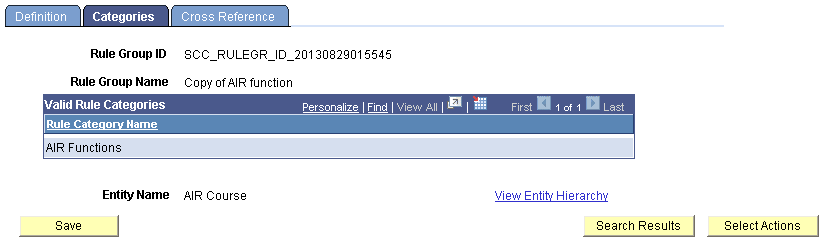
Access the Rule Groups Manager Categories page (, select Add a New Rule Group, select the Categories tab).
This example illustrates the fields and controls on the Define Rule Groups Categories page. You can find definitions for the fields and controls later on this page.
Note:
For Rule Categories delivered with the system, only the Long Description on the Definition page and Rule Groups and Security pages can be modified
| Field or Control | Description |
|---|---|
|
Rule Category |
Enter the Rule Categories for this Rule Group. Rule Groups are tied to one or more Rule Category Names. Note: Assign categories first before selecting a Base Entity in the Definition tab. |
|
Entity Name |
Enter the Entity for the Rule Group. The Entity entered here is the Default Base Entity for any Rules added to this Rule Group. The Base Entity controls which application data You have access to when building the Rule, Function, or Trigger. |
|
View Entity Hierarchy |
Click this link to display the Entity Hierarchy view for the Base Entity attached to the Rule Group. |
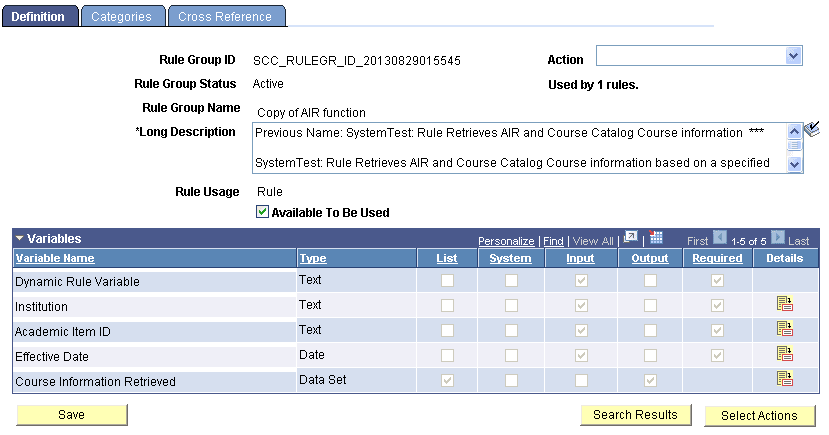
Access the Rule Groups Manager Definition page (, select Add a New Rule Group, select the Definitions tab).
This example illustrates the fields and controls on the Define Rule Groups Definition page. You can find definitions for the fields and controls later on this page.
| Field or Control | Description |
|---|---|
|
Action |
Note: For System-delivered Rule Groups, only the Create Rule from Rule Group and Create Rule Group from Group Actions are available. Select an Action for this Rule Group:
Note: The Inactivate Rule Group and Delete Rule Group actions are not available for Rule Groups with Active Rules attached. |
|
Rule Group ID |
Displays a unique ID generated by the system. When adding a new value the default value is NOID. The unique ID is generated when the Rule Group is saved. The Rule Group ID is created by combining prefix SCC_RULEGR_ID_ with the system date and time stamp in format YYYYMMDDHHMMSS. |
|
Rule Group Status |
|
|
Used By X Rules |
Displays the number of Rules associated with this Rule Group; includes Active and Inactive Rules. |
|
Rule Group Name |
Enter a Rule Group Name. The Rule Group Name is used when searching for a Rule Group and for display. |
|
Long Description |
Enter descriptive text explaining the function of the Rule Group. |
|
Rule Usage |
|
|
Available To Be Used |
Select this check box if you want this Rule Group to be available for use by the statement CALL DYNAMIC RULE GROUP. Note: If the Allow Changes to Active Rules check box on the Rule Engine Install Options page is not selected, the Available in Dynamic Rules check box cannot be selected here. |
|
Dynamic Rule Variable |
A Dynamic Rule Variable is always created when a Rule Group is created. This Variable is used when calling Rules using the Dynamic Rule Group statement to call the required Rule ID. |
|
Add a Variable |
Select this button to open the Add a New Variable page. For more information, see Adding Variables to a Rule. |
Access the Rule Groups Manager Cross Reference page (, search for a Rule Group and select the Cross Reference tab).
This example illustrates the fields and controls on the Define Rule Groups Cross Reference page. You can find definitions for the fields and controls later on this page.
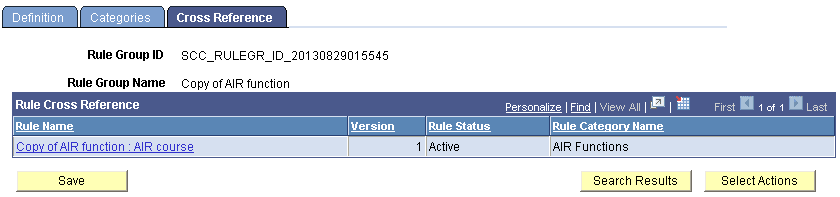
This page shows Rules and Rule Groups associated with this System Variable.
| Field or Control | Description |
|---|---|
|
Rule Name |
Displays to authorized users links for Rules attached to this Rule Group. If a user is not authorized, the link is disabled. Click a link to transfer out of the component and to the referenced object. Warning! Make sure you have saved any data that you need to before confirming you want to transfer to the referenced object in a new component. If no objects use the Rule Group, a notification is shown in place of the object details; for example, “This Rule Group is not used by any Rules”. |
|
Version |
Displays the Rule Version Number. |
|
Rule Status |
Displays the status of the Rule (In Progress, Active, In-active). |
|
Rule Category Name |
Displays the Rule Category Name in which the Rule has been created. |