Creating a New Version of a Rule
Active Rules can be referenced by other Rules or by online triggers and/or batch processes. In a production environment, it should not be possible to change anything in an active Rule. Changing an Active Rule can be disruptive to business processes. Therefore, Rule changes should be made by creating a new version of an Active Rule. Only one Active version of a Rule exists for any Rule at any given time. Since Rules are referenced by other systems using the Rule ID, it is always the Active version of the Rule that is executed. Use the Create new Version of Rule Action on the Define Rule page to create a new version of an Active Rule.
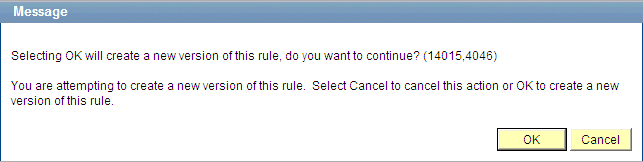
After the option Create new version of Rule has been selected the user is shown a warning message:
This example illustrates the fields and controls on the Example of Create New Rule Warning Message. You can find definitions for the fields and controls later on this page.
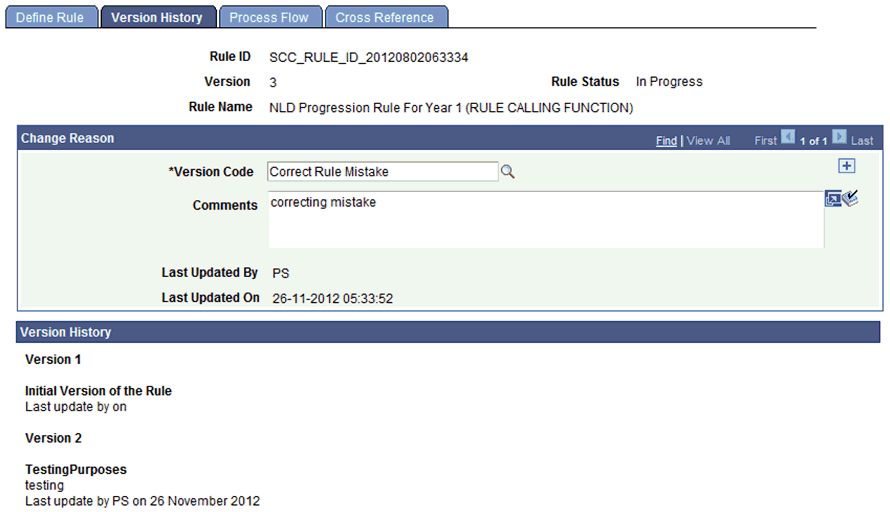
After clicking OK on the warning message, the Version History page opens:
This example illustrates the fields and controls on the Version History page. You can find definitions for the fields and controls later on this page.
Note:
You may also access the Version History by navigating to .
Older versions of the Rule are shown as Version History. Any Version Codes and Comments are displayed by Version. You can still ignore the new Rule Version created by cancelling out of the page without saving.
After saving the Rule Version, an Operator ID and Date Time stamp are automatically updated, and the status of the new Version is In Progress. In the example illustrated above, . Version 2 remains Active until Version 3 is activated. When activating Version 3, Version 2 becomes Inactive automatically.
Note:
It is not possible to reactivate “old” versions of Rules.