Testing Rules
After a Rule is built successfully, you can test the Rule.
Access the Define Rule page (, select Search for a Rule, Define Rule).
Select the Test Rule Action to open the Rules Engine Tester page:
This example illustrates the fields and controls on the Rules Engine Tester page. You can find definitions for the fields and controls later on this page.
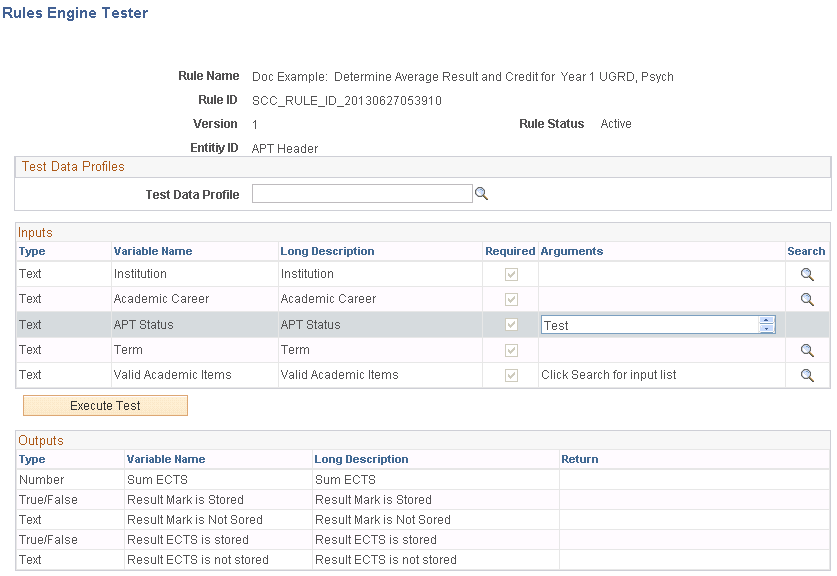
This example illustrates the fields and controls on the Rules Engine Tester page (Inputs and Outputs). You can find definitions for the fields and controls later on this page.
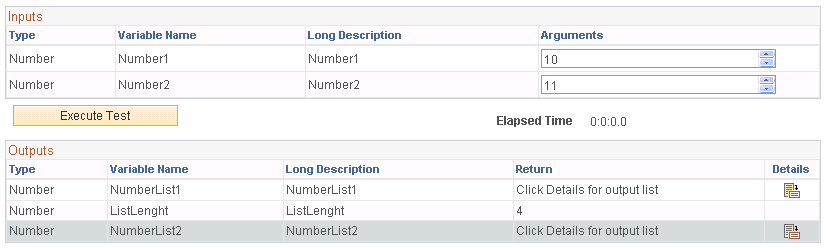
This example illustrates the fields and controls on the Example of Rules Engine Tester List Output. You can find definitions for the fields and controls later on this page.
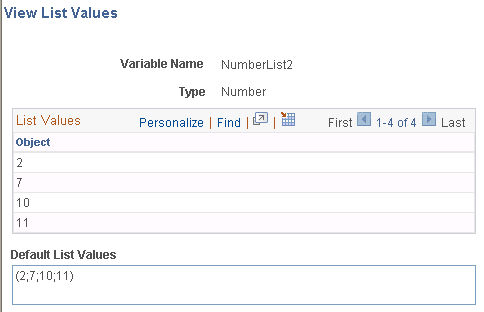
Enter the required Arguments that are needed to test the Rule. After test parameters have been added the Parameters can be saved as a Rule Test Profile.
| Field or Control | Description |
|---|---|
|
Test Data Profile |
Select a saved Test Data Profile. |
|
Delete |
Click this button to delete a stored Test Data Profile. |
|
Update |
Click this button to update a stored Test Data Profile with new parameters. |
|
Add a New Test Data Profile and Add |
Enter a name if you want to save a new Test Data Profile and click the Add button. A Test Data Profile can be added after the Rule has been executed using the listed parameters |
|
Inputs |
Displays all Parameters/Variables which have been listed as Input. Note: The text Click Search for input list appears next to List Input Variables. Click the Search icon to provide input. |
|
Arguments |
Enter the required Arguments needed to test the Rule. |
|
Execute Test |
Select this button to execute the Rule. If a Rule needs parameters and none are provided, the Rule cannot be executed. |
|
Outputs |
Displays all output Parameters/Variables with the output result when the Rule executes successfully. Note: The text Click details for output list appears in the Output grid for List Variables only. Click on the Details icon to view List Variable output on a secondary page. |
|
Debug Log Information |
Displays debug information is shown if the Logging Level is set on the Define Rule page. The Debug Log Information shows the execution logic of the Rule in order of execution. Refer to the “Starting Query” for information about how the Base Entity is selected and with which criteria the selection is done. If this is a Rule, a Select statement is generated based on the underlying tables associated with the Base Entity attached to the Rule. The Criteria attached to the Rule is used to create the Starting Query's Criteria. Refer to the individual debug statements to view what information was selected per statement. The timestamp option shows the elapsed time. |
|
Return |
Select this button to return to the Rules Engine Manager page. |
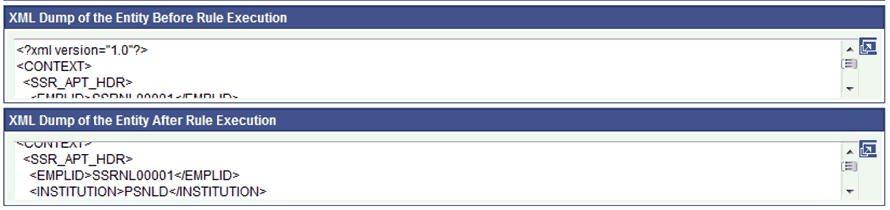
XML Dumps of the Entity, before and after Rule execution, are also displayed:
This example illustrates the fields and controls on the Example of XML Dump in Rule Tester. You can find definitions for the fields and controls later on this page.
| Field or Control | Description |
|---|---|
|
XML Dump of the Entity Before Execution |
Displays all data selected for the Base Entity and made available to the Rule. |
|
XML Dump of the Entity after Execution |
Displays all current data for the Base Entity after the Rule is executed. This information is relevant in instances where the Rule is used to update or insert data in the database. |