Entering Checklist Parameters
Access the Checklist Parameters page ().
This example illustrates the fields and controls on the Checklist Parameters page. You can find definitions for the fields and controls later on this page.
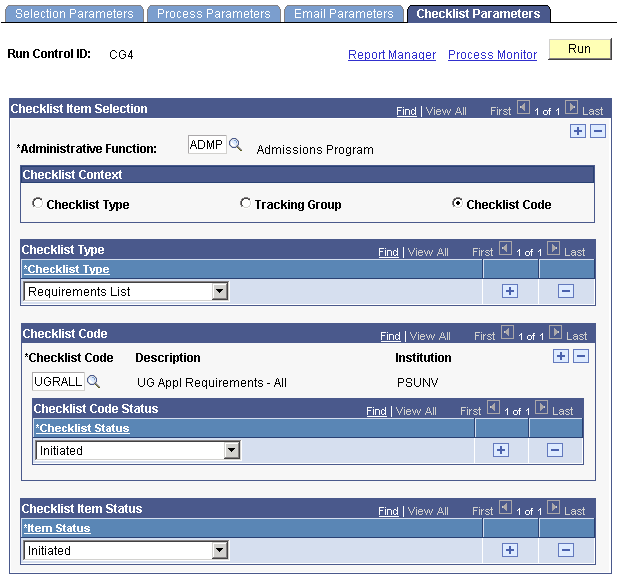
Checklist Item Selection
| Field or Control | Description |
|---|---|
|
Administrative Function |
Enter the administrative function associated with the checklists to use. If the checklists that you want to use are associated with different administrative functions, use the add button to enter each administrative function and select the checklists and items associated with that function. |
Checklist Context
| Field or Control | Description |
|---|---|
|
Checklist Type, Tracking Group, or Checklist Code |
Select the context by which to select the checklists to extract. The fields on the page change based on the checklist context that you select. |
Checklist Type
This group box appears regardless of which context you select.
| Field or Control | Description |
|---|---|
|
Checklist Type |
Enter the types of checklists from which the process should extract data for this letter or email. You can select more than one checklist type for an administrative function. For example if you select Requirement List, the process extracts checklist information for checklist codes set up with that checklist type. |
Checklist Code and Checklist Code Status
This group box appears only if you select a Checklist Context of Checklist Code.
If you select Checklist Code, then you must select a checklist status to use. The process will include only checklist codes with the status that you specify. You can select more than one checklist code for an administrative function and more than one checklist status for each checklist code.
| Field or Control | Description |
|---|---|
|
Institution |
Enter the institution related to the desired checklist. Often the same checklist codes are shared by more than one institution, and the system needs to use the correct one. |
|
Checklist Code |
Enter the specific checklist codes whose checklist item data should be extracted for this letter or email. You can specify more than one checklist code. |
|
Checklist Status |
Select the status of the checklists from which to extract data for this letter or email. You can select either the status of Completed or Initiated, or you can add a row to list both. |
Tracking Group and Tracking Group Status
This group box appears only if you select a Checklist Context of Tracking Group.
If you select Tracking Group, then you must select a group status to use. The process will include checklist items assigned to the tracking group and tracking group status that you specify. You can select more than one tracking group for an administrative function and more than one group status for each tracking group.
| Field or Control | Description |
|---|---|
|
Tracking Group |
Enter the tracking group codes whose checklist item data should be extracted for this letter or email. You can enter more than one tracking group for an administrative function. |
|
Group Status |
Select the group status from which to extract checklist data for this letter or email. You can select Completed or Initiated, or you can add a row to select both. |
Checklist Item Status
Regardless of the context that you select, you must specify the checklist item status to use. You can select more than one checklist item status for an administrative function.
Available checklist item status values include: Completed, Waived, Notified, Second Notification, and so on.