Entering Selection Parameters
Access the Selection Parameters page ().
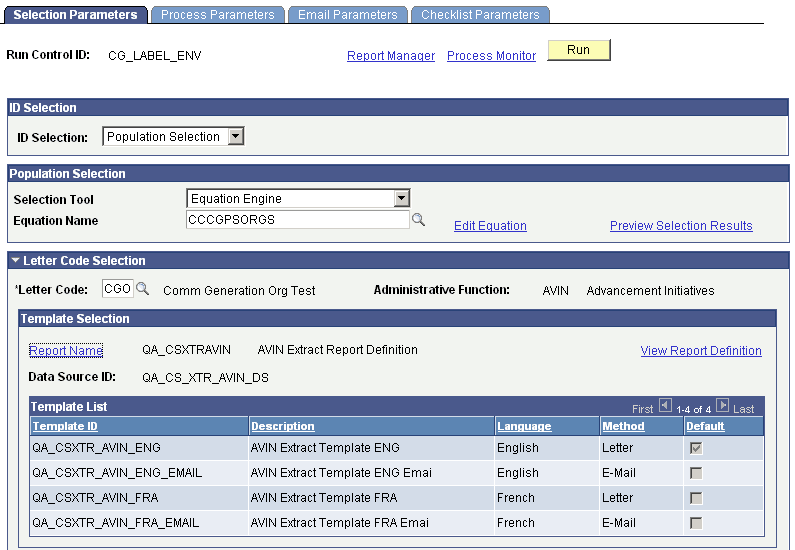
This example illustrates the fields and controls on the Selection Parameters page (1 of 2). You can find definitions for the fields and controls later on this page.
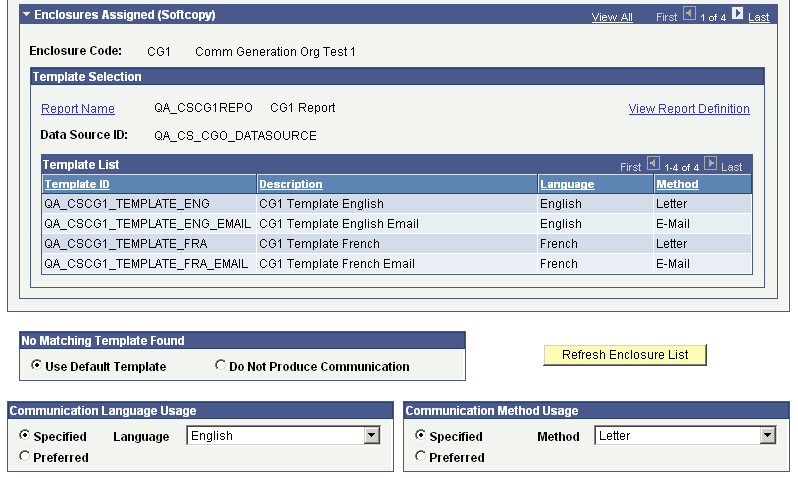
This example illustrates the fields and controls on the Selection Parameters page (2 of 2). You can find definitions for the fields and controls later on this page.
ID Selection
| Field or Control | Description |
|---|---|
|
ID Selection |
Select the type of IDs to process: All IDs, All Person IDs, One Person ID, All Org IDs, One Org ID or Population Selection. These are translate values and should not be modified. Note: When the Population Selection value is selected, the IDs selected will be processed only if they have a communication assigned to them using the specified letter code, are within the communication date range, and are not yet completed. To assure that selected IDs have the desired letter code assigned, consider using the same population selection tool (same PS Query name, Equation Engine equation, or external file) inside the 3C Engine process to assign the desired letter code communication to the IDs. |
|
Person ID |
Available only when the ID Selection is One Person ID. You must enter the specific person ID to process here. |
|
Organization ID |
Available only when the ID Selection is One Org ID. You must enter the specific organization ID to process here. |
Population Selection
This group box appears only when the ID Selection of Population Selection is selected.
Population selection is a method for selecting the IDs to process for a specific transaction. The Population Selection group box is a standard group box that appears on run control pages when the Population Selection process is available or required for the transaction. Selection tools are available based on the selection tools that your institution selected in the setup of the Population Selection process for the application process and on your user security. Fields in the group box appear based on the selection tool that you select. The fields behave the same way from within the group box on all run control pages and application processes
If your institution uses a specific selection tool (PS Query, Equation Engine equation, or external file) to identify IDs for a Communication Generation transaction, you must use it.
The PeopleSoft system delivers predefined sample queries to enable you to select person IDs, organization IDs, or both. The predefined queries are:
-
QA_CS_CC_PS_COMMGEN - Population Selection and CommGen for PER.
-
QA_CS_CC_PS_COMGEN_ORG - Population Selection and CommGen for ORG.
-
QA_CS_CC_PS_COMMGEN_BOTH - Population Selection and CommGen for P+O.
The PeopleSoft system also delivers predefined sample equations to enable you to select person IDs, organization IDs, or both. The predefined equations are:
-
CCCBPSPERS - Person only.
-
CCCBPSORGS - Organizations only.
-
CCCGPSBOTH - Person and organizations.
Letter Code Selection
| Field or Control | Description |
|---|---|
|
Letter Code |
Enter the letter code to use. Only letter codes set up for the Communication Generation process and that are currently assigned to the specified IDs are available. For example, if you select All Person IDs and the FAN letter code is not assigned to any ID, the FAN letter code is not available. Note: If you select the ID Selection of Population Selection or All IDs, all letter codes enabled for the Communication Generation process are available. This is because the IDs to select are still unknown at this point |
|
Administrative Function |
Displays the administrative function associated with the letter code. |
|
Report Name,Data Source ID, and Template List |
Only the reports to which the report definition gives you security access, are available. If the letter code is associated with only one report, the system displays the report name, the data source file, and a list of the templates associated with that report. If the letter code is associated with more than one report, click Report Name to select the additional reports to use. When you select a report, the system displays the list of templates associated with that report along with the language and method for which the template is created. The Template List group box shows which template the system will use as a default template if there is no specified template. Note: An error message appears if two or more template IDs have the same combination of language and method inside one report definition. The combination of method and language must be unique for the Communication Generation process to know which template to use for each ID generated. See Creating a Template. See PeopleTools: BI Publisher for PeopleSoft. |
|
View Report Definition |
Click to open a new browser window displaying the Report Definition search page. In the new browser window, enter the report name or other information about the definition that you want to view and click Search to access the Report Definition component for the report. View the definition to confirm that it is the definition that you want to make available and to preview the templates. You can make changes to the report definition if you have security access to the page. |
Enclosures Assigned (Softcopy)
| Field or Control | Description |
|---|---|
|
Enclosure Code,Data Source ID, and Template List |
If the letter code includes softcopy enclosures for the IDs, the system displays each enclosure code and its relevant information. Enter the report name to use for each enclosure. If no softcopy enclosures are included, the system collapses the group box. Note: If you select the ID Selection of Population Selection, you must select a report definition for all the enclosure codes that were included in the Person/Org Communication Management component when the letter code was assigned. This is because the IDs to select are still unknown at this point. |
|
Refresh Enclosure List |
Click to cause the Enclosures Assigned (Softcopy) section to include all available softcopy enclosures including enclosures that were added to the system since the last refresh of the process run control ID. Refresh the list of enclosures periodically to make sure you are processing the communications appropriately in scheduled runs of the process. Failure to refresh the list could result in producing missing enclosures for some IDs. For example, assume that you schedule a run control ID of AAA to run every night to generate a communication for all IDs that have the letter code ABC assigned. The next day, an administrator assigns letter code ABC to John Smith and includes enclosure XYZ. XYZ is not already included in the Enclosures Assigned (Softcopy) group box for run control AAA. If you don't refresh the list to cause XYZ to be included before the next run, the process will not generate the XYZ letter for John Smith. |
|
Report Name, Data Source, and Template List |
These fields behave the same in the Enclosures Assigned (Softcopy) group box as in the Letter Code Selection group box |
No Matching Template Found
| Field or Control | Description |
|---|---|
|
Use Default Template or Do Not Produce Communication |
Select an option to specify what to do if the language and method combination to use for an ID is not listed in the template list for the report name selected. Select Use Default Template to use the template set as the default inside the report ID, or select Do Not Produce Communication to not produce the communication for an ID where no template is found. For example, if in the Communication Language Usage section the language to use is Preferred and the preferred language of the ID is Italian but no Italian template is associated with the specified report, do you want the system to use the default template, which in this case is the English Letter template, or do you want the system to skip the communication for that ID? Note: The option that you select applies to the main letter code, not to the enclosures. The process assumes that the report definition contains an enclosure code with at least one language and method combination that is the same as the one set for the main letter code. If the system does not find at least one that is the same, a message appears when you try to save the run control component or when the process runs and encounters the problem. |
Communication Language Usage
Select options in this group box and in the Communication Method Usage box, to identify the template for the Communication Generation process to use.
| Field or Control | Description |
|---|---|
|
Specified and Language, or Preferred |
The system selects the Specified option by default and sets the Language field to the base language that was set at installation. You can change the language to use, however, the Template List group box for the main letter code must include a template that uses the language that you specify. If your institution supports language preferences, you can select Preferred to cause the system to evaluate and use the preferred language of each ID if any. When Preferred is selected, the Language field becomes unavailable. If your institution did not set communication preferences to Support multiple languages on the Installation CC page, then the system automatically selects the Specified option and makes both the Specified and Preferredoptions unavailable. You must specify the language to use. |
Communication Method Usage
Select options in this group box and in the Communication Language Usage group box, to identify the template for the Communication Generation process to use.
| Field or Control | Description |
|---|---|
|
Specified and Method, or Preferred |
The system selects the Specified option by default and sets the Method field to Letter. You can change the specified method, however the Template List group box for the main letter code must include a template that uses the method that you specify. If your institution supports method preferences, you can select Preferred to cause the system to evaluate and use the preferred method of each ID. When Preferred is selected, the Method field is unavailable. If your institution did not set communication preferences to Support multiple methods on the Installation CC page, then the system automatically selects the Specified option and makes both the Specified and Preferredoptions unavailable. You must specify the method to use. |