Entering Process Parameters
Access the Process Parameters page ().
This example illustrates the fields and controls on the Process Parameters page. You can find definitions for the fields and controls later on this page.
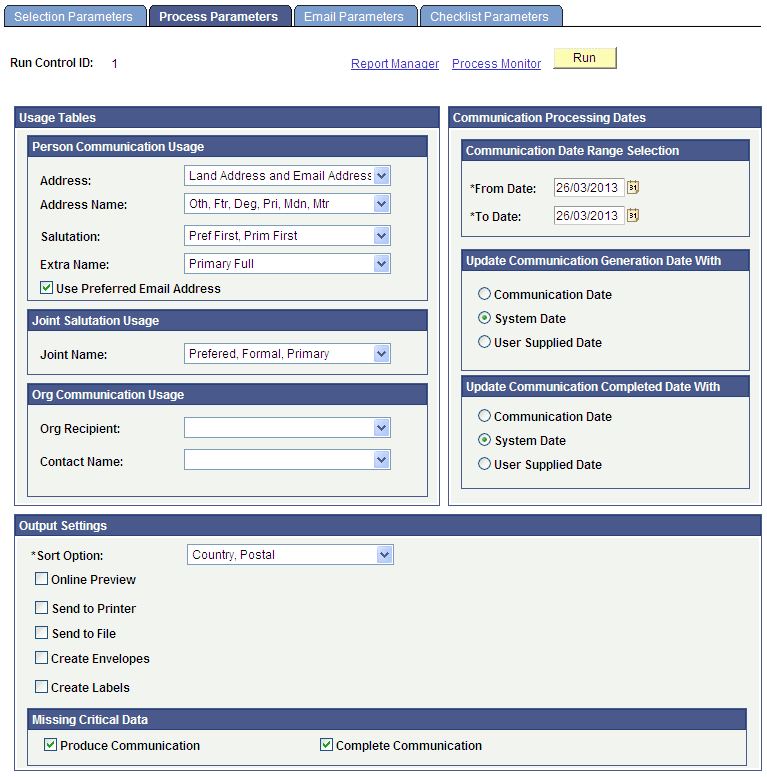
Person Communication Usage
Fields in this group box are available for input only if the ID Selection field on the Selection Parameters page is set to All IDs, All Person IDs, One Person ID, or Population Selection.
If the field is available, you must enter the usage to use for searching for data for that field.
| Field or Control | Description |
|---|---|
|
Address |
Enter the type of address, from the Address Usage page, to extract for this communication. You can list address types in a preferred search-and-use order. For example, if you list an address usage that contains mailing, billing, and home address types, the system searches for the mailing address first; if none exists, then for the billing address; if none exists, for the home address last. Warning! If the Communication Generation process encounters IDs that are set to receive an email but the address usage does not include email types, the process cannot send the email and therefore will not generate the communication for those IDs. When the method selected on the Selection Parameters page is Email or Preferred, then the address usage must include email types or a combination of address types and email types; at least one template for the main letter code must be for emails. |
|
Address Name |
Enter the type of name, from the Name Usage page, to extract for the address section of this letter. As with addresses, you can list address name types in a preferred search-and-use order. |
|
Salutation |
Enter the type of name, from the Name Usage Table page, that the system should extract for use in the opening or salutation of this communication. For example, you might want to use the individual's primary full name in the address section of the letter, but use his preferred first name in the salutation (Dear Dave). As with addresses, you can list salutation name types in a preferred search-and-use order. |
|
Extra Name |
The extra name is an additional way to extract name data using the name usage. For example, you might want to use the individual's primary full name in the address section of the letter (Mr. Juan M. Dominguez), his preferred first name in the salutation (Dear Juan), and his last name in the text to say "We are sure the Dominguez family will enjoy participating in this event." As with addresses, you can list ID name types in a preferred search-and-use order. |
|
Use Preferred Email Address |
Select this check box to use the preferred email address (as indicated on the Electronic Addresses page) for this communication. |
Joint Salutation Usage
The Joint Name field is available for input only if the ID Selection field on the Selection Parameters page is set to All IDs, All Person IDs, One Person ID, or Population Selection, and only if the letter code is set to permit joint communications. The available Joint Name values are applicable values from the Name Usage Table.
If the field is available, you must enter the name type to use in the salutation for joint communications.
Org Communication Usage
Fields in this group box are available for input only if the ID Selection field on the Selection Parameters page is set to All IDs, All Org IDs,One Org ID, or Population Selection.
If the field is available, you must enter the usage to use for searching for data for that field.
| Field or Control | Description |
|---|---|
|
Org Recipient |
Enter the usage for the process to evaluate. The process evaluates this usage to find and retrieve the recipients to use for the organization communication. |
|
Contact Name |
Enter the usage for the process to evaluate. The process evaluates this usage to find and the name type to use in the output for each organization recipient contact. |
Communication Date Range Selection
Enter the date range of the communication records from which to extract data. For example, you might want to extract data only from IDs to which you assigned a specific letter code and set the communication date to between January 1 and March 1 of the current year.
The From and To date ranges are inclusive of the dates that you enter.
Update Communication Generation Date With
Select the date to use as the date when the communication is generated. When the Communication Generation process finishes, it enters this date in the Communication Generation Datefield in the Communication Management component for persons or organizations as appropriate.
| Field or Control | Description |
|---|---|
|
Communication Date |
Select to use the communication assignment date from the Person Communication page for individuals or the Organization Communication page for organizations, to use as the date of generation. |
|
System Date |
Select to extract the current system date to use as the date of generation. |
|
User Supplied Date |
Select to use the specified date as the date of generation. You must supply the desired date. |
Update Communication Completed Date With
Select the date for the system to use as the communication completed date on the communication record.
| Field or Control | Description |
|---|---|
|
Communication Date |
Select to use the date when the communication was assigned as the communication completed date. |
|
System Date |
Select to use the current system date as the communication completed date. |
|
User Supplied Date |
Select to use the specified date as the communication completed date. You must supply the desired date. |
Output Settings
Specify how to sort the generated outputs. You can choose to preview a sample of the outputs before running the process, or if the communication is a letter, you can choose to send the output directly to the printer for printing.
WARNING:
If you do not select either Preview Online or Send to Printer, when the process runs it generates the communication. If, in the Standard Letter Table CS component, Letter Printed Data is set to either Name/Address Only or All for the letter code, then the process saves the data indicated and inserts the View Generated Communication link in the Person or Organization Communication Management components. You must manually navigate to the Communication Management component for each of the processed IDs to view or print the final outputs individually. If the Letter Printed Data is set to None for the letter code, the process generates the communications, but does not save data or make the output retrievable. If the communication is an email, the process sends the email to the specified IDs.
| Field or Control | Description |
|---|---|
|
Sort Option |
Enter how to sort the generated outputs. Available options are: All Alphabetically by ID Type to sort first, organization communications sorted alphabetically by the first letter of each recipient's name, contact, department, or location name depending on how the output is addressed, and then individual communications alphabetically by each recipient's last name/first name. Country, Postal (default value) to sort by each recipient's postal or zip code. Use this sort option to streamline mass mailings sent through the postal service. Country, Postal by ID Type to sort first, organization communications by each recipient's country and postal address, and then individual communications by each recipient's country and postal address. |
|
Online Preview |
Select to preview the output online in PeopleSoft Report Manager. When selected, the system sends a sample of all related outputs to PeopleSoft Report Manager with corresponding links for you to click to preview each output. For example, if an ID has two enclosures and three communication recipients, Report Manager displays a total of 12 document links labeled with the report definition name for each letter code and the name of each recipient. One document link is for the main letter code output and two links are for the enclosures associated with the main ID. The same links appear for each of the three recipients. Note: Previews do not cause communications to be marked Completed and no information is entered in the Person or Organization Communication Management components for the communication. When generating communications for multiple IDs, the online preview functionality extracts data for previews of only the first 10 IDs and their enclosures and recipients. |
|
Email Address |
If the communication method usage is either Email or Preferred on the Selection Parameters page and the Online Preview check box is selected, then the Email Address field appears. Enter an email address whose inbox you can access to see how the emails will be sent. When you provide an email address for online previewing, the generated outputs do not appear in the PeopleSoft Report Manager. Continuing with the example from the Online Preview field, the email address that you enter will receive four different emails: one for the main ID and one for each of the three recipients. The enclosures will be attachments to the emails. If an email is missing for a specific recipient, it is probably because no email address exists in the Related ID (or Name) field in the Relationships component. Note: The Communication Generation process uses the main letter code template as the body of the email text. To do so, the process automatically converts the format of the main letter template to HTM format. Enclosures, if assigned, are not converted. The process includes them as attachments using the default output format set in the report definition. See Entering Relationship Addresses. See PeopleTools: Process Scheduler, "Using Report Manager." |
|
Send to Printer and Destination Printer |
If the communication method usage is either Letter or Preferred on the Selection Parameters page, then the Send to Printer option is available. Select the check box to send letter communications directly to the printer. When selected, the Destination Printer field appears. You must enter the path to the printer. When you are generating letters, you can retrieve the output at the specified printer or by clicking the View Generated Communication link in each processed ID's Person or Organization Communication component (if the letter code is set to save the data to the communication record), or both. Note: If, on the Selection Parameters page, the communication method usage is Email or the Online Preview check box is selected, then the Send to Printer option is unavailable. You cannot send an email to the printer, nor can you send communications set to Online Preview to the printer. See PeopleTools: BI Publisher for PeopleSoft |
|
Send to File and File Path |
If the communication method usage is either Letter or Preferred on the Selection Parameters page, then the Send to File option is available. Select the check box to save the generated letter communications as a single file. When selected, the File Path field appears. You must specify the file path to use. When the process runs, it sorts and merges all the final letters into one file and saves it to the file path that you entered. The filename is CommGen_<process instance nbr>.pdf, where <process instance nbr> is the unique process instance number assigned by the Communication Generation process for that run. You can use the file to make last-minute changes to the communications or send to a third-party vendor such as a mailing company. Note: If, on the Selection Parameters page, the communication method usage is Email or the Online Preview check box is selected, then the Send to File option is unavailable. You cannot save an email to a file, nor can you save communications set to Online Preview to a file. When you are generating letters, you can retrieve the output from the file at the destination you specify or by clicking the View Generated Communication link in each processed ID's Person or Organization Communication component (if the letter code is set to save the data to the communication record), or both. Note: The file created is a .pdf file regardless of the format type defined in the report definition associated with the letter code. See PeopleTools: BI Publisher for PeopleSoft. |
|
Create Envelopes, Create Labels and Report Name |
If the communication method usage is either Letter or Preferred on the Selection Parameters page, then the Create Envelopes and Create Labels options are available. Select the appropriate check box to generate envelopes or address labels for the letter communications. When selected, the Report Name link appears. You must select the report definition for the Communication Generation process to use. The report definition enables the process to retrieve address information from the associated data source to merge into the appropriate envelope or label template. Only the report definitions that are created with a data source configured with the same administrative function used in the main letter code are available. For example, if the main letter code has a data source configured for the ADMA administrative function, then only the report definitions created with a data source set up for administrative function ADMA are available for envelopes and labels. Warning! The Communication Generation process does not re-extract data for envelopes and labels. It reuses the data extracted for the main letter code report definition to merge inside the envelope or label template. This ensures consistency between the address, the salutation information printed on the letter, and the name and address on the envelopes and labels. If you need to extract additional data to include on the envelopes or labels (for example, you might want to print the name of the admissions recruiting center for the ID on the envelope or label), then you must include the data inside the data source of the report definition for the main letter code. If the data is not in the data source for that report definition, it will not be extracted. When the Send to File option is selected and you select Create Envelopes or Create Labels, the process sorts and merges all the address data into one file and saves it to the file path that you entered. The process applies the salutation, address, and sort order specified for the main letter to the corresponding envelopes and labels. The filename for envelopes is CommGenENV_<process instance nbr>.pdf and the filename for labels data is CommGenLBL_<process instance nbr>.pdf, where <process instance nbr> is the unique process instance number assigned by the Communication Generation process for that run. Note: When Send to File is selected, the file format is always .pdf regardless of the format type defined in the Report Definition used for generating the labels or envelopes When the letter code is set to save data to the communication record and the Create Envelopes option is selected, the Communication Generation process saves the respective envelope inside each processed ID's Person or Organization Communication Management component. Click the View Generated Communication link, and then the View Envelope link to view and reprint the envelope if needed. Note: The Create Labels option does not make the generated label available inside the Person or Organization Communication Management component for the IDs processed. Use the Create Envelopes option to recreate the label if needed. |
|
Envelope Printer and Label Printer |
If the Send to Printer check box is selected and you select the Create Envelopes or Create Labels options, the Envelope Printer or Label Printer field appears. Enter the path to the printer that is set up to print envelopes or to the printer that is set up to print labels. |
Report Definitions for labels and envelopes must use the same administrative function as the administrative function associated with the main letter code. Consider creating report definitions and data sources for each administrative function that you use. The following table provides an example of delivered elements for labels and envelopes for three sample administrative functions.
| Admin Function | Data Source | Label Template | Envelope Template | Label Report Definition | Envelope Report Definition |
|---|---|---|---|---|---|
|
ADMA |
QA_CS_LBLENV_ADMA |
QA_CS_CC_LABEL.rtf |
QA_CS_CC_ENVELOPE.rtf |
QA_CSLBLADMA |
QA_CSENVADMA |
|
AVIN |
QA_CS_LBLENV_AVIN |
QA_CS_CC_LABEL.rtf |
QA_CS_CC_ENVELOPE.rtf |
QA_CSLBLAVIN |
QA_CSENVAVIN |
|
GEN |
QA_CS_LBLENV_GEN |
QA_CS_CC_LABEL.rtf |
QA_CS_CC_ENVELOPE.rtf |
QA_CSLBLGEN |
QA_CSENVGEN |
See Creating a Data Source File.
See PeopleTools: BI Publisher for PeopleSoft, "Creating Report Templates."
WARNING:
When generating letters, you must select either Send to File or Send to Printer to ensure the ability to retrieve and view the letter outputs. If you do not select either Send to File or Send to Printer, you must manually navigate to each processed ID's communication component to retrieve and view the output. However, the output is in the communication record only if the assigned letter code is set to save it there.
For emails, the process automatically sends the generated communication to each processed ID. You cannot retrieve and view an email output before sending. You can however, select Send to File or Send to Printer to retrieve and view the email that was sent.
Missing Critical Data
| Field or Control | Description |
|---|---|
|
Produce Communication |
Select this check box for the process to produce the communication even if critical data is missing, for example, even if address information or name of the recipient is missing. |
|
Complete Communication |
Select this check box for the process to set the status to Complete on the communication record, even if critical data is missing. Critical data is set in the Communication Data Source component. Note: If Email Address for Person for individuals or Organization Recipient Email and URL information for organizations, is not marked as critical data, the process considers the email address to be critical data for generating an email. |